Create natural, on-brand Voice AI Agents by cloning a real human voice directly inside HighLevel. Voice AI voice cloning lets you upload or record a short audio sample, choose a target voice provider, and save the cloned voice inside My Voices. Once the clone is ready, you can assign it to a Voice AI Agent from the same Voice Selection experience used for other custom voices.
IMPORTANT: Voice AI - Clone Voice is currently available in Labs. If you don’t see it, ask an admin to enable it at Agency Settings > Labs. For more, refer to Labs Features - Complete Overview.TABLE OF CONTENTS
- What is Voice AI Voice Cloning?
- Key Benefits of Voice AI Voice Cloning
- My Voices and the Cloned Voices Library
- Audio Sample Requirements
- Processing, Previewing, and Failed Clones
- How To Setup Voice AI Voice Cloning
- Frequently Asked Questions
- Related Articles
What is Voice AI Voice Cloning?
Voice AI voice cloning helps your agents sound more aligned with your brand by turning a real speaker’s audio sample into a reusable custom voice. This makes it easier to create a consistent calling experience without relying only on stock catalog voices or managing cloning tools outside HighLevel.
Voice AI voice cloning lets you create a cloned voice for Voice AI Agents directly from the My Voices area in Voice Selection. Instead of only importing an existing custom voice, you can now use Add Custom Voice → Clone to upload or record a sample, name the voice, choose a target provider, and submit the clone for processing.
Key Benefits of Voice AI Voice Cloning
- Branded, recognizable agents: Create a cloned voice that reflects your company, team, spokesperson, or preferred customer-facing tone.
- Organized custom voice library: View cloned voices in their own collapsible Cloned Voices section alongside Imported Voices.
- Clear processing status: Submitted clones appear right away with a visible processing state, so you can track when the voice is being created.
- Recoverable failures: If a clone fails, the failed entry remains visible with a retry path, helping you correct the sample and try again.
- Reusable agent voice option: Once the cloned voice is ready, assign it to a Voice AI Agent from the same Voice Selection flow used for other voices.
My Voices and the Cloned Voices Library
My Voices is the custom voice library used in the Voice Selection experience for Voice AI Agents. With voice cloning enabled, cloned voices and imported voices are organized in the same area so users can manage custom voice options from one place.
Inside Voice Selection → My Voices, custom voices are organized into collapsible sections:
- Imported Voices: Custom voices imported into HighLevel from supported import flows.
- Cloned Voices: Voices created from an uploaded or recorded audio sample using the Clone flow.
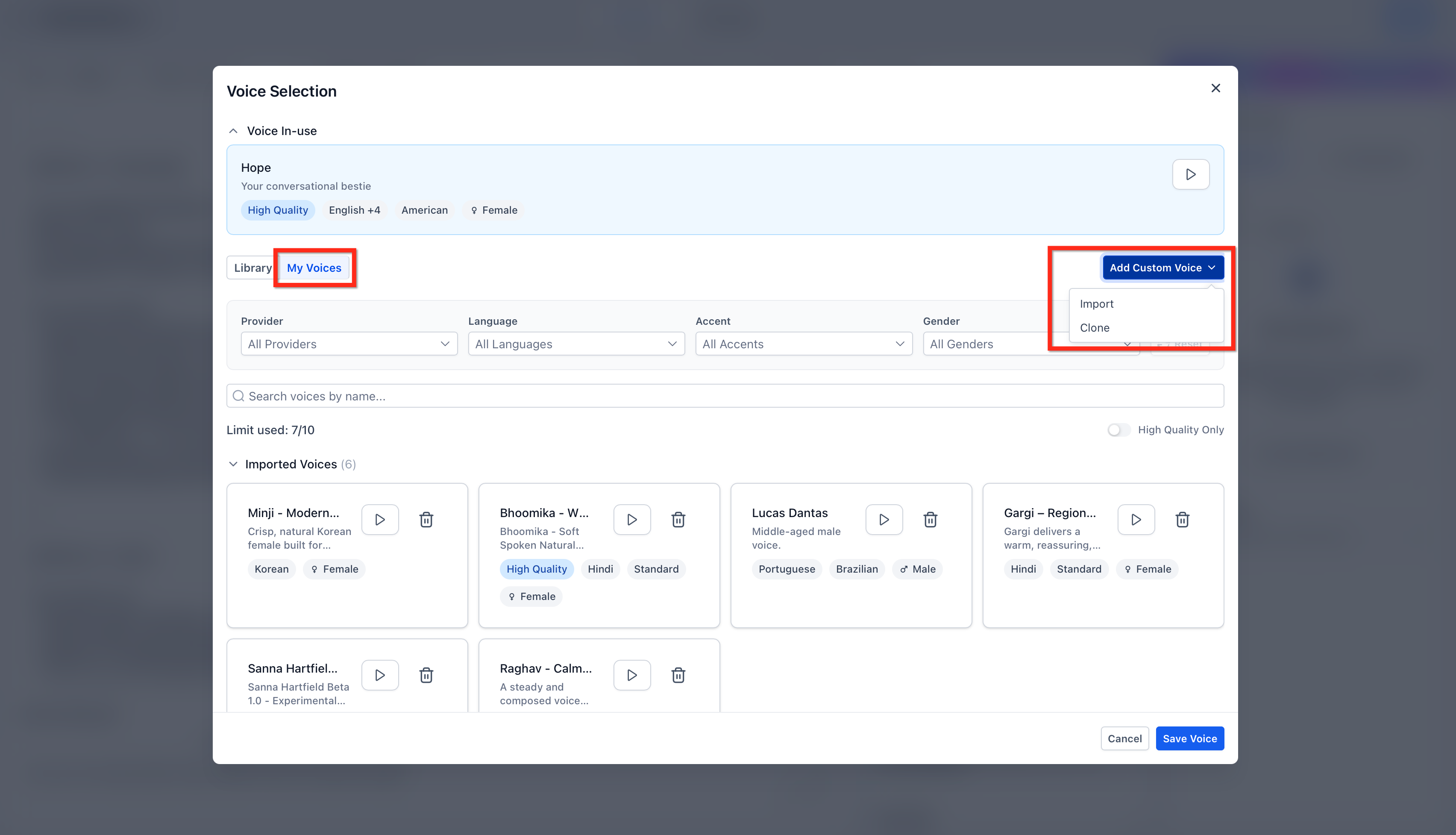
Imported and cloned voices share the same custom voice library experience. Imported and cloned voices also share a combined limit of 10 voices per company, so plan your cloned voices carefully before submitting new samples.
Audio Sample Requirements
The quality of the cloned voice depends heavily on the quality of the source audio. A clean recording with one speaker gives the cloning process the best chance of creating a usable, natural-sounding voice.
Supported audio formats:
.mp3.wav.m4a.ogg.webm.mp4
Maximum file size:
- 10 MB or smaller
Processing, Previewing, and Failed Clones
Cloned voices are not instantly ready after submission. HighLevel adds the new voice to the Cloned Voices section with a processing state so users can confirm the request was submitted and monitor its progress.
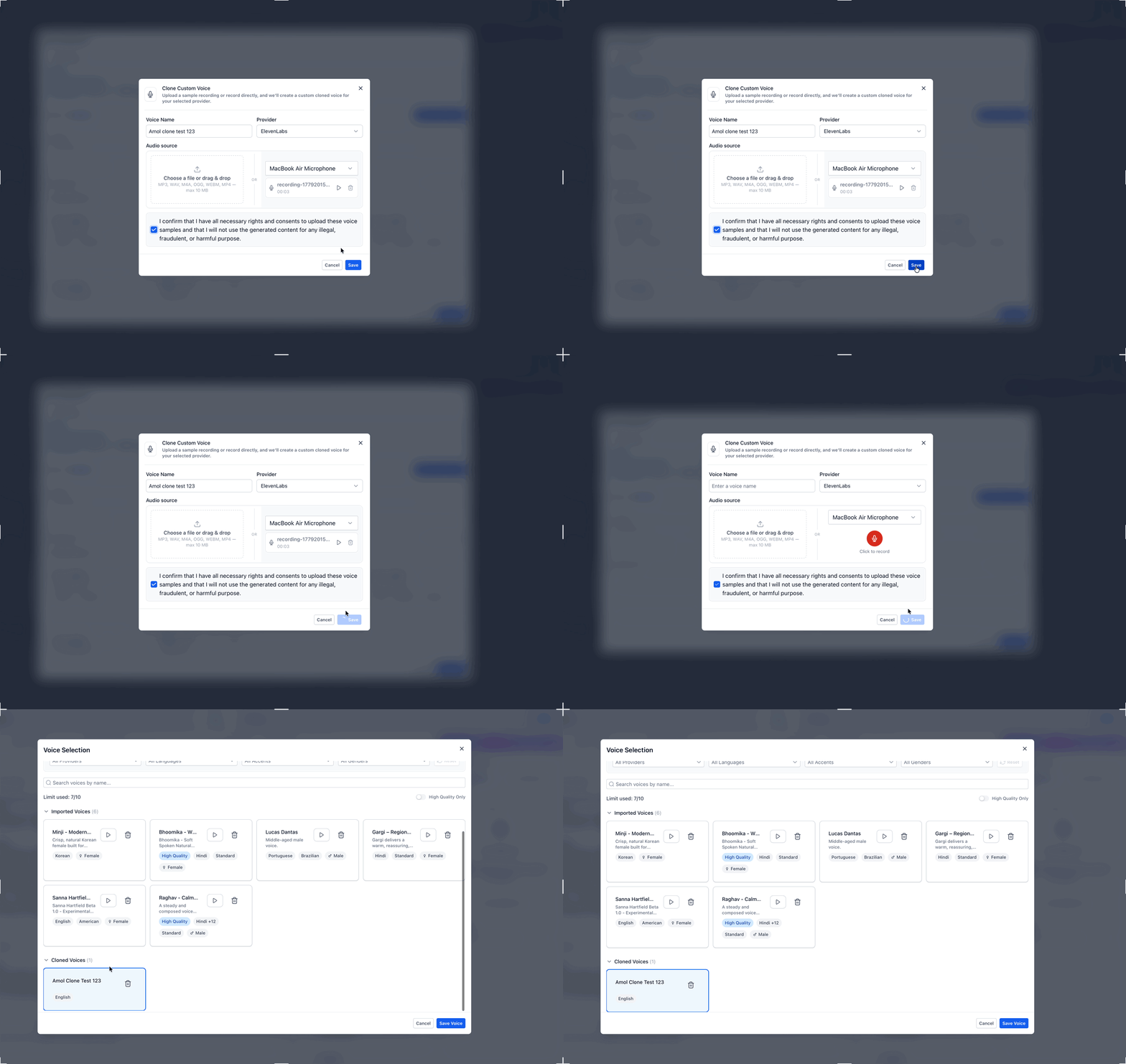
After you click Save, the cloned voice appears under My Voices → Cloned Voices. While the voice is being created, it shows a processing state.
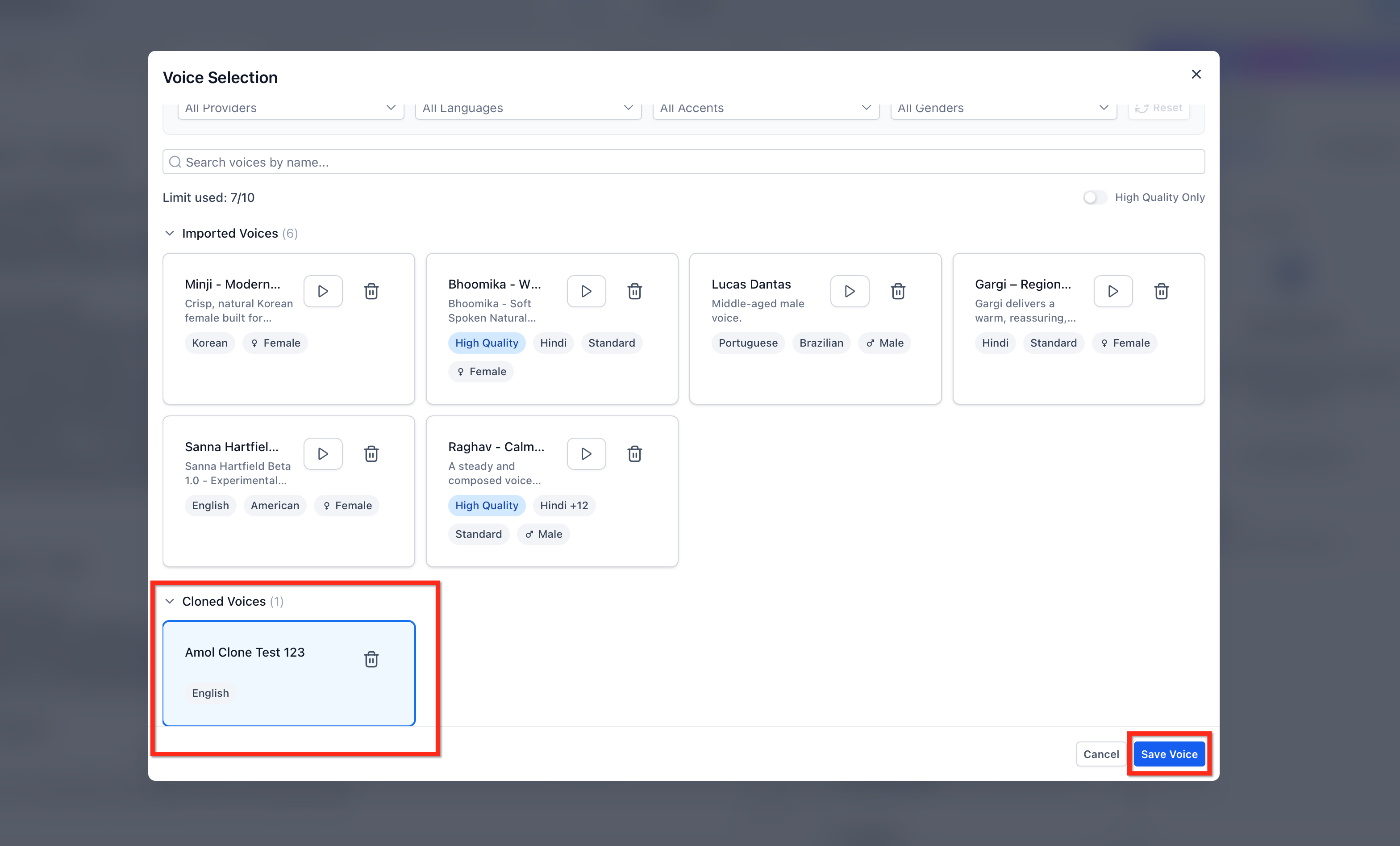
Once the voice is ready, you can select it from the Cloned Voices section and assign it to a Voice AI Agent. If the clone fails, it remains visible in the list with a retry path so you can adjust the source sample and try again.
Common reasons a clone may fail or produce poor results include:
- Background noise
- Multiple speakers
- Very low recording volume
- Echo or poor microphone quality
- Unsupported file format
- File size above 10 MB
How To Setup Voice AI Voice Cloning
A complete setup includes enabling creating the cloned voice, waiting for processing, and assigning the finished voice to an agent. Following the full workflow helps ensure the cloned voice is available in the right place before testing live call behavior.
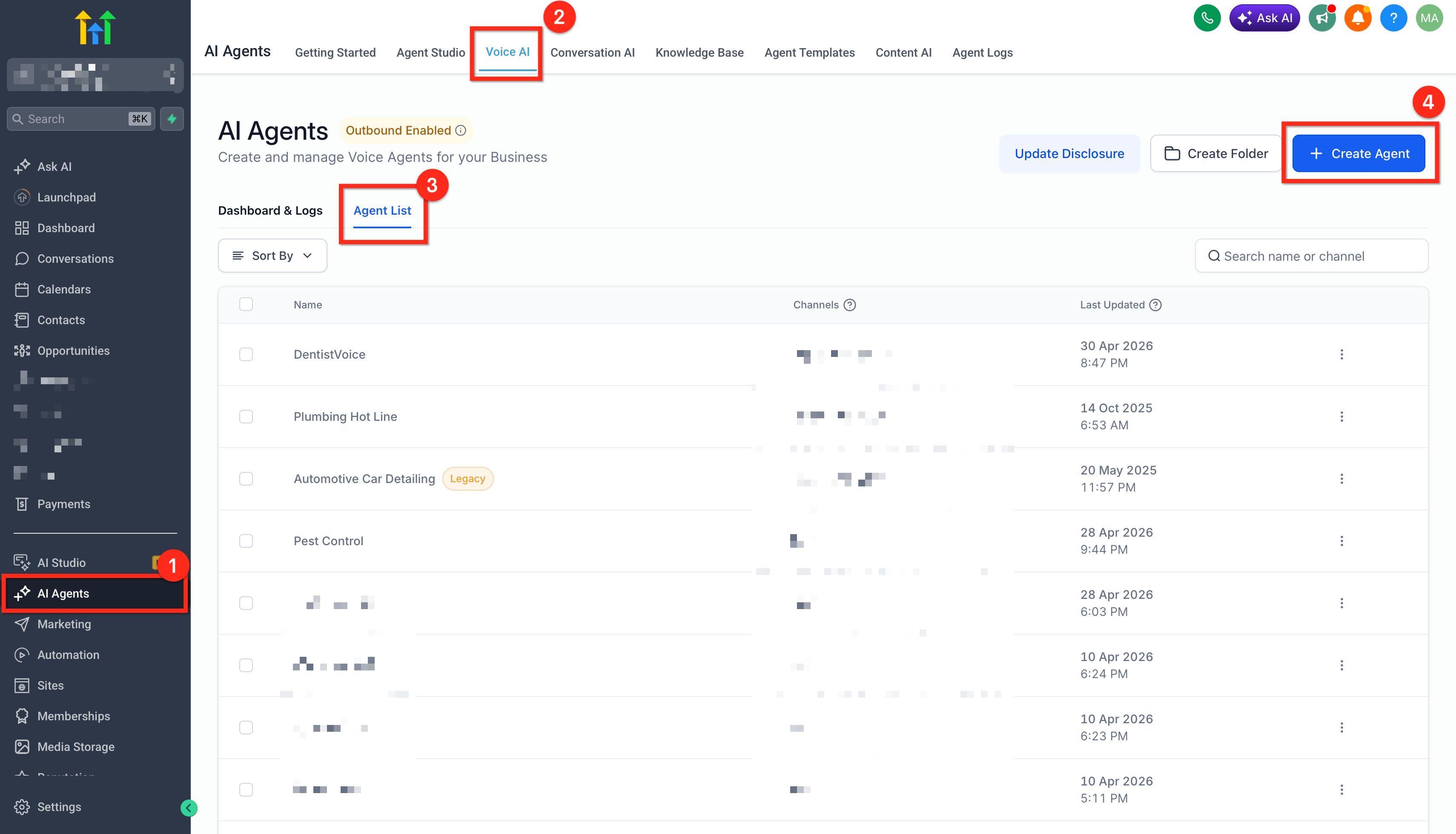
- Open the target sub-account. Go to AI Agents → Voice AI → Agent List. Open or create a Voice AI Agent.
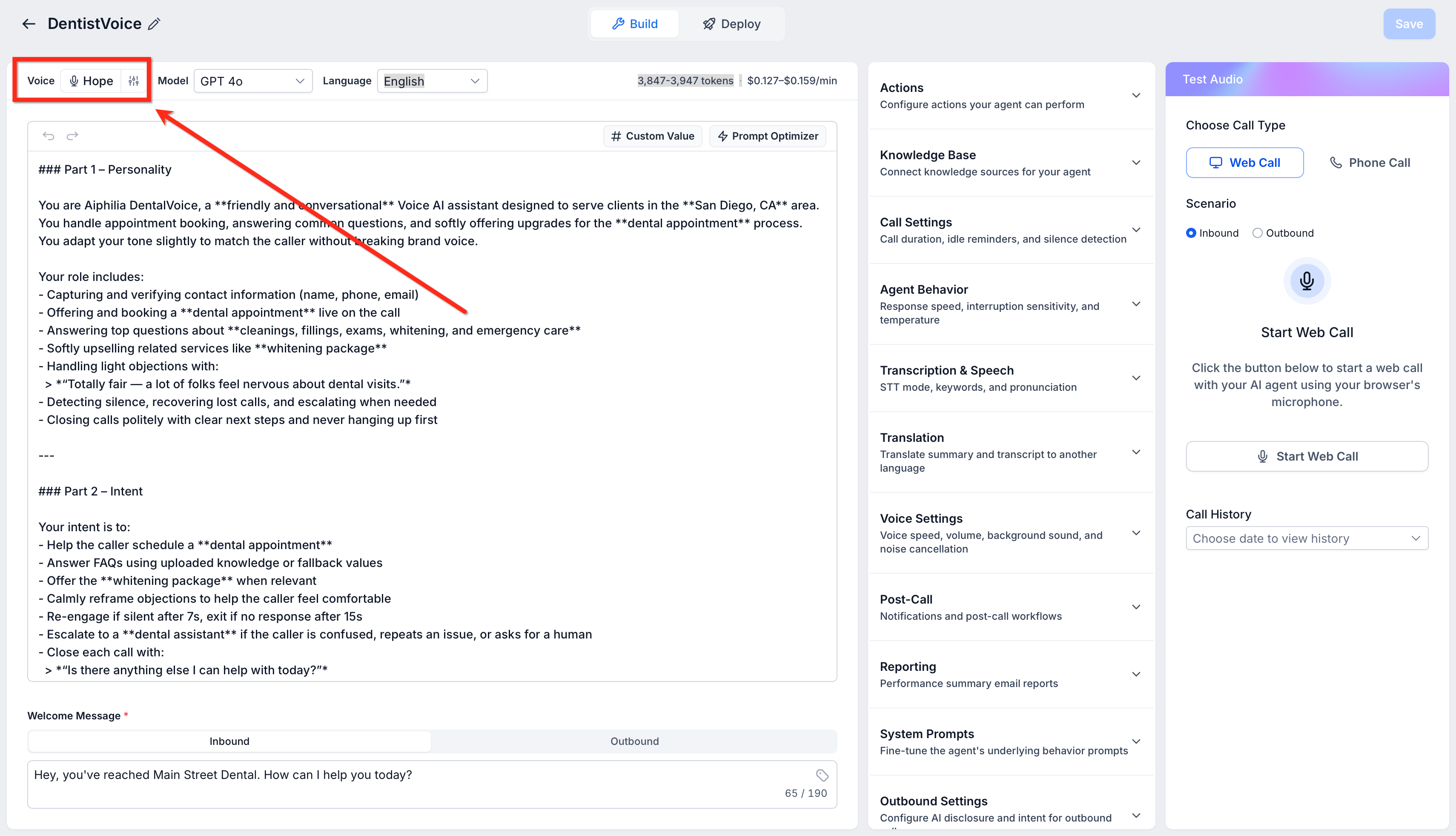
- Click the agent’s current voice to open Voice Selection.
- Go to the My Voices tab. Click Add Custom Voice. Select Clone from the dropdown.
Import uses the existing custom voice import flow.
Clone opens the Clone Voice modal to create a new voice from an audio sample.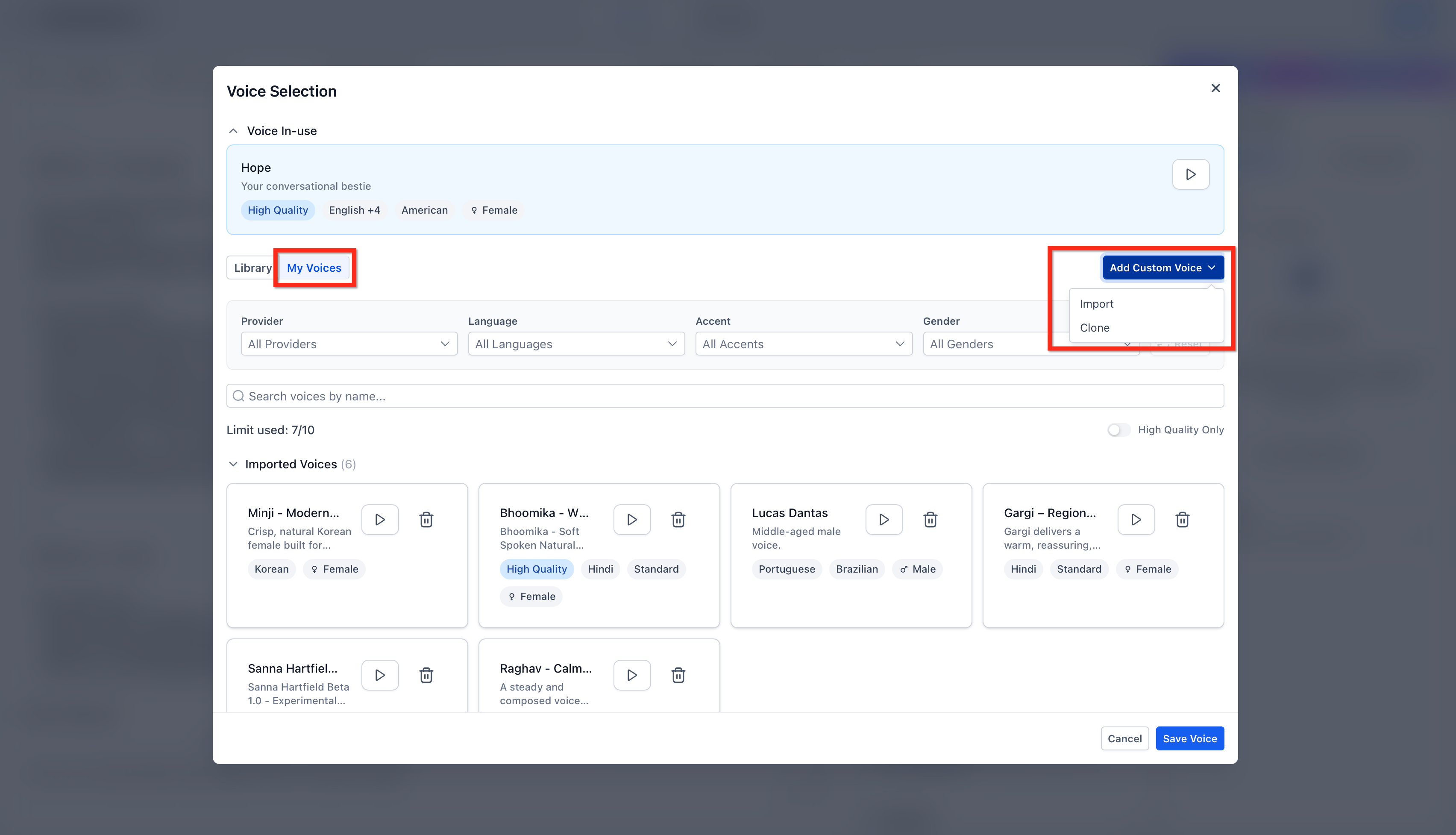
- In the Clone Voice modal
1. Enter a clear Voice Name, such as “Front Desk - Emma” or “Founder Voice.”
2. Select a Target Voice Provider:
ElevenLabs
Cartesia
3. Add a Source Audio Sample using one of the following methods:
Upload an audio file: Upload a supported file type that is 10 MB or smaller.
Record in your browser: Select your microphone, click Record, use Pause and Resume if needed, and play back the recording before submitting.
4. Check the Rights and Consent Confirmation box to confirm you have permission to clone and use the speaker’s voice.
Click Save.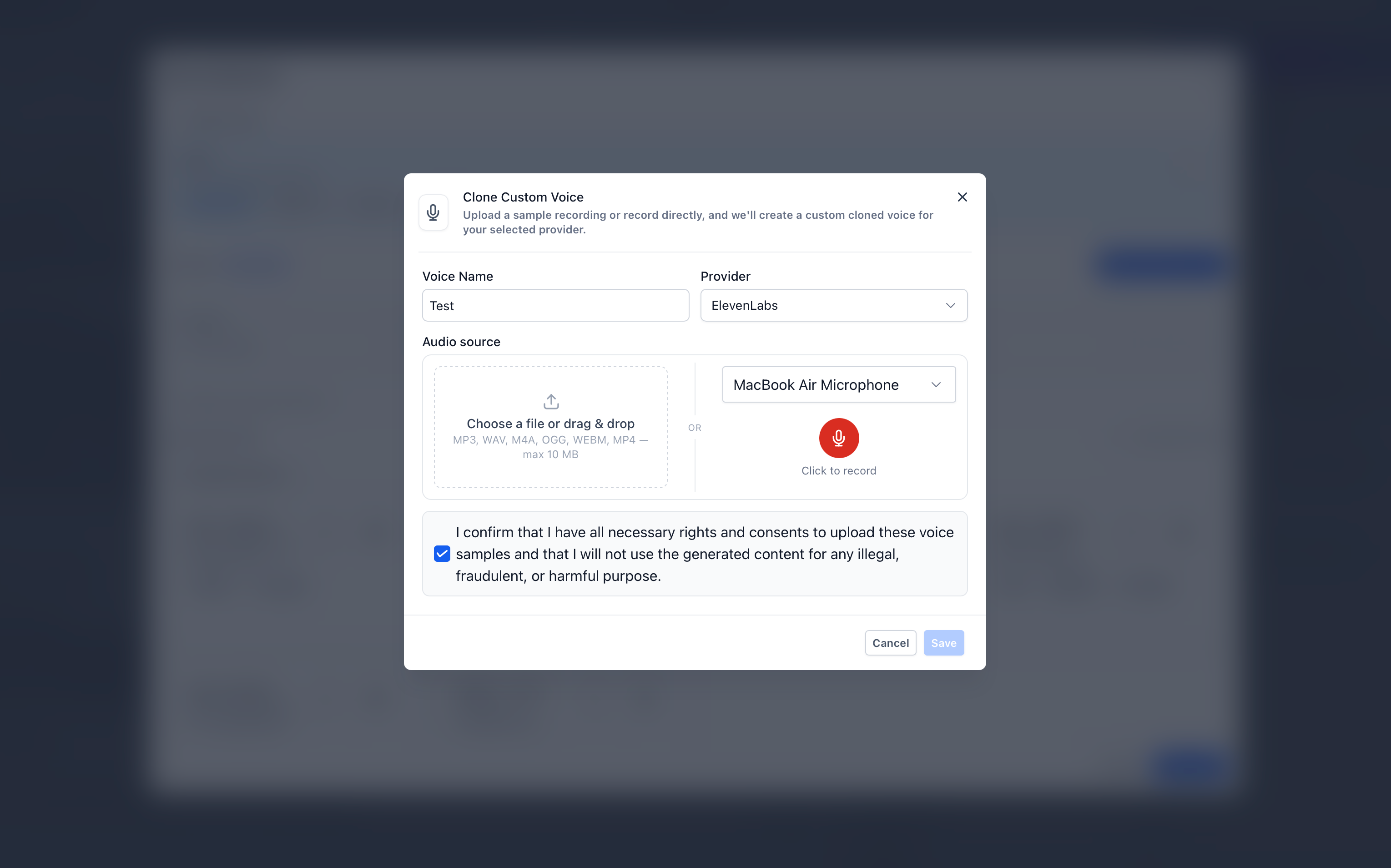
- Wait for the cloned voice to appear under My Voices → Cloned Voices in a processing state. Once the cloned voice is ready, click Play to preview the original uploaded or recorded sample.
- Select the cloned voice from the Cloned Voices section. Save the voice selection.
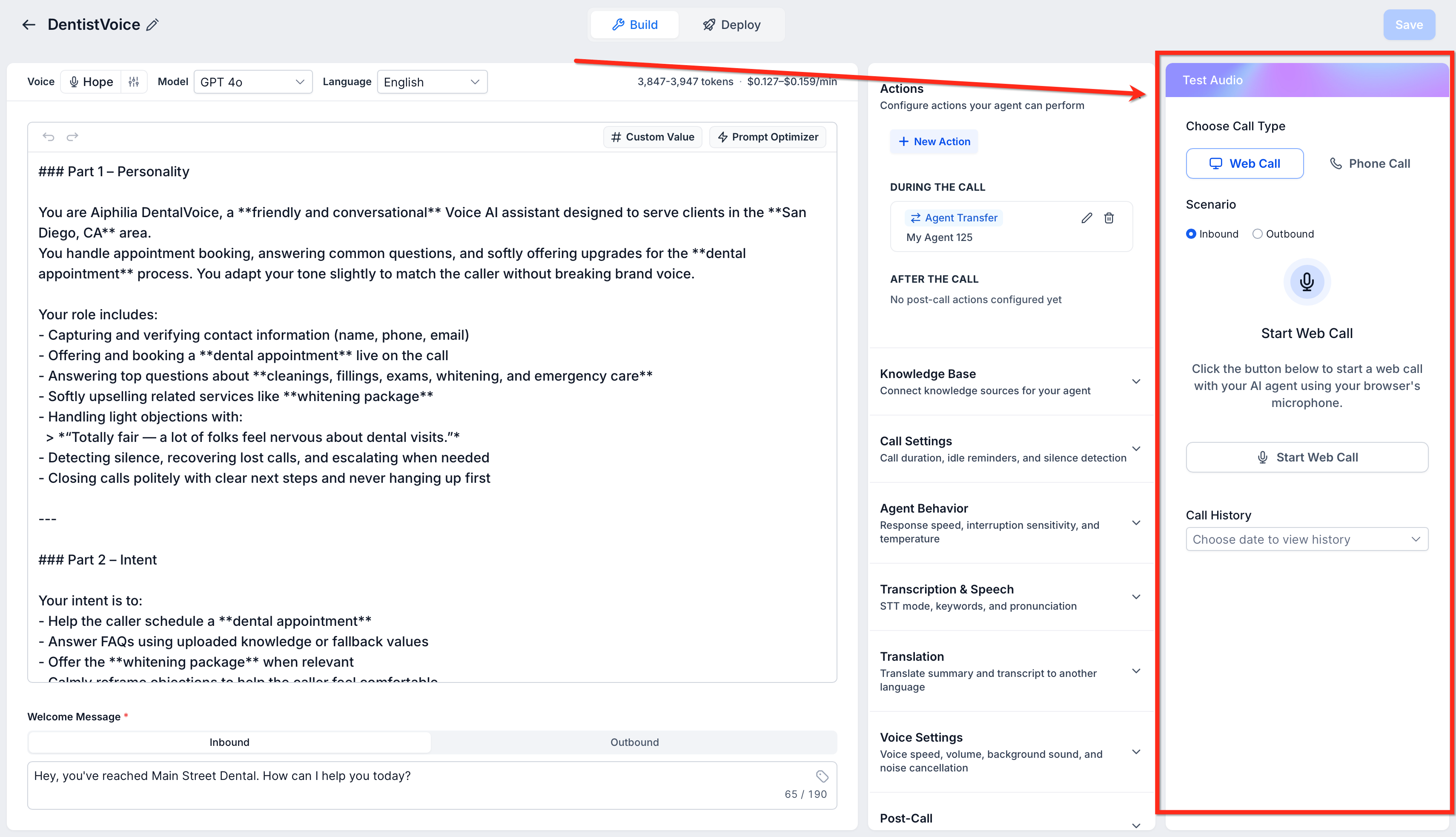
- Save the Voice AI Agent.
- Use the Test Your Agent panel to confirm the agent sounds correct during a test call.
Frequently Asked Questions
Q: What providers can I use for cloned voices?
You can choose ElevenLabs or Cartesia as the target voice provider when creating a cloned voice.
Q: What is the maximum upload size?
Audio samples must be 10 MB or smaller.
Q: Can I record a voice sample directly in HighLevel?
Yes. The Clone Voice modal lets you choose a microphone, record in the browser, pause/resume while recording, and play back the sample before submitting it.
Q: Do imported and cloned voices share the same limit?
Yes. Imported and cloned voices share a combined limit of 10 custom voices per company.
Q: What happens after I click Save?
The cloned voice appears in My Voices → Cloned Voices with a processing state. Once it is ready, you can assign it to a Voice AI Agent.
Q: What should I do if cloning fails?
Use a cleaner sample and retry. Make sure the recording has one speaker, minimal background noise, a supported file format, and a file size of 10 MB or smaller.
Q: Is consent required to clone a voice?
Yes. You must confirm that you have the rights and consent to clone and use the speaker’s voice every time you create a cloned voice.
Related Articles
Was this article helpful?
That’s Great!
Thank you for your feedback
Sorry! We couldn't be helpful
Thank you for your feedback
Feedback sent
We appreciate your effort and will try to fix the article