Use inbound call flow settings to route calls from a HighLevel phone number to a Voice AI agent. This helps your business answer incoming calls automatically, respond to caller questions, and reduce missed opportunities. This article explains how to connect a phone number to a Voice AI agent and adjust timeout settings so calls are handled correctly.
TABLE OF CONTENTS
- Voice AI WITHOUT Call Forwarding
- Adjust Inbound Call Timeout
- Frequently Asked Questions
- Related Articles
What is Inbound Call Flow for Voice AI Calls?
Inbound call flow for Voice AI calls allows HighLevel phone numbers to route incoming calls to a Voice AI agent. This setup helps businesses automate call answering, handle common questions, and make sure callers reach the right experience without relying only on manual call handling.
When a phone number is connected to a Voice AI agent, the agent can answer calls, speak with callers, respond based on its configuration, and support your inbound call process.
Key Benefits of Setting Up Inbound Call Flow
Automated call answering: Voice AI can answer inbound calls without requiring a team member to pick up first.
Faster response times: Callers can reach an active Voice AI agent right away when routing is configured correctly.
Better call coverage: Voice AI can help handle inbound calls outside normal working hours or during busy periods.
Improved routing control: You can decide how a phone number handles inbound calls by using the Call Forwarding settings.
Reduced missed opportunities: Proper timeout settings can help prevent calls from reaching local voicemail before Voice AI answers.
Where to Find the Call Forwarding Option?
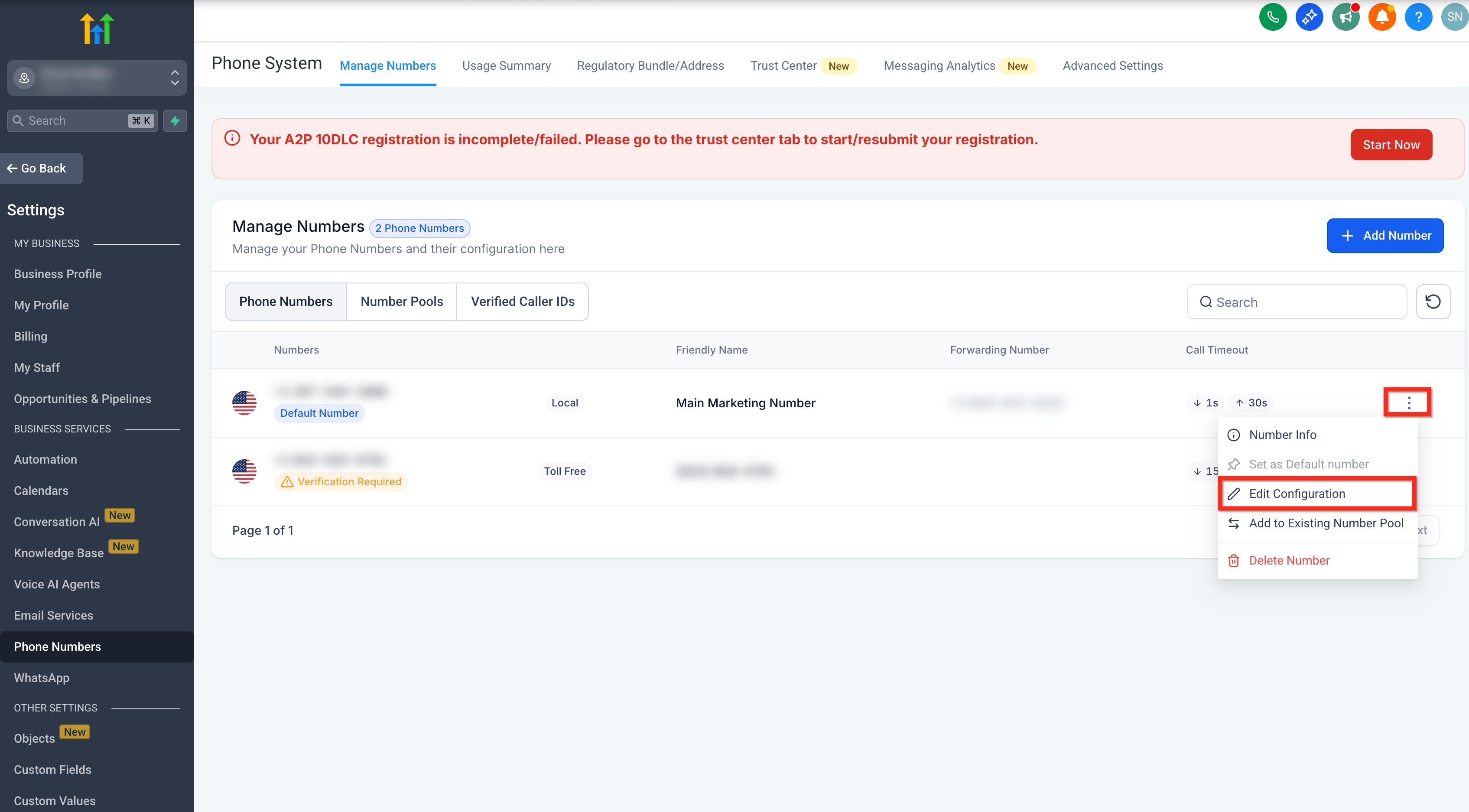
Step 1: Navigate to Manage Numbers
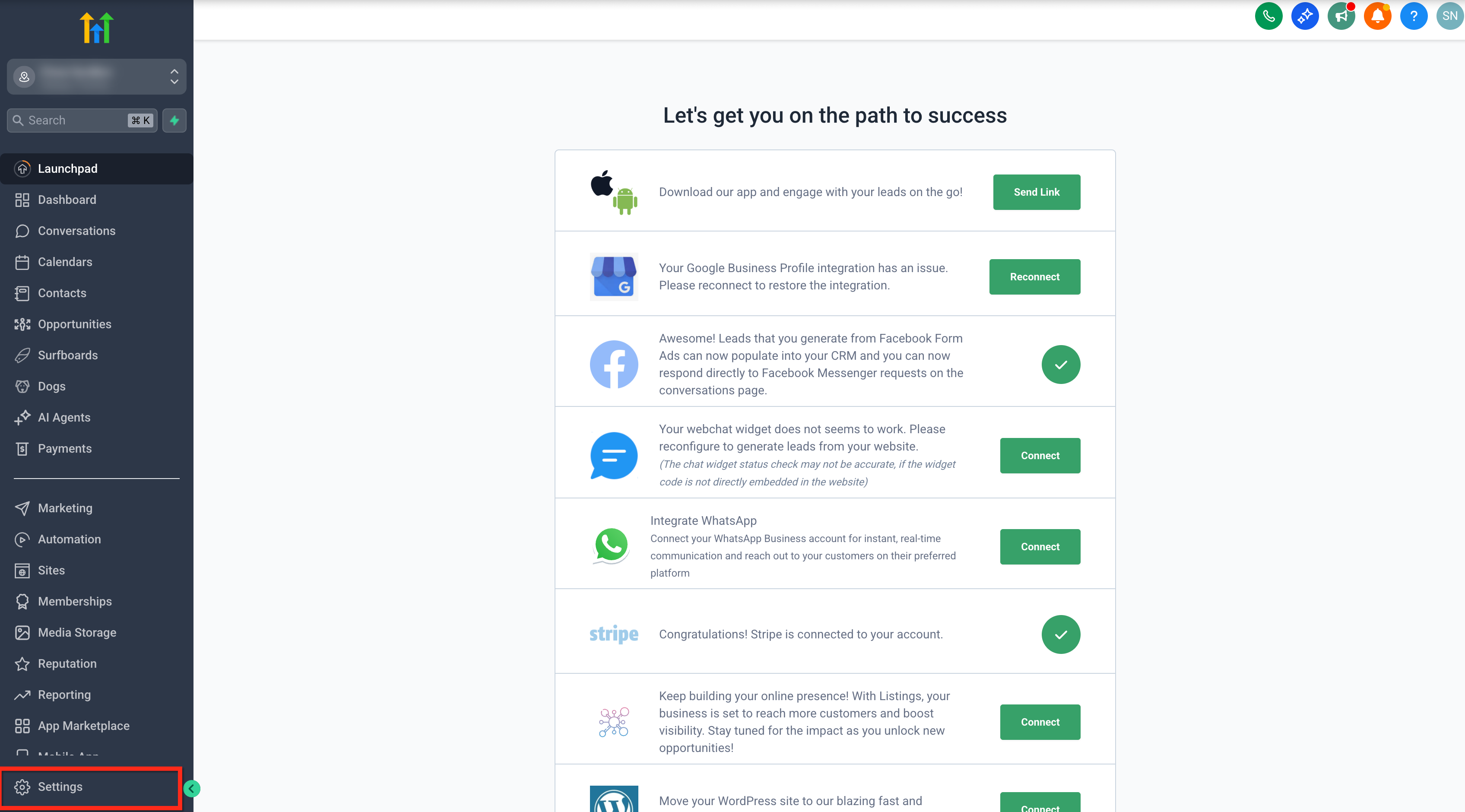
- Click on Settings from your sub-account.
- Click on the Phone System tab.
- List of available numbers for the sub-account will show under Manage Numbers tab.

Step 2: Navigate to Edit Configuration Option
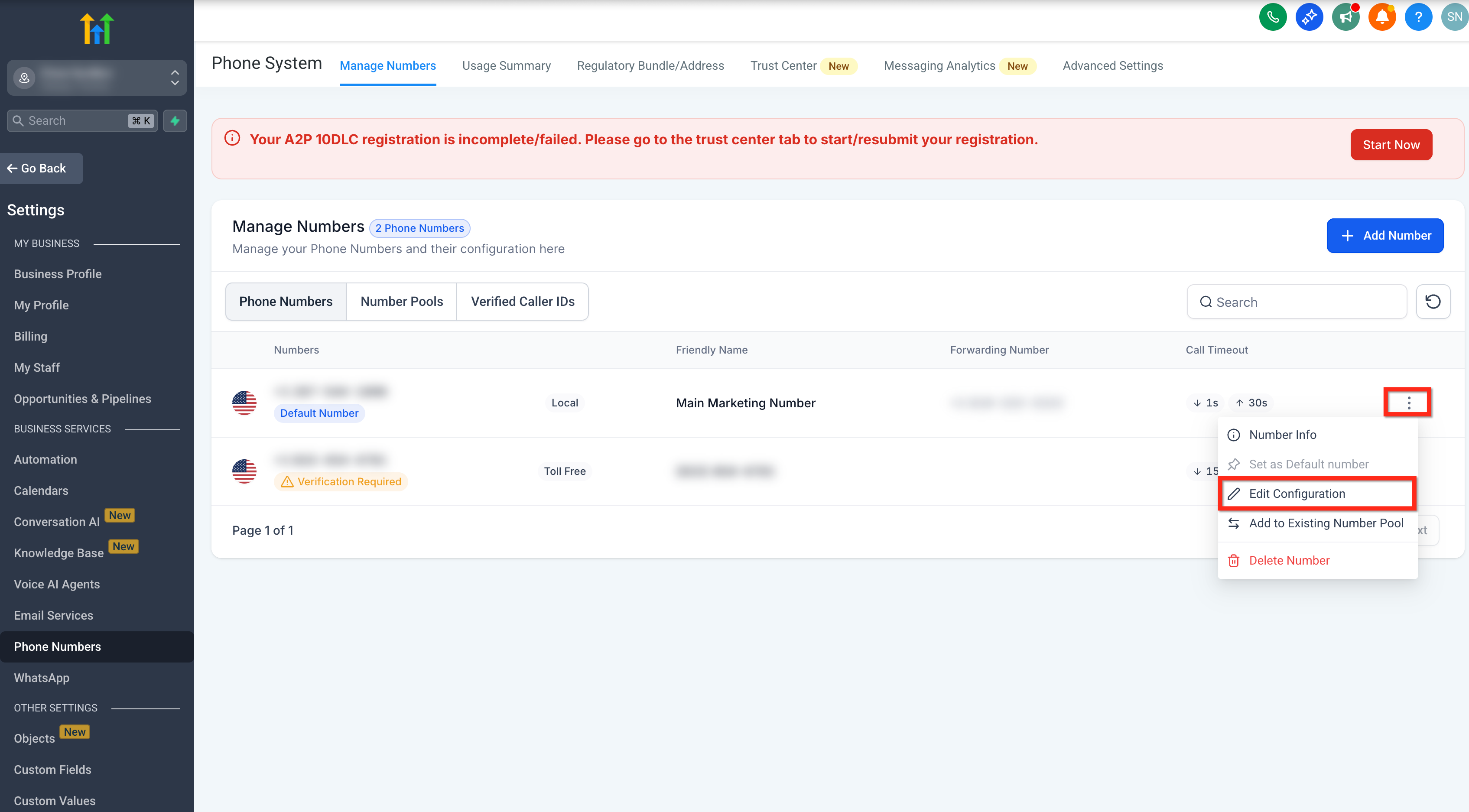
- Click on the Three Dots beside the number you want to configure.
- Click on the Edit Configuration option from the pop-up.
- Open the Call Forwarding tab.
- Under call routing, select or review the Voice AI option.

Voice AI WITHOUT Call Forwarding
IMPORTANT: If call forwarding is not enabled for a phone number used with a Voice AI Agent, the Voice AI Agent will always answer incoming calls to that number.

The only exception is when the phone number assigned to the AI Agent is your default sub-account phone number.
There are many reasons why sending your inbound calls directly to your Voice AI Agents would be beneficial, but the most likely scenario is that you are just too busy to answer the phone all day. If this is the case, the Voice AI Agent will be your personal office employee, answering calls, fielding leads, and collecting customer information for further follow-up!
To setup your Voice AI call flow so that your AI Agent always picks up the inbound call:
- Do NOT assign your default account phone number to your AI Agent.
- Do NOT assign call forwarding to the phone number assigned to your AI Agent.

Adjust Inbound Call Timeout
Inbound call timeout controls how long HighLevel waits before moving the call to the backup option. Keeping this timeout low helps prevent callers from reaching local voicemail before the Voice AI agent can answer.
Important: If the caller reaches local voicemail, HighLevel will mark the call as completed, and the Voice AI agent will not answer the call.To adjust the timeout:
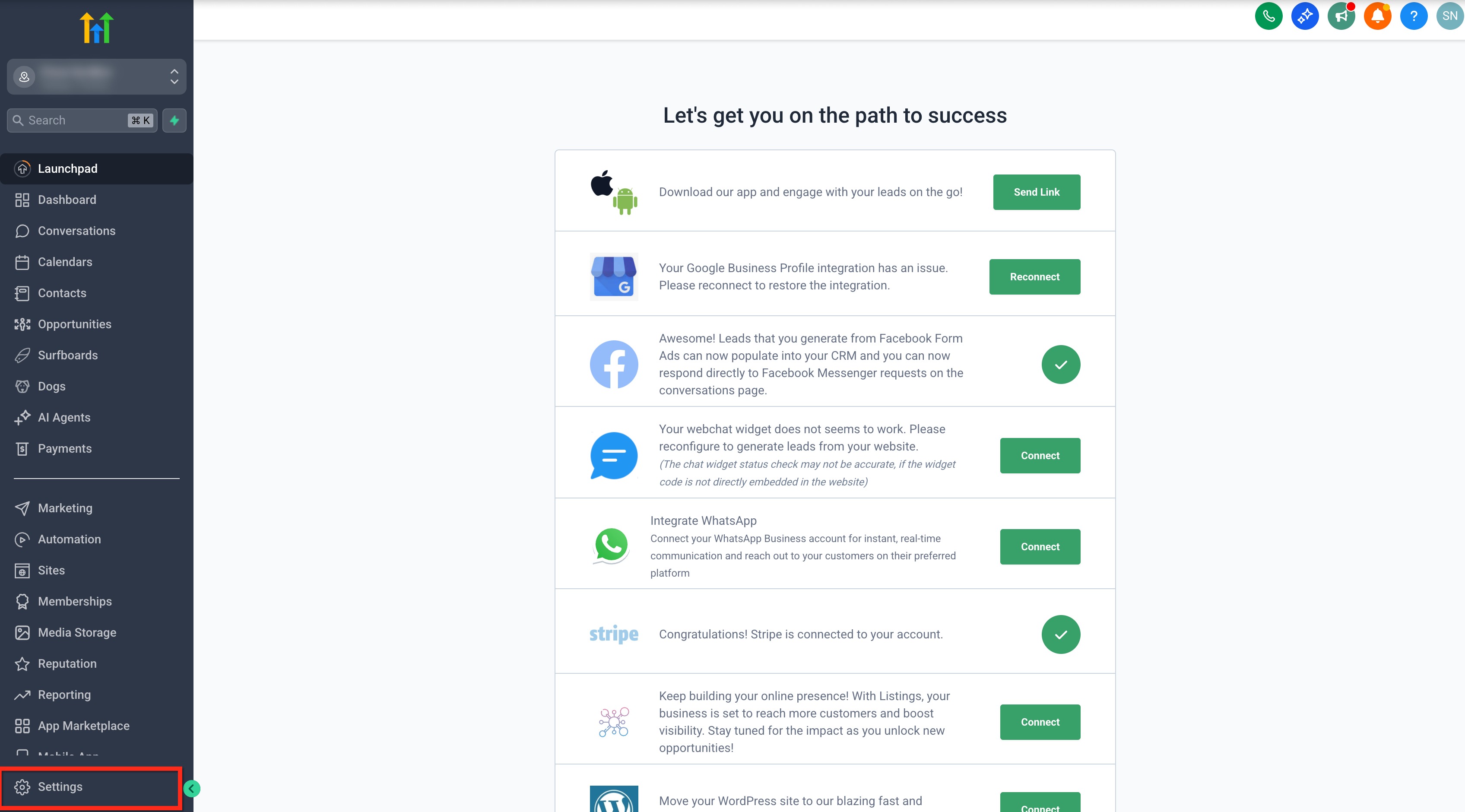
Go to Settings.
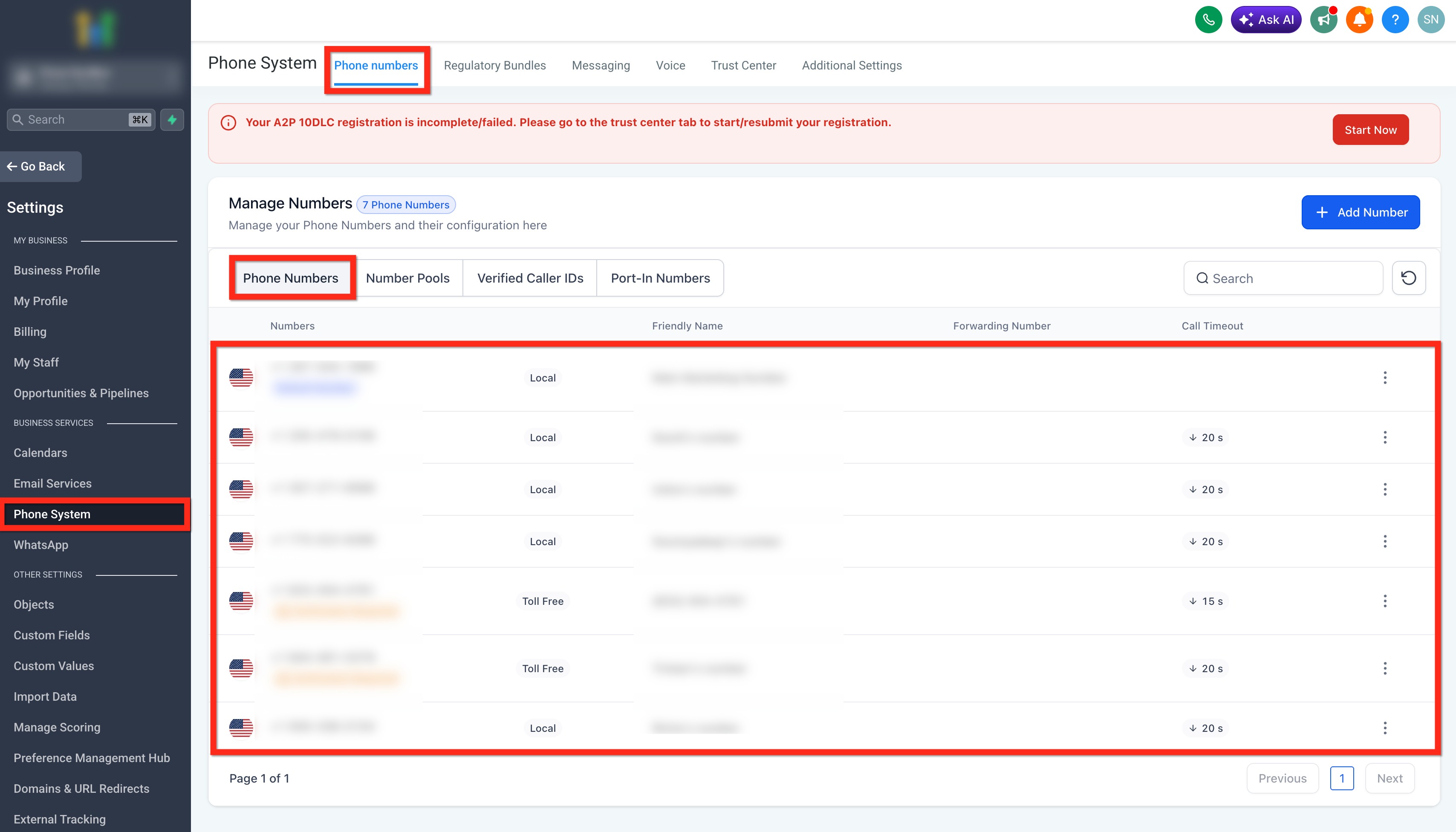
Select Phone System.
Open the Phone Numbers tab.
Click the three-dot menu next to the number.
Select Edit Configuration.
Open the Call Forwarding tab.
Locate the Timeout setting.
Reduce the timeout to a low value, such as 1–3 seconds. You may also set it to 0 seconds depending on your routing needs.
Save your changes.

Frequently Asked Questions
Q: Why is my Voice AI agent not answering inbound calls?
Make sure the phone number is assigned to the correct Voice AI agent from the agent’s Deploy tab. Then confirm the number’s Call Forwarding settings show Voice AI as the routing option.
Q: Can one Voice AI agent use multiple phone numbers?
Yes. You can assign multiple phone numbers to one Voice AI agent.
Q: Can I assign a number pool to a Voice AI agent?
Yes, where available. One number pool can be assigned to an agent.
Q: What happens if the call reaches my local voicemail first?
HighLevel may mark the call as completed, and the Voice AI agent will not answer. Reducing the inbound call timeout helps avoid this.
Q: Can I buy a new number while assigning numbers to a Voice AI agent?
Yes. From the phone number assignment screen, you can use the option to buy a new number if you do not already have one available.
Q: How can I confirm the setup is working?
Call the assigned phone number and confirm that the connected Voice AI agent answers the call.
Related Articles
Was this article helpful?
That’s Great!
Thank you for your feedback
Sorry! We couldn't be helpful
Thank you for your feedback
Feedback sent
We appreciate your effort and will try to fix the article