Learn when to use Web Call versus Phone Call testing, how to run each test method, where to review test-call logs, which Web Call limitations apply, and what to check when the Outbound scenario is unavailable.
Web Call does not replace phone-based validation. Web Call is ideal for fast prompt and conversation testing, but Call Transfer is not supported during Web Call trials and browser testing does not validate the complete phone-number routing experience. Use Phone Call testing before launch when you need to confirm telephony-specific behavior.
What are Test Calls for Voice AI Agents?
Test Calls let you interact with a Voice AI agent before relying on it for live customer conversations. Testing helps verify prompts, Knowledge Base answers, greetings, actions, conversation flow, and the overall caller experience while giving you an opportunity to correct problems before launch.
HighLevel provides two test methods: Web Call for fast browser-based testing and Phone Call for validating the experience through an actual phone connection. After testing, you can review available transcripts, recordings, outcomes, and other call details in Voice AI logs.
Key Benefits of Test Calls
Testing creates a controlled feedback loop for improving an agent before real callers depend on it. Using the appropriate test method also helps separate prompt-quality issues from phone-routing or telephony issues.
- Faster Validation: Start a Web Call directly from your browser without purchasing or assigning a phone number.
- Production-Like Testing: Use Phone Call testing to validate behavior through a real phone connection.
- Prompt Improvement: Hear the agent respond, update prompts or knowledge, and retest immediately.
- Action Testing: Validate supported agent actions before relying on them during live conversations.
- Conversation Review: Use available transcripts and recordings to evaluate pacing, responses, and caller experience.
- Clean Analytics: Test calls appear in logs for review but are excluded from dashboard analytics and performance metrics.
Web Call vs. Phone Call Testing
Web Call and Phone Call testing validate different parts of the Voice AI experience. Web Call is best for rapid iteration inside the browser, while Phone Call is better when you need to confirm behavior that depends on real telephony.
| Capability | Web Call | Phone Call |
|---|---|---|
| Phone number required | No | Uses your telephony setup |
| Best for | Prompts, responses, conversation flow, and supported actions | Phone routing, caller ID, transfer paths, and production-like behavior |
| Call transfer | Not supported during Web Call trials | Use Phone Call testing to validate transfer behavior |
| Caller context | Uses the logged-in user’s contact during the trial | Uses the phone number entered for the test |
| Cost | No phone-number setup required | Standard telephony rates may apply |
Before You Test
Preparing the agent and testing environment first reduces false failures and helps ensure the test reflects the configuration you actually intend to deploy.
- Save the latest agent configuration before starting the test.
- Confirm your prompt, greeting, Knowledge Base, and configured actions are ready to validate.
- For Web Call, use a modern browser and allow microphone access.
- Confirm the correct input and output devices are selected.
- Close or adjust other applications that may be using the microphone.
- For Phone Call testing, confirm the caller ID and destination number you intend to use.
How To Test Voice AI Agents
Use Web Call for fast conversation testing and Phone Call when you need to validate the real phone experience. Retest after meaningful prompt, knowledge, action, or call-setting changes so the latest configuration is validated before launch.
Type 1: Start a Web Call
Web Call launches directly in your browser and is the fastest way to test prompts, responses, conversation flow, and supported actions without assigning a phone number.
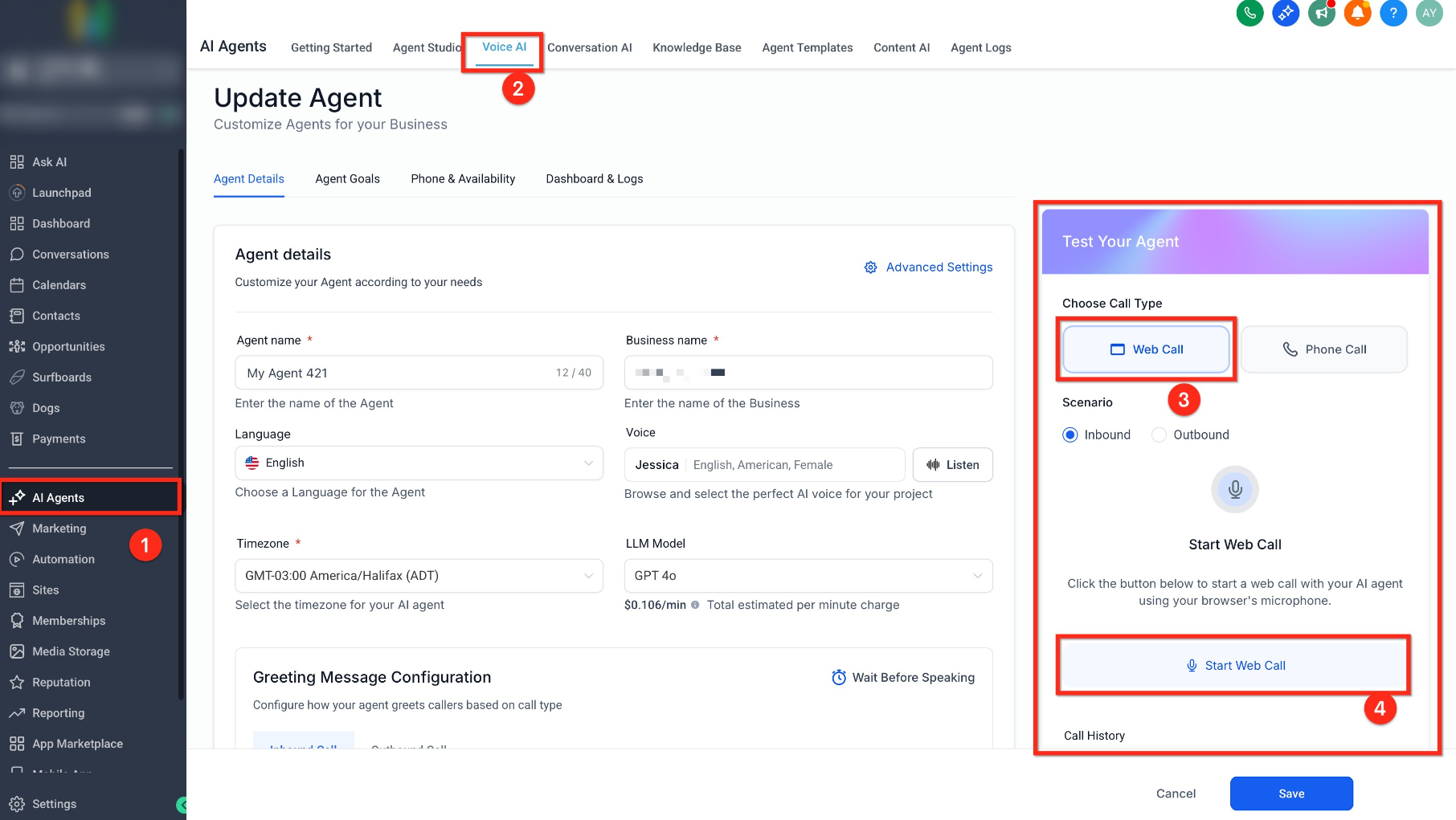
- Go to AI Agents > Voice AI.
- Open the Voice AI agent you want to test.
- Locate the Test Your Agent panel.
- Select Web Call.
- Choose the available Inbound or Outbound scenario.
- Click Start Web Call.
- Allow microphone access when prompted.
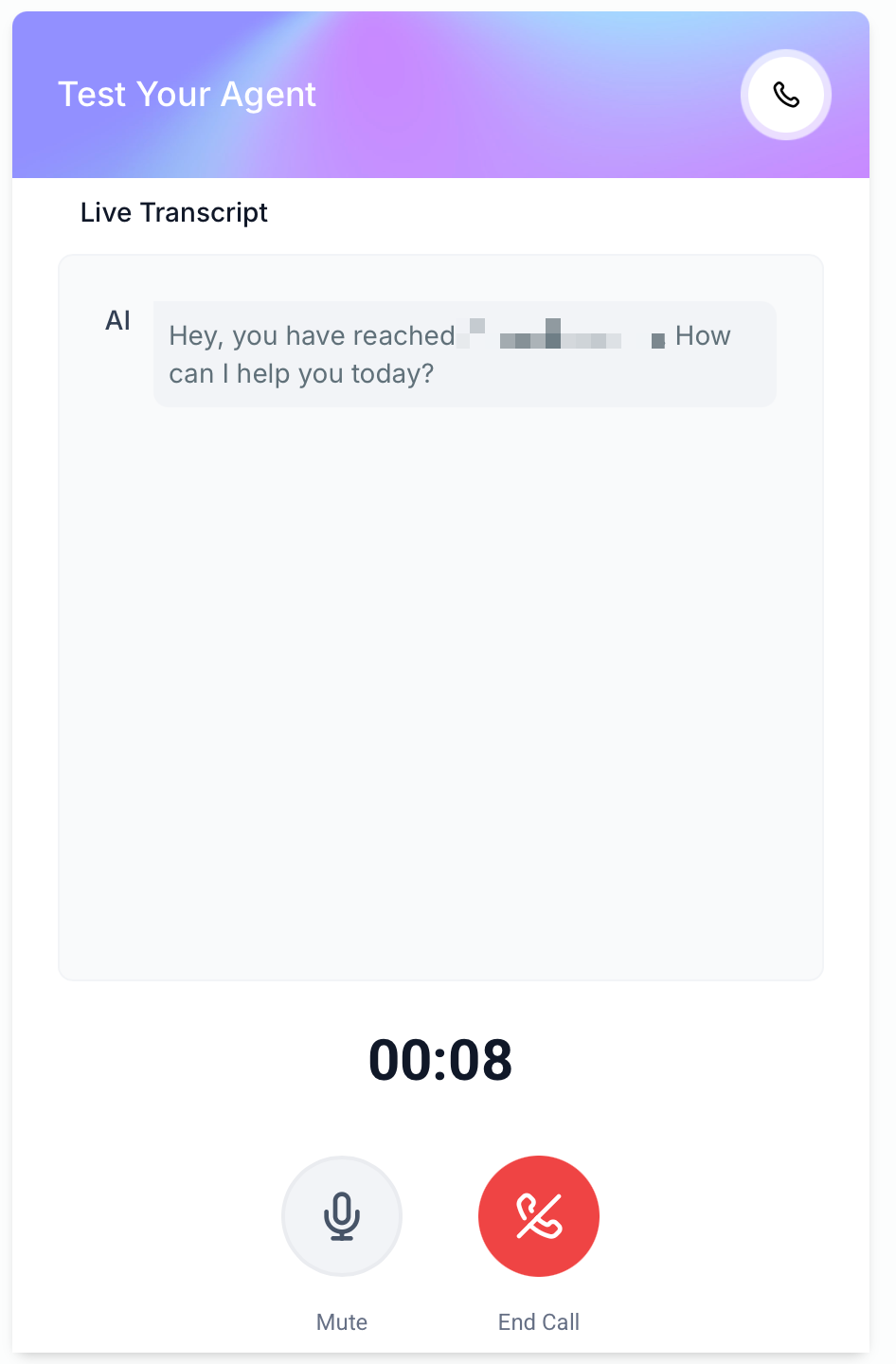
- Speak with the agent and evaluate its responses, actions, and conversation flow.
Web Call limitation: Call Transfer is not supported during Web Call trials. Use Phone Call testing or the deployed phone experience when transfer behavior needs to be validated.
Type 2: Start a Phone Call
Phone Call testing uses your telephony setup and is better suited for validating caller ID, real phone connectivity, transfer paths, and other phone-specific behavior before launch.
- Open the Voice AI agent and locate Test Your Agent.
- Select Phone Call.
- Choose the available Inbound or Outbound scenario.
- Select the Caller ID the agent should call from.
- Enter the phone number that should receive the test call.
- Click Call me.
- Answer the call and test the agent as a real caller would.
Billing note: Phone Call testing uses your normal telephony setup, so standard telephony rates may apply.
Test Call History & Logs
Test-call logs provide the detail needed to understand how an agent handled a trial conversation. Reviewing the recording and transcript together can reveal response errors, timing issues, silence, interruptions, action behavior, and other opportunities to improve the agent.
Analytics behavior: Test calls can appear in Voice AI logs, but they are excluded from dashboard analytics and performance metrics.
- Go to AI Agents > Voice AI > Dashboard & Logs.
- Select All Agents or choose the specific agent you tested.
- Confirm the date range includes the date of the test.
- Open the Live/Test filter in the logs table and select Test.
- Open the applicable log entry to review its available call details.


| Detail | How It Helps |
|---|---|
| Call Status / Outcome | Confirm whether the test completed successfully or encountered a call issue. |
| Transcript | Review the conversation quickly and identify prompt or knowledge gaps. |
| Recording | Evaluate voice quality, pacing, interruptions, silence, and overall caller experience. |
| Actions Triggered | Confirm supported configured actions ran when expected. |
| Call Summary | Scan the conversation outcome before reviewing the complete transcript or recording. |
Outbound Scenario Availability
The Outbound test scenario depends on the location meeting Voice AI outbound eligibility and compliance requirements. The previous separate Enable Outbound Calls setup flow is no longer the required path for accepting outbound calling terms.
If the Outbound scenario is not available:
- Confirm the location meets Voice AI outbound eligibility requirements.
- Complete applicable KYC or location-verification requirements when prompted.
- Confirm an eligible Voice AI agent and outbound phone number are available.
- When required outbound terms have not yet been accepted, they can be accepted while configuring the Voice AI Outbound Call action in a workflow.
Learn more: Voice AI Outbound Calling and Voice AI Outbound Calling Compliance Checks.
Frequently Asked Questions
Was this article helpful?
That’s Great!
Thank you for your feedback
Sorry! We couldn't be helpful
Thank you for your feedback
Feedback sent
We appreciate your effort and will try to fix the article