Set working hours for Voice AI agents to control when they answer calls. This article will guide you through setting and managing your working hours for Voice AI.
TABLE OF CONTENTS
- What is Working Hours for Voice AI Agents?
- Key Benefits of Working Hours for Voice AI Agents
- How To Setup Working Hours for Voice AI Agents
- Frequently Asked Questions
- Related Articles
What is Working Hours for Voice AI Agents?
Working Hours let you control when a Voice AI agent is available to answer calls. Select All Hours to keep the agent available at all times, or select Custom Schedule to define specific active days and time ranges.
Working Hours are configured per agent, so you can create a schedule that matches the needs of each business or use case.
Key Benefits of Working Hours for Voice AI Agents
Controlled availability: Limit when a Voice AI agent can answer calls.
Better alignment with business hours: Match the agent’s schedule to your operating hours.
Flexible scheduling: Choose different active days and time ranges.
Faster setup across days: Copy one day’s schedule to other active days.
How To Setup Working Hours for Voice AI Agents
Setting working hours correctly helps ensure your Voice AI agent is available only when you want it to answer calls. Following the setup path below keeps the configuration simple and makes it easier to review availability before saving.
Log in to your HighLevel account.
Go to AI Agents > Voice AI.

Create a new Voice AI agent or edit an existing agent.

Click the Deploy tab.
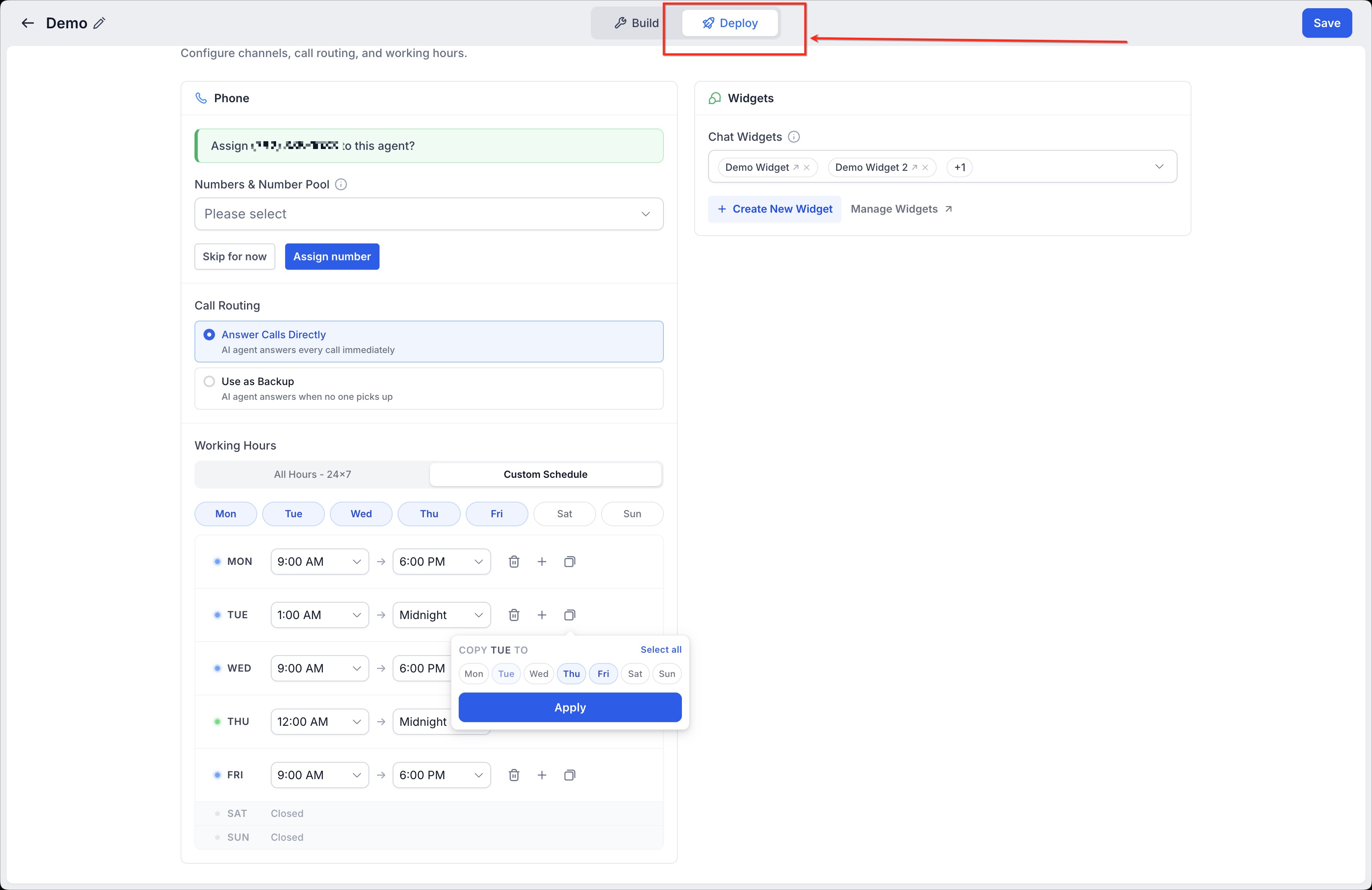
- In the Deploy tab, locate Working Hours.
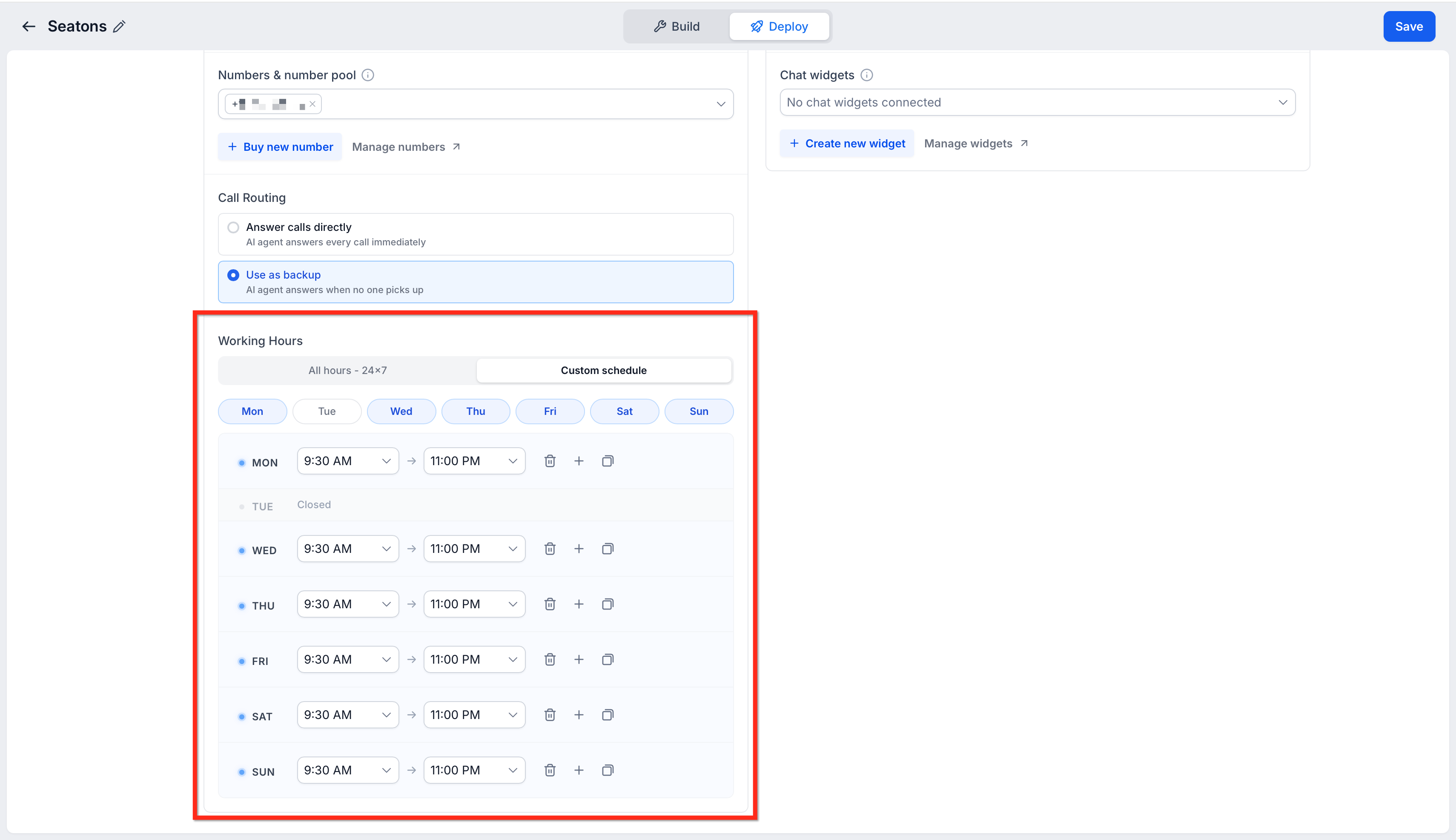
- Select the availability option for the agent:
- All Hours: Keep the agent available at all times.
- Custom Schedule: Define specific days and time ranges when the agent is available.
- If you select Custom Schedule, use the day chips to select the days when the agent should be active.
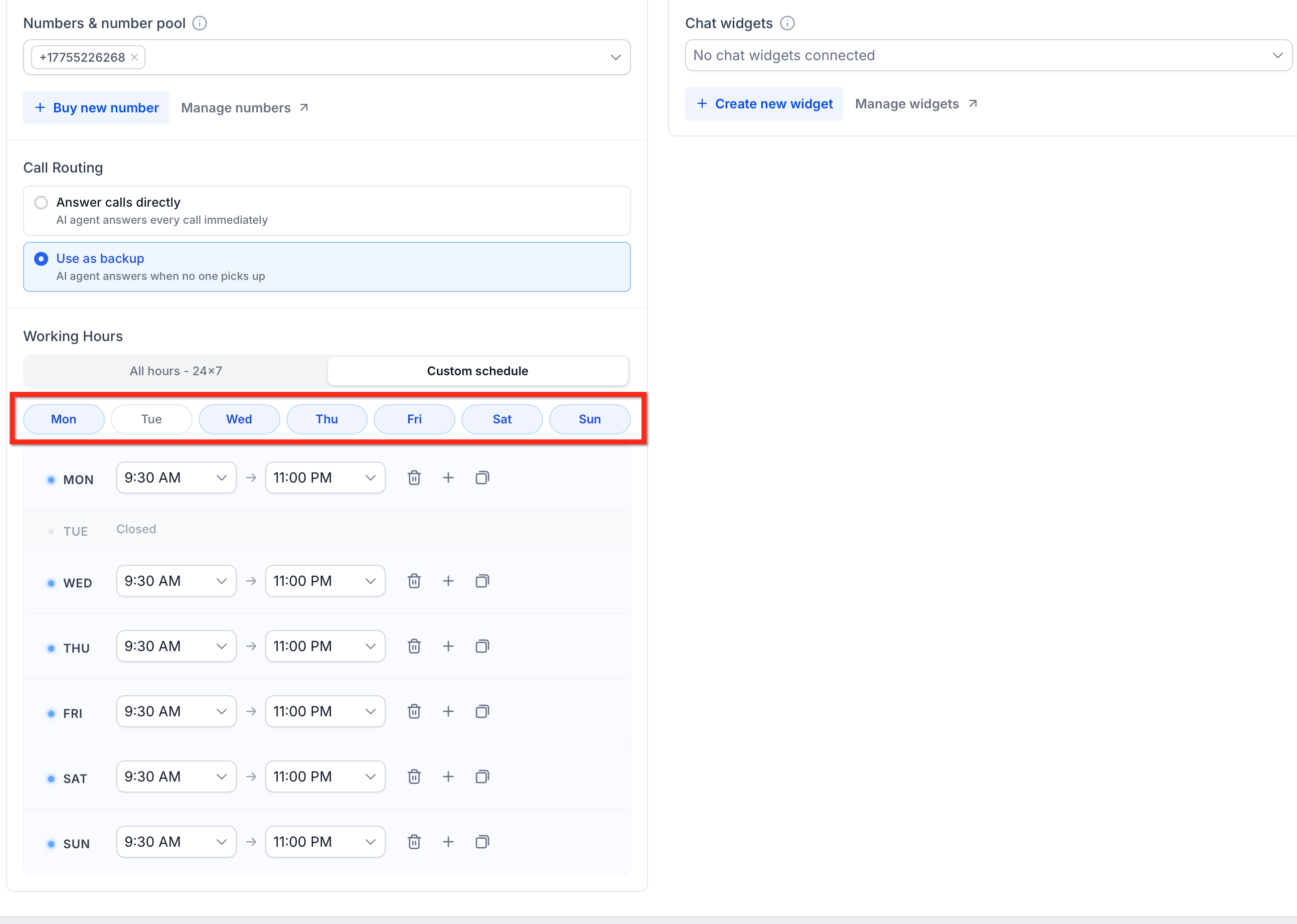
- Set the start and end time for each active day. Custom schedules can extend through midnight.
Use the bin icon to delete your selection for the particular day.
Use the copy option to apply the same hours to other days.
Click Save.

Frequently Asked Questions
Q: Can I set different working hours for different AI tasks or roles?
Yes, you can set different working hours for various functions within your Voice AI system, such as customer support, lead generation, or appointment scheduling. This allows you to customize availability based on the type of interaction.
Q: What happens if a user tries to interact with the AI outside of the set working hours?
If a user tries to engage with the AI outside of its defined working hours, the system can be set to respond with a custom message, redirect to an alternative support channel, or simply inform them that the service is unavailable.
Q: Can I set working hours for specific days of the week?
Yes, you can define working hours for specific days of the week. For example, you might set your AI to be available 9 AM - 5 PM on weekdays and limited hours on weekends, or even have different hours on holidays.
Q: Will the AI automatically update its availability if my working hours change?
No, the AI will not automatically update its working hours. You will need to manually update the working hours if your schedule changes. You can do this anytime from the settings.
Q: Can I use working hours to control when the AI sends notifications or follow-up messages?
Yes, you can use working hours to control when the AI sends notifications, follow-up messages, or reminders to users, ensuring that these messages are sent only during business hours or when it is appropriate.
Related Articles
Was this article helpful?
That’s Great!
Thank you for your feedback
Sorry! We couldn't be helpful
Thank you for your feedback
Feedback sent
We appreciate your effort and will try to fix the article