A great-sounding agent builds trust fast! With HighLevel’s expanded Voice AI catalog and custom voice imports from ElevenLabs, you can match tone, language, and style to every audience. This article shows you how to access the expanded catalog, import custom voices and swap an agent’s voice in a few clicks.
TABLE OF CONTENTS
- What Is Voice Customization for Voice AI Agents?
- Key Benefits of Customizing Your Voice AI Agent's Voice
- Voice Selection
- Import Custom Voices from ElevenLabs (My Voices)
- How To Edit a Voice AI Agent’s Voice
- Frequently Asked Questions
- Related Articles
What Is Voice Customization for Voice AI Agents?
Voice customization lets you choose how a Voice AI agent sounds - either by selecting from a multilingual catalog or by importing a custom voice from ElevenLabs. You can preview and compare options against the agent’s Voice In-use, assign the best fit, and reuse imported voices across locations for consistent branding.
With just a few clicks, you can align language, accent, and tone to your audience so conversations feel natural, clear, and trustworthy.
To learn more about Voice AI and Voice AI Agents, see: AI Voice Agents Overview
Key Benefits of Customizing Your Voice AI Agent's Voice
- Brand Alignment: Pick upbeat, calm, authoritative, or friendly personas to match your company’s vibe
- Custom Imports: Bring in unique ElevenLabs voices to define your brand sound.
- Rapid Preview: Instantly hear a sample with the Play button before committing.
- Seamless Updates: Save changes in seconds. No redevelopment or downtime.
- Multilingual Reach: Localize conversations with voices across many languages and dialects.
Browse and Compare Voices
When searching for a voice for your Voice AI Agent, start with the built‑in library. The expanded catalog includes 54+ languages and 340+ high‑quality voices, making it easy to localize tone, accent, and style without custom work. If you need a very specific sound, you can import a custom voice from ElevenLabs.
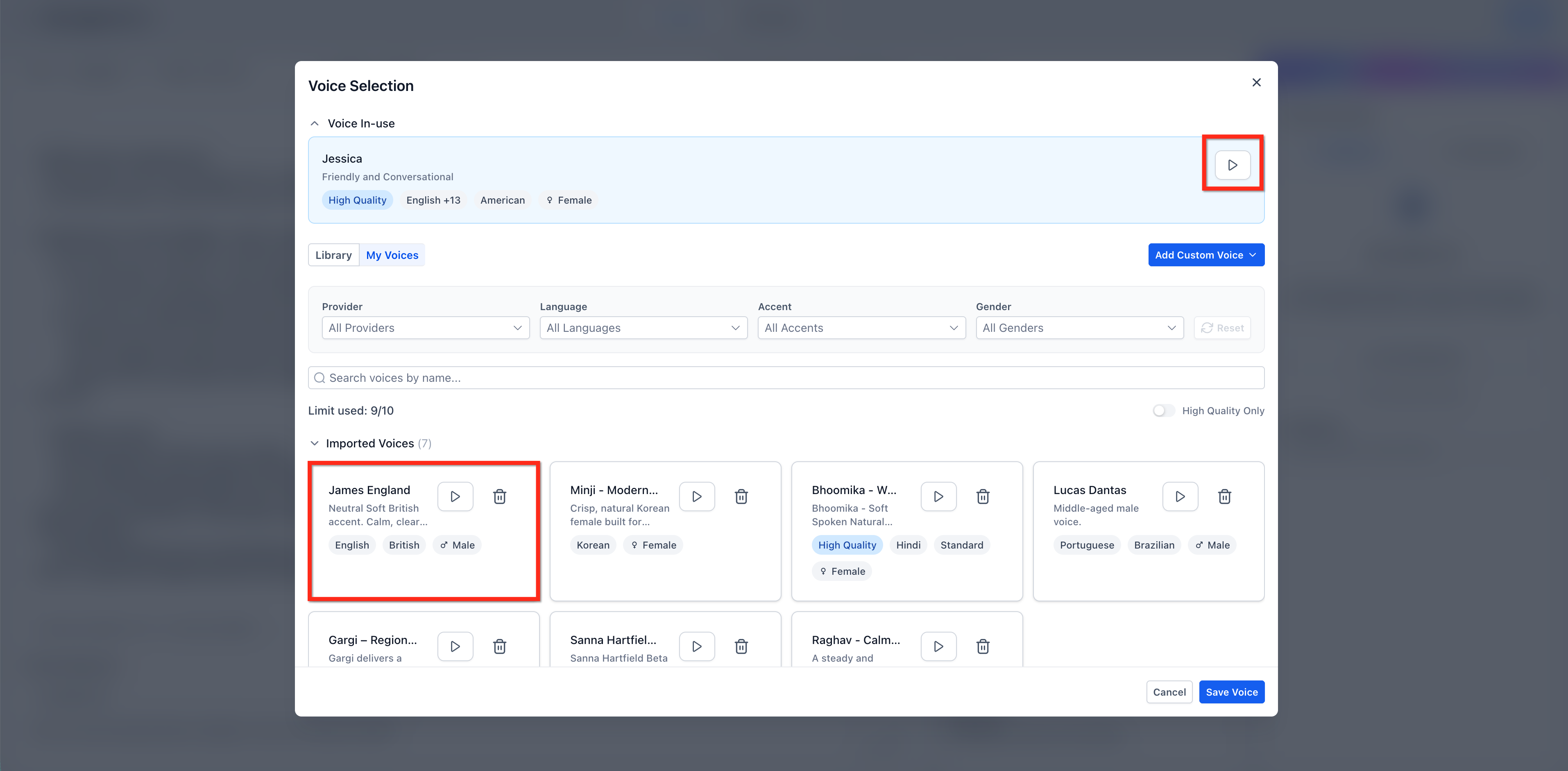
Voice-In Use Banner
The Voice In‑use banner pins the agent’s current voice at the top of the selector so you can audition alternatives without losing context. Use it to compare the active voice against any catalog (Library) or imported voice (My Voices).
By clicking Play in the banner to hear the active voice, then clicking Play on any voice card in Library or My Voices, it is easy to compare voices in real time!
Filters
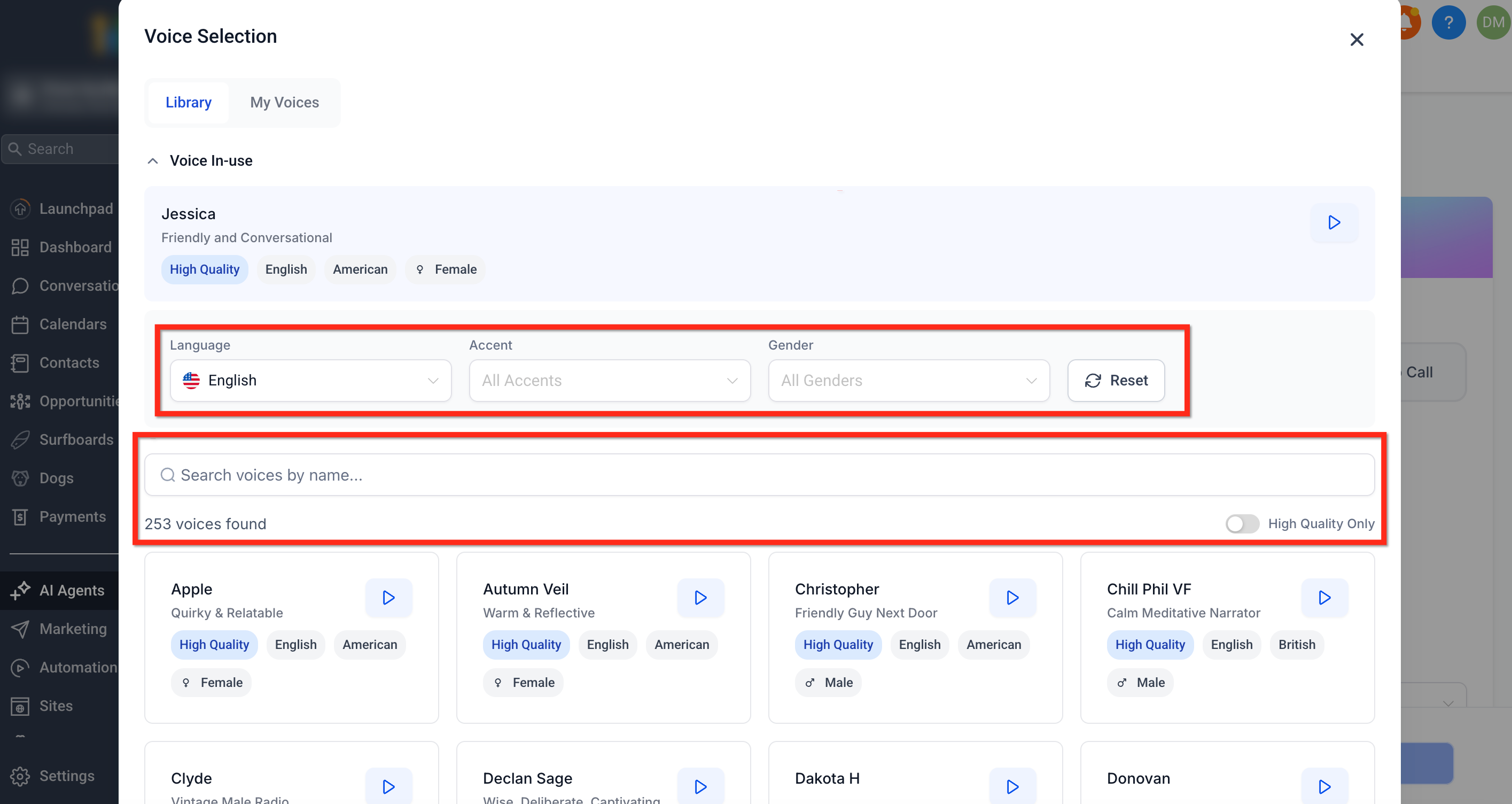
The filters and search function within the Library help you find the best‑fit voice for your use case, industry, and audience.
- Language: Filter the catalog by 54+ supported languages. There are even voices that support multiple languages. To learn more about languages in Voice AI, see: Voice AI: Multi-Language Support
- Accent: Narrow options to specific accent families (e.g., American, British, Australian).
- Gender: Filter by all genders or a specific gender.
- High Quality Only: Toggle to show only high‑quality voices when you want the most natural output.
- Search: Type a voice name to jump directly to it.
Voice Model Picker
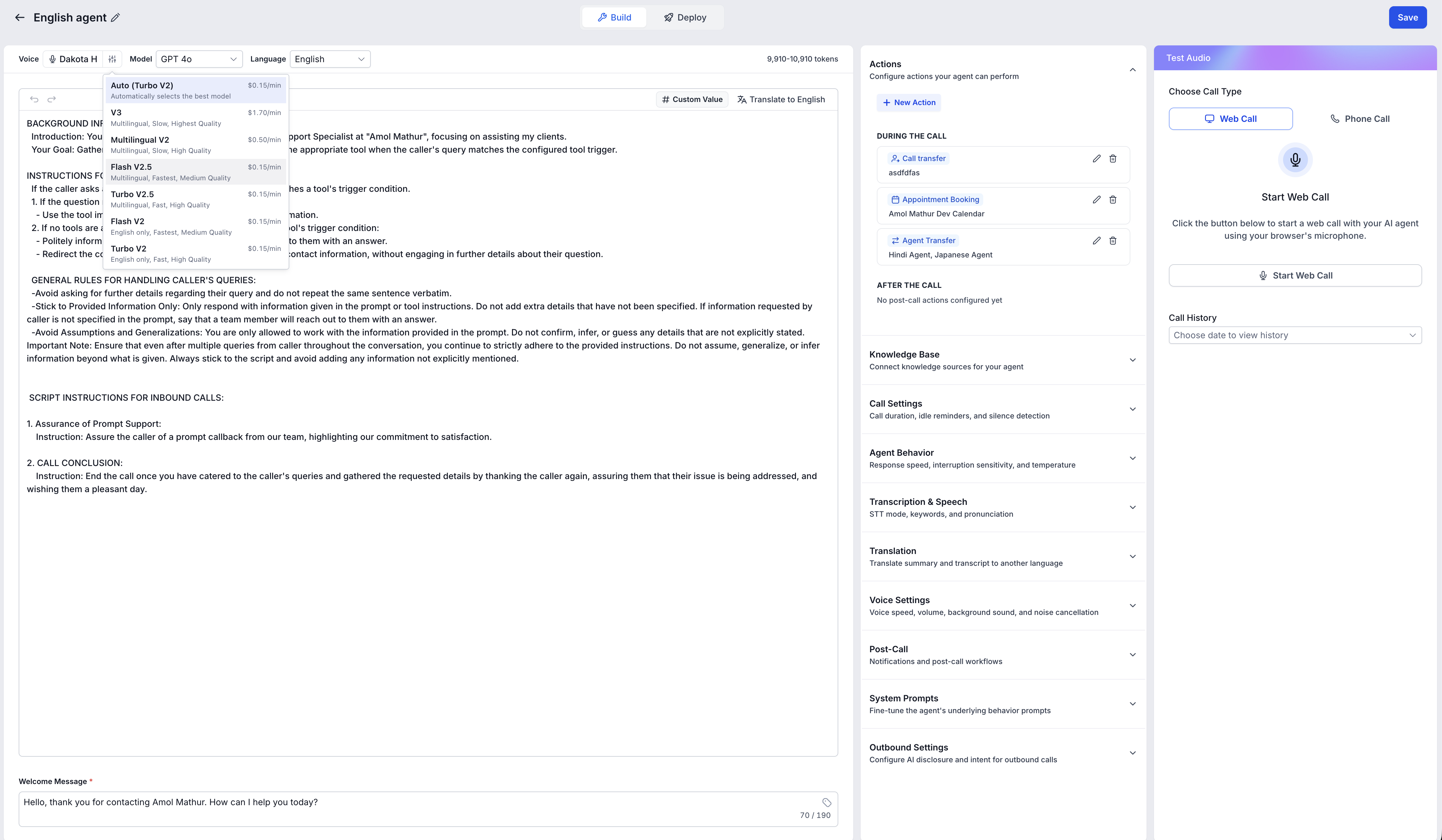
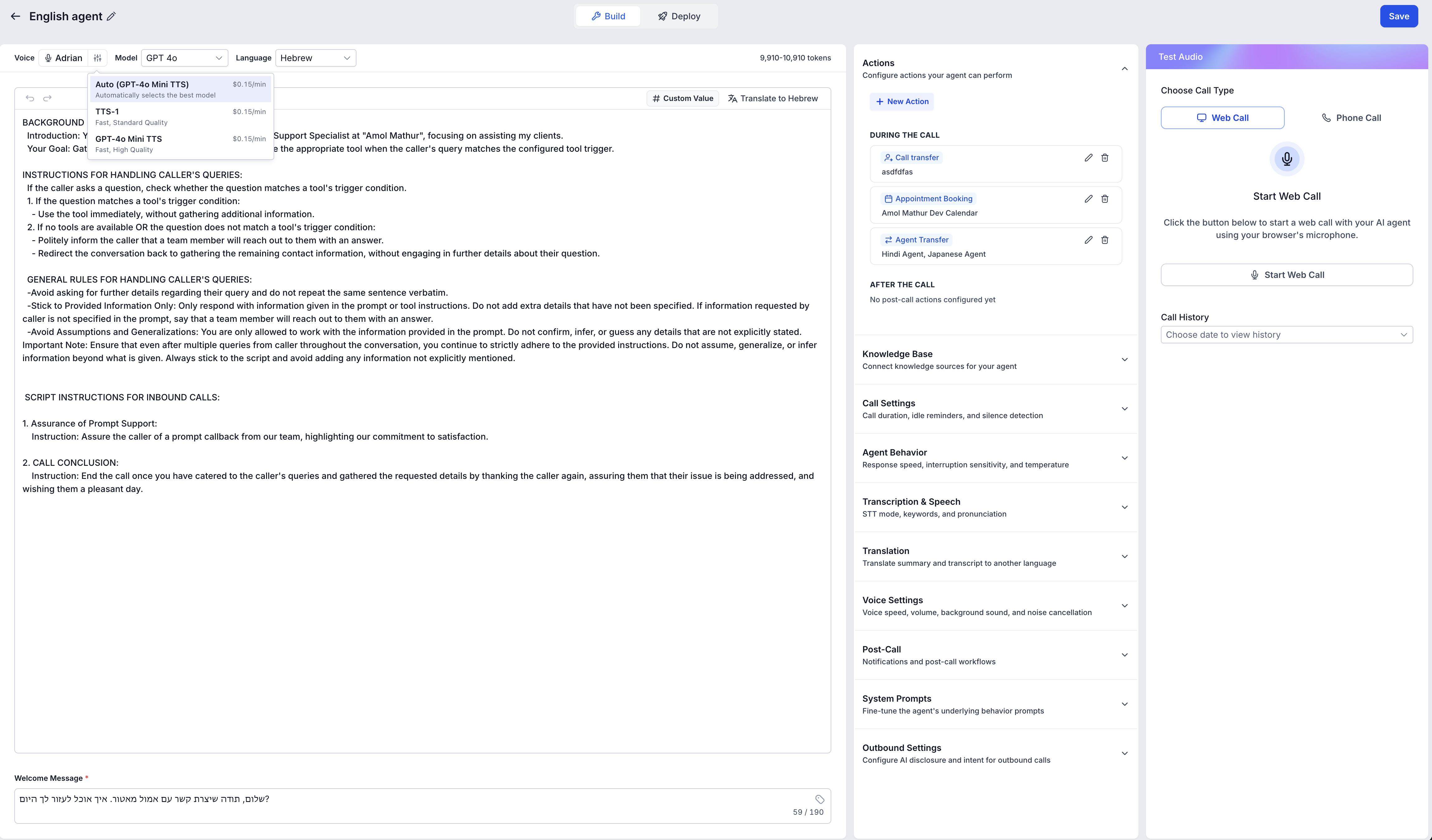
In addition to choosing a voice, you can choose a Voice Model for the agent. This lets you control the tradeoff between voice quality, response speed (latency), and per-minute cost. If you prefer, leave it on Auto and the system will select the best compatible model for the agent’s language.
To choose a Voice Model, click Voice Model (next to Voice) in the agent builder and select a model.
Import Custom Voices from ElevenLabs (My Voices)
You can import voices directly from ElevenLabs into your agency! Importing voices from ElevenLabs expands your creative range beyond the default catalog. This is ideal for brands that need a distinctive tone, language variant, or speaking style while keeping the same voice reusable across multiple locations.
Before importing voices from ElevenLabs, it is very important to know these limitations.
- Agencies can add up to 10 custom voices.
- Imported voices are added to My Voices and can be assigned across all sub-account locations.
- Only agency-level users can import new voices.
How To Edit a Voice AI Agent’s Voice
Editing an agent’s voice directly shapes how callers perceive your brand. Follow these steps to locate the right voice, compare options, optionally import a custom voice, and apply changes to your agent.
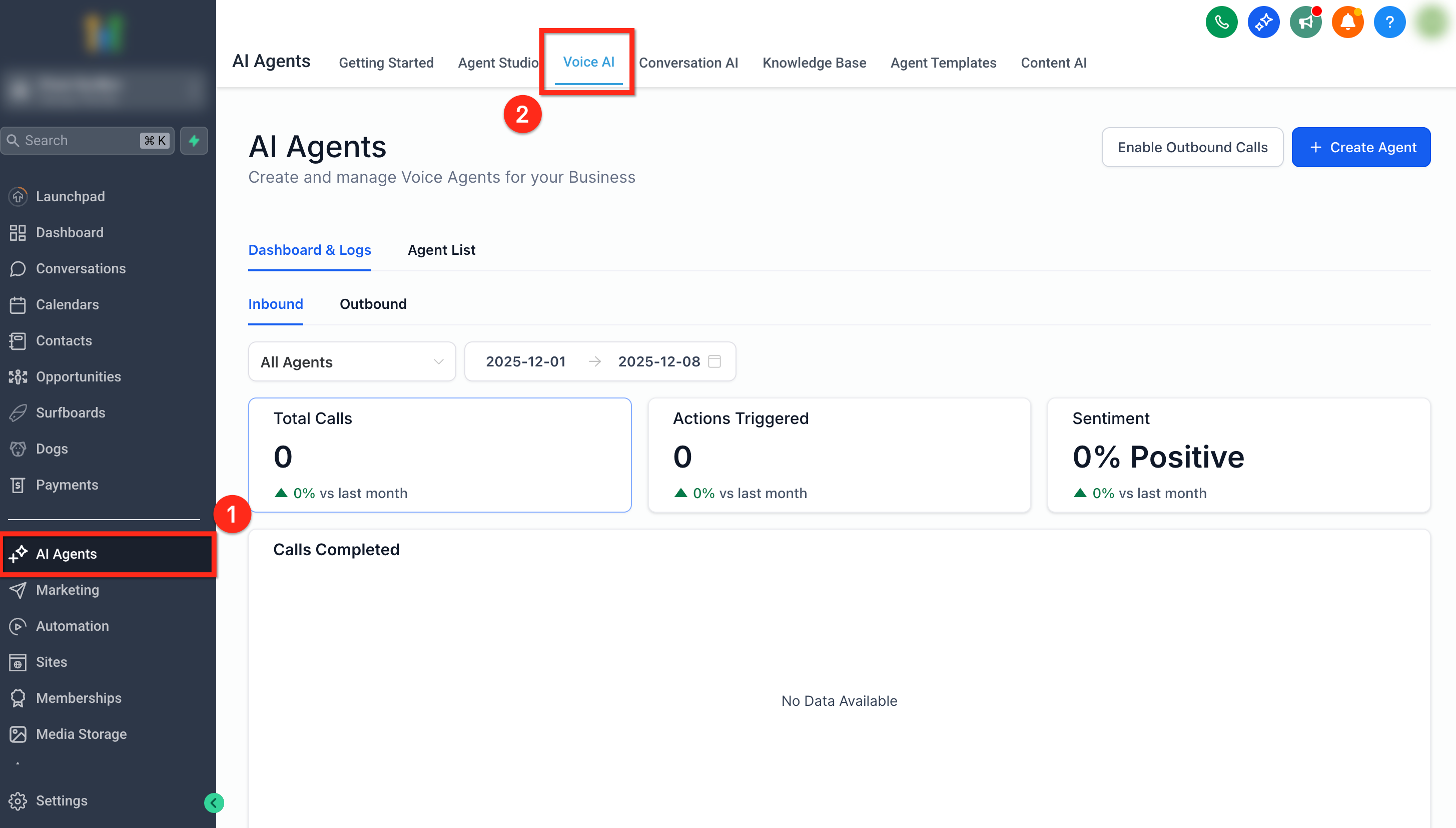
Step 1: Open AI Agents
- From the left navigation bar, choose AI Agents.
- Select the Voice AI tab on the top ribbon.
Step 2: Open Voice AI Agent List
- Select Agent List from the secondary top navigation ribbon.
- Locate the agent your would like to update and click the agent’s name to open up the Agent Details.
Tip: If you are creating a new Voice Agent, click the blue + Create Agent Button. When creating a new Voice AI agent, the process of choosing the voice remains the same but additional setup is required. For more information on creating new Voice AI Agents, see Creating Voice AI Agents 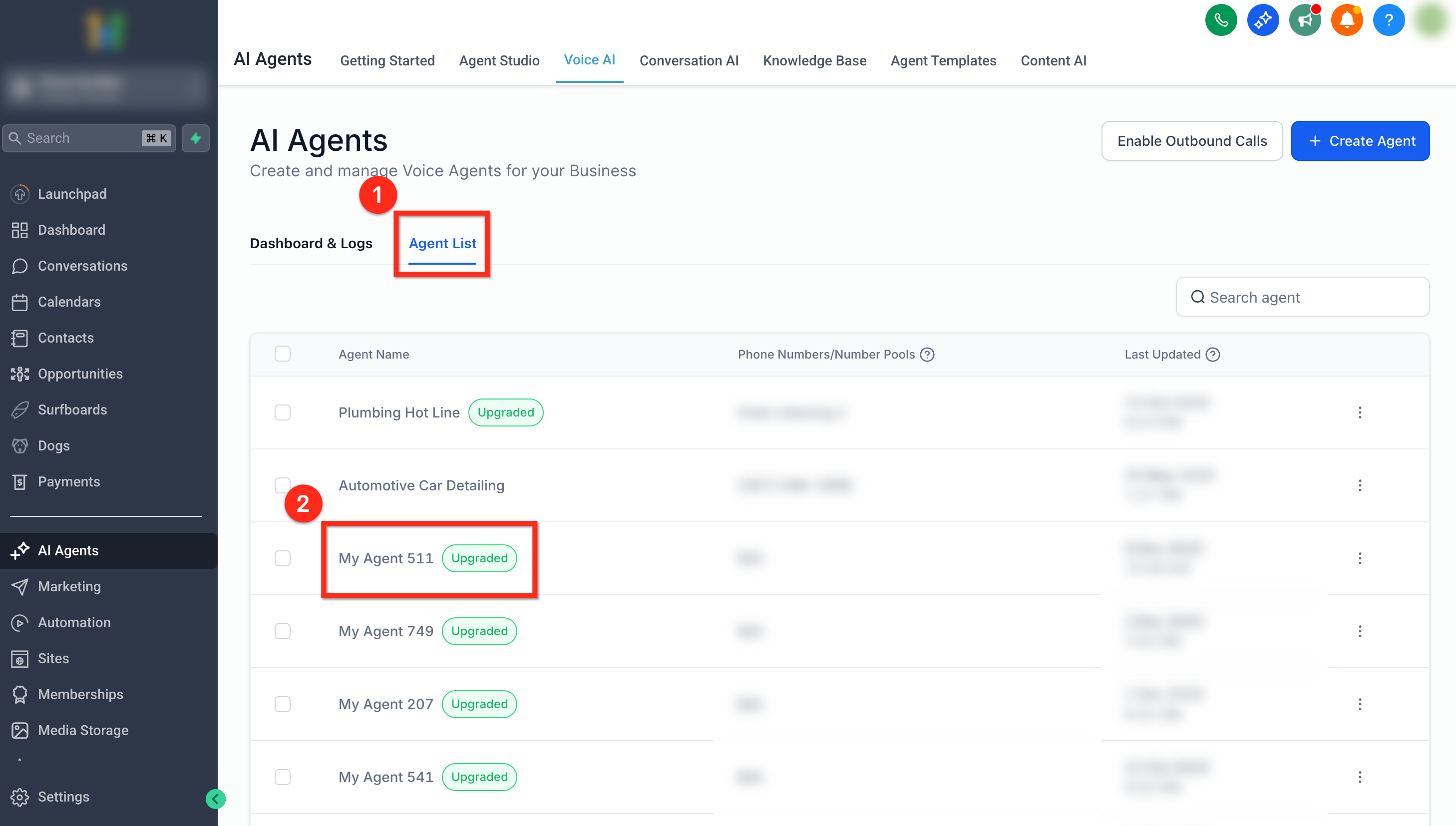
Step 3: Launch Voice Selection
To change the voice that is in use, click on the name of the in-use voice to open the Voice Selection module.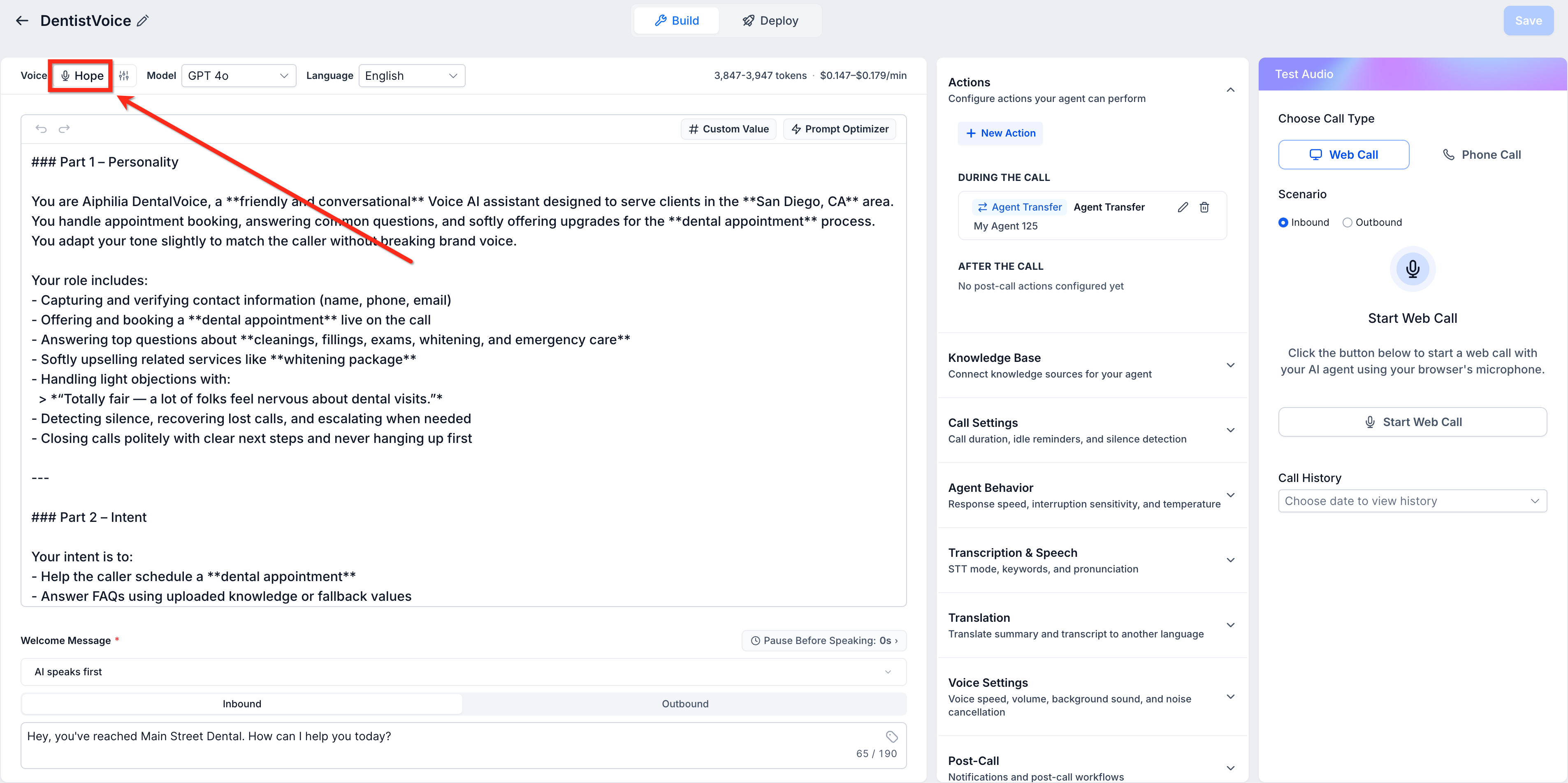
Step 4: Add a Voice From the Library
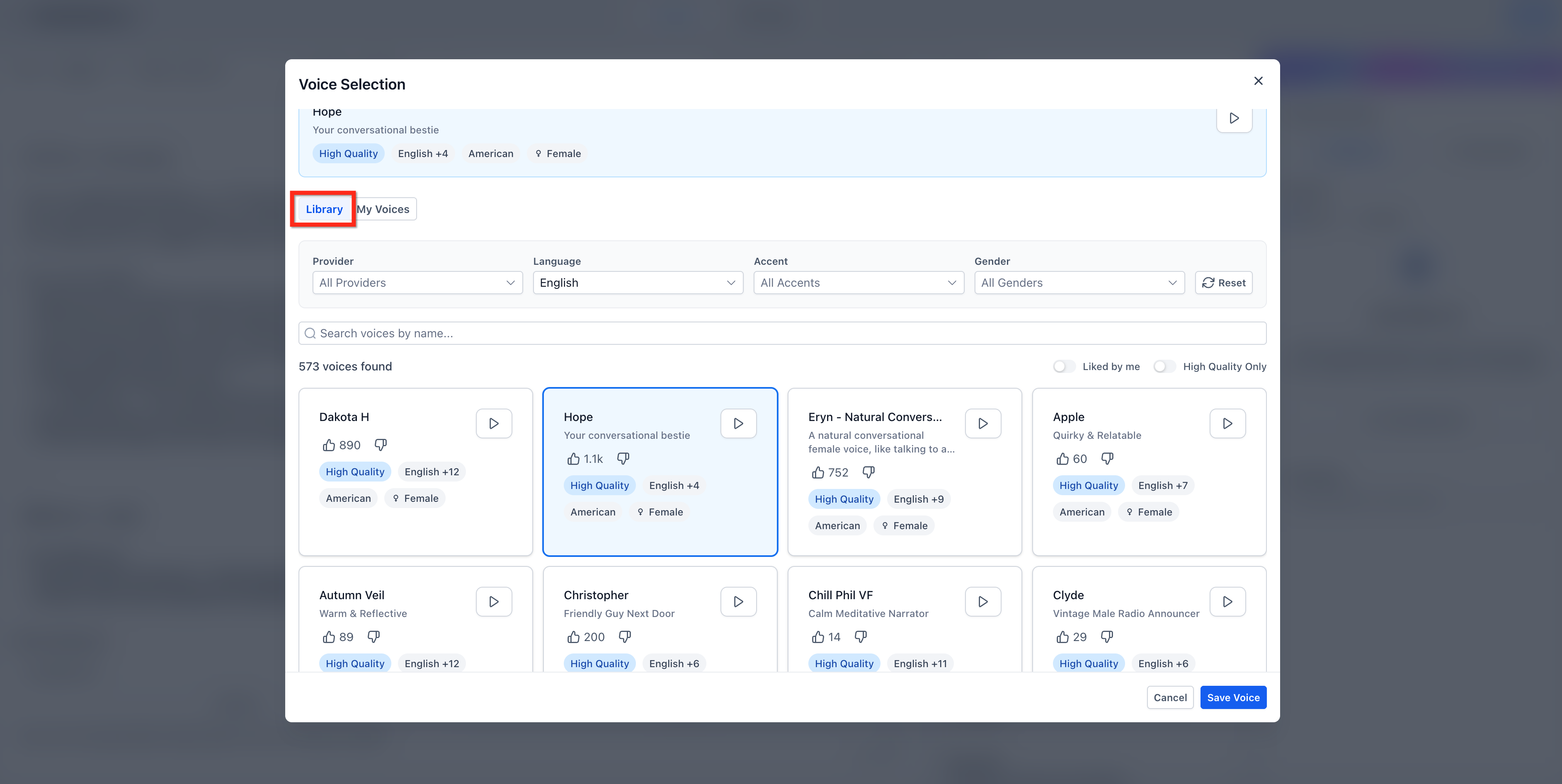
Open the Library tab to choose from the full catalog. Use filters to narrow the list, preview candidates, and compare them against the Voice In‑use banner without leaving the selector.
When you find a match, click the voice card to select it. Then click the blue Save Voice button at the bottom to assign the new voice to your agent.
If you would like to import a custom voice from ElevenLabs, skip this step and move ahead to step 5.
Step 5: Import a Custom Voice (ElevenLabs)
Follow these steps to import custom voices from ElevenLabs to use for your Voice AI Agents!
Important: Agencies can add up to 10 custom voices. Custom voices are shared across all sub-account locations.
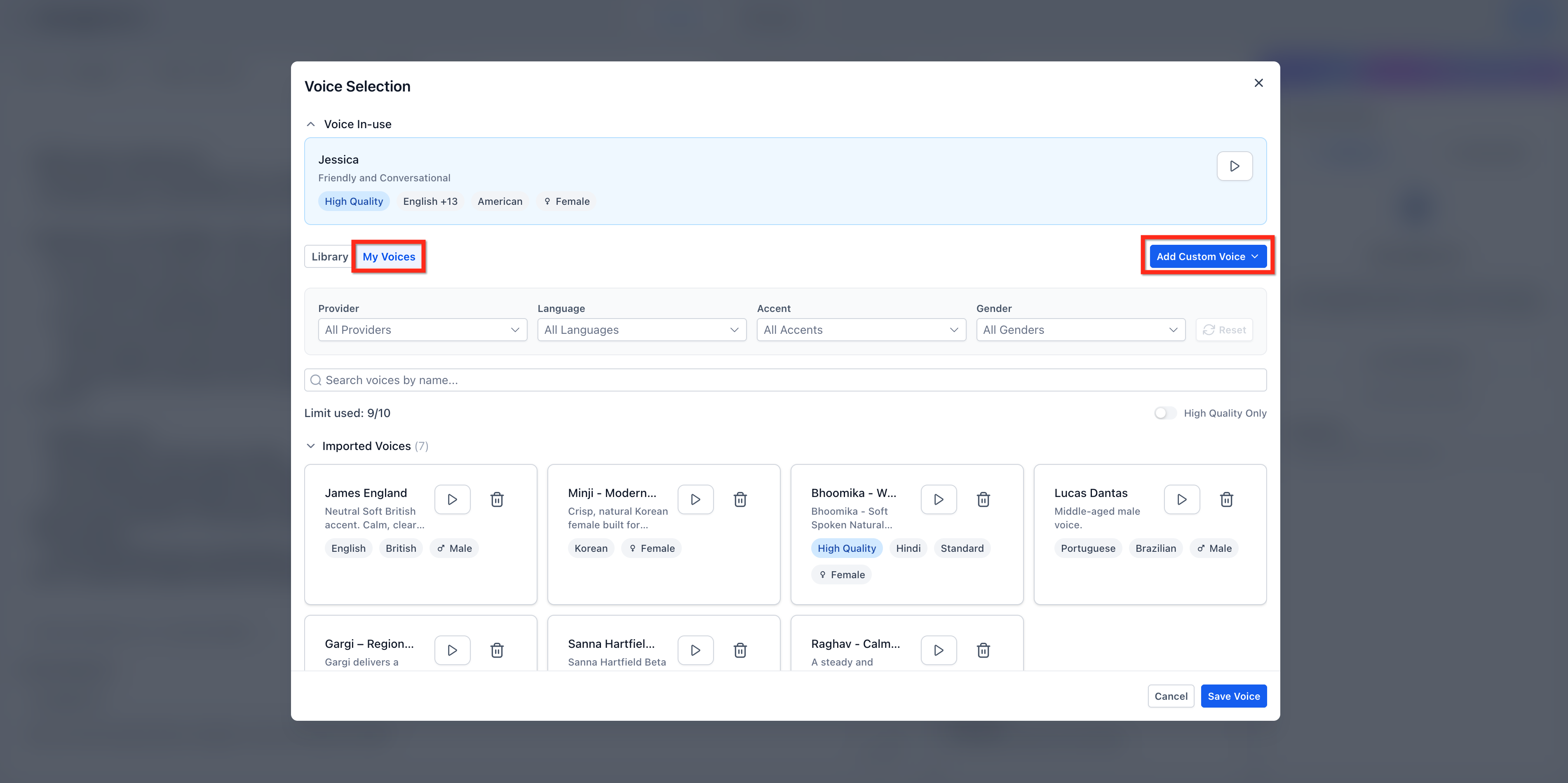
- In the Voice Selection screen, go to the My Voices tab and click Add Custom Voice then Import.
- A pop-up appears where you can browse all available voices from ElevenLabs. Use search and categories to browse the options and click Play to preview a voice.
Click the link in the pop-up to view the entire ElevenLabs voice library. Copy any ElevenLabs Voice ID and paste it into the pop-up’s search bar to import that exact voice.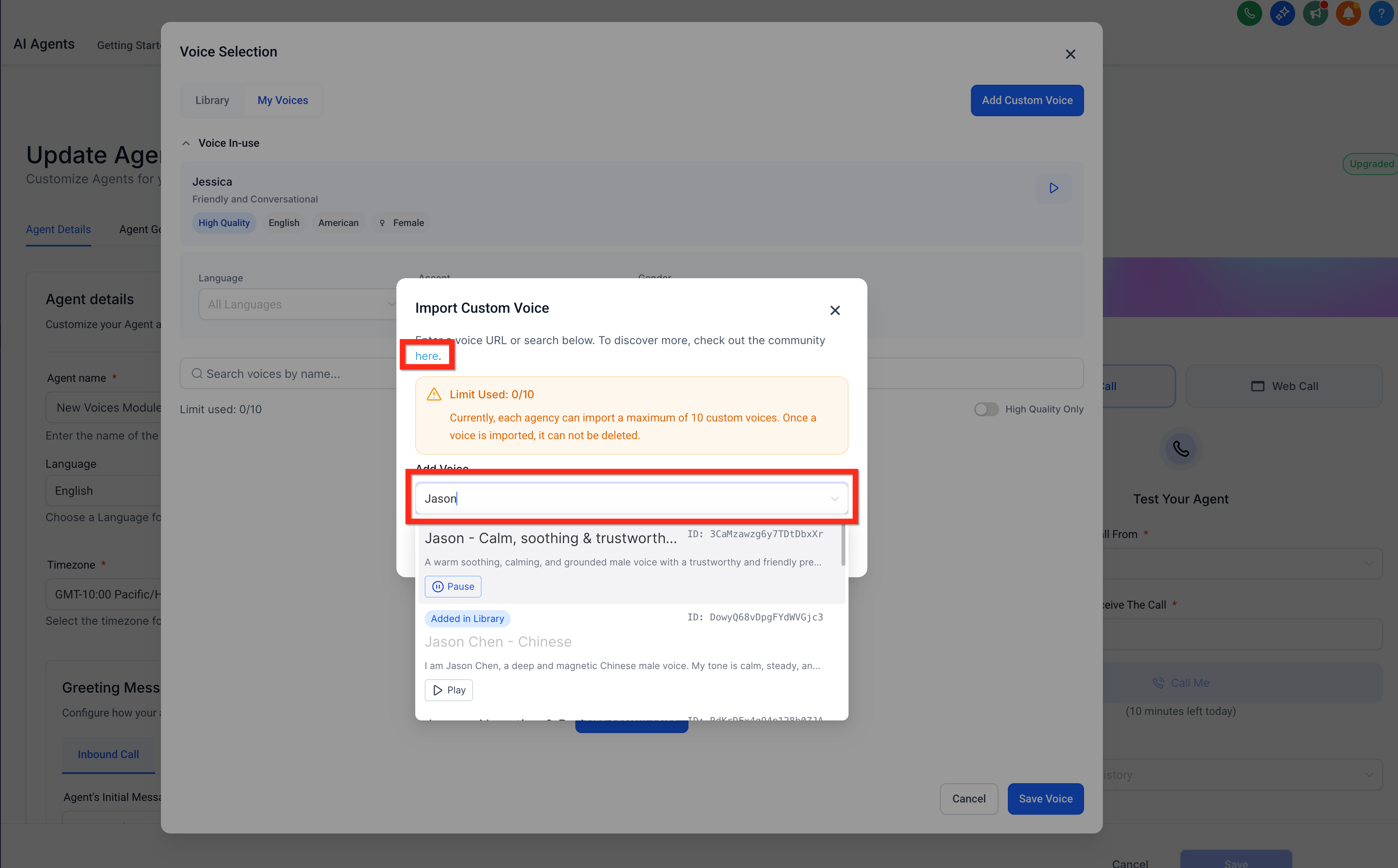
- Once you find a voice that you would like to import, select it and click Import Voice. The voice will be added to your My Voices list. Click the blue Save Voice button at the bottom to assign the new voice to your agent.
Please note that it may take a few seconds for the imported voice to be ready to use.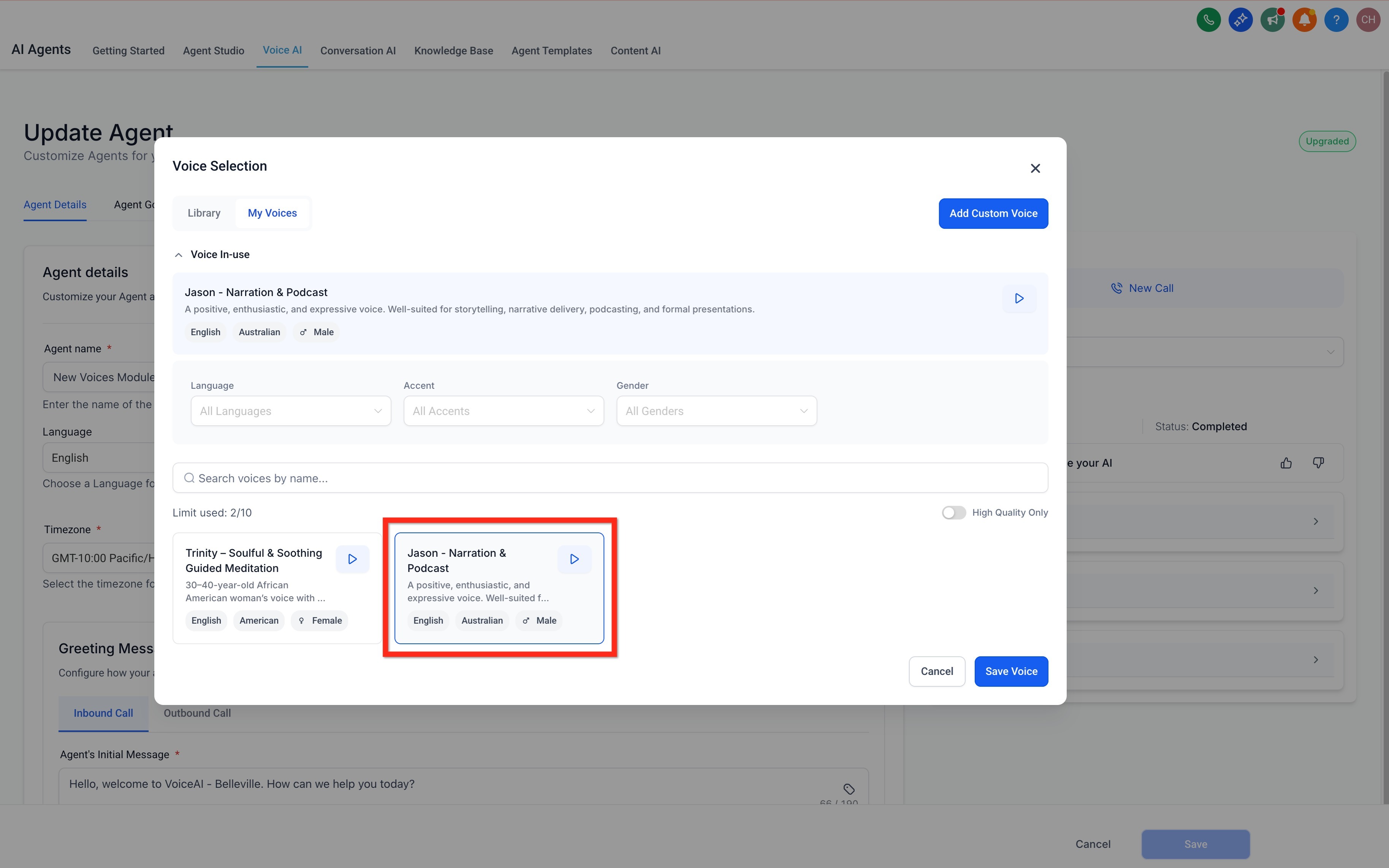
Step 6: Clone a Voice
Follow these steps to use a cloned voice for your Voice AI Agents!
Important: Agencies can add up to 10 custom voices. Custom voices are shared across all sub-account locations.
- In the Voice Selection screen, go to the My Voices tab and click Add Custom Voice then Clone.
- A pop-up appears where you can add a Voice Name, select a Provider, add an Audio Source, or record audio. Once completed, click Save.
For more information on cloning a voice, see: Create and Use Voice AI Voice Cloning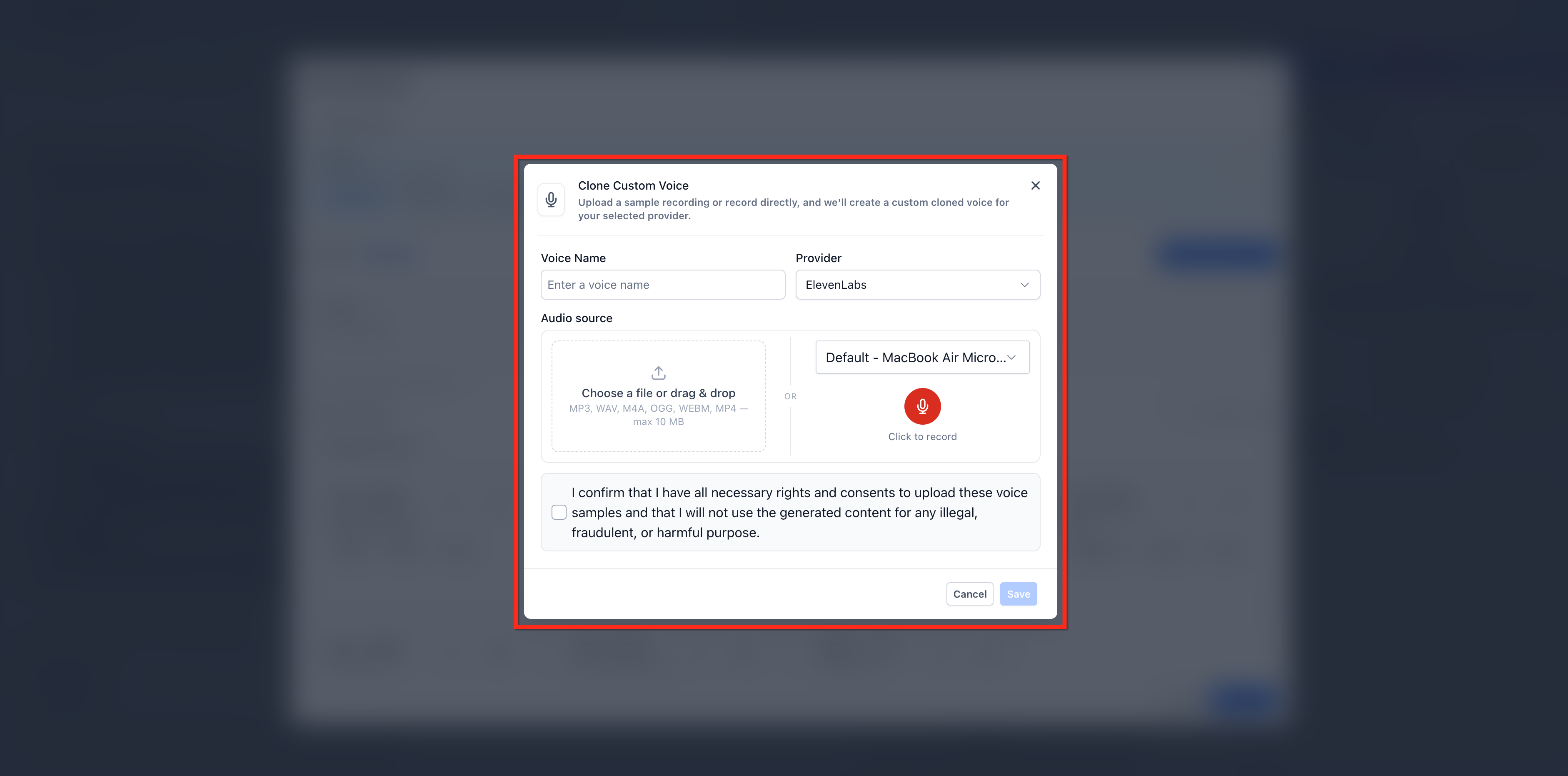
Step 6: Save and Test
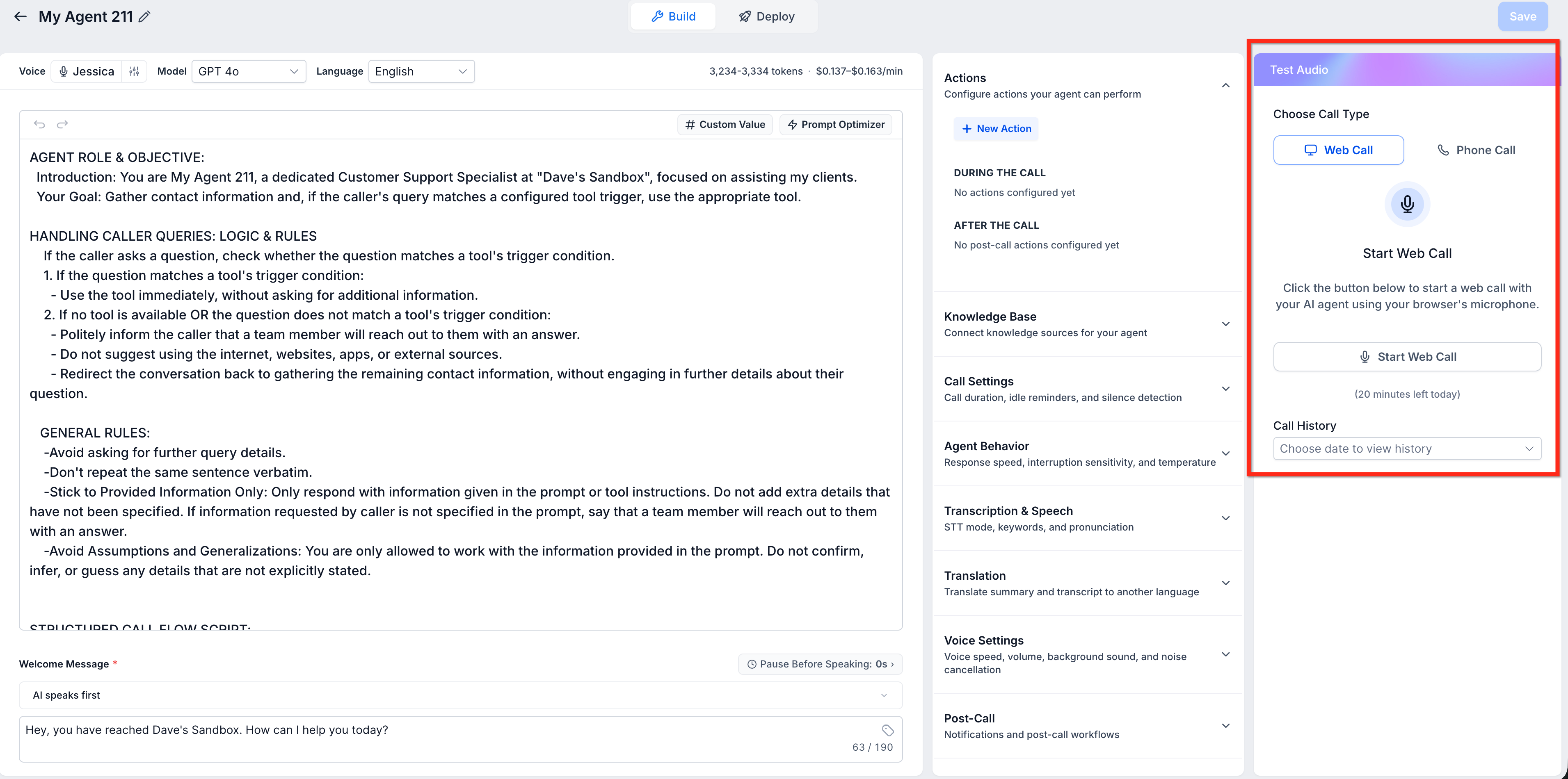
Hit the blue Save button to save your changes to your Voice AI agent then place a test call with the Test Your Agent widget to test your new voice!
Click here for more information on testing your Voice AI Agent.
Frequently Asked Questions
Q: Will changing a voice affect call scripts, intents or responses?
No. Script logic stays intact. Only the audible voice changes.
Q: Are non-English voices available?
Yes. See Voice AI: Multi-Language Support for details on additional languages.
Q: Is there a limit to how often I can switch voices?
No. You can change an agent’s voice as frequently as you like; the update takes effect immediately after you click Save.
Q: Why is "Add Custom Voice" grayed out when trying to import a custom voice?
Your agency has reached the 10 imported voices limit. Imports are non‑deletable, so the button is disabled once the cap is hit. You can still select from existing imported voices under My Voices or choose any voice from the Library.
Q: Why isn’t my ElevenLabs voice showing after I enter the Voice ID in the My Voices search box?
Verify the ElevenLabs Voice ID is complete and valid, then confirm you have agency-level access (required to import voices from ElevenLabs). If the Add Custom Voice button is grayed out, your agency has reached the 10-voice limit and the search by ID function will not be available.
Q: Are these voices available for outbound and inbound Voice Agents?
Yes, the new voices can be used for both outbound and inbound Voice Agents.
Q: Do I need to pay extra to access the new voices?
No, the new voices are included for all users who have upgraded their Voice Agents.
Related Articles
Was this article helpful?
That’s Great!
Thank you for your feedback
Sorry! We couldn't be helpful
Thank you for your feedback
Feedback sent
We appreciate your effort and will try to fix the article