Speech-to-Speech (S2S) Voice AI enables faster, more natural conversations by processing audio directly instead of converting speech to text and back.
HighLevel supports real-time S2S models, including Gemini 3.8 Live, which offers improved speech quality, reasoning, and tool handling. Learn how to select an S2S model, configure your agent, connect actions, and test conversations in HighLevel.
TABLE OF CONTENTS
- What is Speech-to-Speech (S2S) Voice AI?
- Key Benefits of Speech-to-Speech (S2S) Voice AI
- Available Speech-to-Speech Models
- Agent Behavior Settings
- Language Configuration
- How to Set Up Speech-to-Speech (S2S) Voice AI Agents
- Frequently Asked Questions
- Related Articles
What is Speech-to-Speech (S2S) Voice AI?
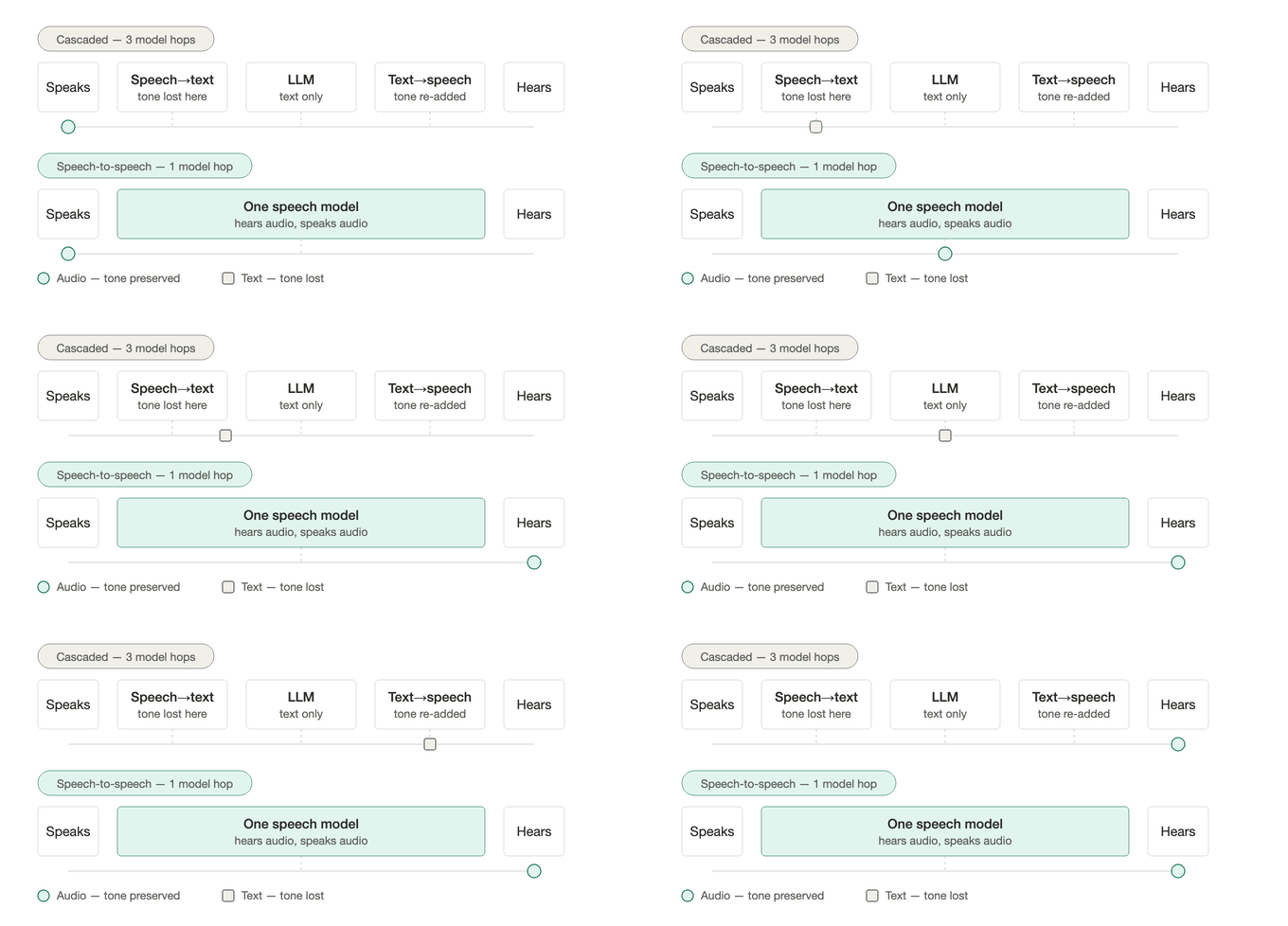
Speech-to-Speech (S2S) Voice AI allows AI agents to listen and respond directly through audio. By reducing processing stages, S2S models deliver faster responses while better preserving a caller's tone, emotion, and conversational context.
Traditional voice agents use a cascaded architecture:
Speech → Speech-to-Text → Language Model → Text-to-Speech → Audio Response
S2S agents use a more direct approach:
Speech → Realtime Speech Model → Audio Response
This single-model approach reduces delays and supports more natural responses, interruptions, and language switching where supported.
Key Benefits of Speech-to-Speech (S2S) Voice AI
S2S helps your agents respond more naturally while handling common customer requests. These benefits can improve call flow and provide a smoother experience for callers.
Faster Responses: Reduce processing stages and conversational delays for smoother interactions.
Natural Conversations: Preserve vocal cues such as tone, emphasis, and emotion for more human-like responses.
Multilingual Support: Communicate across supported languages and handle language changes during conversations.
Automated Actions: Book appointments, transfer calls, send SMS messages, trigger workflows, and update contact records.
Flexible Deployment: Connect agents to phone numbers, eligible outbound calling, and supported Voice AI Chat Widgets.
Simplified Pricing: Use model-specific per-minute pricing that bundles supported processing and infrastructure costs.
Available Speech-to-Speech Models
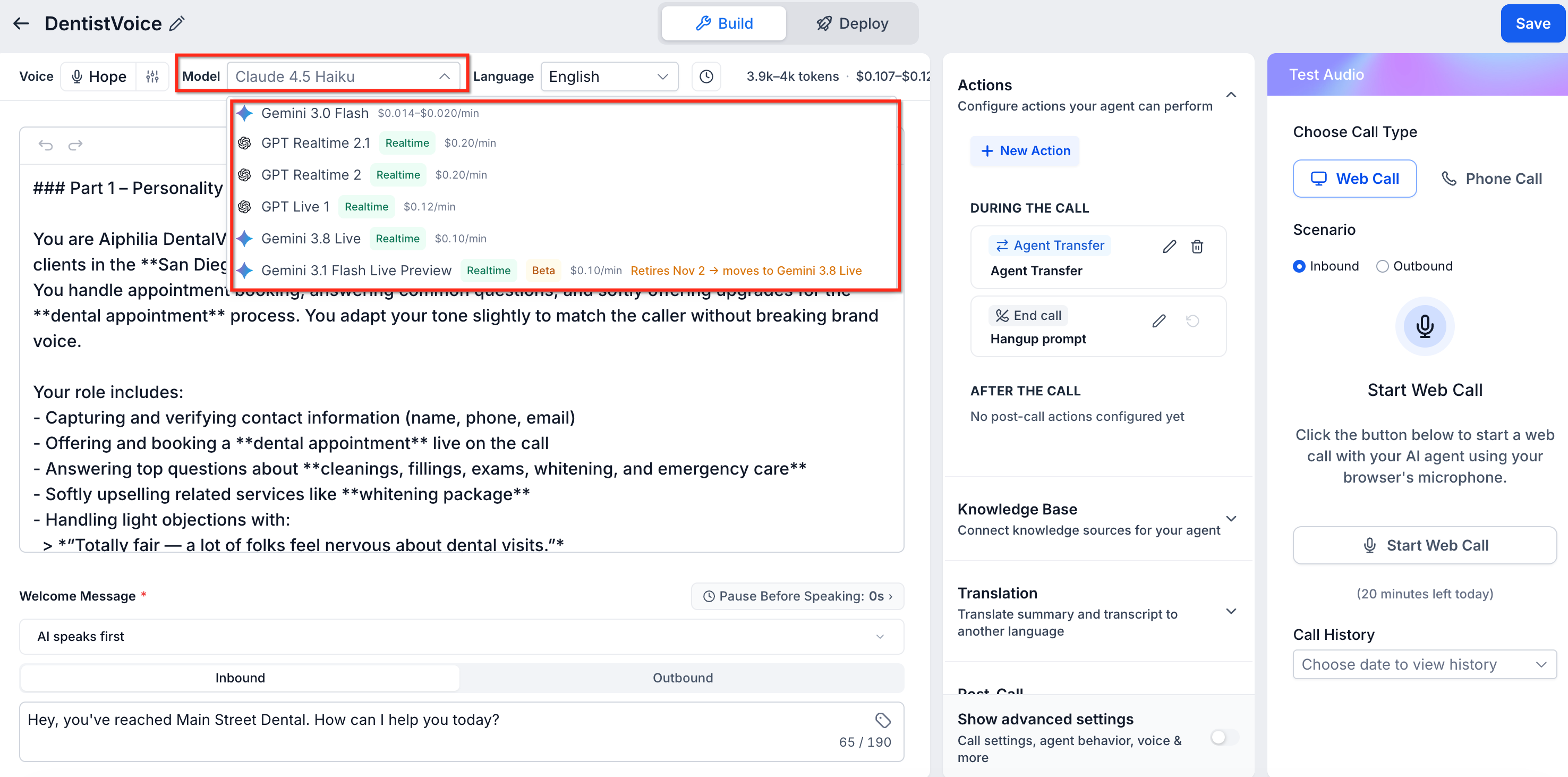
Selecting the right S2S model helps determine how your agent processes audio, responds to callers, and handles conversations. HighLevel supports several real-time speech models, each offering different capabilities.
Gemini 3.8 Live is now available as a generally available model, providing enhanced speech quality, reasoning, and tool handling for customer conversations.
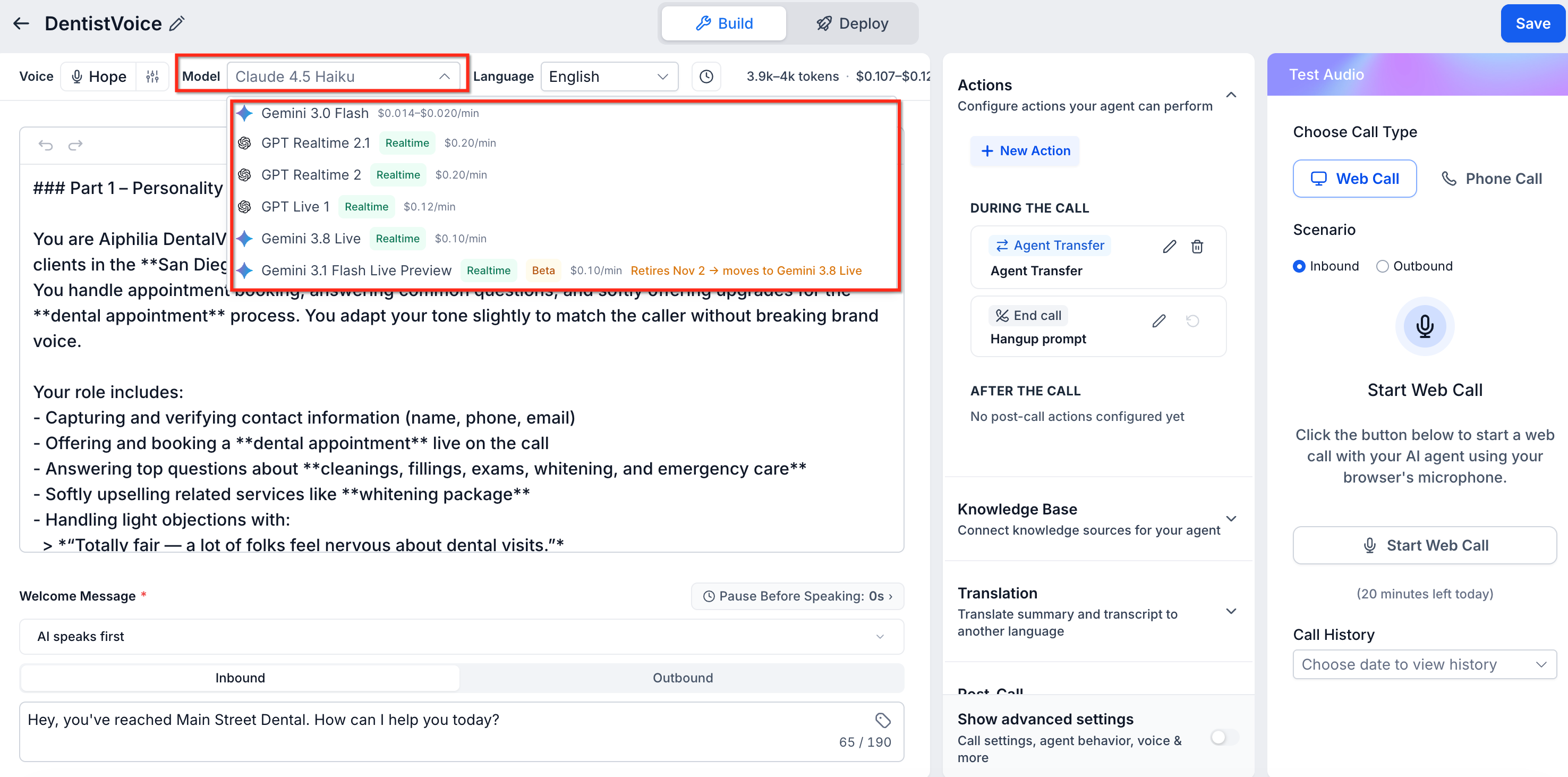
Examples of S2S models you may see in the model selector include:
| Provider | Model | Description |
|---|---|---|
| Gemini 3.8 Live | A generally available real-time speech-to-speech model with improved natural conversations, stronger reasoning, enhanced tool handling, and a larger context window for longer, context-rich interactions. | |
| OpenAI | GPT Realtime 2.1 | Processes incoming speech and generates spoken responses through a real-time audio model. |
| OpenAI | GPT Realtime 2 | Supports direct speech-based conversations using the GPT Realtime 2.x architecture. |
| Gemini 3.1 Flash Live Preview | A legacy real-time speech model scheduled for retirement on November 2, 2026, with existing agents automatically transitioning to Gemini 3.8 Live. |
Models supporting direct speech processing are identified by a Realtime label in the model selector. Some models also display a Beta label, indicating their model-specific release status.
Important: Gemini 3.1 Flash Live Preview will retire on November 2, 2026. Existing Speech-to-Speech agents using this model will automatically transition to Gemini 3.8 Live. No manual migration is required.
Note: Gemini 3.8 Live is displayed at $0.10/min in the Agent Builder. Pricing and model availability may change. Refer to AI Product Pricing and the current in-app model selector for applicable rates.
Note: GPT Live 1 is another S2S model with full-duplex conversation support and separate Speech model and Reasoning model instructions. Learn more in GPT Live 1 Speech-to-Speech Model for Voice AI.
Agent Behavior Settings
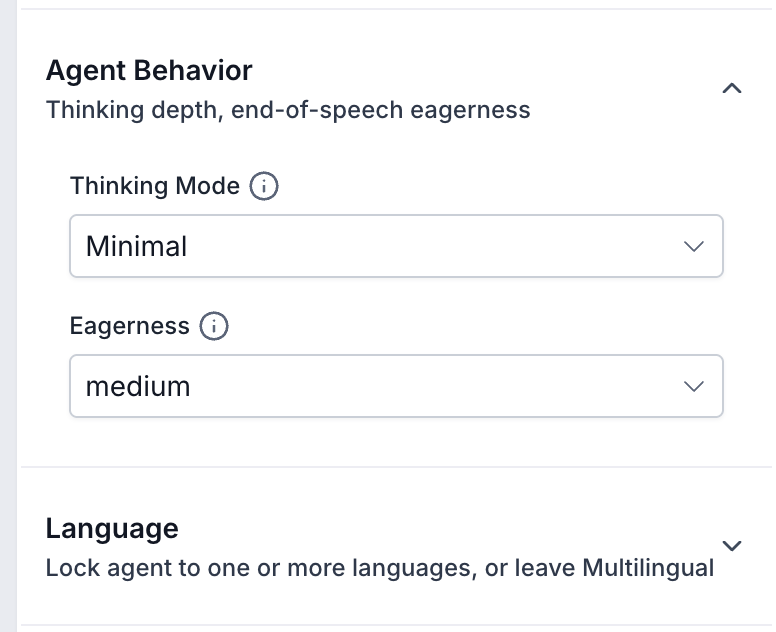
Agent Behavior settings determine how an S2S agent processes caller requests and manages conversational timing. Configuring these settings helps balance responsiveness, reasoning, and natural turn-taking.
| Setting | Description |
|---|---|
| Thinking Mode | Controls the reasoning depth used by the agent when processing requests. Available settings depend on the selected model. |
| Eagerness | Influences how readily the agent determines that the caller has finished speaking and begins responding. |
Thinking Mode
The Thinking Mode dropdown includes Minimal as an option on supported models. Review the available options for your selected model and choose the setting that matches the complexity of your agent's tasks.
Eagerness
Eagerness affects conversational pacing. If the agent responds before callers finish speaking or pauses too long before answering, review this setting and test a different available option.
Tip: Adjust one setting at a time and test the agent after each change to identify how the configuration affects conversation flow.
Language Configuration
S2S models can support multilingual conversations by processing incoming speech directly. Choosing the appropriate language configuration helps agents respond in supported languages and accommodate callers who communicate in different languages.
S2S supports more than 90 languages across OpenAI Realtime and Gemini Live architectures. Available languages and switching behavior depend on the selected model and configuration.
| Setting | Description |
|---|---|
| Multilingual | Enables supported automatic language detection and response behavior. |
| Languages | Allows selection of the languages available for the configured agent. |
| Selected Languages | Displays the configured languages, such as English and Spanish, which can be reviewed or removed. |
To configure languages, open the agent's Language settings, review the available Multilingual option, select the appropriate languages, and save your changes.
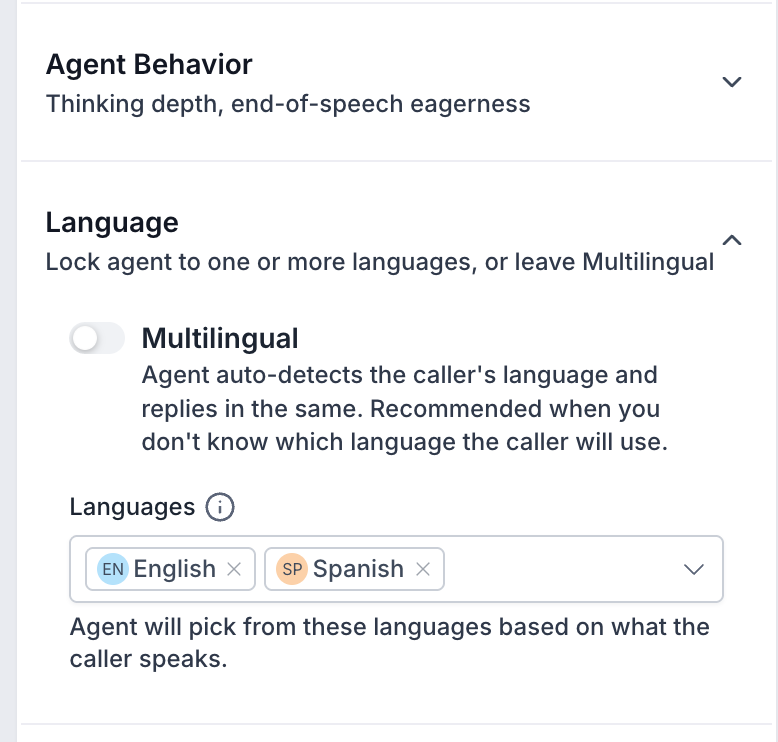
Important: The standard Multilingual voice configuration covers English and Spanish. This is different from the broader language capabilities supported by individual S2S models. See Multi-Language Support for Voice AI Agents.How to Set Up Speech-to-Speech (S2S) Voice AI Agents
Setting up an S2S agent involves selecting a real-time model, configuring conversation settings, and connecting the necessary actions. Choosing a model such as Gemini 3.8 Live and testing its behavior before deployment helps ensure natural conversations and reliable performance.
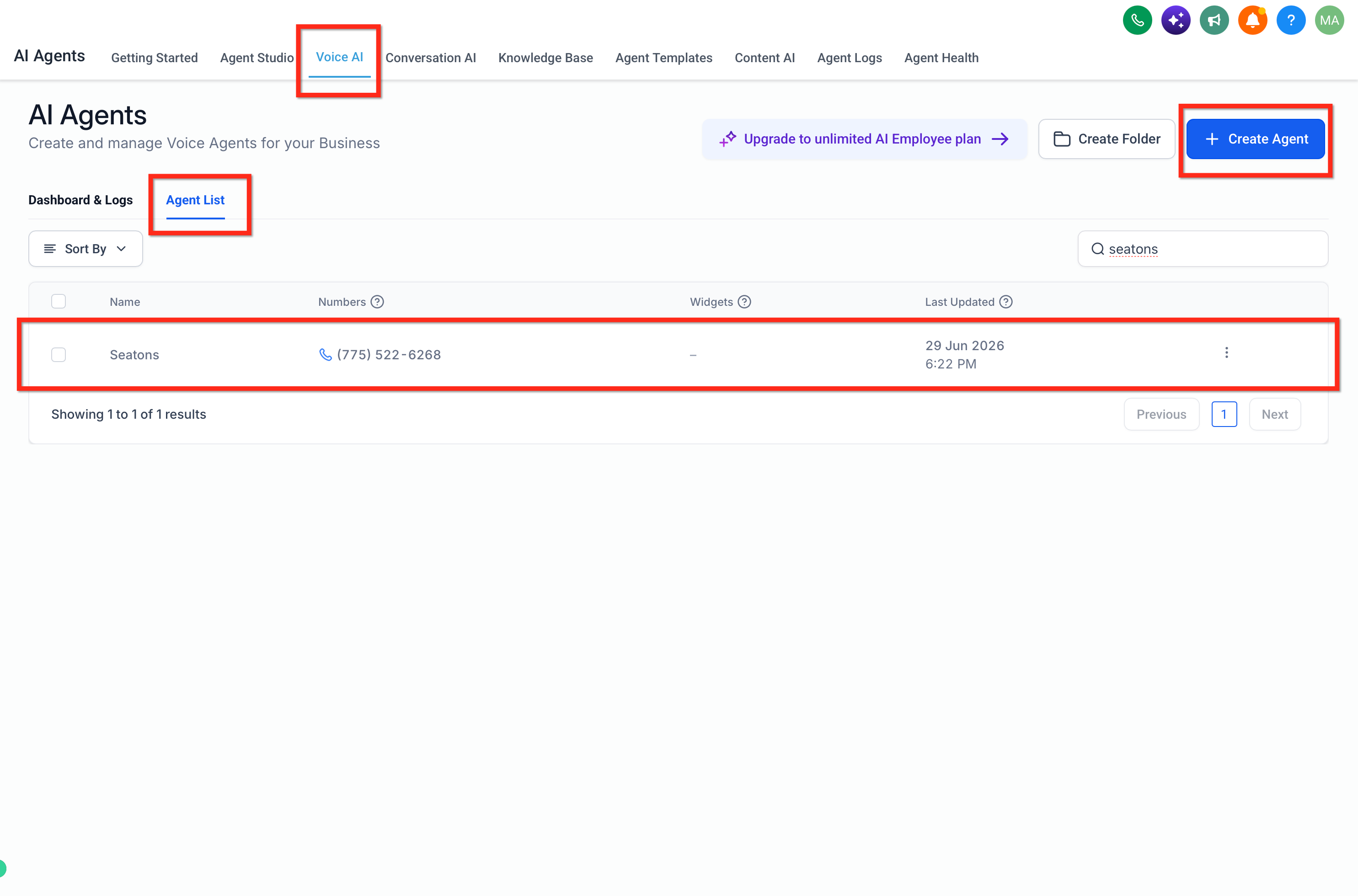
Create or Open an Agent: Navigate to AI Agents → Voice AI → Agent List and create a new agent or open an existing one. Consider cloning an existing agent before switching models.
Select a Voice and S2S Model: Choose your preferred voice, then open the Model dropdown and select a realtime model, such as GPT Realtime 2.1 or Gemini 3.1 Flash Live Preview.
Configure the following agent settings:
Conversation Instructions: Enter the agent's prompt, define its role and objectives, and customize the Welcome Message.
Language and Agent Behavior: Configure the supported languages and Multilingual settings, then review Thinking Mode and Eagerness to adjust conversational responsiveness.
Knowledge Base and Actions: Add relevant business information through Knowledge Base and configure the required actions under Actions → + New Action.
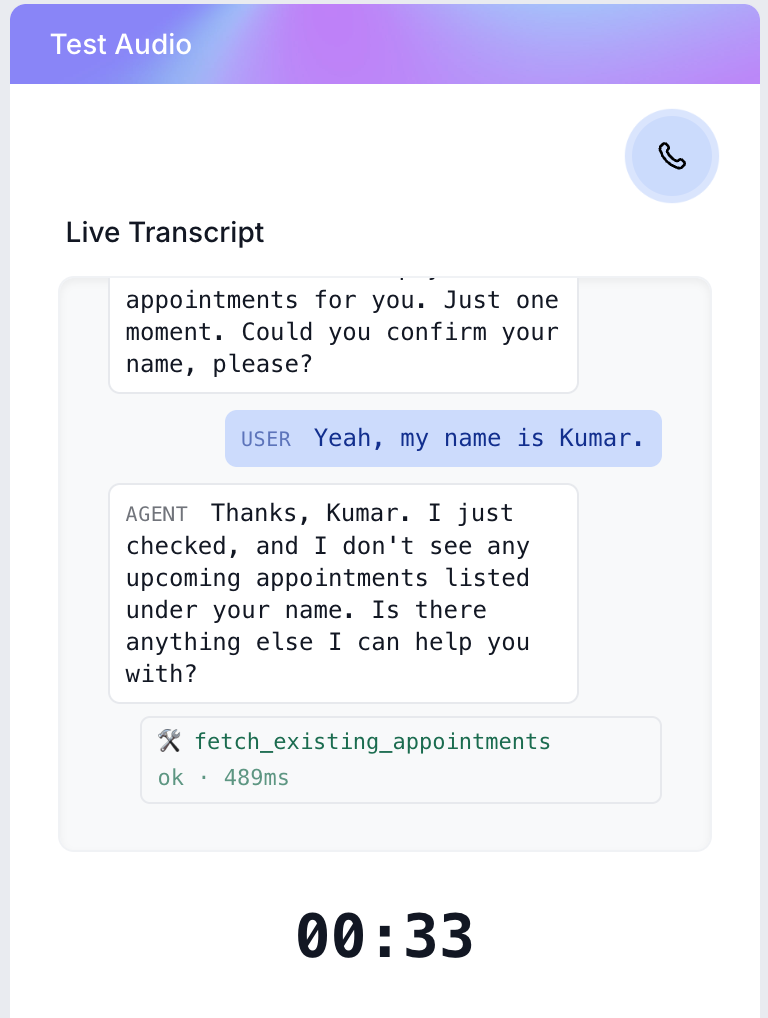
Save and Test the Agent: Click Save, open Test Audio, and select Web Call → Start Web Call. Evaluate responses, language handling, and action execution using the live transcript. Use Phone Call testing for call transfers.
Deploy the Agent: Open Deploy, assign an eligible phone number or supported Voice AI Chat Widget, configure the applicable routing settings, and save. Place a test call to verify the live experience.
Note: Outbound calling requires the appropriate outbound configuration, eligibility, and compliance settings.
For more information, see How to Test Voice AI Agents.

Tip: When switching an existing agent to Gemini 3.8 Live, test representative customer conversations, longer interactions, and configured actions to evaluate how the new model behaves with your existing instructions.
Frequently Asked Questions
Q: Why can't I see GPT Realtime or Gemini Live in the Model dropdown?
Model availability may depend on your account configuration and available Voice AI experience. Review your account permissions and contact Support if an expected model is missing.
Q: Can S2S agents make outbound calls?
Yes. You can configure S2S agents for outbound calling, subject to applicable eligibility, verification, and compliance requirements.
Q: Will changing my existing agent to S2S automatically improve every conversation?
Not necessarily. Existing prompts, voices, action conditions, and Knowledge Base configurations may require adjustments. Test a separate copy before replacing a live agent.
Q: Why didn't Call Transfer work during my Web Call test?
Call Transfer is not supported in browser-based Web Call testing. Use Phone Call testing or a deployed phone number to validate transfers.
Q: What happens if my agent prompt exceeds 15,000 tokens?
A 15,000-token agent prompt limit applies to GPT Realtime 2.x and Gemini 3.1 Flash Live Preview. Shorten the prompt and move suitable reference content into the Knowledge Base.
Q: Can I review transcripts if S2S processes speech directly?
Yes. You can review available transcripts and call logs to evaluate conversations and troubleshoot agent behavior.
Q: Will S2S automatically recognize every language or emotional tone?
Not necessarily. Supported language detection and conversational behavior depend on the selected model, configuration, and audio conditions.
Q: Does Gemini 3.8 Live have the same prompt limit as Gemini 3.1 Flash Live Preview?
The documented 15,000-token agent prompt limit applies to GPT Realtime 2.x and Gemini 3.1 Flash Live Preview. The Gemini 3.8 Live release introduces a larger context window, but this does not by itself establish a higher agent prompt limit. Refer to the current model-specific limits and keep instructions concise, placing suitable reference information in the Knowledge Base.
Related Articles
Was this article helpful?
That’s Great!
Thank you for your feedback
Sorry! We couldn't be helpful
Thank you for your feedback
Feedback sent
We appreciate your effort and will try to fix the article