HighLevel allows agencies to clone Voice AI agents to multiple sub-accounts without manually recreating their configurations. You can copy an existing agent to up to 10 sub-accounts at once, include its linked CRM assets, and monitor cloning progress from one place. This makes it easier to deploy proven Voice AI agents across client accounts while maintaining consistent configurations.
TABLE OF CONTENTS
- Cloning Voice AI Agents to Sub-Accounts
- Attached Assets: What Gets Included When Cloning
- How to Clone Voice AI Agents to Sub-Accounts
- Track Clone History
- Related Articles
Cloning Voice AI Agents to Sub-Accounts
The Clone to Sub-Accounts feature lets Agency users copy an existing Voice AI agent into selected sub-accounts. Each cloning operation creates a one-time copy of the agent and can include supported linked CRM assets.
Cloning the same agent again to a destination sub-account replaces its existing cloned copy. Once cloning is complete, the required phone number or channel must be configured in each destination sub-account before the agent can go live.
Important: This feature is available only to Agency users and supports up to 10 sub-accounts per cloning operation. Legacy Voice AI agents and Flow-Based Voice AI agents are not currently supported.
Attached Assets: What Gets Included When Cloning
Voice AI agents often rely on CRM assets to perform actions such as booking appointments, triggering workflows, or retrieving information. HighLevel automatically identifies supported assets linked to the agent and gives you the option to transfer them along with the agent, reducing the need to recreate those resources in each destination sub-account.
Supported linked assets include:
Calendars: Calendars associated with the Voice AI agent for appointment booking.
Workflows: Automation workflows connected to the agent.
Custom Fields: Contact or CRM fields used by the agent.
Custom Values: Reusable values referenced in the agent configuration.
Knowledge Bases: Knowledge resources connected to the agent.
Other Supported Dependencies: Additional linked CRM assets supported by the cloning process.
You can control whether the agent's linked CRM assets are included during cloning. Include linked assets enabled copies supported linked assets with the agent. Existing corresponding assets in the destination sub-account may be overwritten. Include linked assets disabled copies only the Voice AI agent without transferring its linked CRM assets.
Important: If you include linked assets, they may overwrite existing assets in the destination sub-accounts. This action is irreversible. If the destination already contains the required CRM resources, consider excluding linked assets and verifying the agent's connections after cloning.
How to Clone Voice AI Agents to Sub-Accounts
Cloning an agent involves choosing an existing Voice AI agent, selecting destination sub-accounts, and confirming whether its linked assets should be transferred.
- Navigate to AI Agents → Voice AI and open the Agent List tab.
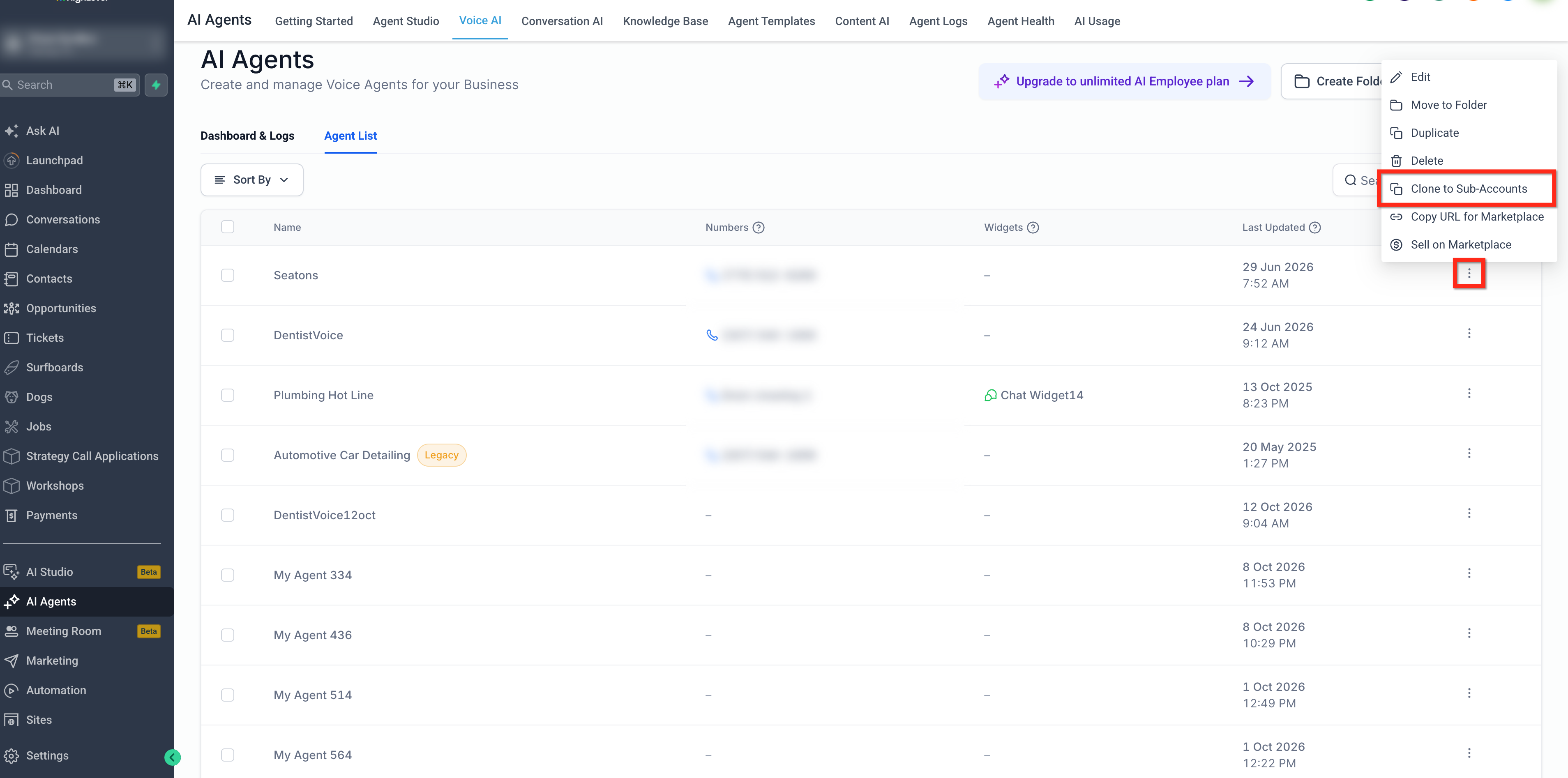
- Locate the agent you want to clone, click its three-dot menu, and select Clone to Sub-Accounts.
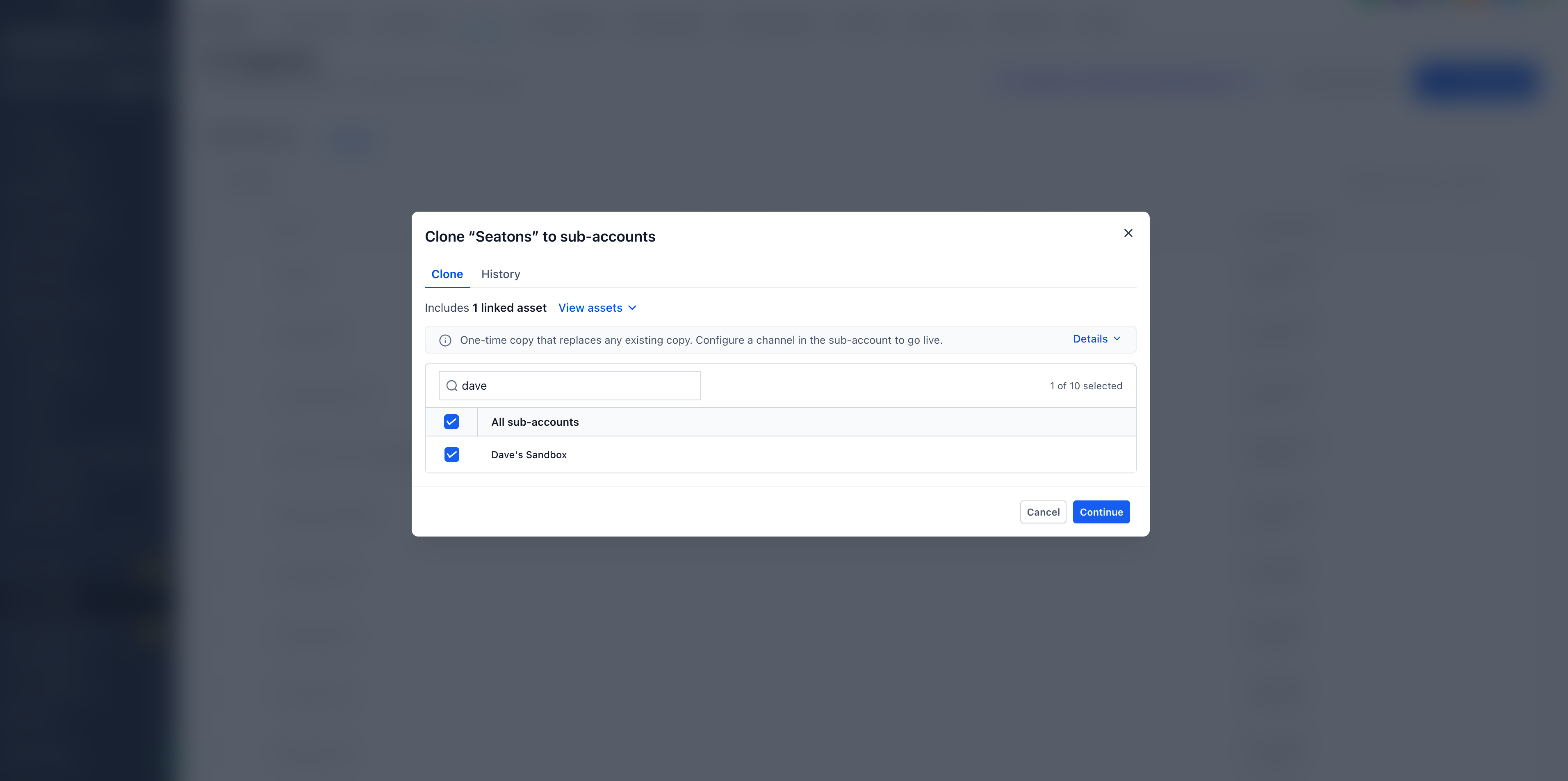
- Use the search field to find destination sub-accounts, then select the checkboxes beside the accounts where you want to clone the agent. You can select up to 10 sub-accounts per cloning operation.
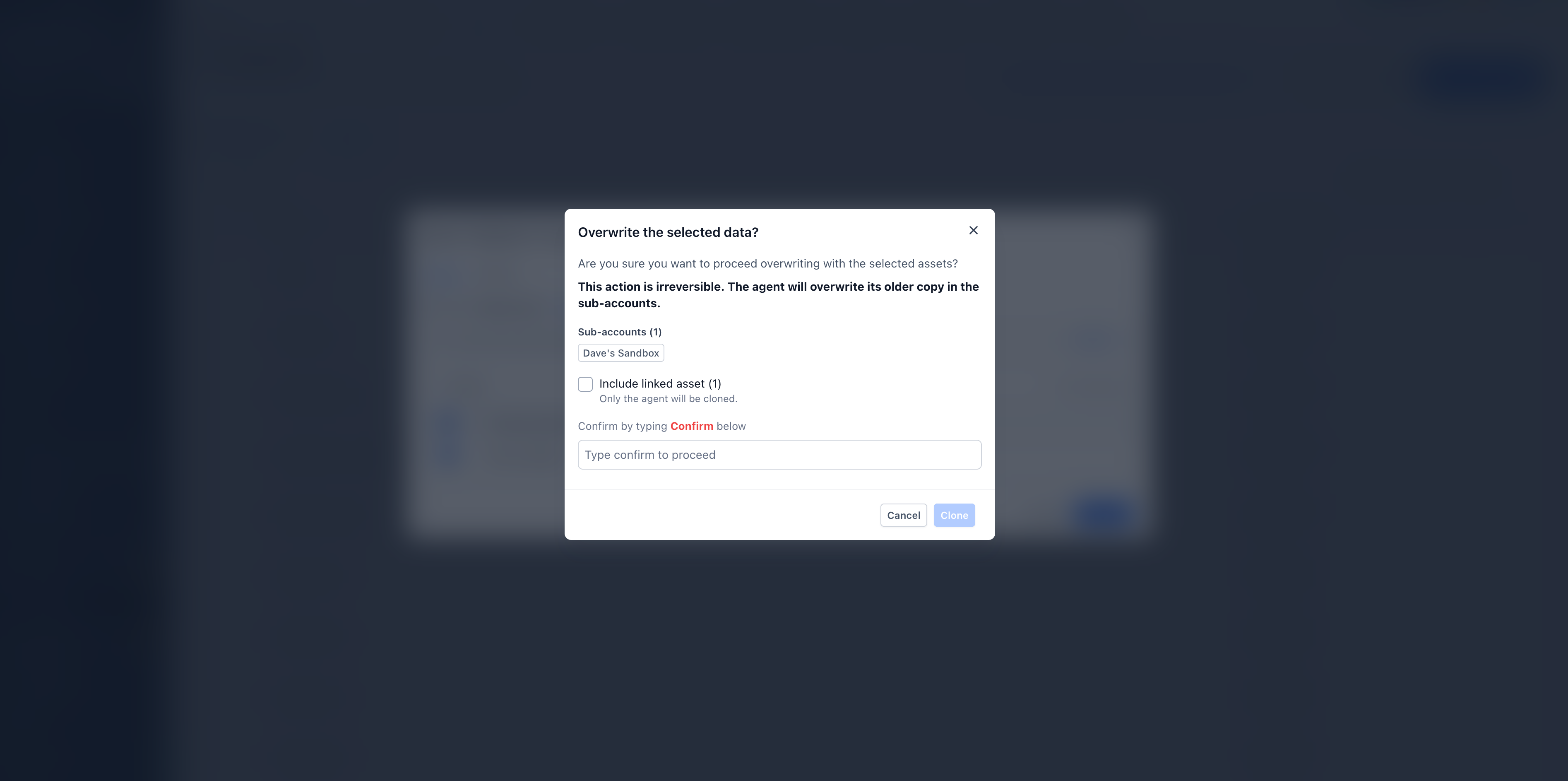
- In the confirmation window, review the selected sub-accounts and choose whether to Include linked assets. Keep the checkbox selected to clone the agent and its supported CRM dependencies, or deselect it to clone only the agent.
- Type Confirm in the confirmation field, then click Clone to start the cloning process.
- Once cloning is complete, open the cloned agent in the destination sub-account and configure the required phone number or channel before deploying it.
Track Clone History
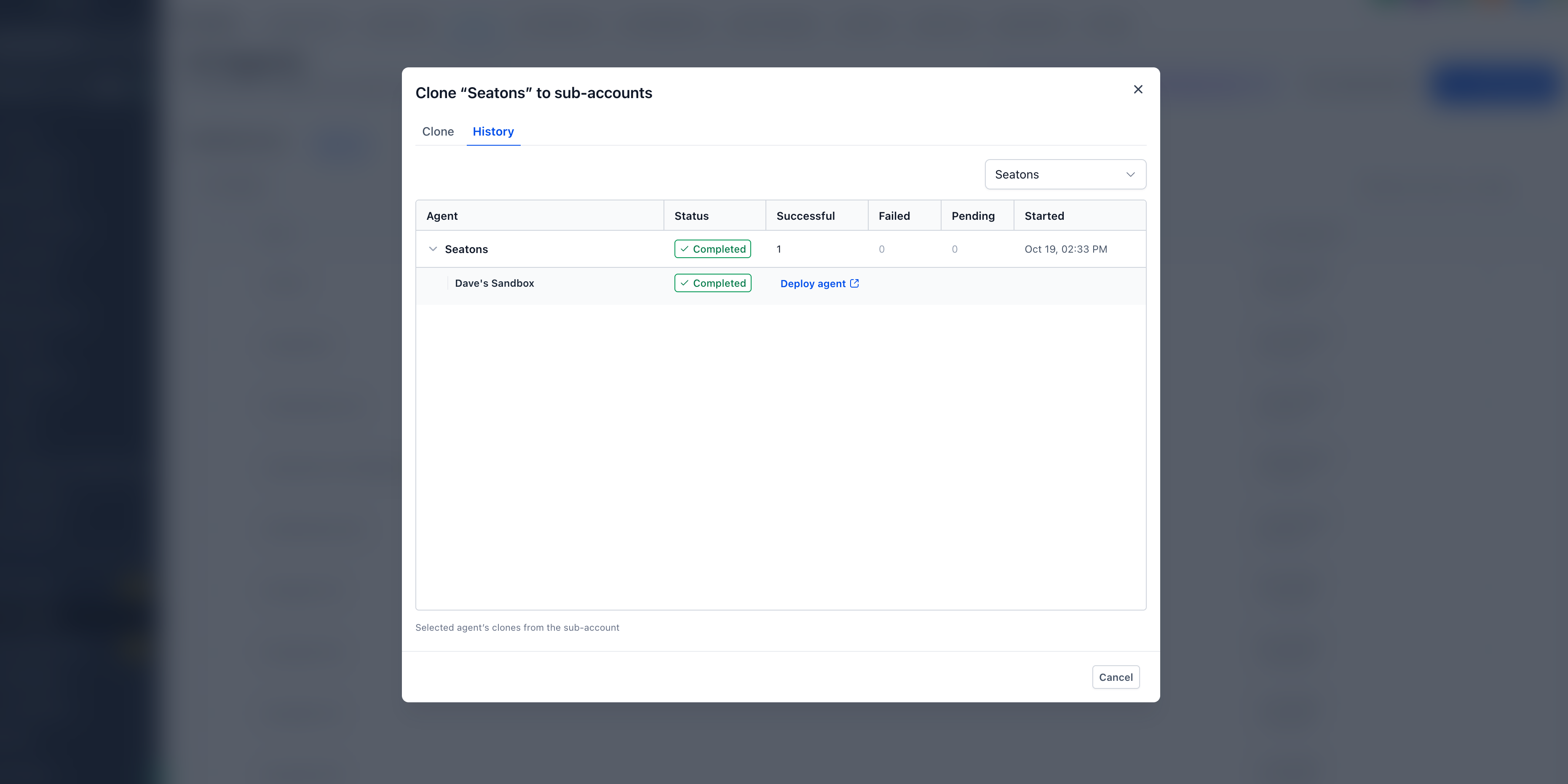
The History tab provides a centralized record of Voice AI agent cloning operations. It allows you to monitor cloning progress, review successful, failed, and pending clones, and see which sub-accounts received the agent. Cloning progress automatically refreshes while an operation is in progress.
To access Clone History, click the three-dot menu next to the agent and select Clone to Sub-Accounts. Then click the History tab to view the agent's cloning operations.
The History tab displays the overall status of each cloning operation, including the number of successful, failed, and pending clones and when the operation started. Click the arrow next to a cloning operation to expand it and view the status of each destination sub-account.
For successfully completed clones, click Deploy agent to open the cloned agent directly in its destination sub-account and complete any remaining deployment configuration.
Related Articles
Was this article helpful?
That’s Great!
Thank you for your feedback
Sorry! We couldn't be helpful
Thank you for your feedback
Feedback sent
We appreciate your effort and will try to fix the article