To protect agencies' SMS reputation and limit exposure, several safeguards have been implemented for LC - Phone. This messaging policy applies to all subaccounts using LC - Phone for communication within the CRM.
We want every message you send to reach its recipient unhindered by filtering or blockers. To make that possible, LC - Phone and its customers work together to prevent and eliminate unwanted messages — ensuring SMS is sent only to consenting parties and in line with applicable laws, industry standards, and guidelines.
LC - Phone Messaging Policy
All messaging transmitted via the platform — regardless of use case or phone number type (e.g., long code or toll-free) — needs to comply with Application-to-Person (A2P) messaging standards. All A2P messages originating from the system are subject to this policy, which covers rules and/or prohibitions regarding:
- Consent ("opt-in"): Consent can't be bought, sold, or exchanged — for example, you can't obtain consent by purchasing a phone list from another party. SMS should only be sent to opted-in contacts.
- Revocation of Consent ("opt-out"): The initial message sent to an individual must include language such as "Reply STOP to unsubscribe," so individuals can revoke consent at any time using a standard opt-out keyword.
- Sender Identification: Every initial message must clearly identify the sender (the party that obtained the opt-in), except in follow-up messages of an ongoing conversation.
- Messaging Usage: Messages must not relate to alcohol, firearms, gambling, tobacco, or other adult content.
- Filtering Evasion: Content specifically designed to evade unwanted-messaging detection is not allowed. This includes intentionally misspelled words or non-standard opt-out phrases created to evade these mechanisms. Snowshoeing — spreading similar or identical messages across many phone numbers to evade detection — is not permitted.
This policy applies to all customers who use LC - Phone messaging services, in order to safeguard their messaging capabilities and services.
When a violation is identified, we work with customers in good faith, where possible, to bring them back into compliance. However, to protect the ability of all customers to use messaging for legitimate purposes, we reserve the right to suspend or remove platform access for customers or end users who don't comply with this policy, or who don't follow applicable law or communications industry guidelines — in some cases with limited notice for serious violations.
- Conversation Error: "You have exceeded your SMS sending limit."
- Bulk Action: "You are allowed to send 5000 message(s) in a day. You have already sent 5000 message(s). If you wish to proceed, 1 Message(s) will be failed."


SMS Ramp-Up Model (V2)
Starting February 1st, 2024, all subaccounts created under LC - Phone follow an 8-level ramp instead of the previous 7-day ramp with a lower limit. The table below details each level:
| Level | SMS Sending Limit |
|---|---|
| 1 | 500 |
| 2 | 750 |
| 3 | 1000 |
| 4 | 1500 |
| 5 | 2000 |
| 6 | 3500 |
| 7 | 5000 |
| 8 | 5000+ |
This ramp does not start on the signup date — it starts on the day the first successful SMS message is sent.
- All subaccounts start at Level 1, enabling 500 SMS within 24 hours.
- To increase the sending limit, the subaccount must send the full level limit within a 24-hour window.
- After sending the full level limit within 24 hours, the subaccount is temporarily restricted from sending SMS for the next 24 hours. During this restriction, SMS sending is disabled.
- After 24 hours, the restriction lifts. The subaccount can send messages again and unlocks the next level's sending limit.
- A new subaccount starts on Level 1: 500 SMS within 24 hours.
- To unlock Level 2, the subaccount must send 500 SMS within 24 hours.
- After sending 500 SMS within 24 hours, the subaccount is restricted for 24 hours. Once that period ends, SMS sending resumes and Level 2's limit of 750 unlocks.
- To unlock Level 3, the subaccount must send 750 SMS within 24 hours; after that, another 24-hour restriction applies before Level 3's limit of 1000 unlocks.
- This pattern of hitting the level's limit and waiting 24 hours continues until Level 8, which allows 5000+ SMS per day.
The ramp-up model was implemented to:
- Avoid SMS spam blasts from fake signups — new subaccounts follow the ramp-up model.
- Avoid getting subaccounts blocked due to suspicious activity.
- Avoid legal exposure from spamming non-consenting contacts. Only bulk SMS sending carries daily limitations, to prevent suspension from non-compliant messaging activity.
Spam Message Handling
Every message sent from a subaccount ends up with one of four statuses:
- Sent: No carrier response received yet — it can still resolve into any of the statuses below.
- Delivered: Successfully delivered to the contact.
- Failed: Canceled, or never forwarded to the carrier.
- Undelivered: The message was flagged as suspicious or didn't fulfill the messaging policy.
Only Undelivered messages are considered here. Each one carries a specific error code, tracked at the message level, which is used to enable Temporary or Permanent DND (Do Not Disturb) at the contact level — so future SMS aren't sent to contacts who won't receive them, improving your deliverability rate. The table below summarizes the undelivered SMS error codes, what each means, and the remediation taken:
| Response Code | Code Description | Remediation |
|---|---|---|
| 30005 | User Inactive / Number does not exist | Enable Temporary DND |
| 30003 | Unreachable — Out of Service | Enable Temporary DND |
| 30004 | Do not want SMS / DND enabled | Enable Permanent DND |
| 30006 | Landline / incapable of receiving SMS | Enable Temporary DND |
| 30008 | None of the above scenarios matched | Do nothing |
- Temporary DND: DND set at the contact level can be revoked by the agency or location.
- Permanent DND: DND cannot be revoked by the agency or location from the UI, because the contact is incapable of receiving messages or has opted out.
- Opt-Out Keyword: Individuals must be able to revoke consent at any time by replying with a standard opt-out keyword like STOP or UNSUBSCRIBE. This also enables a permanent DND at the contact level.
- Restricts the location from sending SMS to non-relevant contacts, increasing deliverability and reducing the risk of being blocked.
- Locations only send messages to contacts who have opted in.
- Conversation: "Cannot send messages as DND is active for SMS."
- Bulk Action: All SMS sent via workflow or bulk SMS automatically skips DND-marked contacts from the sender list.
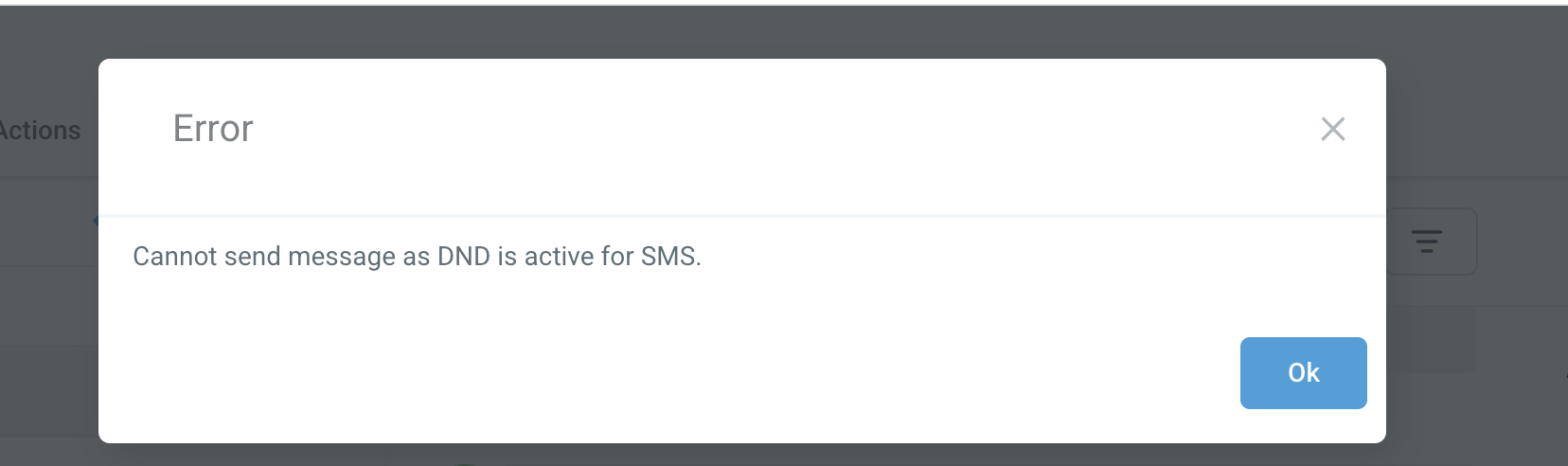
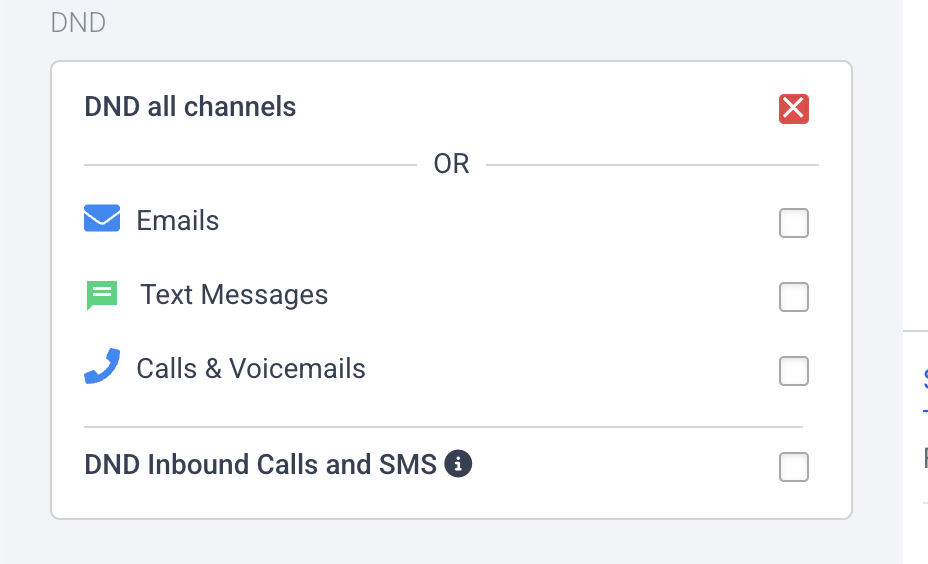
- For Temporary DND — go to the contact's details and remove the DND flag. See the sample screen below.
- For Permanent DND — this cannot be revoked from the UI. Ask the contact to reply with "START," "YES," or "UNSTOP" to the number, which automatically removes the DND from the contact.
If replying START doesn't revoke the DND and incoming/outgoing messages keep failing, please raise a support ticket.
Opt-Out Language Addition
- Consent for communications can't be bought — the only path is taking explicit consent from the user for SMS campaigns and communications.
- Consent is taken by a specific entity — in this case, the subaccount that is the actual sender of these communications.
- To comply with the messaging policy, every initial message sent to an end user must include two mandatory pieces of information: Sender ID and Opt-Out Language.
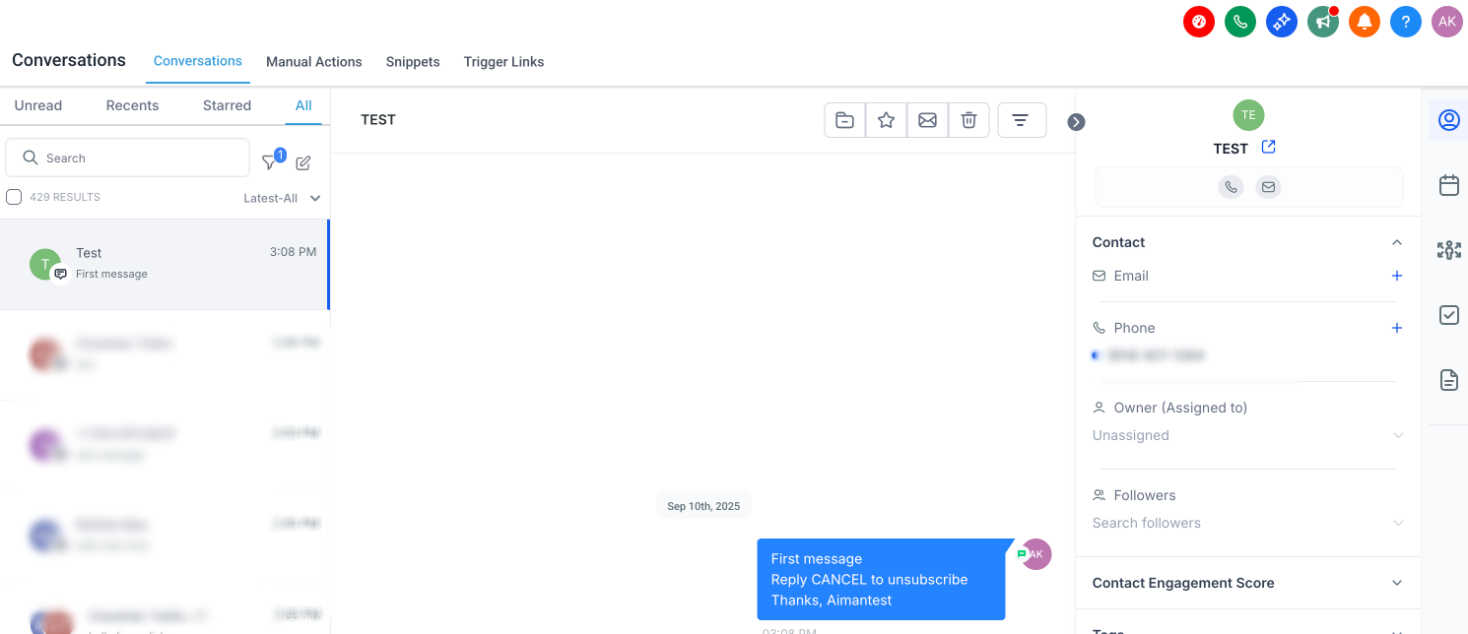
- Opt-Out Language: The end user must be able to remove consent at any time, so each initial message includes opt-out keywords like STOP or UNSUBSCRIBE. The language "Reply STOP to unsubscribe" is added automatically.
The Opt-Out Message setting applies when it's the first SMS sent to a new contact who has never texted your system number, across: (1) a Bulk Action in the Contacts area, (2) Workflow "Send SMS" actions, (3) Campaigns (legacy feature), and (4) One-on-One messages sent via the Conversations area.
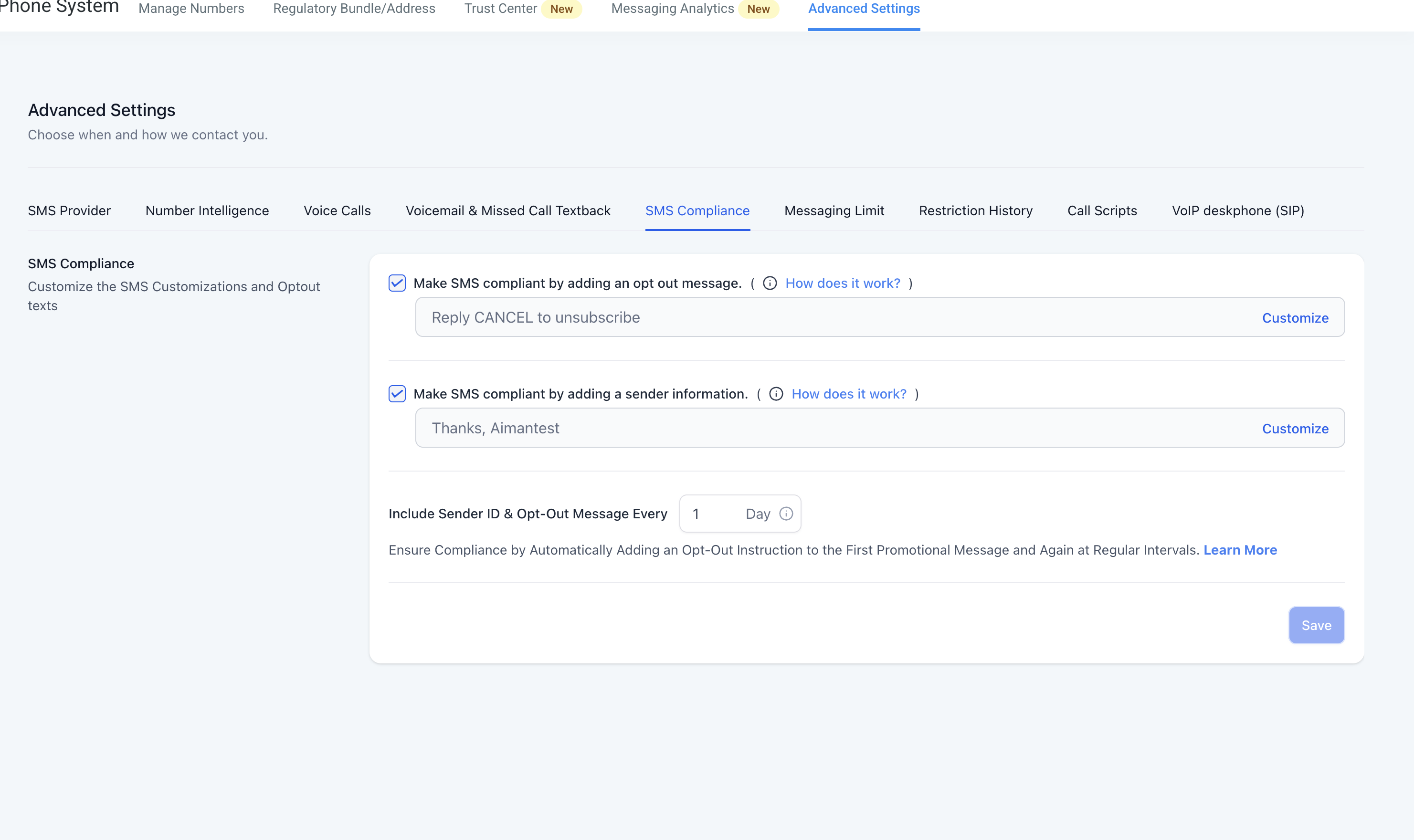
Go to Sub-account → Settings → Phone Numbers → Advanced Settings → SMS Compliance, where you can customize the opt-out message.
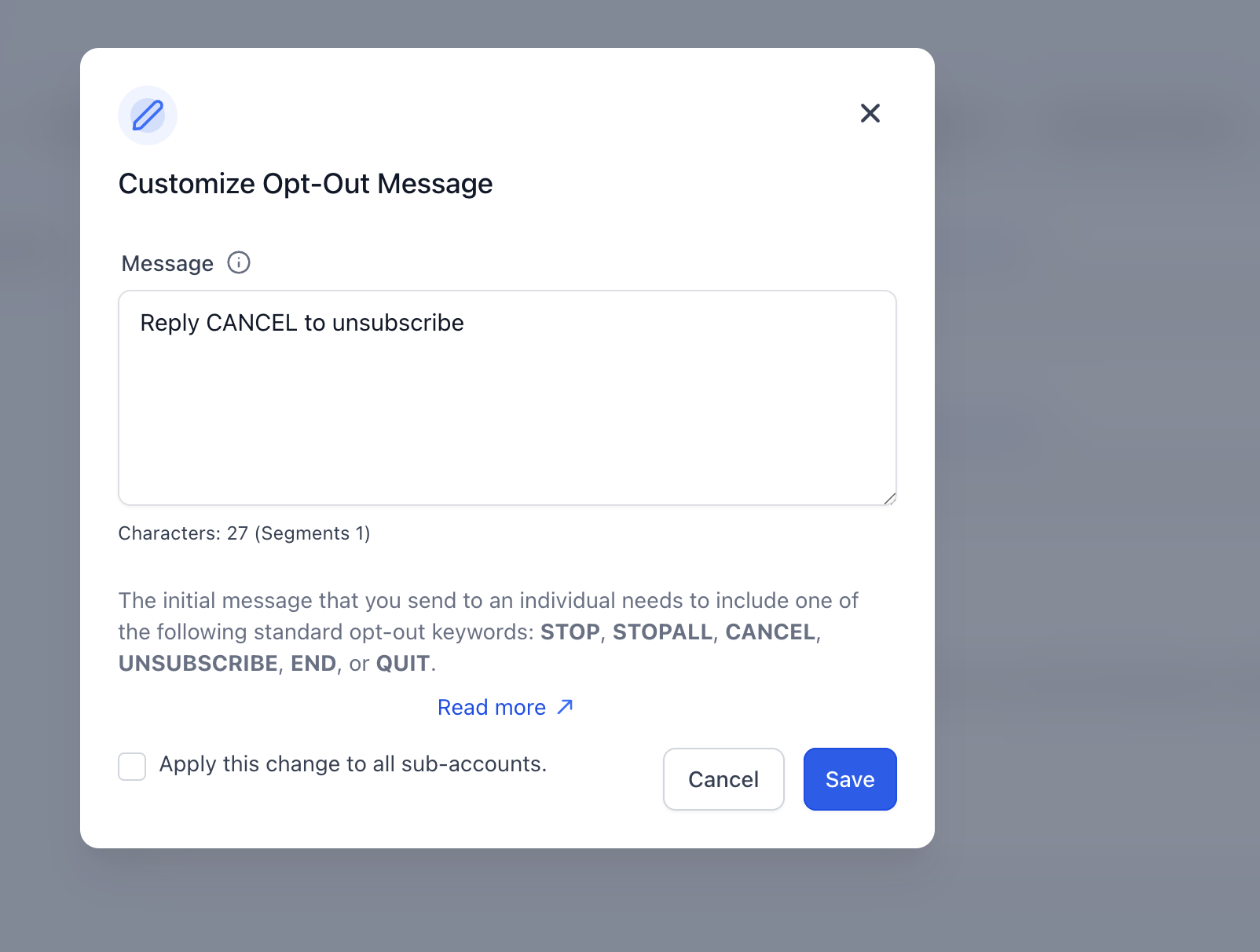
The platform suppresses the auto-added opt-out line only when it detects a full opt-out instruction already in the message — for example, an unsubscribe phrase. It does not suppress insertion for incidental keywords used in ordinary sentences.
Examples that suppress insertion:
- "Reply STOP to unsubscribe."
- "Text STOP to opt out."
- "Reply STOP to end."
Example that does not suppress insertion:
- "If you want to stop by the office tomorrow, we're open 9–5."
If an individual replies with a standard opt-out keyword like STOP, consent to send SMS is revoked. All upcoming and queued messages will fail, and a permanent DND is enabled at the contact level.
This information is mandatory for end customers, so it's a required check on every initial message. The first outbound message in a conversation must include sender identification and opt-out language, regardless of other settings.
Sender Information Addition
- Consent for communications can't be bought — the only path is taking explicit consent from the user for SMS campaigns and communications.
- Consent is taken by a specific entity — in this case, the location that is the actual sender of these communications.
- To comply with the messaging policy, every initial message must include two mandatory pieces of information: Sender ID and Opt-Out Language.
- Sender ID: Every message must clearly identify the sender (the party that obtained the opt-in), except in follow-up messages of an ongoing conversation. The sender info "Thanks, <Location Name>" is added automatically.
The Sender ID feature applies to all Bulk Actions (bulk SMS), Workflows, Campaigns, and One-on-One conversations.
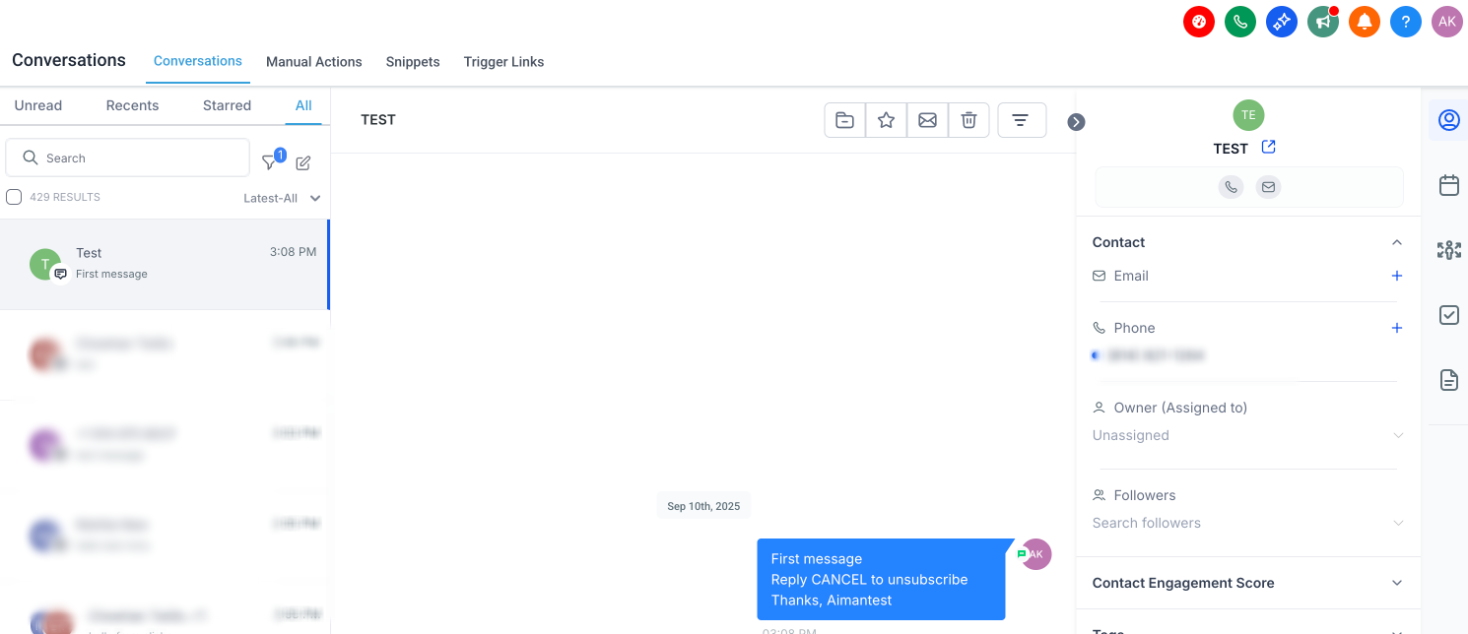
Go to Sub-account → Settings → Phone Numbers → Advanced Settings → SMS Compliance, where you can customize the Sender ID message.
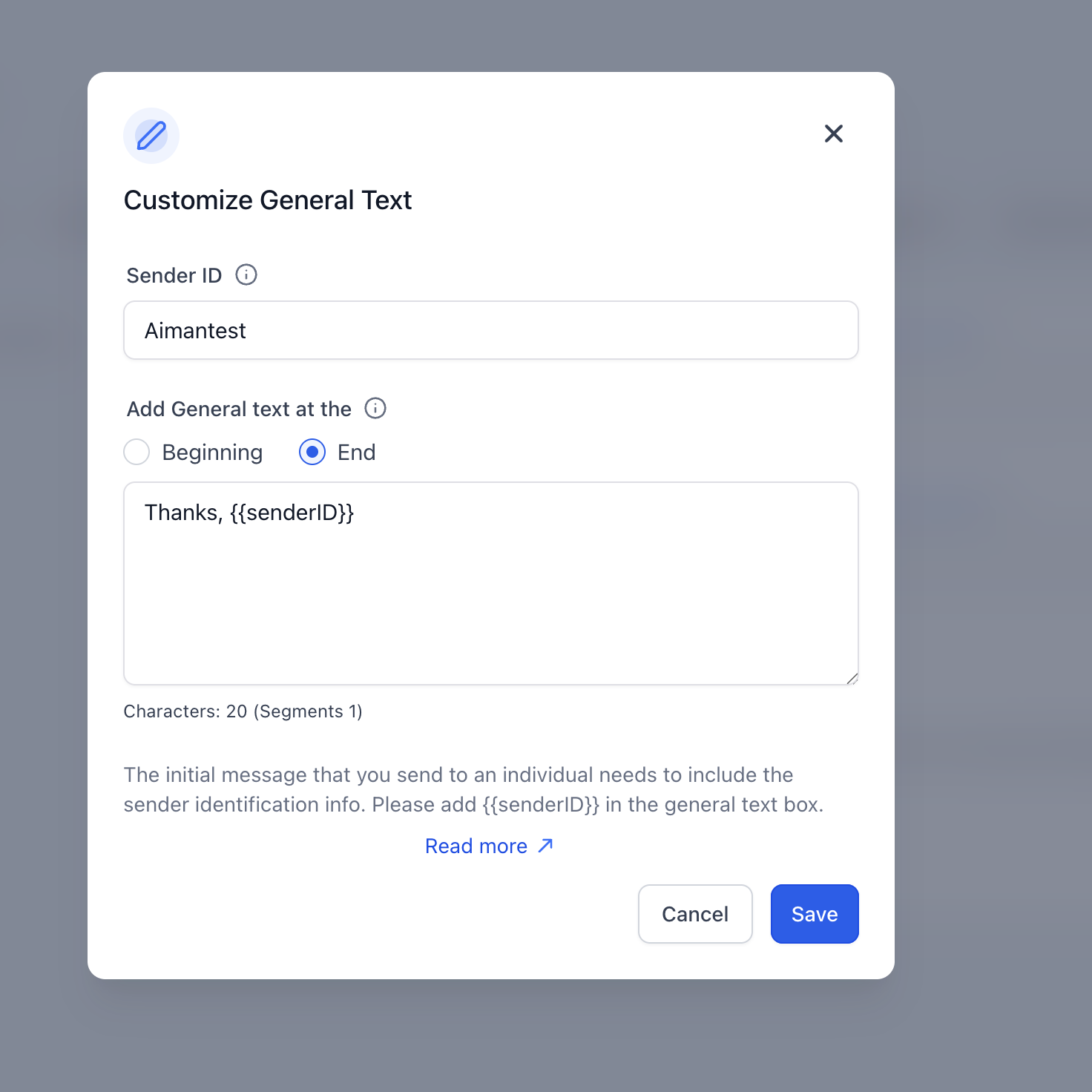
This information is mandatory for end customers, so it's a required check on every initial message.
Error and Opt-Out Rate Monitoring
We monitor messaging performance and take proactive measures to maintain healthy delivery rates — preventing carriers from blocking or permanently suspending accounts due to poor usage patterns. We monitor overall delivery performance for each account and apply corrective actions to keep delivery rates within acceptable limits.
The charts below outline the opt-out and bounce rate thresholds at which Warnings (W) and Suspensions (S) are triggered.
Warnings/suspensions are based on the location's ramp level (L1, L2, etc.), the number of SMS messages sent, and the opt-out count or opt-out percentage.
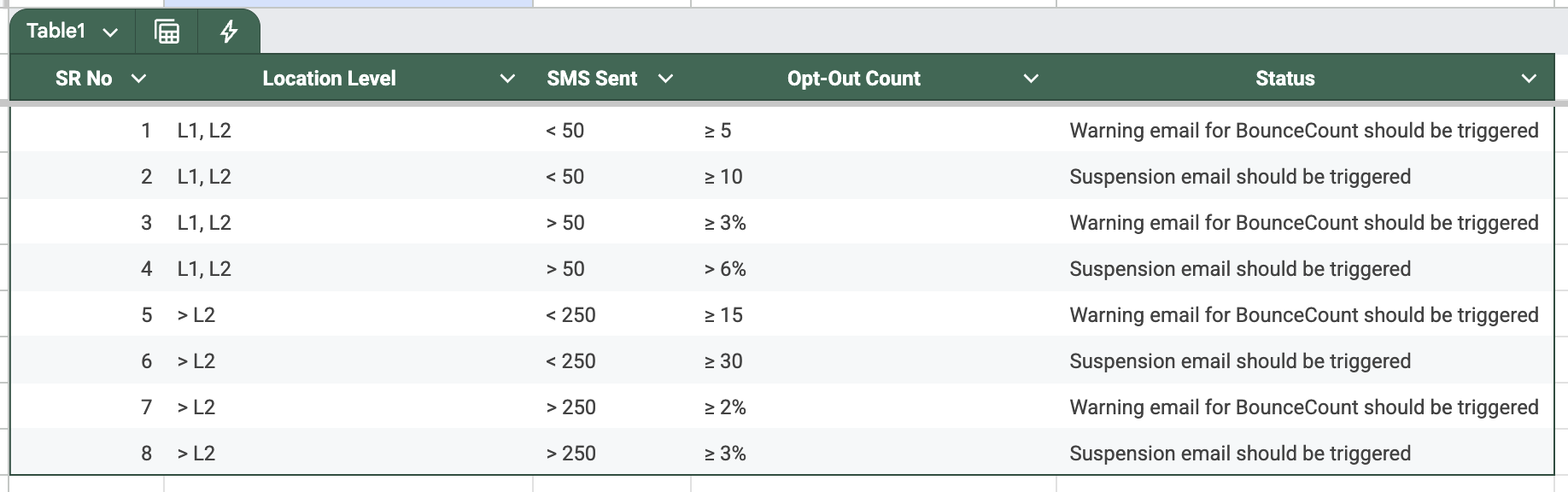
Warning/suspension emails are triggered based on total SMS messages sent and the bounce count or bounce percentage.
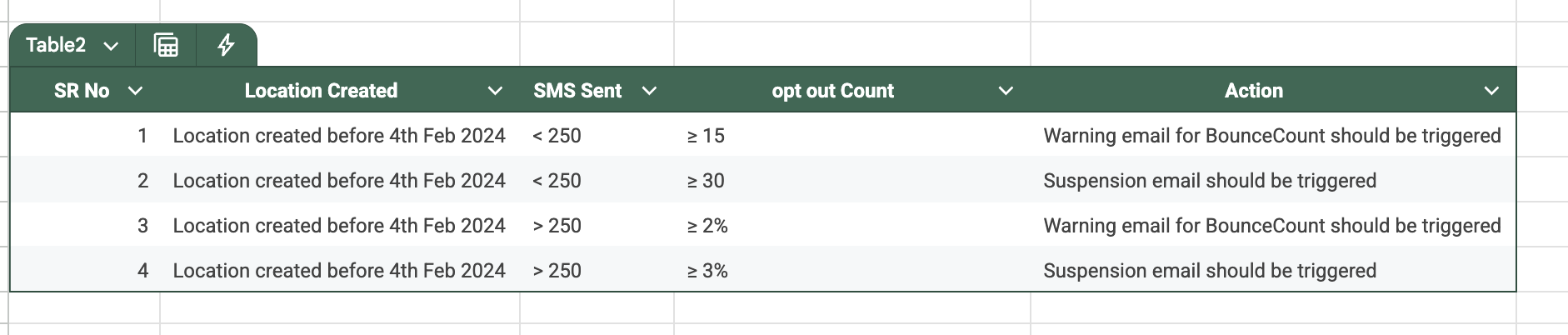
The charts below outline the error rate thresholds at which Warnings (W) and Suspensions (S) are triggered.
Based on ramp level, number of SMS messages sent, and error count or error percentage.
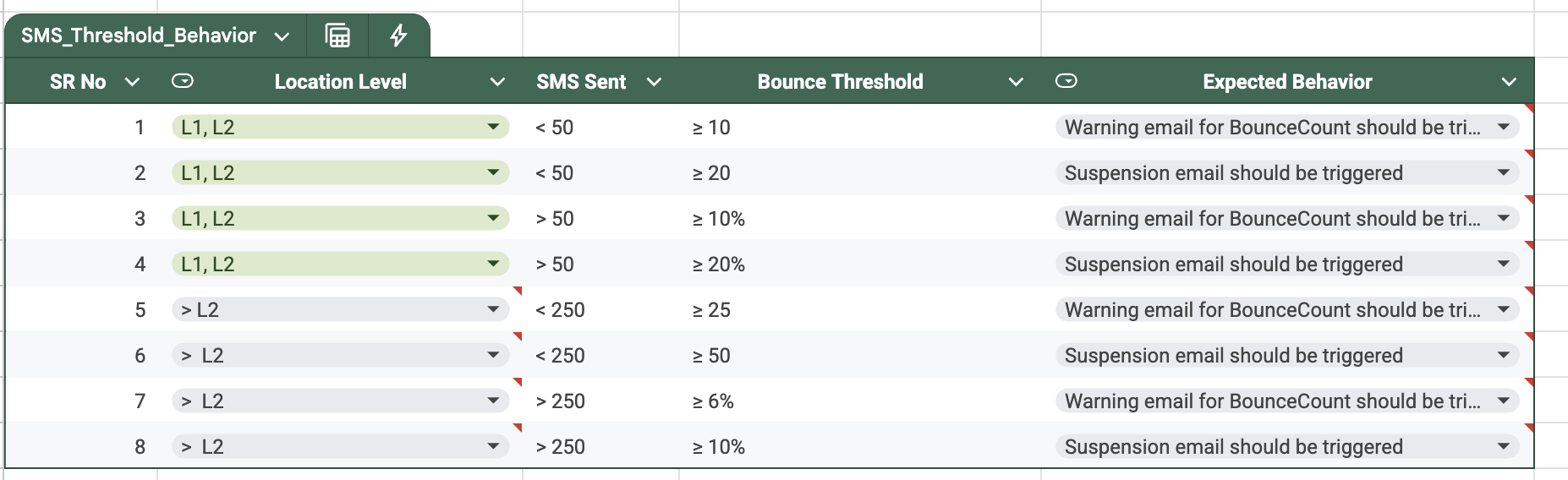
Based on total SMS messages sent and error count or error percentage.

Locations created before 4th February 2024 did not follow the ramp-up process and were placed directly on messaging limits.
Once an account enters temporary suspension, all outbound SMS will fail until 00:00 UTC, when the suspension is automatically lifted.
- Stop all workflows, campaigns, triggers, and/or bulk actions to contacts who have not explicitly opted in to receive messages from the subaccount.
- Enable and customize the Opt-Out Language and Sender ID message for your use case, so upcoming messages aren't flagged.
- Confirm with your client that no bulk communication, message blasts, or cold-prospecting campaigns will go out until you've replied to the ticket.
- A high opt-out rate indicates contacts have objected, complained, or marked your SMS as spam. A good opt-out rate is typically 0–1%.
- A high delivery error rate indicates you're sending SMS to contacts who are out of service, unreachable, or on a non-SMS-capable device such as a landline — or that carrier filters are refusing delivery due to prior sending behavior.
The suspension lifts automatically within 24 hours. If the subaccount is permanently suspended, see the related article on account suspension to un-suspend it.
One-on-one conversations, test SMS, resend message, and Missed Call Text Back are still allowed even while an account is suspended.
Frequently Asked Questions
Was this article helpful?
That’s Great!
Thank you for your feedback
Sorry! We couldn't be helpful
Thank you for your feedback
Feedback sent
We appreciate your effort and will try to fix the article