Inbound SMS messages are received and stored in the Conversations tab in HighLevel. A phone number's call-forwarding settings do not automatically forward those inbound SMS messages to another phone number.
If your team also needs an SMS alert when a contact replies, you can create a Customer Replied workflow that sends a separate internal SMS notification containing the inbound message. This article explains how to configure the trigger, add the message content, manage repeat replies, and troubleshoot common issues.
What is Inbound SMS Notification Forwarding?
Inbound SMS notification forwarding uses a workflow to alert internal users when a contact sends an SMS. The original message remains in Conversations, while the workflow creates a separate internal notification containing information from that message.
This is different from call forwarding. Configuring a forwarding phone number for calls does not automatically forward inbound text messages to that same destination.
Key Benefits of Inbound SMS Notifications
Internal SMS notifications help team members stay aware of inbound replies even when they are not actively monitoring Conversations. Dynamic values can include the contact and message information needed to understand who replied and what they said.
- Faster Response Awareness: Alert team members when a contact sends an inbound SMS.
- Message Context: Include dynamic values such as the contact's name and inbound message body.
- Flexible Recipients: Send internal notifications to the applicable users, roles, or teams supported by the Internal Notification action.
- Channel Control: Use Reply Channel = SMS so replies from other channels do not trigger the same SMS notification workflow.
How the Workflow Works
The workflow listens specifically for inbound SMS replies and then sends a new internal notification to your selected recipient. The contact's original SMS remains available in Conversations and is not moved or replaced.
- A contact sends an inbound SMS.
- The message appears in Conversations.
- The Customer Replied trigger detects the reply.
- The Reply Channel = SMS filter confirms the message came from SMS.
- The workflow sends an Internal Notification containing the message details.
The workflow sends a new internal notification. It does not natively forward the original SMS thread through the phone number's call-forwarding setting.
How to Set Up Inbound SMS Notifications
Proper trigger filters ensure the workflow reacts only to inbound SMS replies, while the Internal Notification action determines who receives the alert and what information is included. Test the workflow before relying on it for live conversations.
Go to Automation → Workflows → Create Workflow.
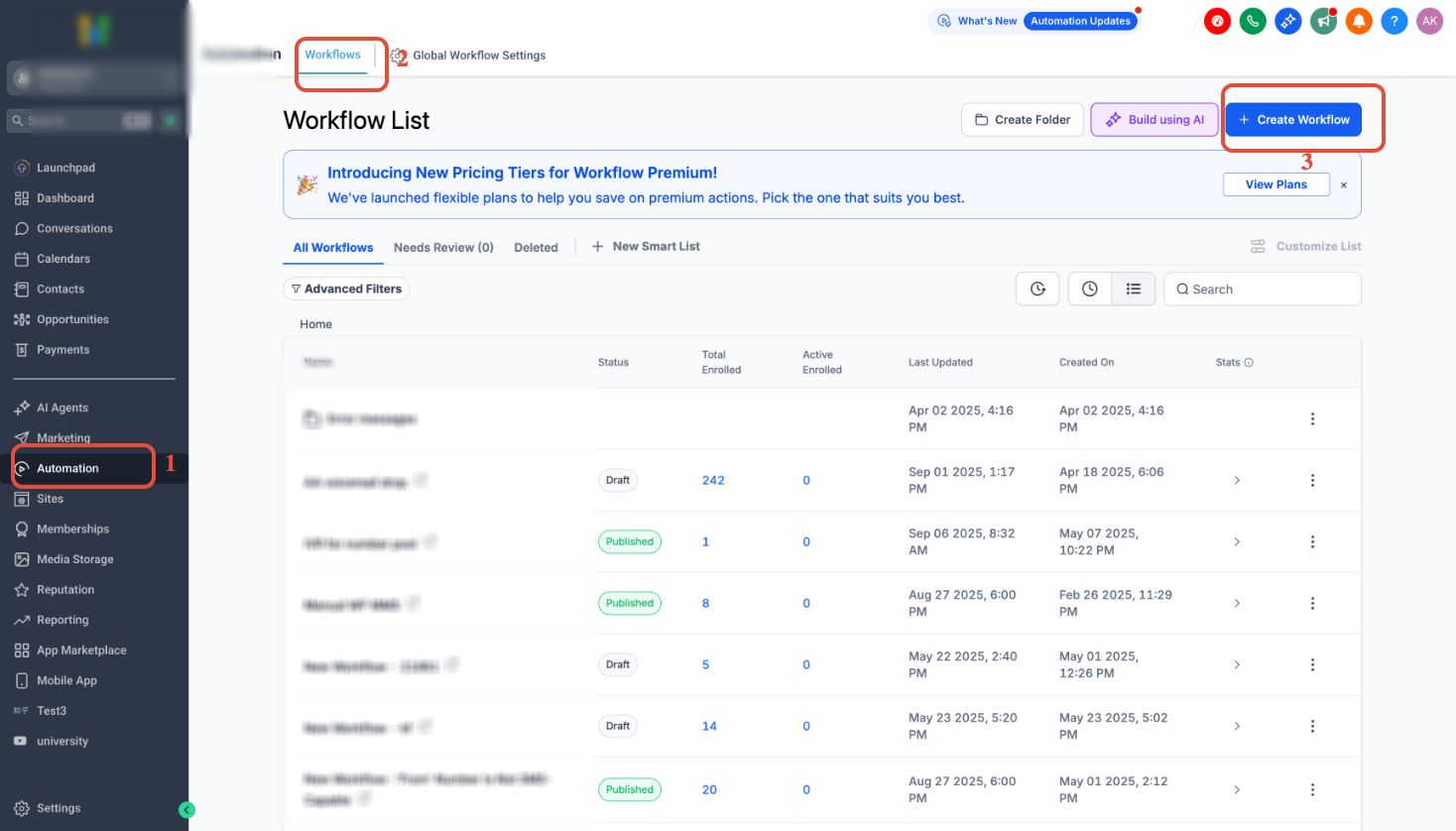
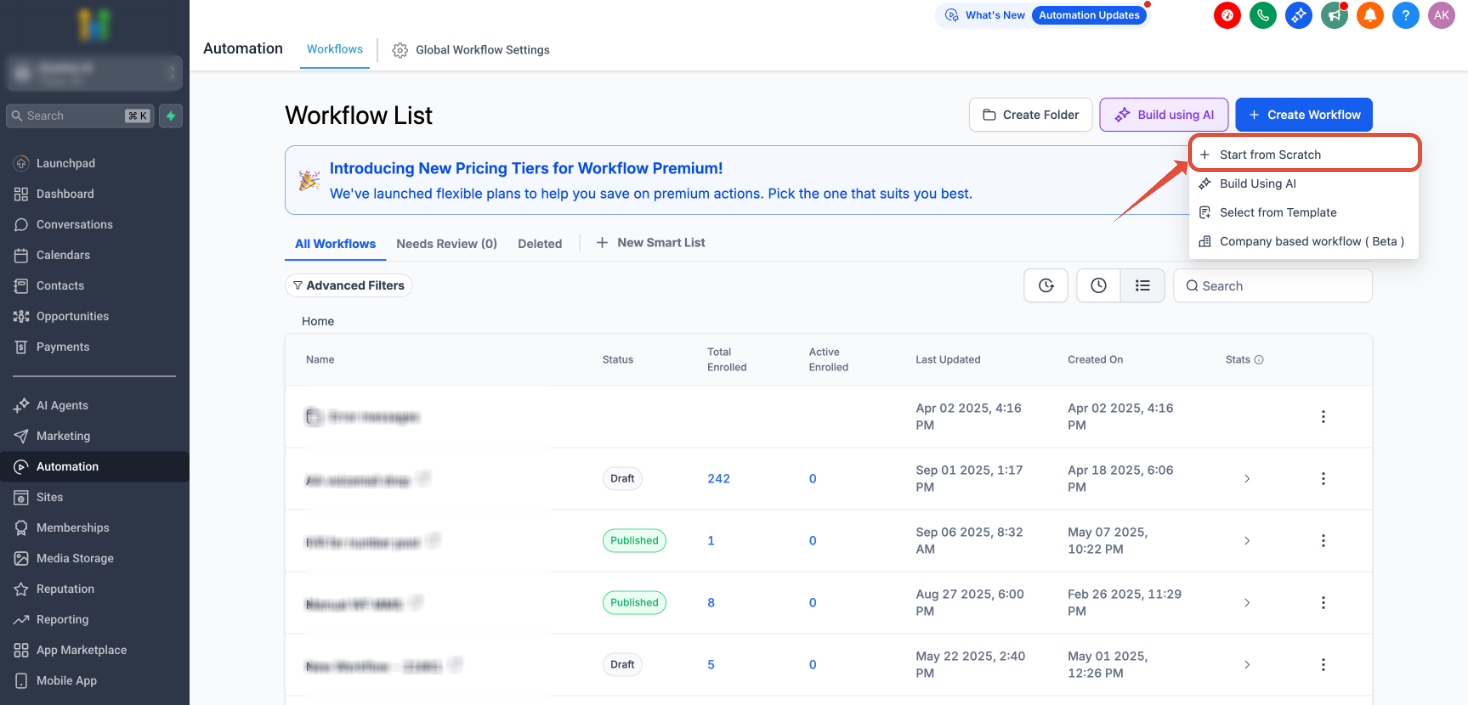
Select Start from Scratch, then choose Create New Workflow.
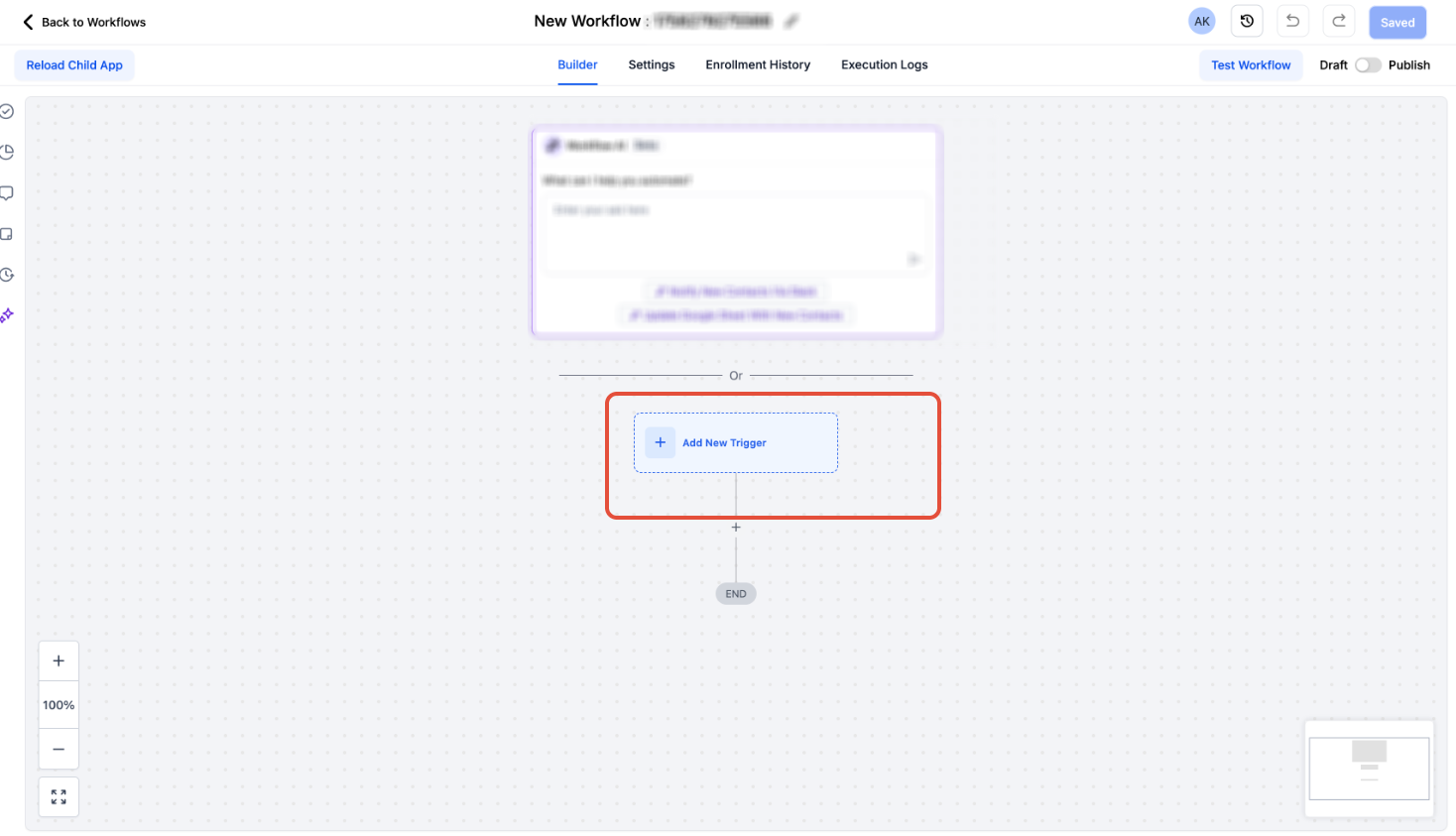
Click Add New Workflow Trigger.
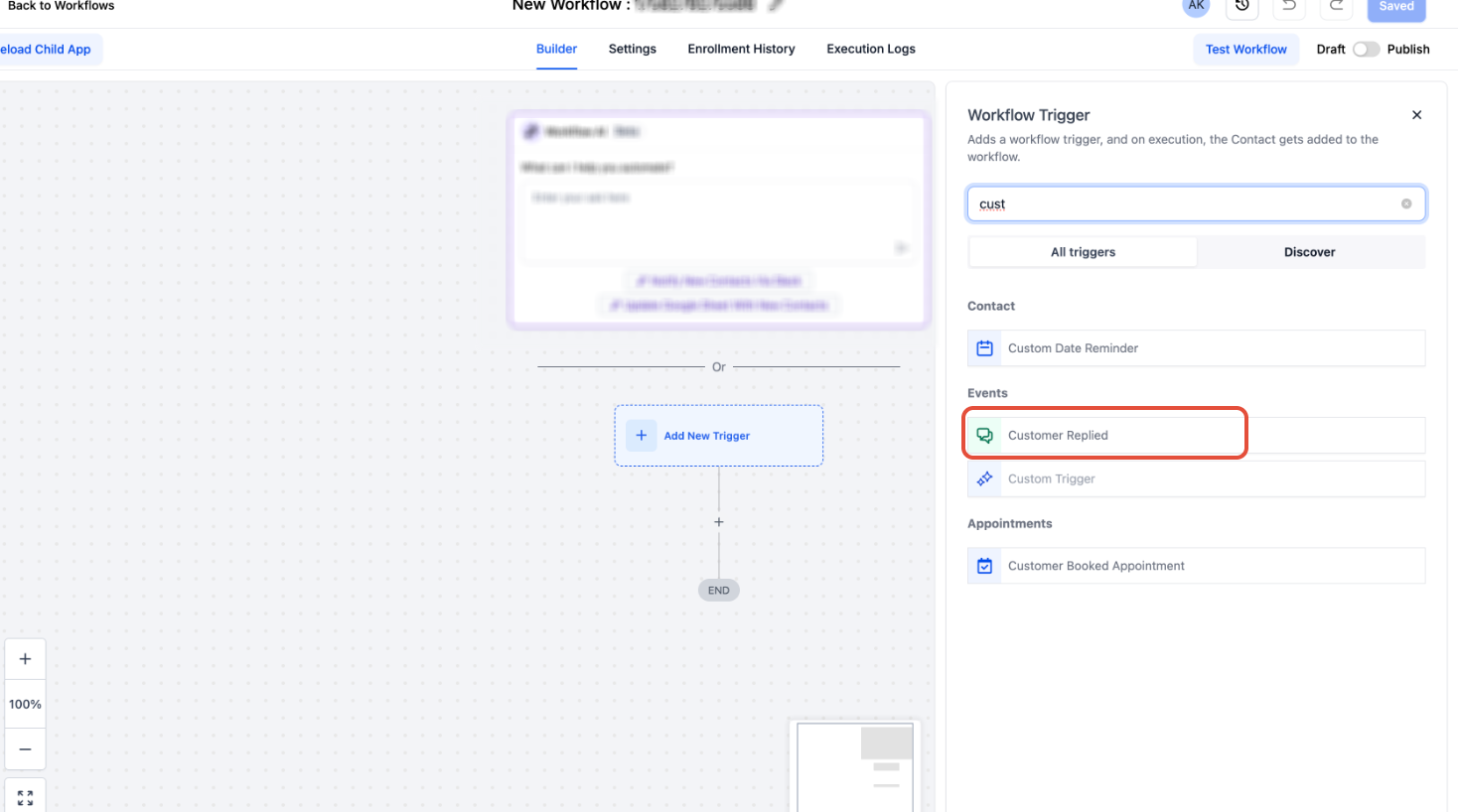
Select Customer Replied.
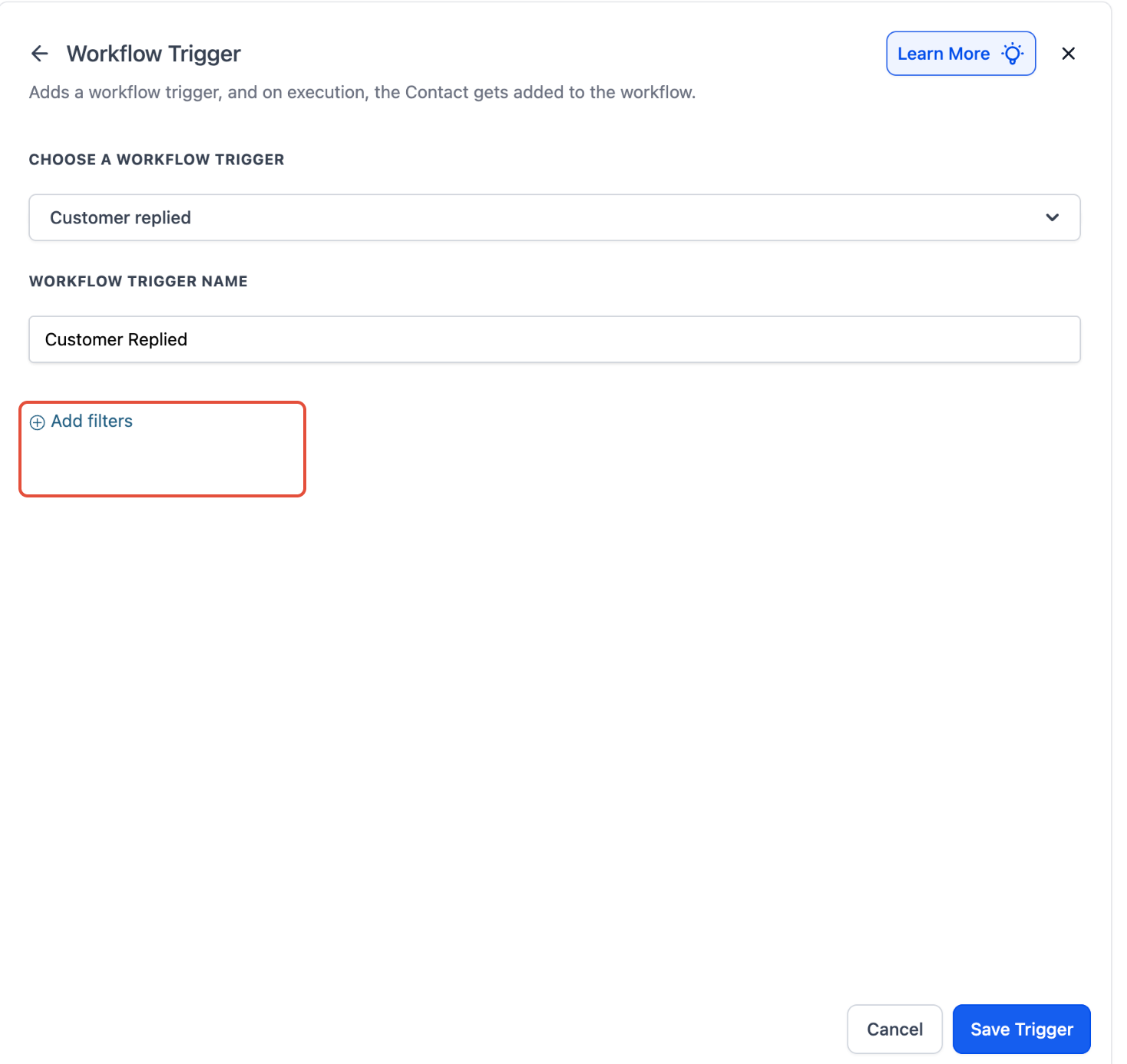
Click Add Filters.
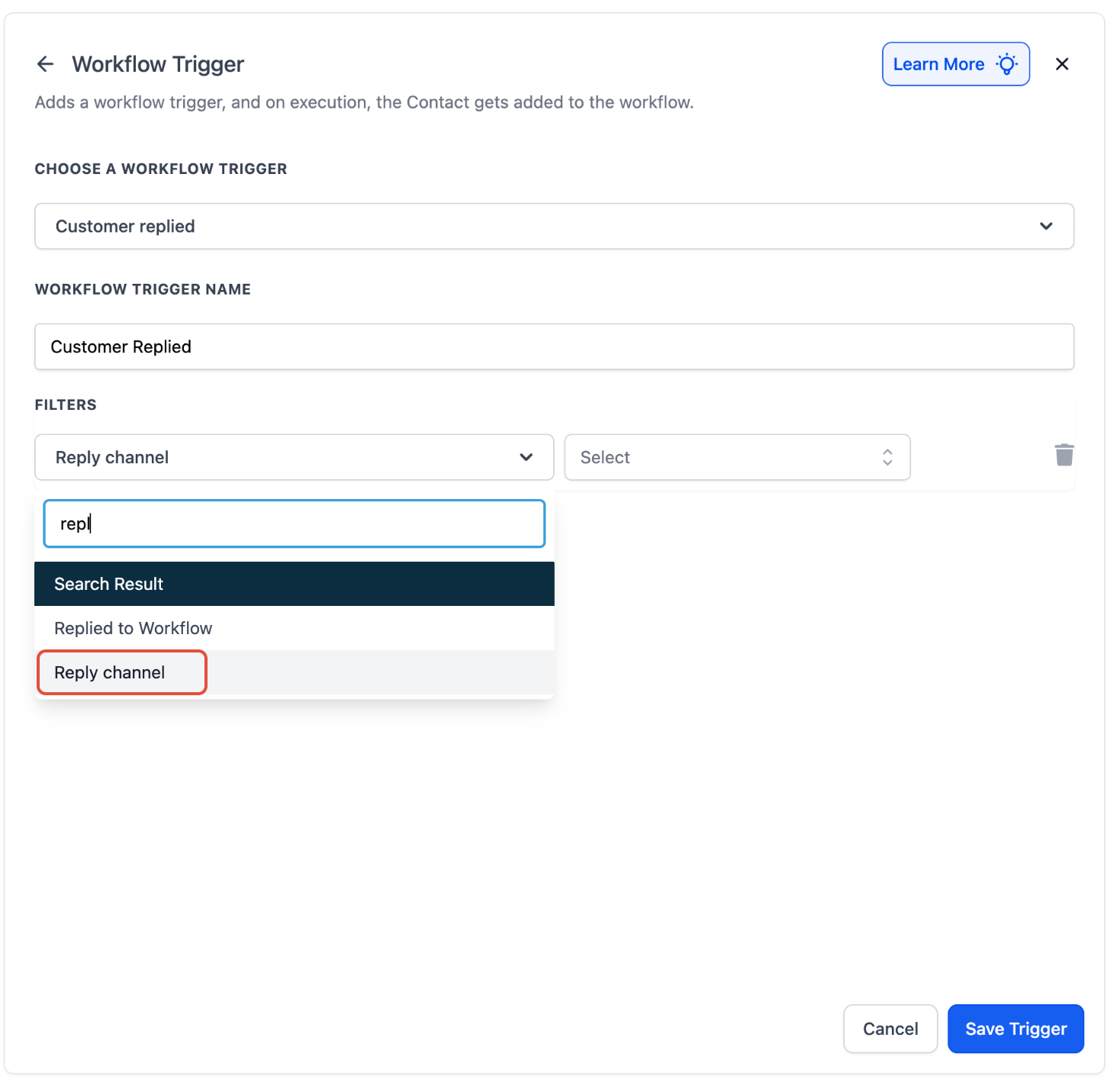
Choose Reply Channel.
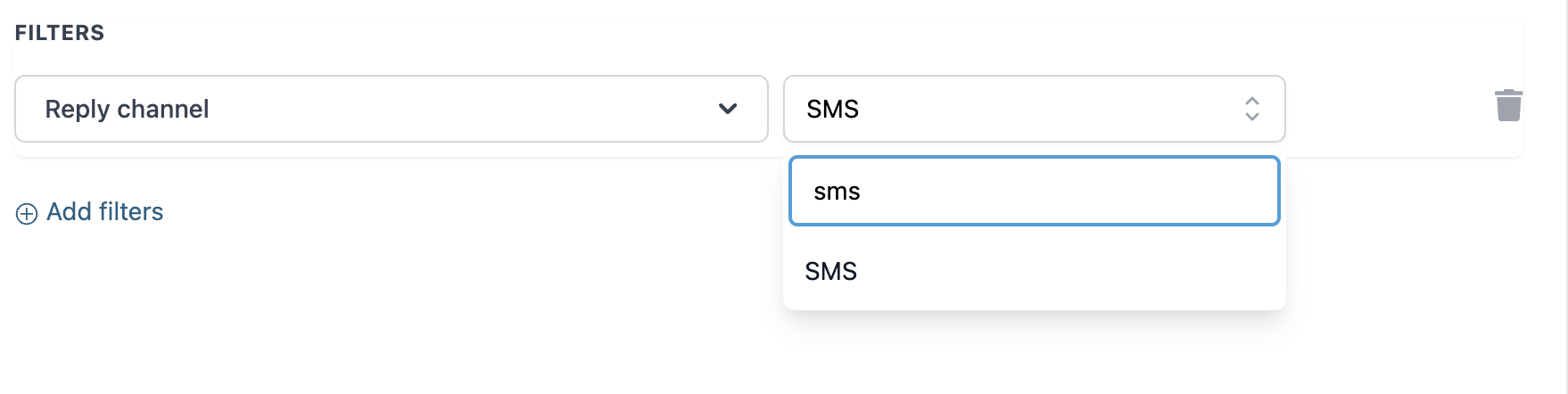
Select SMS as the Reply Channel.
Click Save Trigger.
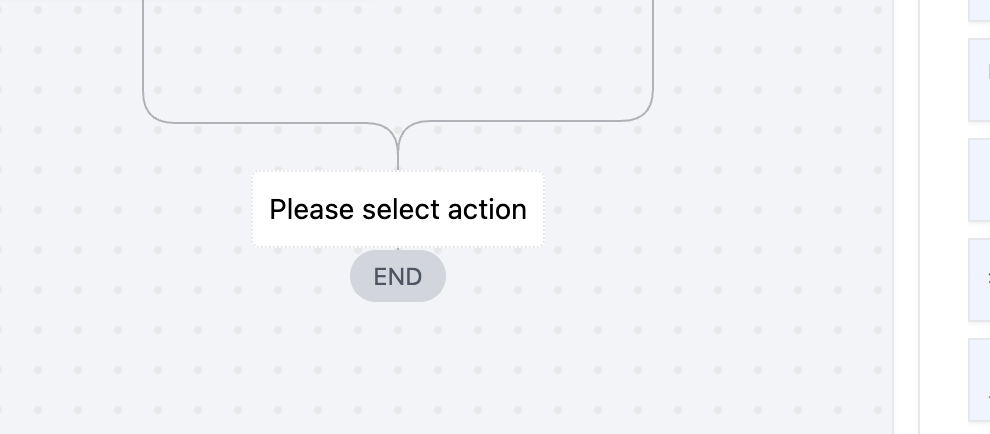
Click the action below the trigger and select Send Internal Notification.
SMS internal notifications generate outbound SMS usage and applicable messaging charges.
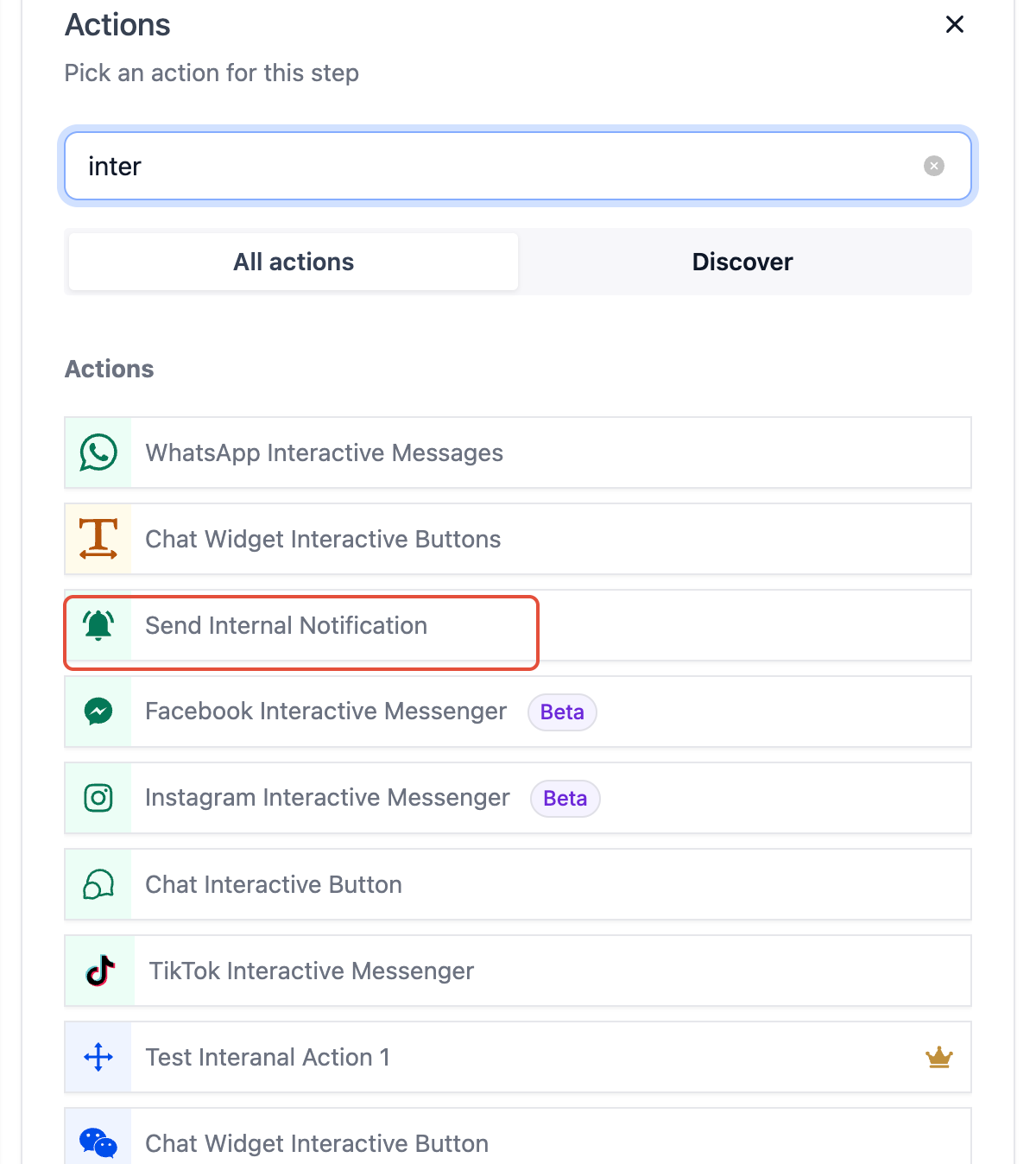
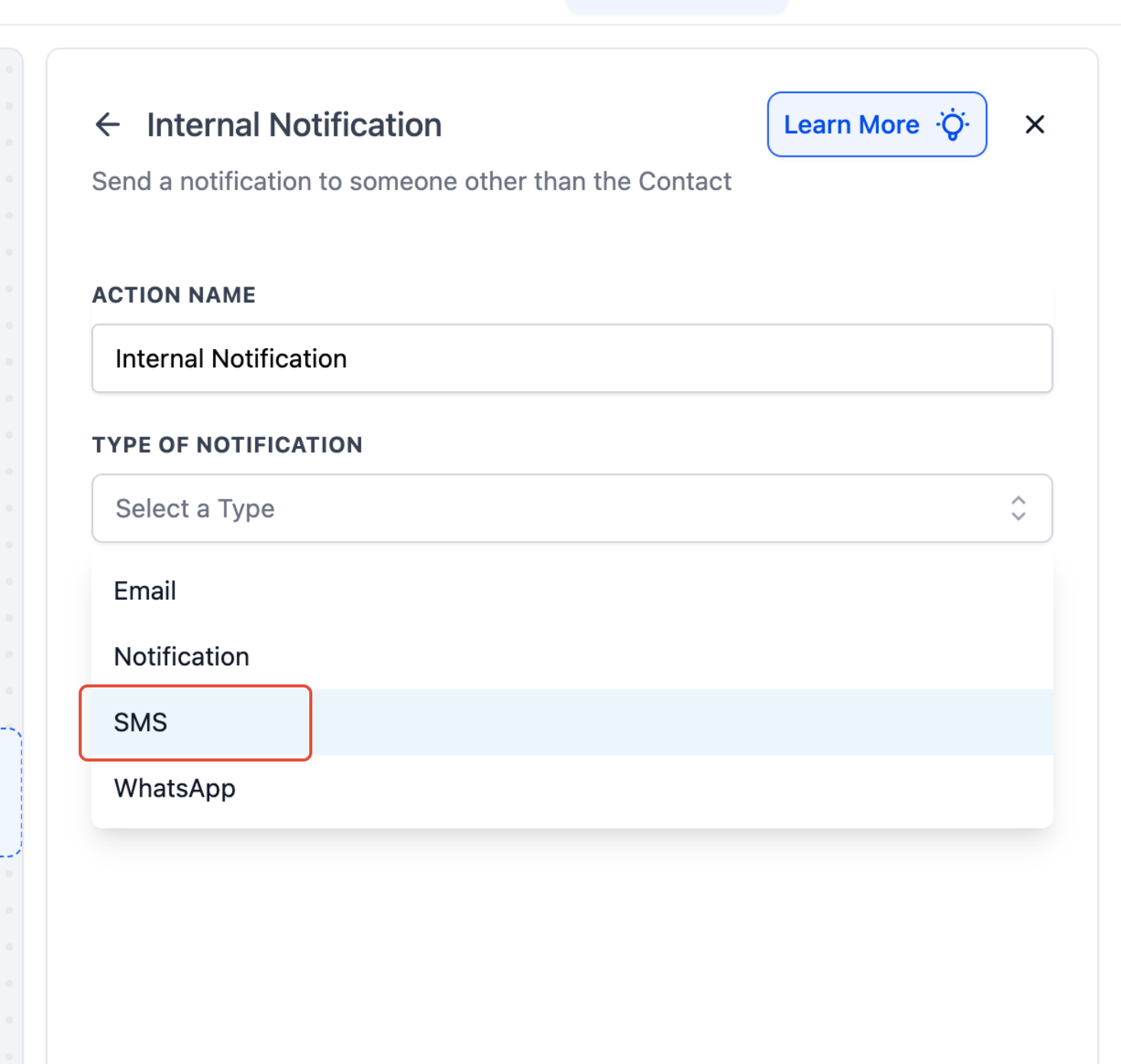
Choose SMS as the notification type and select the appropriate internal recipient supported by your configuration.
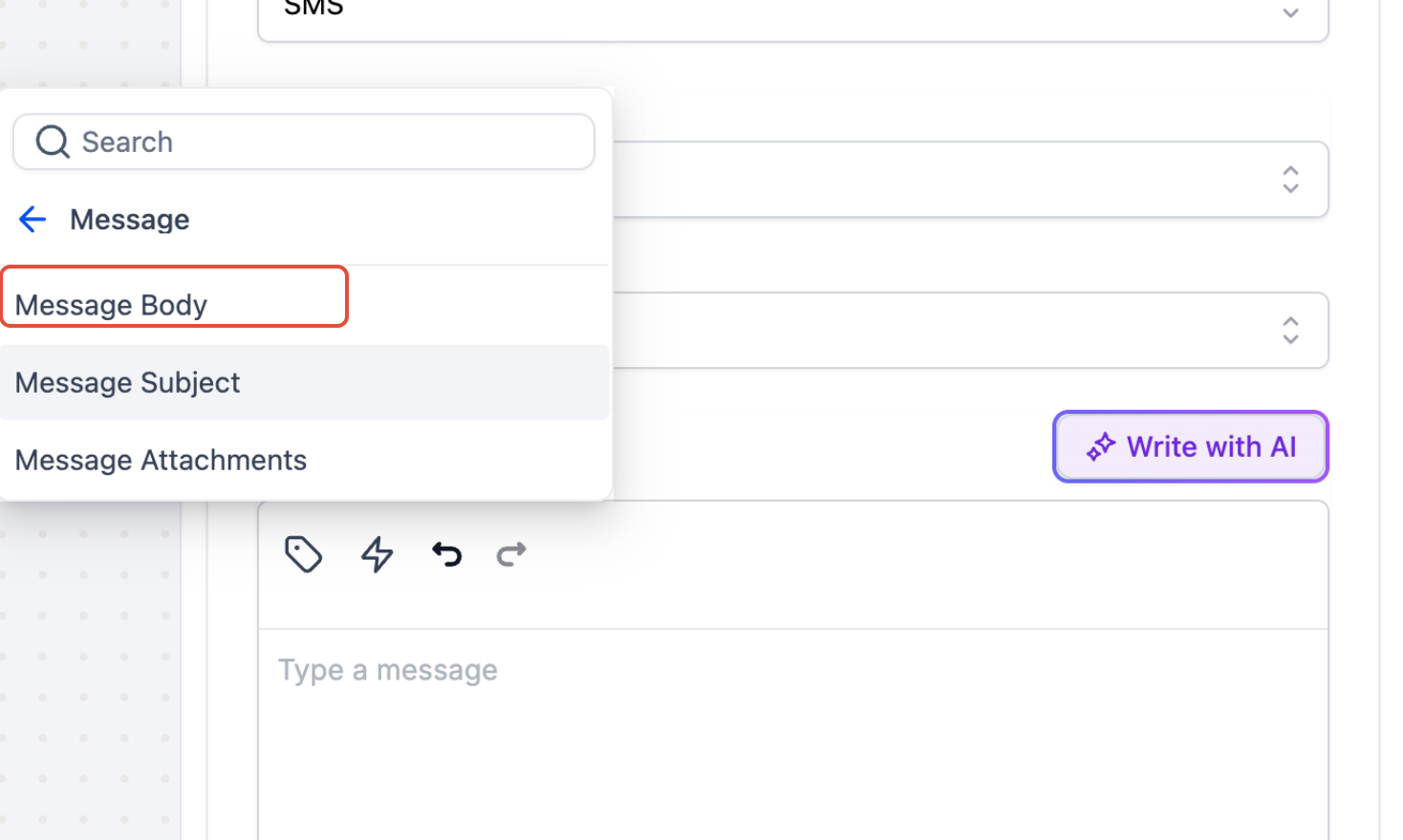
In the notification message, open the Custom Values picker and select Message → Message Body. This inserts {{message.body}}, which provides the content of the reply that triggered the workflow.
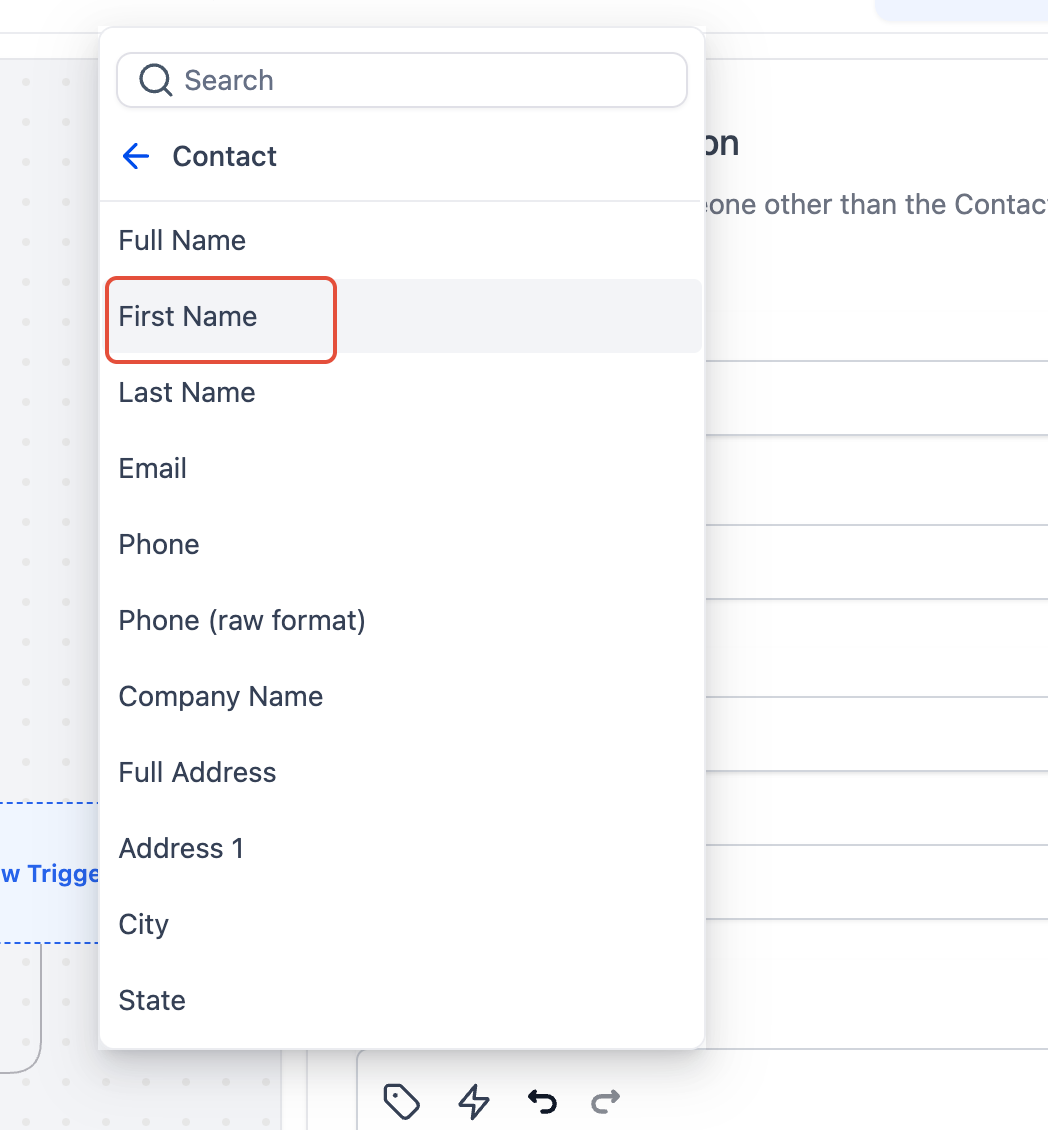
Add useful contact values such as Contact → First Name so the notification identifies who sent the message.
Example notification:
New SMS from {{contact.first_name}}:
{{message.body}}
Save the action, publish the workflow, and send a test SMS reply from a contact. Confirm that the inbound message appears in Conversations and that the intended internal recipient receives the separate SMS notification.
Configure Re-entry for Repeated SMS Replies
Allow Re-entry controls whether the same contact can enter the workflow again after completing it. This setting matters for an inbound SMS notification workflow because contacts may reply more than once over time.
- Allow Re-entry enabled: A contact can enter the workflow again after they have completed it or have been manually removed.
- Allow Re-entry disabled: A contact can enter and complete the workflow only once.
Important: A contact cannot re-enter while they are still active in the workflow. For a simple notification workflow, keep the workflow short so it can complete before the contact's next qualifying reply.
Troubleshooting Inbound SMS Notifications
Most notification issues are caused by trigger filters, workflow status, recipient configuration, re-entry settings, or SMS delivery limits. Checking each layer in order can quickly identify why an expected alert was not received.
- Confirm the trigger is Customer Replied.
- Confirm the filter is Reply Channel = SMS.
- Confirm the workflow is published and active.
- If the contact has already completed the workflow, check whether Allow Re-entry is enabled.
- Confirm the intended internal user has a valid phone number configured.
- Review the workflow execution history for errors.
- Check the failed SMS in Conversations or messaging logs for an error code when available.
If the resulting SMS body exceeds approximately 1,600 characters, the message can fail to send. This can happen when a large dynamic value such as {{message.body}} is inserted into the notification. Keep SMS notification content concise or use another internal notification channel when long content is expected.
Frequently Asked Questions
Was this article helpful?
That’s Great!
Thank you for your feedback
Sorry! We couldn't be helpful
Thank you for your feedback
Feedback sent
We appreciate your effort and will try to fix the article