Some phone numbers require verified identity, address, or regulatory information before they can be purchased or activated. HighLevel lets LC Phone users create and manage this information directly from the sub-account under Phone System → Regulatory Bundle/Address.
Address Bundles store identity and physical-address information, while Regulatory Bundles collect the country- and number-type-specific information required by local telecom rules.
This guide explains when each bundle type is needed, how to create and submit bundles, how to monitor their status, how to use an approved bundle during phone-number purchase, and how deletion safeguards work.
A Regulatory Bundle is not required for standard United States or Canada phone-number purchases. Other verification processes can still apply, including identity verification and messaging-specific registrations.
Requirements outside the United States and Canada vary by country, number type, intended use, and local regulation. Follow the fields and document requirements presented in HighLevel for the exact number you are attempting to purchase.
What is a Regulatory Bundle?
Regulatory Bundles and Address Bundles provide the identity, location, and compliance information required to provision certain phone numbers. They help ensure that the person or business using a regulated number meets the requirements imposed by the applicable country and number type.
An Address Bundle stores business or individual identity and physical-address information. A Regulatory Bundle stores additional compliance information and supporting documentation when required for a specific country or number type.
These requirements are most commonly encountered when purchasing international phone numbers. HighLevel displays the applicable requirement during the phone-number purchase process so you can complete the correct compliance path.
Key Benefits of Address and Regulatory Bundles
Creating the correct bundle before purchasing a regulated number reduces failed purchase attempts and keeps required compliance information organized inside the sub-account.
- Regulatory Compliance: Provide the information required for phone-number provisioning in regulated countries.
- Purchase Readiness: Complete required address and regulatory checks before attempting to purchase an affected number.
- In-App Management: Create, submit, review, and manage bundle records directly from HighLevel.
- Auto-Populated Details: Reuse available location-profile information to reduce repetitive address entry.
- Clear Review Status: Monitor bundle progress from the Regulatory Bundle/Address list.
- Deletion Protection: Prevent removal of bundles or addresses that are still connected to an active dependency.
Address Bundle vs. Regulatory Bundle
Choosing the correct bundle type prevents unnecessary submissions and helps ensure the phone number is connected to the compliance information expected for its country and number type.
| Bundle Type | Purpose | When It May Be Needed |
|---|---|---|
| Address Bundle | Stores business or individual identity and physical-address information. | When the selected phone number requires an approved address. |
| Regulatory Bundle | Stores country- and number-type-specific compliance information and supporting documents. | When local telecom rules require additional identity or business verification. |
Which one should I create? Use the requirement shown during phone-number purchase as your source of truth. Some international numbers require an Address Bundle, a Regulatory Bundle, or both.
Auto-Populated Business Details
HighLevel can pre-fill Address Bundle fields using information already stored in the location profile. Reviewing these values before submission helps prevent mismatches between the bundle and the documents used to verify the business.
Available profile information can populate fields such as:
- Business or customer name
- Address Line 1
- Address Line 2
- City
- State, province, or region
- Postal or ZIP code
- Country
Auto-populated fields remain editable. If information is missing from the location profile, complete the blank fields manually and make sure the submitted information matches the supporting documents.
How to Set Up Address and Regulatory Bundles
Creating the bundle in the same sub-account that will use the phone number keeps the regulatory information connected to the correct location. Complete each requested field carefully because country-specific reviews can depend on exact matches between the form and uploaded documents.
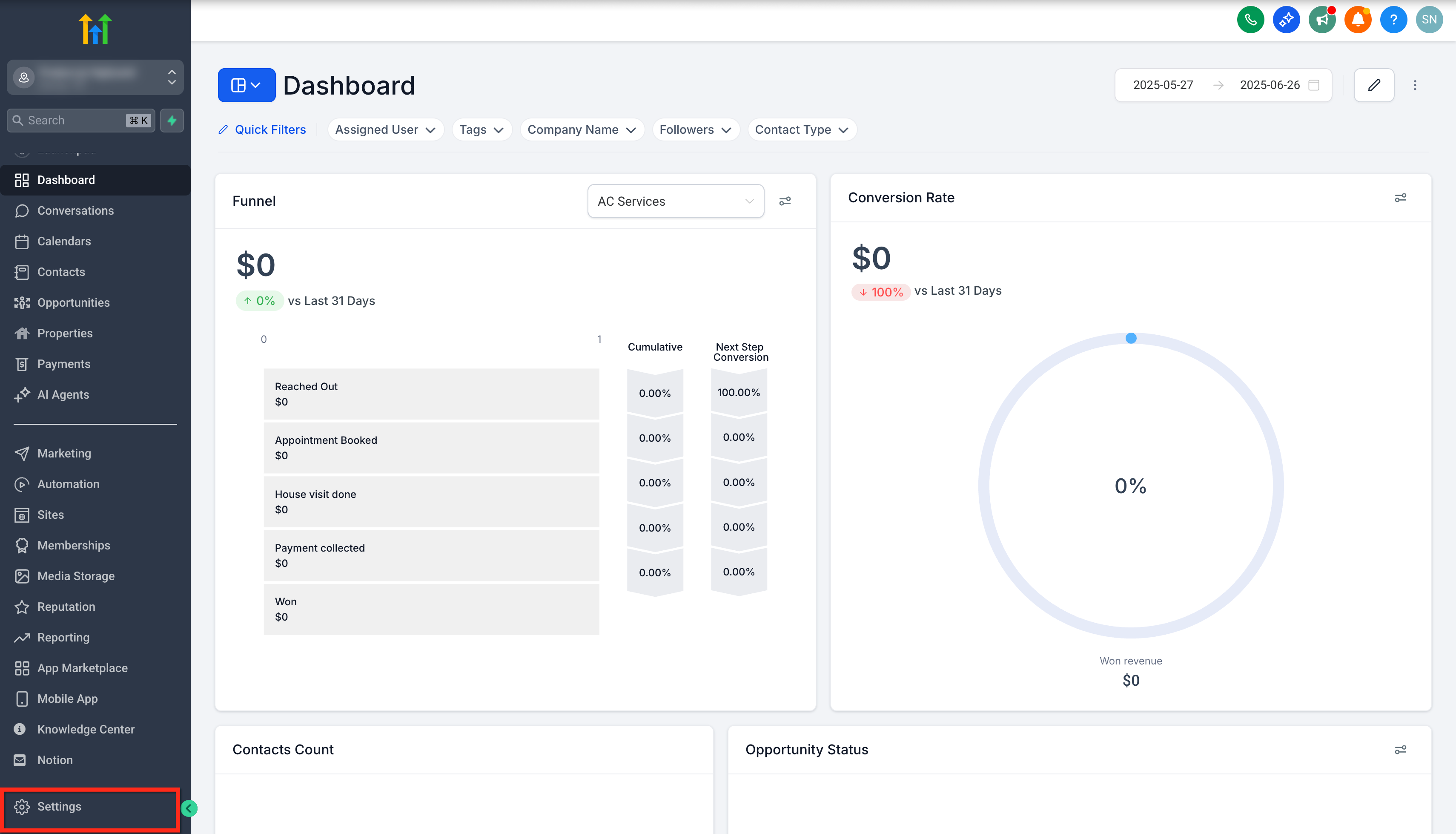
Step 1: Open Regulatory Bundle/Address
- Open the sub-account that will use the phone number.
- Click Settings.
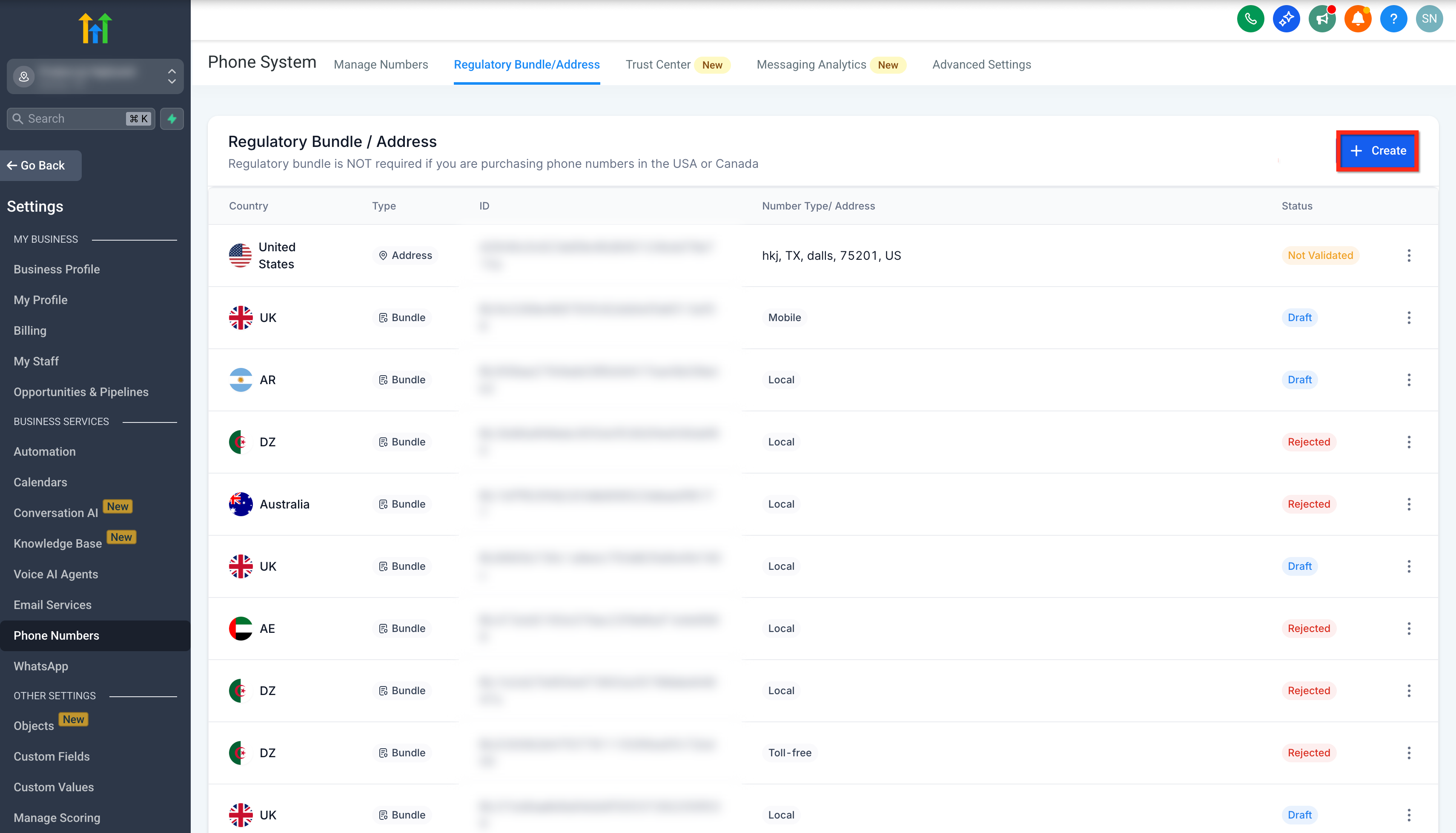
- Under Business Services, open Phone System.
- Select Regulatory Bundle/Address.
Step 2: Create an Address Bundle
- Click + Create.
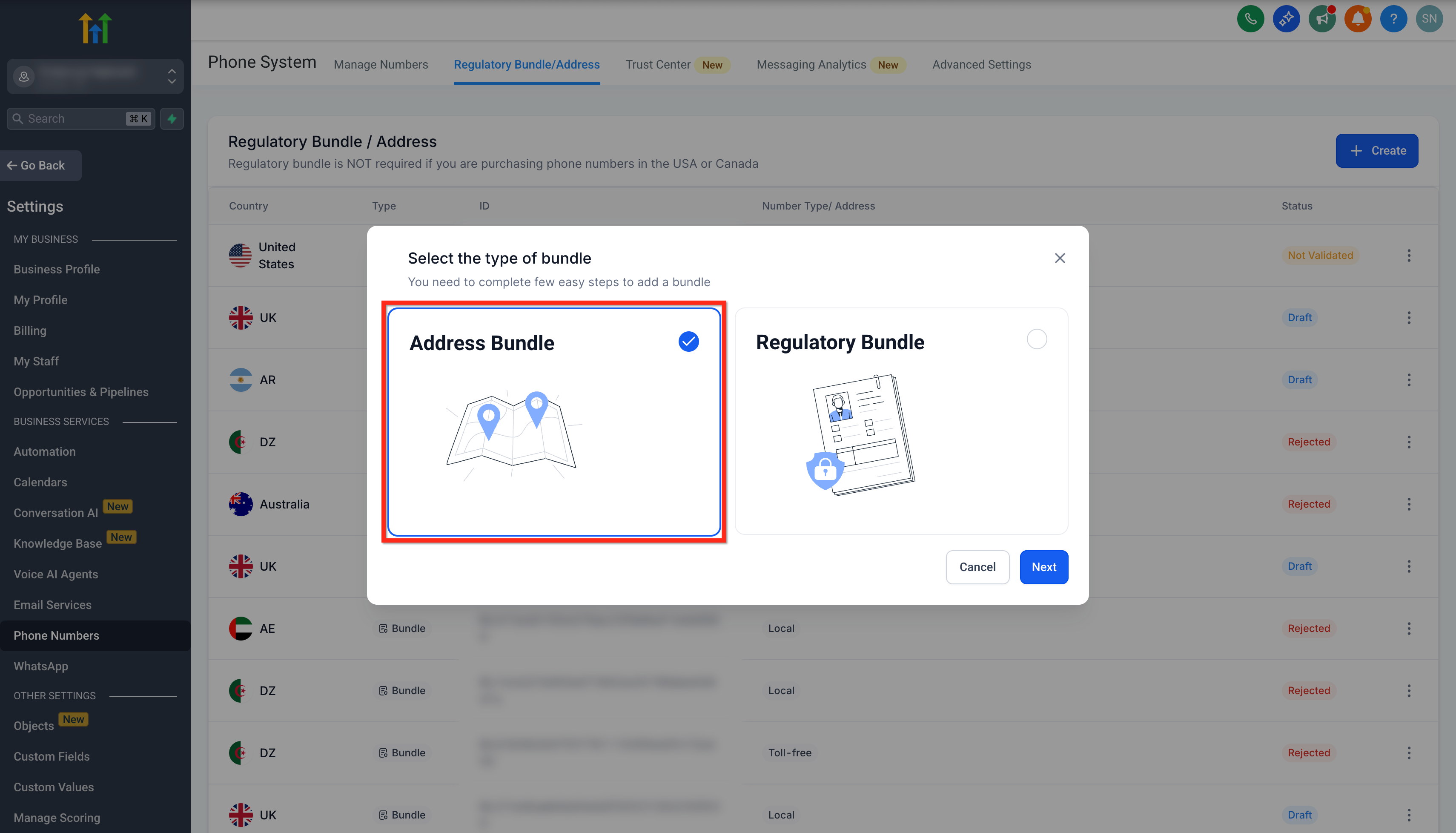
- Review the Address Bundle and Regulatory Bundle options.
- Select Address Bundle. It is pre-selected by default in the bundle picker.
- Click Next.
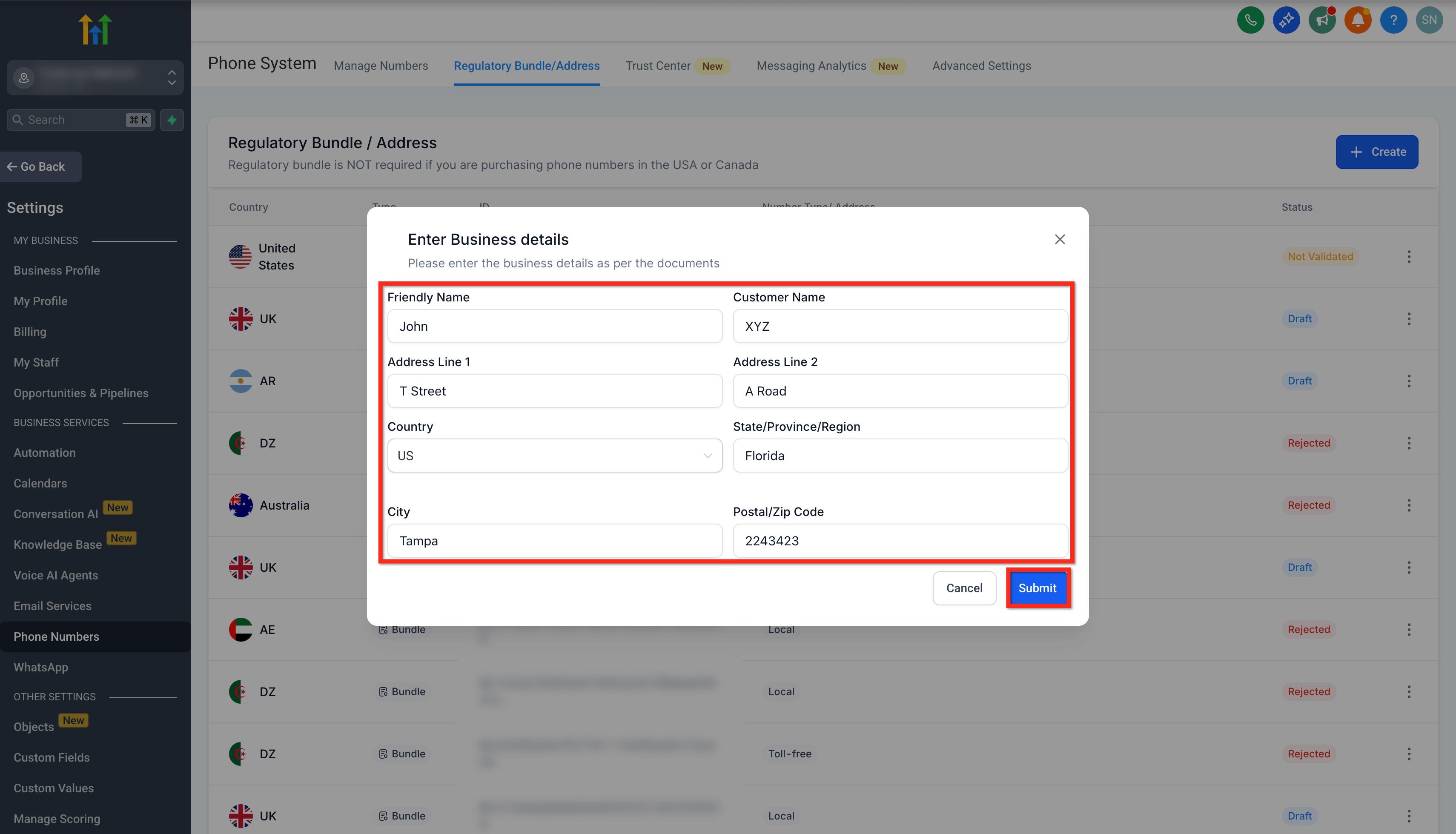
- Review or enter the requested business and address information.
- Click Submit.
Step 3: Create a Regulatory Bundle
- Return to Phone System → Regulatory Bundle/Address.
- Click + Create.
- Select Regulatory Bundle.
- Choose the required Country.
- Choose the appropriate Number Type, such as Local, Mobile, National, or Toll-Free when available.
- Complete the requested business, individual, or representative information.
- Upload each supporting document requested by the form.
- Review the information and submit the bundle for review.
Document requirements vary. Do not assume that requirements from one country or number type apply to another. Use the fields and upload prompts shown for the bundle you are creating.
Step 4: Monitor the Bundle Status
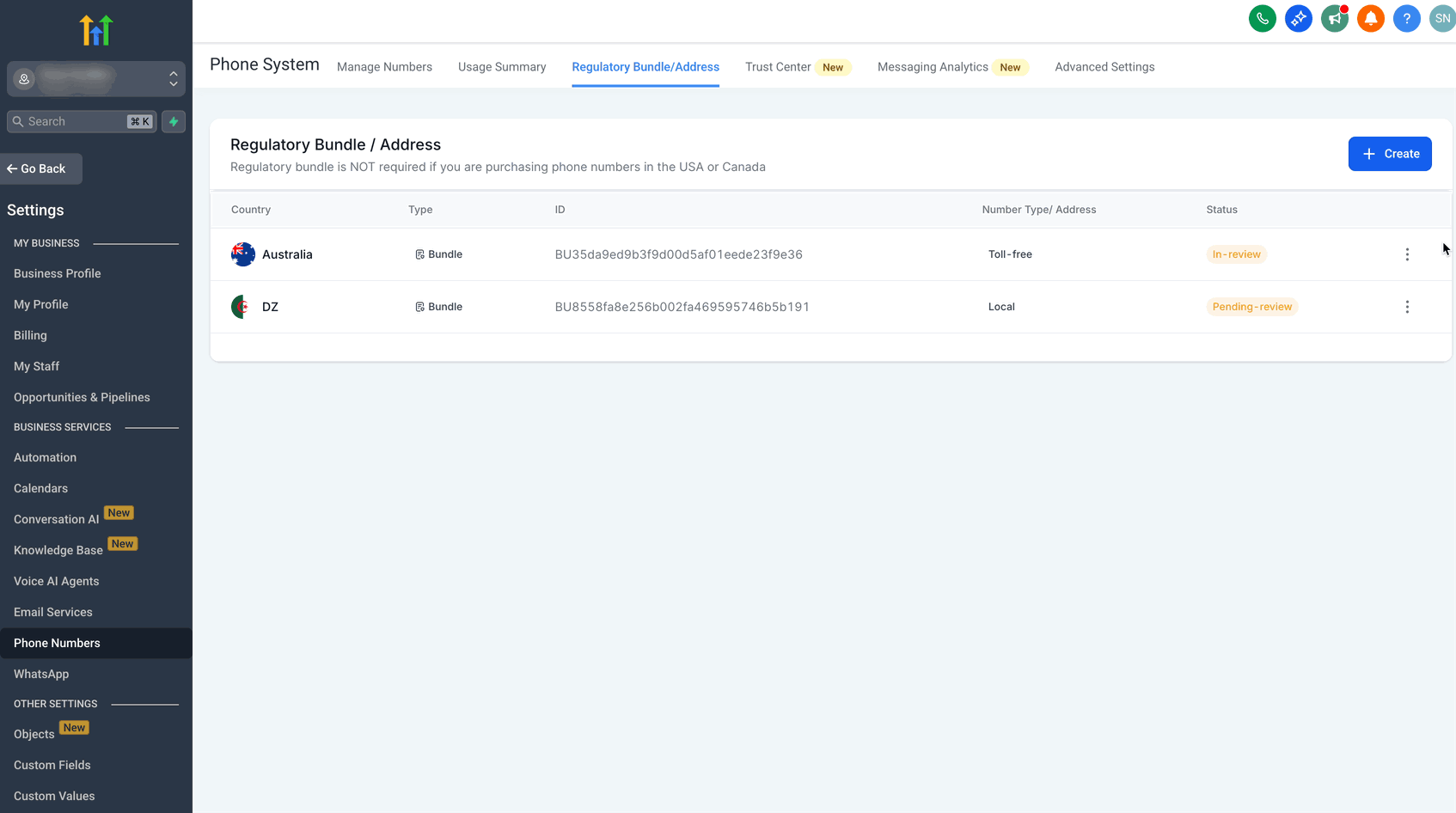
Return to Regulatory Bundle/Address to monitor each submission. The list shows the country, bundle type, bundle ID, number type or address, and current status.
If a bundle is rejected, review the reason provided, correct the requested information or documentation, and resubmit when the interface provides that option. Do not rely on a fixed approval time because review requirements can differ by country and submission.
Assign an Approved Bundle to a Phone Number
Creating a bundle does not automatically complete every phone-number purchase. When the selected number requires regulatory information, the approved bundle must be associated with the purchase before the number can be provisioned.
- Open the applicable sub-account.
- Go to Settings → Phone System.
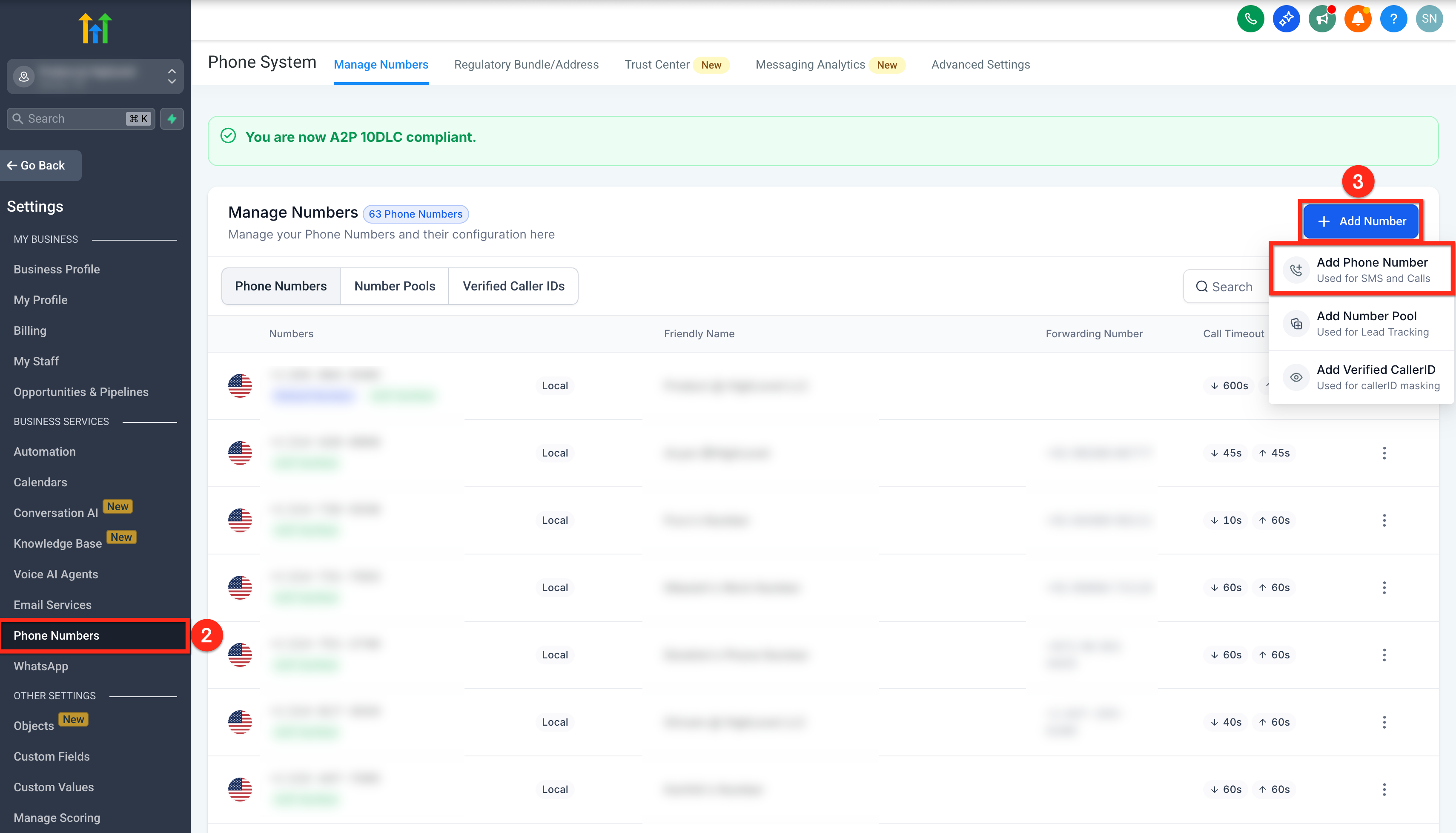
- Open Manage Numbers.
- Click + Add Number and select Add Phone Number.
- Select the desired country, number type, and available phone number.
- Continue to the purchase screen.
- If HighLevel requires regulatory information, select the applicable approved Address Bundle or Regulatory Bundle.
- Complete the remaining purchase steps.
Manage and Delete Bundles and Addresses
Bundle management includes confirmation and dependency safeguards designed to prevent accidental removal of regulatory information that is still being used by a phone number or provisioning workflow.
Delete a Bundle or Address
- Go to Phone System → Regulatory Bundle/Address.
- Locate the bundle or address you want to remove.
- Open the available actions and choose the delete option.
- Review the confirmation modal.
- Verify the displayed Type, Country, and Bundle ID before confirming deletion.
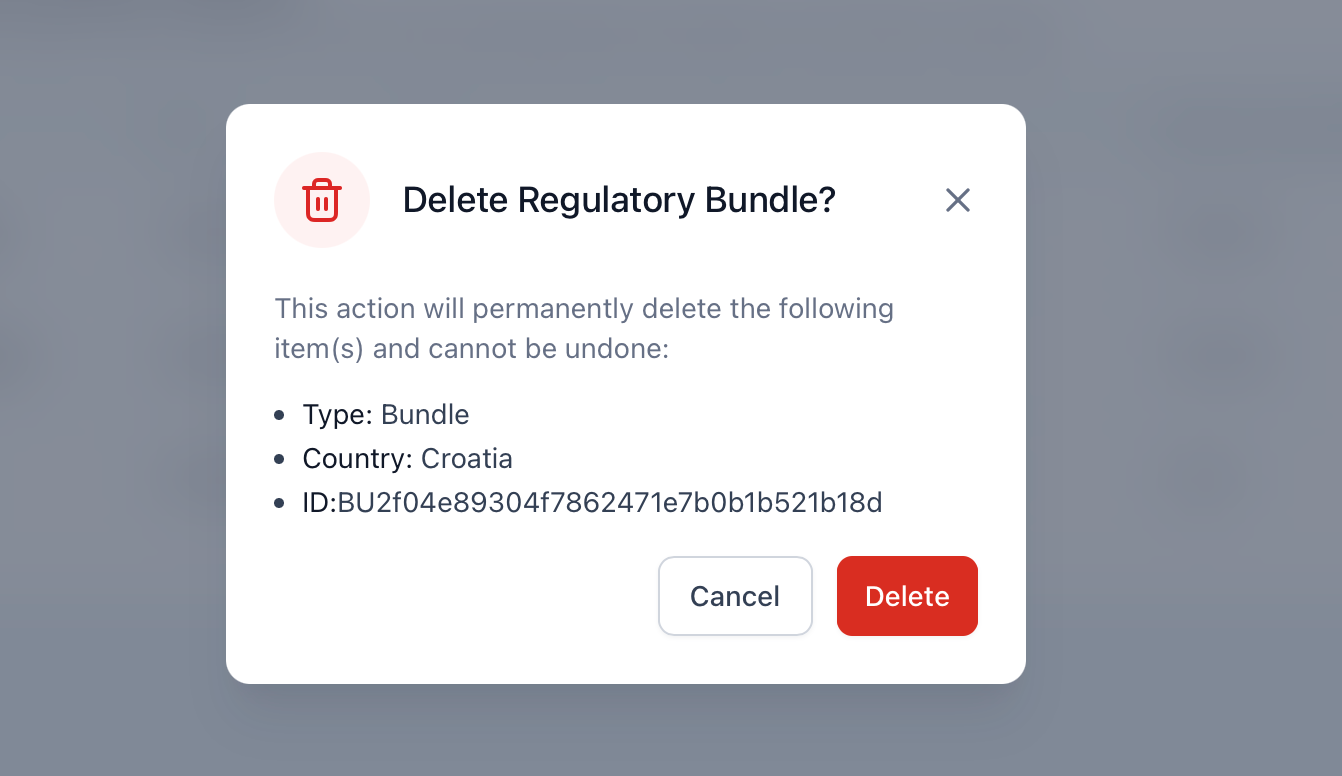
Deletion is permanent. If a bundle or address is already in use, HighLevel can disable deletion to protect the active dependency. Remove or update the dependency first if a different bundle or address needs to be used.
Troubleshooting Regulatory Bundles
Most bundle issues are caused by missing regulatory requirements, mismatched business information, incomplete documentation, or attempting to use a bundle that is not yet approved for the selected country and number type.
Check whether the selected number requires an Address Bundle, Regulatory Bundle, identity verification, or another compliance step. Complete the requirement shown in the purchase flow before retrying.
Review the rejection reason and compare the submitted name, address, registration information, and documents. Correct the requested item and resubmit when the bundle workflow permits it.
Confirm that the bundle was created in the correct sub-account, matches the required country and number type, and has completed the required review.
The bundle or address is likely connected to an active dependency. Review the explanation shown in HighLevel and remove or update that dependency before attempting deletion again.
Number availability can change based on country, number type, inventory, and regulatory requirements. Confirm the required bundle is complete, broaden the available filters, or follow the unavailable-number process if inventory remains unavailable.
Frequently Asked Questions
Was this article helpful?
That’s Great!
Thank you for your feedback
Sorry! We couldn't be helpful
Thank you for your feedback
Feedback sent
We appreciate your effort and will try to fix the article