LC - Phone Messaging Quality Monitoring

Modified on: Tue, 15 Sep, 2026 at 4:55 AM

SMS Compliance
LC - Phone messaging quality monitoring
How opt-out and delivery error monitoring protects your SMS reputation — and what happens when thresholds are exceeded.
What You'll Learn

To protect your agency's SMS reputation and deliverability, LC - Phone continuously monitors messaging quality for every sub-account. This article explains:

  • How opt-out and carrier-filter error rates are measured
  • How monitoring differs for new and established sub-accounts
  • When warnings and restrictions are triggered
  • What happens when messaging is restricted
  • How self-lift and recovery monitoring work
  • When a manual review is required
  • Which messaging types remain available during a restriction

We want every message you send to reach its recipient. When opt-out or carrier-filter rates climb too high, carriers may throttle or block your numbers — affecting every client on your account. This monitoring system gives you early notice, pauses high-risk bulk sending when needed, and helps you get back to healthy delivery rates.

Please Note

This article covers quality monitoring — opt-out rates and carrier filter errors (Error 30007). For consent requirements, opt-out language, sender ID, spam handling, and daily sending limits, see the LC - Phone Messaging Policy.

1

How Messaging Quality Monitoring Works

LC - Phone monitors two metrics for each sub-account:

MetricWhat It Measures
Opt-out rateThe percentage of contacts who reply with a standard opt-out keyword (e.g., STOP) after receiving your SMS
Error 30007 rateThe percentage of messages flagged by carriers as filtered or blocked (Error 30007 — “Message filtered”)
Measurement Window
  • Rates are calculated over a rolling window of up to 7 days (UTC).
  • Monitoring only begins after a sub-account has sent at least 500 SMS within the measurement window. Until that minimum is reached, no warnings or restrictions are triggered.
What Is Excluded
  • RCS messages are excluded from messaging quality monitoring and restriction enforcement.
  • One-to-one messages in Conversations are also not blocked when a messaging restriction is applied.
RCS Fallback SMS

RCS itself is excluded from these restrictions. The handling of fallback SMS generated when an RCS message cannot be delivered as RCS is being evaluated separately.

2

Account Cohorts: New vs. Established

Messaging quality monitoring considers how long a sub-account has been sending SMS. Your sub-account is placed into one of two cohorts based on that sending history. Thresholds differ between cohorts because new senders carry higher carrier risk.

CohortDefinition
NewSub-account with fewer than 7 days of SMS sending history
EstablishedSub-account with 7 or more days of SMS sending history
  • For established sub-accounts, metrics are evaluated using a 7-day rolling window.
  • For newer sub-accounts, the rolling measurement window depends on how much sending history is available.
Good to Know

The cohort is determined automatically as the sub-account develops additional sending history — there is nothing to configure.

3

Warning Thresholds

A warning provides an opportunity to correct messaging practices before sending is restricted. When your opt-out or Error 30007 rate crosses a warning threshold, you receive an email alert. No sending is paused at the warning stage.

CohortOpt-Out Rate WarningError 30007 Warning
New≥ 3%≥ 10%
Established≥ 4%≥ 15%
4

What Happens During a Warning

ActionDetail
Email notificationYou receive a Messaging quality alert email describing which metric exceeded the warning threshold
Sending impactNone — all SMS sending continues normally
Frequency capMaximum 1 warning email per sub-account per UTC day
What you should do when you receive a warning
Step 1
Pause bulk and automated sends

Review any active workflows, campaigns, and bulk actions sending to contacts who may not have clearly opted in.

Step 2
Verify consent and opt-out language

Confirm every initial message includes sender identification and opt-out language as required by the LC - Phone Messaging Policy.

Step 3
Clean your contact lists

Remove or suppress contacts with high bounce rates, landlines, or prior opt-outs.

Step 4
Review message content

Avoid content that triggers carrier filters — promotional language in cold outreach, missing opt-out instructions, and similar patterns.

Pro Tip

Treat a warning as your window to correct messaging behavior. Accounts that act on the first warning rarely reach a restriction.

5

Restriction Thresholds

When your rates cross a restriction threshold, bulk and automated SMS sending is temporarily paused for the sub-account. One-to-one conversation messaging continues.

CohortOpt-Out Rate RestrictionError 30007 Restriction
New≥ 10%≥ 50%
Established≥ 6%≥ 25%
6

What Happens During a Restriction

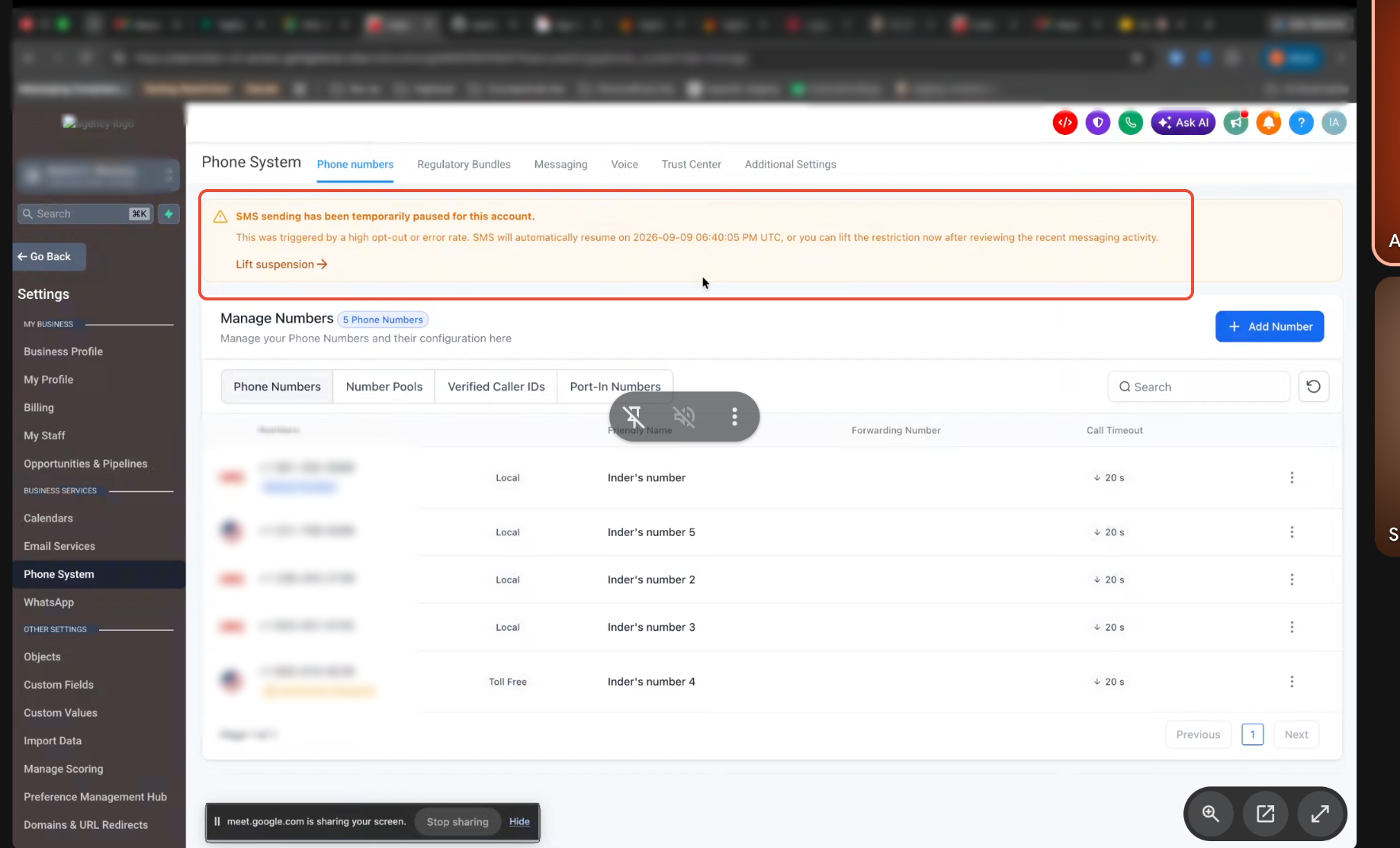
Messaging restriction banner shown in the sub-account

When a restriction is applied, the following sending types are paused:

Paused
  • Bulk Actions (Contacts area)
  • Workflow “Send SMS” actions
  • Campaigns
Still Works
  • One-to-one messages in Conversations
  • Missed Call Text Back (if configured)
  • RCS messaging — excluded from restriction enforcement and quality monitoring calculations
Restriction duration

The restriction system uses multiple stages rather than immediately placing the sub-account into a permanent restriction. A typical lifecycle for an affected account can look like:

Warning → Normal restriction → Self-lift/expiry → Recovery monitoring → Recovery restriction → Self-lift/expiry → Recovery monitoring → Manual review

The exact path depends on the sub-account's cohort, messaging behavior, and whether elevated rates continue.

OccurrenceDuration
First restriction in a monitoring cycle12 hours
Repeat restriction (subsequent restriction before recovery)24 hours
First Restriction

The first restriction in a monitoring cycle lasts 12 hours. During this time, affected bulk and automated SMS sending is paused. Eligible users may be able to self-lift the restriction before the 12-hour period ends. If no early lift occurs, sending can resume when the temporary restriction expires.

After the restriction period ends, sending resumes automatically unless a manual support review is in progress.

What You'll See In The Platform

During a restriction, bulk and workflow SMS actions will fail or be blocked. One-to-one conversation messaging remains available so you can respond to inbound leads.

7

Self-Lifting a Restriction

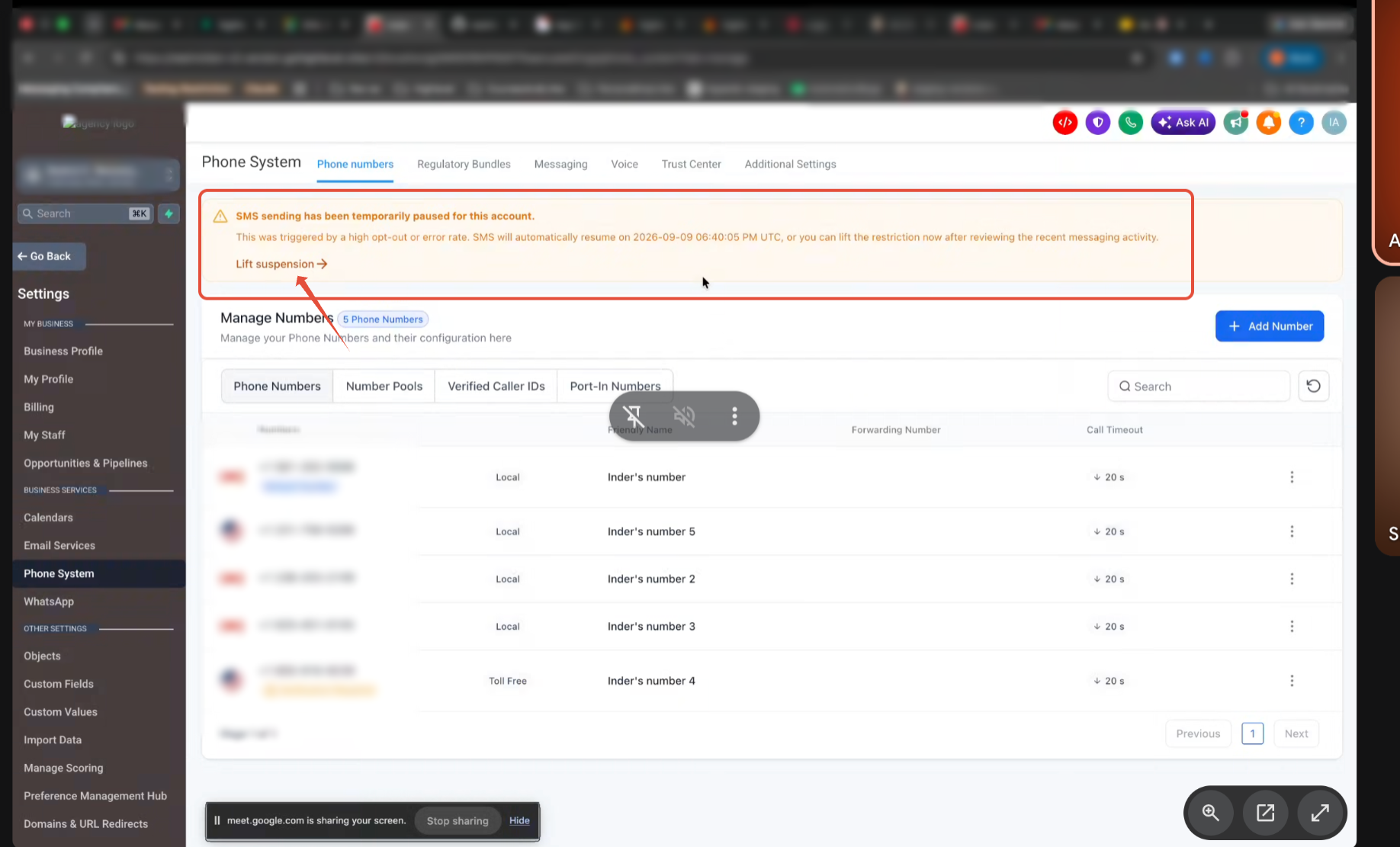
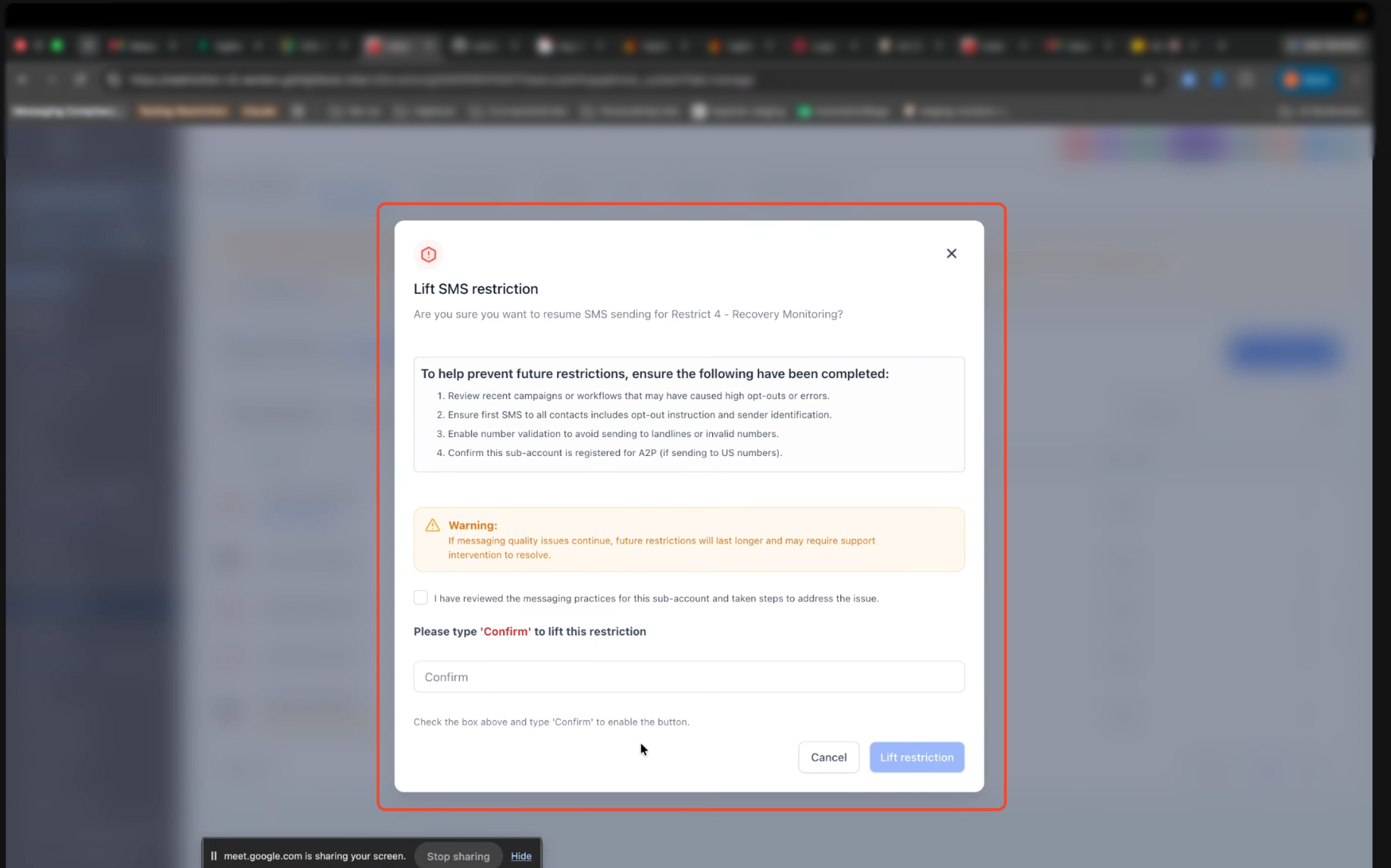
In some cases you can end a restriction early without waiting for the full duration. In eligible situations, an agency owner or agency admin can restore affected messaging before the temporary restriction expires.

Self-lift restriction control in phone settings
Self-lift confirmation dialog
RuleDetail
Eligible durationsSelf-lift is available for 12-hour and 24-hour restrictions only
CooldownAfter using self-lift, a 24-hour cooldown applies before self-lift is available again
Not available during reviewSelf-lift is disabled while a manual support review is open
After a self-lift
  • Bulk and automated SMS sending is restored.
  • The sub-account continues to be monitored.
  • A 24-hour cooldown applies before self-lift can be used again.
  • The account may enter a recovery monitoring period.
Note
  • Regular users do not have access to the self-lift control.
  • Self-lift is unavailable while a manual support review is active.
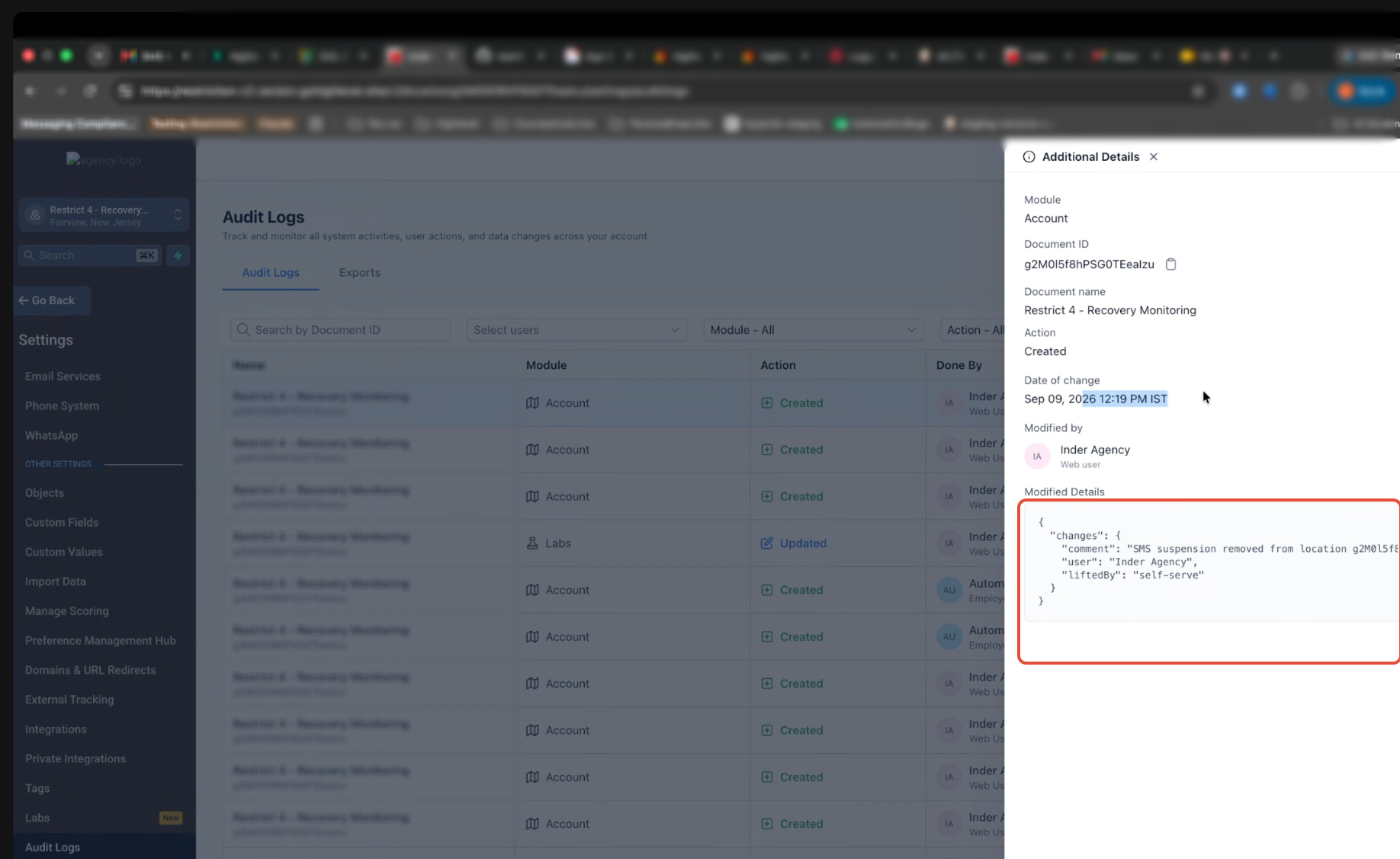
  • An audit log entry is created each time self-lift is used.
Audit log entry created when a restriction is self-lifted
Important

Self-lifting a restriction does not reset the underlying messaging quality metrics. If unhealthy messaging behavior continues, another restriction or manual review may be triggered.

8

Recovery and Getting Back to Normal

After a restriction is lifted, messaging activity continues to be monitored. For applicable established sub-accounts, a 72-hour recovery monitoring period begins after the restriction is lifted. During this period, sending can continue while LC - Phone evaluates whether messaging quality has improved.

Recovery thresholds
Status Being ClearedOpt-Out Rate RecoveryError 30007 Recovery
Warning< 4%< 15%
Restriction< 10%< 40%

If rates remain healthy during recovery, no additional restriction is applied. If messaging quality deteriorates again, the account can move into another restriction stage.

Recovery Restriction

If applicable thresholds are breached again during recovery monitoring, a 24-hour recovery restriction can be applied. During this restriction:

  • Bulk and automated SMS sending is paused again.
  • One-to-one Conversations messaging remains available.
  • RCS remains unaffected.
  • The restriction is recorded in compliance history.
  • Eligible agency owners or admins may be able to self-lift it, subject to the self-lift cooldown.

After the recovery restriction is lifted, the sub-account may enter another recovery monitoring period.

Established Accounts
Recovery observation period

For Established sub-accounts, after a restriction lifts, LC - Phone observes your rates for 72 hours before fully clearing the restriction status from your account. During this observation window, if rates remain below recovery thresholds, no further action is taken.

New Accounts — No Automatic Recovery

New sub-accounts (fewer than 7 days of sending history) that receive their first restriction do not automatically recover. Further sending review or a manual support review may be required before bulk and automated sending is fully restored.

Second Relapse → Support Review

If an Established sub-account crosses a restriction threshold a second time after recovering from a prior restriction, the account is escalated for manual support review. Bulk and automated sending remains paused until Support completes the review.

9

Manual Support Review

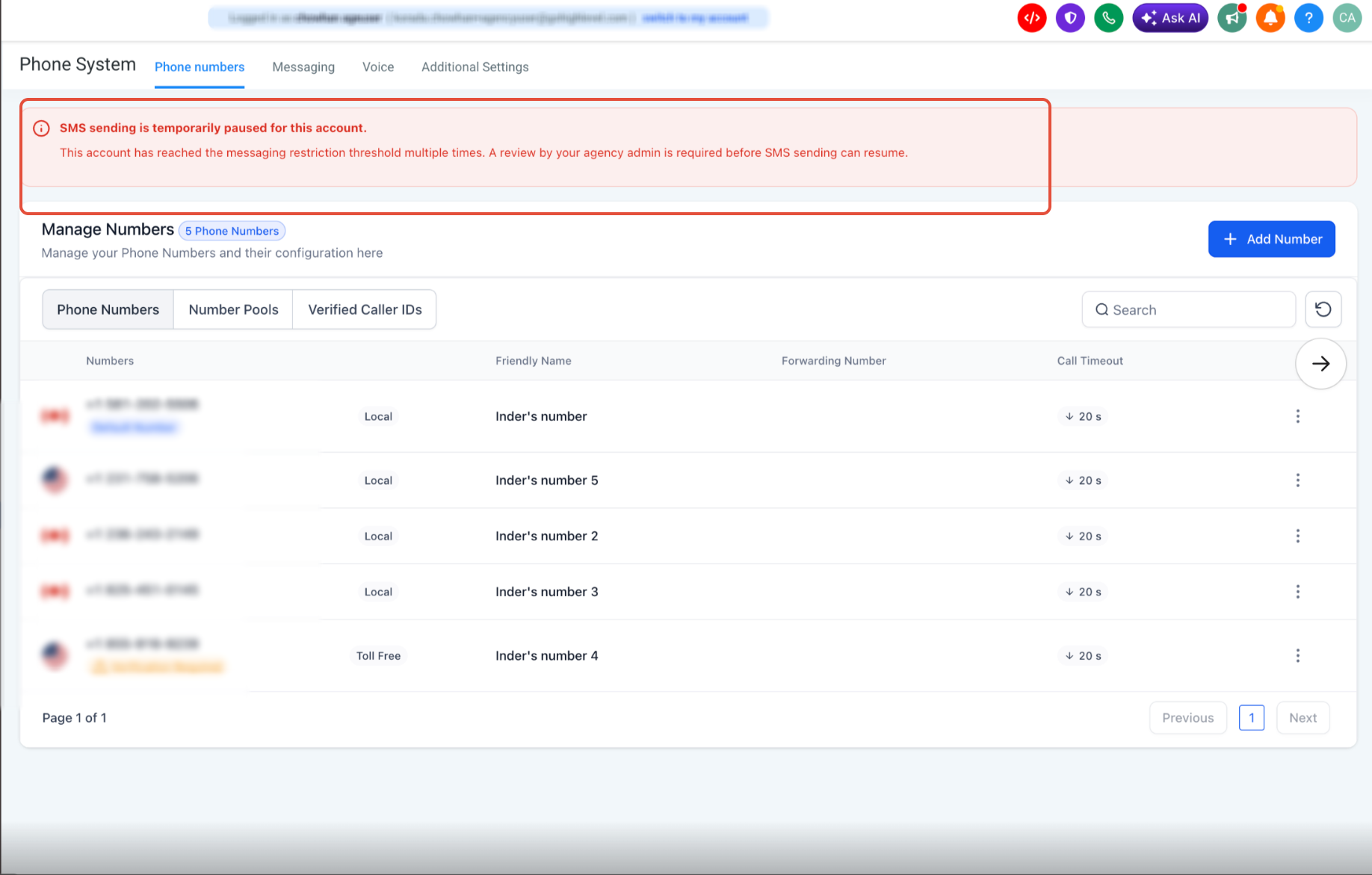
Repeated unhealthy messaging behavior can result in a manual review restriction. If your sub-account requires human review — for example, after a second relapse on an Established account, or when a New account does not recover after its first restriction — you can request a manual review.

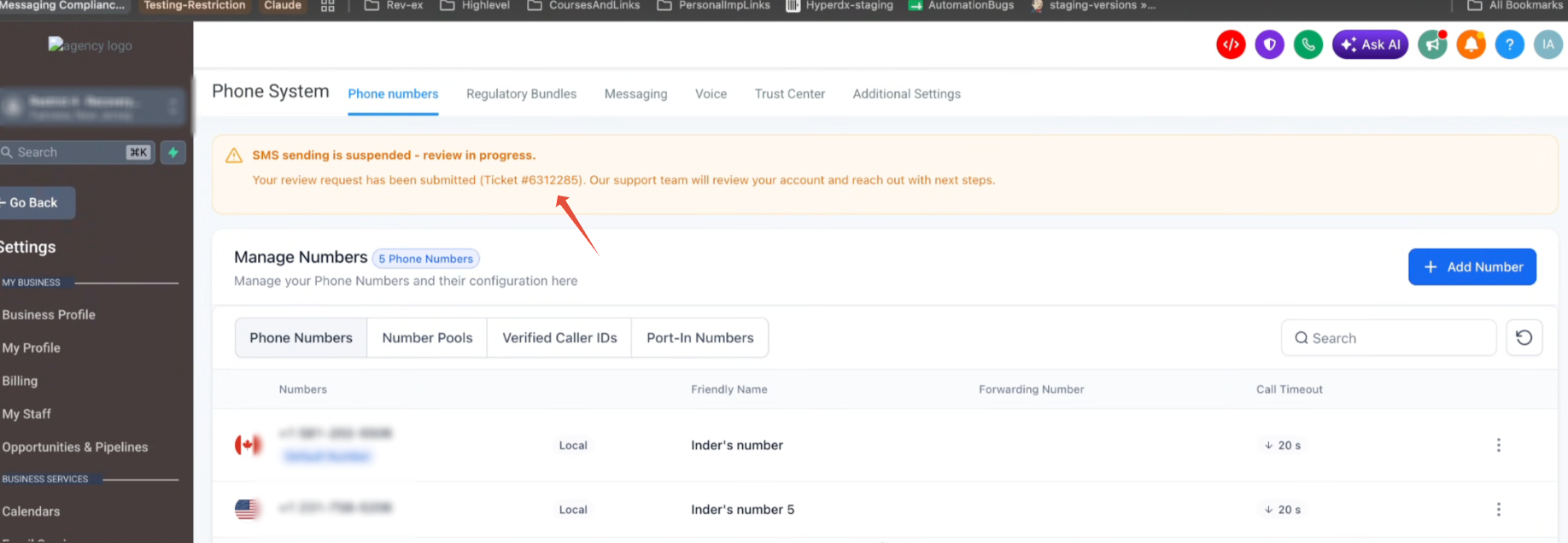
Manual review restriction notice in the sub-account

This is what will show for other

Messaging quality review request entry point

The manual-review thresholds for this stage are:

MetricManual Review Threshold
Error 30007 rate≥ 45%
Opt-out rate≥ 12%

Unlike temporary restrictions, a manual review requires Support to evaluate the sub-account before the restriction can be cleared.

How to request a review
Step 1

Go to Sub-account → Settings → Phone Numbers (Phone Settings).

Step 2

Submit the Messaging Quality Review request form.

Step 3

Submitting the form automatically creates a Support request for review. Only one open review ticket is allowed per sub-account at a time.
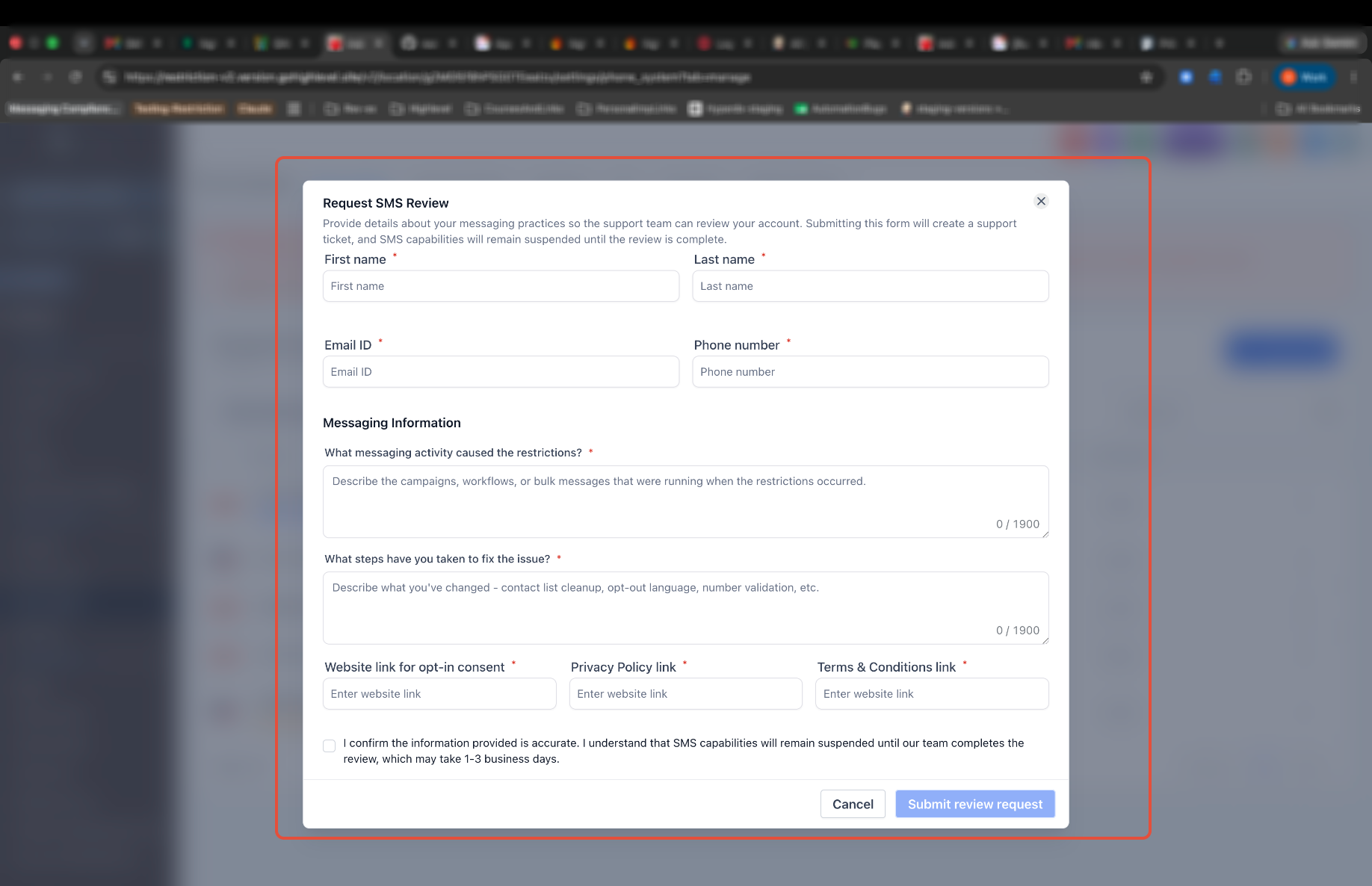
Messaging quality review request form
What happens during review
  • Bulk, workflow, and campaign SMS remain paused.
  • One-to-one conversation messaging continues.
  • Self-lift is not available while a review is open.
  • Only Support can clear a manual review — the review status is removed after Support completes their assessment.
Please Note

Submitting a review request does not guarantee immediate restoration of sending. Support evaluates your messaging practices, contact consent, and recent sending history before clearing the review.

10

Email Notifications You'll Receive

You may receive up to three types of email related to messaging quality monitoring:

Email SubjectWhen It Is Sent
Messaging quality alertYour opt-out or Error 30007 rate crossed a warning threshold
SMS temporarily pausedYour rates crossed a restriction threshold and bulk/automated sending is paused
Support review requiredYour account has been escalated for manual review, or a review outcome requires your attention
Who Receives These

All emails are sent to the agency account owner and relevant sub-account administrators. You will receive at most one warning email per sub-account per UTC day.

11

Restriction History

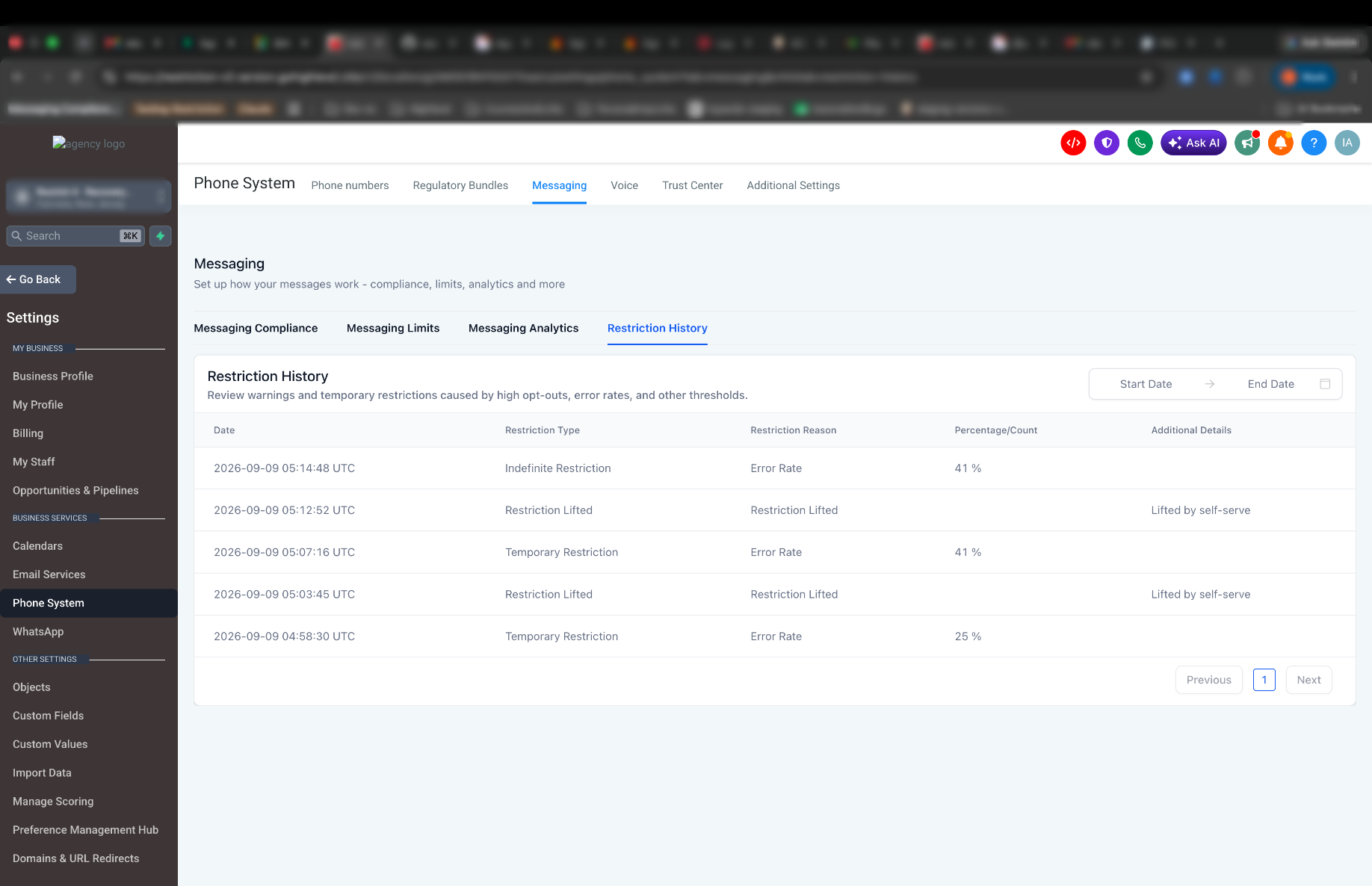
The Restriction History tab provides a complete view of the sub-account's messaging restriction activity. It helps you understand when a restriction was triggered, why it occurred, and what actions were taken afterward.

Where To Find It

Go to Sub-account → Settings → Phone System → Messaging → Restriction History.

The Restriction History tab includes:

  • Date and time of the restriction event
  • Restriction type, such as temporary or manual review restriction
  • Restriction reason, such as elevated error or opt-out rates
  • Percentage/count associated with the restriction
  • Additional details, including whether a restriction was lifted through self-service
  • A history of restriction and lift events
  • Date filters to review restriction activity for a specific period

This tab provides a centralized timeline of messaging compliance events, making it easier to understand how the sub-account progressed through restriction, recovery, and lift stages. Restriction events and exact message counts are available through compliance history.

Restriction History tab showing restriction and lift events
12

How to Reduce the Risk of Restrictions

To maintain healthy SMS deliverability:

Send with consent — message only contacts who have provided appropriate consent.
Identify your business — clearly name your business in your messages.
Include opt-out language — and honor every opt-out request.
Avoid unwanted outreach — no repetitive or unsolicited messaging.
Clean contact lists regularly — remove invalid numbers, landlines, and prior opt-outs.
Monitor carrier-filter errors — watch Error 30007 trends before they escalate.
Act on warnings — review messaging practices as soon as a warning arrives.
Resolve before scaling — fix quality issues before restarting high-volume campaigns.
The Payoff

Warnings should be treated as an opportunity to correct messaging behavior before a restriction occurs. Healthy rates keep your numbers trusted by carriers — which means more of your messages reach real people.

13

Frequently Asked Questions

Q: What metrics does LC - Phone monitor for messaging quality?
Your opt-out rate (contacts replying STOP or similar keywords) and your Error 30007 rate (messages filtered or blocked by carriers). Both are measured over a rolling window of up to 7 days UTC, once you have sent at least 500 SMS in that window.
Q: Why are thresholds different for New and Established accounts?
New sub-accounts with fewer than 7 days of sending history carry higher carrier risk. Different thresholds for Established accounts reflect a longer track record of sending behavior and help protect your numbers before carrier blocks become permanent.
Q: Will I still be able to reply to leads during a restriction?
Yes. One-to-one messages in Conversations continue to work during a restriction. Bulk Actions, Workflow SMS, and Campaigns are paused.
Q: Are RCS messages affected by quality monitoring?
No. RCS messages are excluded from quality monitoring calculations and from restriction enforcement.
Q: How often will I receive warning emails?
At most one warning email per sub-account per UTC day, regardless of how many metrics are elevated.
Q: How long does a restriction last?
Your first restriction in a monitoring cycle lasts 12 hours. If a subsequent restriction is applied before you recover, it lasts 24 hours. You may also self-lift eligible restrictions early.
Q: Do I need to send a minimum number of messages before monitoring applies?
Yes. A sub-account must have sent at least 500 SMS within the measurement window before any warning or restriction can be triggered. Below that volume, rates are not evaluated.
Q: What are the recovery thresholds?
To clear a warning, your opt-out rate must drop below 4% and your Error 30007 rate below 15%. To clear a restriction, your opt-out rate must drop below 10% and your Error 30007 rate below 40%.
Q: Does self-lifting reset my quality metrics?
No. Self-lift restores sending but does not reset the underlying opt-out or Error 30007 rates. If the same messaging behavior continues, another restriction or a manual review can be triggered.
Q: Who can use the self-lift control?
Only an agency owner or agency admin. Regular users do not see the control, and an audit log entry is created every time self-lift is used.
Q: What happens after my first restriction on a new sub-account?
New sub-accounts (fewer than 7 days of sending history) do not automatically recover after their first restriction. You may need to work with Support to restore bulk and automated sending.
Q: What happens if my Established account gets restricted a second time?
A second restriction after recovery triggers a manual support review. Bulk and automated sending stays paused until Support completes the review and clears your account.
Q: Can I end a restriction early?
Yes, in eligible cases. Self-lift is available for 12-hour and 24-hour restrictions, subject to a 24-hour cooldown between uses. Self-lift is not available while a manual support review is open.
Q: Where can I see the history of my restrictions?
In Sub-account → Settings → Phone System → Messaging → Restriction History, which shows each event's date, type, reason, associated percentage or count, and whether it was lifted through self-service.
Q: How do I request a manual support review?
Submit the review request form from Sub-account → Settings → Phone Numbers. Only one open review ticket is allowed per sub-account. Support clears the review after their assessment — you cannot clear it yourself.
Q: Does this replace the LC - Phone Messaging Policy?
No. Quality monitoring works alongside the LC - Phone Messaging Policy, which covers consent, opt-out language, sender ID, spam handling, DND, and daily sending limits. Both apply to all sub-accounts using LC - Phone.
Q: What should I do immediately after receiving a warning or restriction email?
  1. Stop or pause workflows, campaigns, and bulk actions targeting contacts without clear opt-in consent.
  2. Confirm opt-out language and sender ID are enabled and customized for your use case.
  3. Review your contact lists for invalid numbers, landlines, and prior opt-outs.
  4. Coordinate with your client before resuming any bulk or automated outreach.
Thank You
We appreciate your partnership in maintaining healthy SMS deliverability for your agency and your clients.

Was this article helpful?

That’s Great!

Thank you for your feedback

Sorry! We couldn't be helpful

Thank you for your feedback

Let us know how can we improve this article!

Select at least one of the reasons
CAPTCHA verification is required.

Feedback sent

We appreciate your effort and will try to fix the article