2
Step 1 — Switch Your Agency to LC Phone
Before you can move any sub-accounts, your agency itself needs to be switched over to the LeadConnector phone system.
Where to Go
Go to Settings → Phone Integration → Agency Settings tab and click Switch to LeadConnector Phone System.
Important — A2P Registration Must Be Completed Again
A2P 10DLC registration from your own Twilio account does not migrate to LC Phone. If an affected sub-account was previously registered for A2P through your Twilio account, it must complete A2P registration again through the HighLevel Trust Center after moving to LC Phone, and the applicable registration fees will apply again.
Once the new A2P registration is approved, confirm that each applicable phone number is attached to the approved campaign before resuming A2P messaging.
Connected
Once confirmed, your agency is on LC Phone, the Agency Settings tab now shows a "Connected to LeadConnector" summary with usage insights. All new sub-accounts created from this point forward are automatically on LC Phone.
Move your existing sub-accounts over with Step 2.
3
Step 2 — Move Existing Sub-Accounts to LC Phone
From the agency level, go to Settings → Phone Integration → Sub Account Settings tab. This table lists every sub-account and its current phone-system status under Managed By. You can link sub-accounts one at a time (Option 1) or switch all eligible US/Canada sub-accounts at once (Option 2).
Option 1 — Link one sub-account at a time
Step A
Find the sub-account
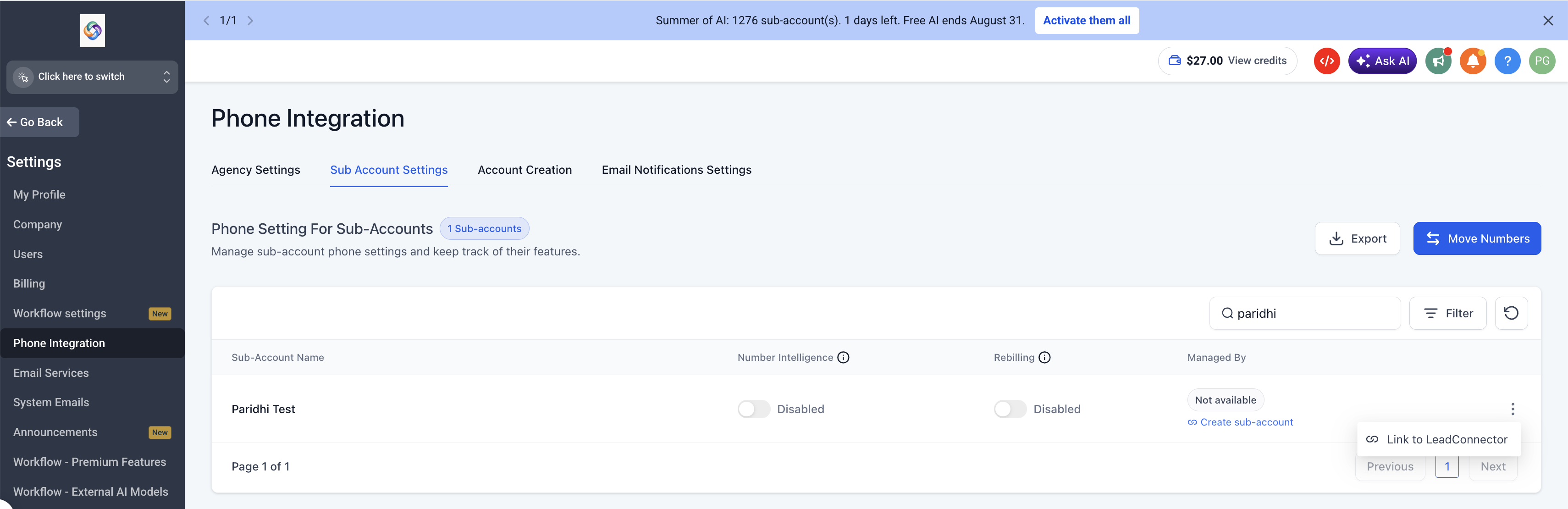
Use the Search sub-accounts by... box to find the sub-account by name. A sub-account not yet on LC Phone shows Not available under Managed By.
Step B
Open the row menu
Click the ⋮ (three-dot) icon at the right-hand end of that sub-account's row.
Step C
Link to LeadConnector
Select Link to LeadConnector from the menu, review the confirmation prompt, and confirm to kick off the migration.
The Sub Account Settings table, showing the row-level menu used to link a sub-account.
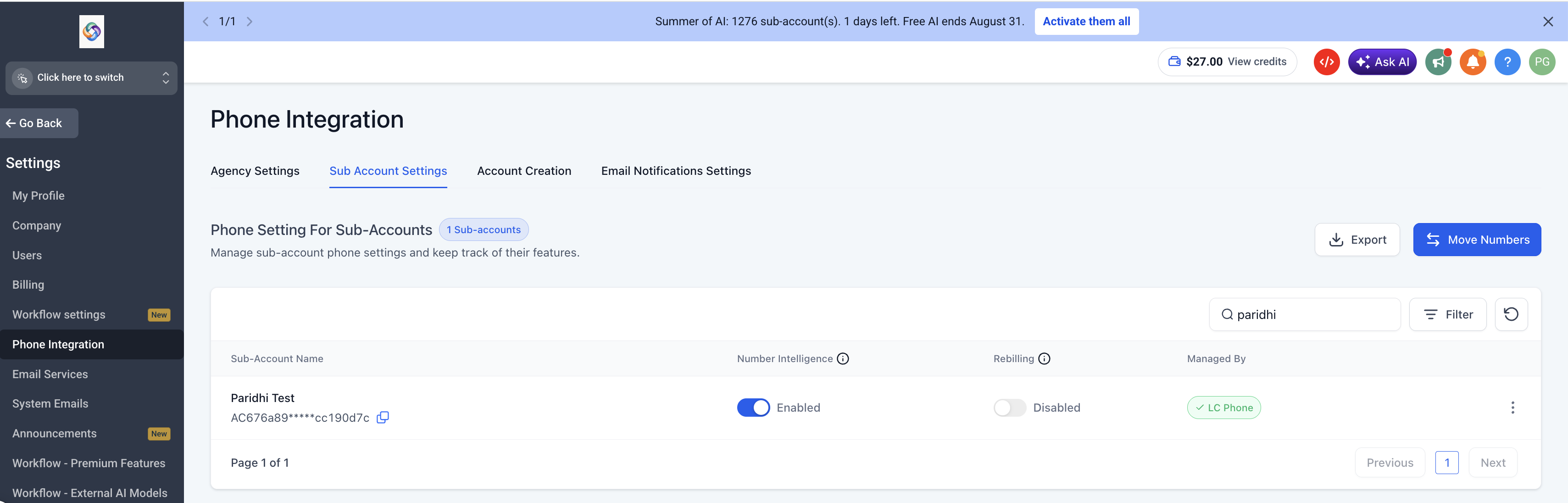
You don't need to do anything else during this phase — the old sub-account keeps working normally on its existing provider while the migration processes in the background. Once the phone numbers have moved, the sub-account switches over automatically and Managed By updates to a green ✓ LC Phone badge.
Phone Integration → Sub Account Settings, showing each sub-account's phone-system status under Managed By.
Option 2 — Switch all eligible sub-accounts at once
Use this option to move every eligible sub-account in a single action instead of linking them one by one. Only US and Canada sub-accounts are included — any other sub-account must be linked individually using Option 1.
Step A
Open the bulk migration prompt
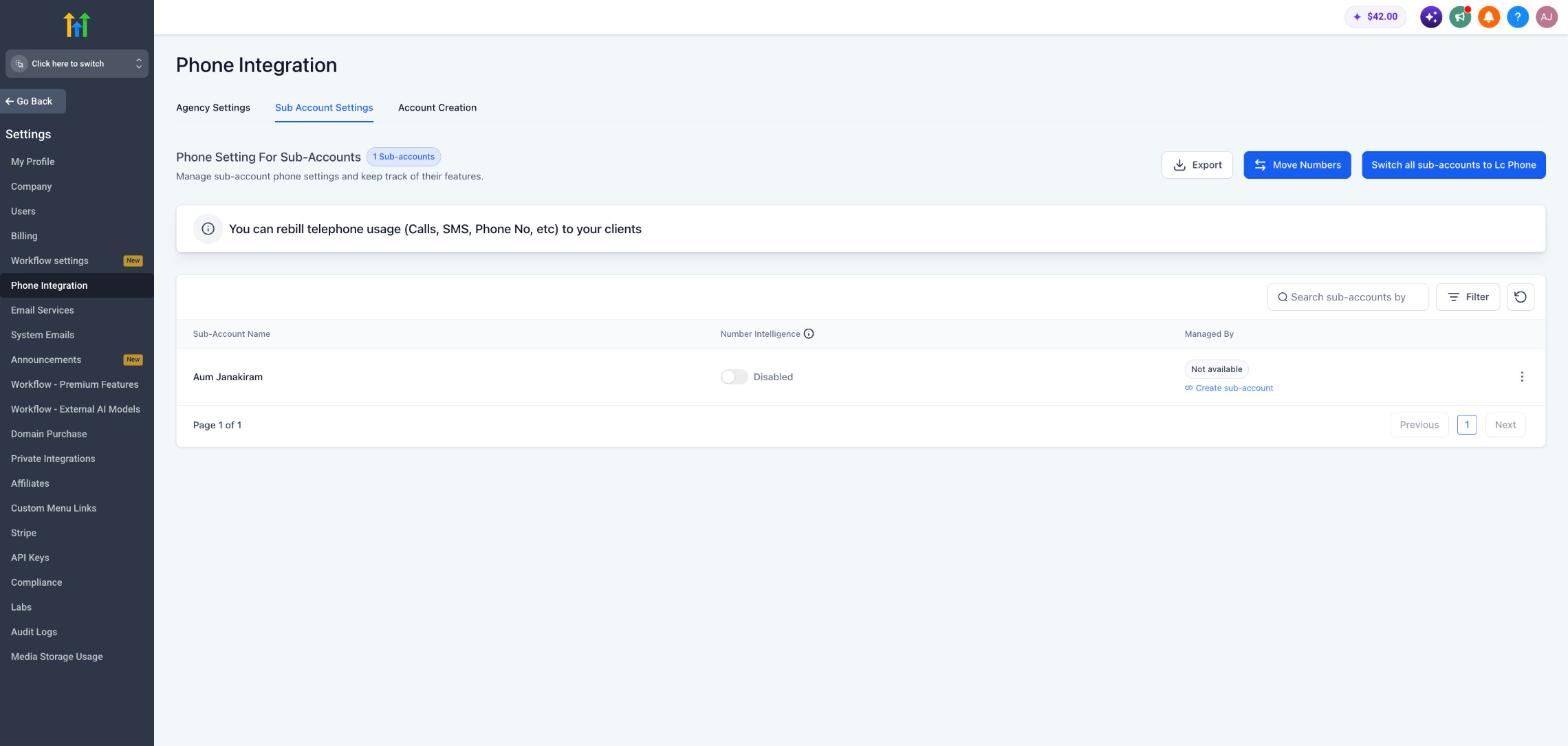
On Settings → Phone Integration → Sub Account Settings, click Switch all sub-accounts to LC Phone at the top right of the table, next to Export and Move Numbers. If you don't see this button, link sub-accounts individually using Option 1.
Phone Integration → Sub Account Settings, with the Switch all sub-accounts to LC Phone button next to Export and Move Numbers.
Step B
Review the prompt
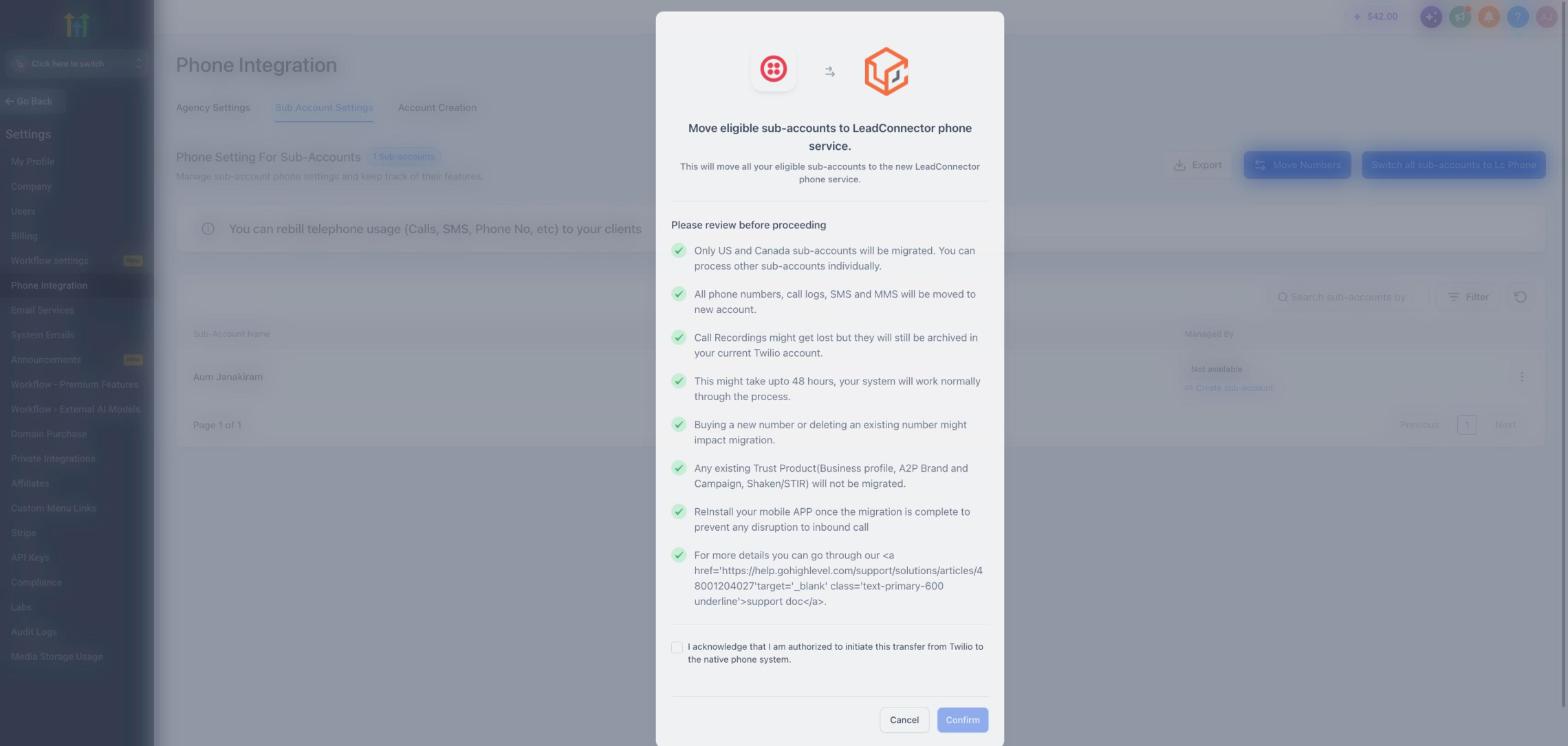
A window titled Move eligible sub-accounts to LeadConnector phone service explains what will happen. Read it before continuing — the key points are listed below.
The confirmation prompt shown before bulk migration. Review it, tick the acknowledgement, then click Confirm.
Step C
Acknowledge and confirm
Tick the checkbox confirming you are authorized to initiate the transfer from Twilio to the native phone system, then click Confirm. The Confirm button stays disabled until the box is ticked.
What the bulk prompt tells you
- Only US and Canada sub-accounts are migrated; process any other sub-account individually.
- All phone numbers, call logs, SMS and MMS are moved to the new account.
- Call recordings might not carry over, but they remain archived in your current Twilio account.
- The prompt states the migration might take up to 48 hours, and your system keeps working normally during the process.
- Buying a new number or deleting an existing number while the migration is running might impact it.
- Existing Trust Product records (Business Profile, A2P Brand and Campaign, SHAKEN/STIR) are not migrated, so A2P registration must be completed again under LC Phone.
- Reinstall the mobile app once the migration is complete to prevent any disruption to inbound calls.
Tip
Bulk migration moves all eligible sub-accounts in one action. If you only want to migrate selected sub-accounts, use Option 1. Use Export above the table to keep a full list and track which sub-accounts show the LC Phone badge.
US/Canada Sub-Accounts
A Regulatory Bundle is not required for US or Canadian phone numbers. Select Link to LeadConnector to begin the migration.
The existing phone service remains active while the migration is processing. Once migration is complete, Managed By will update to ✓ LC Phone.
Important: If the sub-account uses A2P 10DLC, A2P registration from the previous Twilio account does not migrate and must be completed again under LC Phone.
Migration processing time can vary. If the migration remains pending beyond the expected processing window, contact HighLevel Support.
Non-US/Canada Sub-Accounts
Depending on the country and number type, you may need an approved Regulatory Bundle and Address before the number can be migrated.
In the sub-account, go to: Settings → Phone System → Regulatory Bundles.
Create and submit the required Address and Regulatory Bundle. Once approved, return to Agency Settings → Phone Integration → Sub Account Settings and follow Step 2 to continue the migration. Migration time can vary depending on the country, number type, and regulatory requirements.
Historical Recordings and Voicemails
Historical call recordings and voicemails are not transferred to LC Phone during migration. They remain associated with the previous Twilio account. Download any historical recordings or voicemail assets you need to retain before closing the Twilio account or losing access to it.
After the Migration
Once Managed By shows ✓ LC Phone:
- Confirm all expected phone numbers are present in the sub-account.
- Complete A2P registration again for applicable US local numbers that previously used A2P through the old Twilio account.
- Once A2P is approved, confirm the applicable phone numbers are attached to the approved campaign.
- Verify any required Toll-Free or country-specific compliance status.
- Test one inbound and outbound voice call.
- Test inbound and outbound SMS where applicable.
- Confirm phone routing and number assignments are configured as expected.
- If you use the HighLevel mobile app, reinstall it once the migration is complete to prevent any disruption to inbound calls.
4
Frequently Asked Questions
Q: What are the benefits of moving to the LC Phone system?
One-click quick start, better cost with real-time billing, and increased security with a better delivery rate.
Q: What happens to existing sub-accounts when the agency onboards onto LC Phone?
Existing sub-accounts are not moved automatically when the agency switches. You'll link the existing sub-accounts you want to migrate individually using the Link to LeadConnector flow in Step 2, or move all eligible US/Canada sub-accounts at once using Switch all sub-accounts to LC Phone.
Q: In which countries is LC Phone available?
LC Phone is available to agencies globally. Phone-number availability, supported number types, and regulatory requirements vary by country. Some countries and number types require an approved Regulatory Bundle and Address before numbers can be purchased or migrated.
Q: Will SaaS re-billing work if I move sub-accounts to LC Phone?
Yes — SaaS rebilling continues to work with the LC Phone system.
Q: What are the costs of LC Phone vs. Twilio?
LC Phone pricing follows Twilio's underlying rates. Actual charges vary by country, service, carrier fees, and applicable HighLevel discounts. Refer to the current
Phone System Pricing & Billing Guide for the latest pricing.
Q: Where can I see my sub-account phone usage?
Export all sub-account phone usage from Agency Settings → Billing → See Details (under Credits). The Phone Integration → Agency Settings tab also shows a live Insights & Usage summary once you're connected to LeadConnector. Inside a sub-account, check Settings → Phone Numbers → Usage Summary.
Q: If I switch to LC Phone, does it apply to one sub-account or all of them?
Existing sub-accounts are not migrated automatically. You choose which existing sub-accounts to migrate using Phone Integration → Sub Account Settings, either individually or all eligible US/Canada sub-accounts at once.
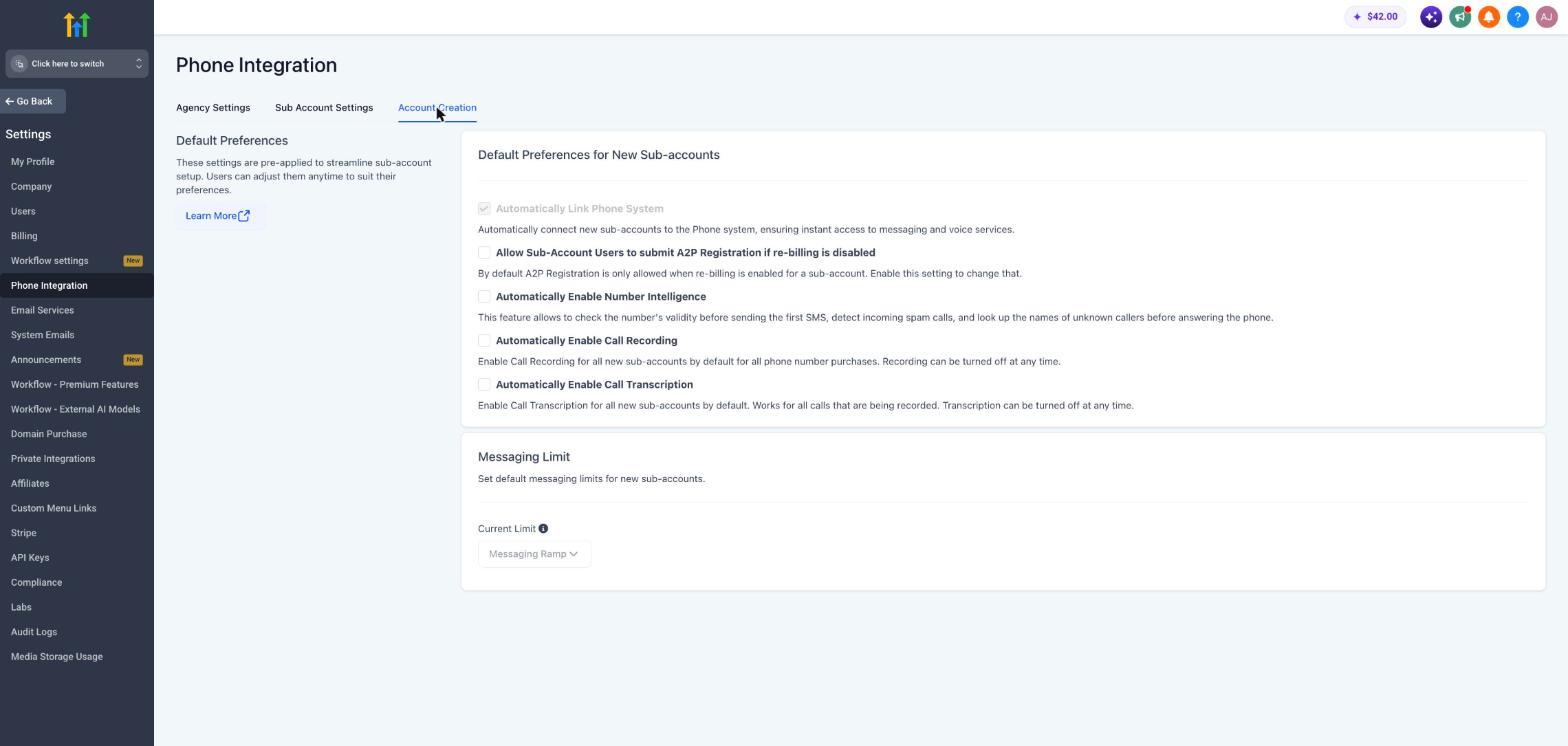
For newly created sub-accounts, Automatically Link Phone System is enabled by default. Agencies can change this preference under: Settings → Phone Integration → Account Creation.
If an existing LC Phone sub-account needs to move to its own Twilio account, follow the supported LC Phone → Twilio migration process.
Q: If I switch to LeadConnector and need an international number, how do I proceed?
Depending on the country and number type, you may need an approved Regulatory Bundle and Address. Go to
Settings → Phone System → Regulatory Bundles and create the required compliance records. Once approved, follow Step 2 to continue the migration. See
Regulatory Bundle and Address Creation for Sub-Accounts for details.
Q: Can specific sub-accounts continue using their own Twilio account?
Yes. An individual sub-account can use its own Twilio account instead of LC Phone. If the location is already using LC Phone and has phone numbers that must be retained, complete the supported
LC Phone → Twilio number migration before disabling the LC Phone connection.
Q: My Twilio account is currently suspended — can I still move to LeadConnector?
Q: Will call recordings be lost when a sub-account switches from Twilio to LC Phone?
Recordings don't transfer over automatically, but they remain archived in the sub-account's existing Twilio account and can be downloaded manually for safekeeping.
Q: How do I know a sub-account finished migrating?
Check the Managed By column on the Sub Account Settings table — it switches from Not available to a green ✓ LC Phone badge once the linked numbers have finished moving over. The row's ⋮ menu also changes from Link to LeadConnector to SMS Compliance / Delete Connection.
Q: Do I still need to "validate" LC Phone access before starting?
No. LC Phone is available to all agencies by default now, so there's nothing to validate — go straight to Step 1 above.
Q: Can I migrate all my sub-accounts at once?
Yes, for eligible US and Canada sub-accounts. On Phone Integration → Sub Account Settings, click Switch all sub-accounts to LC Phone, review the prompt, tick the acknowledgement, and click Confirm. Sub-accounts in other countries must be linked individually using the Link to LeadConnector option in each row's ⋮ menu. If you don't see the bulk option, link sub-accounts individually.
Q: What happens to existing sub-accounts when the agency onboards onto LC Phone?
Existing sub-accounts are not moved automatically when the agency switches. You'll link the existing sub-accounts you want to migrate individually using the Link to LeadConnector flow in Step 2, or move all eligible US/Canada sub-accounts at once using Switch all sub-accounts to LC Phone.
Q: In which countries is LC Phone available?
LC Phone is available to agencies globally. Phone-number availability, supported number types, and regulatory requirements vary by country. Some countries and number types require an approved Regulatory Bundle and Address before numbers can be purchased or migrated.
Q: Will SaaS re-billing work if I move sub-accounts to LC Phone?
Yes — SaaS rebilling continues to work with the LC Phone system.
Q: What are the costs of LC Phone vs. Twilio?
LC Phone pricing follows Twilio's underlying rates. Actual charges vary by country, service, carrier fees, and applicable HighLevel discounts. Refer to the current
Phone System Pricing & Billing Guide for the latest pricing.
Q: Where can I see my sub-account phone usage?
Export all sub-account phone usage from Agency Settings → Billing → See Details (under Credits). The Phone Integration → Agency Settings tab also shows a live Insights & Usage summary once you're connected to LeadConnector. Inside a sub-account, check Settings → Phone Numbers → Usage Summary.
Q: If I switch to LC Phone, does it apply to one sub-account or all of them?
Existing sub-accounts are not migrated automatically. You choose which existing sub-accounts to migrate using Phone Integration → Sub Account Settings.
For newly created sub-accounts, Automatically Link Phone System is enabled by default. Agencies can change this preference under: Settings → Phone Integration → Account Creation.
If an existing LC Phone sub-account needs to move to its own Twilio account, follow the supported LC Phone → Twilio migration process.
Q: If I switch to LeadConnector and need an international number, how do I proceed?
Depending on the country and number type, you may need an approved Regulatory Bundle and Address. Go to
Settings → Phone System → Regulatory Bundles and create the required compliance records. Once approved, follow Step 2 to continue the migration. See
Regulatory Bundle and Address Creation for Sub-Accounts for details.
Q: Can specific sub-accounts continue using their own Twilio account?
Yes. An individual sub-account can use its own Twilio account instead of LC Phone. If the location is already using LC Phone and has phone numbers that must be retained, complete the supported
LC Phone → Twilio number migration before disabling the LC Phone connection.
Q: My Twilio account is currently suspended — can I still move to LeadConnector?
Q: Will call recordings be lost when a sub-account switches from Twilio to LC Phone?
Recordings don't transfer over automatically, but they remain archived in the sub-account's existing Twilio account and can be downloaded manually for safekeeping.
Q: How do I know a sub-account finished migrating?
Check the Managed By column on the Sub Account Settings table — it switches from Not available to a green ✓ LC Phone badge once the linked numbers have finished moving over. The row's ⋮ menu also changes from Link to LeadConnector to SMS Compliance / Delete Connection.
Q: Do I still need to "validate" LC Phone access before starting?
No. LC Phone is available to all agencies by default now, so there's nothing to validate — go straight to Step 1 above.