HighLevel allows you to automate Project Management tasks using workflow triggers and actions. You can start workflows when tasks are added or completed, schedule reminders, and automatically create tasks with the right details. This article explains how these features work and how to configure them in Workflow Builder.
TABLE OF CONTENTS
- What are Project Management Workflow Triggers and Actions?
- Key Benefits of Project Management Workflow Automation
- Task Added and Task Completed Triggers
- Task Reminder Trigger
- Workflow Trigger Filters
- Add Task Workflow Action
- Using Dynamic Values and Custom Fields
- Setting Task Dates and Skipping Weekends
- How to Set Up Project Management Workflow Automation
- Frequently Asked Questions
- Related Articles
What are Project Management Workflow Triggers and Actions?
Project Management workflow triggers and actions help you automate task-related activities.
A trigger starts a workflow when a specific event occurs. An action performs a task after the workflow starts.
For example, when a design task is completed, a workflow can automatically create a development task, assign it to a team member, and set its due date.
HighLevel supports the following Project Management workflow features:
| Type | Feature | Purpose |
|---|---|---|
| Trigger | Task Added | Starts when a task is created |
| Trigger | Task Completed | Starts when a task is completed |
| Trigger | Task Reminder | Starts before or after a task-related date |
| Action | Add Task | Creates a task automatically |
Availability: Project Management is currently in Private Beta. The workflow features must be available in your sub-account.
Key Benefits of Project Management Workflow Automation
These features reduce manual task management and help teams follow consistent processes.
Automated Task Creation: Create follow-up tasks when specific events occur.
Targeted Automation: Use filters to run workflows only for matching tasks.
Timely Reminders: Schedule workflows around important task dates.
Flexible Assignments: Assign tasks to specific users or use dynamic values.
Consistent Task Details: Set priorities, statuses, dates, descriptions, and custom fields automatically.
Organized Workflows: Create tasks in the appropriate Space, Folder, and List.
Task Added and Task Completed Triggers
These triggers start workflows when tasks are created or completed. Filters determine which tasks qualify.
Task Added
Starts a workflow when a new task matches the selected conditions.
Example: Start a workflow when a high-priority task is added to the Website Design List.
Task Completed
Starts a workflow when a task is completed and matches the selected conditions.
Example: Create a development task when a design task is completed.
You can use status filters to target specific completion statuses.
Task Reminder Trigger
The Task Reminder trigger runs a workflow before or after a selected task date. It helps automate reminders and follow-up activities.
You can schedule a reminder using:
Due Date: When the task should be completed.
Start Date: When work is scheduled to begin.
Custom Date Field: A date stored in a task custom field.
Choose how many days before or after the selected date the workflow should run.
You can also filter tasks by status, assignee, priority, or name.
For example, you can trigger a reminder one day before a high-priority task is due, excluding tasks that are already completed.
Workflow Trigger Filters
Filters control which Project Management tasks can start a workflow. They help ensure automations run only when the required conditions are met.
| Filter | Available conditions |
|---|---|
| Location | Select a Space, Folder, or List |
| Assignee | Match or exclude users, or check whether an assignee is set |
| Priority | Match or exclude priorities, or check whether one is set |
| Status | Include or exclude selected statuses |
| Task Name | Use contains, does not contain, equals, does not equal, or regex |
| Task Custom Fields | Match supported custom field values |
Note: Folder and List options depend on the selected location. Available filters may vary by trigger.
Add Task Workflow Action
The Add Task action creates a new Project Management task when the workflow reaches that step. You can choose where the task is created and configure its details.
| Setting | What it does |
|---|---|
| Task Name | Sets the task title |
| Space, Folder, and List | Determines where the task is created |
| Status | Selects a status available in the chosen List |
| Assignee | Assigns a specific user or supported dynamic value |
| Priority | Sets Urgent, High, Medium, or Low priority |
| Start Date and Due Date | Sets dates relative to workflow execution |
| Description | Adds task details using a rich text editor |
| Custom Fields | Stores additional task information |
For example, the action can create a task named Begin Website Development, assign it to a developer, and set its due date to two days after the workflow runs.
Using Dynamic Values and Custom Fields
Dynamic values allow you to insert information from available workflow data instead of entering fixed text. Custom fields allow you to store additional information on the task being created.
Dynamic Values
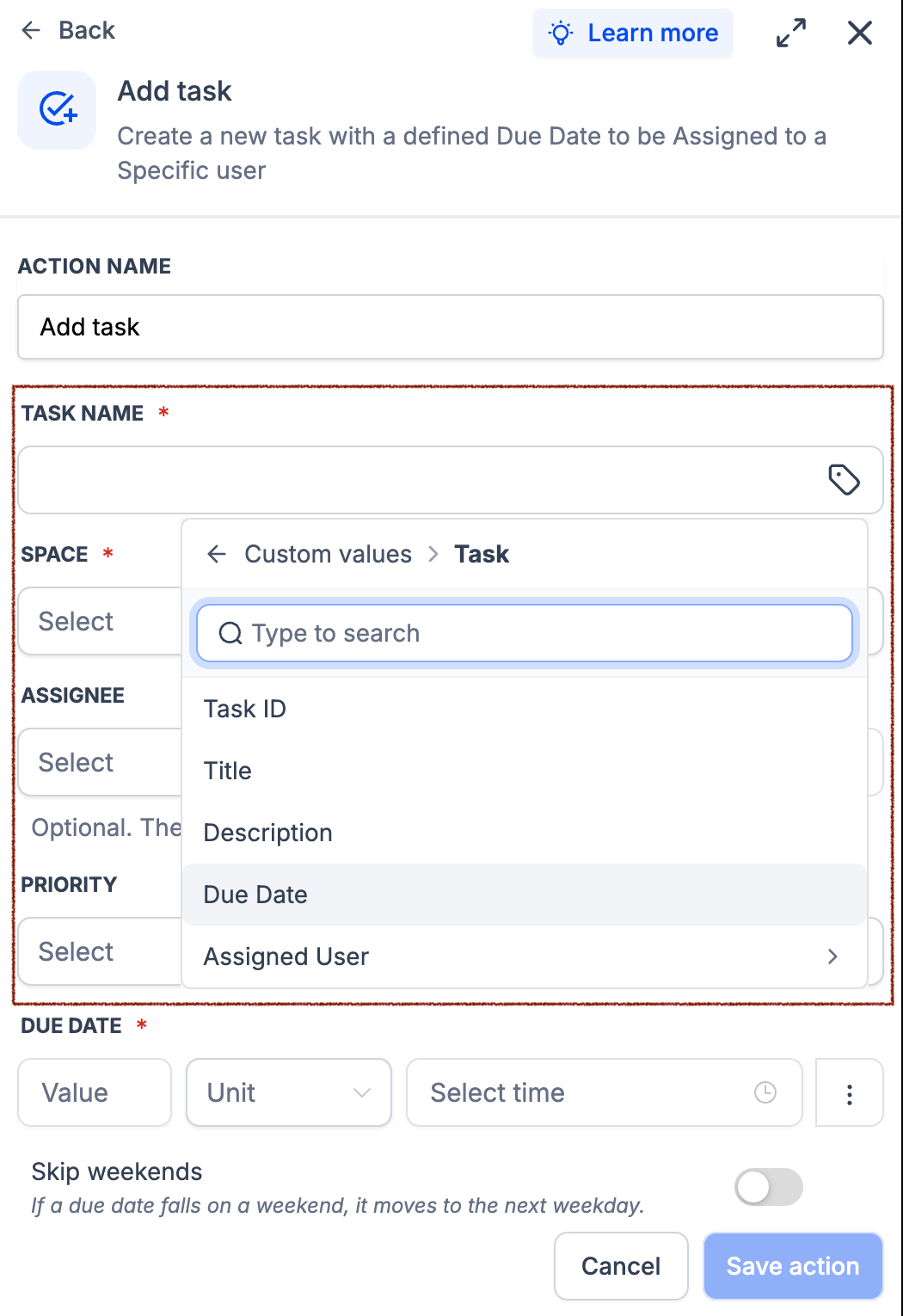
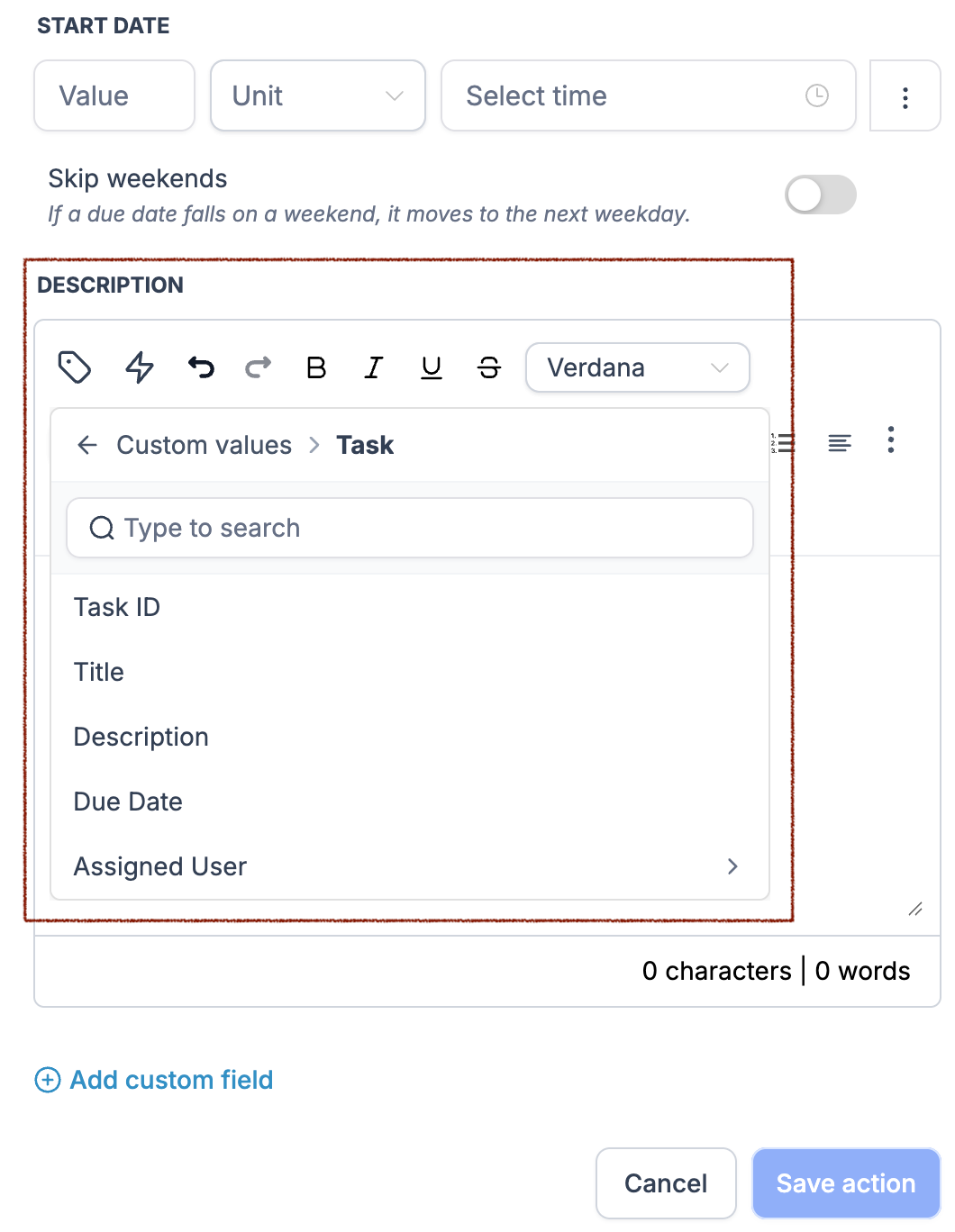
The Task Name, Description, and supported assignment fields can use dynamic values.
Available task-related values include:
Task ID
Title
Description
Due Date
Assigned User
Task Custom Fields
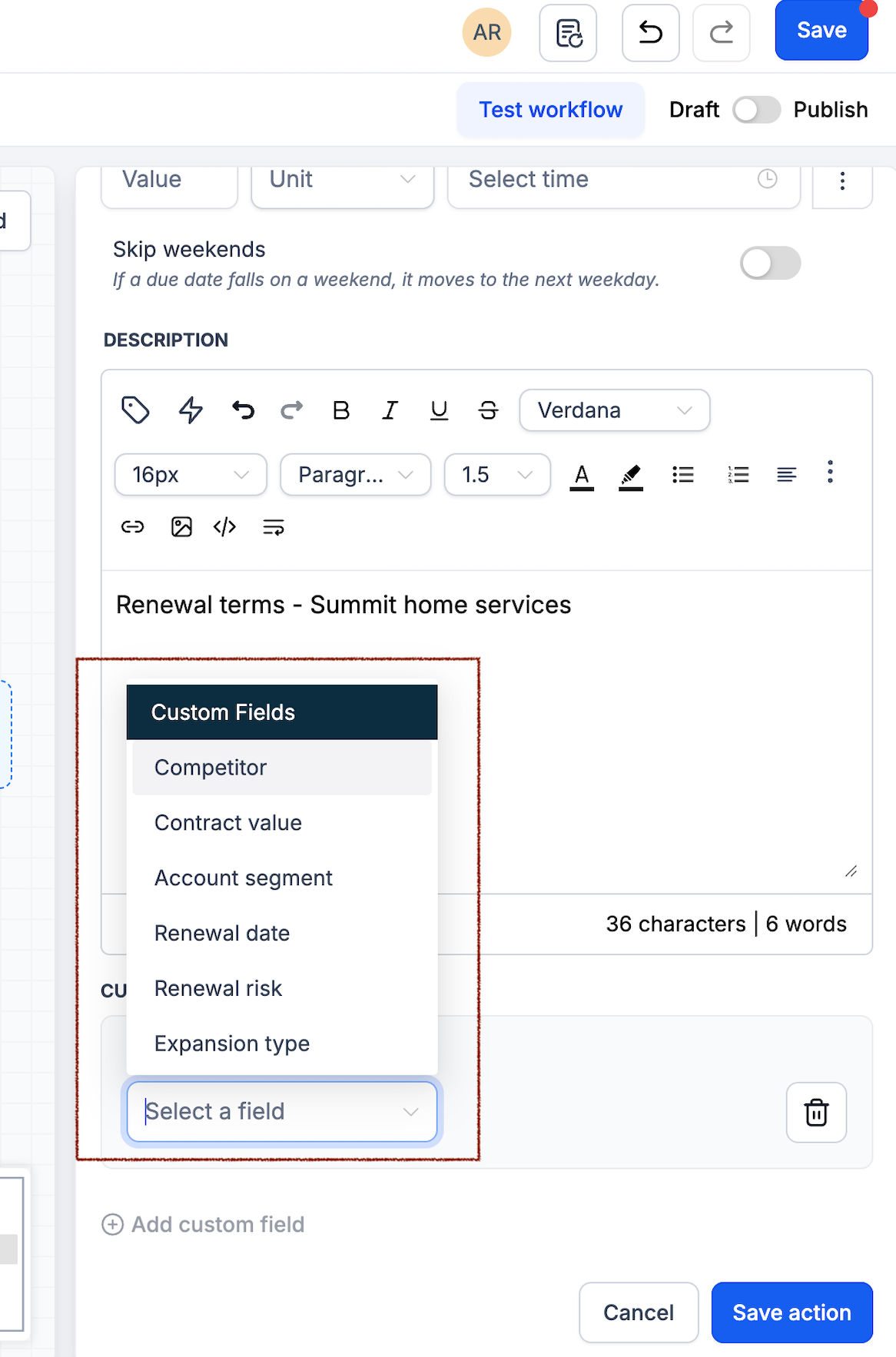
To populate a task custom field:
Open the Add Task action.
Click Add custom field.
Select the field you want to populate.
Enter a fixed value or select a supported dynamic value.
Repeat for additional fields if needed.
For more information, see Use Custom Fields on Tasks.
Setting Task Dates and Skipping Weekends
The Add Task action lets you set start and due dates based on when the workflow runs. This allows tasks to be scheduled automatically.
To configure a date:
Enter a number in Value.
Select a Unit: days, weeks, months, or years.
Choose the time.
Enable Skip weekends if needed.
If the calculated date falls on a weekend and Skip weekends is enabled, it moves to the next weekday.
For example, you can set a task to be due two days after the workflow runs.
How to Set Up Project Management Workflow Automation
You can combine a Project Management trigger with the Add Task action to automate follow-up work.
The example below creates a task in the Website Development List when a task is completed in the Website Design List.
Step 1: Create or Open a Workflow
Go to Automation → Workflows in your HighLevel sub-account.
Create a workflow or open an existing one.
Open the Workflow Builder.
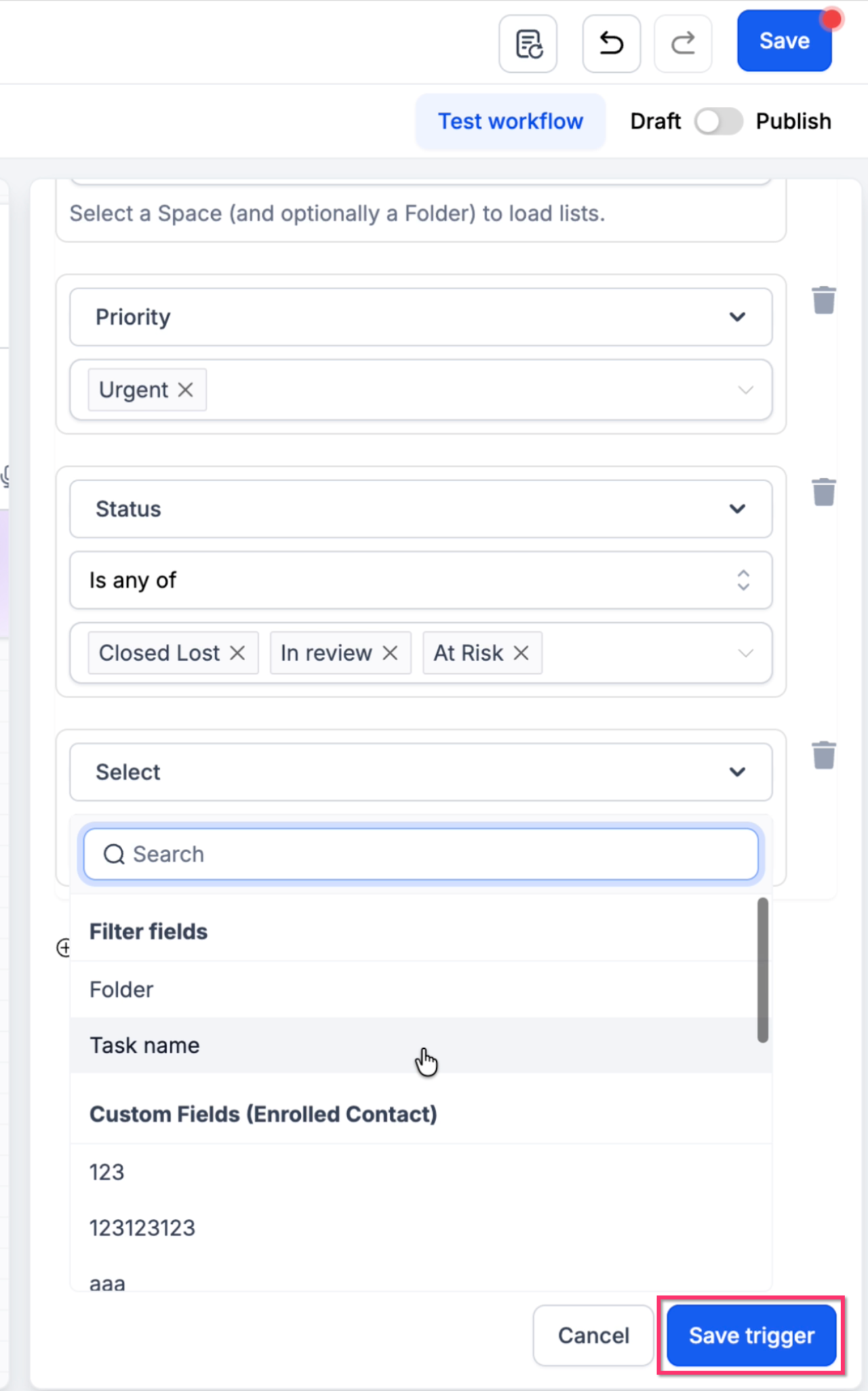
Step 2: Add the Task Completed Trigger
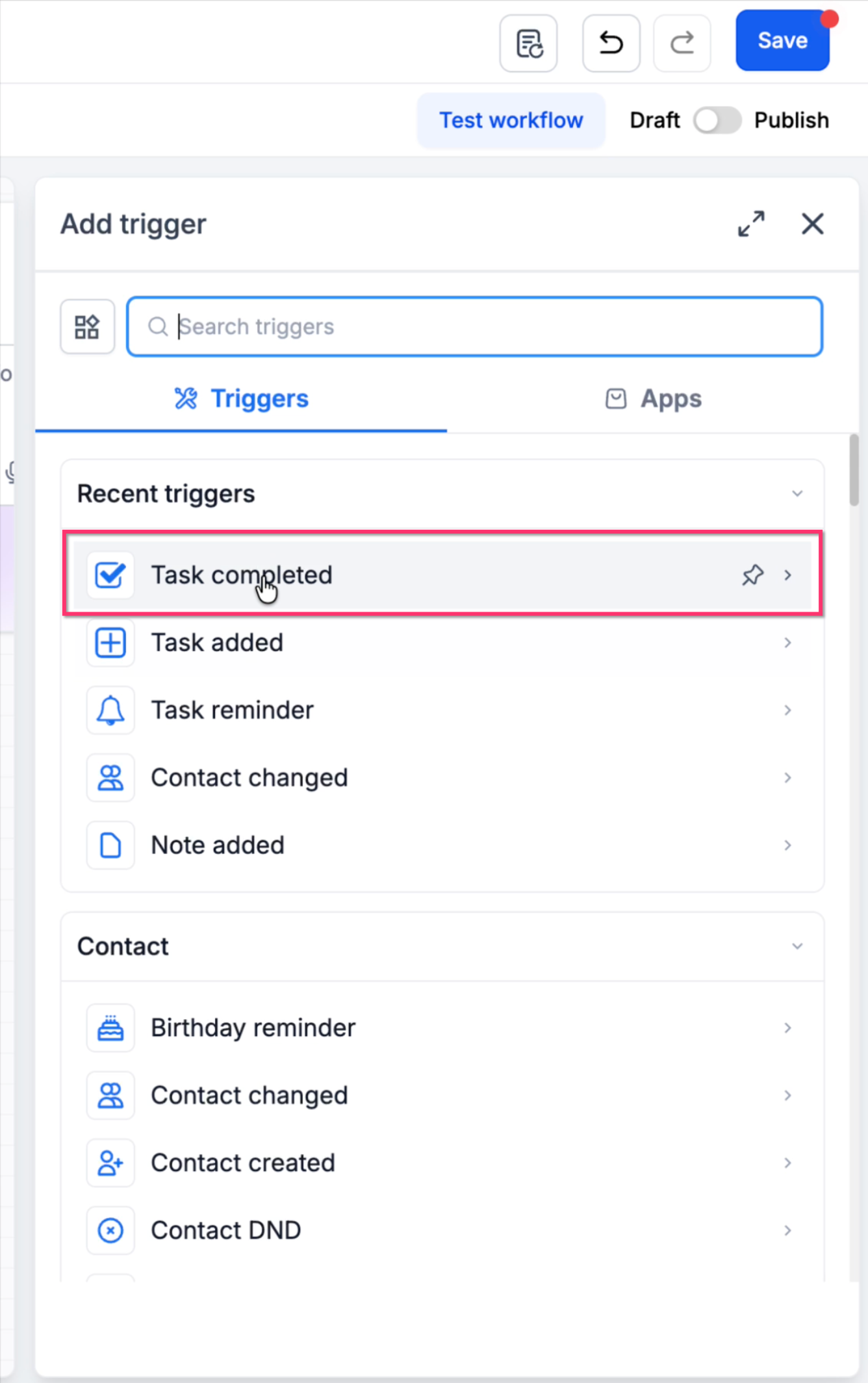
Click Add New Trigger.
Search for and select Task Completed.
Choose the appropriate Space.
Select the Website Design List, choosing its Folder first if needed.
Add any other required filters, such as Status or Priority.
Save the trigger.
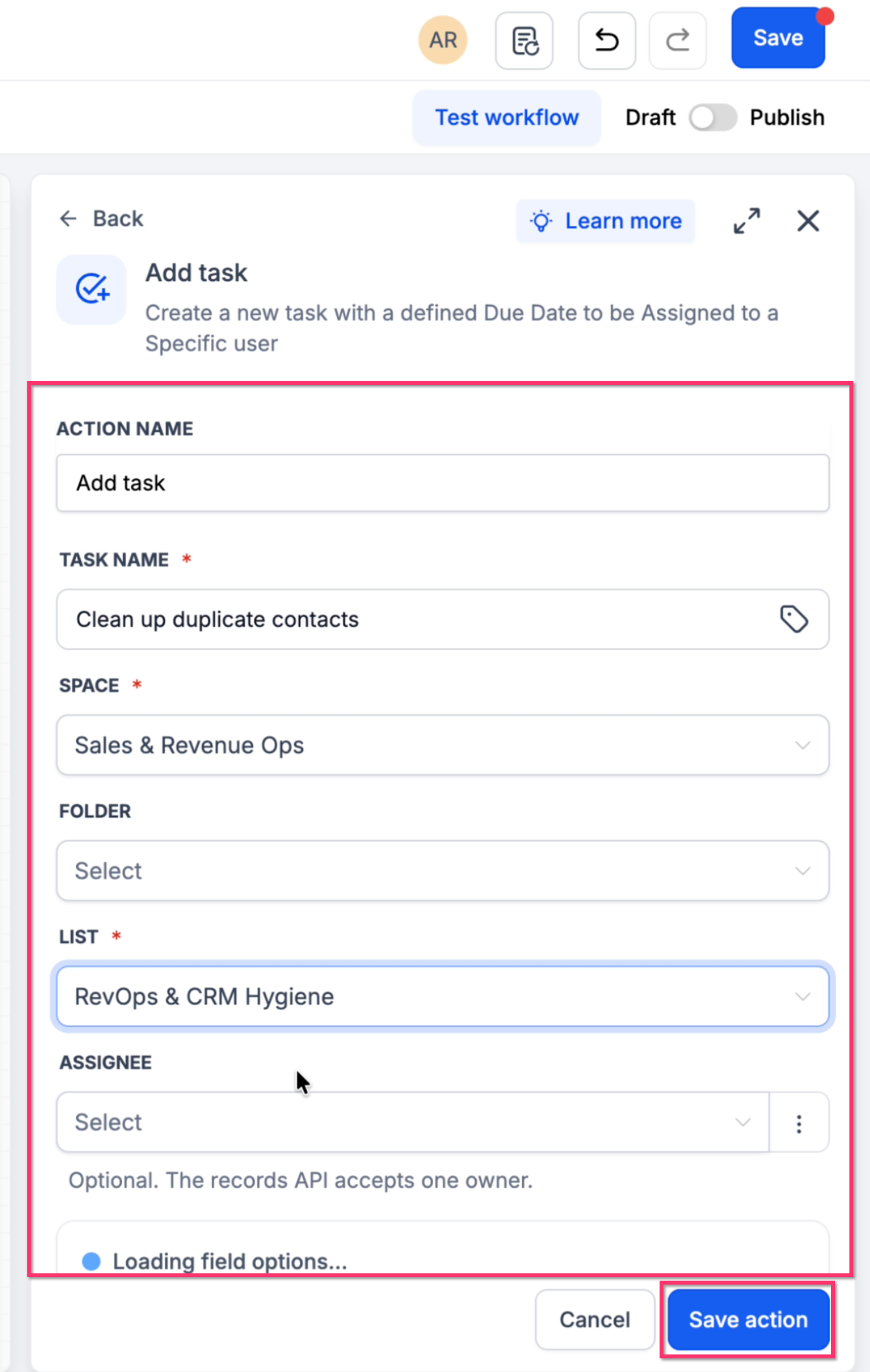
Step 3: Configure the Add Task Action
Click the + icon below the trigger.
Search for and select Add Task.
Enter Begin Website Development as the Task Name.
Select the destination Space and Website Development List.
Set the Status, Priority, and Assignee as needed.
Add a Description or task custom fields if needed.
Step 4: Set the Due Date
Under Due Date, enter
2in Value.Select Days as the Unit.
Choose the required time.
Enable Skip weekends if needed.
Click Save action.
The new task's due date will be calculated when the workflow runs.
Step 5: Save, Test, and Publish
Click Save in Workflow Builder.
Use Test workflow where supported.
Confirm the workflow creates the task in the correct List with the expected details.
Change the workflow from Draft to Publish when ready.
Important: Saving a workflow does not automatically publish it.
Frequently Asked Questions
Q: What is the difference between Task Added and Add Task?
A: Task Added is a trigger that starts a workflow. Add Task is an action that creates a new task.
Q: Can I create a task in another List?
A: Yes. Select the destination Space, optional Folder, and List in the Add Task action.
Q: Can I run workflows only for high-priority tasks?
A: Yes. Use the Priority filter in a supported trigger.
Q: Can I schedule reminders before a task's start date?
A: Yes. Task Reminder supports start dates, due dates, and supported custom date fields.
Q: Can I automatically assign tasks?
A: Yes. You can select a specific user or use a supported dynamic value.
Q: Can I use task information in the new task's name or description?
A: Yes. Use dynamic values to insert supported task information.
Q: What happens when a due date falls on a weekend?
A: If Skip weekends is enabled, the due date moves to the next weekday.
Q: Why isn't my workflow running?
A: Check that the workflow is published, its trigger filters match the task, and the required Project Management features are available.
Related Articles
Was this article helpful?
That’s Great!
Thank you for your feedback
Sorry! We couldn't be helpful
Thank you for your feedback
Feedback sent
We appreciate your effort and will try to fix the article