Project Management brings tasks and projects directly into your CRM, so the work your team is doing sits alongside the contacts and opportunities it relates to. This introduction explains what Project Management is, how work is organised, and what each part of it does, providing a foundation before you explore individual features in depth.
Note: Project Management is currently in Private Beta and may not be visible to all customers. Access is being rolled out gradually to selected customers.
It will soon be available through Labs, allowing all customers to enable it and explore the new and enhanced experience
TABLE OF CONTENTS
- What is Project Management?
- Where to find Project Management
- Key benefits of using Project Management
- Use cases for Project Management
- How work is organized
- What a Task contains
- Views: Kanban and list
- Steps for getting started
- How to provide feedback
What is Project Management?
Project Management is a workspace inside your sub-account for planning and tracking work. Instead of keeping a separate tool for your team's tasks and a CRM for your customers, you create tasks in the same platform your customer records live in.
A task is a single unit of work with a status, an owner, dates, and a priority. Tasks live inside Lists, Lists are organised into Spaces, and any task can be broken down into subtasks. Tasks can also be linked to CRM records, so the work connected to a customer is visible in context.
For example, rather than tracking an onboarding checklist in a spreadsheet and manually copying updates into the CRM, you can:
Create an onboarding List with a task for each step.
Assign each task to the team member responsible and give it a due date.
Move tasks across the board as each step is completed.
Where to find Project Management
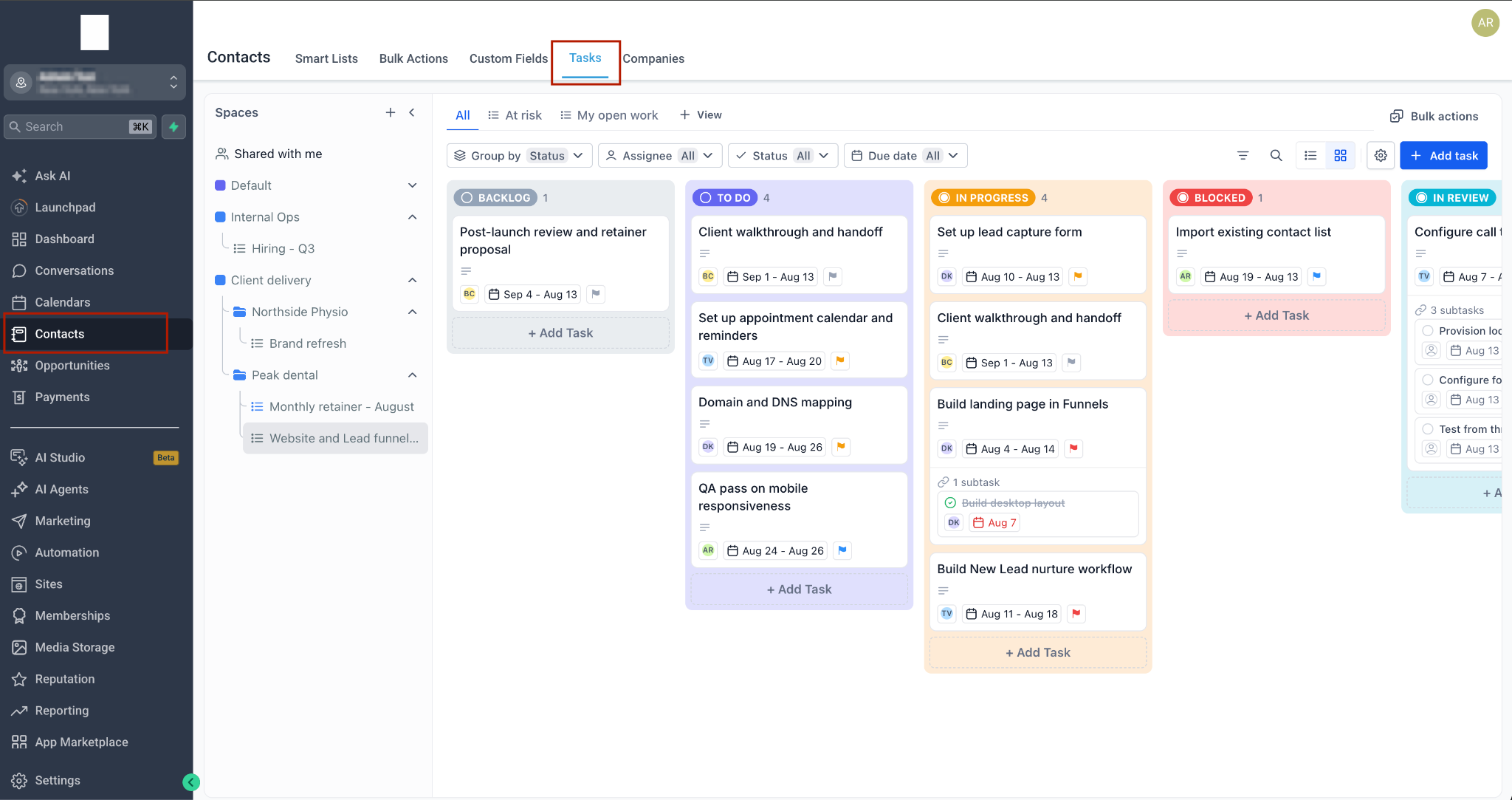
Project Management is available through the tasks tab in the Contacts area of your sub-account. Open "Contacts" in the left navigation menu, then select the "Tasks" tab in the row of tabs at the top of the page.
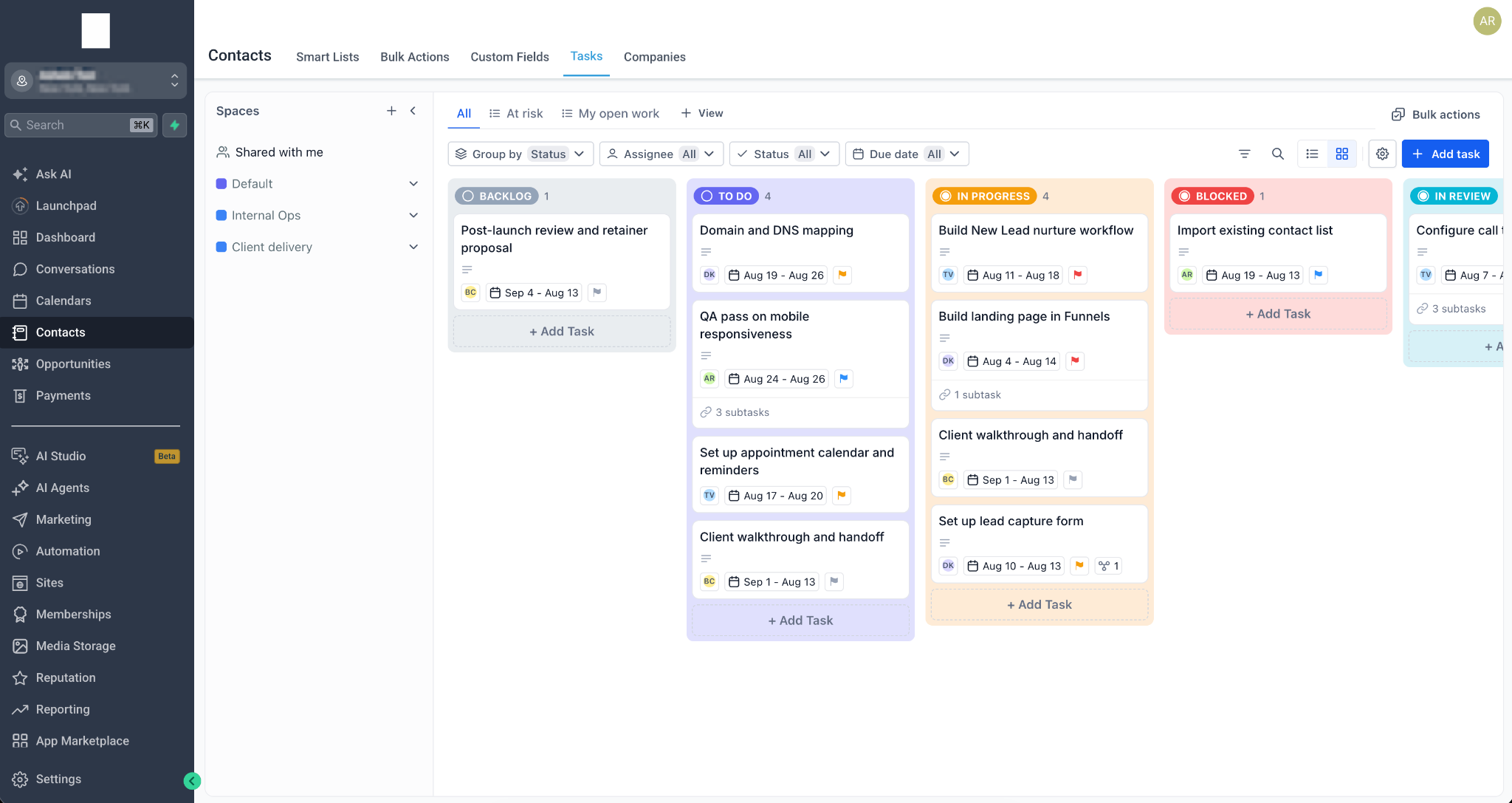
Individual tasks have their own address. When you open a task, the page address gains a task identifier, which means you can copy the address from your browser and share a link that opens directly on that task.Key benefits of using Project Management
One system of record: Keep customer data and the work being done for that customer in the same platform, with no copying between tools.
Clear ownership: Every task has an assignee, dates, and a priority, so nothing sits unclaimed.
Visibility at a glance: Switch between Kanban and List view to see either workflow stage or a detailed breakdown of the same tasks.
Structure that scales: Spaces, Folders, Lists, tasks, and subtasks let a short checklist and a large multi-team project live in the same system.
Fields that fit your process: Add custom fields to a Space so tasks capture the information your team actually needs.
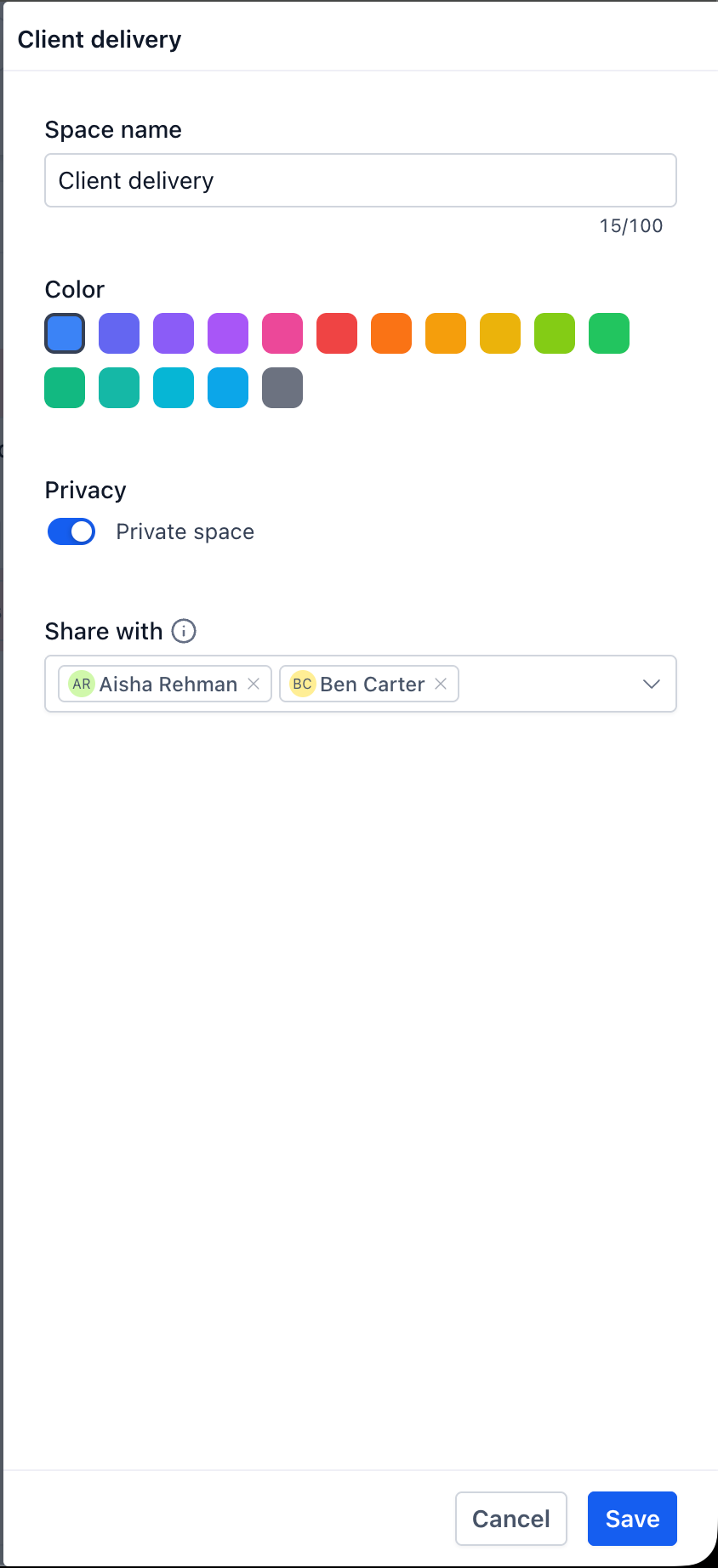
Controlled access: A Space can be made private and shared with named members, so sensitive work is only visible to the people who need it.
Use cases for Project Management
Client onboarding: Run a repeatable onboarding checklist per customer, with each step assigned and dated.
Campaign delivery: Track creative, copy, and launch tasks for a marketing campaign on a single board.
Internal operations: Manage recruiting, finance, or admin work in a private Space, separate from client-facing work.
Service delivery: Break a delivered engagement into subtasks so a large piece of work can be tracked stage by stage.
Sales follow-up: Turn commitments made during a deal into dated tasks so follow-up does not depend on memory.
How work is organized
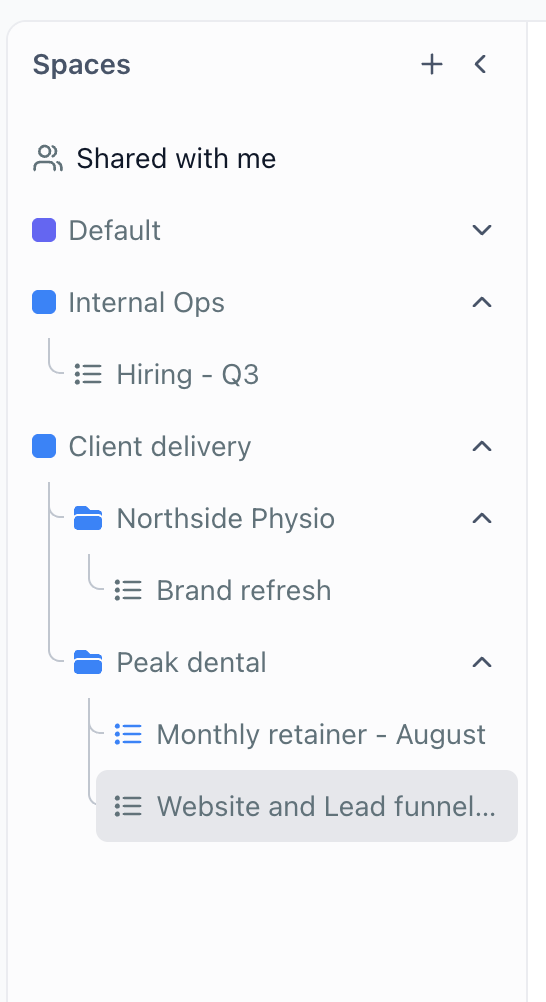
Project Management uses a nested structure, shown as an expandable tree in the panel on the left of the page.
Spaces
A Space is the outermost container, usually representing a team, a department, or a major line of work - for example Marketing, Delivery, or Internal Ops. Each Space is shown with a color dot and can be expanded to reveal what is inside. A Space holds its own set of task statuses, its own custom fields, and its own member list, and it can be made private.
Folders
A Folder is an optional grouping layer inside a Space, used when a Space has enough Lists that they need sorting. A Folder holds Lists and can be expanded like a Space.
Lists
A List holds the tasks themselves and is typically a project, a client, or an ongoing work stream - for example Q3 website refresh or Acme Corp onboarding. A List can sit directly inside a Space, or inside a Folder within that Space. Lists do not expand in the tree, because tasks are shown in the main area of the page rather than in the tree.
Tasks and subtasks
A task is the unit of work inside a List. A subtask is a task nested under a parent task, used to break a larger piece of work into steps.
What a Task contains
Opening a task slides a panel in from the right. The top of the panel shows a breadcrumb telling you where the task lives, in the form Space / List. The panel contains:
Task name: Editable directly in the panel.
Description: A rich text editor for the detail of the work, with formatting controls and undo and redo.
Status: The stage the task is at. The available statuses come from the Space the task belongs to.
Assignee: The single person responsible for the task.
Dates: A single date or a date range, shown with the timezone it is being displayed in.
Priority: Low, Normal, High, or Urgent.
All fields: The custom fields configured for the Space, with a count of how many exist.
Associated objects: CRM records linked to the task, with a count.
Subtasks: Tasks nested under this one, with a count and a button to add another.
Comments: A composer at the foot of the panel for discussion on the task.
Views: Kanban and list
The same tasks can be displayed in two layouts. Changing the view does not change the tasks, only how they are arranged, so you can switch freely.
Examples of what each view suits:
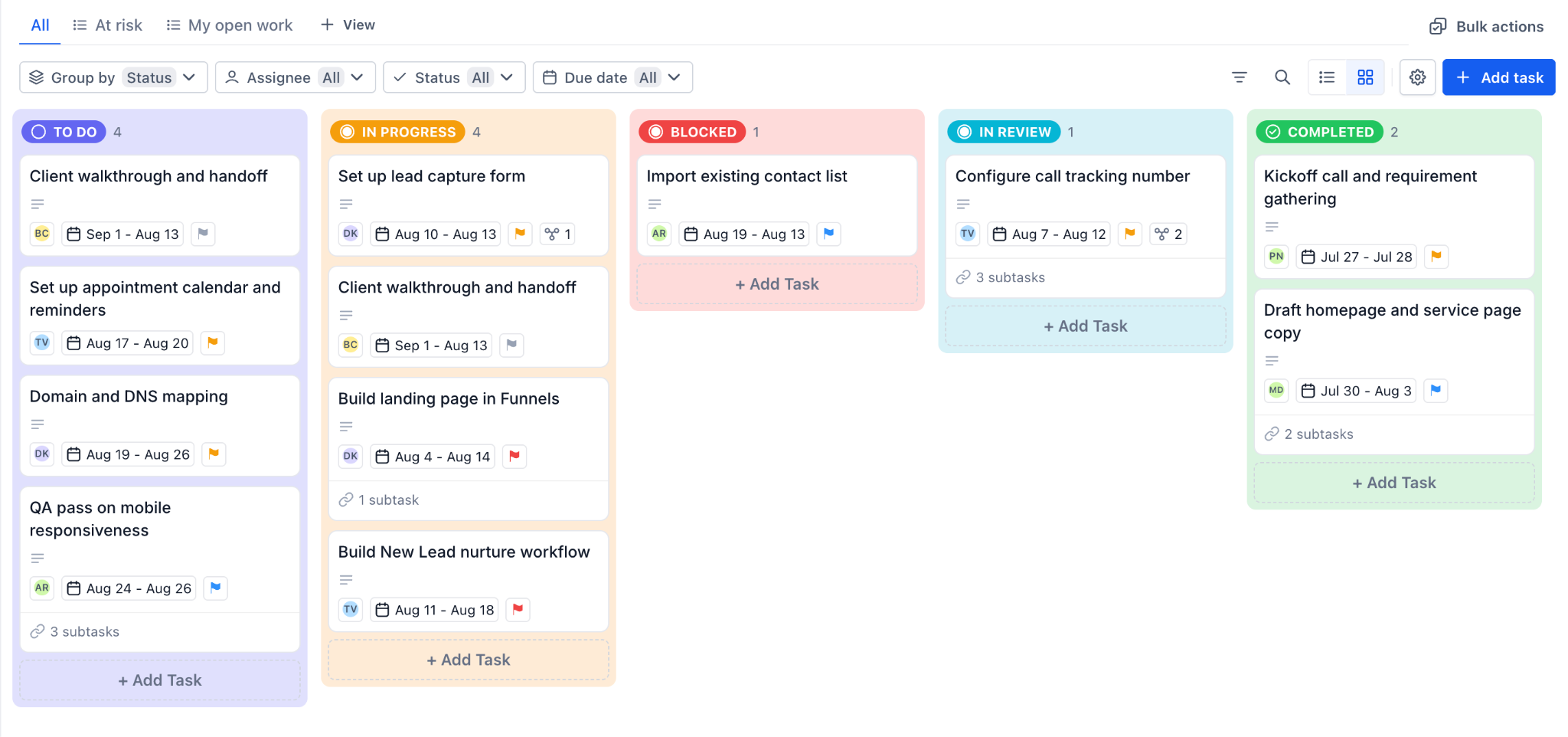
• Kanban view - seeing where work is sitting and what is stuck.
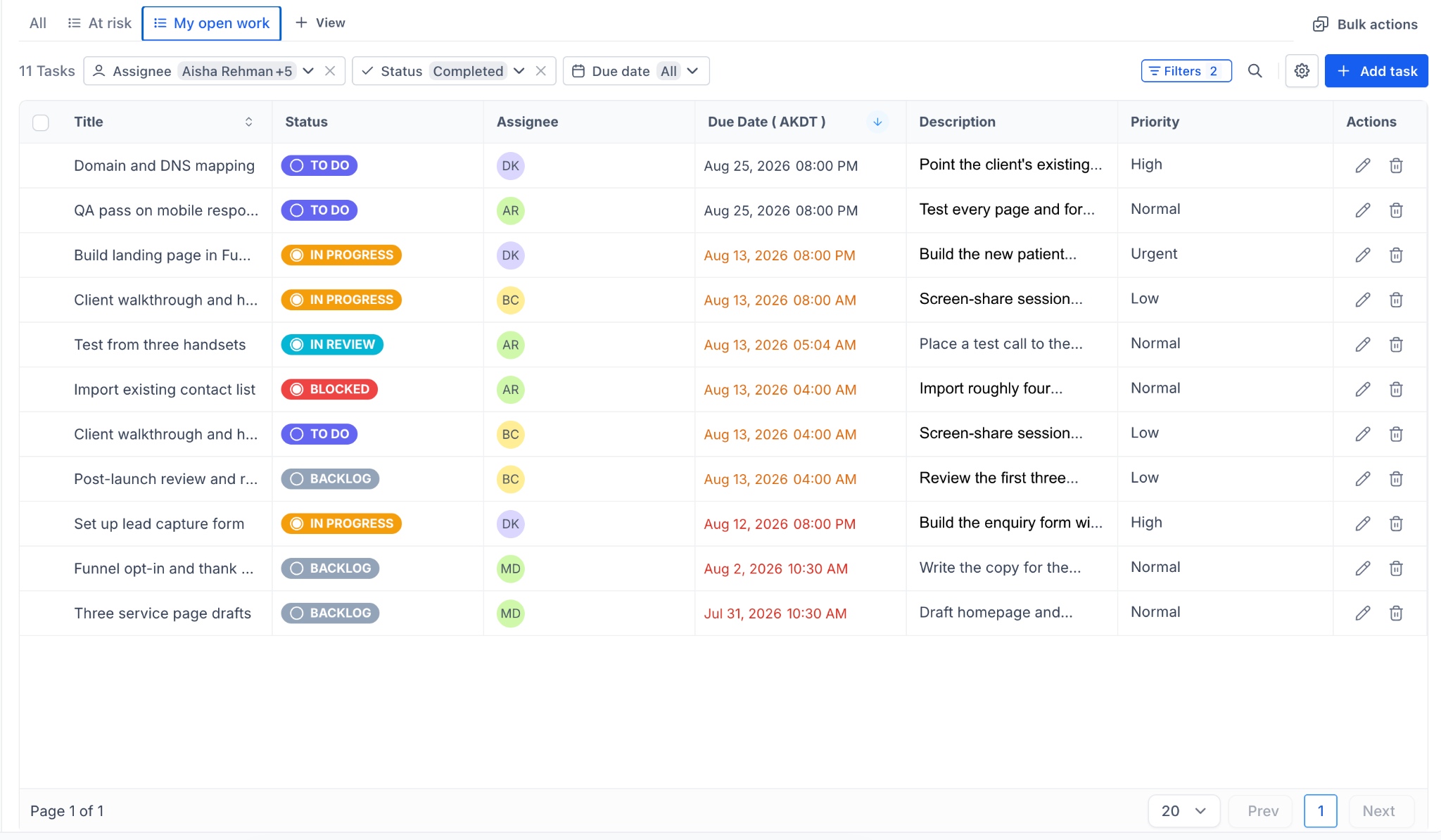
• List view - scanning many tasks at once and comparing their details.
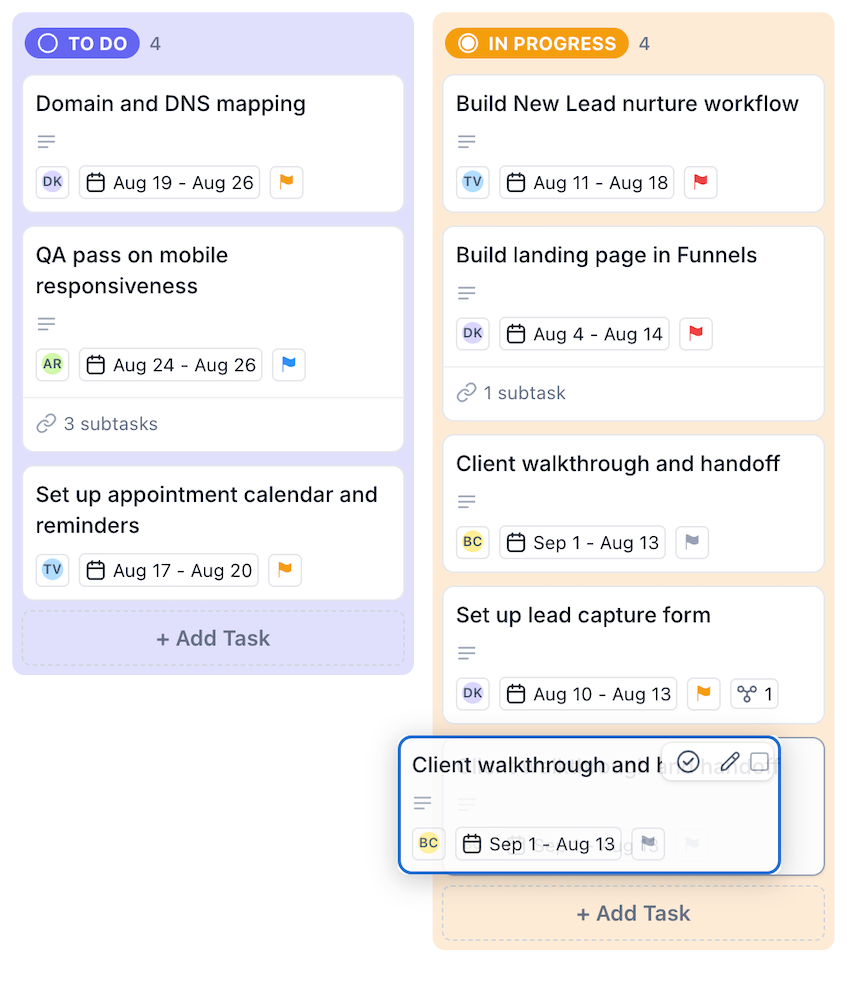
In Kanban view, tasks appear as cards in columns, with each column representing a status. Each column header shows the status name and how many tasks it holds, and each column has an Add Task control at the foot. Cards show the task name, its date or date range, and a subtask count if it has any.
In List view, tasks appear as rows rather than cards.
Switch between them using the "View" control in the toolbar above the board.
Kanban view
List view
For a full walkthrough of both layouts, including grouping and filtering, see the article "Board (Kanban) and list views"
Steps for getting started
Open Tasks
Go to "Contacts" in the left navigation menu of your sub-account, then select the "Tasks" tab.
Contacts area with the Tasks tab selected
Create a Space
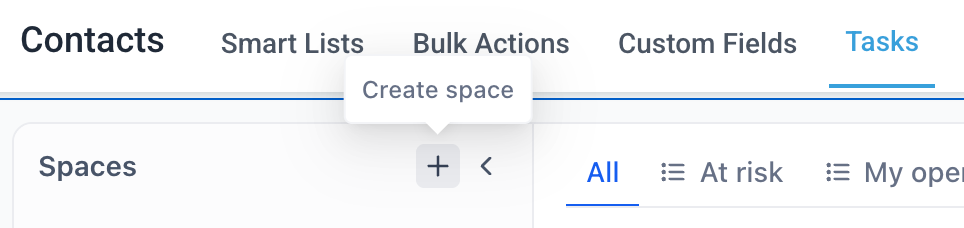
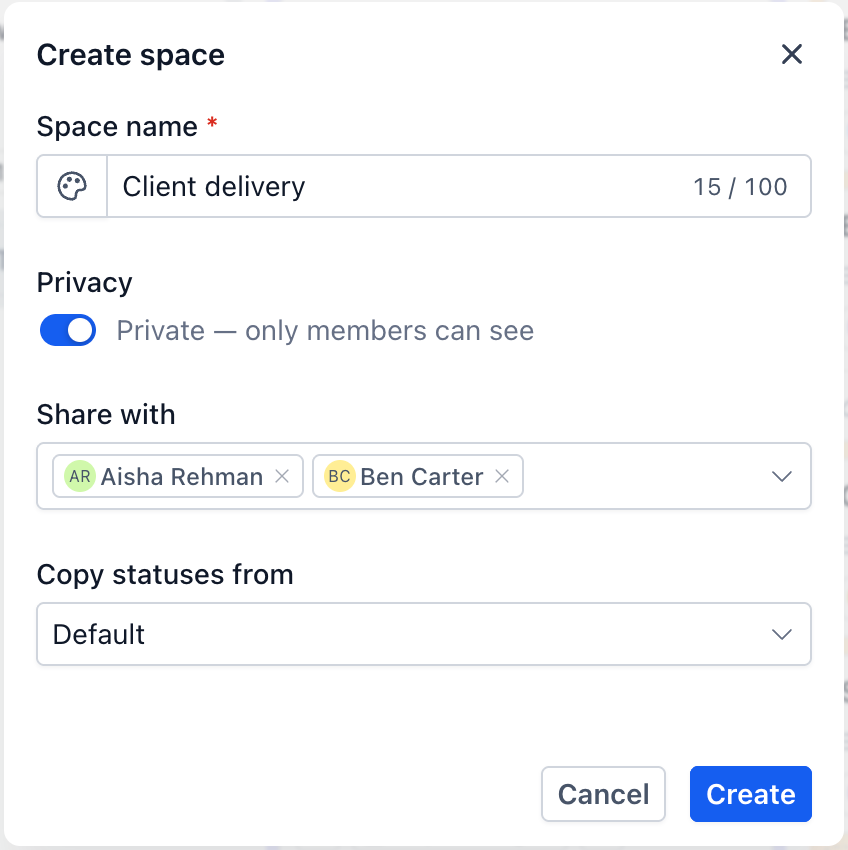
Create a Space for the team or area of work you are setting up, and give it a name a new team member would recognize, such as Marketing or Client Delivery. You can also give it a color so it is easy to pick out in the tree.
Creating a new Space
Create a List inside the Space
Hover over your new Space in the left panel, open its options menu, and choose "Create list". This is where your tasks will live. If you expect a lot of Lists, use "Create folder" first and put the Lists inside it.
Review your task statuses
Open the Space options menu and choose "Status options". Each Space has statuses organized under three groups - To Do, Doing, and Done - and you can add your own statuses to any group.
Review these before adding tasks, because they become the columns on your Kanban board.
Create your first task
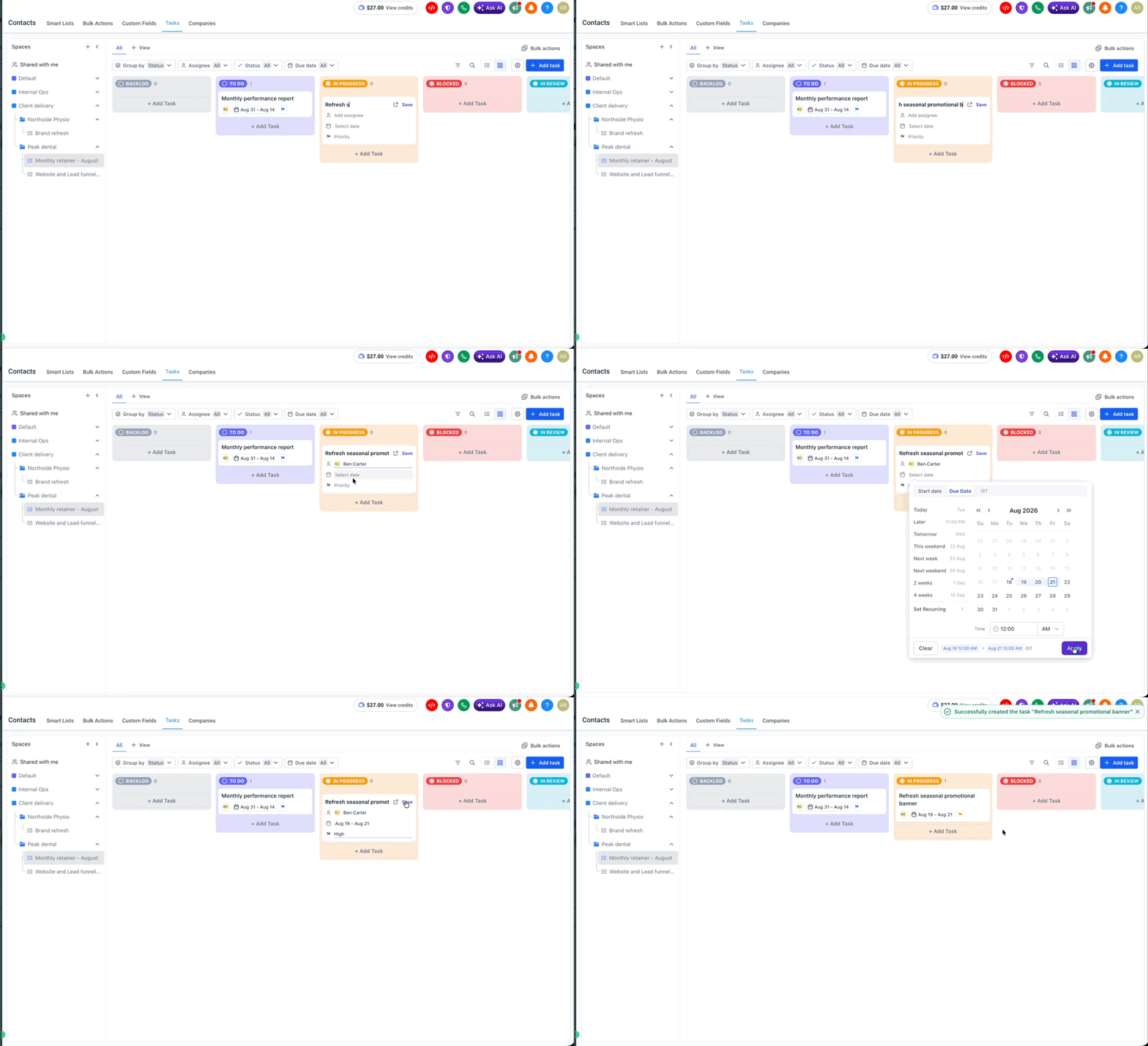
Click "Add task" in the toolbar, or "+ Add Task" at the foot of the status column you want the task to start in. Give it a clear name, then set an assignee, a date, and a priority.
The inline task composer with name, assignee, date, and priority
Add the detail
Open the task to add a description, fill in any custom fields your Space uses, and link the CRM records the work relates to.
Break the work down with subtasks
If a task has multiple steps, open it and use the Add Task control in the Subtasks section. This keeps the parent task as the headline and the detail underneath.
Start working the board
Drag cards between status columns as work progresses, and use Group by and the filter controls in the toolbar to narrow down what you are looking at.
Dragging a task card between two status columns
Control who can see the Space
Once your structure is working, open the Space options menu and choose "Settings" to make the Space private and choose who it is shared with.
Space settings panel with the privacy option
Frequently Asked Questions
Q: Where do I find Project Management?
Under Contacts in the left navigation menu, on the Tasks tab.
Q: What is the difference between a space, a folder and a list?
A Space is the outer container, usually a team or department, and it holds statuses, custom fields, and members. A Folder is an optional grouping layer inside a Space. A List holds the actual tasks and usually represents one project or client. A List can sit directly in a Space or inside a Folder.
Q: What is the difference between a task and a subtask?
A task is a unit of work in a List. A subtask is a step nested under a parent task, managed from the Subtasks section of the parent.
Q: Can I hide a project from the rest of my team?
Yes. A Space can be marked as private and shared with named members.
Q: Can I link a task to a contact or an opportunity?
Yes. Each task has an Associated objects section for linking CRM records.
Q: Can I share a link to a specific task?
Yes. Open the task and copy the address from your browser. It includes a task identifier, so the link opens on that task.
Q: What happens to the tasks in a list if I delete the list ?
On deleting the list, tasks under the list are deleted. Deleted items can be restored within 2 months via respective audit logs.
Next up
Learn to organize work with Spaces, Folders and Lists
How to provide feedback
Your feedback is critical to improving Project Management before General release. Here's how to share it:
- Post your feedback/suggestions/ideas on our Canny board
- Schedule a feedback call: Book a time that works for you using scheduling link
- Email us - Contact us directly at abhilasha.rathore@gohighlevel.com
Was this article helpful?
That’s Great!
Thank you for your feedback
Sorry! We couldn't be helpful
Thank you for your feedback
Feedback sent
We appreciate your effort and will try to fix the article