A smart list is a saved view of your tasks, with the fields, filters, and sort order you choose. Instead of reapplying the same filters every morning, you set them up once and switch to them as a tab. Every smart list is built as either a List view or a Kanban view, and the two offer different settings. This article covers both.
Note: Project Management is currently in Private Beta and may not be visible to all customers. Access is being rolled out gradually to selected customers.
It will soon be available through Labs, allowing all customers to enable it and explore the new and enhanced experience
TABLE OF CONTENTS
- What is a smart list
- Choosing between list view and Kanban view
- Settings common to both
- Settings unique to Kanban view
- Steps for creating a list view smart list
- Steps for creating a Kanban view smart list
- Working in a list view smart list
- Switching between smart lists
- Filtering without a smart list
- Frequently Asked Questions
What is a smart list
A smart list is a named, saved arrangement of your tasks. It does not hold tasks of its own and it does not move anything - it is a lens over the tasks that already exist.
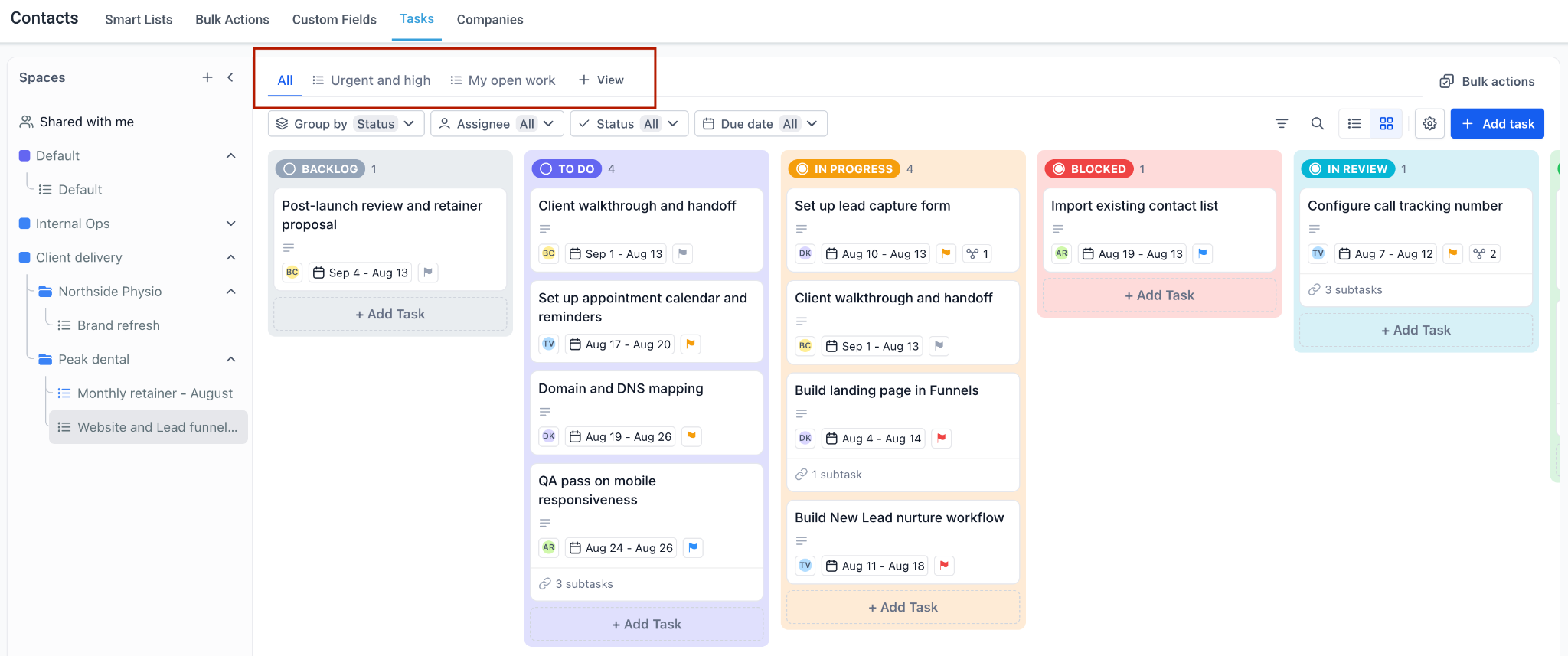
Smart lists appear as tabs above the board. Every List starts with a default tab called "All", which shows everything, and any smart lists you create sit alongside it. Each tab carries a small icon showing whether it is a List view or a Kanban view, so you can tell the two apart at a glance.
The tab row showing the All tab alongside saved smart lists
Each smart list also has its own address. When you open one, the page address gains a list identifier, so you can copy it from your browser and send someone a link that opens directly on that view.
Choosing between list view and Kanban view
The first decision when creating a smart list is which of the two it should be. This is chosen up front and shapes which settings you are offered.
List view: Tasks appear as rows in a table, with a column per field and a task count above. Best for reviewing a lot of tasks at once, sorting by a column, comparing details side by side, and selecting several tasks for a bulk change. Use it for questions like what is overdue, or what is everyone carrying this week.
Kanban view: Tasks appear as cards in columns, grouped by a field you choose. Best for working the flow - seeing what stage everything is at, spotting where work has piled up, and dragging tasks forward. Use it for running a project day to day.
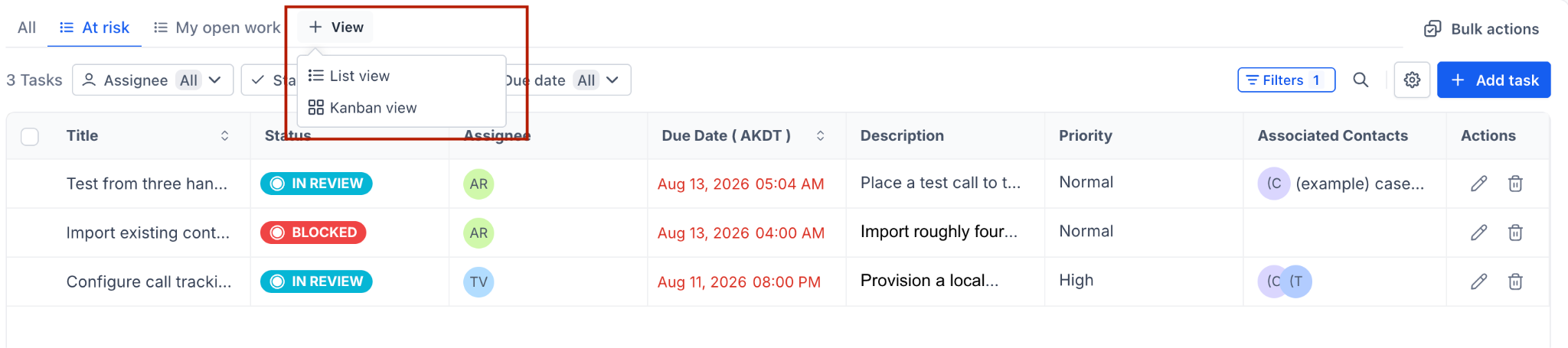
Both draw on the same tasks. Nothing about the underlying work changes based on which you pick, and you can have several of each on the same List.
The View menu showing the List view and Kanban view options
Settings common to both
Whichever type you choose, the creation panel offers these:
Smart list name: What the tab will be called. This becomes the tab label, so keep it short enough to read at a glance.
Fields: Which fields the view displays, with a count of how many are currently shown.
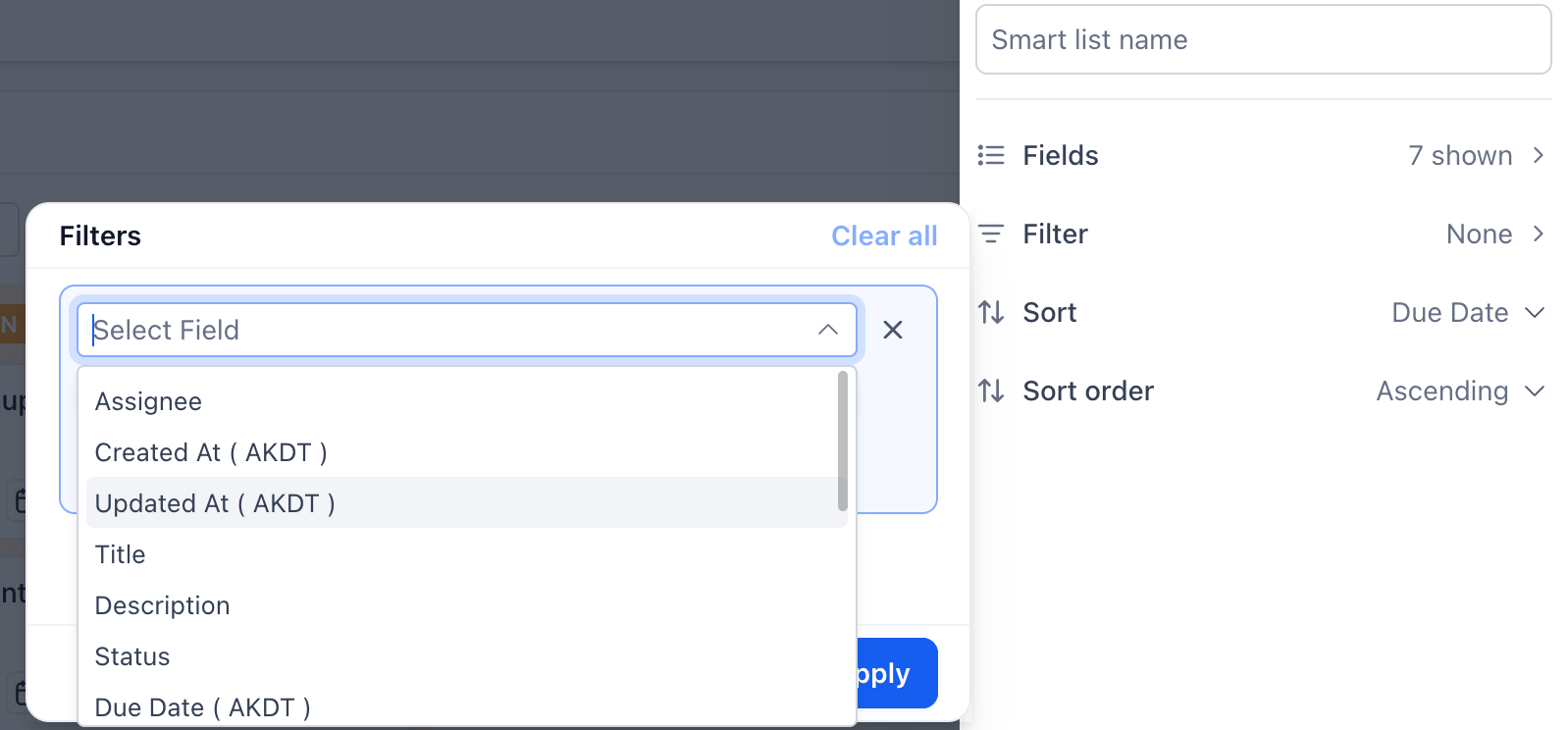
Filter: The conditions a task must meet to appear, with a count of how many are applied.
Sort: The field the tasks are ordered by.
Sort order: Ascending or descending.
If you already have filters applied to the view you are looking at, the new smart list picks them up as its starting point. Set your filters before clicking to create, and most of the work is done for you.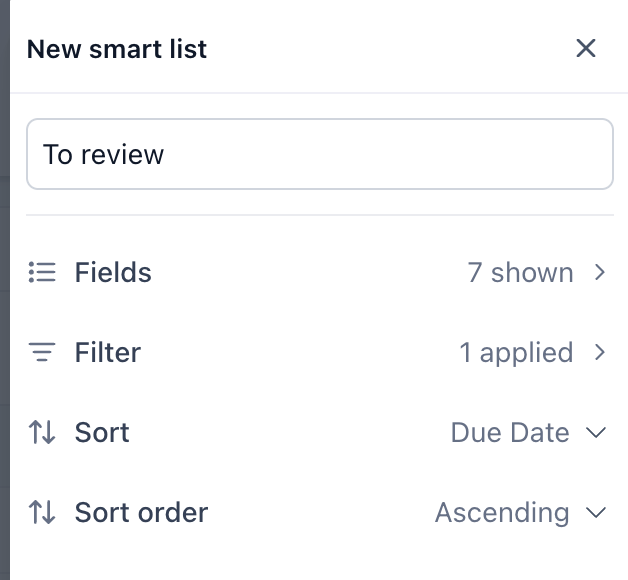
Settings unique to Kanban view
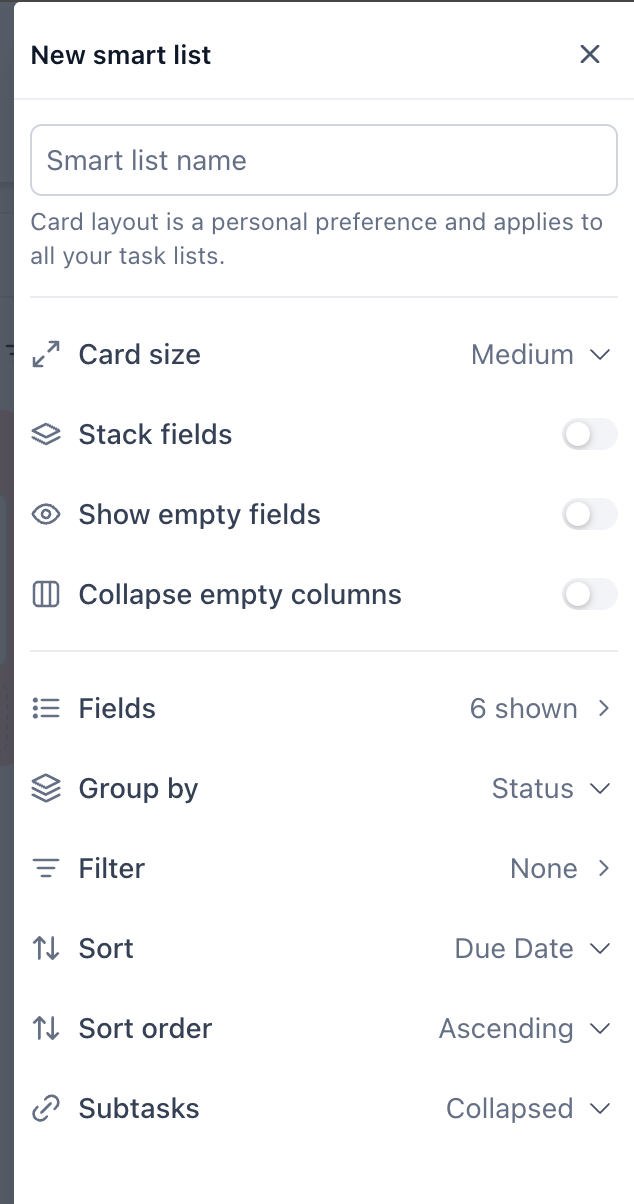
A Kanban smart list offers six settings that a List view smart list does not, because cards and columns need controlling in ways that table rows do not.
Card size: How much space each card takes. Medium is the default.
Stack fields: Arranges the fields on a card vertically rather than in a row, which suits narrow columns or cards carrying several fields.
Show empty fields: Off by default, so fields with no value are hidden and cards stay compact. Turn it on when a blank field is itself meaningful - an unset due date, for instance.
Collapse empty columns: Narrows any column with no tasks in it, so a board with several unused statuses stays readable.
Group by: Which field becomes the columns. Status is the default.
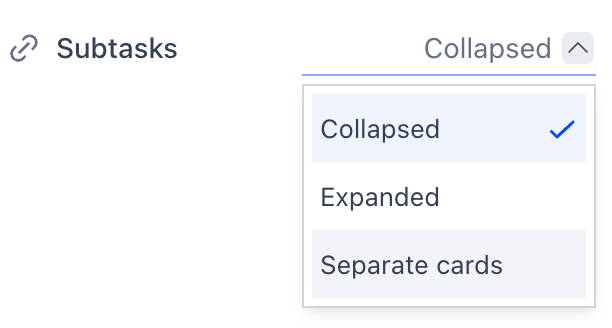
Subtasks: Whether subtasks show collapsed, expanded on the cards or as separate cards.
One thing worth knowing about Card size, Stack fields, Show empty fields, and Collapse empty columns: the panel notes that card layout is a personal preference and applies to all of your task lists. So these four are not saved per smart list - changing them affects how cards look everywhere for you, and does not change what anyone else sees.
The New smart list panel for a Kanban view, showing the card layout settings
Steps for creating a list view smart list
Open the List you want a view of
Click the List in the left panel.
Set your filters first
Apply the filter chips in the toolbar so the view already shows roughly what you want. The new smart list inherits them.
Click "+ View" and choose "List view"
The control sits beside the smart list tabs above the board.
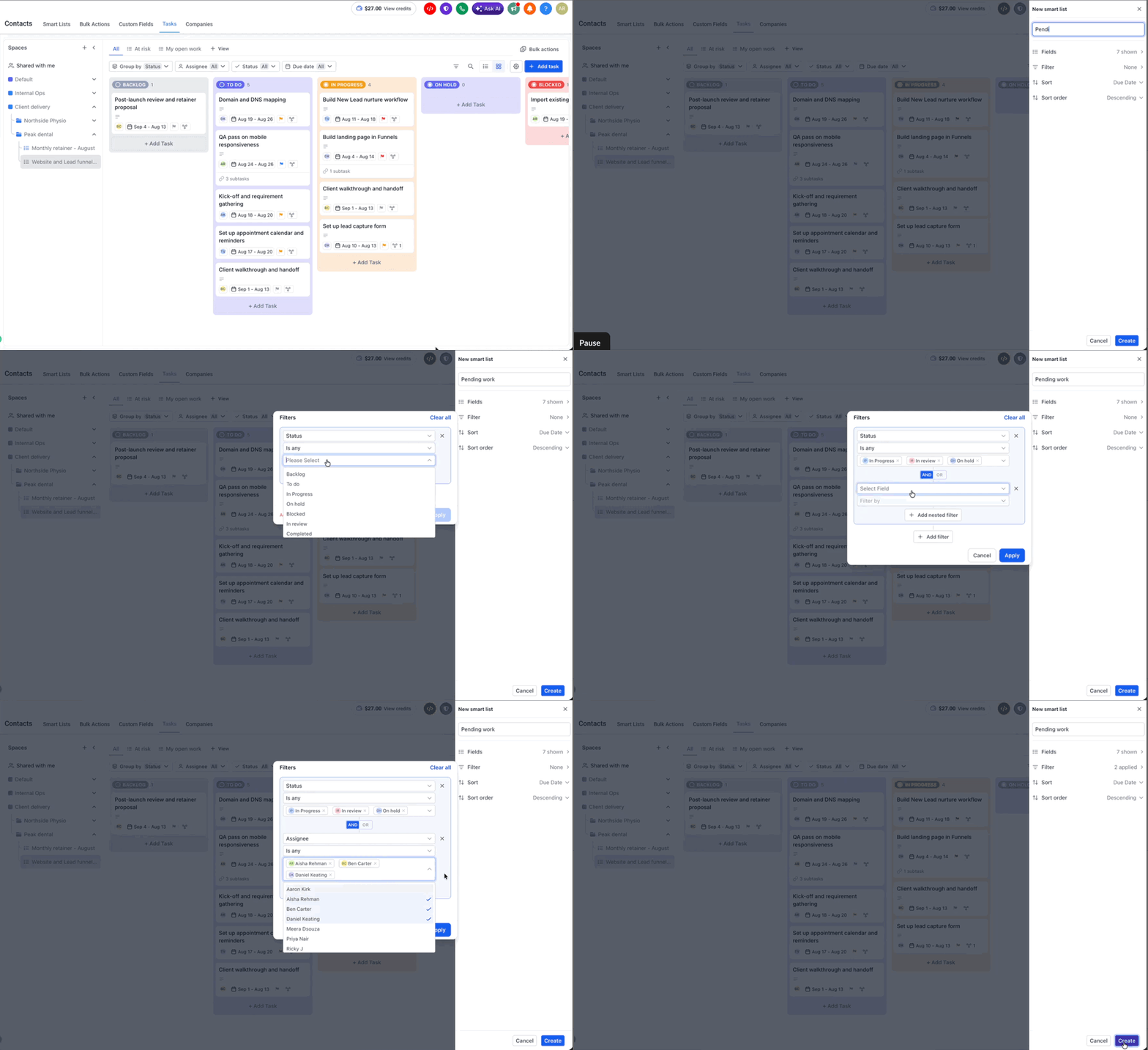
Name the smart list
Use a name that describes what it shows, such as My open work or unassigned tasks.
Choose the fields to display
Open "Fields" and select what you want as columns. Include the fields you will actually scan and leave out the rest.
Check the filter
Open "Filter" to review or adjust the conditions carried over from the toolbar.
Set the sort field and direction
Choose what to order by under "Sort", then pick Ascending or Descending. For date-driven views, ascending puts the most urgent work first.
Click "Create"
The smart list appears as a new tab above the board.
Steps for creating a Kanban view smart list
Click "+ View" and choose "Kanban view"
The panel opens with the card layout settings at the top.
Name the smart list
Set the card layout
Choose a Card size, and decide whether to stack fields, show empty fields, and collapse empty columns. Remember these four apply to all of your task lists rather than only this one.
Choose what the columns should be
Open "Group by" and pick the field. Status is the default and produces one column per status.
Choose the fields shown on each card
Open "Fields". Cards are small, so fewer fields usually reads better than more.
Decide how subtasks appear
Set "Subtasks" to collapsed for a compact board, or expanded when the subtasks are the work you are tracking.
Set the filter, sort field, and direction
Click "Create"
The smart list appears as a new tab, with a Kanban icon marking its type.
Working in a list view smart list
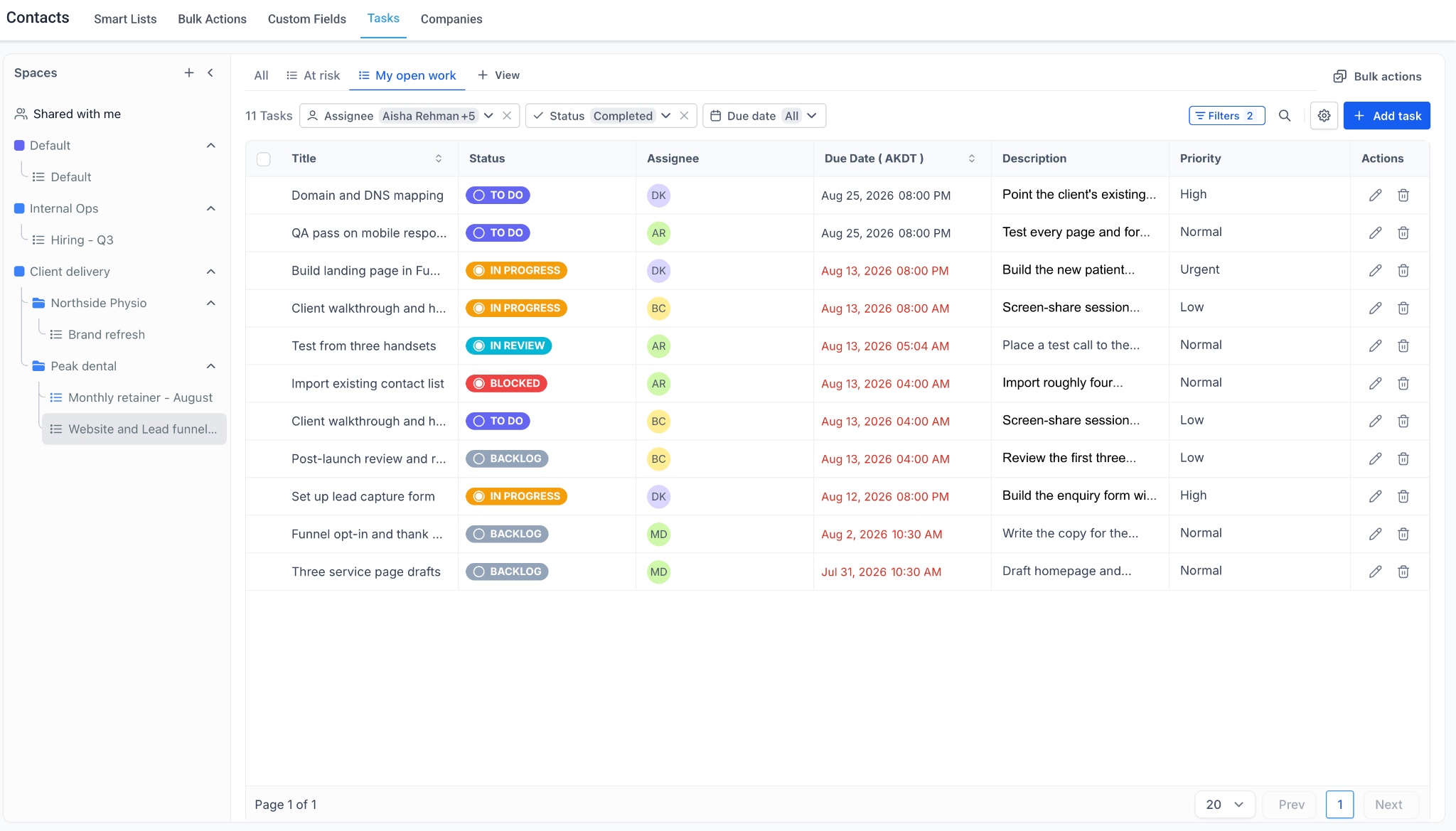
A List view smart list is a table, and a few things in it are worth pointing out.
A task count sits above the table, so you can see how many tasks meet the filter without counting rows. Column headers for sortable fields carry a sort control, letting you reorder without editing the smart list. Overdue dates are shown in red. A checkbox in the header row selects every task at once, which is how you feed a bulk change. Each row ends with edit and delete controls in an Actions column. Long values are truncated, so open the task to read a full description.
At the foot, a page size control offers 10, 20, 50, or 100 rows per page, with Previous and Next alongside a page count.
A List view smart list showing its columns, task count, and pagination
Switching between smart lists
Click a tab above the board to switch to it. The "All" tab always shows the full set of tasks, so you can return to the complete picture at any point.
Switching tabs changes only what you see. No task is moved, edited, or hidden from anyone else.
Filtering without a smart list
For a one-off question you do not need a smart list. The toolbar filter chips change your view immediately - Group by, Assignee, Status, and Due date. Each chip shows its current value, and a chip with several values selected shows the first plus a count of the rest. A summary chip on the right shows how many filters are active in total.
Toolbar filter chips with values applied
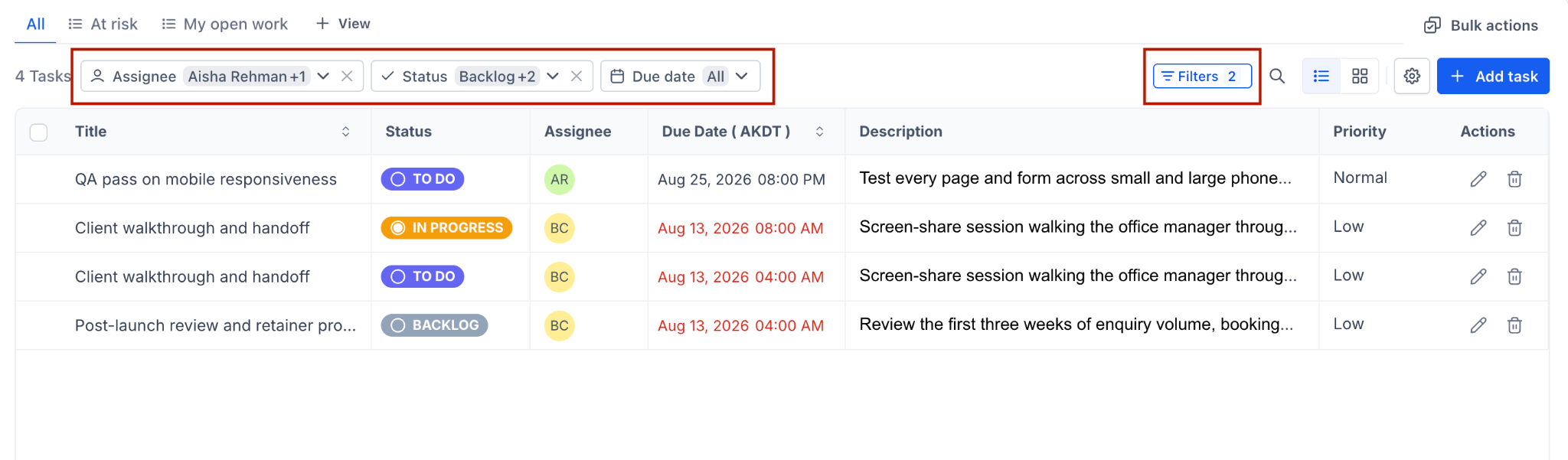
Use the toolbar chips to answer a question once, and create a smart list when you notice you are asking the same question every day.
Frequently Asked Questions
Q: Can a smart list be a Kanban board as well as a list?
Yes. When you click "+ View" you choose either List view or Kanban view, and the settings offered differ accordingly.
Q: Can I have both kinds on the same list?
Yes. You can create as many smart lists as you need in either form, and each appears as its own tab.
Q: What is the difference in settings between the two?
Both offer a name, Fields, Filter, Sort, and Sort order. Kanban view adds Card size, Stack fields, Show empty fields, Collapse empty columns, Group by, and Subtasks.
Q: Does a smart list contain its own tasks?
No. It is a saved view of tasks that already exist. Nothing is copied or moved.
Q: Why do my card layout settings change other boards too?
Card size, Stack fields, Show empty fields, and Collapse empty columns are a personal preference that applies across all of your task lists rather than being saved on one smart list.
Q: What is the "All" tab?
The default view showing every task in the List with no filtering applied.
Q: Do my filters carry over when I create a smart list?
Yes. The panel opens with the filters currently applied to your view already counted, so setting them beforehand saves work.
Q: Can I share a link to a smart list?
Yes. Open the smart list and copy the address from your browser - it includes a list identifier.
Q: How many rows does a list view show at once?
The page size control at the foot offers 10, 20, 50, or 100.
Q: Can I group a Kanban smart list by something other than status?
Group by is a configurable setting with Status as the default. Other options for grouping include status group, priority and custom field specific options
Q: What are the card size options?
Small, medium and wide are the card size options with medium set as default.
Q: Can I filter on a custom field?
Yes, custom fields are available as filter conditions.
Was this article helpful?
That’s Great!
Thank you for your feedback
Sorry! We couldn't be helpful
Thank you for your feedback
Feedback sent
We appreciate your effort and will try to fix the article