Project Management offers two ways to look at the same set of tasks - Kanban view and List view. Switching between them changes only the layout, never the tasks themselves. This article explains what each view is good for, how to switch, and how to use the grouping and filtering controls that sit alongside them.
Note: Project Management is currently in Private Beta and may not be visible to all customers. Access is being rolled out gradually to selected customers.
It will soon be available through Labs, allowing all customers to enable it and explore the new and enhanced experience
TABLE OF CONTENTS
- The two views
- Understanding Kanban view
- Understanding list view
- Steps for switching views
- Grouping your tasks
- Filtering your tasks
- Bulk actions
- Frequently Asked Questions
The two views
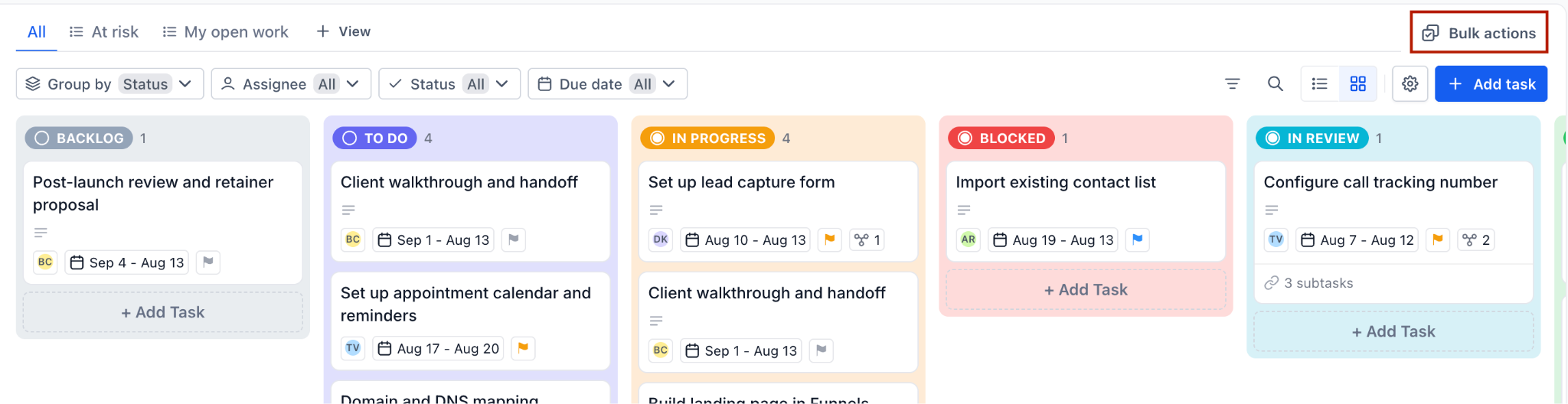
Kanban view: Tasks appear as cards arranged in columns. Best for working the flow - seeing what stage everything is at, spotting where work has piled up, and moving tasks forward.
List view: Tasks appear as rows. Best for reviewing detail - scanning many tasks at once and comparing their fields side by side.
The view you choose does not affect what other people see, and it does not change any task data.
Understanding Kanban view
In Kanban view, each column is a task status, and the columns follow the statuses configured on the Space.
Column headers
Each header shows the status name and a count of the tasks in that column, so an empty column reads zero and a busy one tells you immediately where the load is.
Cards
Cards show the task name, its date or date range, and a subtask count if the task has subtasks. Cards give you the summary; open a card to see the full task.
Moving work forward
Drag a card from one column to another to change the task's status.
Adding tasks in place
"+ Add Task" sits at the foot of every column. Creating a task there starts it in that column's status, which saves a step.
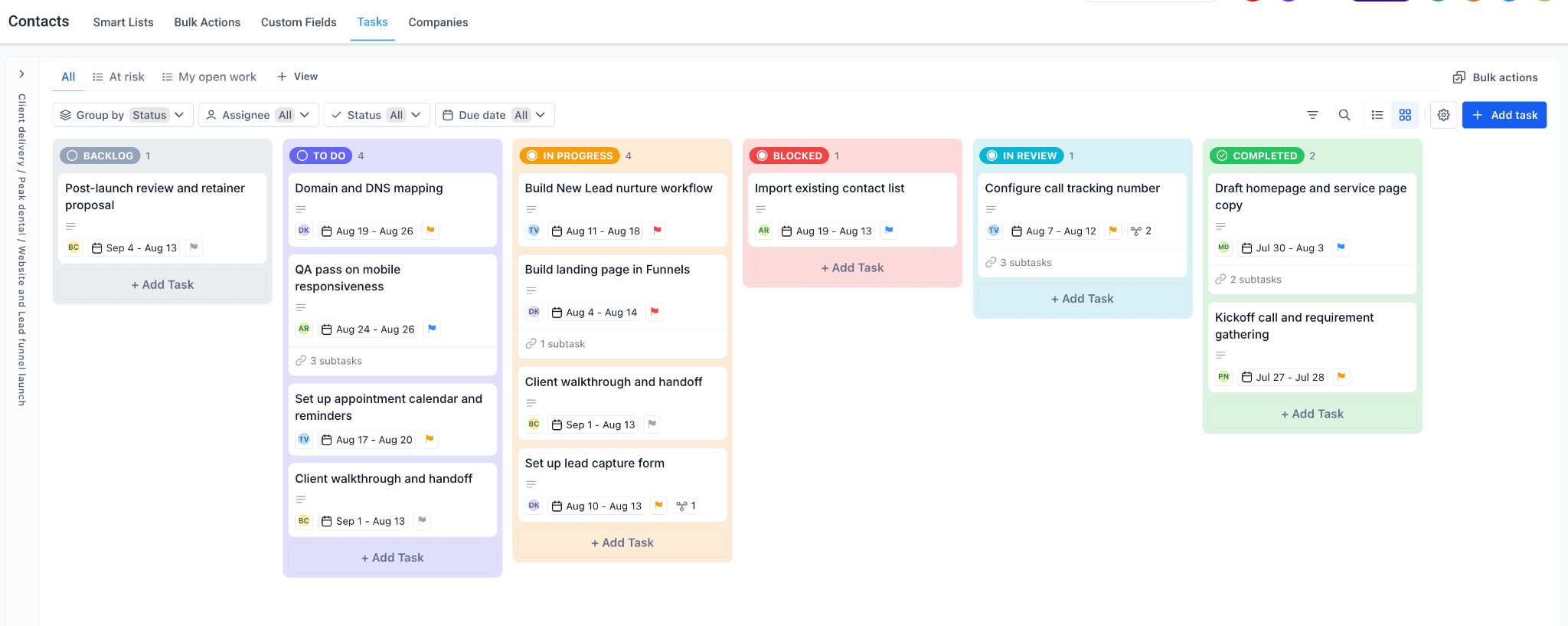
If your board has more columns than fit on screen, scroll sideways to reach the rest.
Understanding list view
List view presents the same tasks as rows rather than cards, which suits reviewing a lot of tasks at once - for example checking what is overdue across a whole List, or comparing priorities before planning a week.
List view showing tasks as rows with their columns
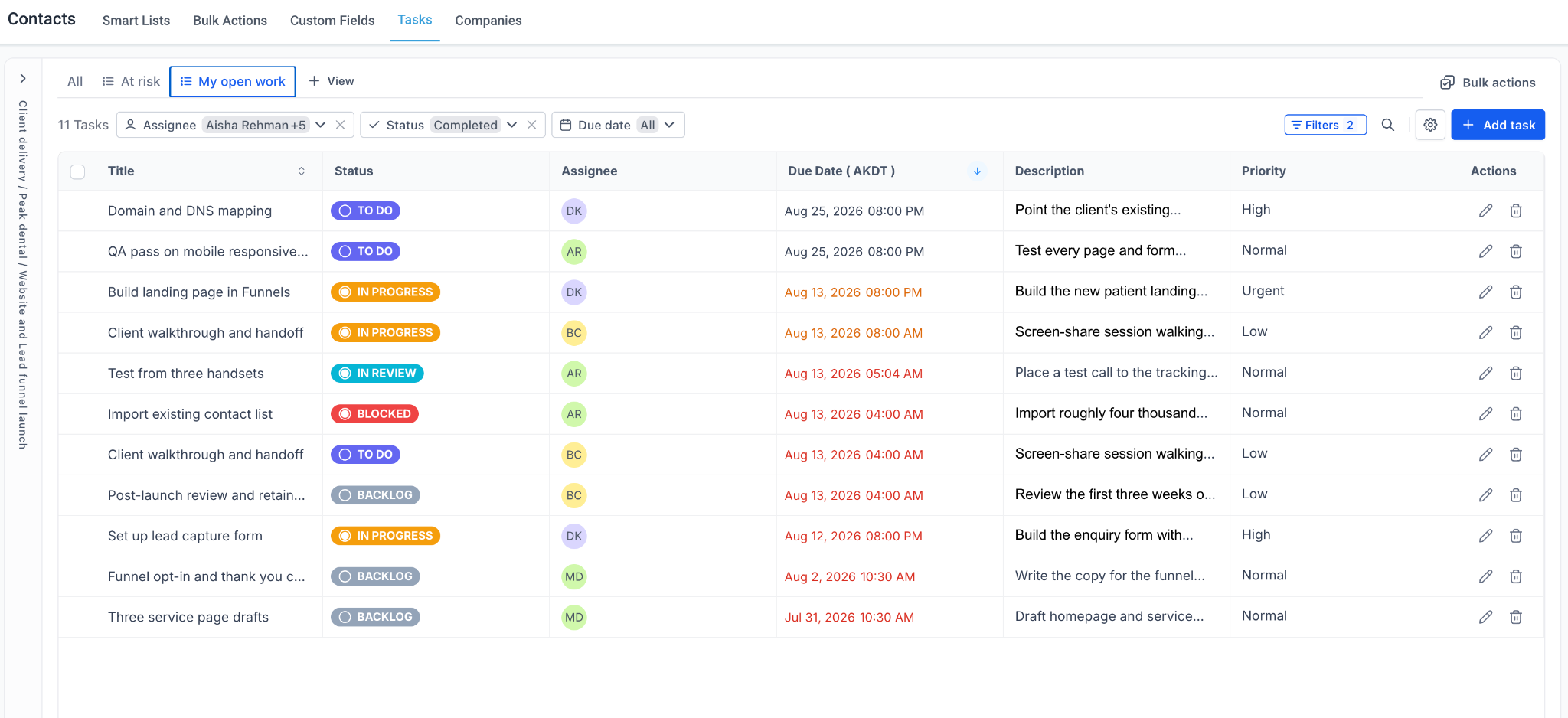
Columns can be added, removed, reordered, or resized.
Steps for switching views
Choose a view
The menu offers two options - "List view" and "Kanban view". Select the one you want.
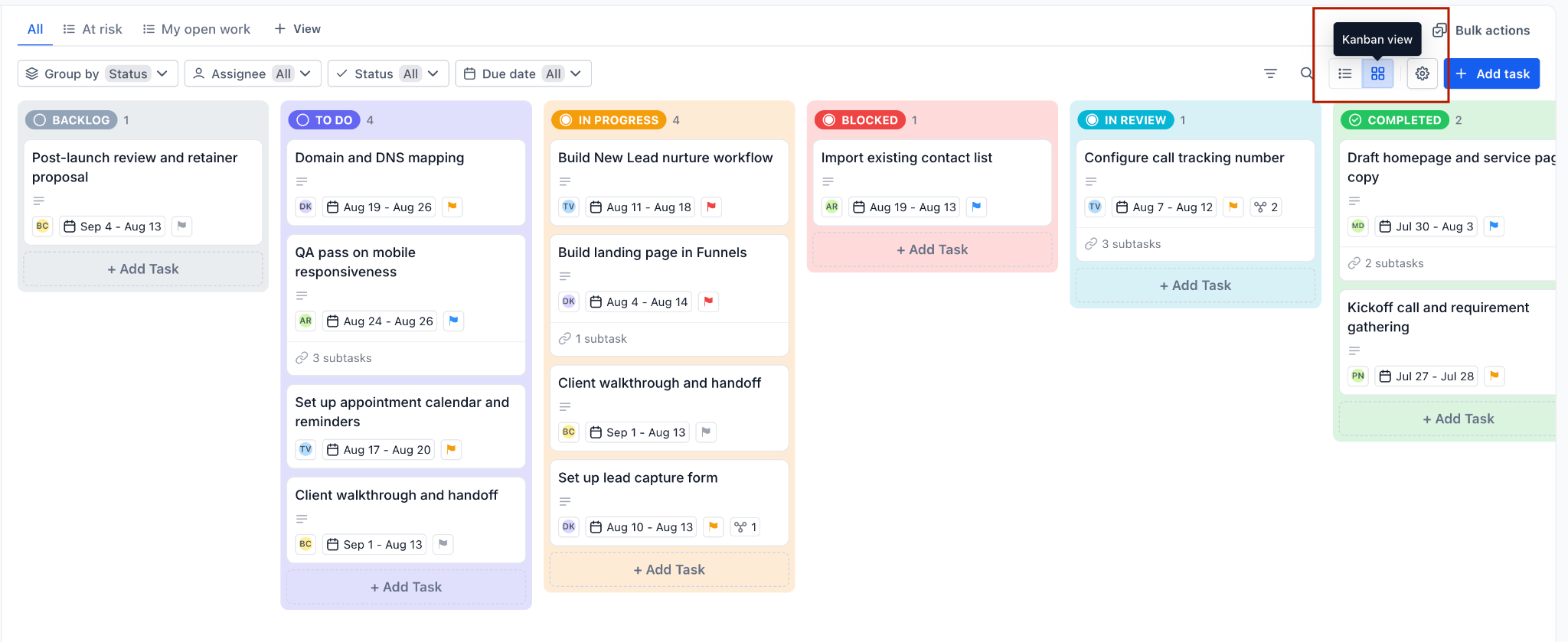
Switch back whenever you like
Nothing is lost by switching. Use the same control to return to the other layout.
Grouping your tasks
The "Group by" control in the toolbar decides how tasks are divided up. Two options are available:
Status: Groups tasks by their stage. In Kanban view this is the default, and it produces one column per status.
Assignee: Groups tasks by the person responsible. This turns the board into a view of who is carrying what, which is useful for spotting an overloaded team member or work that has drifted to one person.
Status group: Groups tasks by their status group (To do, Doing, Completed)
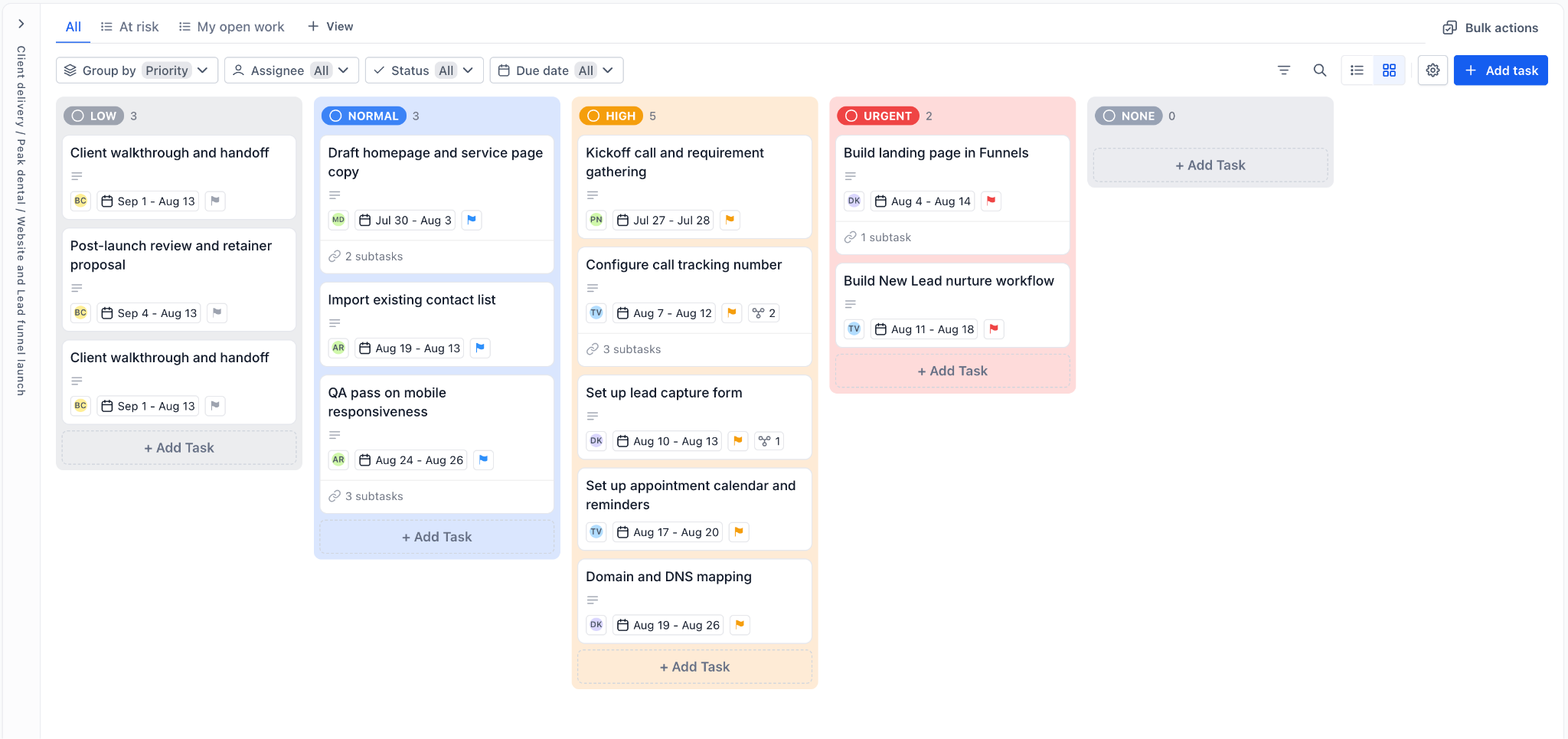
Priority: Groups tasks by their priority
Custom field related: Groups tasks under multiple categories defined in the custom field
Below is a snippet of tasks grouped by priority
Filtering your tasks
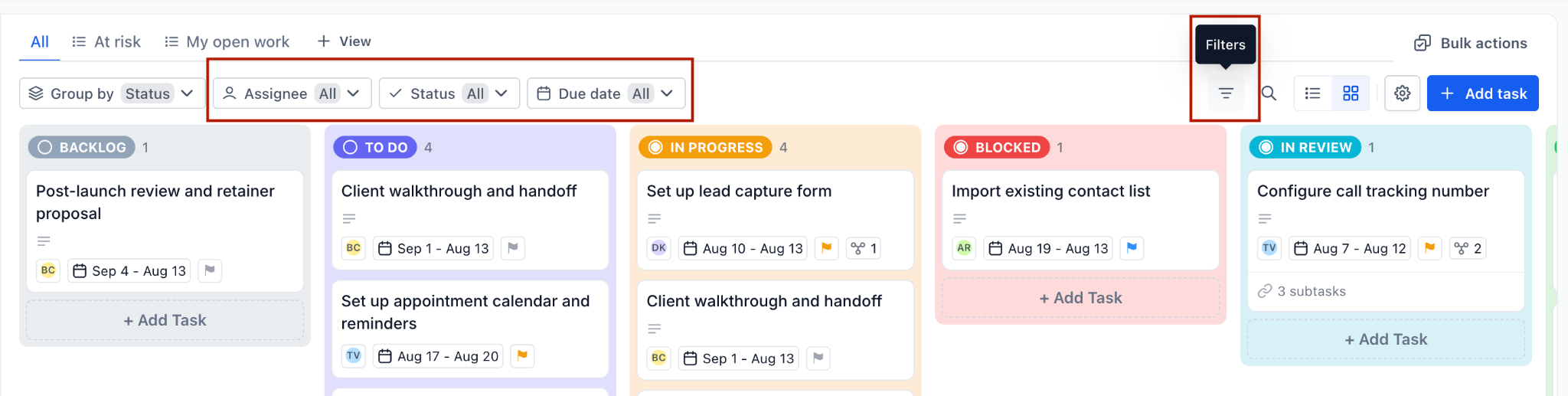
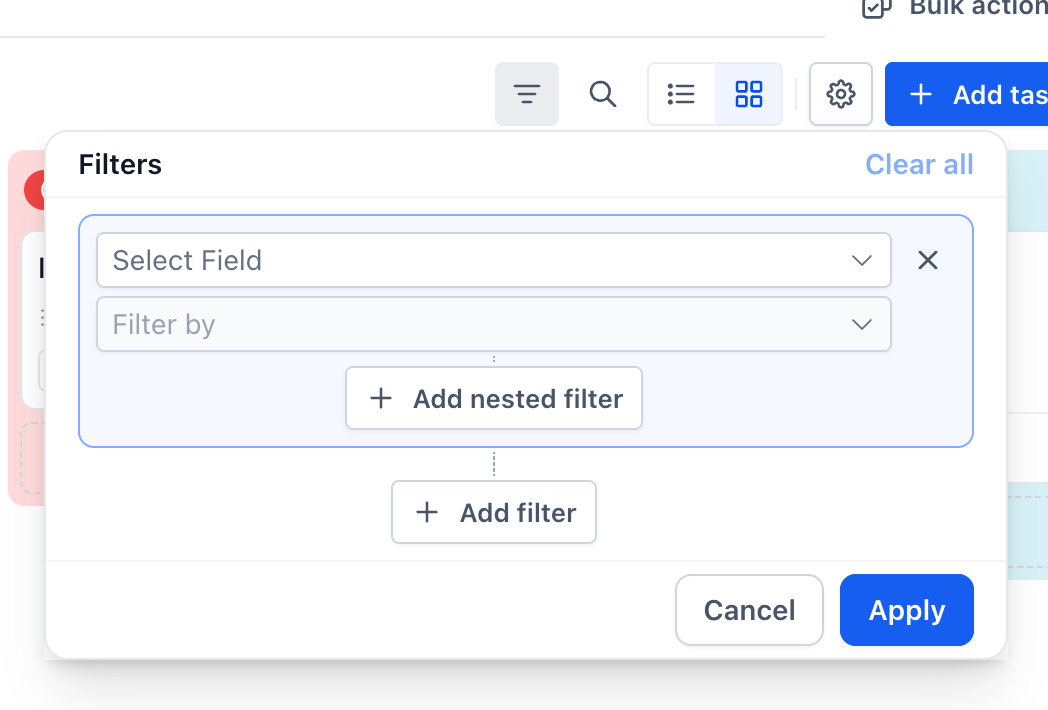
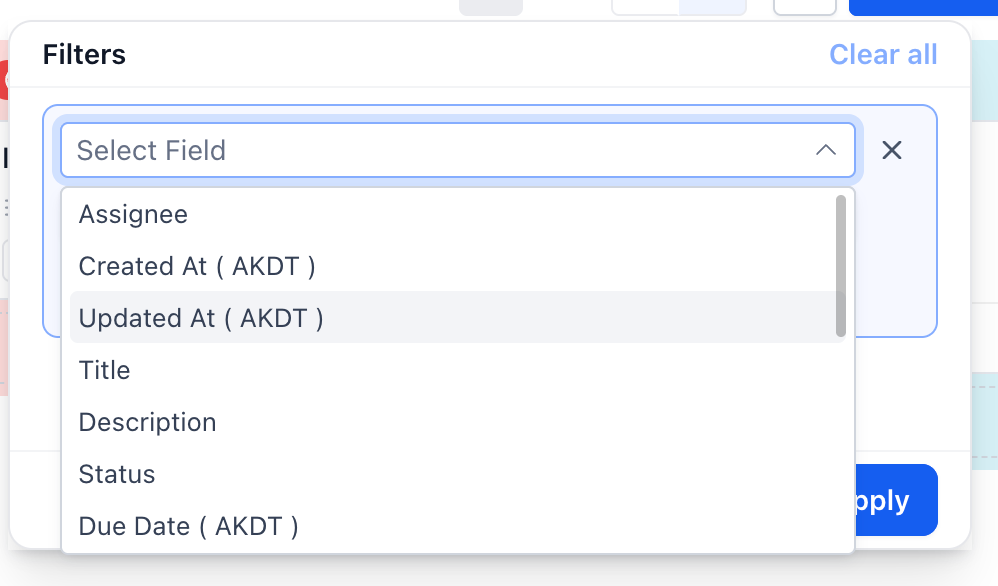
Filters sit in the toolbar as chips beside the Group by control. An Assignee, status and due date filter is shown by default, set to "All". Additional filters can be applied by clicking on the ‘Filter’ button on the right side of the window.
Filters narrow what is displayed without changing any task. Clear a filter to see everything again.
If you find yourself applying the same combination of filters every day, save it as a smart list instead. See the article "Smart Lists: Save Your Own Task Views".
Bulk actions
A "Bulk actions" control sits in the toolbar, for applying a change to several tasks at once rather than editing them one by one.
Only 2 bulk actions are supported in the first phase:
Move to: enables status movement of task to selected status
Delete: enables deletion of tasks in bulk
Tasks are selected for bulk actions from list view
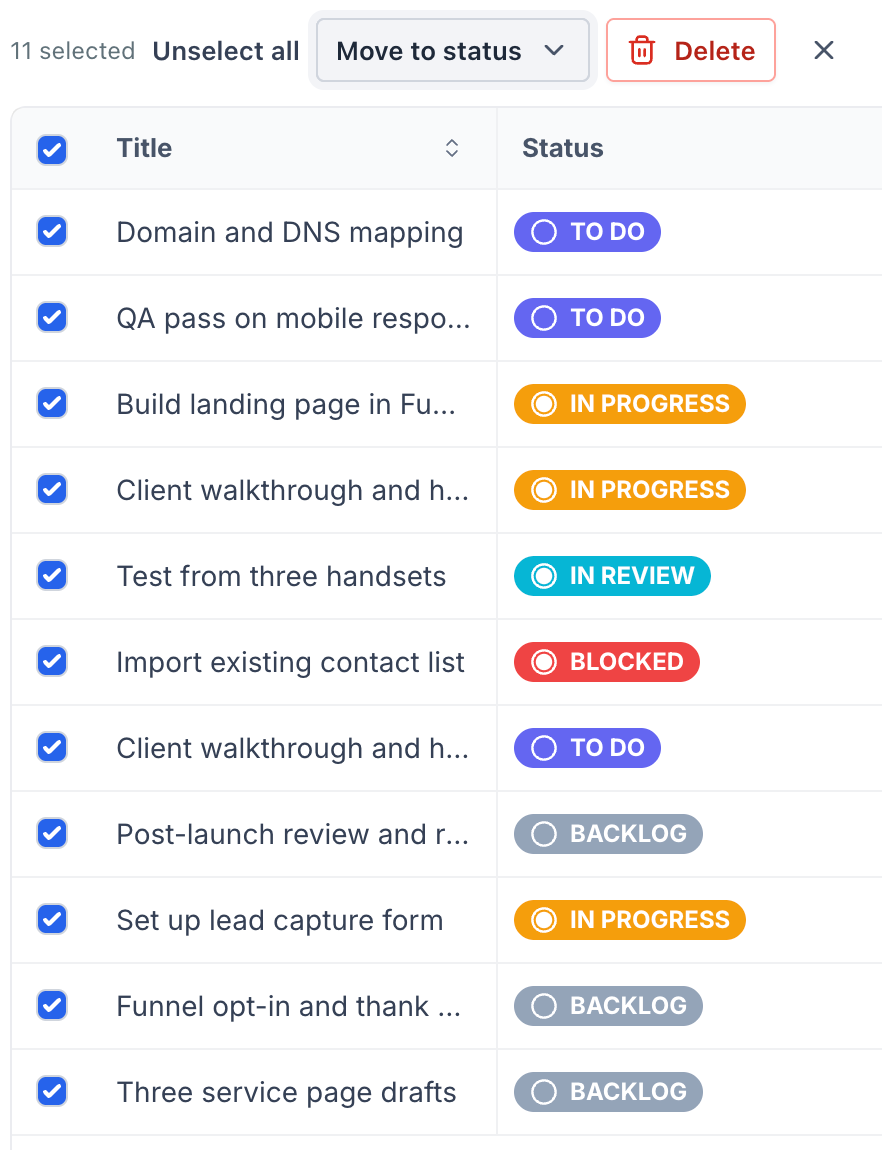
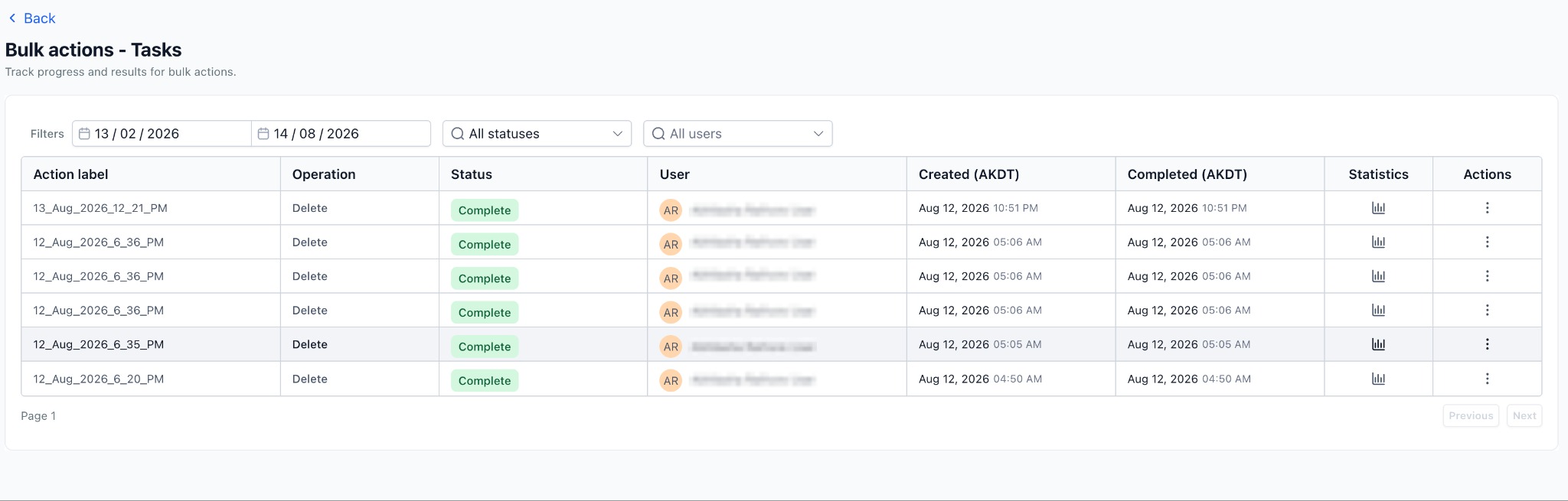
When multiple tasks are acted on through bulk actions, its progress can be tracked by clicking on ‘Bulk actions’ button on the top right corner
Frequently Asked Questions
Q: How many views are there?
Two - Kanban view and List view.
Q: Is there a Gantt, calendar or timeline view?
Not in this release. The View menu offers List view and Kanban view only.
Q: Does switching view change my tasks?
No. Both views display the same tasks. Switching only changes the layout.
Q: Does my choice of view affect what my team sees?
No. Choosing a view or applying a filter changes only your own display.
Q: What decides the order of the columns on my board?
The statuses configured on the Space, and the group each status belongs to.
Q: Why does one of my columns show zero tasks?
The status exists on the Space but no task is currently in it. Empty columns still appear, which is normal and lets you drag work into them.
Q: How do I change a task's status?
Drag its card to a different column in Kanban view, or open the task and change the Status property.
Next: Manage task statuses
Was this article helpful?
That’s Great!
Thank you for your feedback
Sorry! We couldn't be helpful
Thank you for your feedback
Feedback sent
We appreciate your effort and will try to fix the article