Not all work should be visible to everyone. Privacy can be set on a Space, on a Folder, or on an individual List, so you can restrict a single project without restructuring anything around it. This article explains how privacy works at each level, the one rule that governs how the levels interact, and how to share restricted work with the people who need it.
Note: Project Management is currently in Private Beta and may not be visible to all customers. Access is being rolled out gradually to selected customers.
It will soon be available through Labs, allowing all customers to enable it and explore the new and enhanced experience
TABLE OF CONTENTS
- Privacy can be set at three levels
- What the rule means in practice
- What the space settings panel contains
- Steps for making a space private
- Steps for sharing a space
- Steps for removing someone's access
- Shared with me
- Planning access before you build
- Frequently Asked Questions
Privacy can be set at three levels
Every container in Project Management carries its own privacy setting:
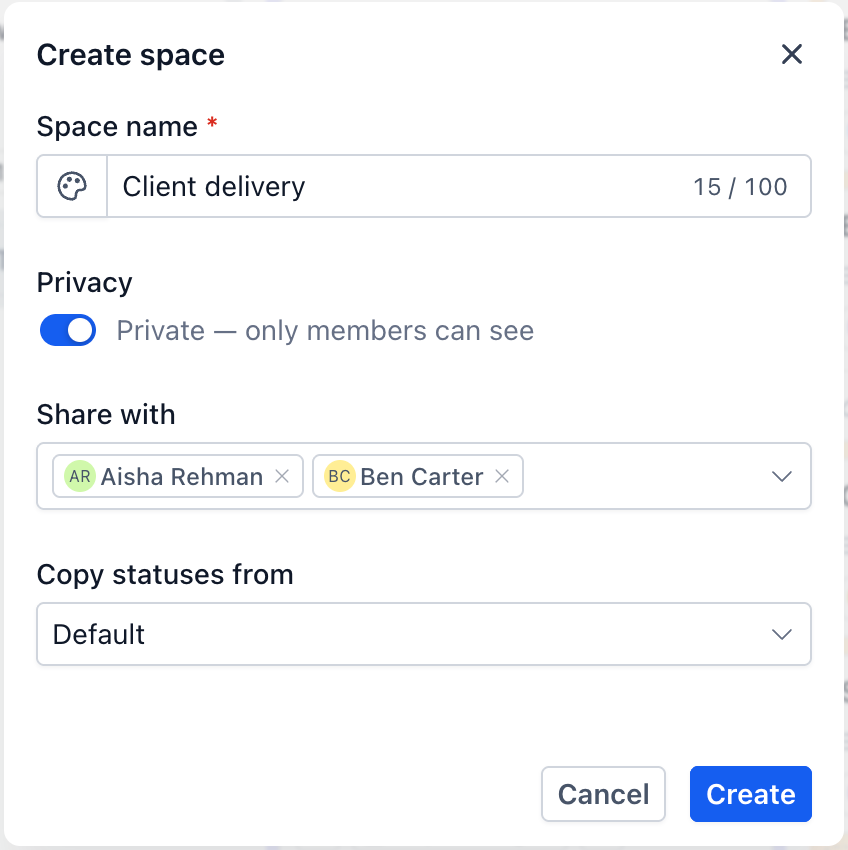
Space: Set in the Space's Settings panel, using the "Private space" option. The same panel holds the "Share with" list naming the people who have access.
Folder: Set when the Folder is created, using the "Public - visible to everyone" toggle in the Create folder dialog.
List: Set when the List is created, using the same toggle in the Create list dialog.
Note that the wording runs in opposite directions depending on where you are. On a Space you are switching privacy on. On a Folder or List you are switching public visibility off. The effect is the same, but it is worth reading the label rather than assuming which way the toggle goes.
Because tasks and subtasks live inside a List, restricting any level above them covers everything beneath it.
Rule: A child item can never be more public than the item that contains it. Privacy tightens as you move down the hierarchy and never loosens.What the rule means in practice
Three situations that come up regularly:
• One sensitive project in an open team Space. Leave the Space open and make just that List private. Nothing else about your structure has to change.
• An entire department that should be invisible to others. Make the Space private. Every Folder, List, and task inside is covered automatically, and you do not need to set anything on the children.
• A private Folder holding several client Lists. Make the Folder private and every List inside it is restricted, regardless of how those Lists were created.
The practical consequence: if you want something visible, every level above it must also be visible. When a colleague cannot see a List you thought you had shared, check the Folder and the Space above it before checking the List itself.
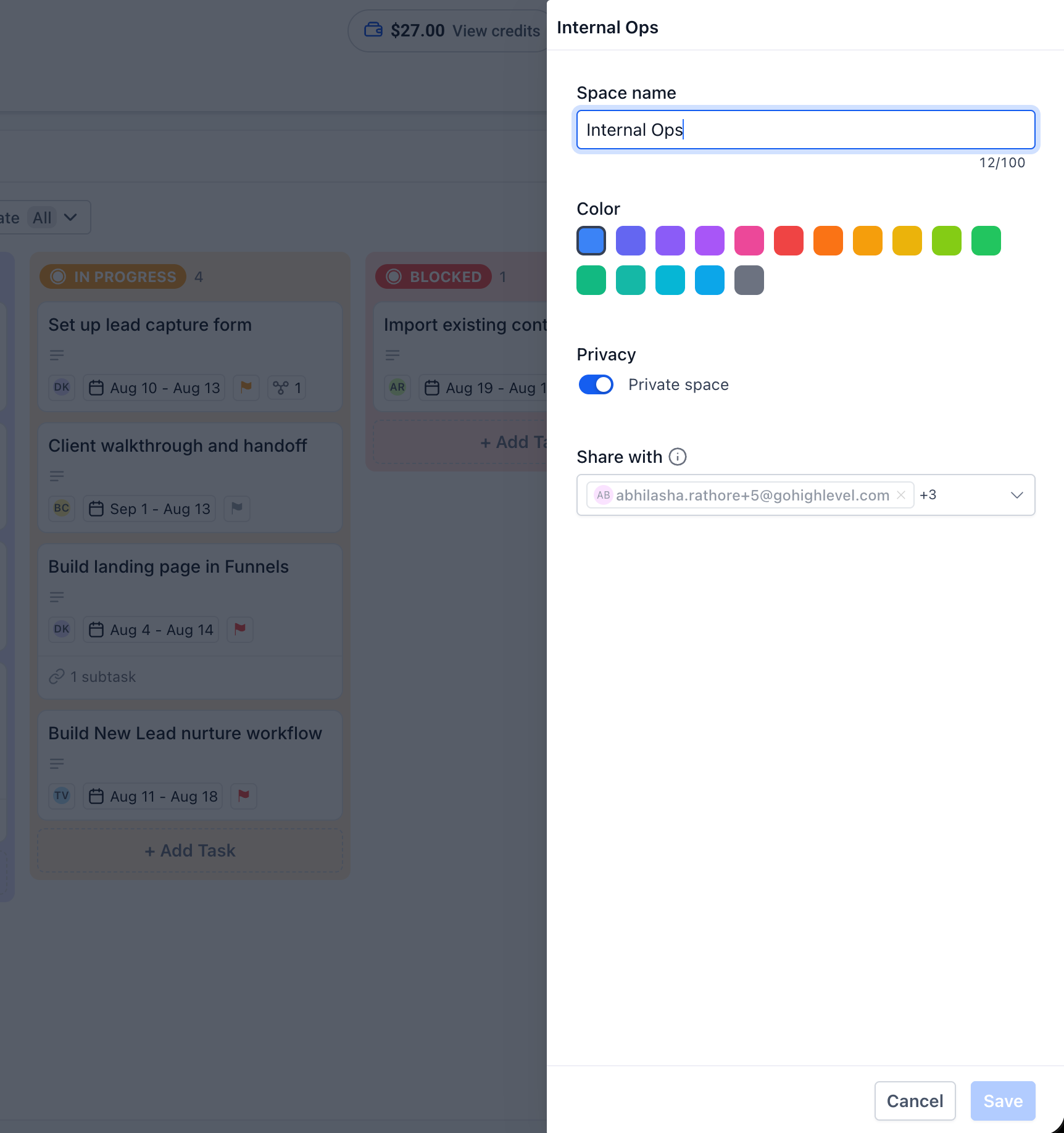
What the space settings panel contains
Space name: Editable, up to 100 characters, with a live character count.
Color: The color shown as a dot beside the Space in the left panel, which makes a long tree easier to scan.
Privacy: The "Private space" option.
Share with: The list of people who have access, shown as member entries.
Changes are committed with "Save", or abandoned with "Cancel". Nothing takes effect until you save.
Space settings showing Space name, Color, Privacy, and the Share with list
Steps for making a space private
Open the Tasks page
Go to "Contacts" in the left navigation menu, then select the "Tasks" tab.
Find the Space in the left panel
Hover over the Space you want to restrict.
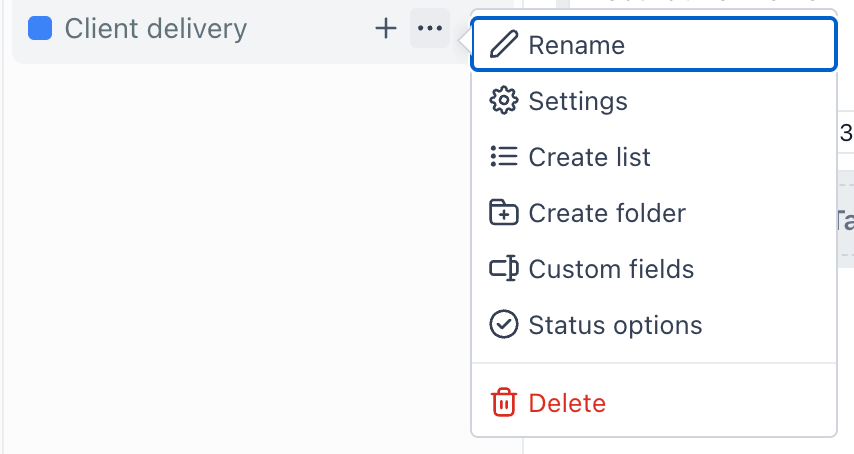
Open the Space options menu
Click the options control on the Space row. The menu contains Rename, Settings, Create list, Create folder, Custom fields, Status options, and Delete.
Choose "Settings"
The Space settings panel opens.
Turn on "Private space"
Find the Privacy section and enable the Private space option.
Privacy section with the Private space option enabled
Check the Share with list before saving
Confirm the right people are listed, and add anyone who needs access. This matters most when you are making an existing Space private, because anyone not on the list will lose their view of it.
Save
Click "Save". Use "Cancel" instead if you want to discard your changes.
The same approach can be applied when making a Folder or List private.
Steps for sharing a space
Open the Space settings panel
Use the Space options menu, then "Settings".
Go to the "Share with" section
The people who currently have access are shown here.
Share with section showing existing members
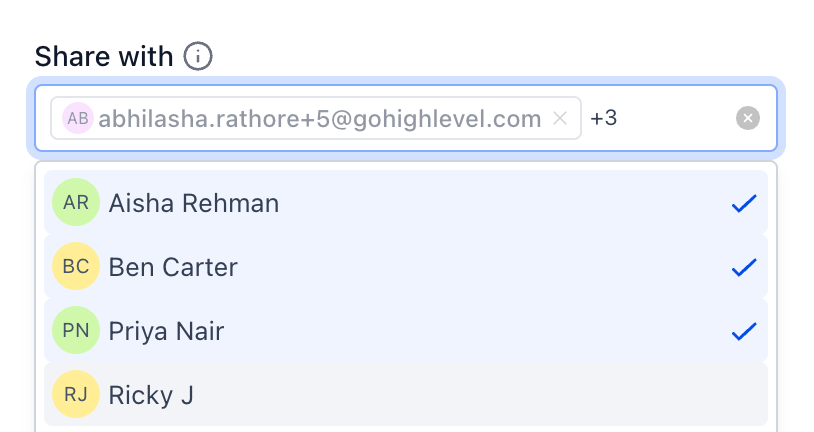
Add the people who need access
Add each person who should be able to see and work in the Space. Bear in mind that the assignee picker on a task only offers people with access to the Space, so anyone who needs to be given tasks here must be shared in.
Save
Click "Save" to apply the change.
Steps for removing someone's access
Open the Space/folder/list settings panel
Use the Space options menu, then "Settings".
Find the person in the "Share with" list
Before removing them, check whether they currently have tasks assigned in this Space/folder/list and reassign anything that still needs doing.
Remove them and save
Note: When a task is assigned to a user and that user subsequently loses access to the List containing the task, the task assignment is retained. However, the user can no longer view, edit, or interact with the task, as they no longer have access to the associated List.
Planning access before you build
Restrict at the lowest level that works: If one project is sensitive, make that List private rather than closing the whole Space. Everything else stays visible and nobody has to ask for access they used to have.
Use a private Space when the whole area is confidential: Recruitment, finance, or internal planning is simpler as one private Space than as a set of individually restricted Lists.
Share people in before assigning them tasks: The assignee picker only offers people with access.
Work top down when troubleshooting: If someone cannot see something, check the Space, then the Folder, then the List. The restriction is usually higher up than you expect.
Take care restricting something that was open: Anyone not on the Share with list loses access to everything inside, not just the item you changed.
Frequently Asked Questions
Q: Can I make a single list private without making the whole space private?
Yes. Spaces, Folders, and Lists each have their own privacy setting, so one restricted project can sit inside an otherwise open Space.
Q: If a space is private, are the lists inside it private too?
Yes. A child item can never be more public than its parent, so everything inside a private Space is restricted regardless of its own setting.
Q: Can a public list sit inside a private space?
No. The parent's privacy always wins. To make a List visible, every level above it must be visible.
Q: Does making something private hide the tasks inside it?
Yes. Tasks and subtasks live inside a List, so restricting the List, its Folder, or its Space covers them.
Q: Who can see a private space?
Only the people on its Share with list.
Q: Why can a colleague not see a list I made public?
Check the Folder and the Space above it. If either is private, the List stays restricted no matter what its own toggle says.
Q: Why does the toggle say "Private space" in one place and "Public - visible to everyone" in another?
The Space settings panel switches privacy on, while the Create folder and Create list dialogs switch public visibility off. Read the label rather than the toggle position.
Q: Can I give someone view-only access?
No. The Share with list names who has access, with no per-person access level.
Q: Why can I not assign a task to a particular colleague?
The assignee picker offers only people with access. Add them to the Share with list first.
Q: Do privacy changes take effect immediately?
They take effect when you save. Nothing changes if you cancel.
Next: Use Custom fields on tasks
Was this article helpful?
That’s Great!
Thank you for your feedback
Sorry! We couldn't be helpful
Thank you for your feedback
Feedback sent
We appreciate your effort and will try to fix the article