The built-in task properties cover status, assignee, dates, and priority. Custom fields let you capture anything else your process needs, such as a client reference, a budget, or a content type. This article explains how custom fields work, where they are configured, the field types available, and how to plan a field set your team will actually fill in.
Note: Project Management is currently in Private Beta and may not be visible to all customers. Access is being rolled out gradually to selected customers.
It will soon be available through Labs, allowing all customers to enable it and explore the new and enhanced experience
TABLE OF CONTENTS
- What Custom fields do
- Custom fields are configured at each level
- Available field types
- Steps for adding a Custom field
- Steps for filling in a custom field on a task
- Designing a field set people will use
- Frequently Asked Questions
What Custom fields do
A custom field is an extra piece of information stored on a task. Where status and assignee answer the same questions for everyone, custom fields answer the questions specific to your business - which client this is for, what the approved budget is, which channel a piece of content is going to.
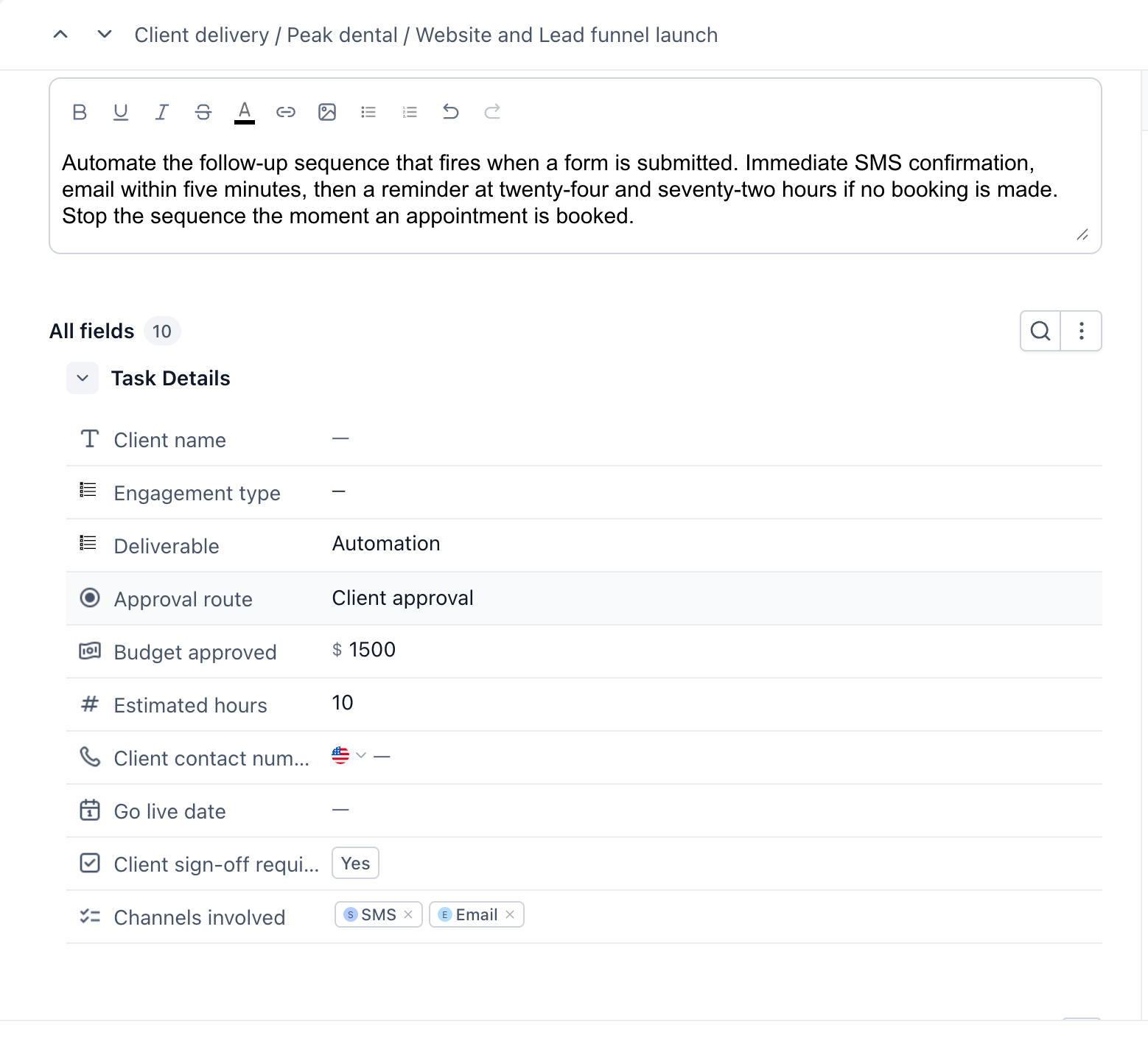
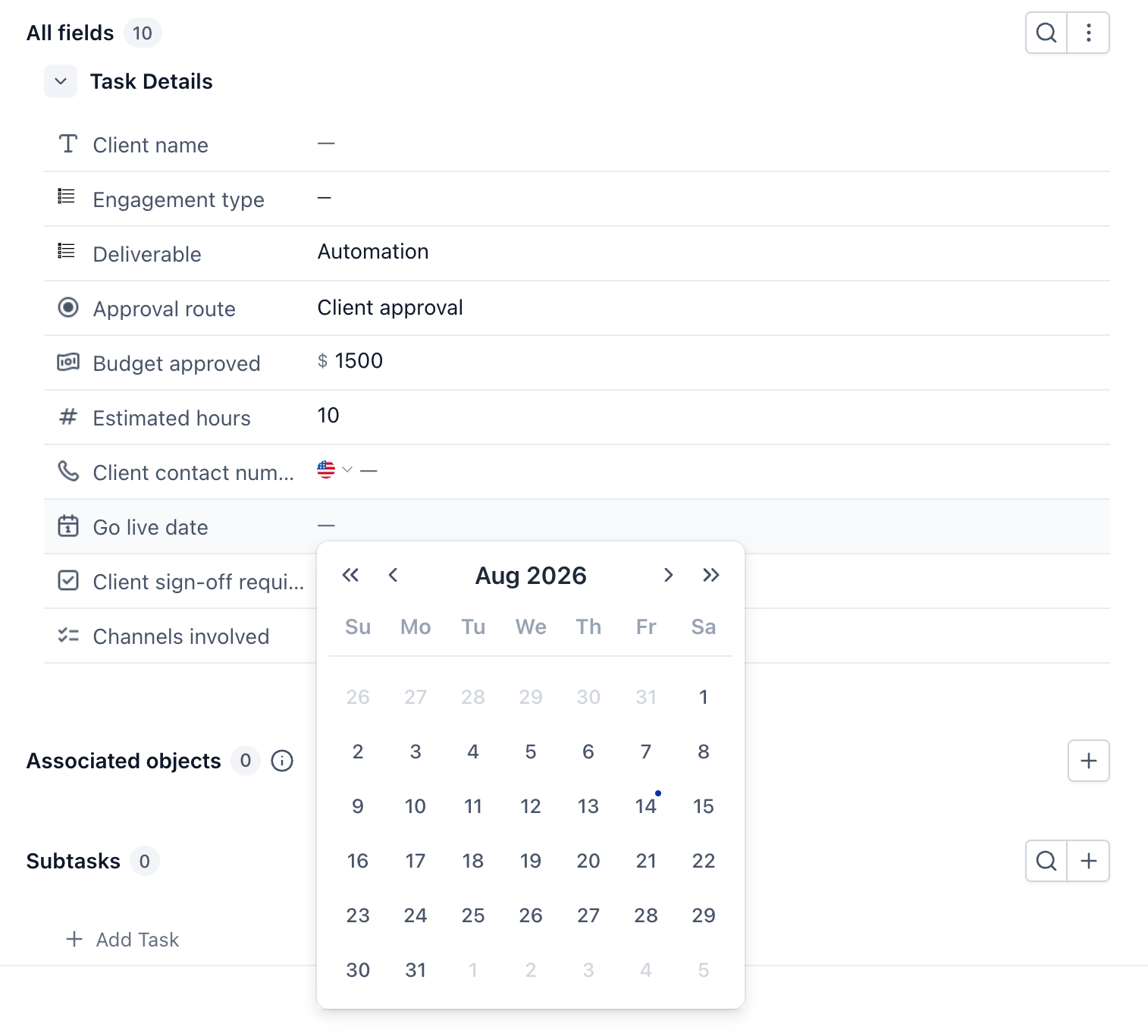
On the task detail panel, custom fields appear in a section called "All fields", with a count showing how many exist. Fields with no value entered display a dash, so you can see at a glance what is still blank.
The All fields section of a task detail panel, with the field count visible and a mix of completed and empty fields
Custom fields are configured at each level
Custom fields can be added at the Space, Folder, and List levels. Fields created at a higher level are inherited by the levels below, while fields created at a lower level remain specific to that level and are not added to the higher-level configuration.
For example, a custom field created at the Space level will be available in its Lists, but a field created specifically at the List level will only be available within that List and will not be added to the Space’s custom fields.
This provides flexibility for workstreams that need different information while still allowing commonly used fields to be defined at a higher level and inherited across the hierarchy.
Available field types
The following field types have been observed in use:
Single line text: A short free-text value, such as a reference code.
Text box: A longer multi-line text value.
Number: A numeric value.
Monetary: A currency value, displayed with a currency symbol.
Phone: A telephone number, with a country selector.
Date picker: A date, chosen from a calendar.
Single select dropdown: One value chosen from a defined list.
Multi select dropdown: Several values chosen from a defined list.
Radio: One value chosen from a small set of visible options.
Checkbox: A yes or no value.
Text box list: A set of related text entries held in one field.
Rich text field and URL for select locations
Steps for adding a Custom field
Open the Tasks page
Go to "Contacts" in the left navigation menu, then select the "Tasks" tab.
Find the Space in the left panel
Hover over the Space you want to add a field to.
Open the Space options menu
Click the options control on the Space row. The menu contains Rename, Settings, Create list, Create folder, Custom fields, Status options, and Delete.
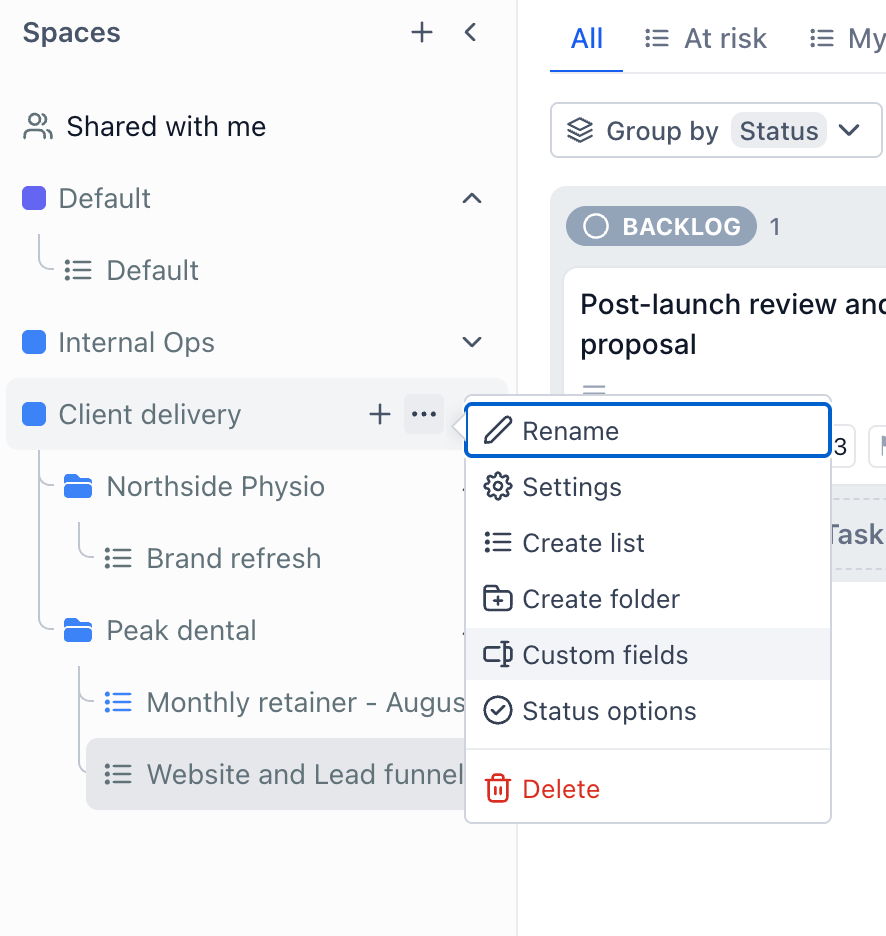
Choose "Custom fields"
The custom fields configuration for the Space opens.
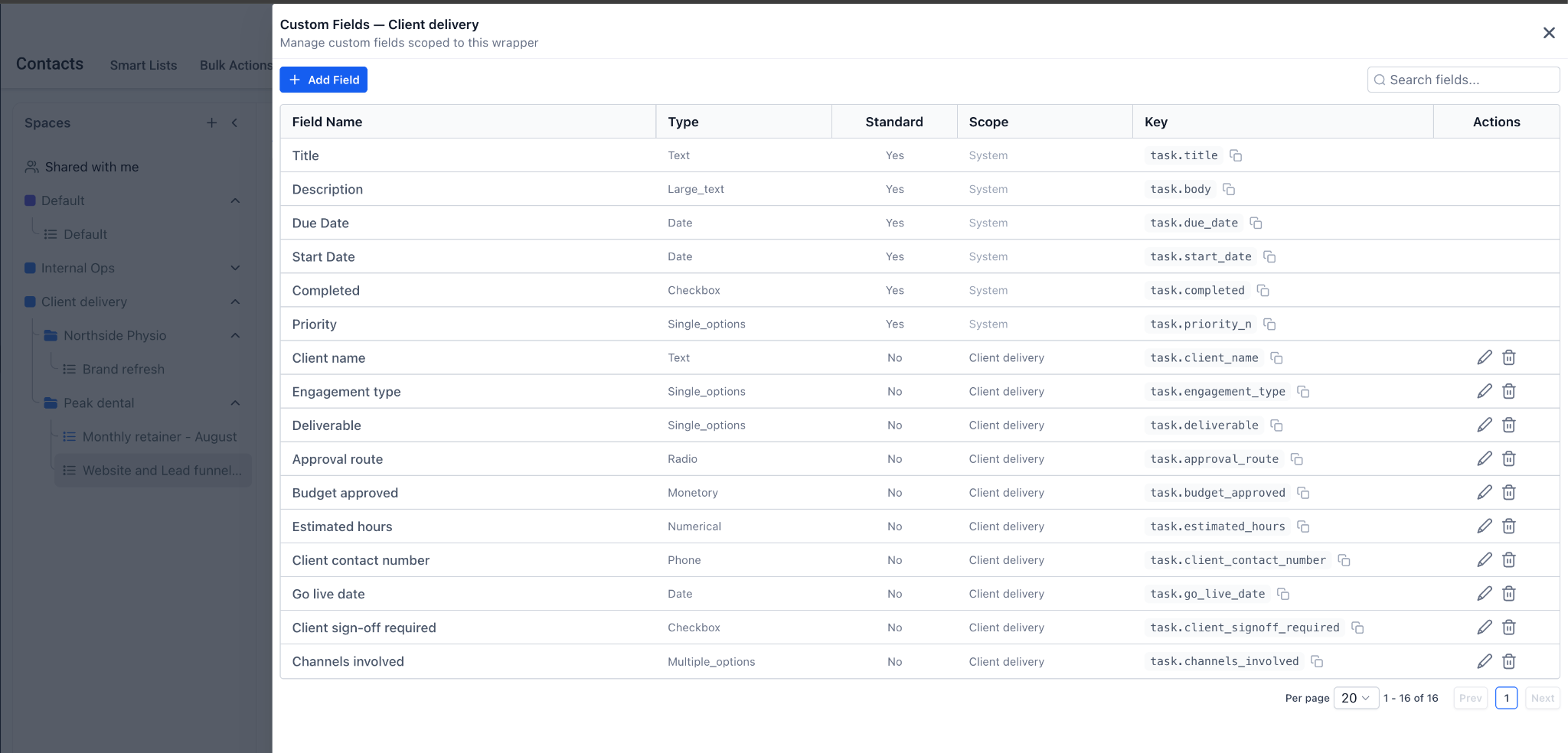
Add a field
Create the new field, choose its type, and give it a name your team will recognise without explanation.
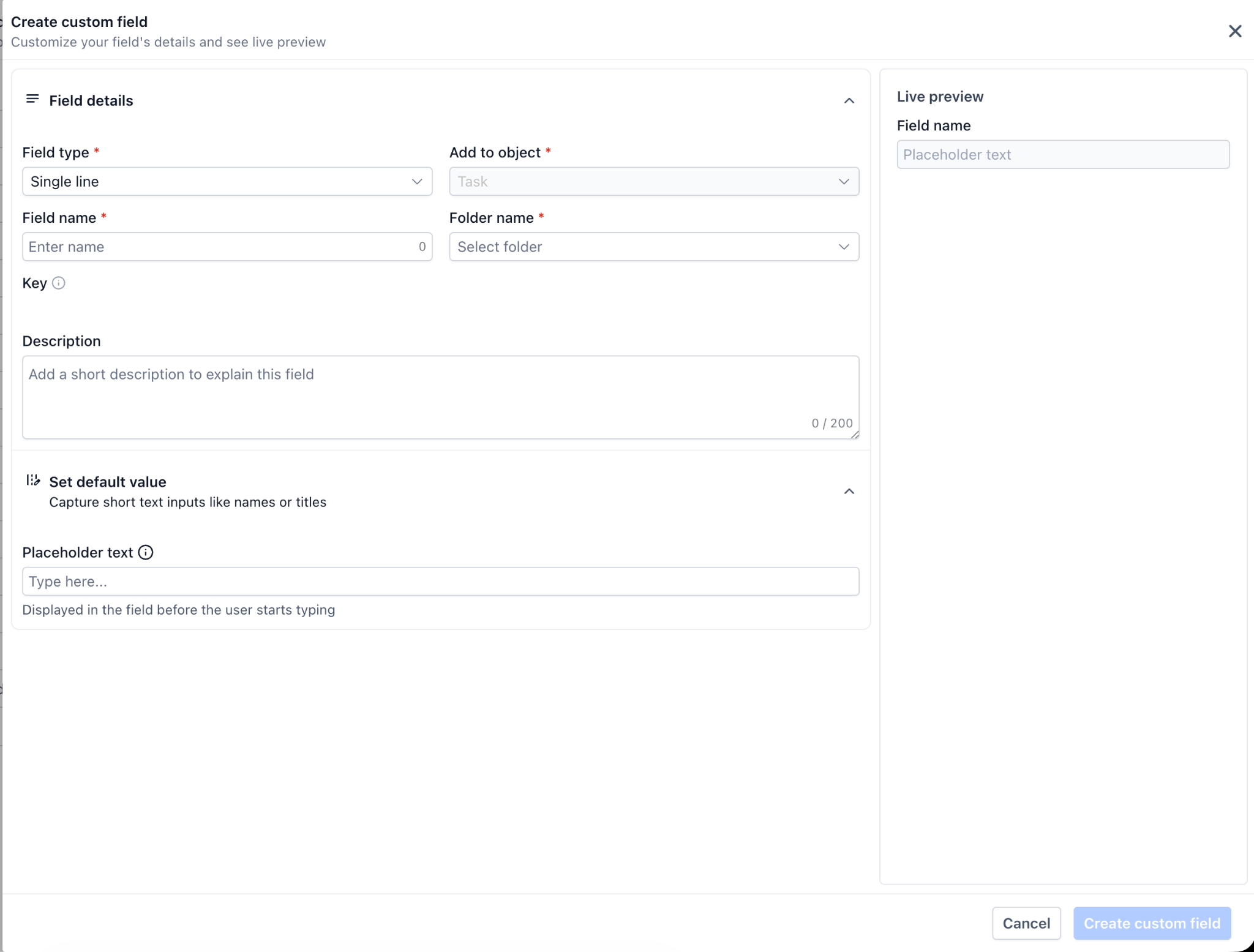
Configure the field's options
For dropdown and radio fields, enter the values people will choose from. For monetary fields, confirm the currency.
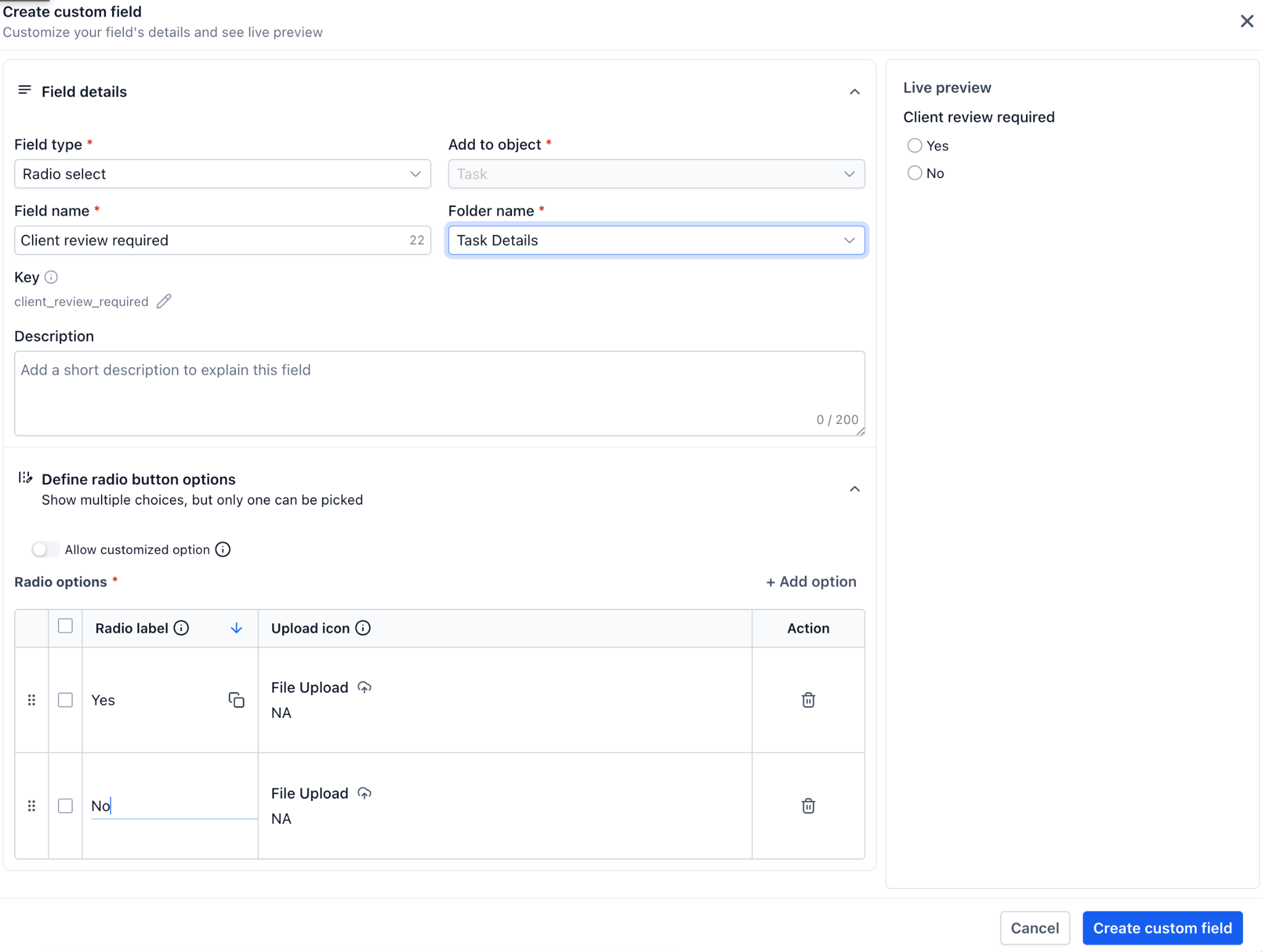
Save
Once saved, the field appears in the All fields section of every task in that Space.
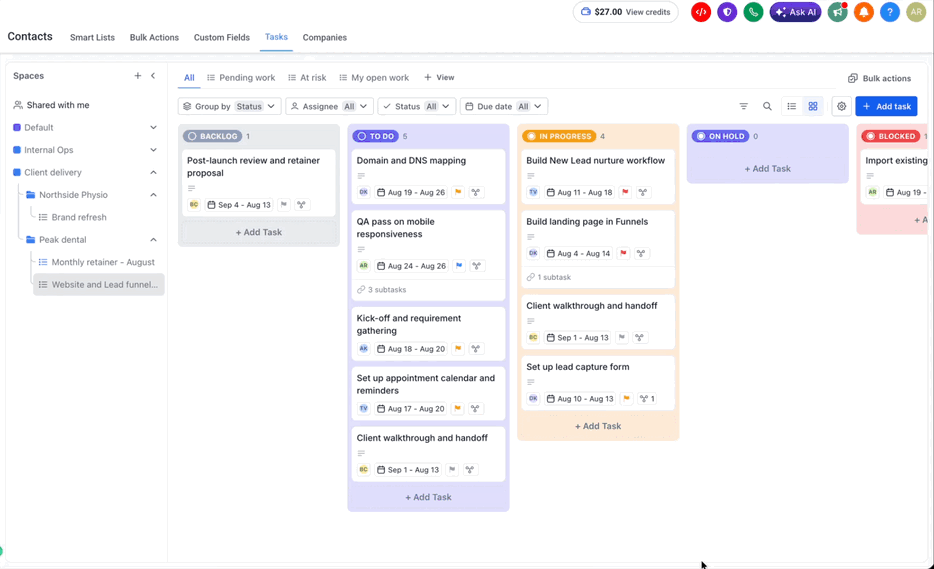
Steps for filling in a custom field on a task
Open the task
Click the task card to open its detail panel.
Find the "All fields" section
The heading shows how many fields the Space has.
Enter your values
Complete the fields that apply. Anything left blank shows a dash.
Save your changes
Use "Save" to commit, or "Cancel" to discard.
Designing a field set people will use
Custom fields are easy to add and easy to over-add. A few things that help:
Start with the questions you keep asking: If someone has to ask "which client is this for?" on every task, that is a field. If nobody ever asks, it is not.
Prefer drop-downs over free text for anything you will filter or report on: Free text drifts, and the same client ends up spelled three ways.
Keep the list short: A task panel with twenty fields on it gets skipped, and half-filled fields are worse than no fields.
Name fields plainly: A field called Channel is understood immediately. One called Type 2 is not.
Remember the fields are Space-wide: A field that only applies to one List will sit empty on every other task in the Space.
Frequently Asked Questions
Q: Where are Custom fields configured?
Custom fields can be configured at any level - Space, folder and list through ‘Custom fields’ in the options menu
Q: Can two lists in the same space have different fields?
Yes, Custom fields can be set at list level within the same space so both lists can have a different set of Custom fie
Q: Can I make a custom field required?
No, custom fields cannot be marked as required.
Q: Can I filter or group the board by a custom field?
Yes, a board can be grouped by or filtered by certain custom fields
Q: What happens to existing tasks when I add a new field?
The field appears on every task in the Space, empty and showing a dash until someone fills it in.
Next: Smart lists: List view and Kanban view
Was this article helpful?
That’s Great!
Thank you for your feedback
Sorry! We couldn't be helpful
Thank you for your feedback
Feedback sent
We appreciate your effort and will try to fix the article