Send WhatsApp voice messages from HighLevel that play instantly and can be read as transcripts. No more download links or lost context. Native voice notes improve response rates by removing friction while preserving accessibility for customers who prefer reading. This guide covers how native delivery works, setup steps, limits, and best-practice tips. Keywords: HighLevel WhatsApp voice notes, WhatsApp transcripts, Conversations UI.
TABLE OF CONTENTS
- What is Native WhatsApp Voice Notes with Transcriptions?
- Key Benefits of Native WhatsApp Voice Notes with Transcriptions
- Voice Note Recording & Sending (Conversations UI)
- WhatsApp Voice Message Transcription Setting
- Supported Audio Format & Limits
- Frequently Asked Questions
- Related Articles
What is Native WhatsApp Voice Notes with Transcriptions?
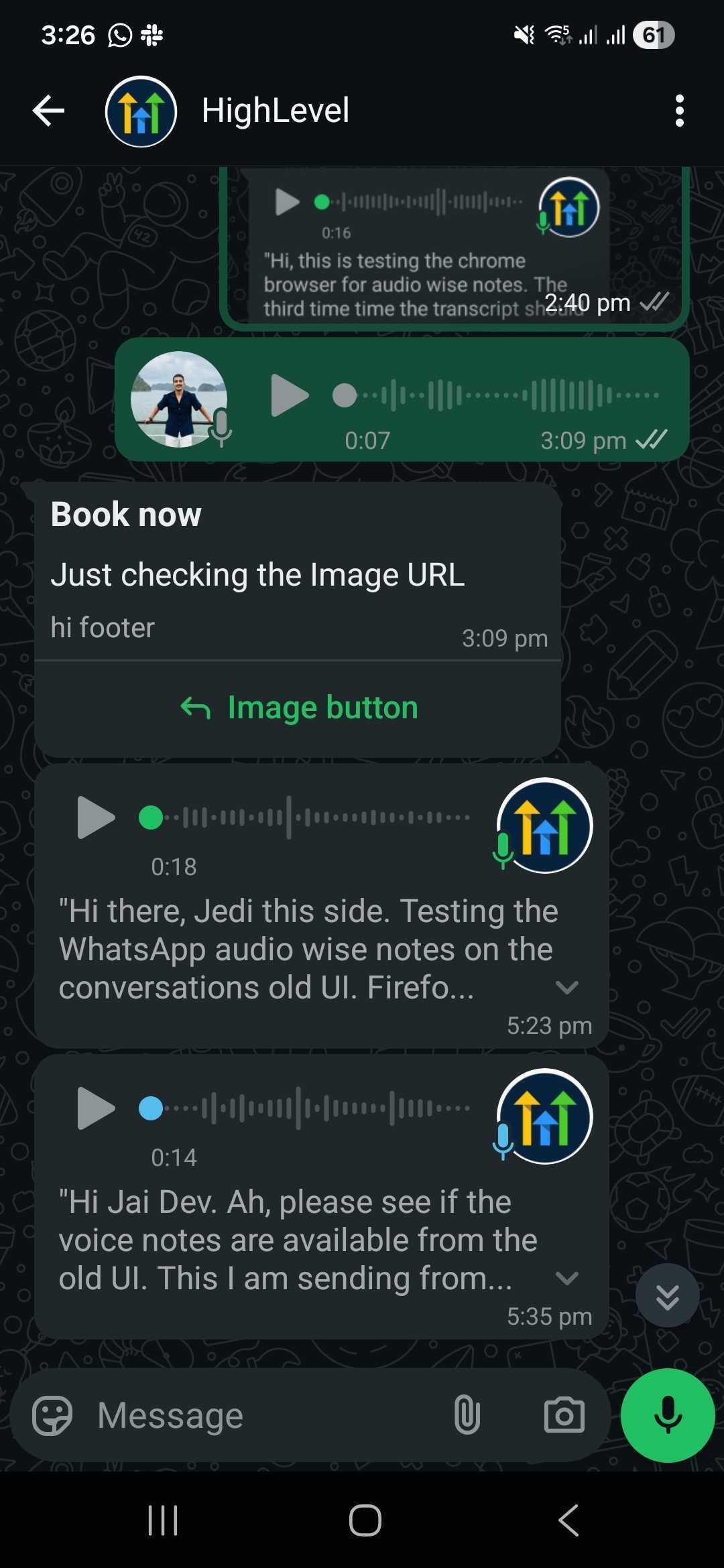
Native WhatsApp voice notes are audio messages sent from HighLevel in a format that WhatsApp plays inline—just like messages recorded inside the WhatsApp app. When the recipient enables WhatsApp’s transcript setting on their device, they can tap to view text transcriptions of supported voice notes.
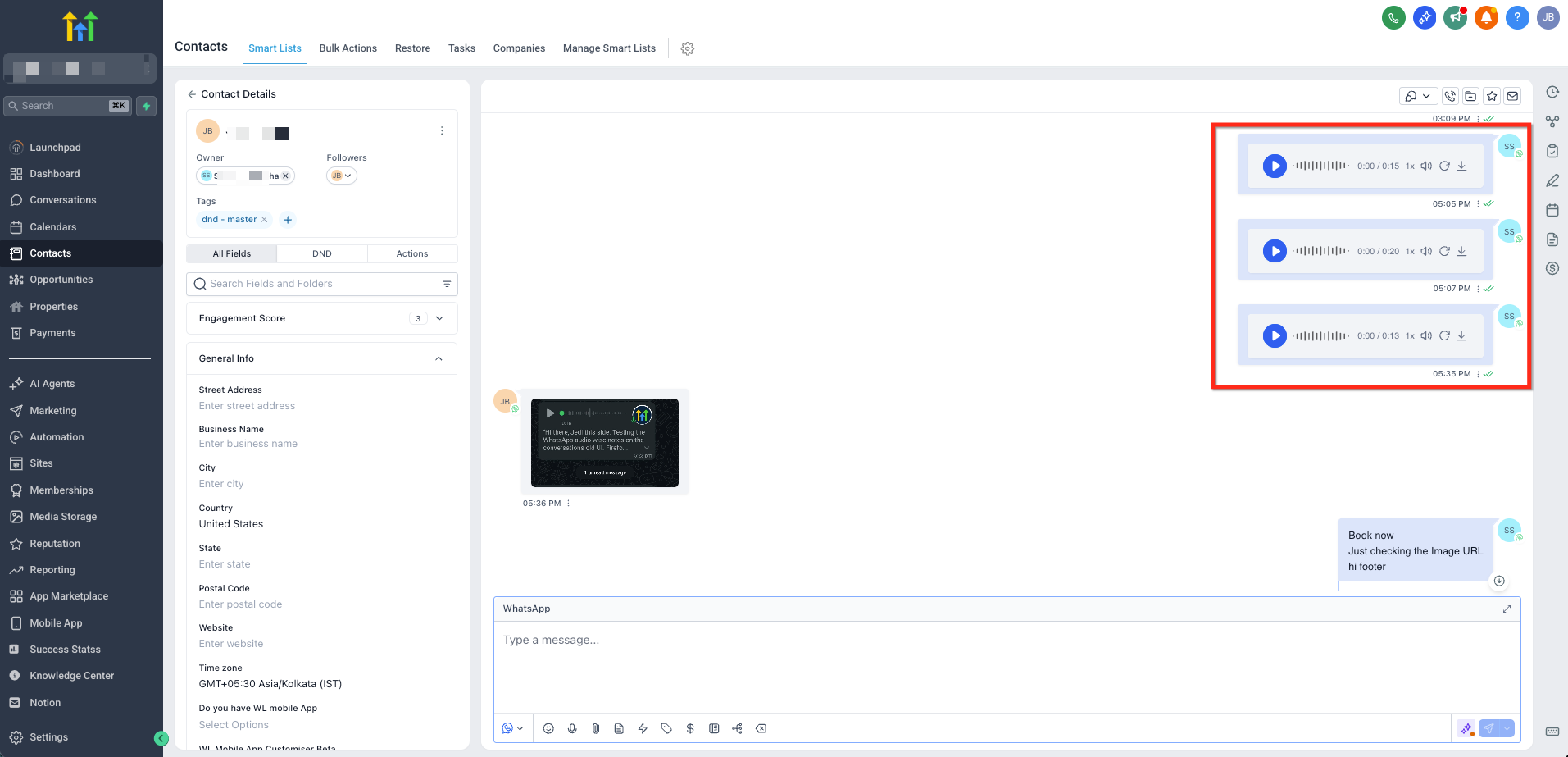
HighLevel now delivers outbound WhatsApp voice notes in WhatsApp’s native voice-note format so they auto-download and play inline. If the recipient has WhatsApp’s voice message transcript feature enabled, they can view a transcript directly in the WhatsApp chat. This works automatically for new voice notes sent from the Conversations UI.
Key Benefits of Native WhatsApp Voice Notes with Transcriptions
This section highlights the practical, user-visible improvements your team and customers will notice, focusing on engagement, accessibility, and message clarity.
Instant playback: Messages auto-download and play inline in WhatsApp, reducing friction.
Optional transcripts: Recipients who enable transcripts in their WhatsApp app can read supported messages.
Higher response rates: Inline audio feels natural and keeps conversations moving.
Accessibility: Reading transcripts helps in noisy environments or for contacts with hearing difficulties.
Fewer delivery issues: Using the native voice-note format reduces failures linked to unsupported attachments.
Voice Note Recording & Sending (Conversations UI)
Record directly in a WhatsApp thread or upload an audio clip, then send it as a native voice note without extra tools or templates.
Open Conversations and select a WhatsApp thread.
Click the microphone icon (web) or press-and-hold the mic (mobile) to record.
Pause, resume, re-record, or delete as needed.
Click Send. HighLevel handles format conversion and delivers a native WhatsApp voice note.
WhatsApp Voice Message Transcription Setting
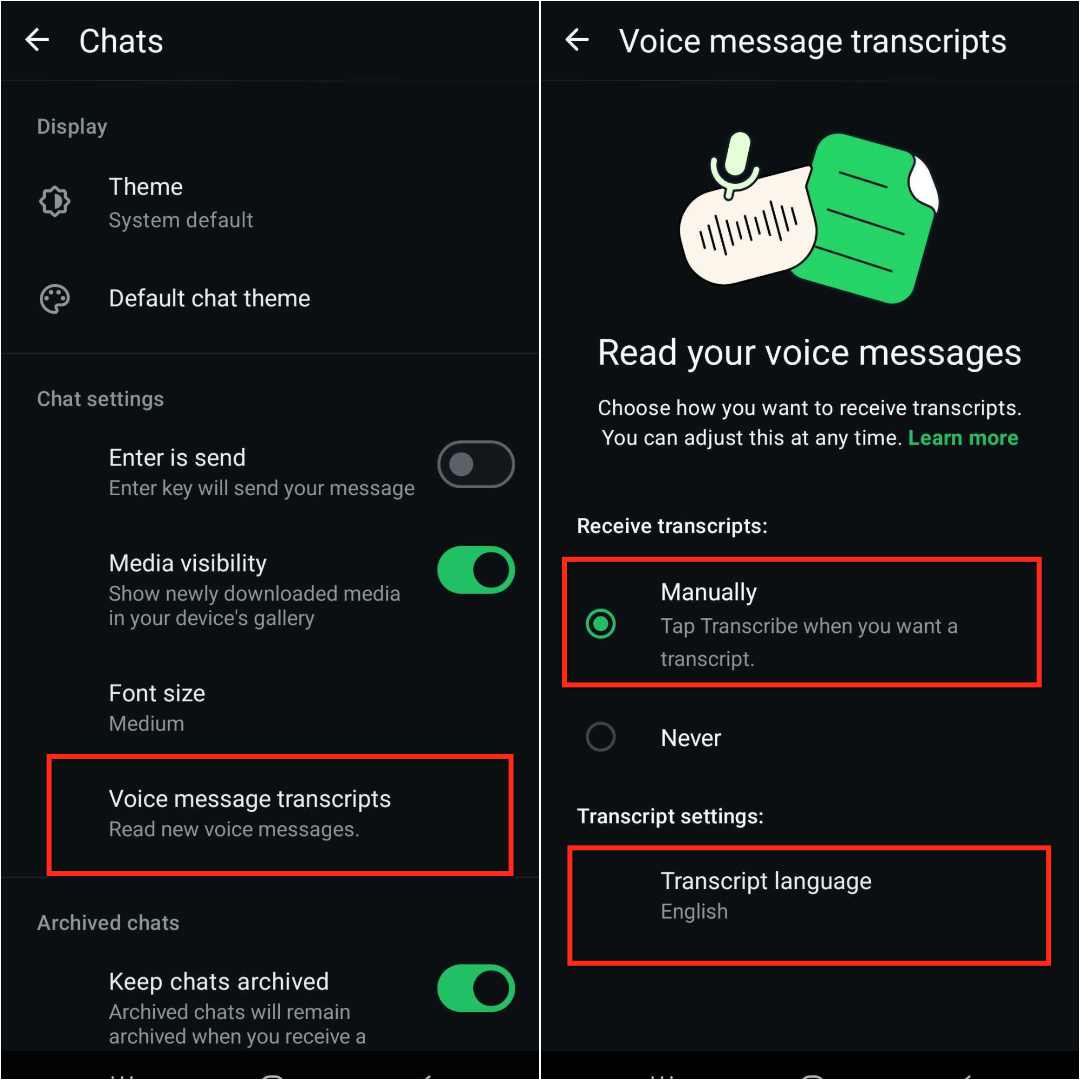
Transcripts are controlled by the recipient’s WhatsApp app settings and not by HighLevel. If transcripts are disabled on their device, no transcript will appear.
Recipients can open WhatsApp Settings → Chats → Voice message transcripts.
They may choose a transcript mode/language based on WhatsApp’s availability for their device.
When enabled, recipients can tap Transcribe on supported voice notes to view text.
If the setting is off or unsupported on that device, transcripts won’t display.
Supported Audio Format & Limits
Following these technical guidelines helps ensure consistent delivery and playback in WhatsApp.
- Format: Outbound WhatsApp voice notes from HighLevel are sent in OGG/Opus, WhatsApp’s native voice-note container. HighLevel handles conversion automatically when you record/send from Conversations.
Maximum duration: Up to 10 minutes per voice note.
Media availability: WhatsApp/Meta hosts media for a limited time. Very old voice notes can appear unavailable or blank in HighLevel’s message view.
Frequently Asked Questions
Q: Do I need a WhatsApp template for every voice note?
A: Not when replying within the 24-hour session window. Templates are required for outbound messages outside that window.
Q: Will older attachment-style voice notes change to the new native format automatically?
A: No. Existing messages remain as they were. Native delivery applies to new voice notes going forward.
Q: Are transcripts stored in HighLevel?
A: No. Transcripts are enabled and displayed by the recipient’s WhatsApp app; HighLevel does not store or generate them.
Q: Can contacts reply with a voice note, and how does it appear?
A: Yes. Replies appear in Conversations as inbound WhatsApp voice notes you can play inline.
Related Articles
Was this article helpful?
That’s Great!
Thank you for your feedback
Sorry! We couldn't be helpful
Thank you for your feedback
Feedback sent
We appreciate your effort and will try to fix the article