Ask AI Dispatch on WhatsApp lets you interact with your HighLevel AI copilot directly through WhatsApp. You can manage CRM tasks, send voice messages, share files, generate audio and video, and receive rich artifacts without switching to the HighLevel web app.
TABLE OF CONTENTS
- What is Ask AI Dispatch on WhatsApp?
- Key Benefits of Ask AI Dispatch
- Prerequisites and Limitations
- How to Set Up Ask AI Dispatch on WhatsApp
- How to Use Ask AI on WhatsApp
- Review WhatsApp Conversations in Dispatch
- Move Your WhatsApp Number
- Frequently Asked Questions
- Related Articles
What is Ask AI Dispatch on WhatsApp?
Ask AI Dispatch brings HighLevel's Ask AI capabilities into WhatsApp, allowing you to complete supported tasks through a familiar messaging experience. Once connected, you can ask questions, access CRM information, generate content, share documents, and receive multimedia responses within the same conversation.
Key Benefits of Ask AI Dispatch
Text and voice requests: Type or speak your requests to Ask AI.
File sharing: Send images, documents, and other supported files for additional context.
CRM assistance: Retrieve contact details, manage opportunities, and check appointments.
Content generation: Create emails, blog drafts, images, and other supported content.
Audio and video generation: Request and play generated media directly in WhatsApp.
Rich artifacts: View generated results in useful formats beyond plain text.
Conversation history: Review WhatsApp Dispatch conversations in HighLevel.
Prerequisites and Limitations
Before connecting WhatsApp, keep the following in mind:
You need an active WhatsApp account and access to its phone number.
Each location supports one connected WhatsApp number for Ask AI Dispatch.
The user who connects a number owns that connection.
You can move your own connected number between locations, but you cannot take over another user's connection.
WhatsApp verification codes expire after five minutes.
How to Set Up Ask AI Dispatch on WhatsApp
Step 1: Connect WhatsApp
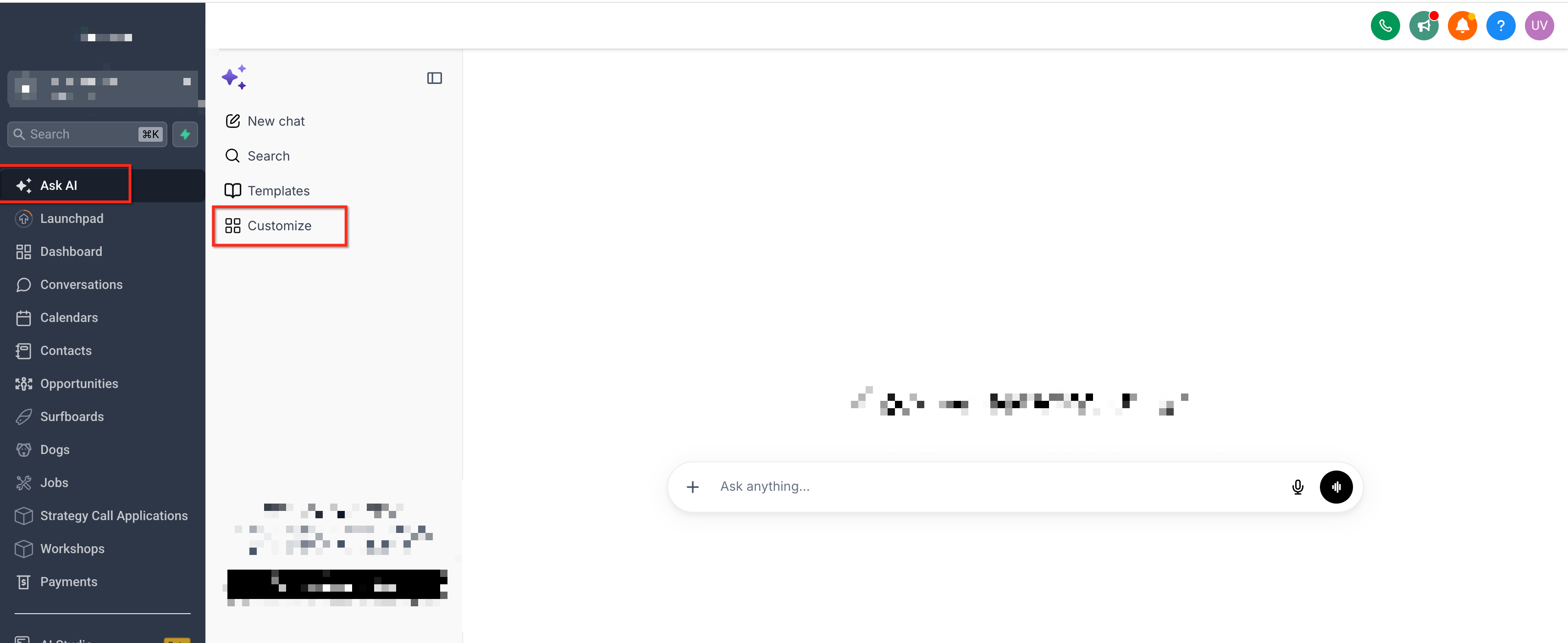
In HighLevel, navigate to Ask AI → Customize → Dispatch.
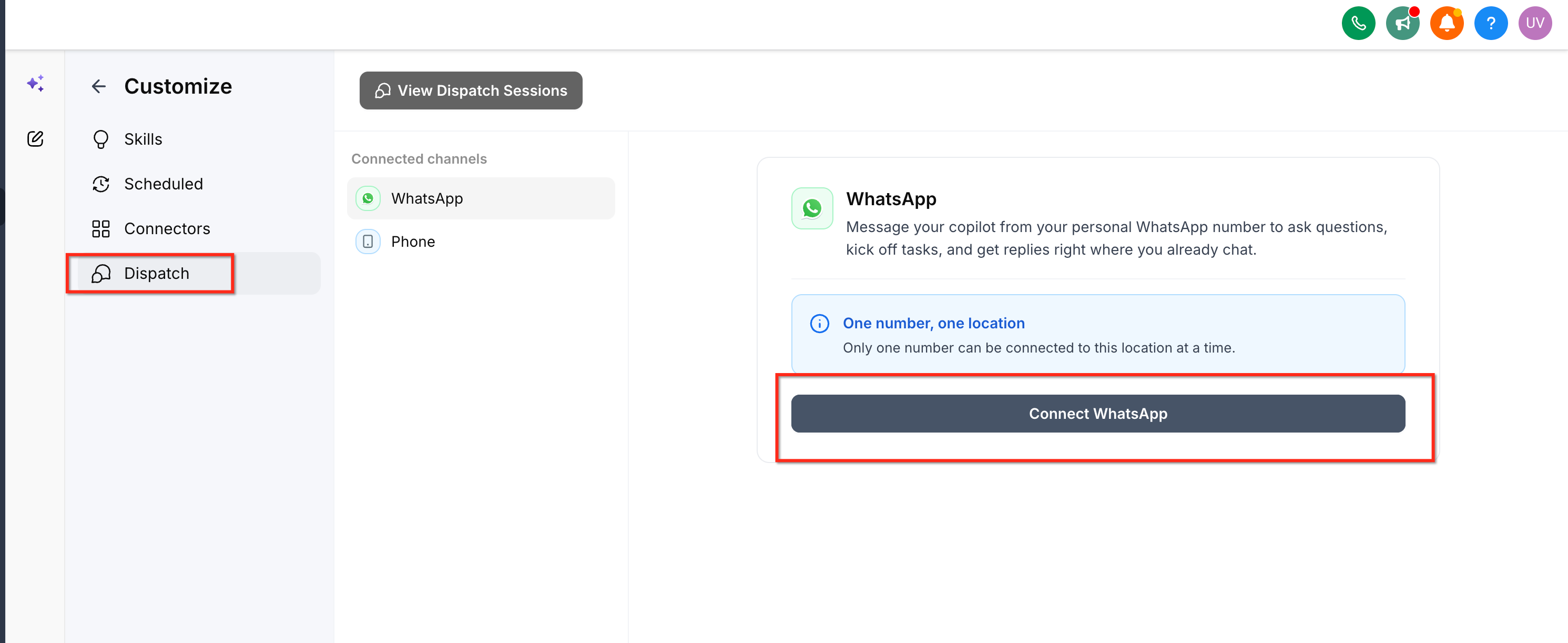
Click Connect WhatsApp.
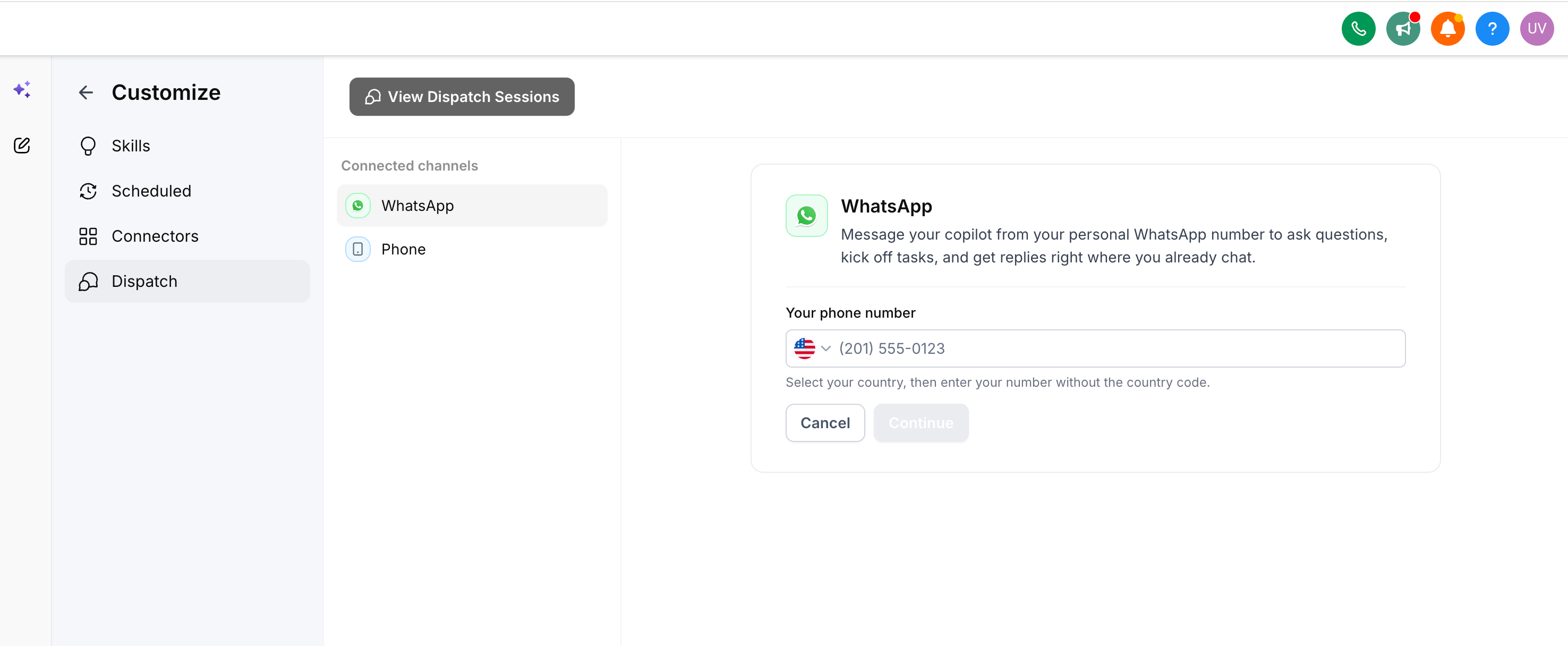
Select your country and enter your WhatsApp number without the country code.
Click Continue.
Step 2: Verify Your Number
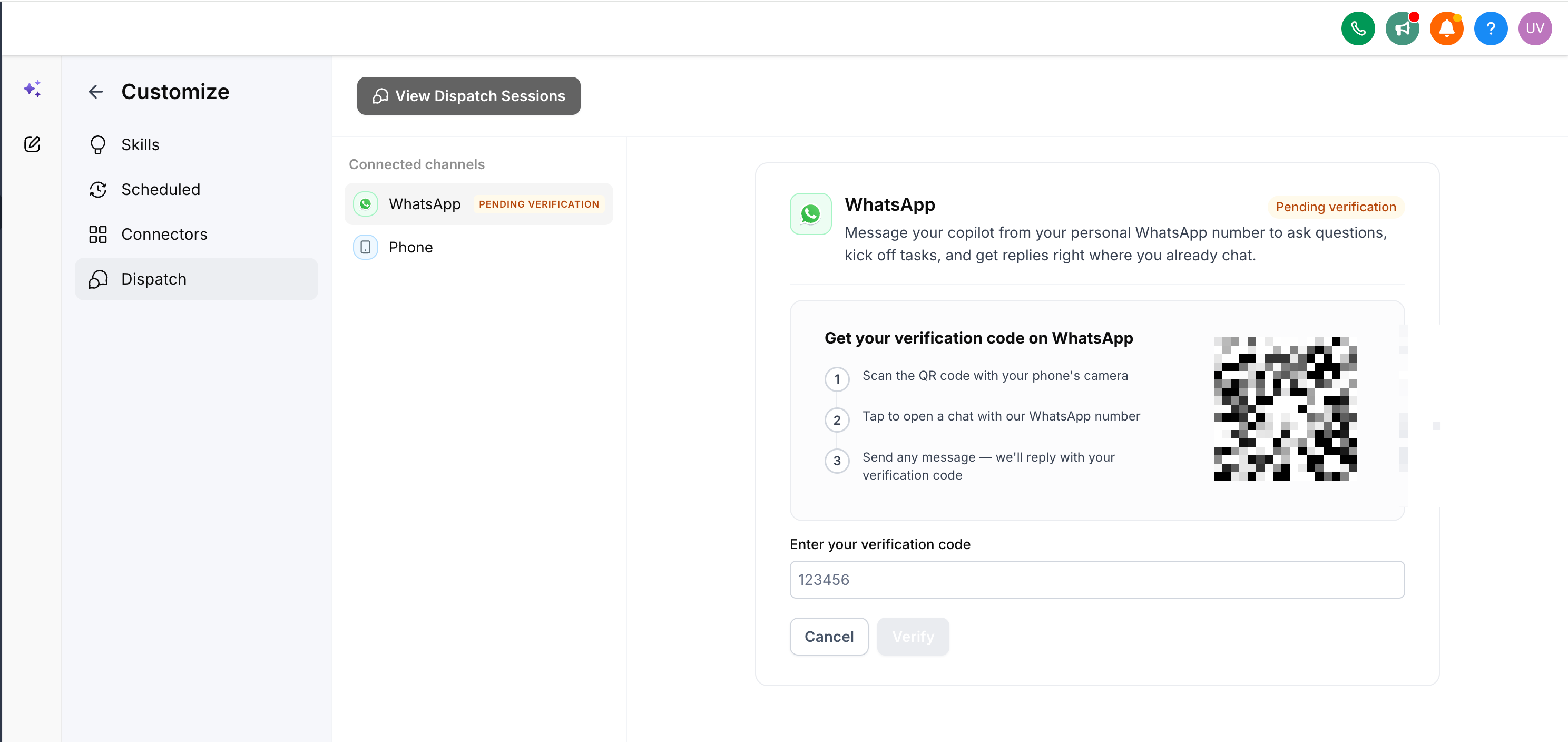
Scan the displayed QR code.
Open the WhatsApp conversation and request a verification code.
Enter the code in HighLevel.
Click Verify.
Once verified, you can start interacting with Ask AI through WhatsApp.
How to Use Ask AI on WhatsApp
Ask AI supports text, voice messages, file attachments, and multimedia responses within your connected WhatsApp conversation.
Send Text and Voice Messages
You can type a request or record a voice message to communicate with Ask AI.
Open your connected Ask AI conversation in WhatsApp.
Type your request or record a voice message.
Send the message and review Ask AI's response.
For example, you can ask:
"Summarize my latest notes and draft a client follow-up email."
Ask AI processes your request and responds within the conversation.
Share Images and Files
Share images, documents, and other supported files to give Ask AI additional context.
Open your Ask AI conversation in WhatsApp.
Attach a supported file.
Include a request explaining what you need.
Send the message and review the response.
For example, share a client document and ask Ask AI to summarize its key details or identify action items.
Generate Audio and Video
Ask AI can generate audio and video based on your requests and return them directly in WhatsApp.
Open your Ask AI conversation.
Describe the audio or video you want to create.
Send your request.
Play the generated audio or video directly in WhatsApp.
Generated videos can be viewed using WhatsApp's playable video player. For more information, see Ask AI - Audio & Video Generation.
View Rich Artifacts
Ask AI can present responses as rich artifacts instead of plain text, making generated content easier to review. For example, you can request a client follow-up email, review the generated content in WhatsApp, and ask Ask AI to refine it. You can continue the conversation to request changes or additional content.
Manage CRM Tasks and Other Actions
Ask AI Dispatch also supports existing Ask AI capabilities, including:
Looking up contacts and managing supported CRM records
Reviewing opportunities and appointments
Generating blog drafts, emails, and images
Creating supported recurring tasks
Running configured Ask AI Skills
Asking product and support questions
Ask AI may request confirmation before performing actions that modify CRM data.
Review WhatsApp Conversations in Dispatch
You can access previous WhatsApp conversations through HighLevel.
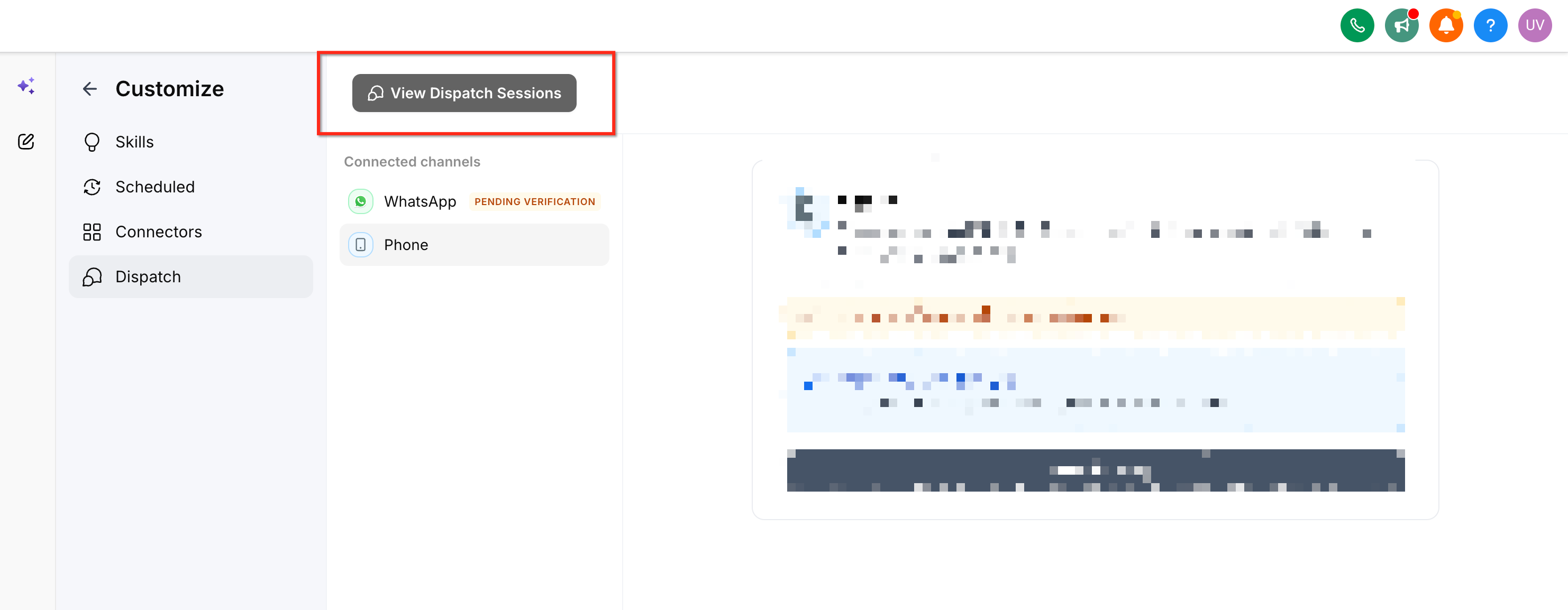
Navigate to Ask AI → Customize → Dispatch.
Click View Dispatch Sessions.
Use Search conversations to find a session.
Select WhatsApp from the Dispatch type filter.
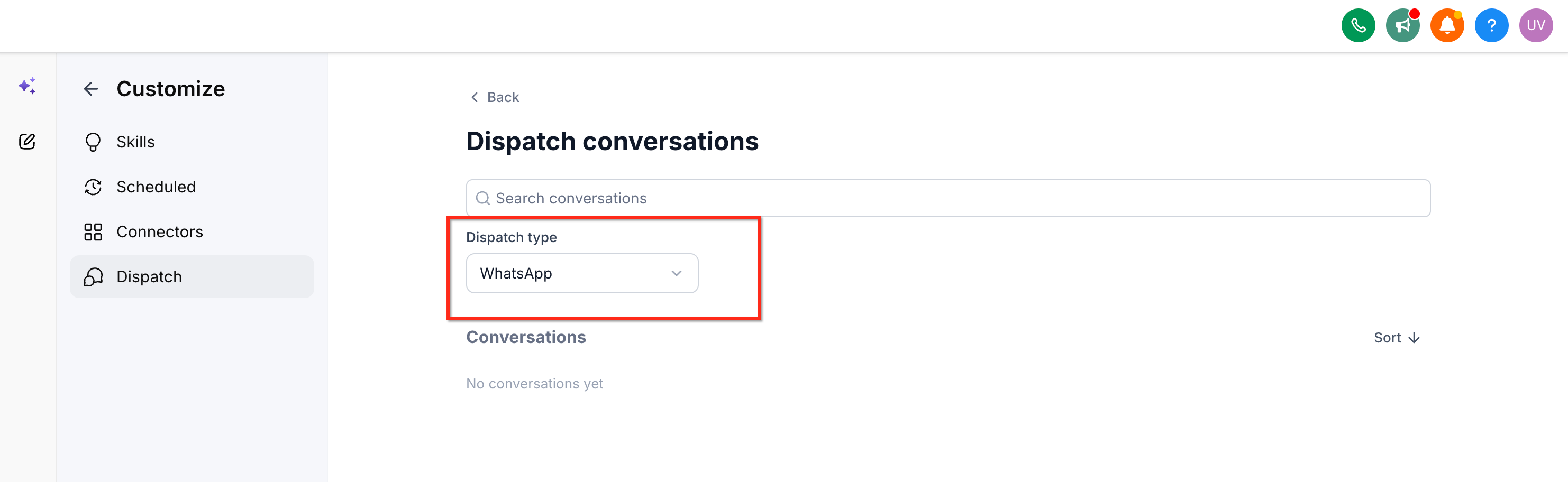
Use Sort to organize conversations.
Move Your WhatsApp Number
If your WhatsApp number is connected to another location under your user, you can move it during setup.
Navigate to Ask AI → Customize → Dispatch.
Start the WhatsApp connection process.
Enter your existing connected WhatsApp number.
When prompted, click Yes, move it here.
Complete any remaining verification steps.
The number is disconnected from the previous location and connected to the current one.
Note: You cannot move a WhatsApp number connected by another user.
Frequently Asked Questions
Q: Can I send voice messages to Ask AI on WhatsApp?
Yes. You can send voice messages instead of typing, and Ask AI will process your spoken request.
Q: Can I share documents and images with Ask AI?
Yes. You can attach images, documents, and other supported files to provide context for your requests.
Q: Can I play AI-generated audio and video directly in WhatsApp?
Yes. Ask AI can return generated audio and video that you can play within the conversation.
Q: Does Ask AI support rich artifacts in WhatsApp?
Yes. Ask AI can present generated results in formats beyond plain text.
Q: Can I connect multiple WhatsApp numbers to one location?
No. Each location supports one connected WhatsApp number for Ask AI Dispatch.
Q: Where can I find my previous conversations?
Go to Ask AI → Customize → Dispatch → View Dispatch Sessions.
Related Articles
Was this article helpful?
That’s Great!
Thank you for your feedback
Sorry! We couldn't be helpful
Thank you for your feedback
Feedback sent
We appreciate your effort and will try to fix the article