Sending WhatsApp Media via Workflow
Automate the delivery of images, videos, documents, and audio directly from a CRM Workflow using the WhatsApp Media action.
TABLE OF CONTENTS
How to Send Media via Workflow
NOTE: You can send WhatsApp media only when the 24-hour customer service window is open.
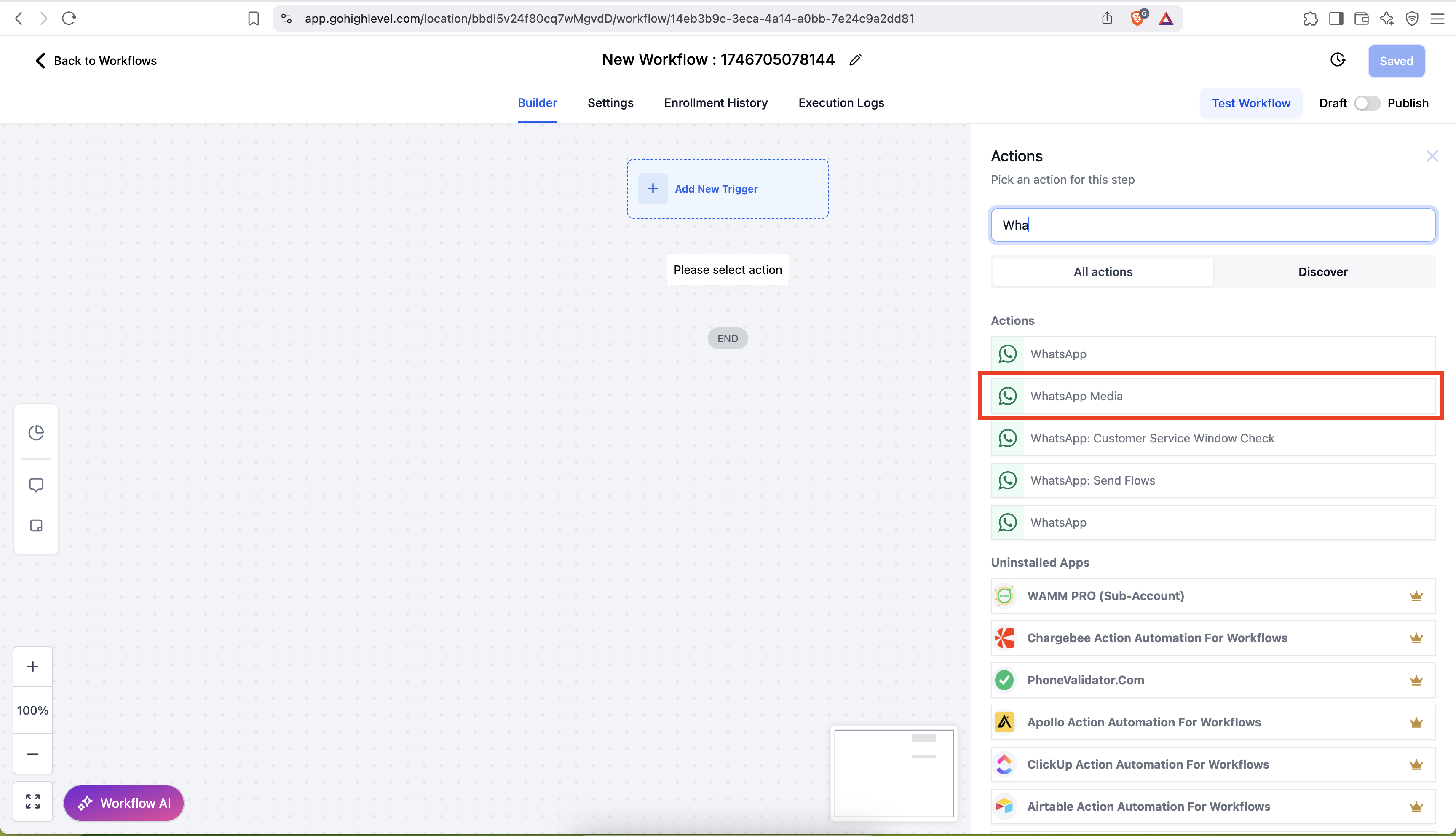
Go to Automation > Search WhatsApp Media
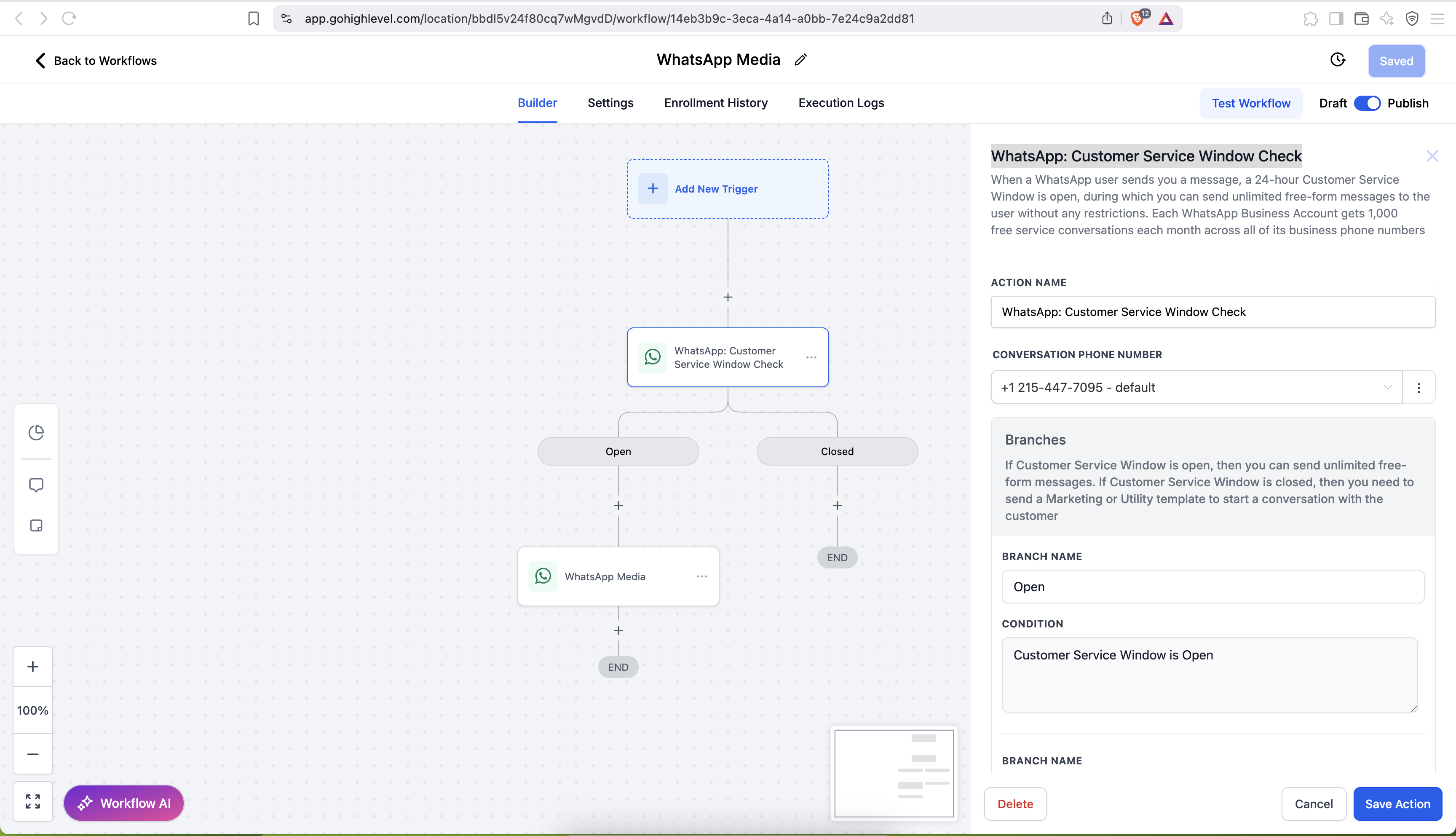
Add WhatsApp: Customer Service Window Check
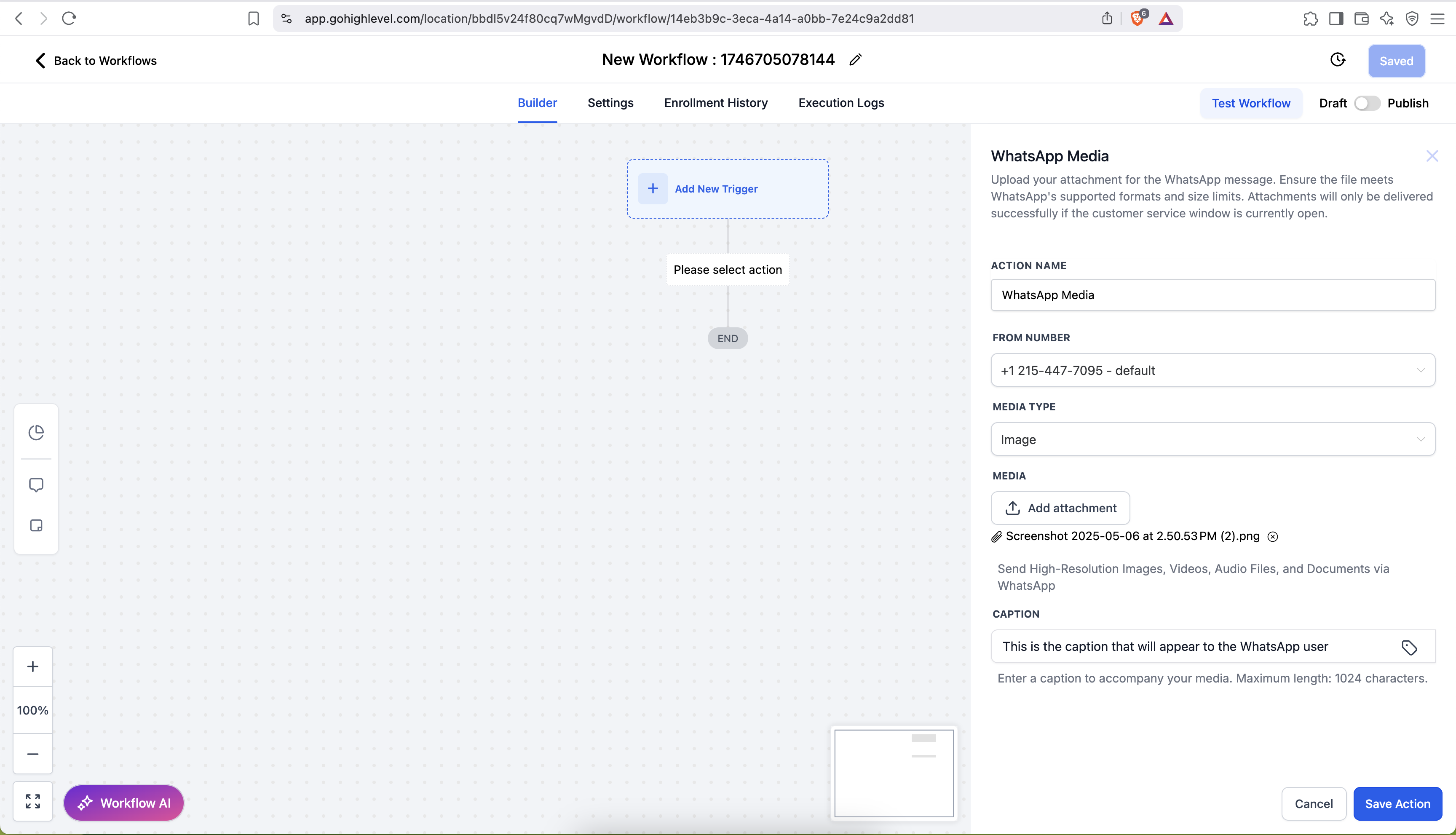
Select the From number, choose the Media Type, upload the media, and add a caption
Frequently Asked Questions (FAQ)
Q: When can I send WhatsApp media messages?
Media messages can only be sent while the 24-hour Customer Service Window is open. The window opens each time the customer sends an inbound WhatsApp message and lasts for 24 hours from the timestamp of that message.
Q: Are media messages free inside the 24-hour window?
Yes. All media (images, videos, documents, and audio) sent during an open service window incur no additional cost, and you may send an unlimited number of media messages.
Q: What happens if I try to send media after the 24-hour window closes?
The media message will fail. To re-open the window, you must send an approved WhatsApp template (marketing or utility) to the customer.
Q: What media file sizes are allowed?
Files larger than these limits will return an error from the WhatsApp API.
Q: Can I add captions to every media type?
Captions are supported for images, videos, and documents. Captions are not supported for audio files; any text entered in the caption field for audio will be ignored.
Q: How long is WhatsApp media available for download?
Inbound media (received from customers) is available for 7 days from the time it was sent. Outbound media (sent by your business) is available for 30 days from the time it was sent. After this period, the media link expires and the file can no longer be accessed or downloaded.
Tip: If you need to retain important media longer, download and store it securely within the applicable window.
Was this article helpful?
That’s Great!
Thank you for your feedback
Sorry! We couldn't be helpful
Thank you for your feedback
Feedback sent
We appreciate your effort and will try to fix the article