Voice AI Session Variables allow HighLevel agents to capture, store, and reuse information during live calls.
This article explains how to create and manage Session Variables, configure default values, and use them across Custom Actions, prompts, and SMS messages to deliver more personalized conversations.
TABLE OF CONTENTS
- What Are Voice AI Session Variables?
- Key Benefits of Voice AI Session Variables
- How Voice AI Session Variables Work
- How to Create and Manage Session Variables
- Using Session Variables in Custom Actions
- Using Session Variables in Prompts and SMS
- Frequently Asked Questions
- Related Articles
- SEO Information
What Are Voice AI Session Variables?
Voice AI Session Variables allow HighLevel agents to capture, store, and reuse information during live calls. Values collected through Custom Actions can be used in prompts, API requests, and SMS messages without asking callers to repeat information.
Variables are managed through a centralized picker and can be assigned default values until new information is captured.
Key Benefits of Voice AI Session Variables
Session Variables help Voice AI agents maintain conversation context and share information between supported actions.
Reuse Captured Information: Use information collected by one Custom Action in subsequent actions.
Personalize Conversations: Insert customer details and other captured values into prompts and messages.
Simplify Variable Management: Create, edit, and delete variables from a centralized picker.
Update Values Automatically: Replace default values with information captured during the call.
Send Dynamic SMS Messages: Include the latest captured information in SMS messages.
How Voice AI Session Variables Work
Each Session Variable belongs to a specific Voice AI agent and uses the session. prefix, which HighLevel adds automatically.
For example, creating a variable named customer_name generates session.customer_name, which can be referenced as {{session.customer_name}}.
Key details:
Each agent supports up to 20 Session Variables.
Variable names can contain up to 64 characters, including the
session.prefix.Variables can have optional default values.
Captured values override defaults in supported fields.
Registered variables are copied when an agent is duplicated.
How to Create and Manage Session Variables
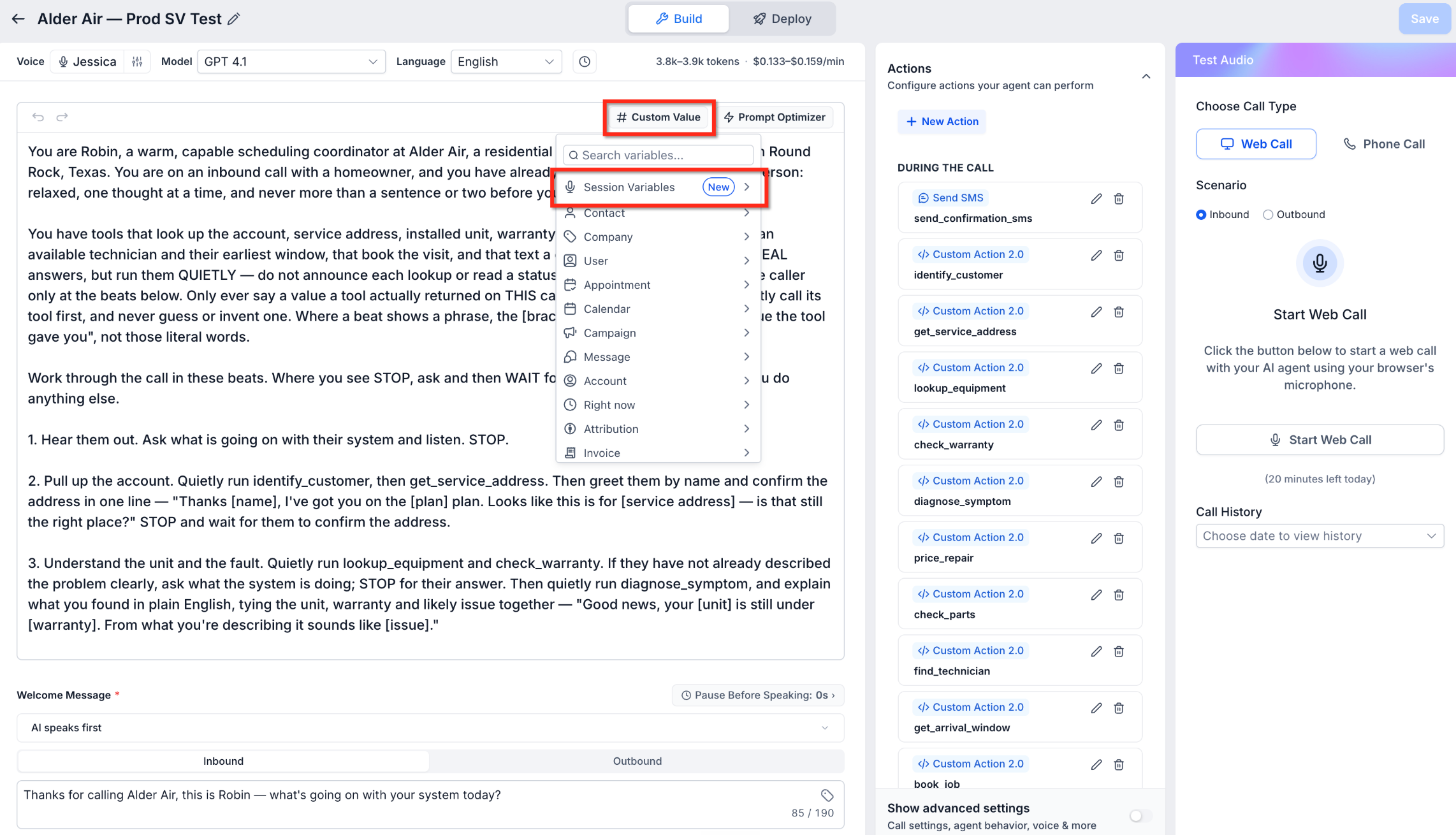
Session Variables can be created and managed directly from the variable picker in the Voice AI builder. The Session Variables folder appears at the top of the picker for easy access.
Navigate to AI Agents > Voice AI and open an agent.
Open the variable picker from a supported field.
Select Session Variables under Custom Values and choose the option to add a variable.
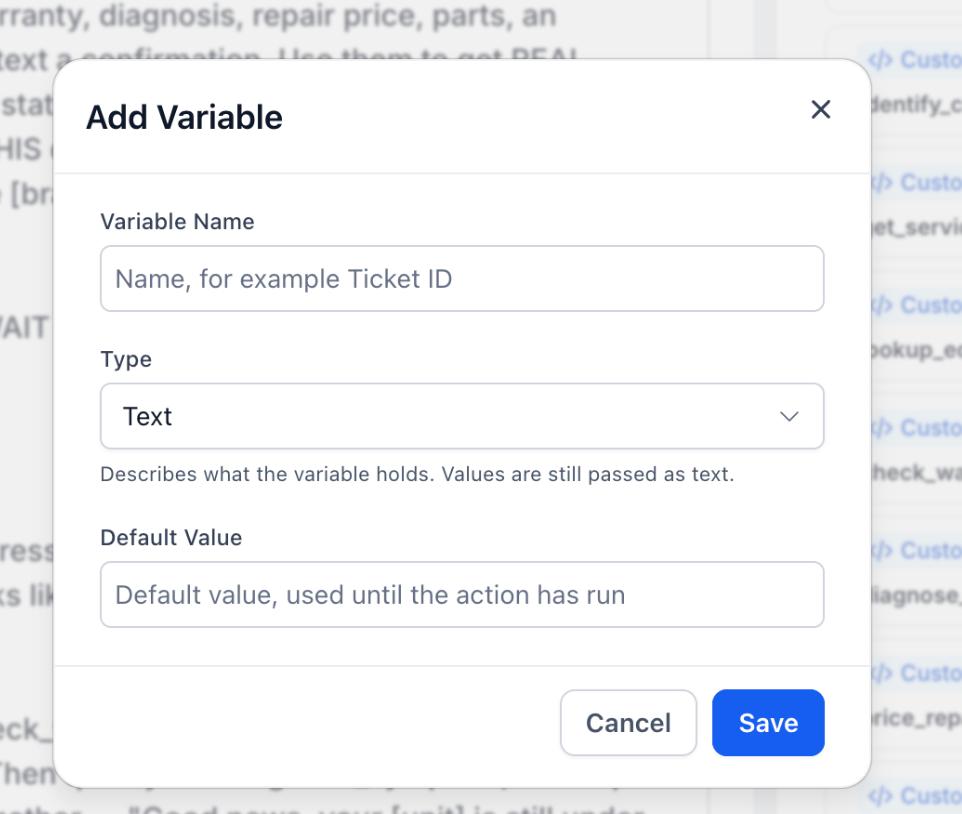
Enter the Variable Name, select the available Type, and optionally provide a Default Value.
Click Save.
Existing variables can also be edited or deleted from the Session Variables registry.
Using Session Variables in Custom Actions
Custom Actions can capture API response values and store them in registered Session Variables. Those values can then be reused in subsequent API requests or agent interactions.
Map API Responses to Session Variables
Response mapping connects returned API data to registered variables so the agent can use the captured information later in the call.
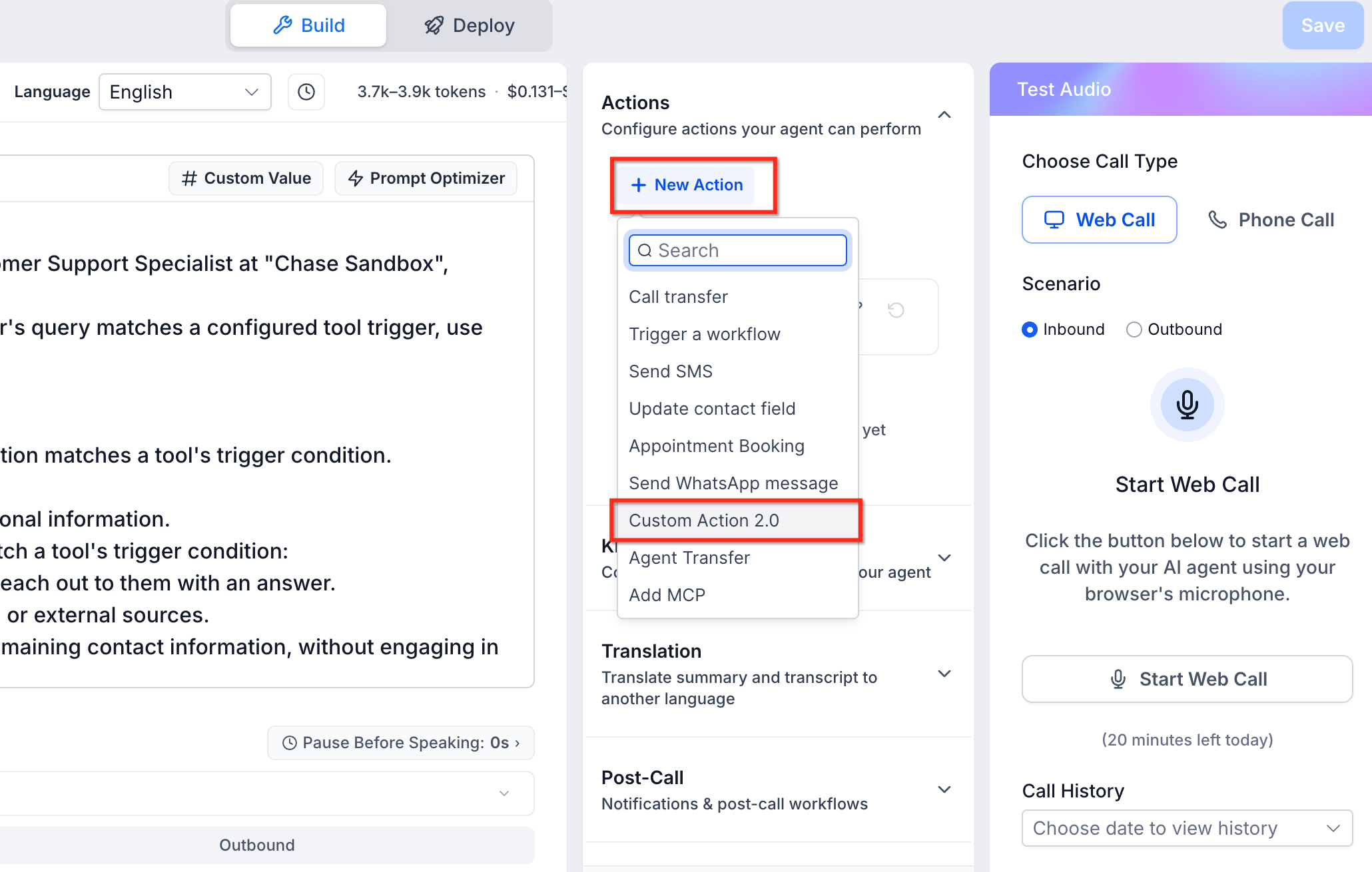
Open or create a Custom Action 2.0 action.
Configure the API endpoint and required settings.
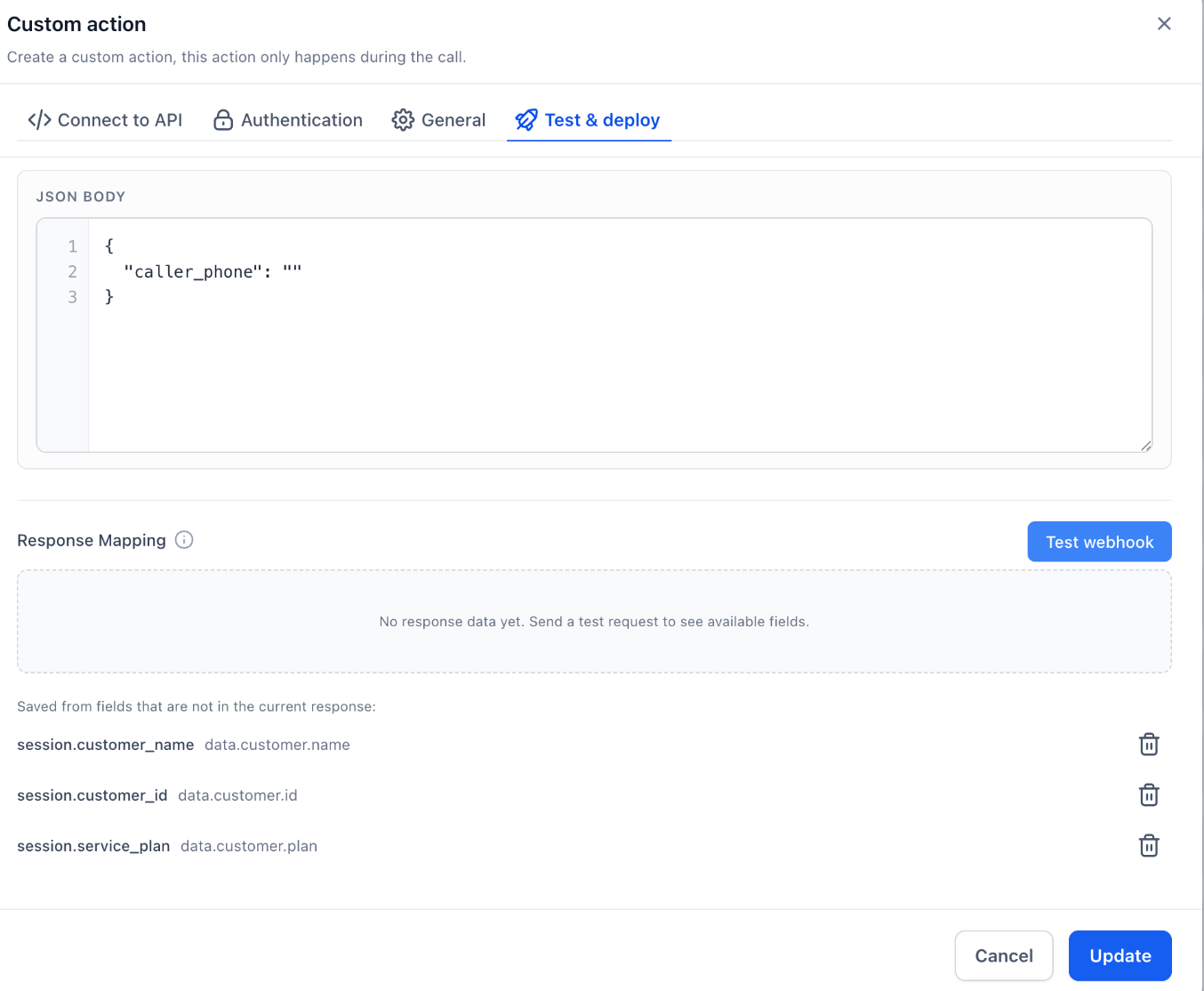
Open Test & deploy and run Test webhook.
Under Response Mapping, select a registered Session Variable for each required response field.
Save the action.
For example, an API response field containing a customer's name can be mapped to session.customer_name.
Use Variables in API Requests
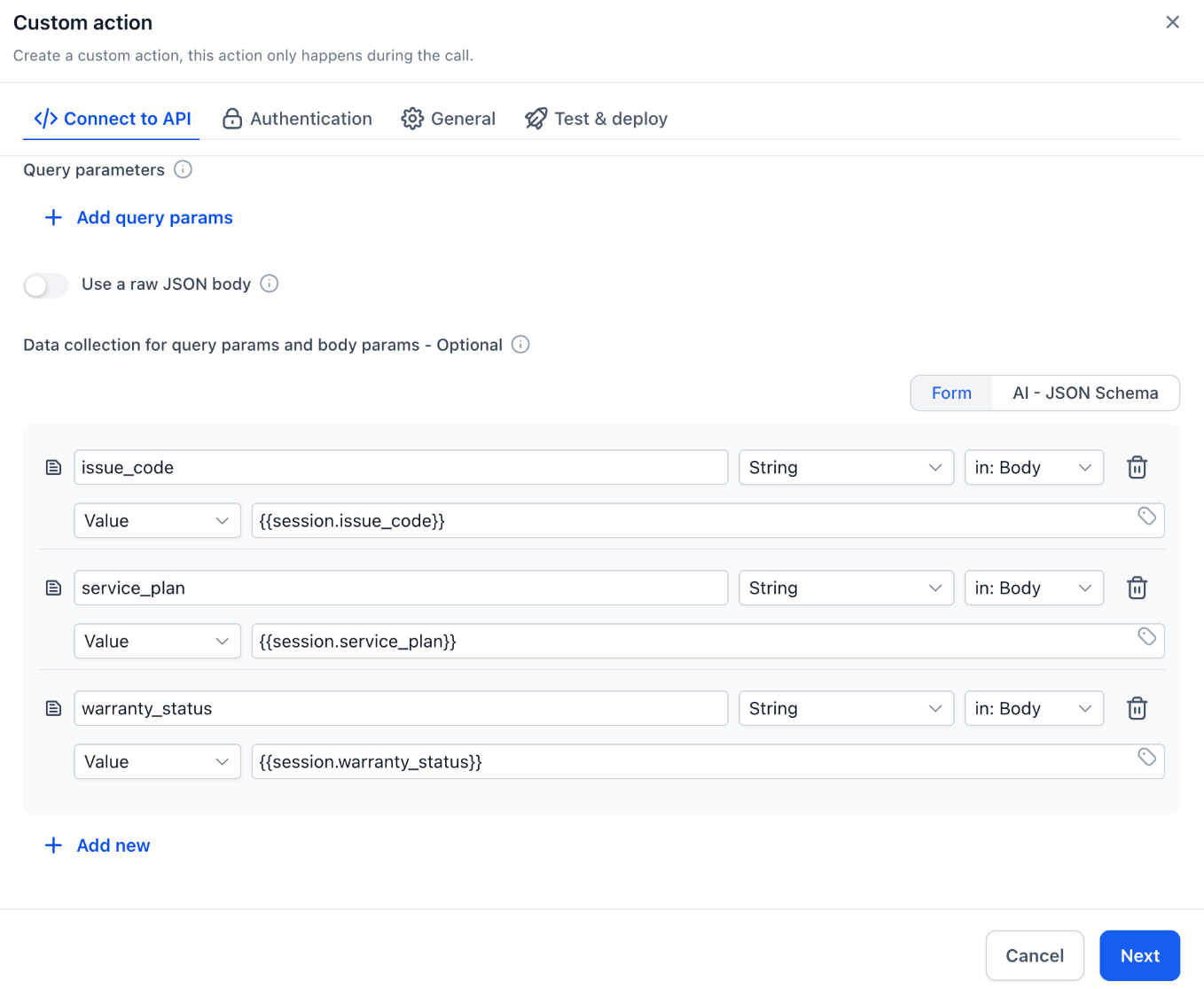
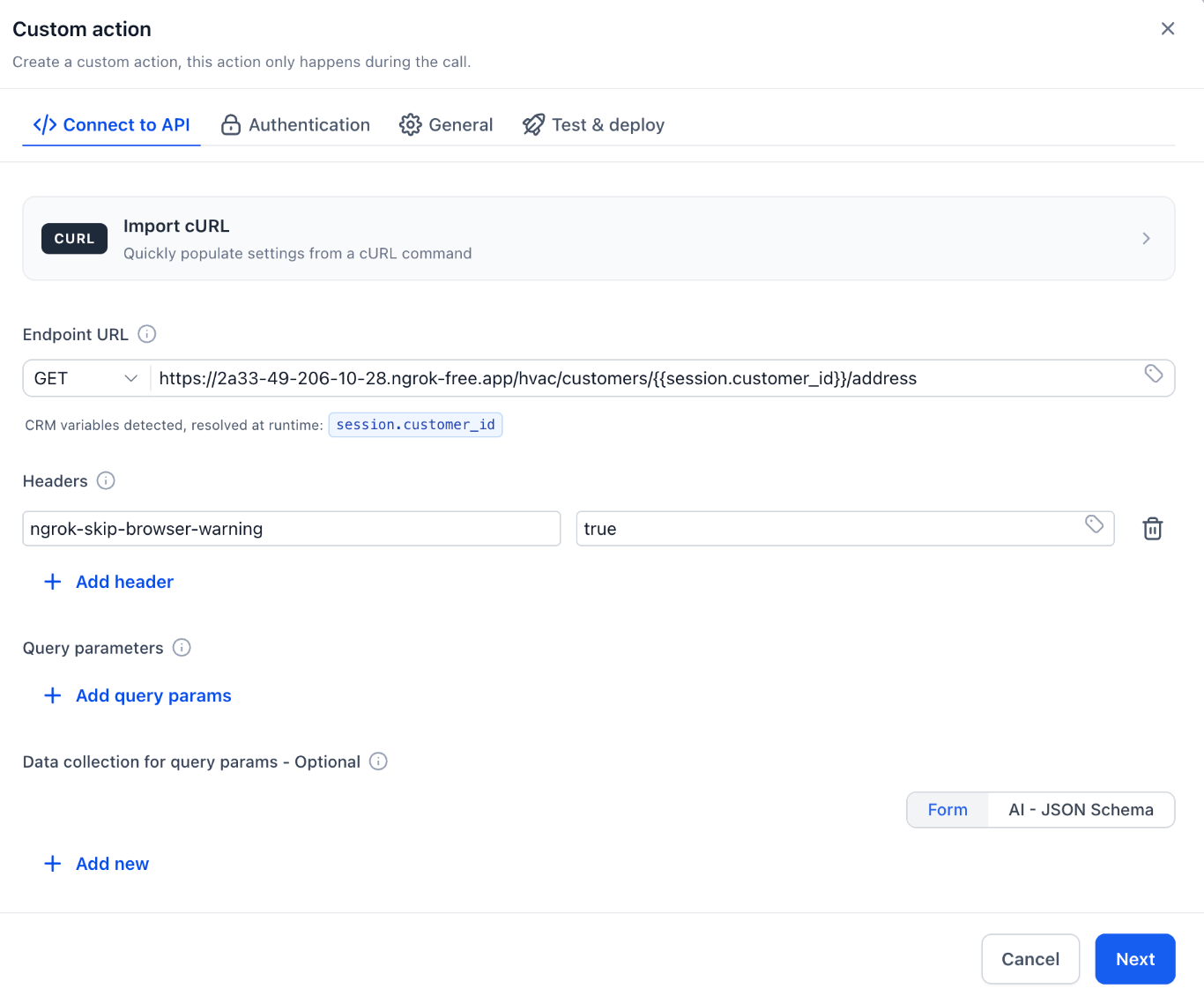
Session Variables can also be inserted into supported Custom Action URLs, request body fields, and query parameters.
For example:
Endpoint URL:
https://api.example.com/customers/{{session.customer_id}}Body parameter:
{{session.service_plan}}Query parameter:
{{session.service_address}}
These values are resolved when the relevant action executes.
Using Session Variables in Prompts and SMS
Session Variables can be selected from the variable picker and inserted into agent prompts, welcome messages, voicemail messages, and SMS actions.
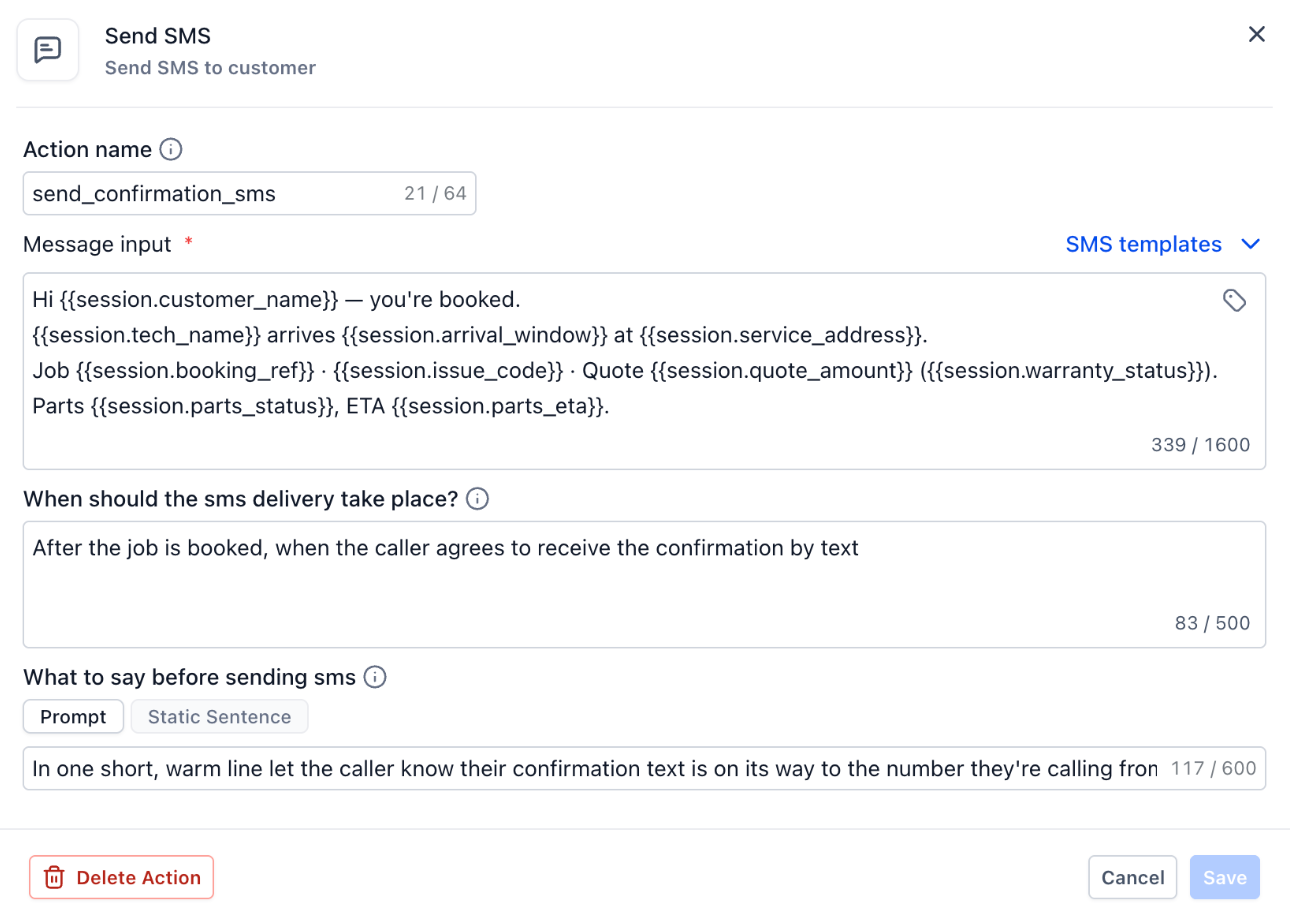
For SMS messages, variables are resolved when the message is sent, including values captured earlier during the call.
Example SMS:
Hi {{session.customer_name}}, your appointment is confirmed for {{session.arrival_window}} at {{session.service_address}}.
To configure an SMS action:
Open the agent's Actions section.
Add or edit a Send SMS action.
Insert the required Session Variables into Message input using the variable picker.
Configure the sending conditions and save the action.
Frequently Asked Questions
Q: Are Session Variables shared between agents?
No. Each agent has its own registry, although registered variables are copied when the agent is duplicated.
Q: What happens if a variable has not received a value?
If a default value is configured, HighLevel uses it until a captured value becomes available.
Q: Can multiple Custom Actions use the same Session Variable?
Yes. Registered Session Variables can be reused across supported Custom Actions.
Q: Do Session Variables update during an active call?
Yes. When a Custom Action captures a new value, supported subsequent references use the captured value instead of the default.
Related Articles
Was this article helpful?
That’s Great!
Thank you for your feedback
Sorry! We couldn't be helpful
Thank you for your feedback
Feedback sent
We appreciate your effort and will try to fix the article