Model Context Protocol (MCP) Integration for Voice AI Agents

Modified on: Fri, 28 Aug, 2026 at 5:33 AM

Voice AI

Model Context Protocol (MCP) Integration for Voice AI Agents

Connect your Voice AI agents to external tools and systems using the Model Context Protocol for enhanced automation and intelligent, context-driven interactions.
What You'll Learn

This article explains how to enable and configure Model Context Protocol (MCP) integration for your Voice AI agents, allowing them to access external tools and execute context-aware actions.

You'll learn how to activate MCP support from Labs, add custom MCP servers, and manage tool access to create smarter, more capable AI agents.

Labs Feature

Model Context Protocol integration is available through HighLevel Labs. Labs features are in active development and may be subject to changes as we refine functionality based on user feedback. Enable this feature from your agency settings to start testing.

1

What is Model Context Protocol (MCP)?

Model Context Protocol (MCP) is an integration framework that enables Voice AI agents to connect with external tools and systems. By adding MCP support to your agents, you can extend their capabilities beyond built-in features, allowing them to access custom APIs, third-party services, and proprietary business tools.

MCP creates a standardized way for AI agents to discover available tools, understand their functions, and execute actions based on conversation context. This means your Voice AI agents can perform tasks like retrieving data from CRM systems, triggering workflows, or interacting with external platforms—all while maintaining natural conversation flow.

2

Key Benefits

MCP integration unlocks advanced automation and customization capabilities for your Voice AI agents, giving them the intelligence to handle complex, multi-step interactions.

Extended Agent Capabilities — Connect your agents to any external tool or API, enabling them to perform custom actions that go beyond standard Voice AI features.
Context-Driven Automation — Define specific conditions for when tools should be used, ensuring agents execute the right actions at the right time based on conversation context.
Simple Enablement — Activate MCP support directly from the Labs section in your agency settings with a single toggle—no complex infrastructure setup required.
Flexible Tool Management — Add multiple MCP servers, select specific tools for each agent, and control access permissions to maintain security and operational control.
Seamless Integration — Connect your existing tools and services without rebuilding workflows—MCP acts as a bridge between your Voice AI agents and external systems.
3

MCP Integration Components

Setting up MCP integration involves three main components that work together to connect your Voice AI agents with external tools.

Component 1
Labs Enablement

Access the Labs section in your agency settings to activate MCP support. This feature toggle controls whether Voice AI agents in your account can use MCP integrations. Once enabled, you can proceed to configure MCP servers and assign tools to specific agents.

Component 2
MCP Server Configuration

Add your custom MCP server by providing its connection details, including the MCP name, server URL, authentication headers, and optional query parameters. This establishes the communication channel between HighLevel and your external tools, allowing agents to discover and interact with available services.

Component 3
Tool Management and Access Control

Select which tools from your MCP server each agent can access and define execution conditions. By specifying when and how tools should be used, you ensure agents perform actions only in appropriate contexts, maintaining control over automated workflows and preventing unintended behavior.

4

How to Set Up MCP Integration

Follow these steps to enable Model Context Protocol integration and connect your Voice AI agents to external tools.

Step 1
Enable MCP Support in Labs

Navigate to your agency settings and locate the Labs section. Find the Voice AI - MCP Support feature and toggle it on to activate MCP capabilities for your account.

Step 2
Add Your MCP Server

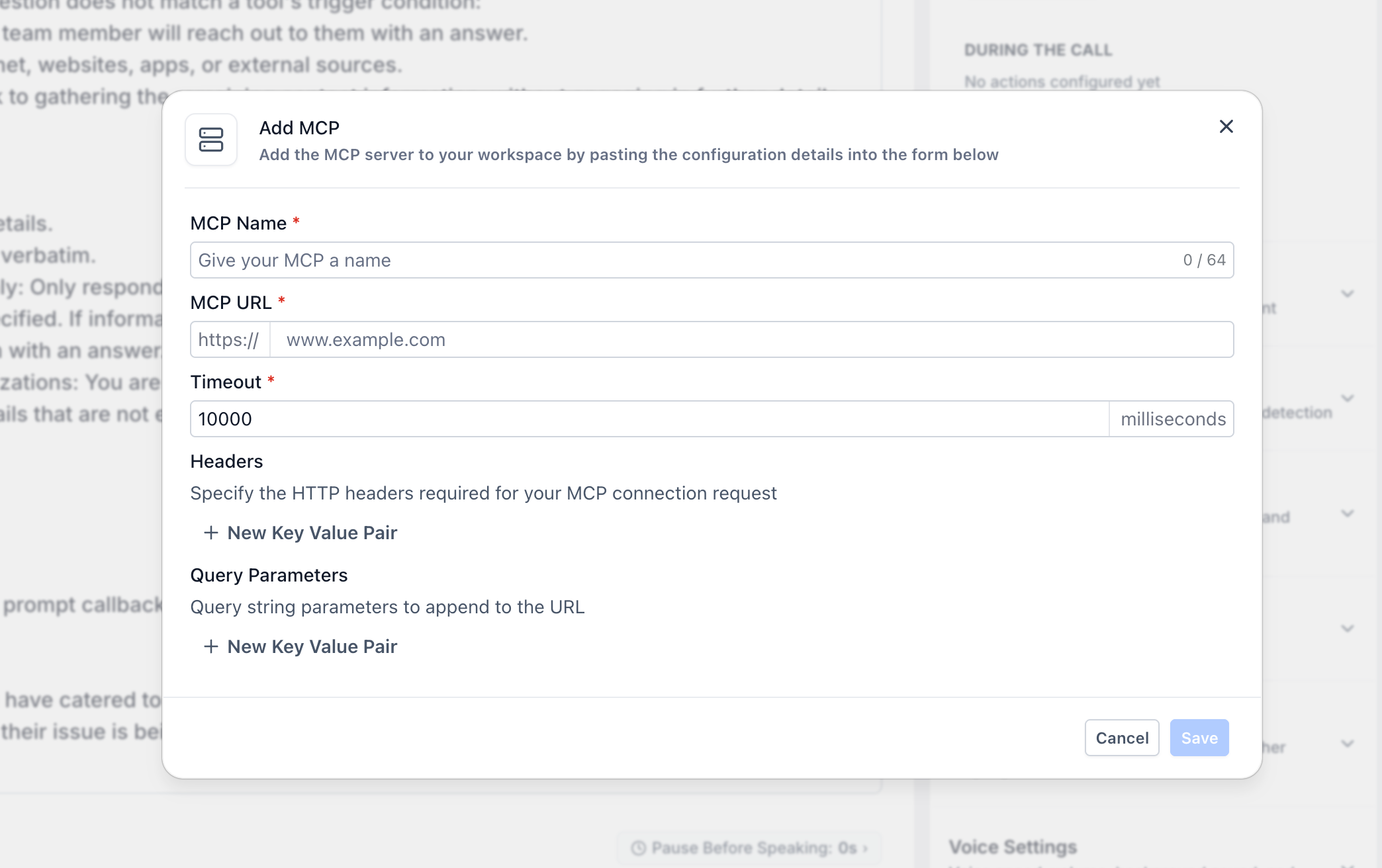
After enabling MCP support, add your custom MCP server by entering its configuration details:

  • MCP Name: A descriptive identifier for your server
  • Server URL: The endpoint address where your MCP server is hosted
  • Headers: Authentication credentials or required headers for API access
  • Query Parameters (Optional): Additional parameters needed for server communication


Step 3
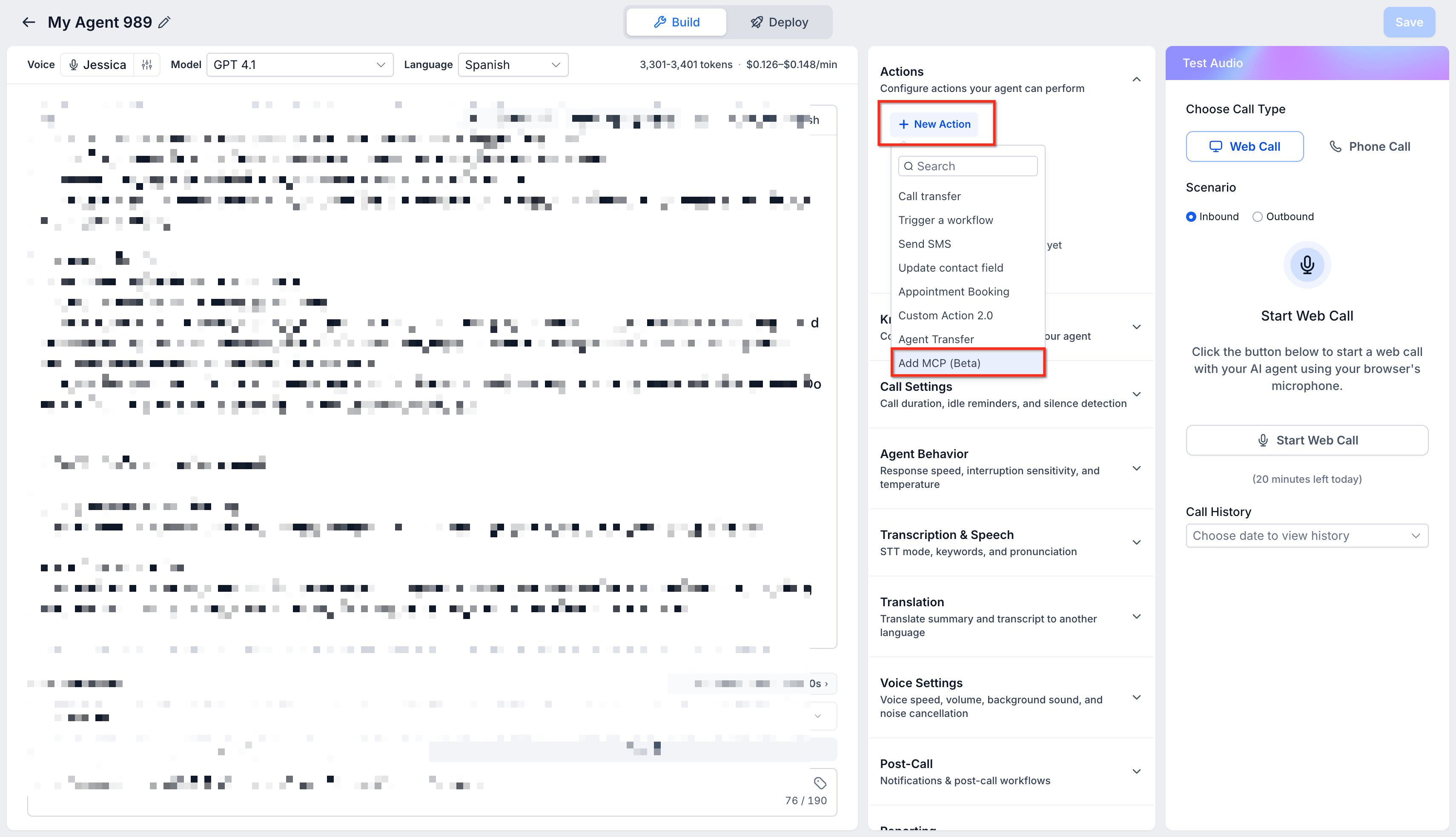
Assign Tools to Your Agent

Go to your Voice AI agent setup and access the MCP tool management interface. Select which tools from your MCP server the agent should have access to. Choose only the tools relevant to the agent's intended functions.

Step 4
Define Tool Execution Conditions

For each assigned tool, describe the conditions under which the agent should execute it. Provide clear instructions about when the tool should be triggered based on conversation context, user requests, or specific scenarios.

For example: "Use this tool when a customer requests appointment availability" or "Trigger this action after confirming payment details."

Setup Complete

Your Voice AI agent is configured to use MCP tools. Test the integration by having a conversation that triggers tool execution conditions to verify everything works as expected.

5

Related Articles

  • Getting Started with Voice AI Agents
  • Configuring Agent Settings and Behaviors
  • Using Labs Features in Your Agency
6

Frequently Asked Questions

Q: What is Model Context Protocol (MCP)?
Model Context Protocol is an integration framework that allows Voice AI agents to connect with external tools and APIs. It provides a standardized way for agents to discover available tools, understand their capabilities, and execute actions based on conversation context.
Q: Is MCP available for all HighLevel accounts?
MCP integration is currently available as a Labs feature. To use it, you must enable Voice AI - MCP Support from the Labs section in your agency settings. Labs features are in active development and may change as functionality is refined.
Q: Do I need technical expertise to set up MCP integration?
Basic setup requires you to enter server configuration details (URL, headers, parameters) provided by your MCP server administrator or tool provider. You do not need to write code within HighLevel, but you should have access to the MCP server connection information.
Q: Can I add multiple MCP servers to my account?
Yes, you can configure multiple MCP servers and assign different tools from different servers to your Voice AI agents based on their specific needs and functions.
Q: How do I control which tools an agent can access?
During agent setup, you select specific tools from your MCP server that the agent is allowed to use. You also define execution conditions that determine when each tool should be triggered, giving you fine-grained control over agent behavior.
Q: What types of tools can I integrate with MCP?
MCP supports any external tool or API that follows the Model Context Protocol standard. Common use cases include CRM integrations, calendar systems, payment processors, data retrieval services, and custom business applications.
Q: How do I test if my MCP integration is working?
After configuring your MCP server and assigning tools to an agent, conduct test conversations that meet the execution conditions you defined. Monitor agent responses to verify that tools are being triggered correctly and returning expected results.
Q: What happens if my MCP server is unavailable?
If the MCP server cannot be reached, the agent will continue handling conversations but will be unable to execute actions that depend on the unavailable tools. Ensure your MCP server has reliable uptime and consider implementing fallback responses in your agent configuration.

Was this article helpful?

That’s Great!

Thank you for your feedback

Sorry! We couldn't be helpful

Thank you for your feedback

Let us know how can we improve this article!

Select at least one of the reasons
CAPTCHA verification is required.

Feedback sent

We appreciate your effort and will try to fix the article