Use Custom Values and built-in variable sources to make your Agent Studio workflows dynamic, reusable, and scalable. Instead of manually typing business details or contact information into every node, you can insert smart placeholders that automatically pull real data when your agent runs.
This guide explains how to use Account details, Contact data, real-time date and time, form submissions, and Custom Values inside your agents without duplication or manual updates.
TABLE OF CONTENTS
What Are Custom Values and Variables?
Custom Values and Variables allow you to insert real information into your agent automatically. A variable is a placeholder written inside double curly braces, like {{contact.first_name}}, which is replaced with real data when the agent runs.
For example:
Hi {{contact.first_name}}
If the contact’s name is John, the message becomes: Hi John.
You can use variables anywhere you type text inside Agent Studio, including AI Agent prompts, Text Generation nodes, tool inputs, message cards, and conditional logic fields. Simply click the dropdown arrow in the text field to insert a variable or type it manually using {{ }}.
Agent Studio includes five built-in variable categories:
Account
Custom Values
Right Now
Form Data
Contact
Each category pulls information from a different part of your system.
Key Benefits of Using Variables in Agent Studio
Using variables helps you build dynamic and reusable agents.
- Build once, use everywhere: One agent template can work across multiple locations automatically.
- No manual updates: If a phone number or address changes, it updates everywhere instantly.
- Automatic personalization: Pull contact names and CRM data into conversations without extra work.
- Real-time awareness: Insert today’s date or current time automatically.
- Safe execution: If a variable has no value, it returns blank instead of breaking your agent.
Custom Values
Custom Values are reusable key–value pairs you define in:
Settings → Custom Values
You create them once and use them anywhere.
Example:
Key: support_email
Value: support@yourcompany.com
Then inside your agent: For help, email {{custom_values.support_email}}
If you update the value later, it automatically updates everywhere the variable is used.
Update Custom Values from the AI Agent Action
Workflows that use the AI Agent action can update custom values directly with the Update Custom Value tool. This allows the agent to write context-based values during execution instead of relying only on fixed workflow branches.
For full setup steps, refer to the AI Agent workflow action article.
Account Variables
Account variables pull business information from your Location settings.
Use these when your agent needs to reference:
Business name
Phone number
Address
Website
Logo URL
Example: Welcome to {{account.name}}. Call us at {{account.primary_phone}}.
These values pull directly from your Location settings.
Right Now Variables
Right Now variables insert live date and time information.
Examples include:
Today’s full date
Current time
Day of the week
Month or year
Example: Today is {{right_now.date}}.
The system automatically inserts the correct date based on the location’s timezone.
Form Data Variables
Form Data variables are available when your agent is triggered by a Form Submitted event.
Each form field becomes available as a variable.
Example: If your form has a field called “service_type”, you can use: You selected {{form.service_type}}
Important: Form variables only populate when the agent is triggered by a form submission.
Contact Variables
Contact variables pull information directly from the CRM record. They allow standard as well as custom fields for deep personalization.
Examples:
{{contact.first_name}}
{{contact.last_name}}
{{contact.email}}
Custom contact fields
If the contact record updates, the next time the agent runs it will use the updated information.
Contact vs Runtime Variables
- Contact variables pull saved CRM data.
- Runtime variables store temporary information collected during the current conversation.
- If the information already exists in the contact record before the conversation starts, use Contact variables.
- If the value is collected during the conversation, use Runtime variables.
How To Set Up Custom Values and Variables
Follow these steps to start using variables.
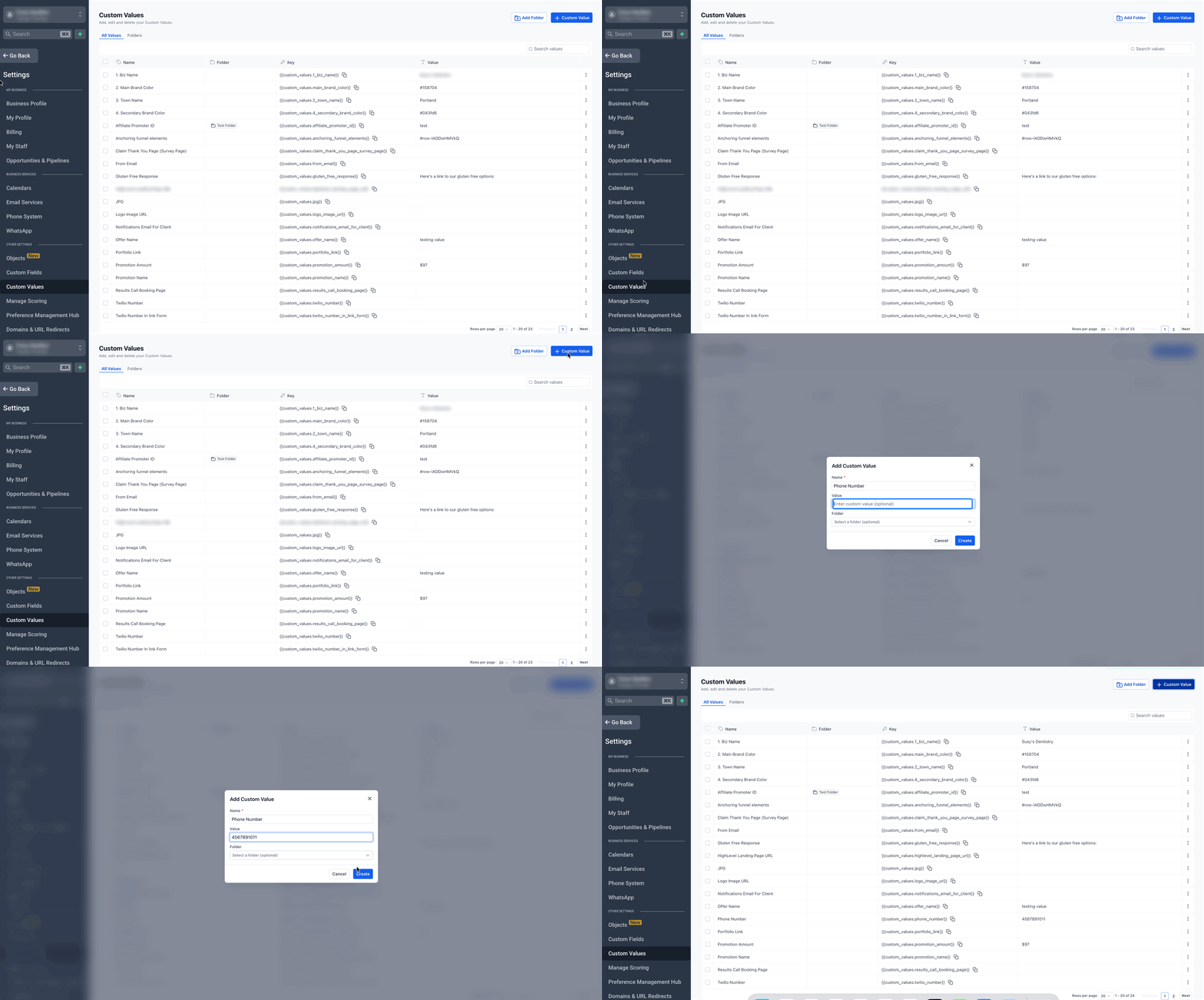
Step 1: Create Custom Values
- Go to Settings → Custom Values and select Add Custom Value
- Enter a Name and Value then click Create
Step 2: Open Agent Studio
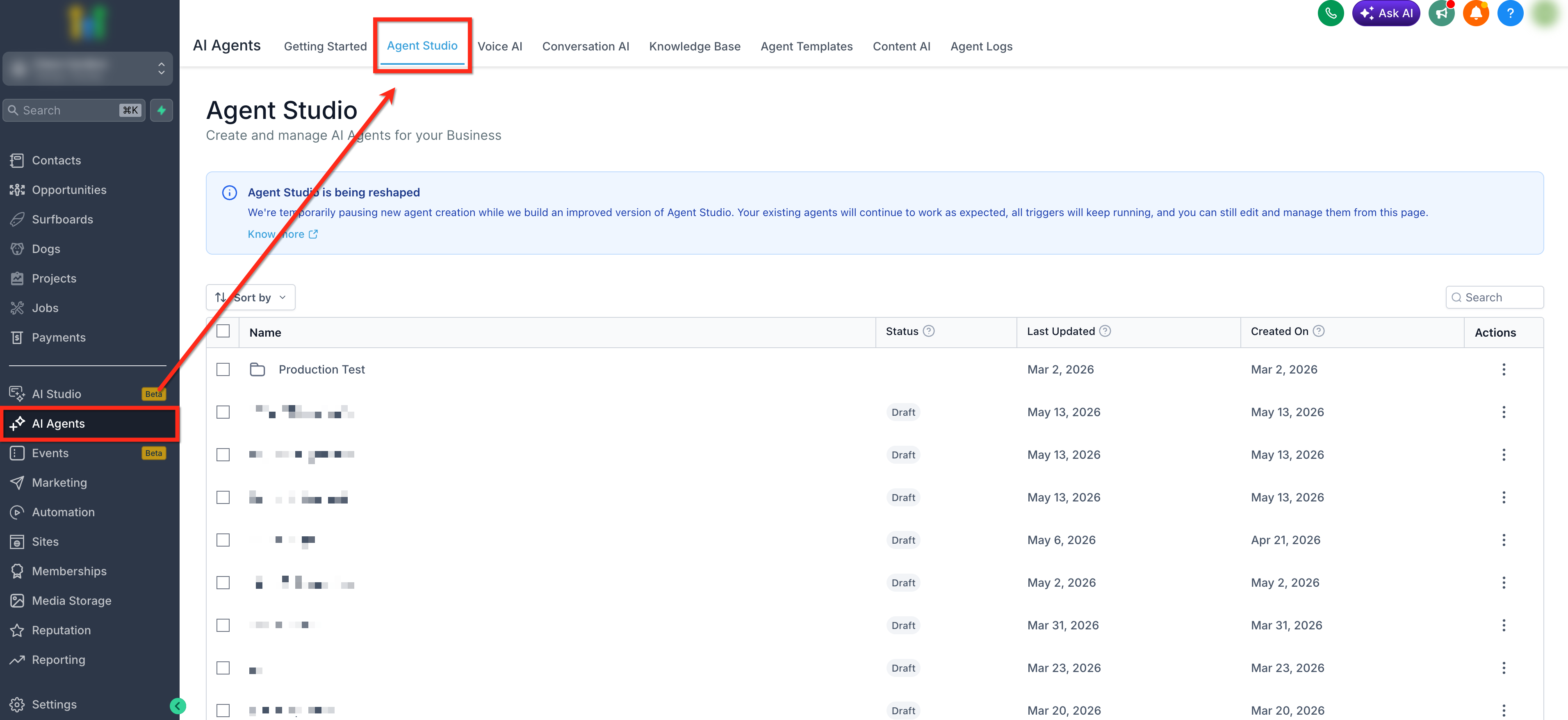
Go to AI Agents → Agent Studio and open an existing agent or create a new one
Step 3: Insert a Variable
- Click inside any prompt or message field
- Click the dropdown arrow in the field OR type {{ manually
- Choose a category:
- Account
- Custom Values
- Right Now
- Form Data
- Contact
- Click a variable to insert it
- Account
- Custom Values
- Right Now
- Form Data
- Contact
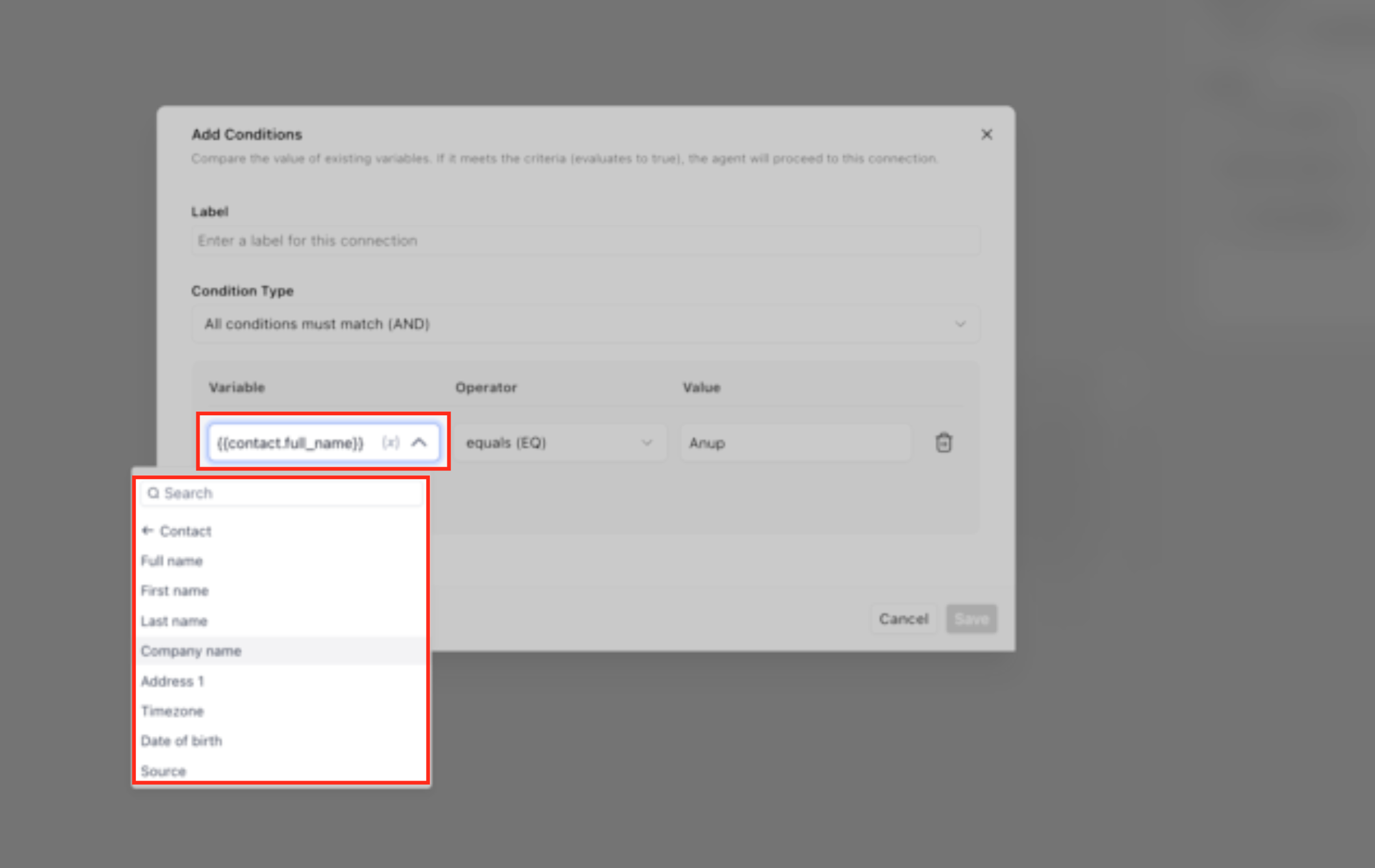
Note: Some nodes, such as API Call steps, generate runtime variables based on their output. These variables can be reused in later steps by selecting them from the variable picker.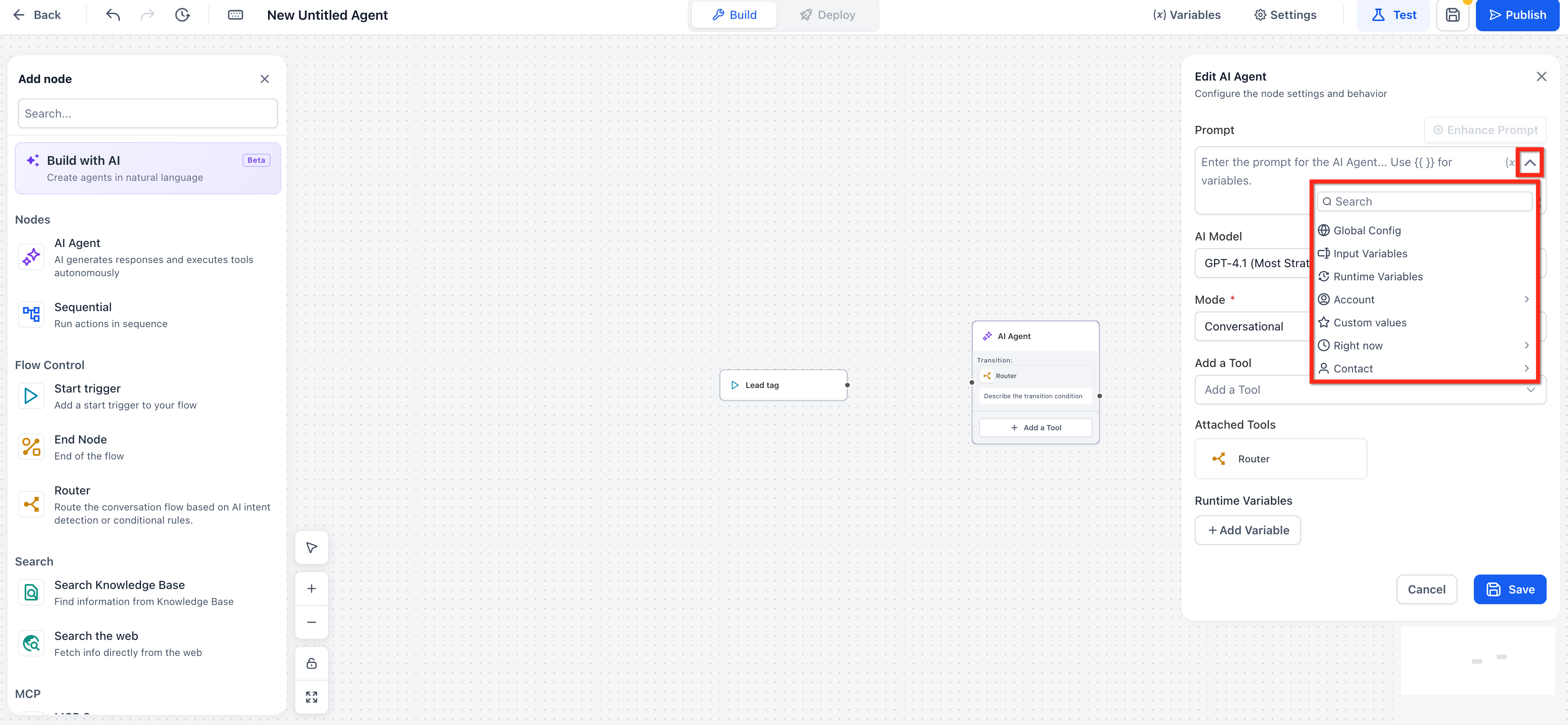
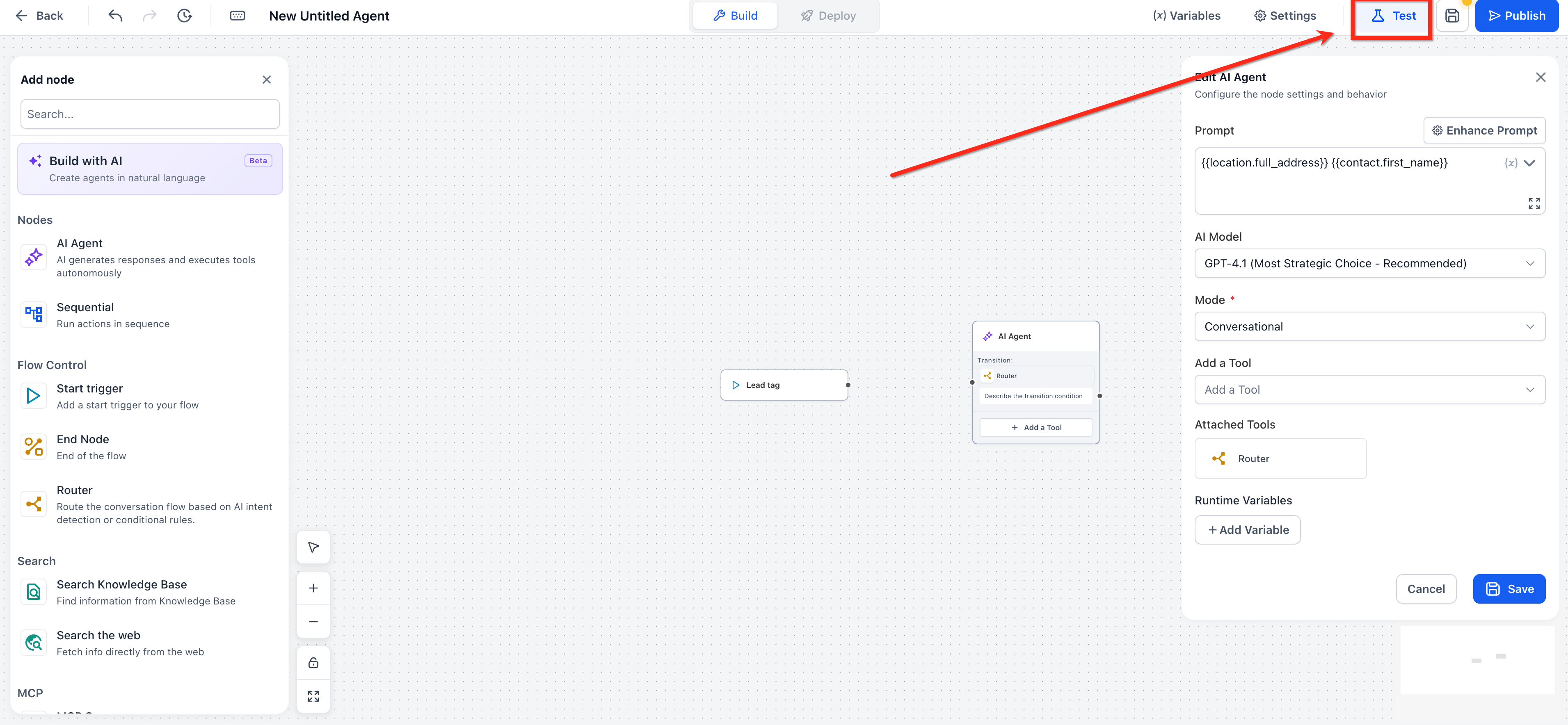
Step 4: Save and Test
- Click Save
- Click Test
- Run a sample conversation
- Confirm variables resolve correctly
If a value appears blank, verify that the corresponding data exists in the CRM or Location settings.
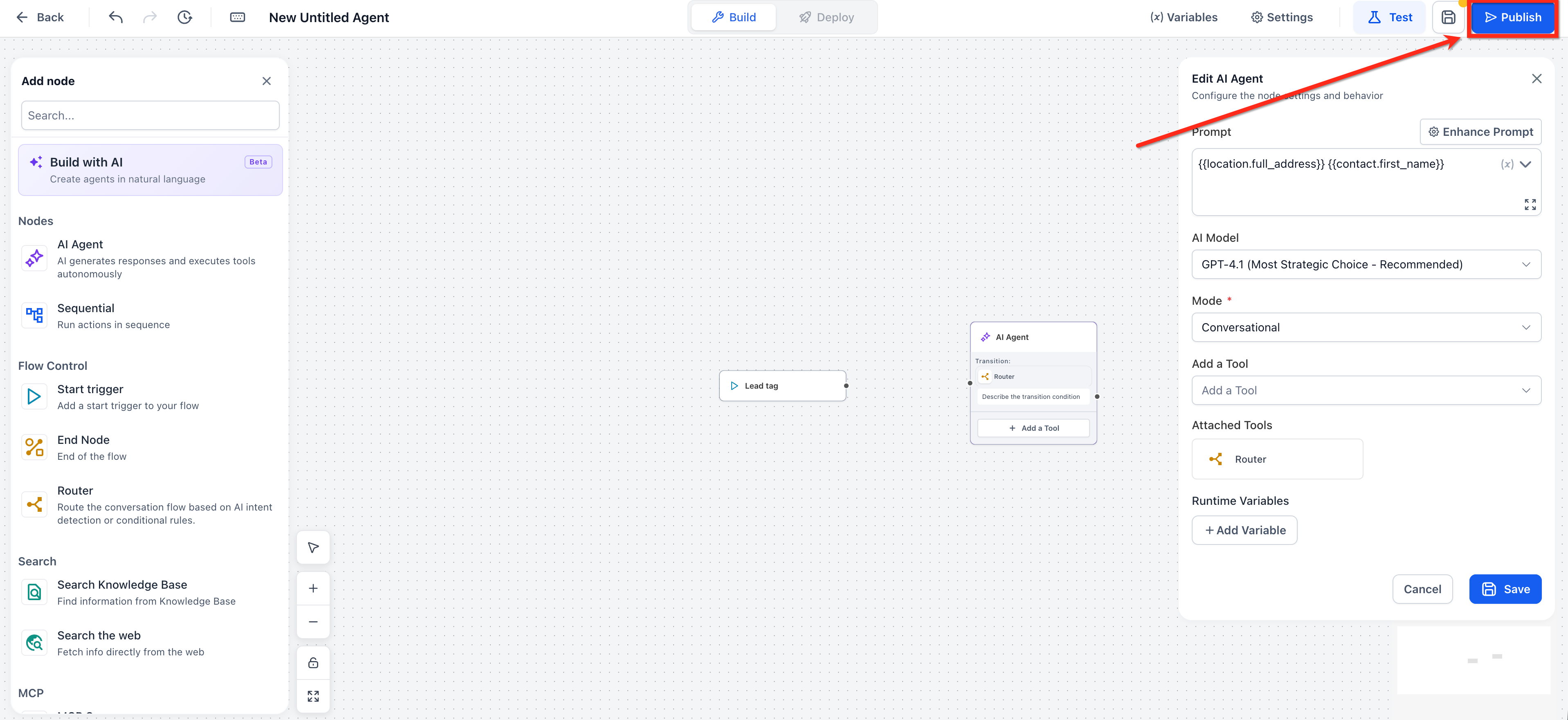
Step 5: Publish
Once everything works correctly, promote the agent to Production.
Frequently Asked Question
Q: What happens if a Custom Value is deleted?
It returns an empty value instead of causing an error.
Q: Can I reference Opportunity or Task fields?
Currently supported sources are Account, Custom Values, Right Now, Form Data, and Contact.
Q: What Happens If a Variable Has No Value?
If a variable is missing or empty, the system returns a blank value. It does not cause an error or stop the agent from running. This ensures safe and reliable execution.
Q: Do Right Now variables respect timezone?
Yes. They use the sub-account’s timezone.
Q: Can Form Data variables be used anywhere?
They populate only when triggered by a Form Submitted event.
Q: Are variable placeholders case-sensitive?
Yes. Use the exact key names shown in the variable picker.
Related Articles
Was this article helpful?
That’s Great!
Thank you for your feedback
Sorry! We couldn't be helpful
Thank you for your feedback
Feedback sent
We appreciate your effort and will try to fix the article