HighLevel lets you add Quizzes directly to Funnels and Websites using the native Quiz Element. You can create a new Quiz, select an existing one, or edit it without leaving the page builder. No embed codes are required. This article explains how to add, configure, and publish a Quiz on your page.
TABLE OF CONTENTS
- What is the Quiz Element in Funnels and Websites?
- How to Add a Quiz to a Funnel or Website
- Understanding the Quiz Element
- Creating or Selecting a Quiz
- Editing a Quiz in the Page Builder
- Configuring Quiz Element Settings
- Managing Quiz Submissions and Results
- Frequently Asked Questions
- Related Articles
What is the Quiz Element in Funnels and Websites?
The Quiz Element lets you place an interactive Quiz directly on a Funnel step or Website page.
For example, you can add a lead qualification Quiz to collect visitor information and learn more about potential customers.
Unlike the previous embed-code process, the native Quiz Element lets you add and manage Quizzes directly within the page builder.
How to Add a Quiz to a Funnel or Website
The native Quiz Element lets you place a Quiz directly on your page without copying an embed code. Follow these steps to add a Quiz and review it before publishing.
Step 1: Open the Page Builder
Go to Sites → Funnels or Sites → Websites.
Open the Funnel or Website you want to edit.
Select the page or Funnel step and open its builder.
Step 2: Add the Quiz Element
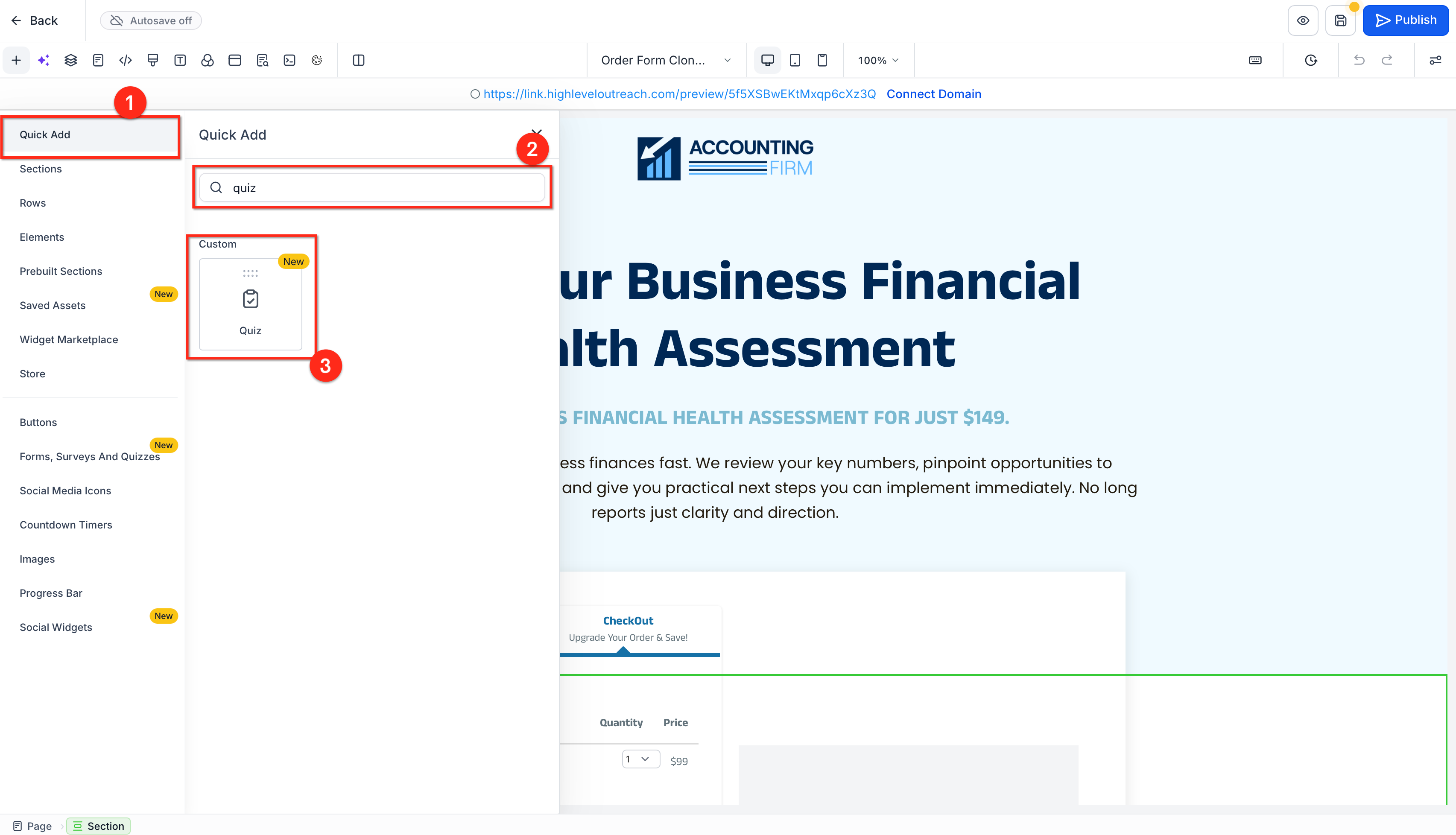
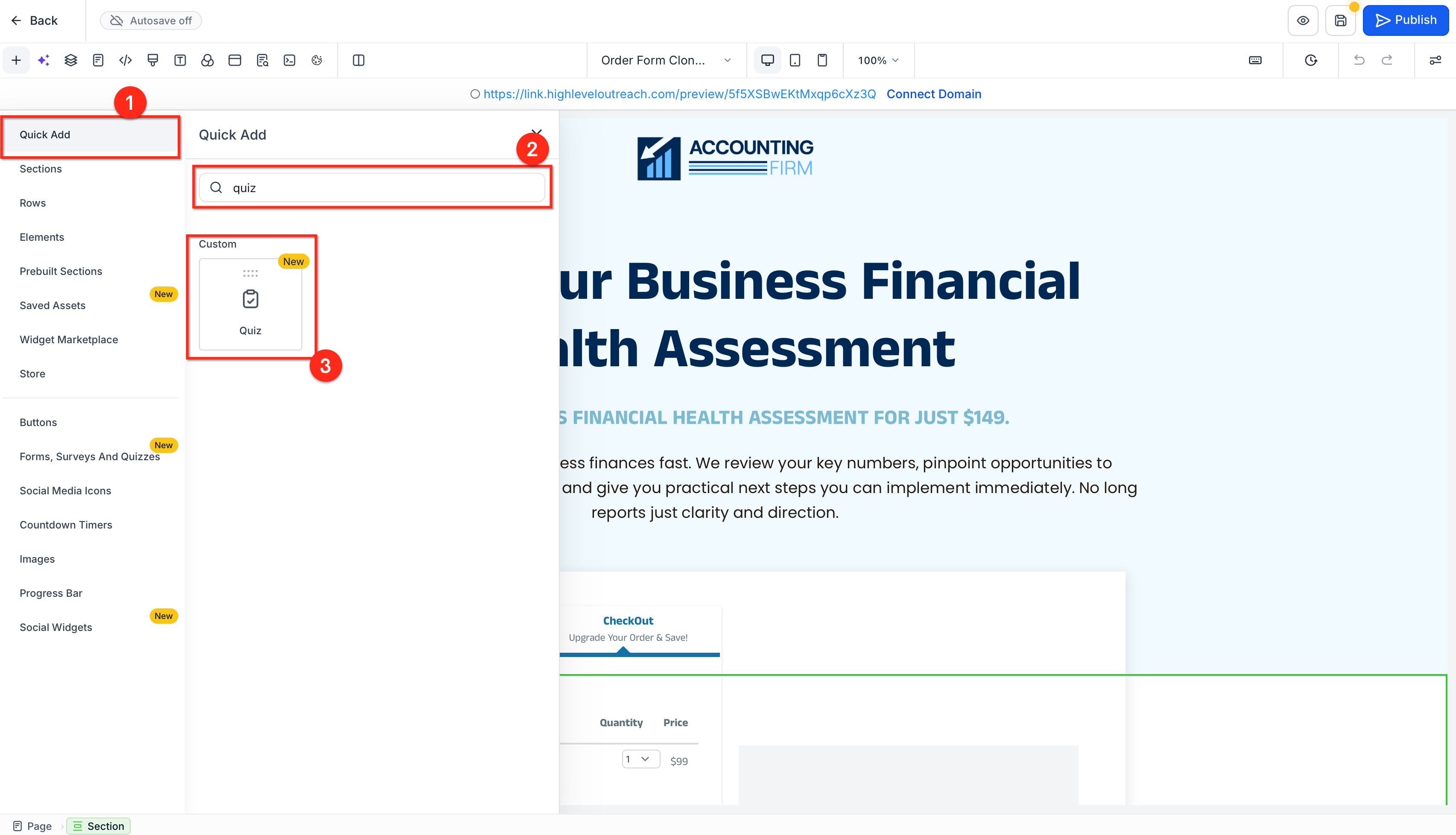
Open Quick Add.
Search for Quiz.
Drag the Quiz element onto your page.
Step 3: Create or Select a Quiz
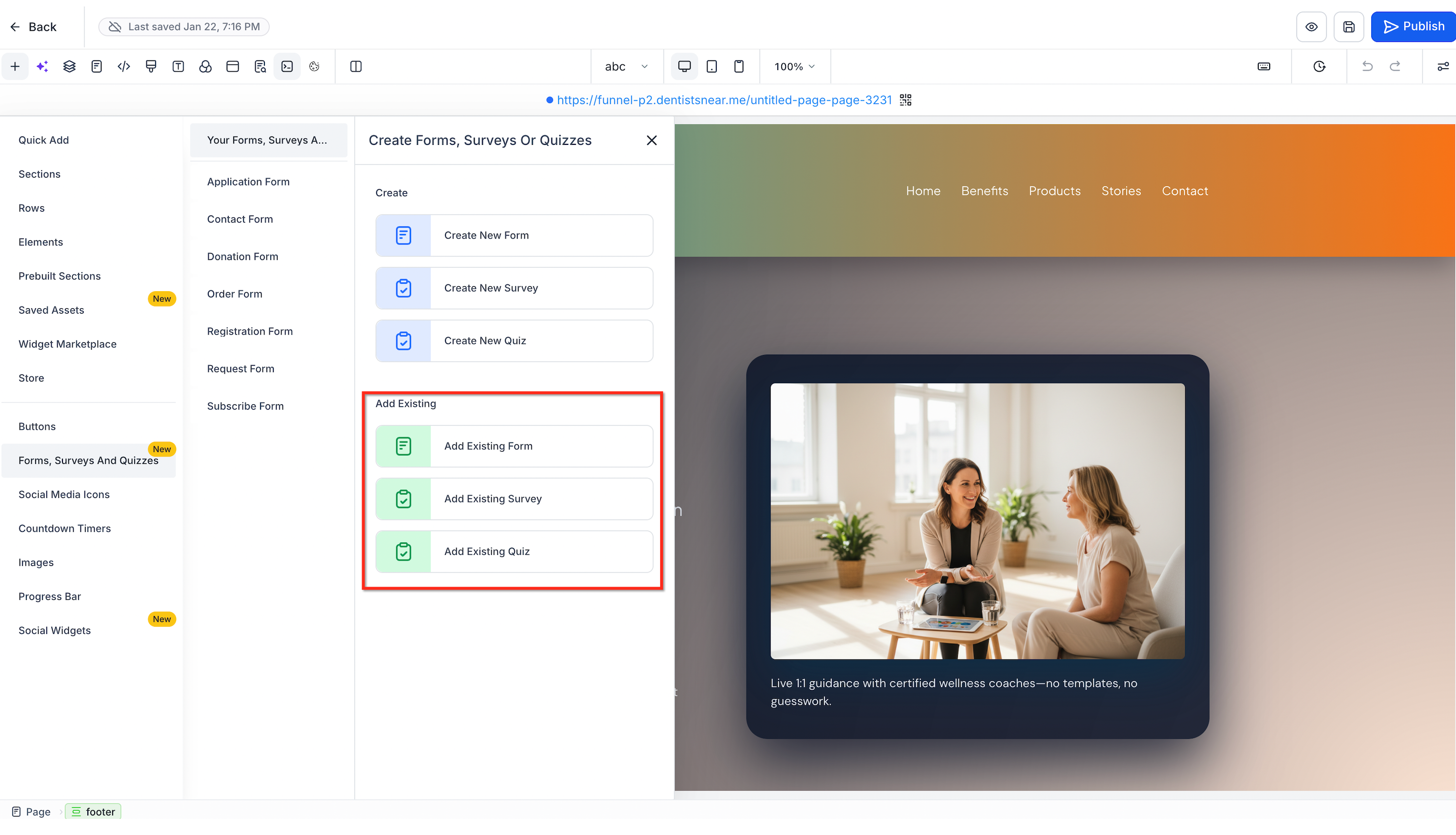
Choose one option:
Create a New Quiz
Select Create New Quiz.
Build your Quiz in the Quiz Builder.
Save your Quiz.
Use an Existing Quiz
Select Add Existing Quiz.
Choose the Quiz you want to display.
Step 4: Configure the Quiz Element
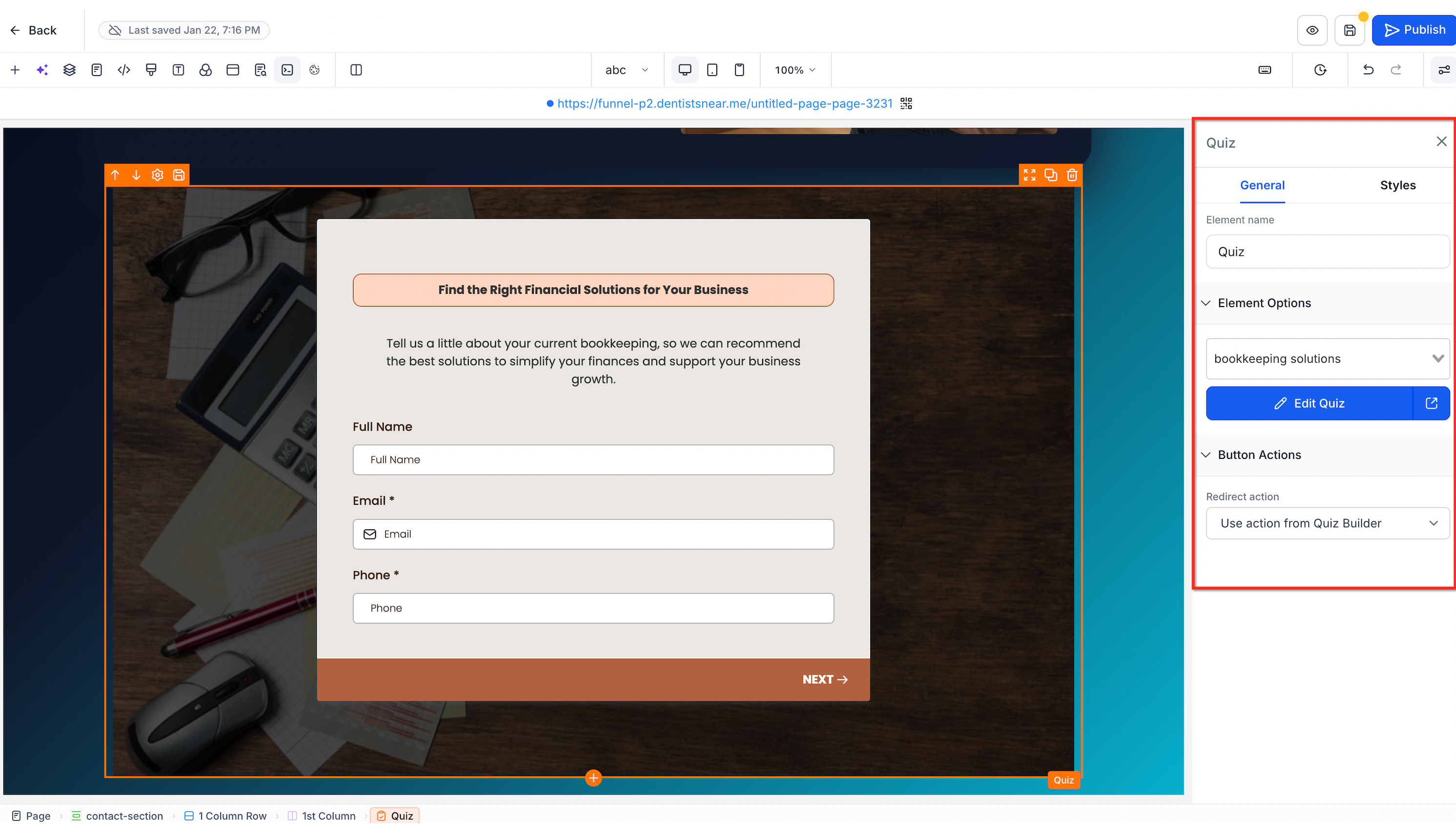
Select the Quiz Element on your page.
Under General → Element Options, confirm the correct Quiz is selected.
Review the available Styles and Button Actions settings.
Step 5: Edit the Quiz if Needed
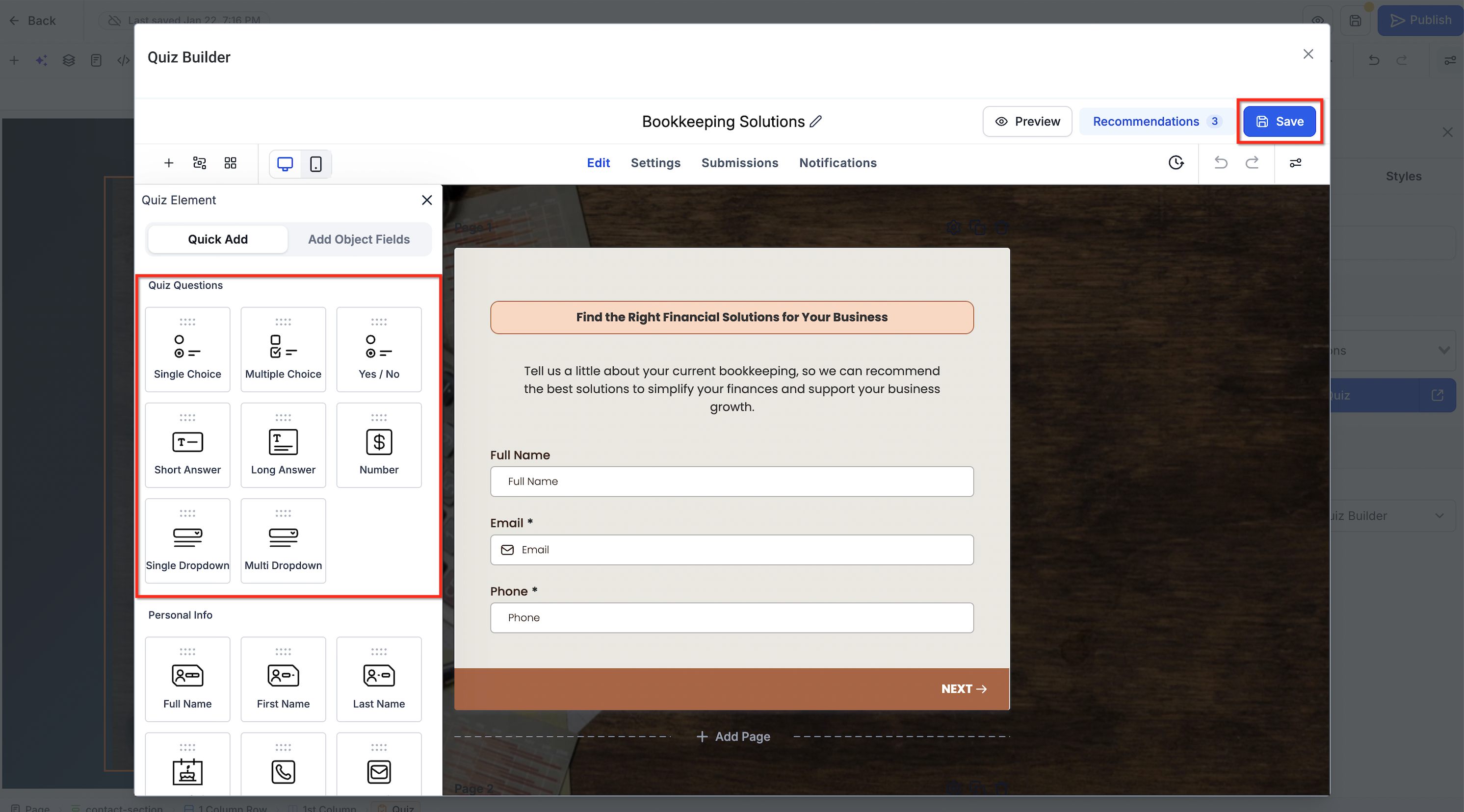
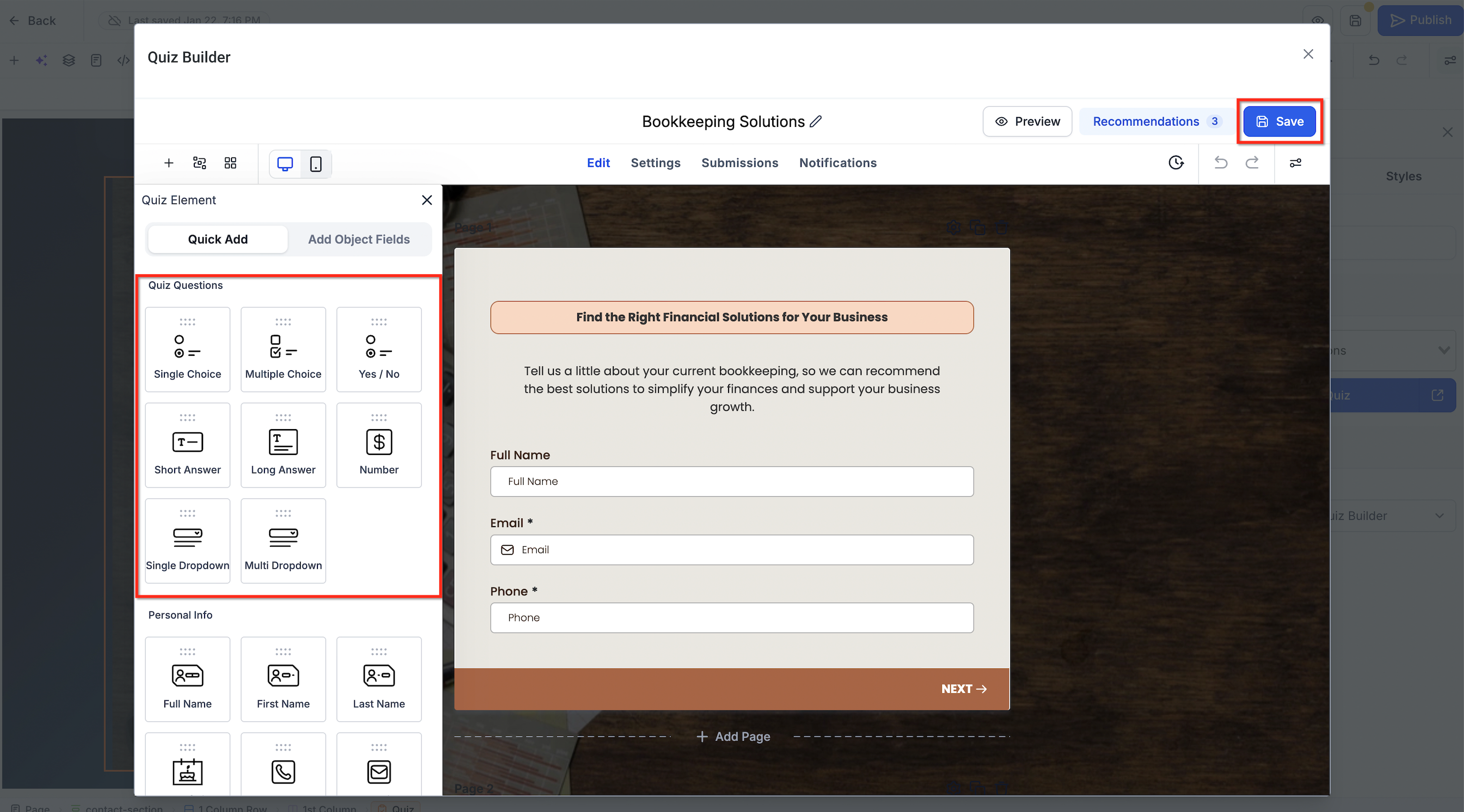
Click Edit Quiz.
Update the Quiz content in the popup.
Click Save.
Close the popup to return to the page builder.
Step 6: Preview and Publish
Preview the page to confirm the Quiz displays correctly.
Test the Quiz questions and completion experience.
Check its appearance on desktop and mobile layouts.
Save any pending page changes.
Click Publish when your page is ready.
Tip: Test the Quiz's submission message or redirect before sharing the page.
Understanding the Quiz Element
The Quiz Element is available in the Funnel and Website Builders.
You can find it by searching for Quiz in Quick Add or by opening Forms, Surveys And Quizzes in the element menu.
Once you add the element, the selected Quiz appears on your page.
Creating or Selecting a Quiz
You can create a new Quiz or reuse one you have already built.
Under Forms, Surveys And Quizzes, select:
Create New Quiz: Open the Quiz Builder to create a Quiz.
Add Existing Quiz: Choose a Quiz from your existing collection.
Both options are available without leaving the Funnel or Website Builder.
Editing a Quiz in the Page Builder
You can edit Quiz content directly from the Funnel or Website Builder.
Select the Quiz Element and click Edit Quiz in the settings panel. The Quiz Builder opens in a large popup where you can update questions, settings, and other Quiz content.
Save your changes to return to the page builder.
Note: If the same Quiz appears on multiple pages, confirm how edits affect its other placements before making changes.
Configuring Quiz Element Settings
The Quiz Element settings control which Quiz appears on your page and provide options for its appearance and behavior.
| Setting | Purpose |
|---|---|
| General | Manage the element name and selected Quiz |
| Styles | Adjust available appearance settings |
| Element Options | Select the Quiz to display |
| Edit Quiz | Open the Quiz Builder |
| Button Actions | Configure the available redirect behavior |
The Button Actions dropdown includes Use action from Quiz Builder.
Important: Verify how element-level Button Actions interact with the Quiz Builder's submission settings before relying on a particular redirect behavior.
Managing Quiz Submissions and Results
The Quiz Builder manages the questions, scoring, results, submissions, and notifications associated with your Quiz.
You can review responses under Submissions and configure supported Quiz results to work with CRM custom fields or Workflows.
For detailed configuration, see the Quiz Builder Guide.
Frequently Asked Questions
Q: Do I need an embed code to add a Quiz?
A: No. Use the native Quiz Element to add a Quiz directly to a supported Funnel or Website page.
Q: Can I use an existing Quiz?
A: Yes. Select Add Existing Quiz or choose it from the Quiz Element settings.
Q: Can I create a Quiz without leaving the page builder?
A: Yes. Select Create New Quiz to open the Quiz Builder within the page-building experience.
Q: Can I edit a Quiz after adding it?
A: Yes. Select the Quiz Element and click Edit Quiz.
Q: Can I use the same Quiz on multiple pages?
A: You can select an existing Quiz for another page. Confirm how changes affect other placements before editing a shared Quiz.
Q: Where can I change Quiz scoring and results?
A: Use the Quiz Builder. See How to Set Up Quiz Scoring, Categories, and Result Pages.
Q: Where can I view Quiz submissions?
A: Open the Quiz Builder and select Submissions.
Q: Can I still use an embed code?
A: Yes. Traditional embed codes remain useful for other supported website integrations.
Q: Can I configure what happens after someone submits a Quiz?
A: Yes. Review the Quiz Builder's submission settings and the element's Button Actions, then test the completion behavior.
Related Articles
Was this article helpful?
That’s Great!
Thank you for your feedback
Sorry! We couldn't be helpful
Thank you for your feedback
Feedback sent
We appreciate your effort and will try to fix the article