Securely invite clients to connect and manage their own social accounts without giving them access to your HighLevel sub-account. This article explains how to create and manage an invite, how clients use it, and how connected accounts are added to Social Planner.
TABLE OF CONTENTS
Invite Clients to Connect Social Accounts in Social Planner
You can send clients a secure, password-protected invite that opens an external page where they can manage their own social account connections.
This reduces back-and-forth during onboarding and gives clients a direct way to manage their connections without needing access to your sub-account.
From the invite page, clients can connect new social accounts, reconnect disconnected accounts, or remove accounts they no longer want connected.
When a client connects or reconnects an account, it is automatically added to your HighLevel sub-account and becomes available in Social Planner, creating a faster and more streamlined onboarding experience.
How to Create and Share an Invite
Only share the invite link and password with trusted clients. Anyone with both can use the invite to connect social accounts to your sub-account.
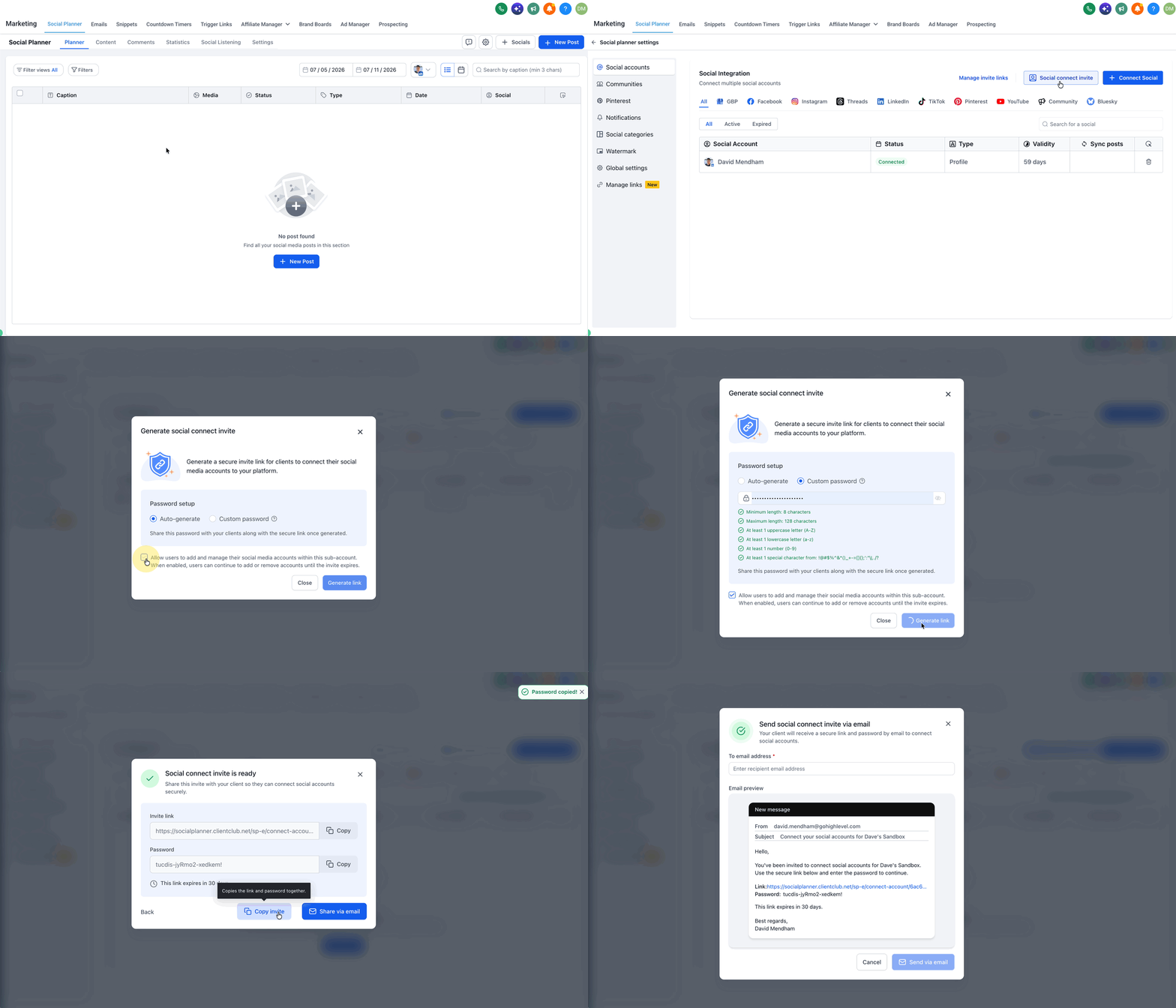
Go to Marketing → Social Planner → Settings → Social Accounts.
Select Social Connect Invite.
Choose an auto-generated password or create a custom password.
Generate the invite. Invite links expire 30 days after creation.
Send the invite directly from Social Planner, or copy the invite link and password and share them with your client through your preferred channel.
How to Manage an Invite
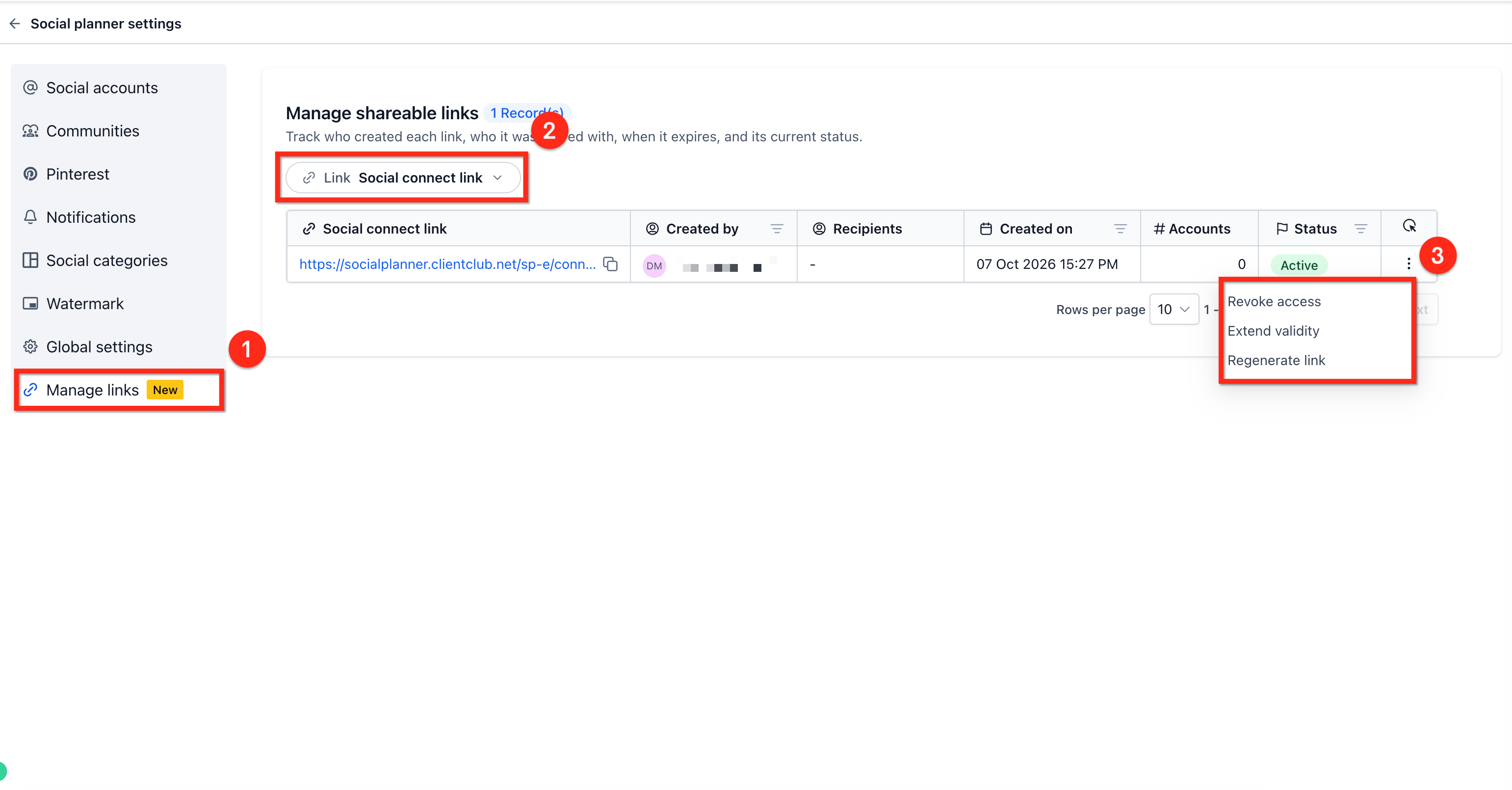
- Go to Social Planner → Settings → Manage Links
- Select Social Connect Link to view existing invites.
- Click the 3 dot icon to open the dropdown menu of actions.
From there, you can extend an invite's validity, regenerate it, or revoke it. Revoking an invite immediately disables access through that invite.
How Clients Use the Invite to Link Social Accounts
Clients can use the invite without signing in to your HighLevel sub-account.
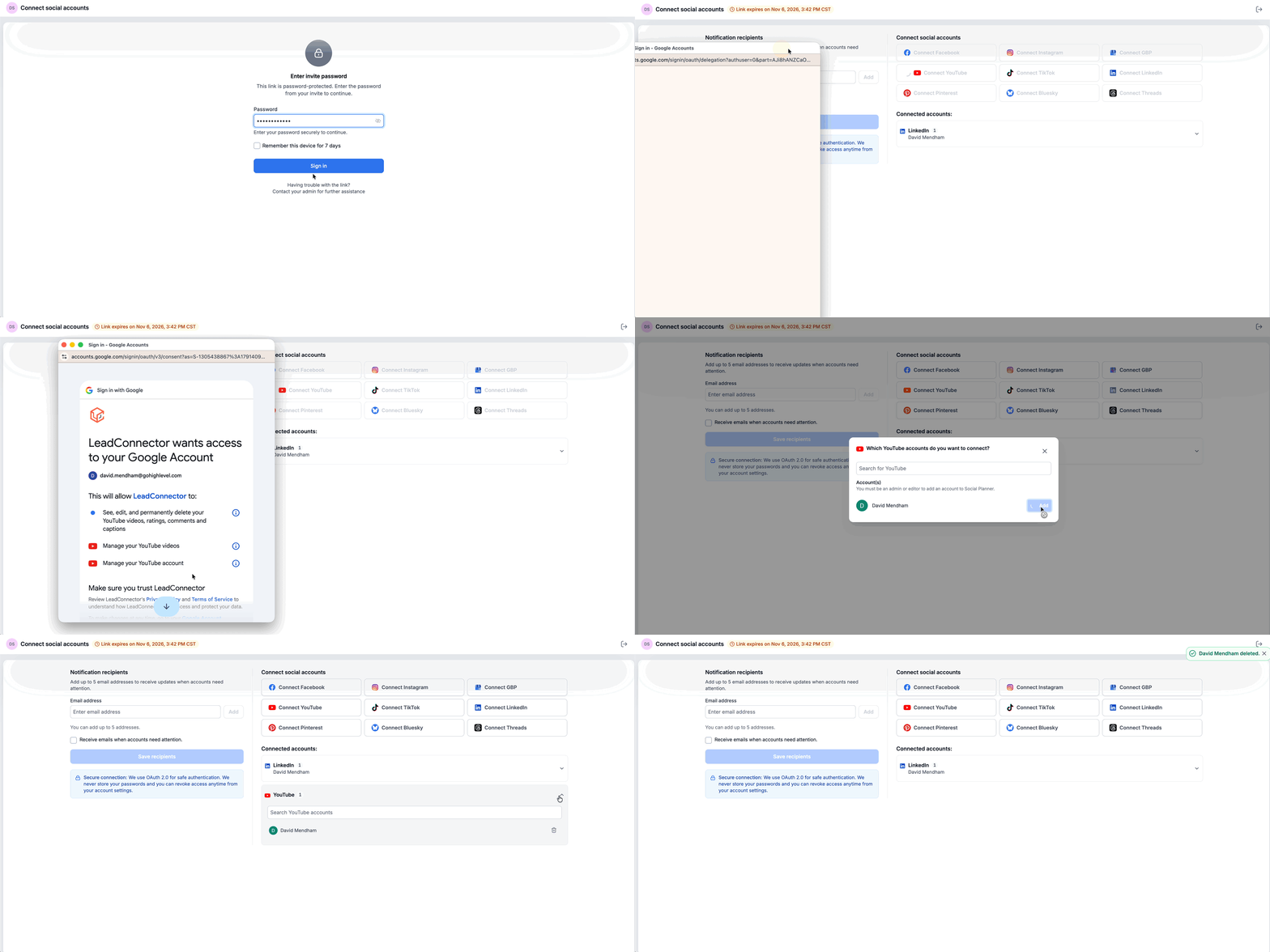
Open the invite link.
Enter the password provided with the invite.
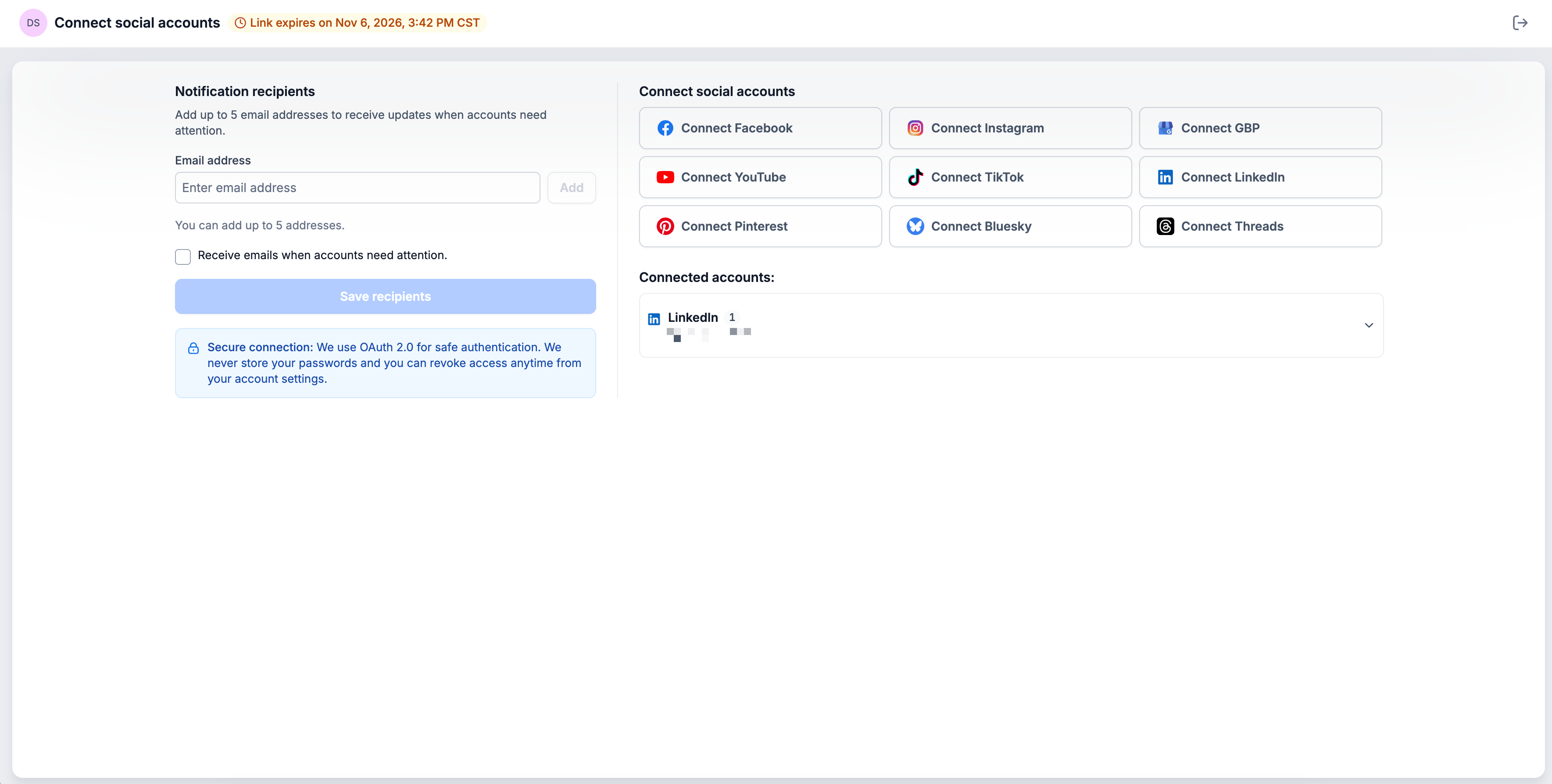
Use the Social Connect page to manage their social account connections.
From this page, clients can connect new social accounts, reconnect disconnected accounts, and remove accounts they no longer want connected.
Any accounts they connect or reconnect are automatically added to your HighLevel sub-account and become available in Social Planner. This gives clients control over their own account connections while reducing the need for your team to coordinate credentials or make connection changes on their behalf.
Related Articles
Was this article helpful?
That’s Great!
Thank you for your feedback
Sorry! We couldn't be helpful
Thank you for your feedback
Feedback sent
We appreciate your effort and will try to fix the article