Conditional Logic in HighLevel Quizzes lets you send respondents to personalized destinations after they complete a quiz. Instead of directing everyone to the default Quiz Results Page, you can configure URL redirects based on their answers or scores. Quiz-specific conditions include the highest-scoring category, lowest-scoring category, Overall Score, and Category Score. This guide walks you through configuring Redirect to URL conditions and using quiz scores to create personalized post-submission experiences.
Table of Contents
What is Conditional Logic in Quizzes?
Conditional Logic in Quizzes allows you to define rules that determine where respondents are redirected after submitting a quiz. These rules evaluate quiz responses or calculated scores and direct respondents to the URL associated with the matching conditions.
The first supported Conditional Logic action in Quizzes is Redirect to URL.
You can configure redirects using four quiz-specific score conditions:
Highest Score: Redirect respondents based on their highest-scoring category.
Lowest Score: Redirect respondents based on their lowest-scoring category.
Overall Score: Redirect respondents based on their total quiz score.
Category Score: Redirect respondents based on their score within a specific category.
For example, a knowledge assessment can direct respondents to different learning resources based on their performance. A product recommendation quiz can send respondents to a product page based on their highest-scoring category.
Conditional Logic allows quizzes to guide respondents toward relevant next steps beyond the standard Quiz Results Page.
Key Benefits of Conditional Logic in Quizzes
Conditional Logic connects quiz responses and scores with personalized post-submission experiences. You can guide respondents toward content, recommendations, or next steps that reflect their individual results.
Personalized Quiz Journeys: Redirect respondents to destinations based on the answers they provide or the scores they achieve.
Score-Based Redirects: Use Overall Score or Category Score conditions to direct respondents toward relevant resources based on their performance.
Category-Based Personalization: Identify respondents' highest- or lowest-scoring categories and direct them to category-specific destinations.
Custom Post-Submission Destinations: Send respondents to a specified URL instead of always displaying the default Quiz Results Page.
Flexible Rule Configuration: Combine supported conditions using AND or OR to define more specific redirect scenarios.
Relevant Next Steps: Guide respondents toward learning resources, product recommendations, Funnels, Website pages, or other relevant destinations.
Prerequisites and Limitations
Before configuring Conditional Logic, prepare the quiz content and any scoring information required by your redirect rules. This helps ensure the selected conditions evaluate the intended answers and results.
Prerequisites
Existing Quiz: Create or select a quiz in HighLevel under Sites → Quizzes.
Quiz Questions: Add the questions and response options needed for your intended redirect conditions.
Quiz Scoring: For score-based redirects, configure the relevant scoring values. For category-based conditions, create the appropriate categories and assign scores to them.
Destination URLs: Prepare a valid URL for each destination you want to use in your redirect conditions.
Current Limitations
Supported Action: Redirect to URL is currently the only Conditional Logic action available in Quizzes.
Additional Actions: Display a Custom Message, Disqualify a Lead, and Show/Hide Fields are planned for future releases. They are not part of the current Quiz Conditional Logic release.
Rule Evaluation: The Conditions interface specifies that rules execute from top to bottom.
Supported Operators: The provided screenshots confirm the Is Equal To comparison operator and Percentage score option.
Embedded Quizzes: Quizzes can be added to Funnels and Websites.
How To Setup Conditional Logic in Quizzes
Configure Conditional Logic in the Quiz Builder to redirect respondents according to the rules you define. Each Redirect to URL condition combines a matching criterion with a destination URL.
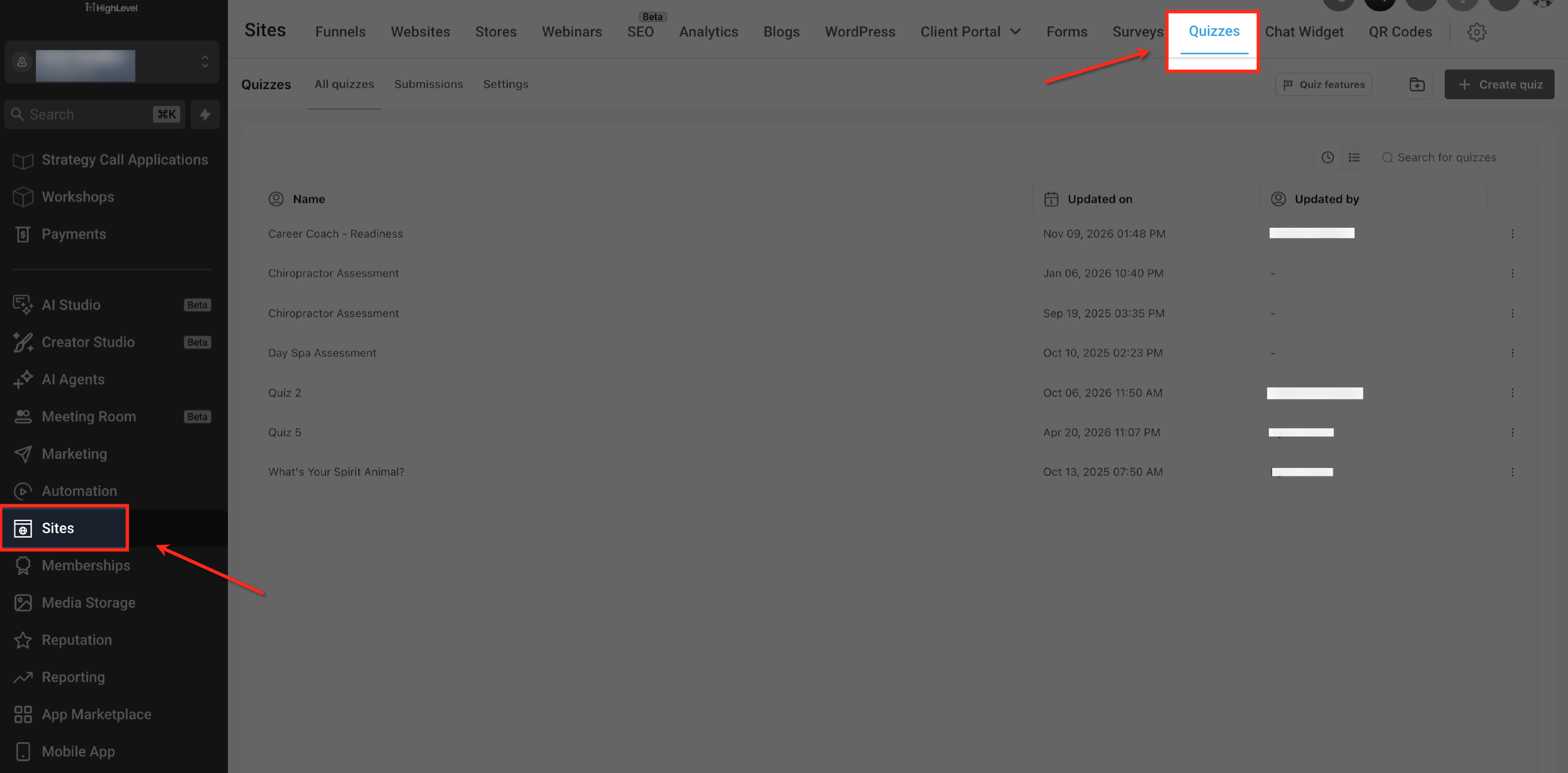
Step 1: Open the Quiz Builder
Start from the HighLevel sub-account containing the quiz you want to configure.
Log in to HighLevel and open the appropriate Sub-Account.
In the left navigation menu, select Sites.
Select Quizzes.
Select the existing quiz you want to configure. The Quiz Builder opens.
Step 2: Add a Redirect to URL Condition
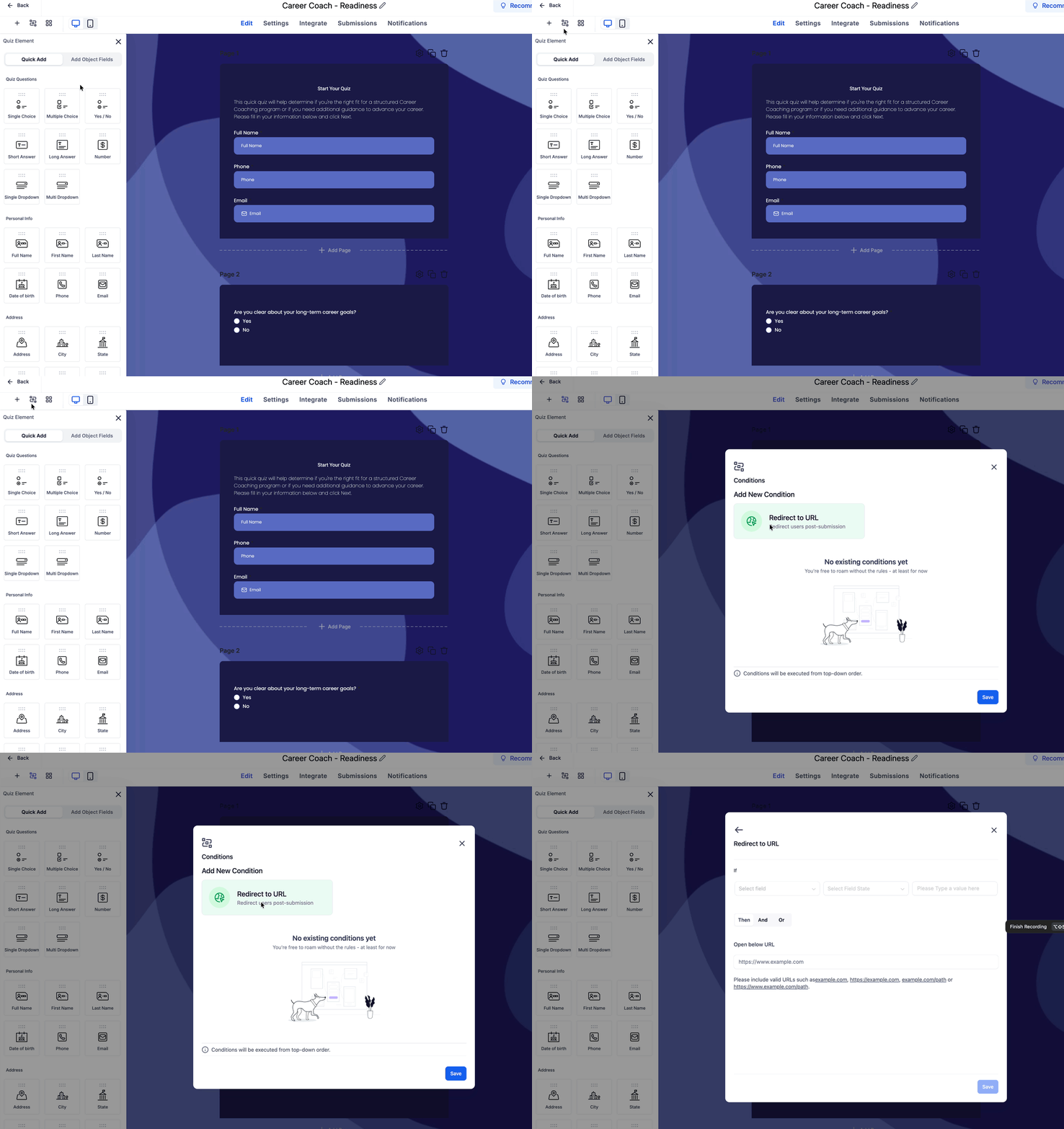
The Conditions window contains the supported actions you can add to your quiz. Select Redirect to URL to begin defining a rule for the destination respondents should visit after submission.
- Click Conditional Logic Tab
Select Redirect to URL.
The Redirect to URL editor opens.
Step 3: Configure the Redirect Condition
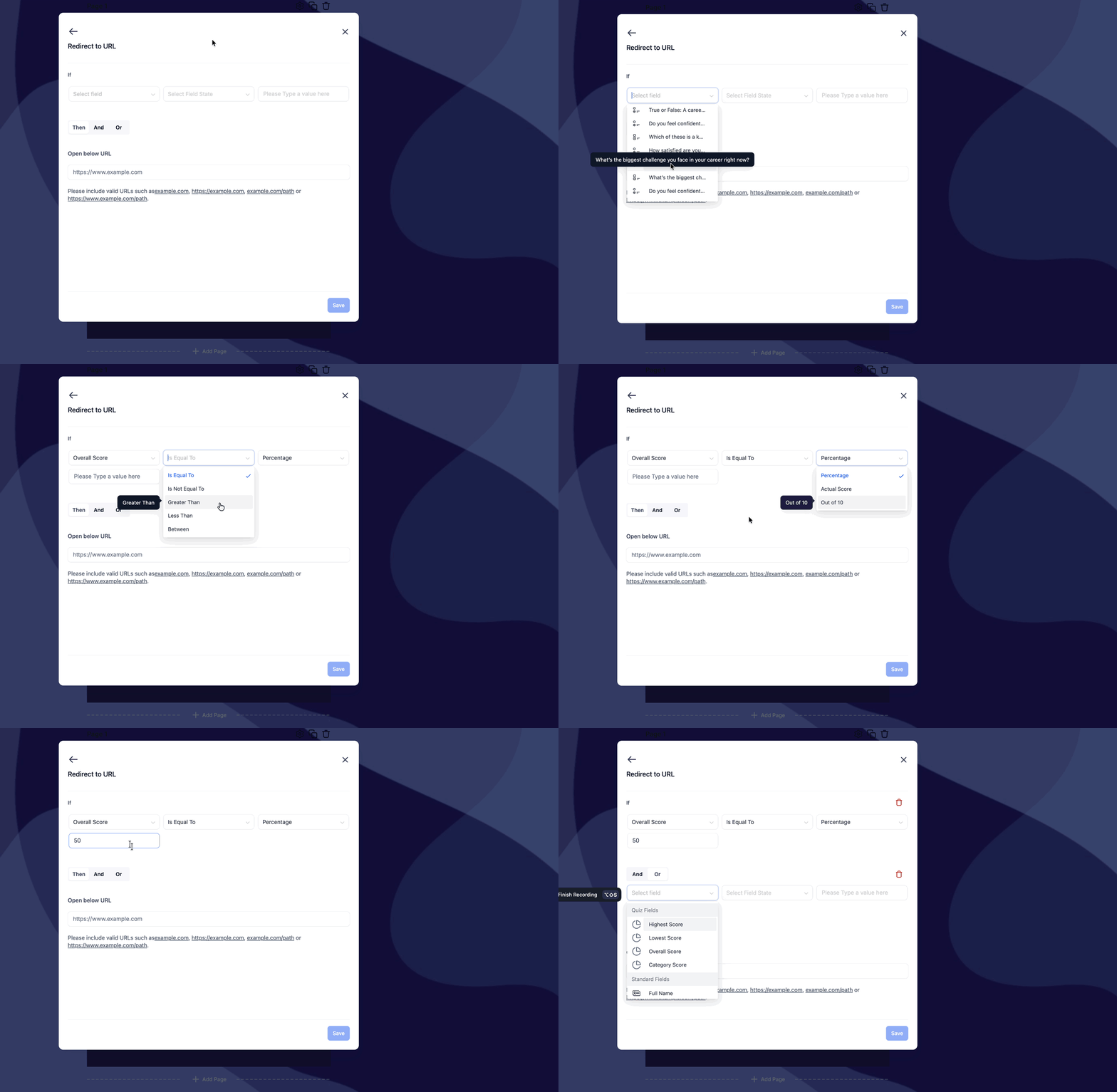
Each rule uses an If condition to determine whether a respondent qualifies for the specified redirect. Select the appropriate quiz field, comparison, and matching value.
In the Redirect to URL editor, locate the If section.
Click Select field and choose the quiz response or score field you want to evaluate.
Choose the comparison operator displayed for the selected field.
Enter or select the value required for the comparison.
Note: The available input controls depend on the selected condition. Category-based comparisons use category selectors, while the demonstrated percentage-based conditions use numeric values.
Step 4: Enter the Destination URL
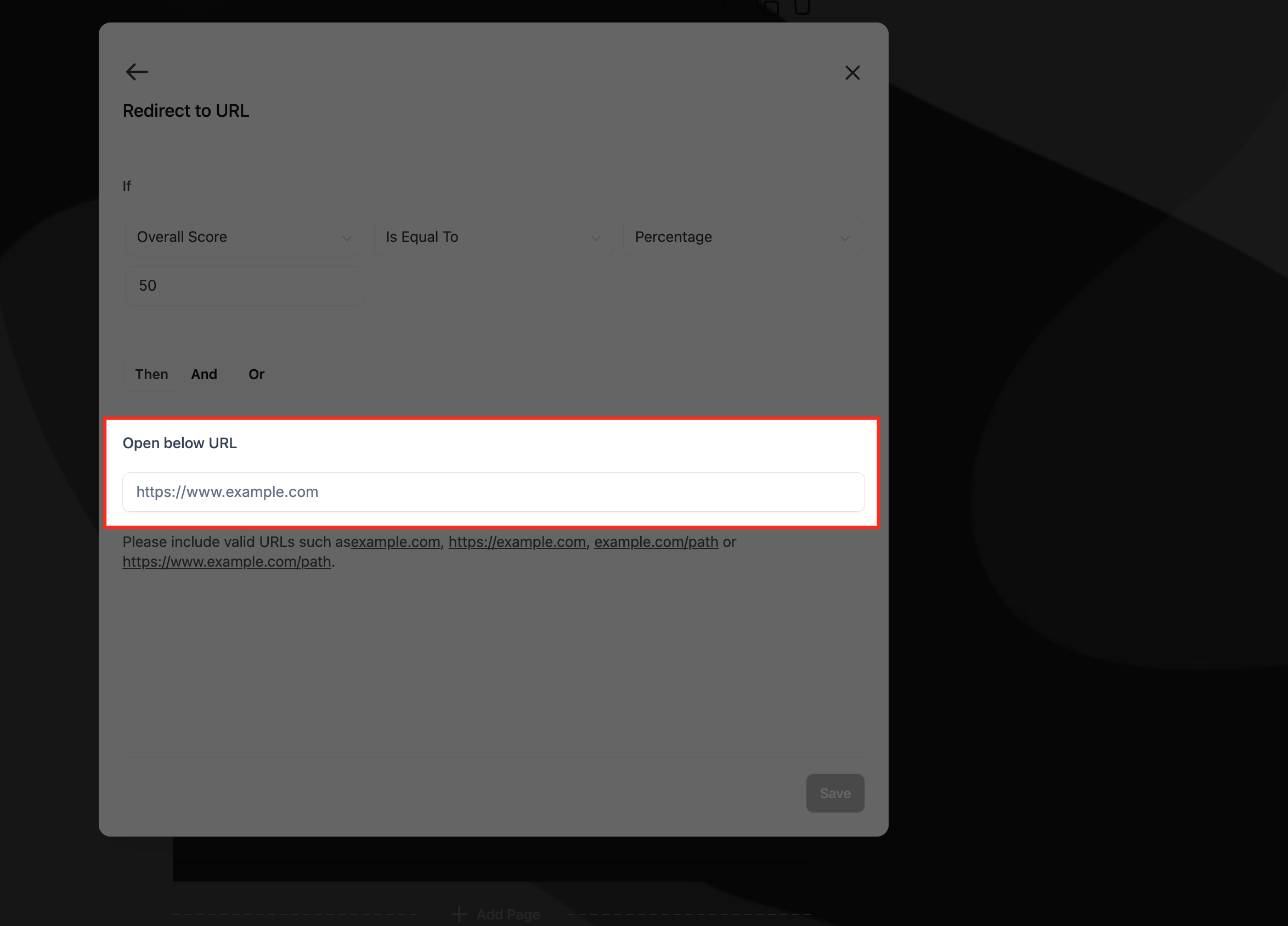
The destination URL determines where the respondent is sent when the configured redirect condition is met. Use a destination relevant to the quiz result you are evaluating.
In the same Redirect to URL editor, locate the Open below URL field.
Enter the destination URL, such as
https://www.example.com/results.Review the condition and URL to ensure they match your intended outcome.
Click Save at the bottom-right corner of the Redirect to URL editor.
The interface displays examples of valid URL formats beneath the destination field.
Step 5: Save and Review the Quiz
Review your configured rules before making the quiz available to respondents. Testing different score and response combinations helps identify unexpected destination behavior.
Return to the Conditions window after configuring your redirect rules.
Review the configured conditions and their destinations.
Click Save in the Conditions window.
Return to the Quiz Builder.
Click Save in the top-right corner.
Click Preview in the top-right corner.
Complete the quiz using test responses that meet your configured conditions.
Check the resulting scores and intended destinations.
For quizzes embedded in a Funnel or Website, test the published page's completion behavior and verify its interaction with the Quiz Element's Button Actions.
Understanding Quiz Score-Based Conditions
Quiz-specific score fields let you build redirect rules using calculated quiz outcomes rather than relying only on individual answers. Choose the field that best represents the result you want to evaluate.
Highest Score and Lowest Score
Highest Score and Lowest Score conditions evaluate the categories in which a respondent performs best or worst.
Highest Score: Match the category with the highest score.
Lowest Score: Match the category with the lowest score.
For example, a recommendation quiz could evaluate several interest categories. The highest-scoring category can determine which product recommendation page is most relevant.
Overall Score
Overall Score evaluates the respondent's total performance across scored quiz answers. Use this condition when the destination should depend on the respondent's overall assessment result.
For example, an assessment quiz can use different conditions to guide respondents toward learning resources appropriate for their overall performance.
Category Score
Category Score evaluates a respondent's performance within a specific scoring category.
This is useful when a quiz assesses several topics and you want a redirect to depend on one particular category instead of the overall result.
For example, a skills assessment could use a Category Score condition to identify respondents who achieve a particular score in one subject area.
Combining Conditions with AND and OR
You can use the And and Or controls in the Redirect to URL editor to create rules with more than one condition.
AND: Combines conditions that must all be satisfied for the rule to match.
OR: Combines conditions where at least one must be satisfied for the rule to match.
For example, the supplied screenshot shows a combined rule using:
Category Score → Category 1 → Is Equal To → Percentage → 50
AND
Lowest Score → Is Equal To → Category 2
This creates a rule that evaluates a category-specific percentage together with the respondent's lowest-scoring category.
Frequently Asked Questions
Q: Can I use Quiz Conditional Logic based on answers instead of scores?
Yes. Redirect to URL supports conditions based on quiz responses as well as the four quiz-specific score fields.
Q: Do I need scoring categories to use an Overall Score condition?
Not necessarily. HighLevel supports assigning scores to Overall Only. Category-based conditions require relevant scoring categories and assignments.
Q: Can I redirect quiz respondents to a Funnel or Website page?
Yes. The release identifies Funnel and Website pages as examples of destinations for custom URL redirects. Use the appropriate destination URL.
Q: What is the difference between Conditional Logic redirects and Quiz Results Page personalization?
Quiz Results Page personalization changes the content displayed within the quiz's results experience. Conditional Logic redirects send respondents to a specified URL when the configured conditions match.
Q: Is Redirect to URL the same as Jump To branching in Quizzes?
No. Jump To branching changes the question flow based on a respondent's answers. Redirect to URL is a post-submission action that sends respondents to a destination based on configured conditions.
Related Articles
Was this article helpful?
That’s Great!
Thank you for your feedback
Sorry! We couldn't be helpful
Thank you for your feedback
Feedback sent
We appreciate your effort and will try to fix the article