Saved Customer Addresses make checkout faster for returning ecommerce customers. Signed-in customers can save shipping and billing addresses to their store profile and reuse them on future orders.
TABLE OF CONTENTS
- What are Saved Customer Addresses?
- Preview the Signed-In Checkout Experience
- Customize the Saved Address Copy
- Related Articles
What are Saved Customer Addresses?
Saved Customer Addresses let signed-in customers keep their shipping and billing addresses in their store profile, so they do not need to enter the same information every time they check out.
Customers can save up to 10 addresses per store and choose one as their default. The default address is selected automatically at checkout, but customers can choose a different saved address when needed. Customers can also save a new shipping or billing address while placing an order. Guest checkout continues to work as usual.
Merchants can customize the saved-address wording and preview the signed-in checkout experience in the Store Builder.
Note: Saved addresses belong to the individual store and are not shared across other stores in the same sub-account.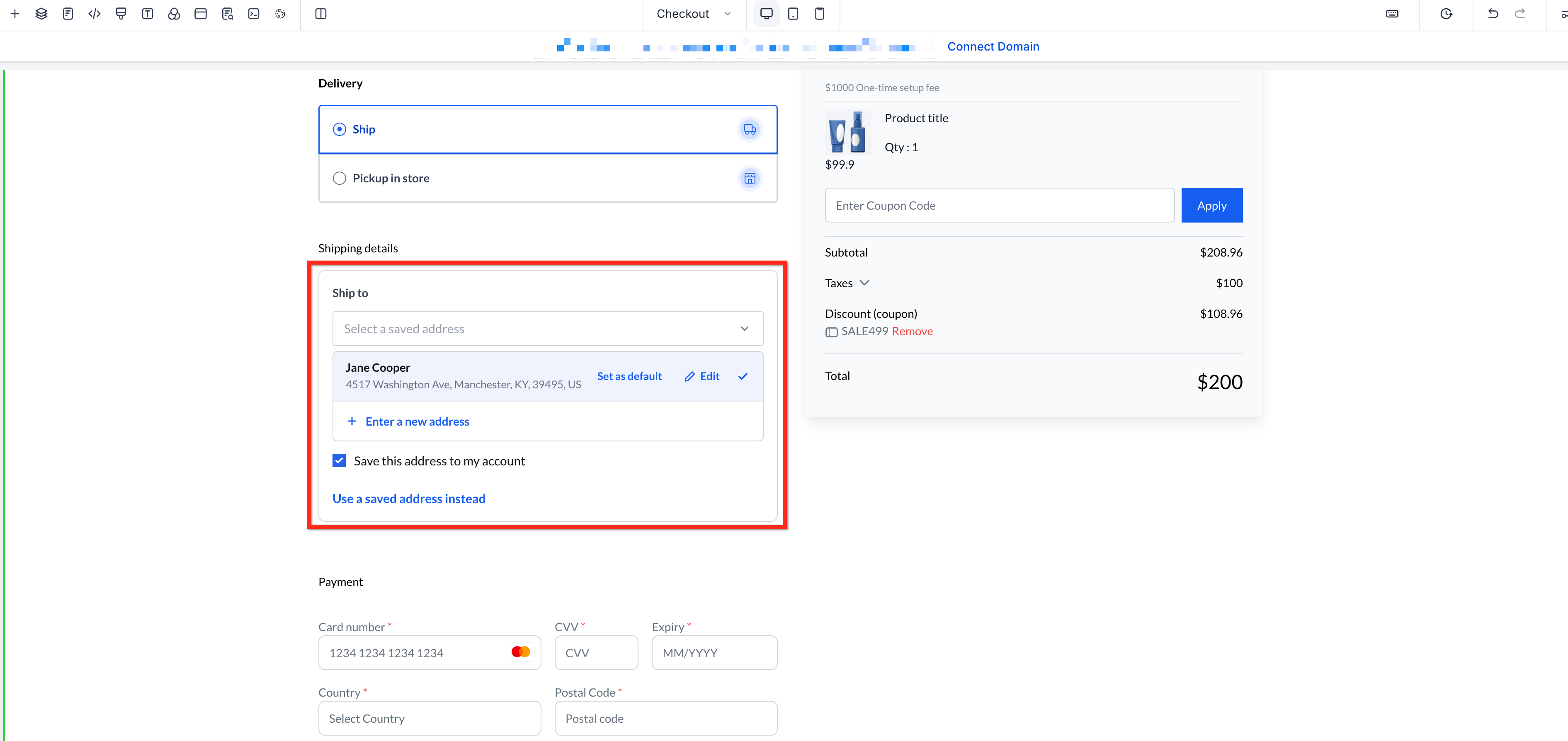
Preview the Signed-In Checkout Experience
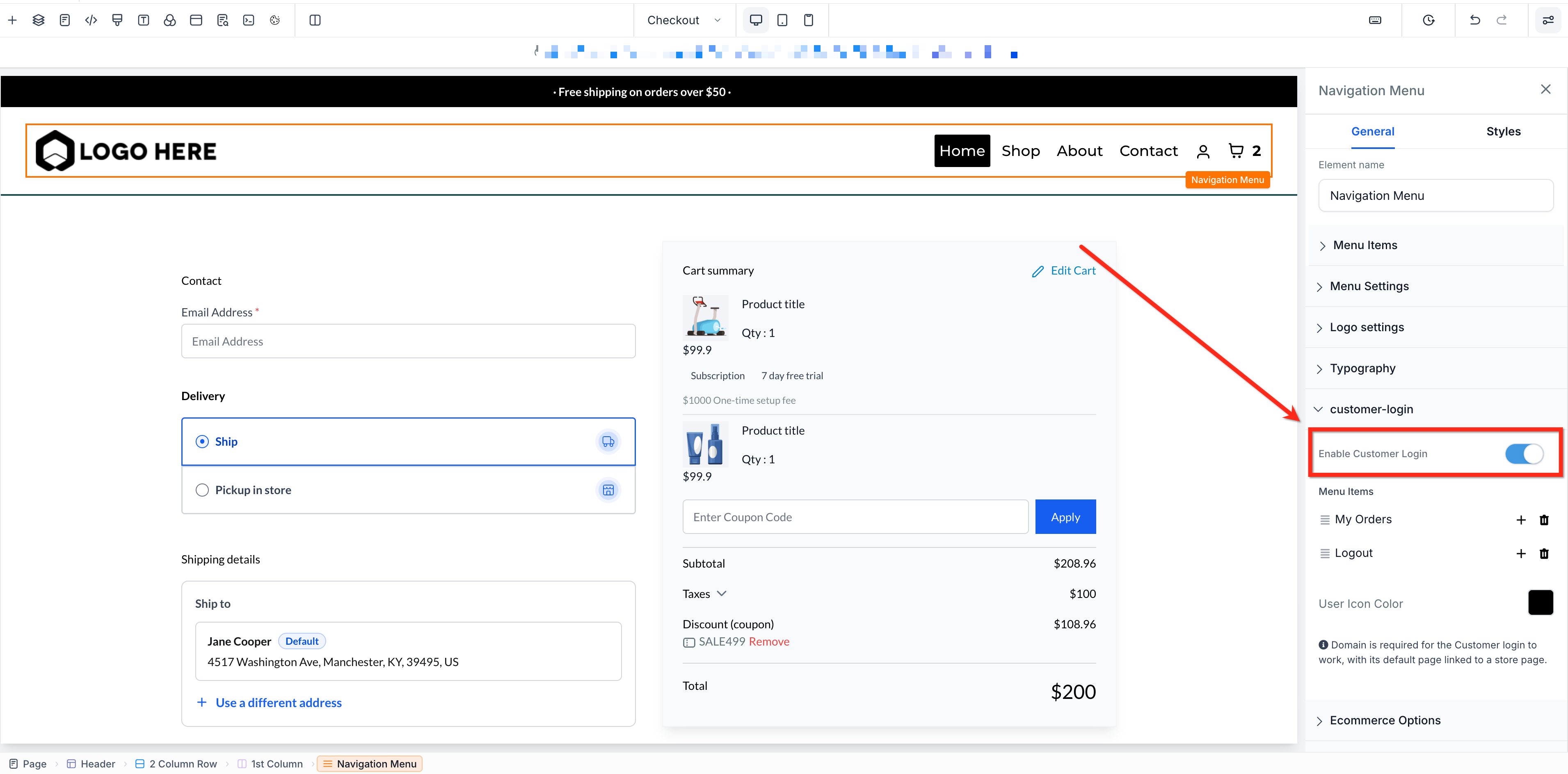
The Store Builder can display the signed-in version of checkout so merchants can review and edit the saved-address card before publishing.
- In the Store Builder, select the Navigation Menu element.
- Turn on Enable Customer Login.
- Review the saved-address card displayed in the checkout canvas. Make any desired edits.
- Turn Enable Customer Login off to return to the guest preview.
The checkout canvas changes immediately when the setting is toggled. Saving or publishing is not required to switch the preview state.
Customize the Saved Address Copy
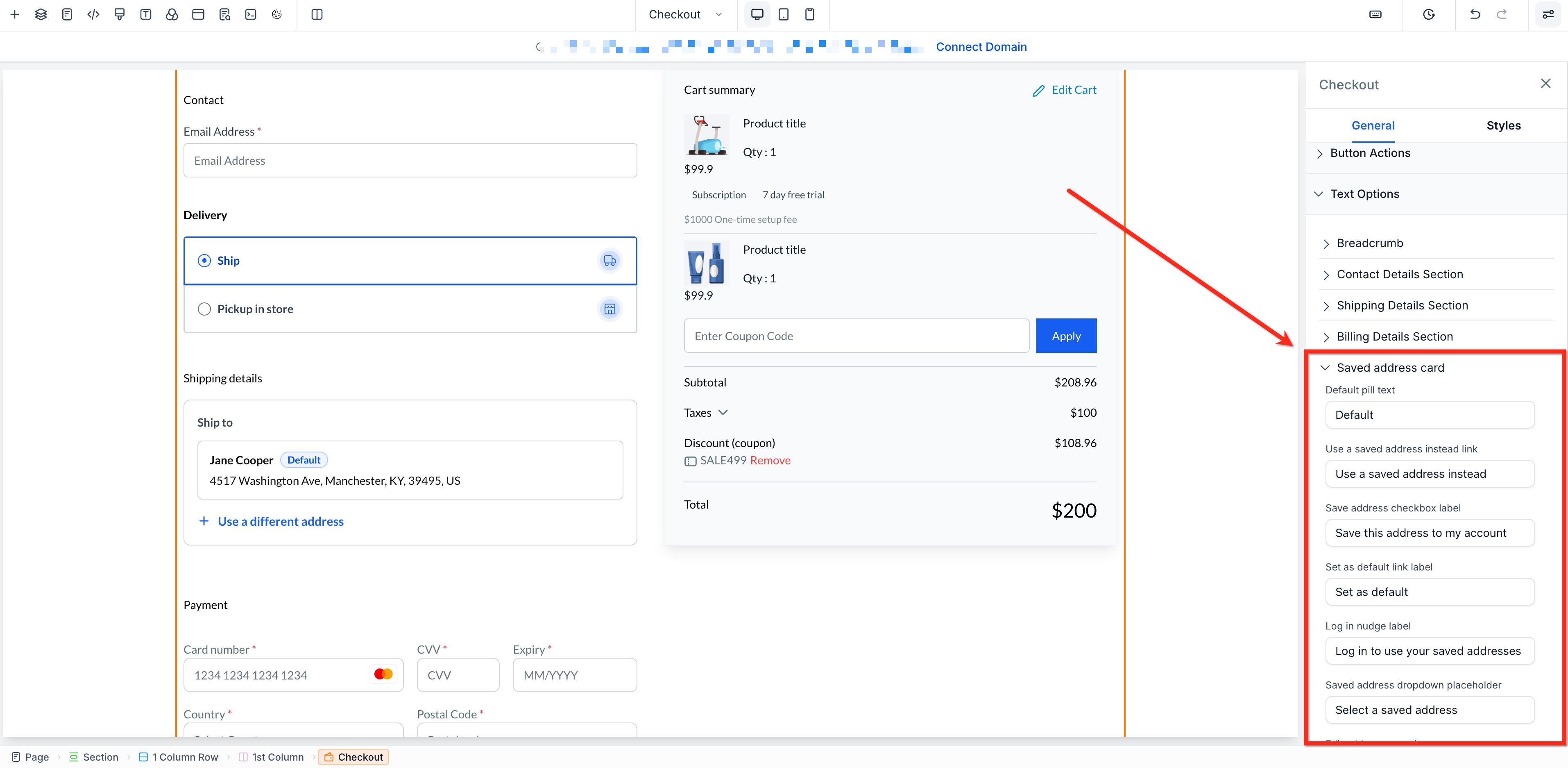
Merchants can customize the wording customers see for saved-address controls at checkout.
- Open the Checkout page in the Store Builder.
- Select the Checkout element.
- Scroll to Text Customization > Saved Address Card.
- Update the saved-address labels as needed.
Related Articles
Was this article helpful?
That’s Great!
Thank you for your feedback
Sorry! We couldn't be helpful
Thank you for your feedback
Feedback sent
We appreciate your effort and will try to fix the article