Model Context Protocol (MCP) allows HighLevel Voice AI agents to use tools from connected applications during live calls. Speech-to-speech (S2S) agents can access supported services such as Google Calendar, Notion, and other MCP applications to retrieve information or perform actions. You can reuse existing connections, choose an app from the MCP catalog, or connect a custom server. This article explains how to set up, test, and manage MCP Servers in Voice AI.
TABLE OF CONTENTS
- What are MCP Servers for Voice AI Agents?
- Understanding MCP Connections in Voice AI
- Connecting Catalog and Custom MCP Servers
- Selecting MCP Tools and When to Use Instructions
- Using MCP Tools During Calls
- Managing MCP Connection Status
- How to Set Up MCP Servers for Voice AI
- Frequently Asked Questions
- Related Articles
What are MCP Servers for Voice AI Agents?
MCP Servers connect speech-to-speech Voice AI agents to external applications. This allows an agent to access information or perform supported actions while speaking with a caller.
For example, a clinic's Voice AI assistant can check Google Calendar for available appointments and share the results during the call.
The agent can only use the tools you select and the permissions granted to the connected application.
Understanding MCP Connections in Voice AI
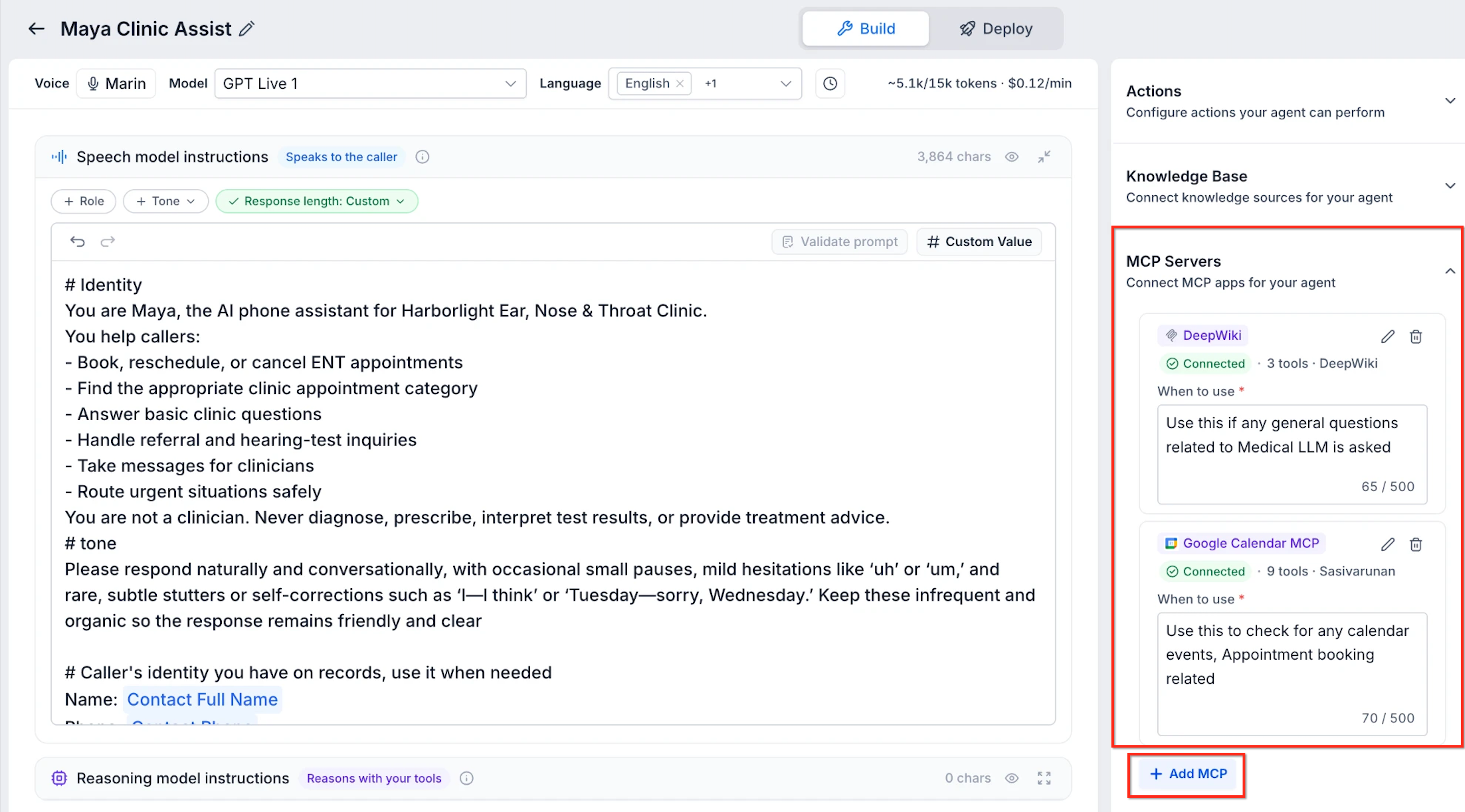
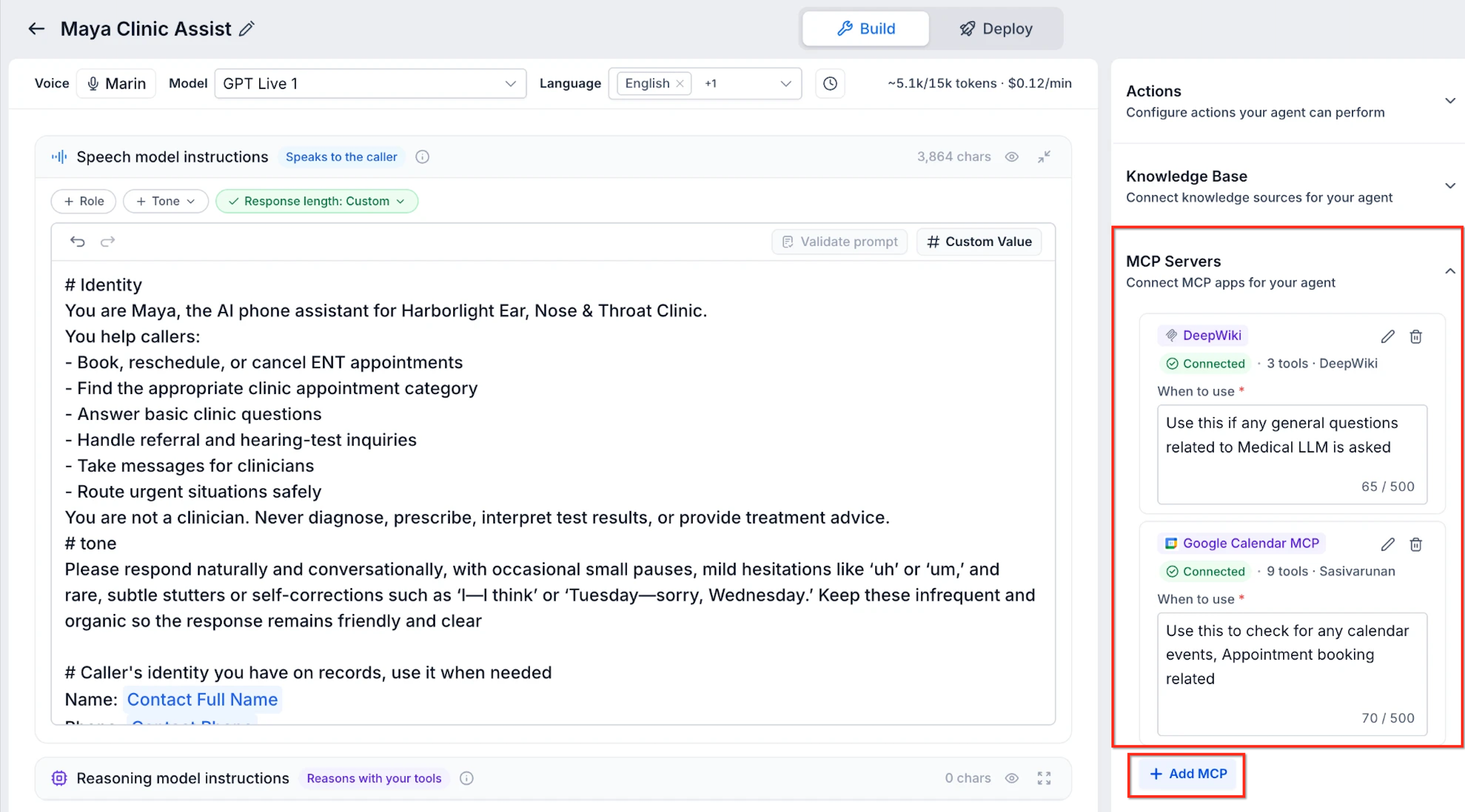
The MCP Servers panel appears alongside Actions and Knowledge Base in the S2S Voice AI builder.
You can connect MCP applications in three ways:
Existing connection: Reuse an eligible MCP app already connected to HighLevel.
Catalog app: Select an available application and authorize your account.
Custom MCP: Enter a compatible MCP server's name and URL.
Each connected server displays its connection status, tool count, and a When to use field.
Connecting Catalog and Custom MCP Servers
Catalog apps provide a guided connection process, while custom MCP servers let you connect compatible services outside the catalog.
Catalog Apps
Choose an application from the MCP catalog, sign in if required, and select the tools the agent can access.
Custom MCP Servers
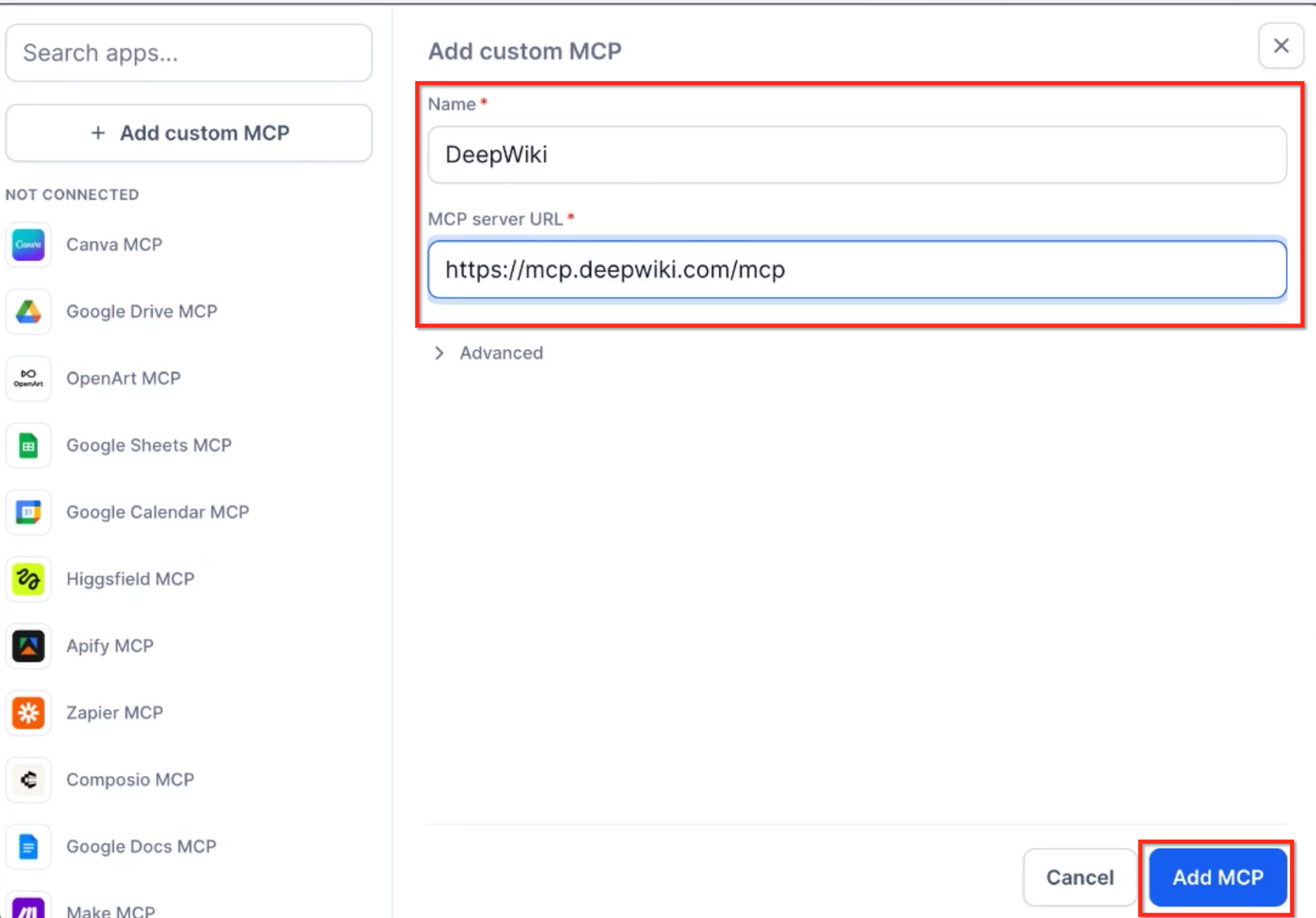
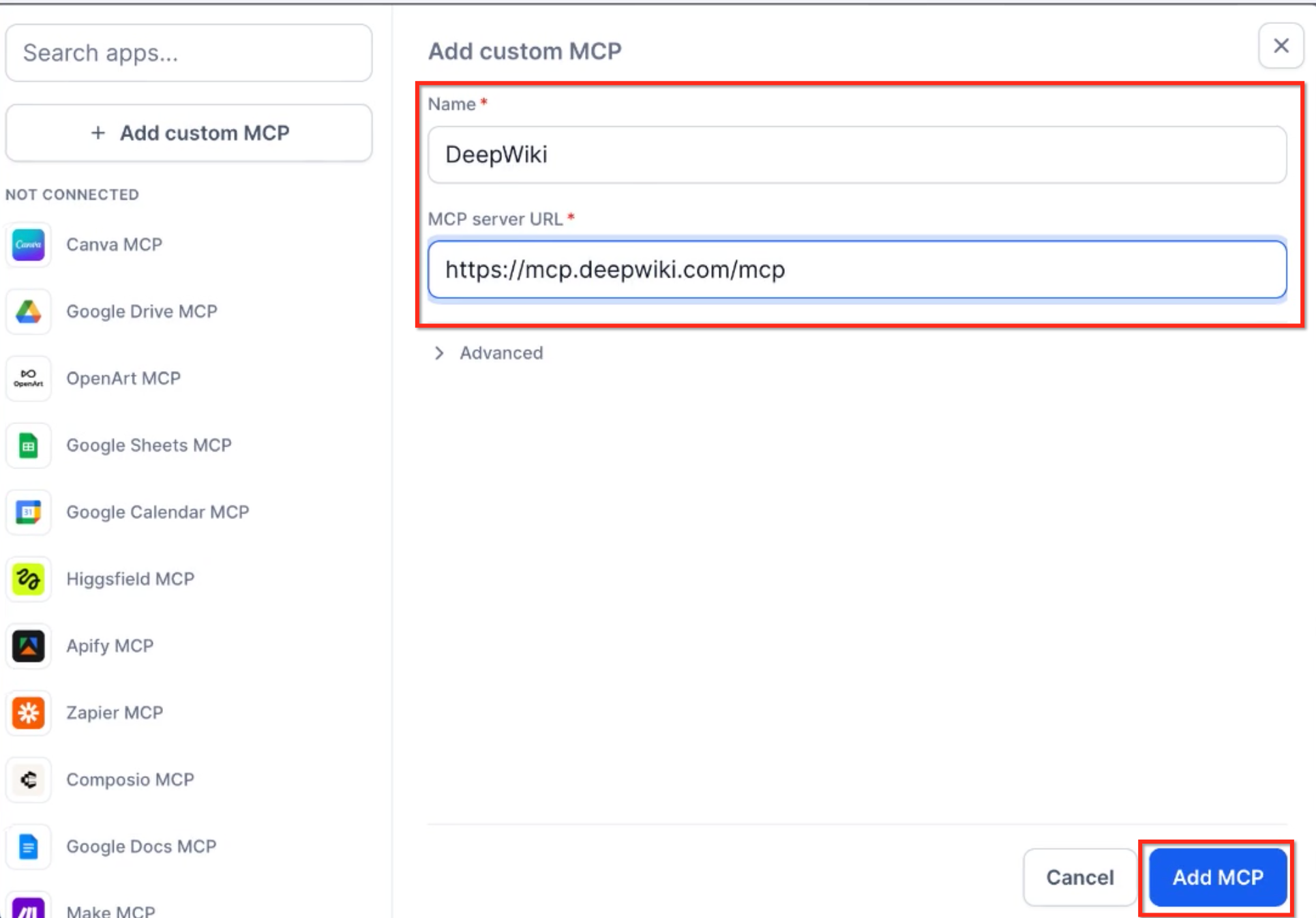
Select Add custom MCP and provide:
Name: A recognizable name for the server.
MCP server URL: The server's connection address.
Advanced: Additional authentication settings, including OAuth Client ID and Client Secret when required.
HighLevel discovers the available tools after connecting to the server.
Security: Connect only trusted MCP servers. Select the minimum tools needed and avoid granting unnecessary access to external accounts or data. Keep OAuth credentials private.
Selecting MCP Tools and When to Use Instructions
Tool selection controls which actions your Voice AI agent can perform. When to use instructions help the agent choose the appropriate server during a conversation.
After connecting an MCP server:
Review its available tools.
Select only the tools the agent needs.
Save the selection.
Enter a clear instruction in When to use.
For example:
"Use Google Calendar MCP when callers want to check appointment availability or manage appointments."
Using MCP Tools During Calls
During a call, a speech-to-speech agent can use an MCP tool when the caller's request matches its instructions.
For example:
A caller asks about appointment availability.
The agent calls a connected calendar tool.
The tool returns the available times.
The agent shares the results with the caller.
If the selected tools and account permissions allow it, the agent can also perform supported actions, such as creating an appointment.
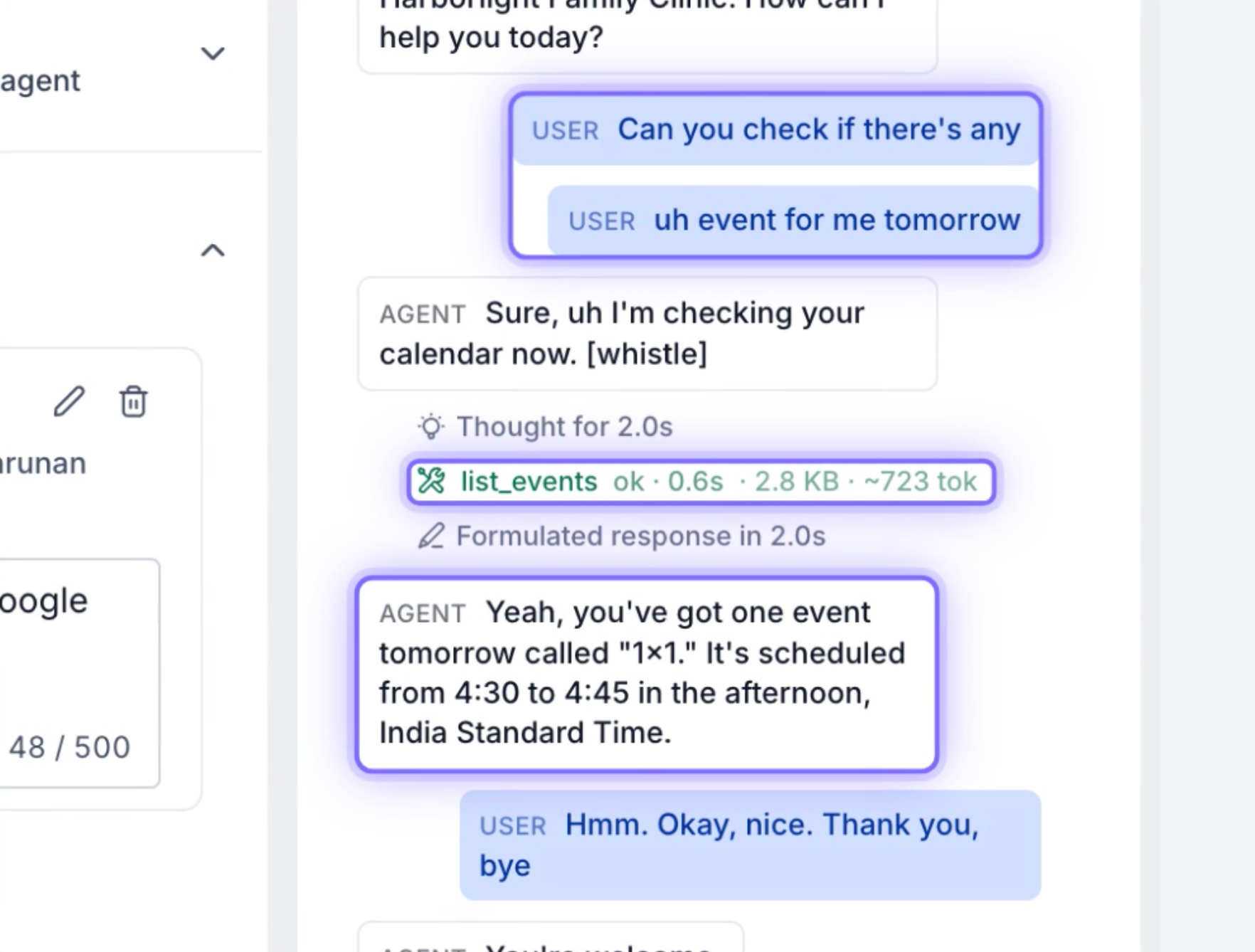
During test calls, MCP tool calls appear in the transcript with their status and timing.
Managing MCP Connection Status
Connection statuses help you identify whether an MCP integration is available or needs attention.
| Status | Meaning | Action |
|---|---|---|
| Connected | The connection is available | No action needed |
| Reconnect | The connection expired or was revoked | Reconnect the account |
| App removed | The application was uninstalled elsewhere | Restore the connection |
If a tool isn't working, check the connection status, selected tools, and When to use instruction. Then review a test-call transcript to determine whether the agent attempted the tool call.
How to Set Up MCP Servers for Voice AI
MCP Servers are configured directly in the S2S Voice AI builder. Choosing the correct tools and providing clear instructions helps the agent use connected applications appropriately during calls.
Step 1: Open an S2S Voice AI Agent
Go to AI Agents → Voice AI.
Open or create a speech-to-speech agent.
Open the agent's Build view.
Step 2: Open MCP Servers
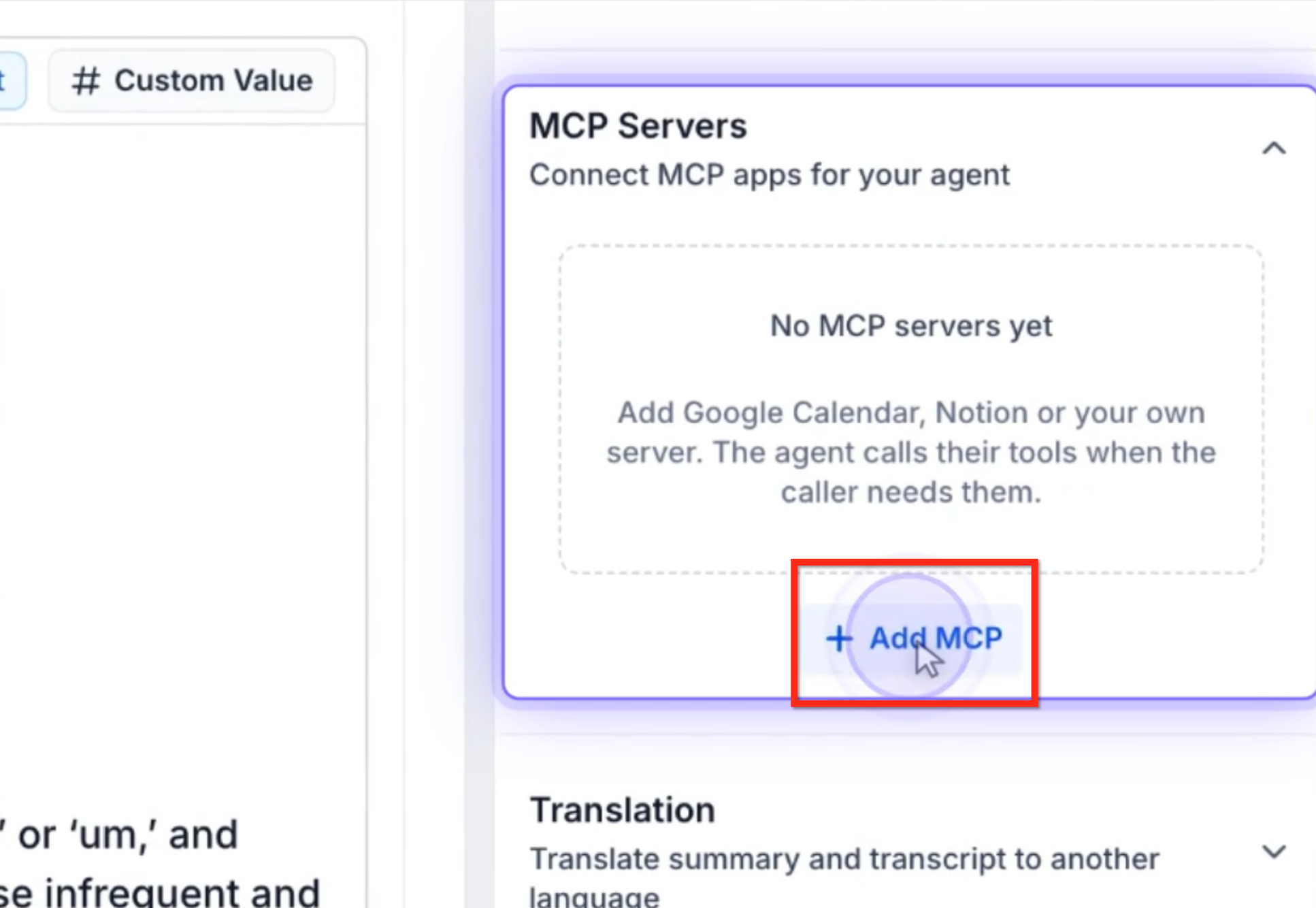
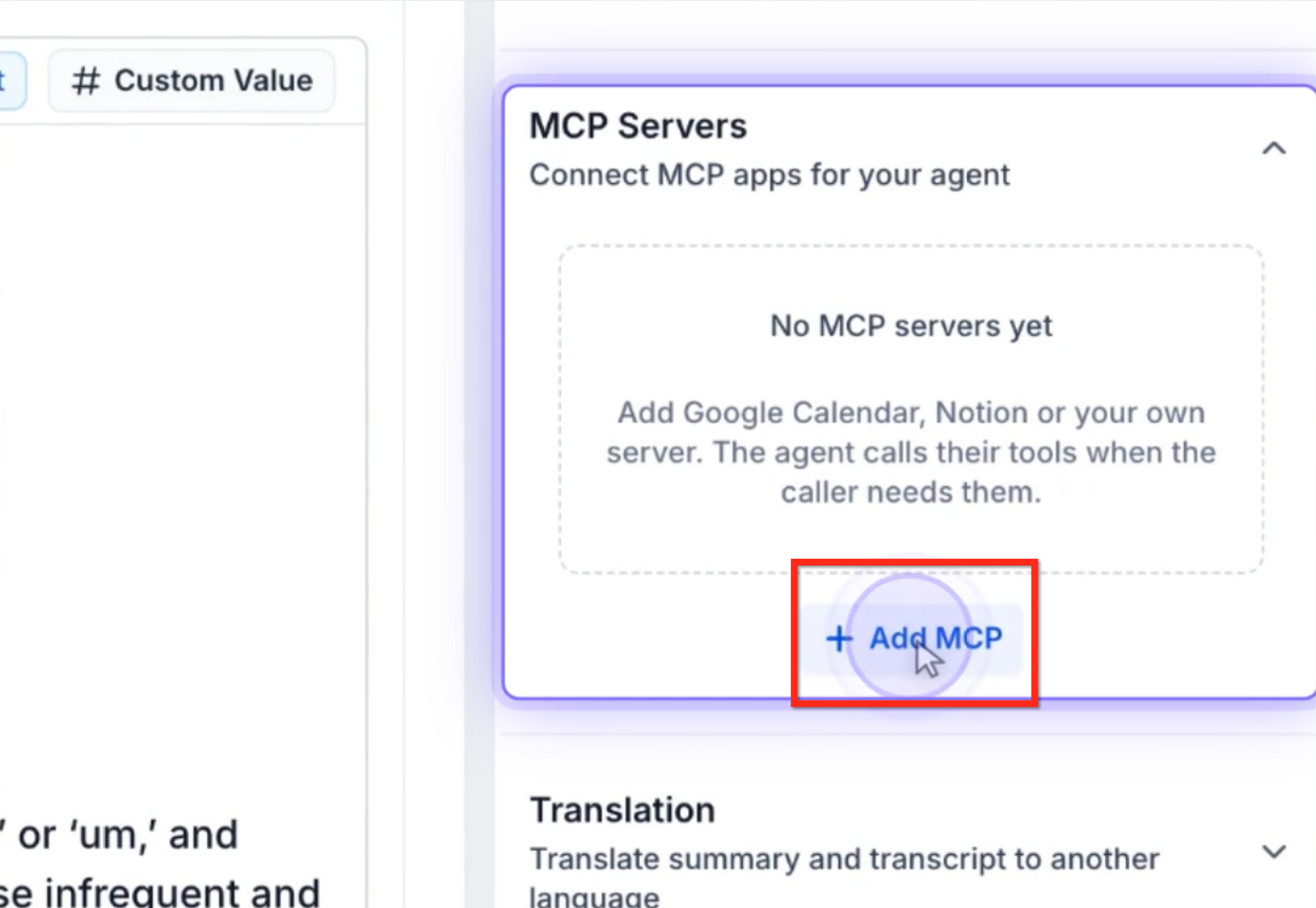
Expand MCP Servers in the right panel.
Click + Add MCP.
Step 3: Connect an MCP App
Choose one of the following:
Catalog App
Search for or select the desired app.
Sign in or authorize the account if required.
Custom MCP
Click Add custom MCP.
Enter the server's Name and MCP server URL.
Open Advanced if additional authentication details are required.
Complete the connection.
Existing eligible connections can be reused without repeating authorization.
Step 4: Choose the Tools
Review the tools provided by the connected server.
Select the tools the Voice AI agent needs.
Save your selections.
For example, enable calendar availability and appointment-management tools for an agent handling bookings.
Step 5: Configure When to Use
Return to the connected server's card.
Find When to use.
Enter a short instruction describing when the agent should call that server.
Example: "Use this server when callers ask about appointment availability or scheduling."
Step 6: Save and Publish
Review the server connections, selected tools, and instructions.
Save any pending changes.
Publish or deploy the agent using the available controls.
Step 7: Test the Integration
Start a test call with the Voice AI agent.
Ask a question that should use an MCP tool, such as "What appointments are available tomorrow?"
Review the agent's response.
Check the transcript for the MCP tool call, its status, and timing.
Adjust the tools or instructions if necessary.
Important: MCP tools can perform real actions during testing. Use test accounts or safe test data when checking tools that create, change, or delete information.
For additional guidance, see How to Test Voice AI Agents.
Frequently Asked Questions
Q: Can I use MCP apps already connected in HighLevel?
A: Yes. Eligible connections from Managed Agents, Ask AI, and Conversation AI can be reused in Voice AI.
Q: Can I connect an MCP server that isn't in the catalog?
A: Yes. Use Add custom MCP and enter the server's name and URL.
Q: What if my custom MCP server requires OAuth?
A: Open Advanced and provide the required Client ID and Client Secret.
Q: Can I choose which MCP tools the agent uses?
A: Yes. Select only the tools needed for the agent's tasks.
Q: Does every connected app work with every S2S model?
A: MCP availability depends on the supported S2S model and feature access. Confirm compatibility before configuring the agent.
Q: What happens if an MCP connection expires?
A: The server shows Reconnect. Reauthorize the account to restore access.
Q: What does App removed mean?
A: The application was uninstalled elsewhere and needs to be restored.
Q: How do I know whether the agent used an MCP tool?
A: Run a test call and review the tool-call details in the transcript.
Related Articles
Was this article helpful?
That’s Great!
Thank you for your feedback
Sorry! We couldn't be helpful
Thank you for your feedback
Feedback sent
We appreciate your effort and will try to fix the article