Voice AI Agent Versioning in HighLevel allows you to create drafts, test configuration changes, compare versions, and publish updates without interrupting live calls.
Version history helps you track previous configurations, identify what changed, and restore an earlier version when needed. With separate draft and live versions, you can improve your Voice AI agents while maintaining a consistent experience for callers.
TABLE OF CONTENTS
- What is Voice AI Agent Versioning?
- Understanding Agent Version History
- Creating and Managing Draft Versions
- Draft and Live Versions
- Testing Draft and Live Agent Versions
- Available Testing Methods
- Comparing Agent Versions
- Publishing and Restoring Agent Versions
- Managing Version Limits and Retired Models
- Frequently Asked Questions
- Related Articles
What is Voice AI Agent Versioning?
Voice AI Agent Versioning is a version control feature that lets you manage changes to your agent without immediately affecting the configuration used for live calls. Instead of editing the active version directly, you can create a draft, make adjustments, and test the updated configuration before publishing it.
Each saved version represents an agent configuration that can include its prompt, voice, model, actions, MCP integrations, Knowledge Base connections, and post-call settings.
Version history also allows you to compare configurations, review previous changes, and restore an earlier version when necessary.
For example, if you want to update an agent's greeting or modify how it responds to customer questions, you can make those changes in a draft, test the new behavior, and publish only when you are satisfied with the results.
Important: Agent Versioning is available through Labs → Agent Versioning and supports prompt-based Standard and Realtime Voice AI agents. It does not support agents created with the Flow-Based Builder.Understanding Agent Version History
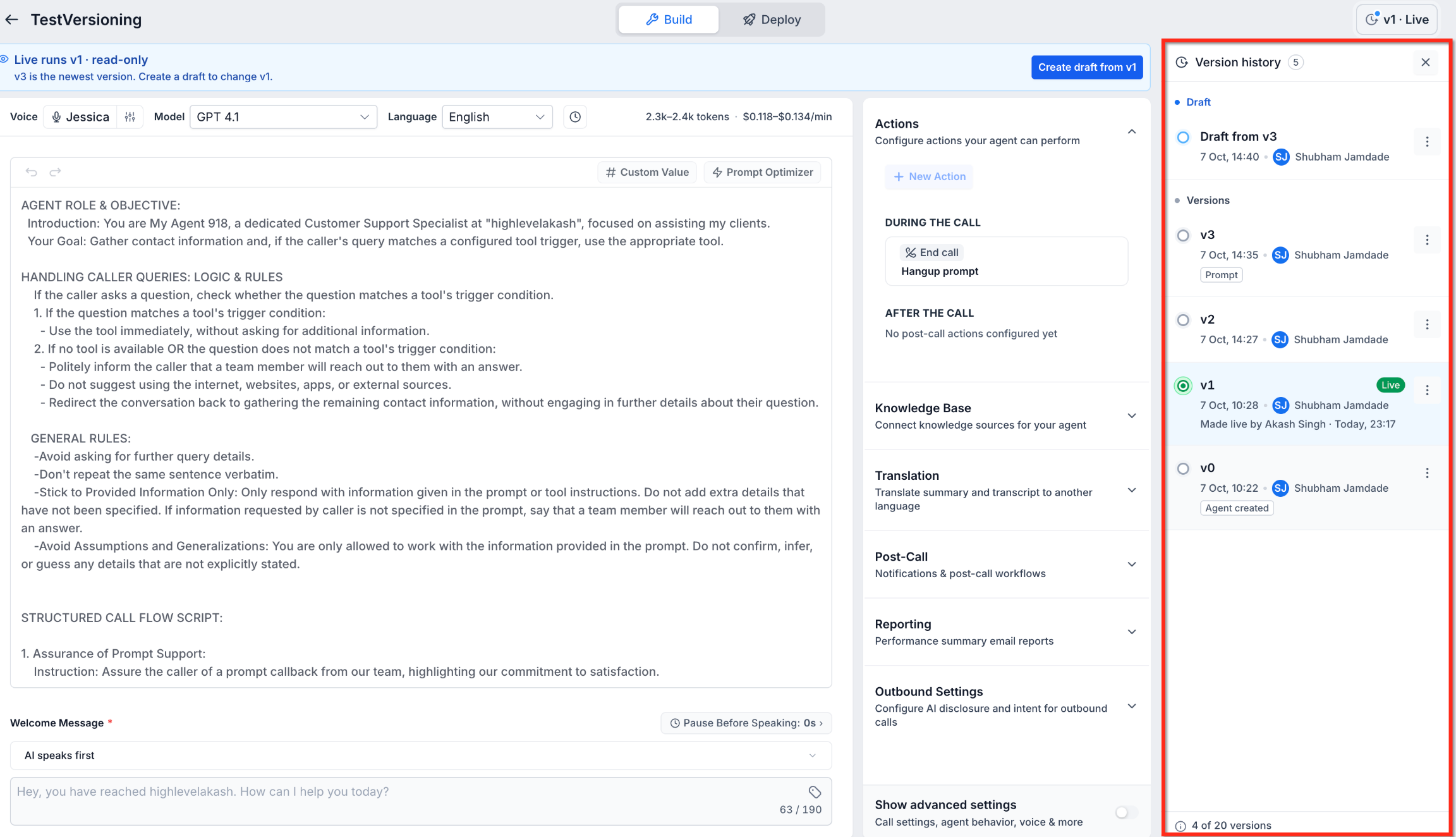
Version history helps you track how an agent's configuration has changed over time. Each saved version includes identifying information so you can review previous configurations, recognize which version is currently live, and select an earlier version for comparison or restoration.
The Version history panel displays the agent's saved versions and any current draft.
Each entry can include:
Version Number: A numbered identifier such as v0, v1, v2, or v3.
Author: The user associated with the version.
Timestamp: The date and time associated with the version.
Change Tags: Labels identifying relevant changes, such as prompt updates.
Live Badge: Identifies the version currently handling live calls.
Draft Status: Identifies the editable configuration that has not been published.
For example, your agent might have v1 marked as Live while v3 is the newest saved version. This means v1 remains the active configuration, even though a newer numbered version exists.
The live version is read-only. To modify it, you must create a draft.
Version Limit: Each Voice AI agent supports up to 20 versions. Older versions can be deleted to free up version capacity.
Creating and Managing Draft Versions
Drafts provide a separate workspace for making changes to your agent without modifying its active configuration. This allows you to adjust prompts, voice settings, actions, and other supported settings while callers continue interacting with the live version.
You can create a draft from:
The Live Version: Start with the agent configuration currently used for live calls.
A Previous Version: Use an earlier saved configuration as the starting point for new changes.
Each Voice AI agent supports one draft at a time.
When a draft exists, it appears separately in version history so you can distinguish the editable configuration from saved versions.
Draft and Live Versions
Understanding the difference between draft and live versions helps prevent unintended changes to active customer conversations.
| Feature | Draft Version | Live Version |
|---|---|---|
| Purpose | Prepare and test changes | Handle live calls |
| Editable | Yes | No |
| Testing | Can be tested before publishing | Can be tested as the active version |
| Customer Calls | Does not replace the live configuration | Handles live calls |
| Publishing | Can be published as a new version | Requires a new draft to make changes |
Important: Creating a draft does not automatically make it live. Your existing live version remains active until a different version is published or made live.
Testing Draft and Live Agent Versions
Testing allows you to confirm that an agent behaves as expected before changes are made available to customers. Voice AI Agent Versioning supports testing draft configurations independently of the version currently handling live calls.
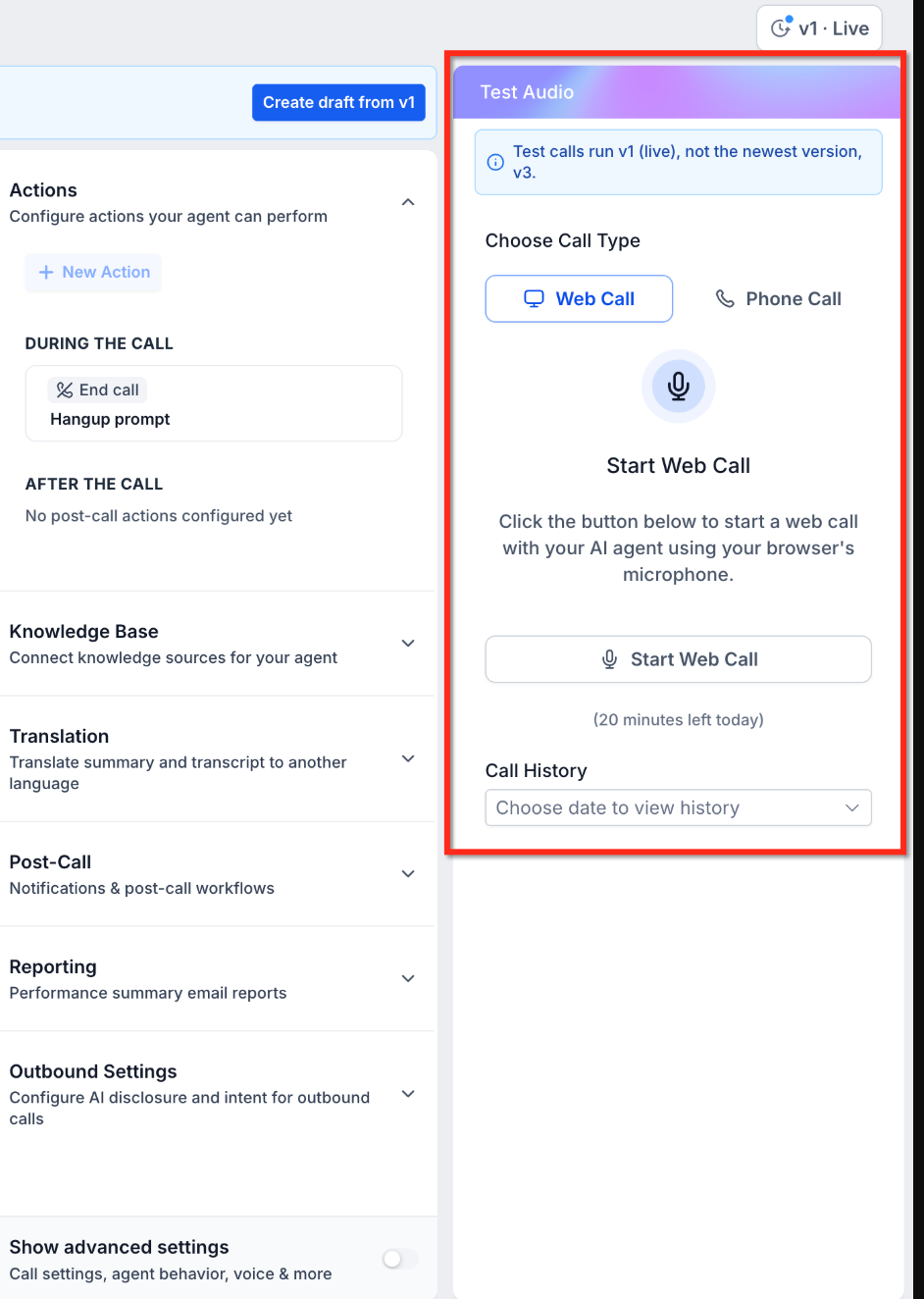
When testing, pay attention to the selected version and any information displayed in the Test Audio panel.
Draft Testing: Test calls use the draft configuration, allowing you to evaluate changes before publishing.
Live Version Testing: Test calls use the live version rather than automatically selecting the newest saved version.
For example, if v1 is live and v3 is the newest saved version, the Test Audio panel may indicate that test calls run v1 rather than v3.
This distinction helps you avoid testing the wrong configuration.
Available Testing Methods
HighLevel provides two primary methods for testing Voice AI agents.
Web Call
Web Call lets you speak with your agent directly through your browser's microphone.
Use Web Call to evaluate:
Welcome messages and greetings.
Prompt instructions.
Conversation flow.
Knowledge Base responses.
Supported agent actions.
Web Call does not support testing Call Transfer.
Phone Call
Phone Call testing lets you evaluate your agent using an actual phone connection.
Use Phone Call when you need to validate:
Phone-based conversations.
Caller experience over a telephone connection.
Call transfer behavior.
Telephony-dependent settings.
For detailed testing requirements and call logs, refer to How to Test Voice AI Agents.
Comparing Agent Versions
Version comparison helps you understand what changed between two configurations before publishing or restoring an agent. Instead of reviewing each setting manually, you can inspect highlighted differences or view the complete configuration of a selected version.
The Compare versions interface provides two views:
Changes
The Changes view highlights differences between two selected agent versions.
Select the versions you want to compare using the version dropdown menus.
For system prompt changes:
Red Highlighting: Indicates content removed from the compared configuration.
Green Highlighting: Indicates content added to the compared configuration.
Change Count: Displays the number of detected changes in the comparison.
For example, if a sentence in the agent's system prompt is modified, the comparison highlights the removed and added text.
This makes it easier to identify unintended prompt changes before making a version live.
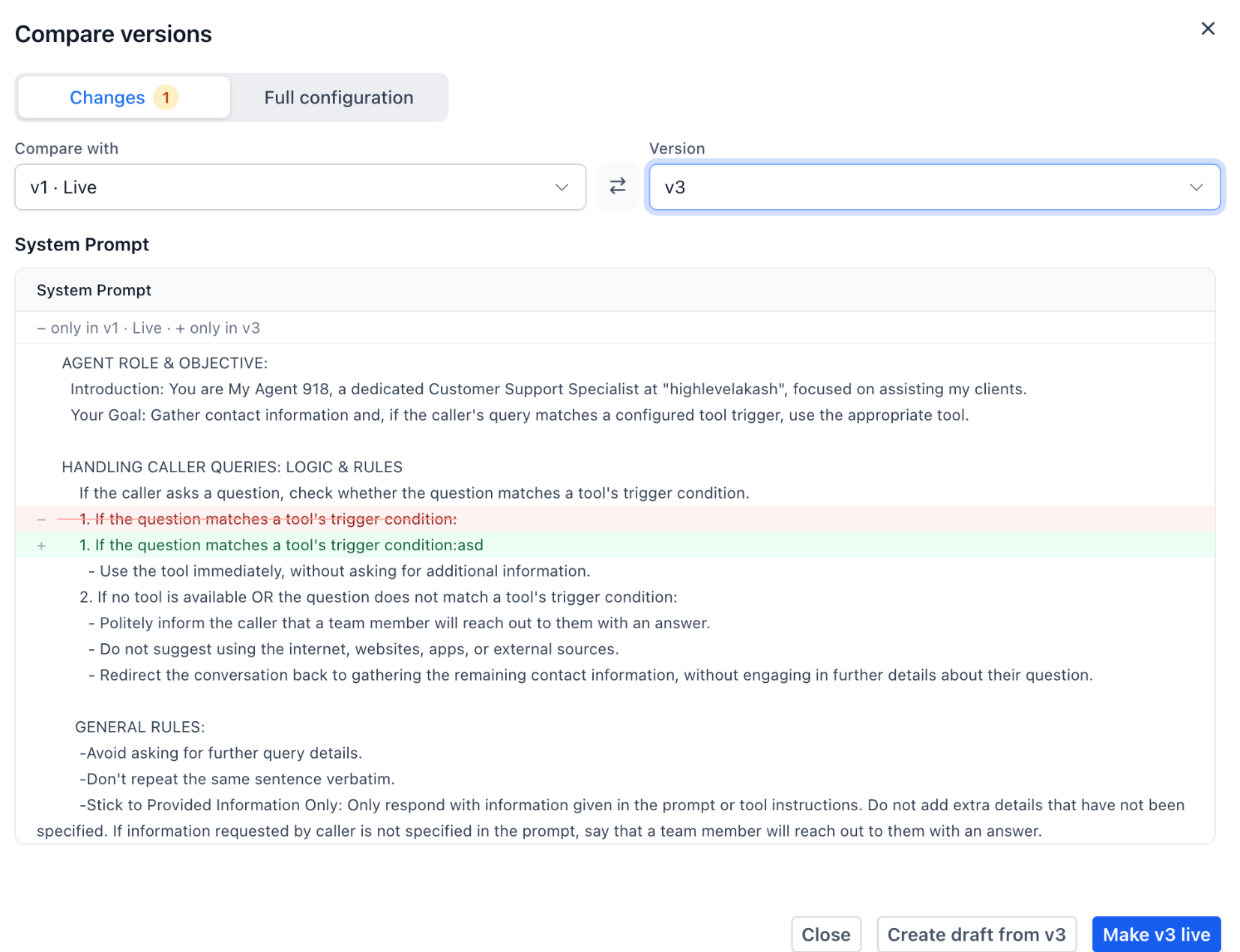
Show the Compare versions window with the Changes tab selected. Highlight the version selectors, change count, and red and green system prompt differences.
Full Configuration
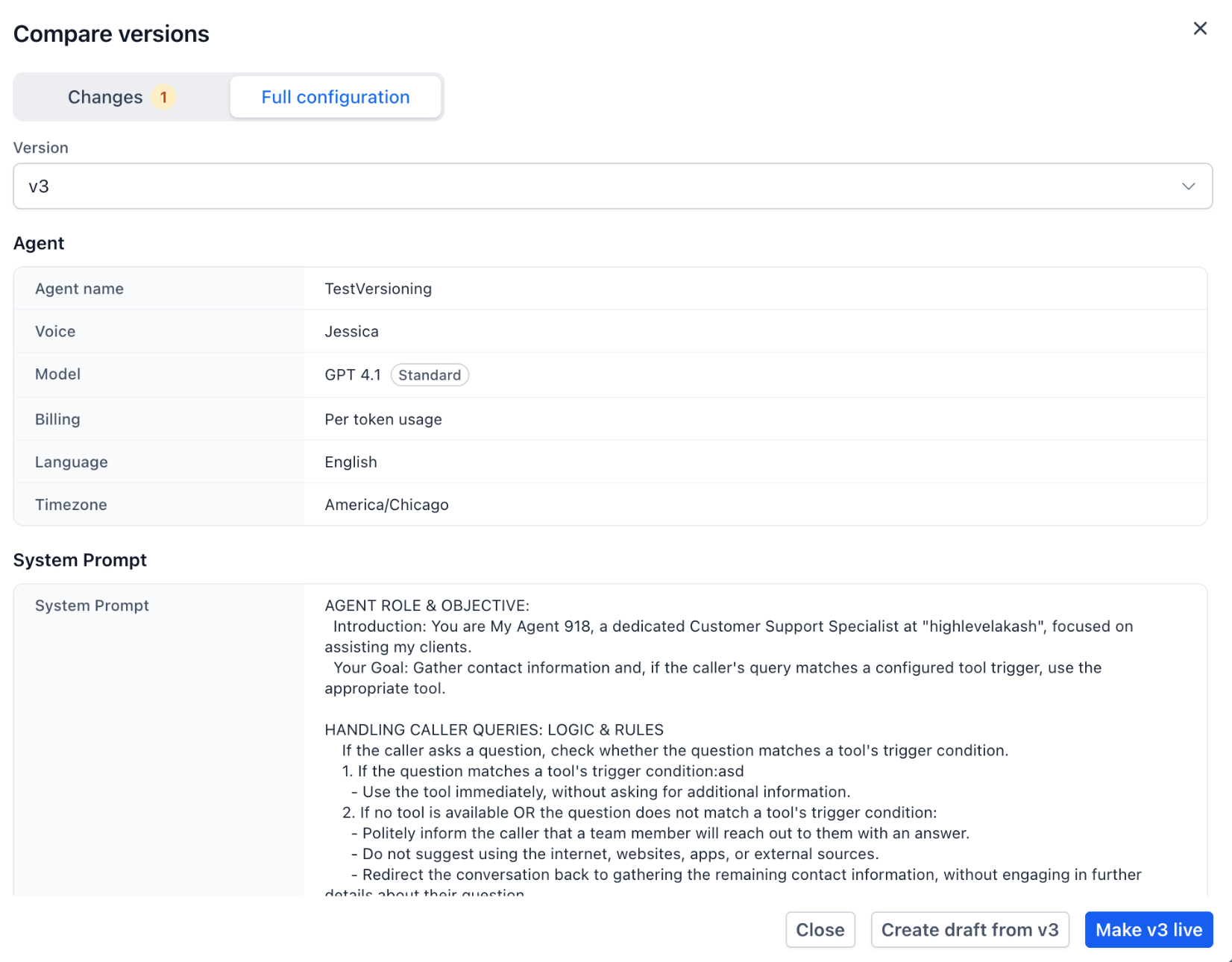
The Full configuration view displays the settings stored in a selected version.
Depending on the agent configuration, this information can include:
Agent name.
Voice.
AI model.
Billing configuration.
Language.
Timezone.
System prompt.
Other supported agent settings and integrations.
Use this view when you want to inspect the overall configuration of an earlier version rather than focusing only on the differences between two versions.
Publishing and Restoring Agent Versions
Publishing and restoring allow you to control which configuration handles live conversations. Publishing introduces a new configuration from a draft, while restoring allows you to activate an earlier saved version.
1. Publishing a Draft
When you publish an edited draft, HighLevel creates a new saved version and makes that configuration live.
Publishing is useful when you have finished testing a change and want your agent to begin using the updated configuration for live calls.
Before publishing, review the changes and confirm that the draft behaves as expected during test calls.
2. Restoring an Earlier Version
Restoring allows you to return to a previous supported configuration without manually recreating its settings.
Use the Make live option to activate the selected supported version.
For example, if a recently published configuration does not produce the expected results, you can select an earlier version from version history and make it live again.
After an older version is made live, it becomes read-only. To make additional changes, create a draft from that version.
Important: The newest numbered version is not necessarily the live version. Always check the Live badge to identify which configuration is currently active.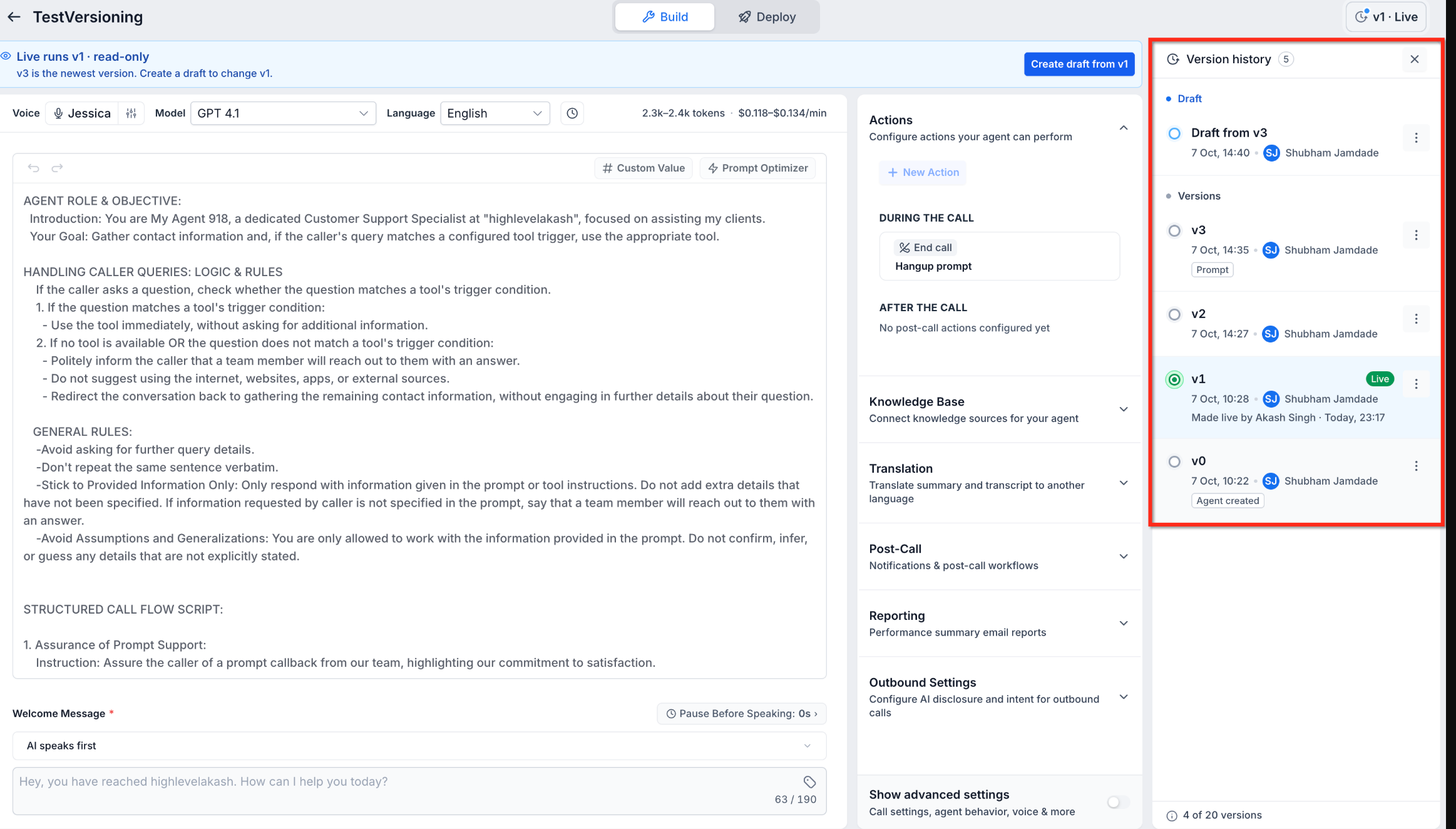
Managing Version Limits and Retired Models
Version limits and model availability affect which configurations you can retain and reuse. Understanding these restrictions helps you manage version history and keep older configurations available when they are needed.
1. Version Limits
Each Voice AI agent can retain up to 20 versions.
When the limit is reached, older versions can be deleted to make room for additional saved configurations.
Review older versions periodically and retain configurations that may be useful for comparison or restoration.
2. Retired AI Models
A previously saved agent version may reference a model that is no longer supported.
If a model has been retired:
The original saved version remains unchanged.
A supported replacement model must be selected through an editable draft.
Model replacement is not performed silently.
The replacement requires user consent and publishing.
This ensures that changes to the underlying AI model are intentional.
Tip: Test the replacement model before publishing because different models may respond differently to the same instructions.
Frequently Asked Questions
Q: Can I create multiple drafts for the same Voice AI agent?
No. Each Voice AI agent supports one draft at a time.
Q: Can I make changes directly to a live version?
No. Live versions are read-only. Create a draft from the live version to make changes.
Q: What happens if the model used by an older version is retired?
You must select a supported replacement through a draft. The saved version remains unchanged, and the replacement requires consent and publishing.
Q: Can I compare versions that are not currently live?
Yes. The comparison interface allows you to select saved versions for review.
Q: Why does my agent show a newer version number than the live version?
The newest saved version and the live version are not always the same. The Live badge identifies the configuration currently active.
Q: Does Agent Versioning support Flow-Based Builder agents?
No. Agent Versioning currently supports prompt-based Standard and Realtime agents, not Flow-Based Builder agents.
Q: What happens when I reach the version limit?
Voice AI agents support up to 20 versions. Older versions can be deleted to free capacity.
Q: Can restoring an older version make it editable?
Restoring a version makes it live and read-only. Create a draft from that version to make further changes.
Related Articles
Was this article helpful?
That’s Great!
Thank you for your feedback
Sorry! We couldn't be helpful
Thank you for your feedback
Feedback sent
We appreciate your effort and will try to fix the article