Opportunity Smart Lists help teams save and reuse customized views in the Opportunities area of HighLevel. Instead of rebuilding the same filters, sorting, and visible fields each time, users can save a configured view and return to it whenever they need to review pipeline data. Smart Lists can be created for both List view and Board view, making it easier to standardize deal reviews, manage pipeline workflows, and collaborate across teams.
TABLE OF CONTENTS
- What are Opportunity Smart Lists?
- Key Benefits of Opportunity Smart Lists
- List and Board Smart Lists in Opportunities
- Managing Opportunity Smart Lists
- How To Setup Opportunity Smart Lists
- Managing all Smart Lists
- Frequently Asked Questions
- Related Articles
What are Opportunity Smart Lists?
Opportunity Smart Lists are saved opportunity views that help users quickly return to the exact pipeline layout they need. They are useful when teams regularly review the same types of deals, such as stale opportunities, high-value deals, recently updated opportunities, or pipeline-specific working views.
Key Benefits of Opportunity Smart Lists
Opportunity Smart Lists reduce repetitive setup and help teams work from consistent pipeline views. By saving the way opportunities should appear, admins and users can create reliable views for daily reviews, follow-up tracking, reporting, and team collaboration.
- Reusable opportunity views: Save filters, sorting, and visible fields in a named view so users do not need to rebuild the same setup repeatedly.
- Organized List and Board views: Create Smart Lists for either table-style review or visual pipeline management.
- Pipeline-specific visibility: Choose whether a Smart List appears across all pipelines or only in selected pipelines.
- Default pipeline views: Set a Smart List as the default view for one or more pipelines so users land on the right view first.
- Improved collaboration: Share useful Smart Lists with all users or selected users in the sub-account.
- Controlled editing access: Assign view or edit access depending on whether users should only open the Smart List or modify its configuration.
- Faster reporting: Export the opportunity records returned by a Smart List when a CSV file is needed.
List and Board Smart Lists in Opportunities
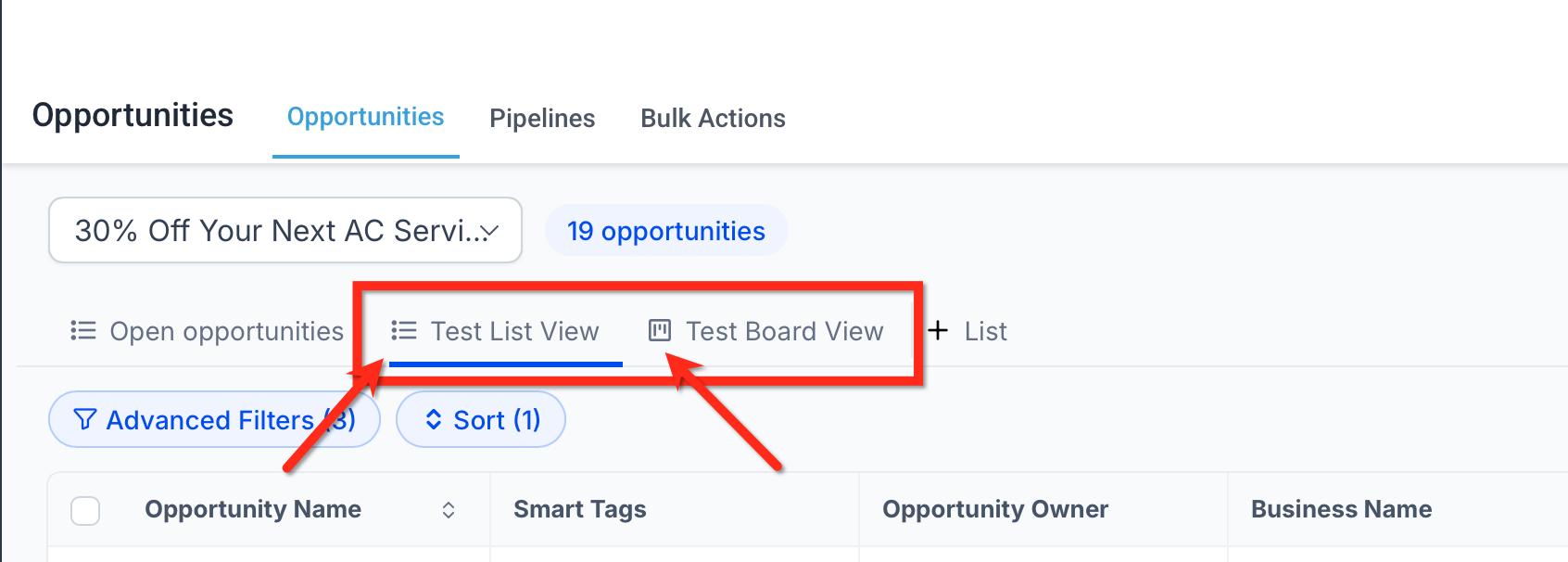
Opportunity Smart Lists can be created from either List view or Board view. Both types appear together in the Smart List area, so users can quickly switch between saved List and Board views from the same place. Since List and Board Smart Lists appear together, the icon beside the Smart List name helps users identify which type of saved view they are opening.
Board Smart Lists
Board Smart Lists display opportunities in a stage-based board layout. They are helpful when users need to visually manage deal movement, review pipeline stages, or work from a Kanban-style pipeline view. Board Smart Lists can be identified by the board-style icon beside the Smart List name.
List Smart Lists
List Smart Lists display opportunities in a table-style layout. They are helpful when users need to review many opportunity details at once, sort records, compare fields, or work from a structured list. List Smart Lists can be identified by the list-style icon beside the Smart List name.
Managing Opportunity Smart Lists
Managing Smart Lists from one place helps admins and teams keep saved views organized, accurate, and easy to maintain. These tools are especially useful when multiple users rely on the same pipeline views.
Editing an existing Smart List
You can update an existing Smart List when the saved filters, sorting, visible fields, pipeline visibility, or default settings need to change. Editing a Smart List updates the saved view, so review changes carefully before saving, especially if the Smart List is shared with other users or set as a default view.
To edit a Smart List:
- Open the Smart List.
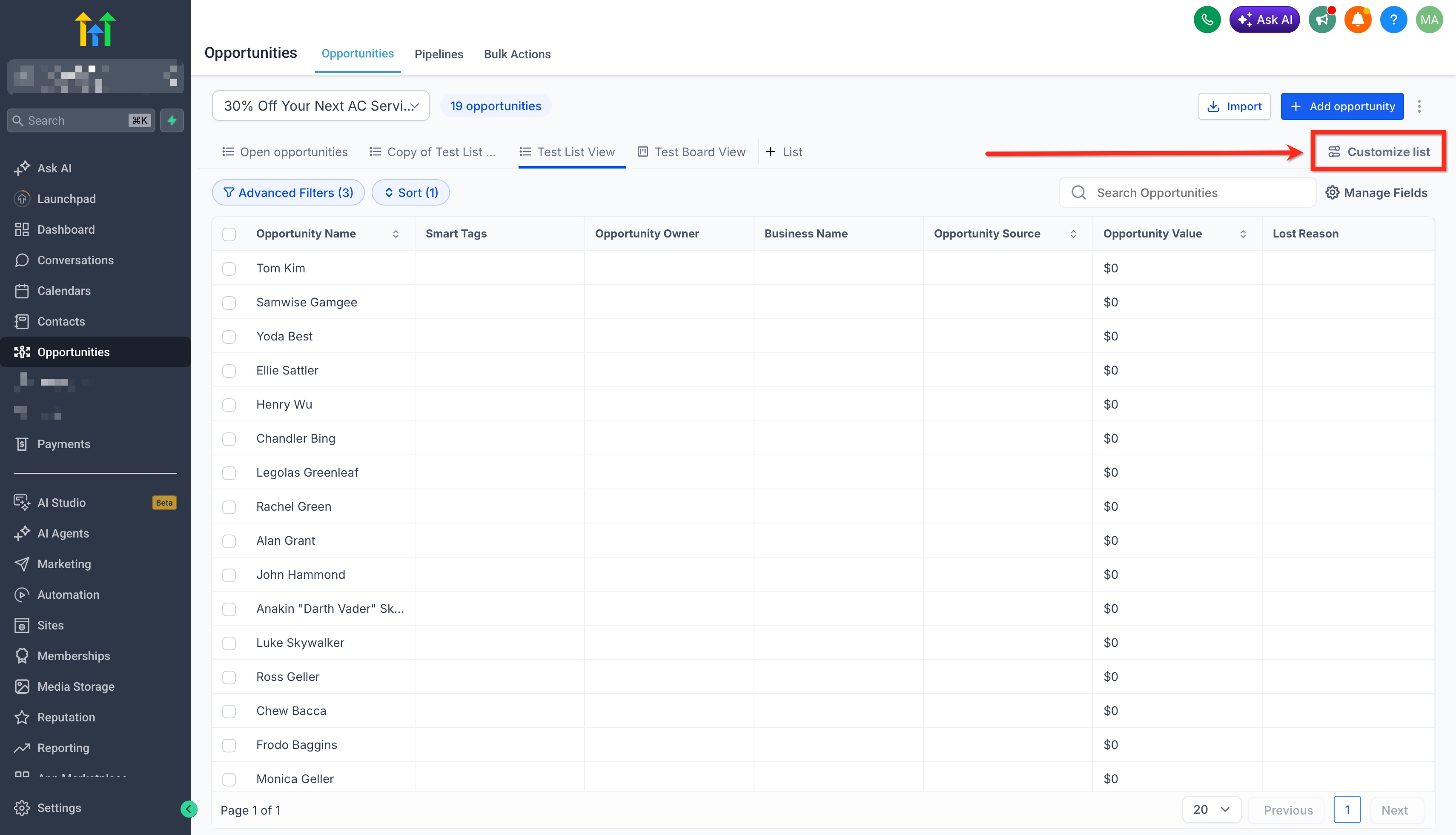
- Click on Customize list.
- Change the filters, sorting, visible fields, or other Smart List settings.
- When Unsaved Changes appears, choose how you want to handle the update.
Use Save only when you want to update the existing Smart List. If you want to create a variation without changing the original, duplicate the Smart List first, then make edits to the duplicated version.
Duplicating a Smart List
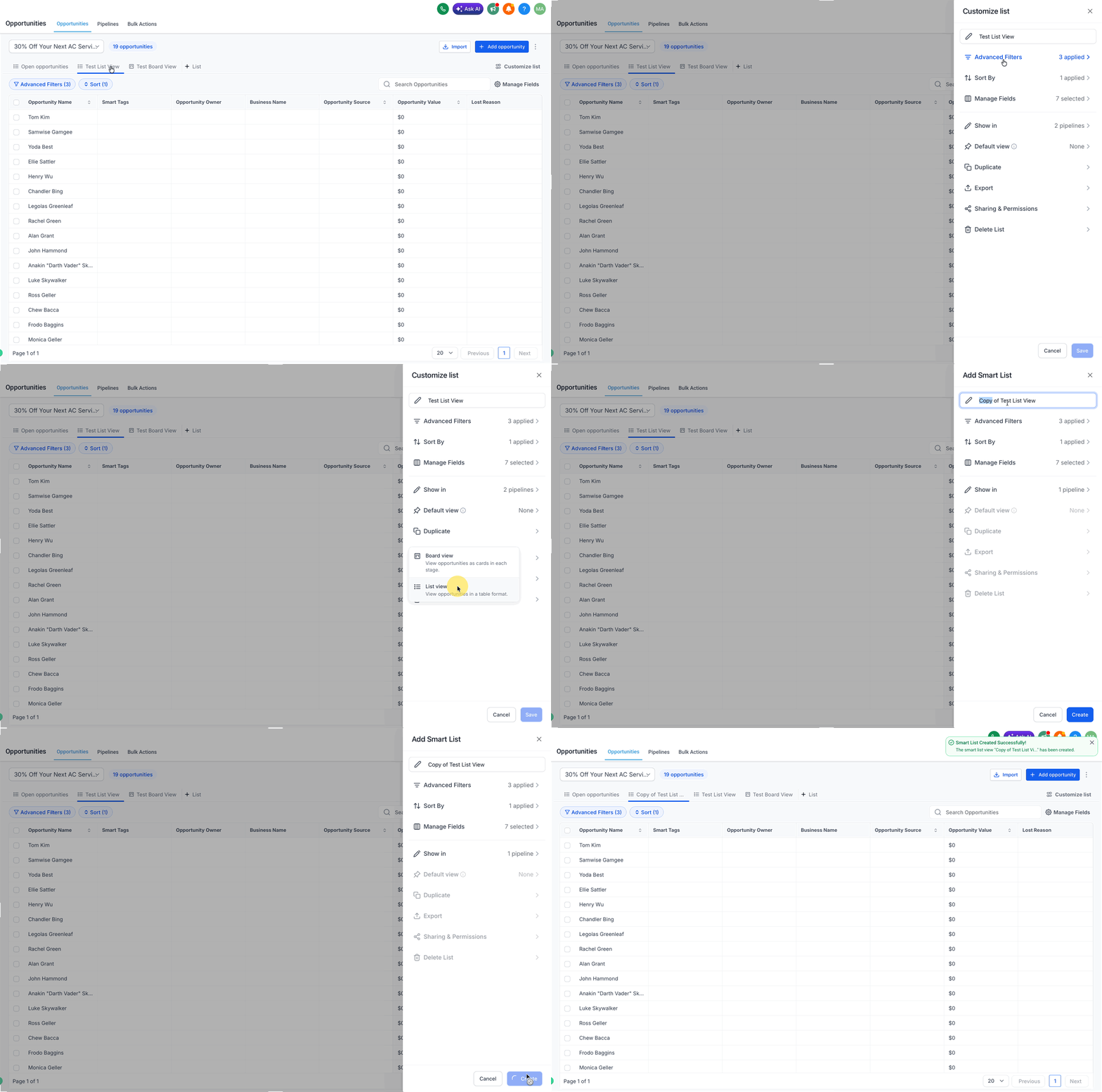
Duplicating a Smart List helps users create a similar view without rebuilding the setup manually. This is the best option when you want to create a variation of an existing Smart List while keeping the original view unchanged.
To duplicate a Smart List:
- Open the Smart List.
- Click Customize list.
- Select Duplicate.
- Enter a name for the duplicated Smart List.
- Save it.
This is useful when creating similar views for different teams, pipelines, or review processes.
Exporting a Smart List
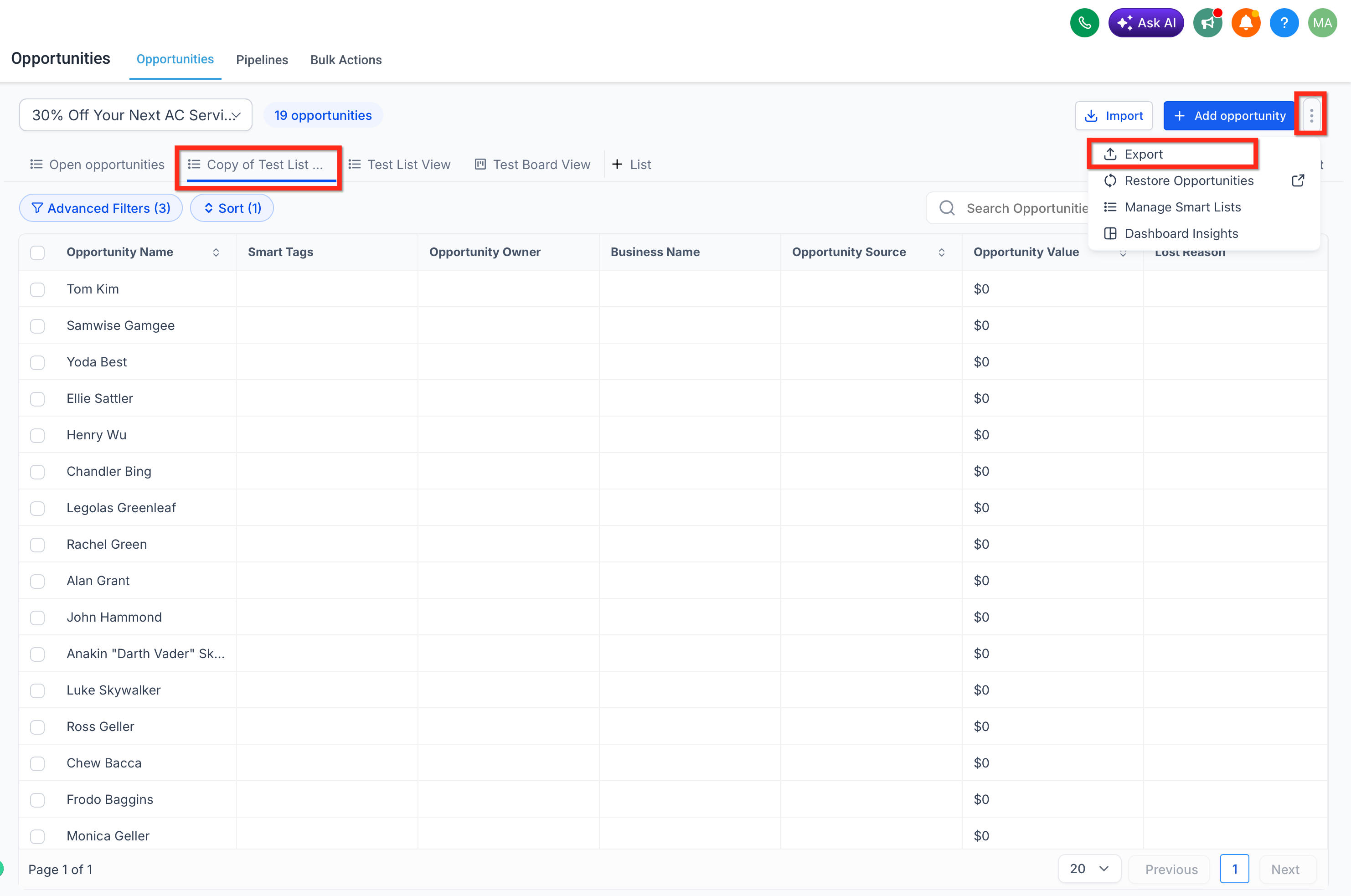
Export allows users to download the opportunity records returned by the Smart List’s current setup as a CSV file.
To export a Smart List:
- Open the Smart List.
- Click on Menu (Three Dots on Top-right beside + Add Opportunity)
- Select Export.
The exported file contains the opportunities returned by that Smart List’s current setup.
Sharing a Smart List and Copying a Link
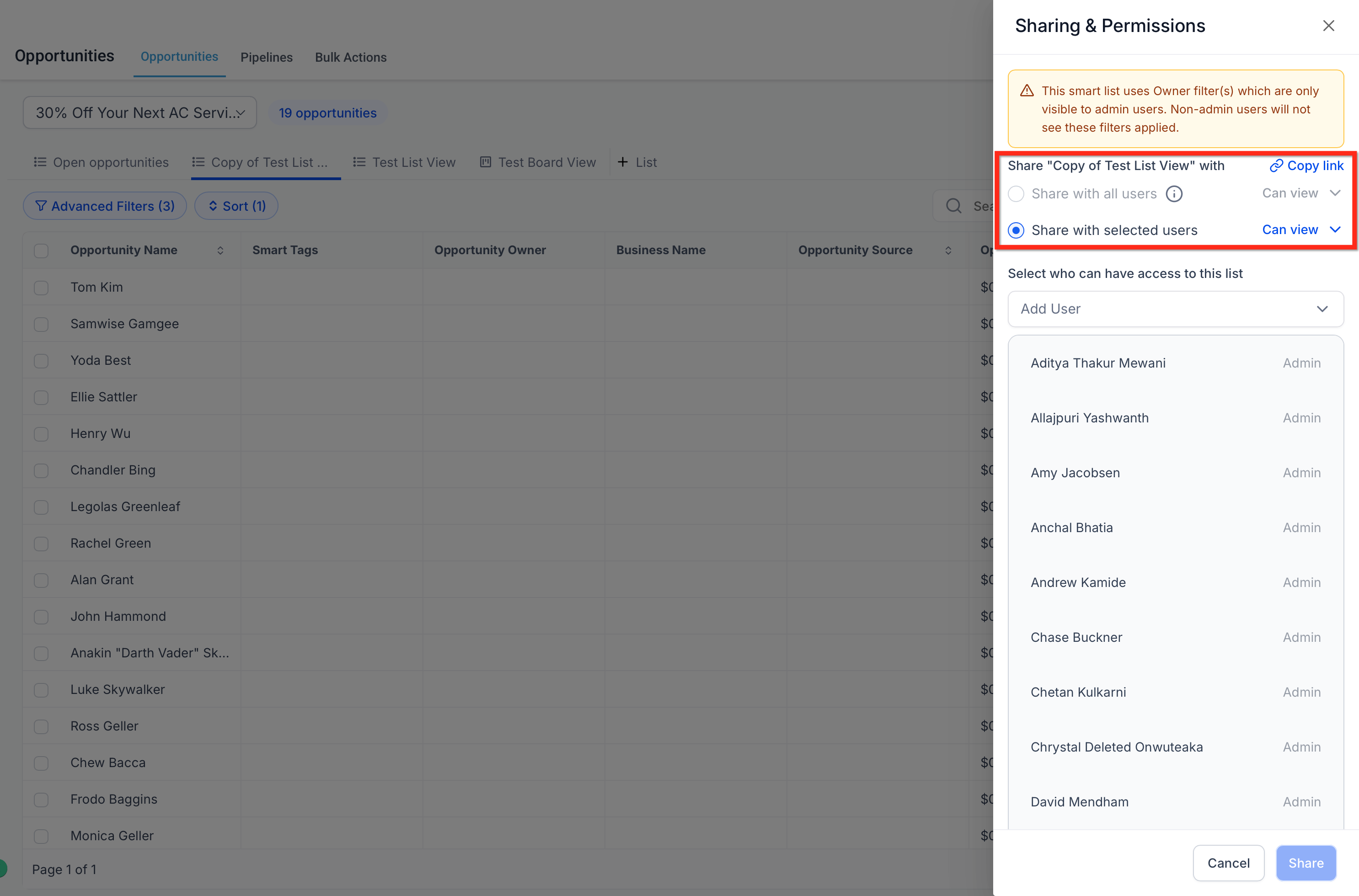
Smart Lists can be shared from the same Sharing & Permissions area where users can copy a direct link. This helps teams work from the same saved Opportunity view while controlling who can access or edit the Smart List.
To share a Smart List or copy its link:
- Open the Smart List.
- Click Customize list.
- Select Sharing & Permissions.
- Choose how you want to share the Smart List:
- Copy link: Copy a direct link to the Smart List and share it with teammates.
- All users: Share the Smart List with all users in the sub-account.
- Selected users: Share the Smart List with specific users only.
- If sharing with users, assign the access level.
- Save the sharing settings.
Permission types include:
- Can view: Users can open and use the Smart List.
- Can edit: Users can modify the Smart List configuration.
Be careful when granting edit access, since users with edit permissions can change the Smart List setup.
Note: Sharing a Smart List controls access to the saved view. A user’s broader sub-account role, permissions, and assigned data settings may still affect what they can access or manage.
How To Setup Opportunity Smart Lists
Setting up Opportunity Smart Lists correctly helps teams create reusable views that are easy to find, share, and maintain. A clear setup process also reduces duplicate views and ensures filters, sorting, visible fields, pipeline visibility, and default views are configured intentionally.
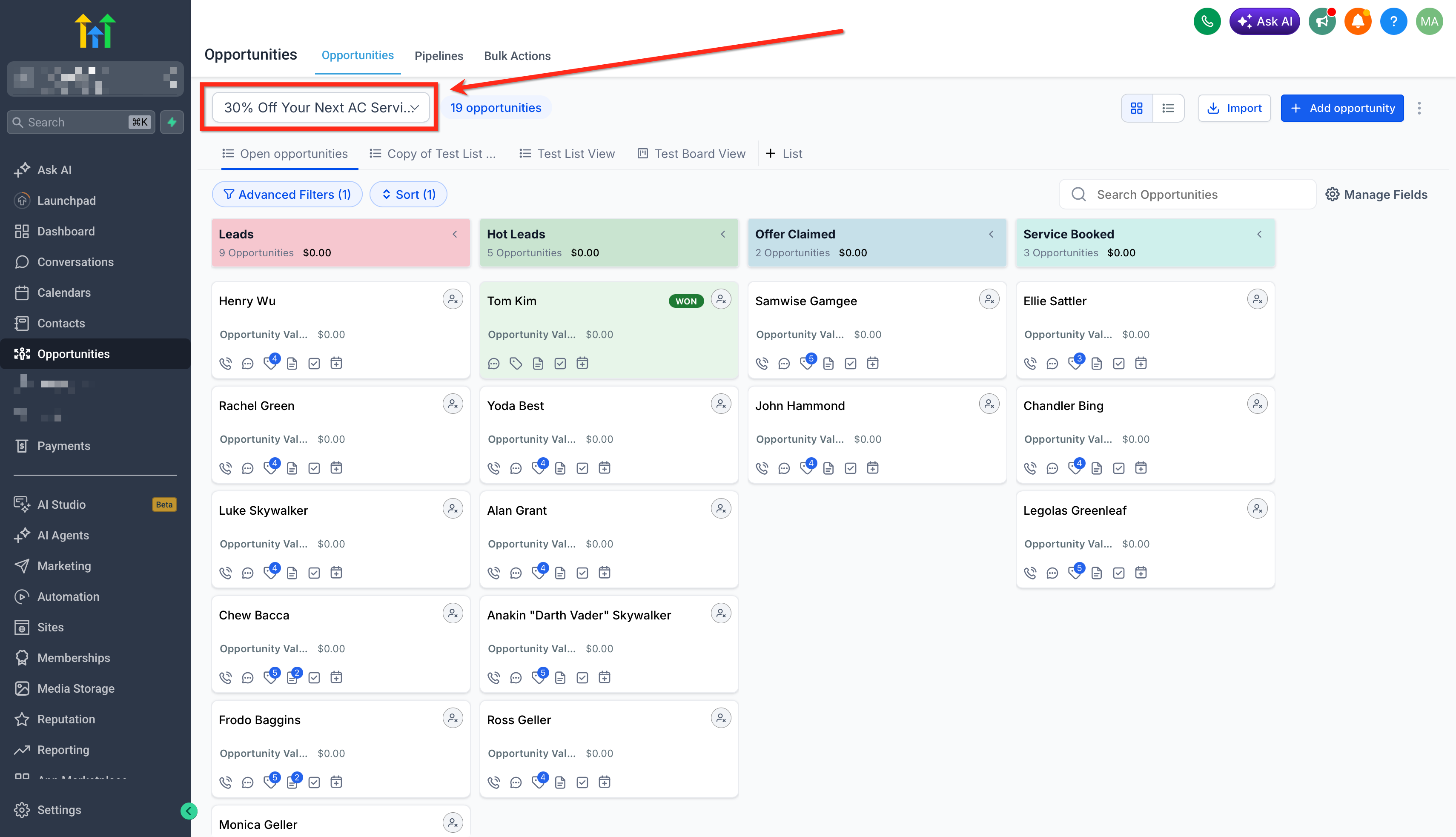
- Go to Opportunities and Open the pipeline you want to work in.
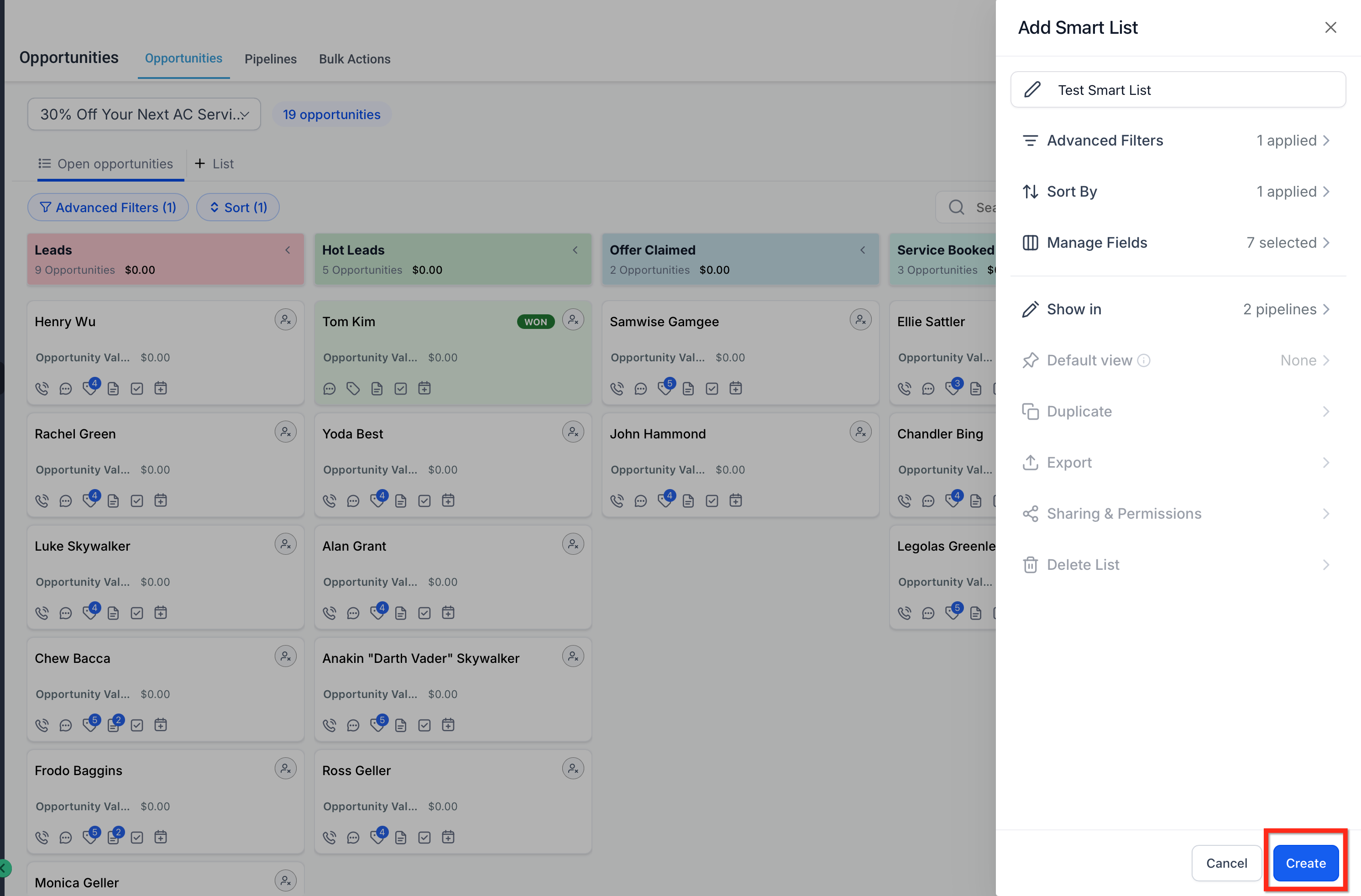
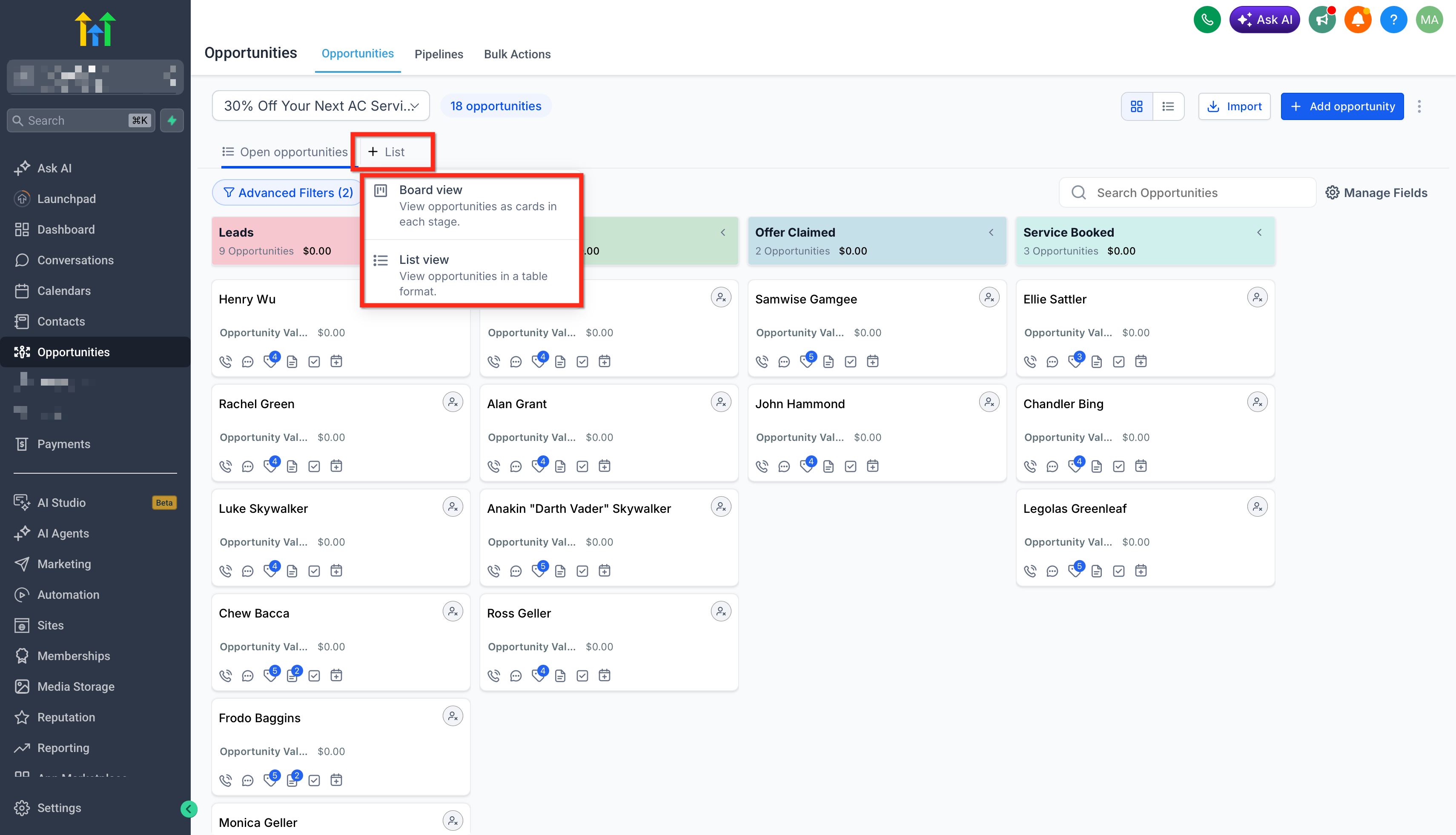
- Click on + List to create a Smart List and Choose from either List view or Board view.
- Apply the filters you want to save using Advanced Filters.
Use filters to narrow the opportunities shown in the Smart List. Example filters may include owner, pipeline, stage, value, or activity-based conditions, depending on available filter options.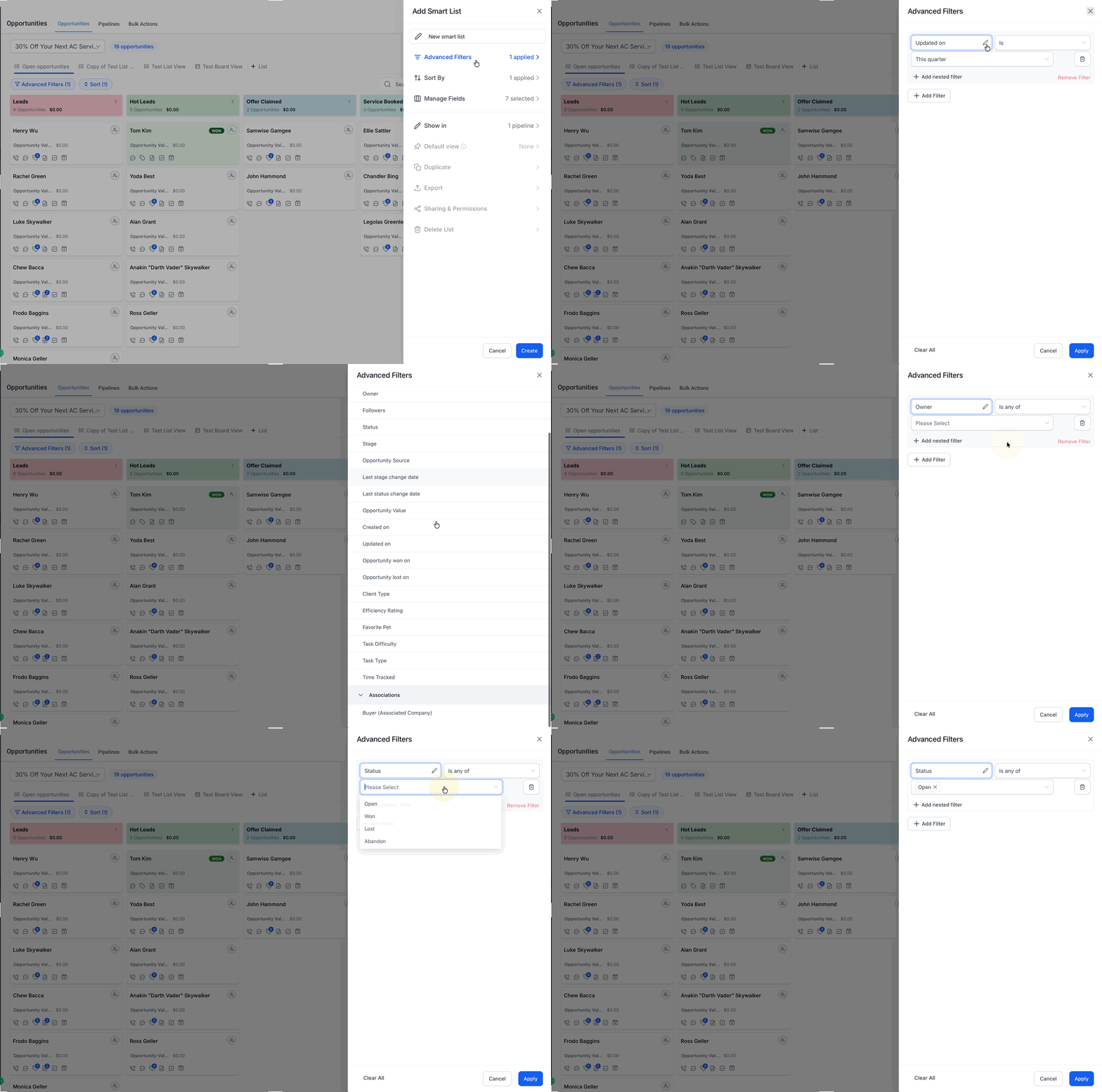
- Choose the preferred Sort order.
Sorting helps control how opportunities appear when the Smart List is opened. For example, users may sort by recently updated opportunities, opportunity value, or other available fields.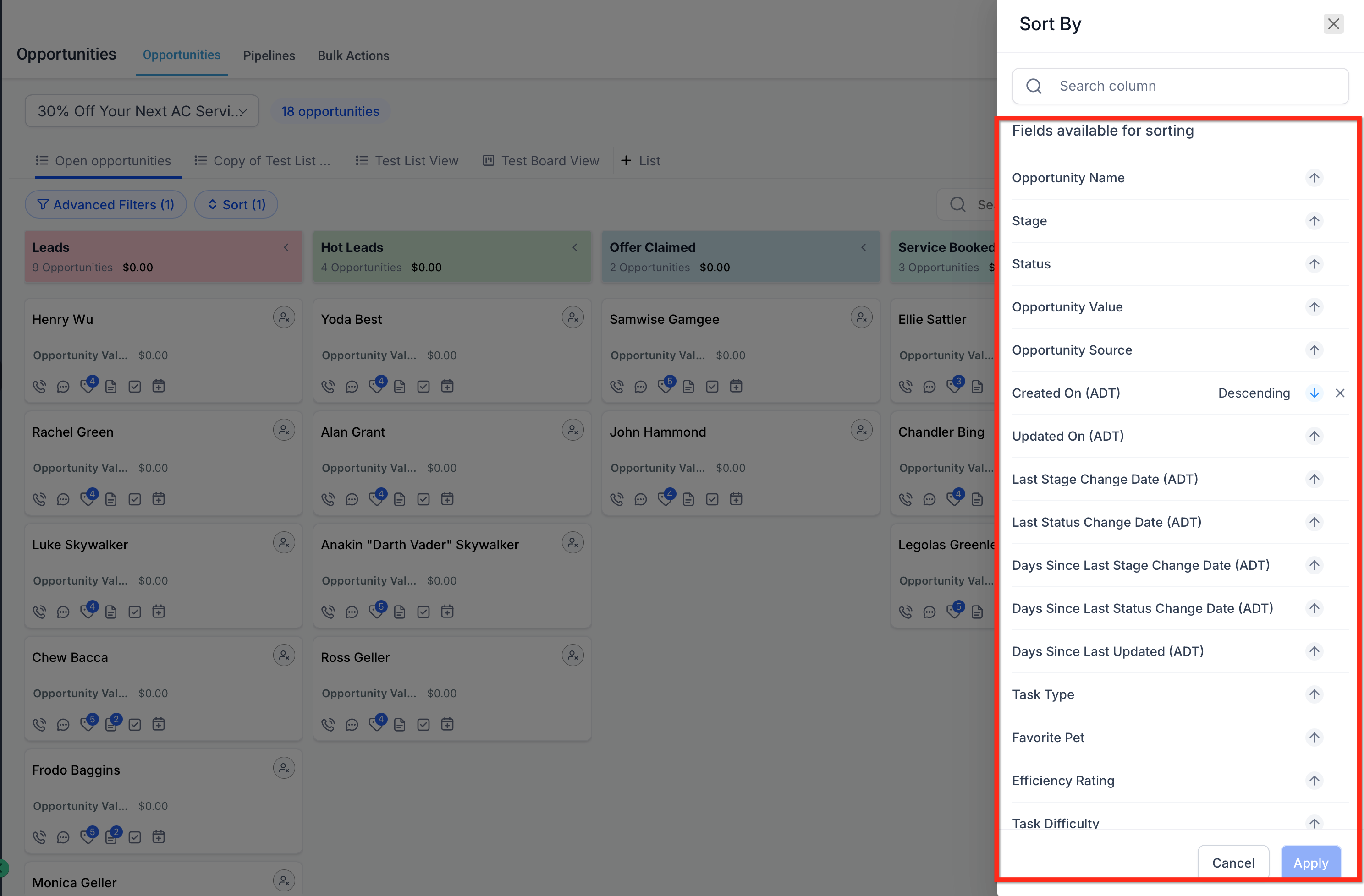
- Use Manage Fields to choose the visible fields for the saved view.
Visible fields help users focus on the details that matter most for that Smart List. For List views, this controls the fields shown in the table-style layout. For Board views, this helps preserve the selected view setup for that board-style Smart List.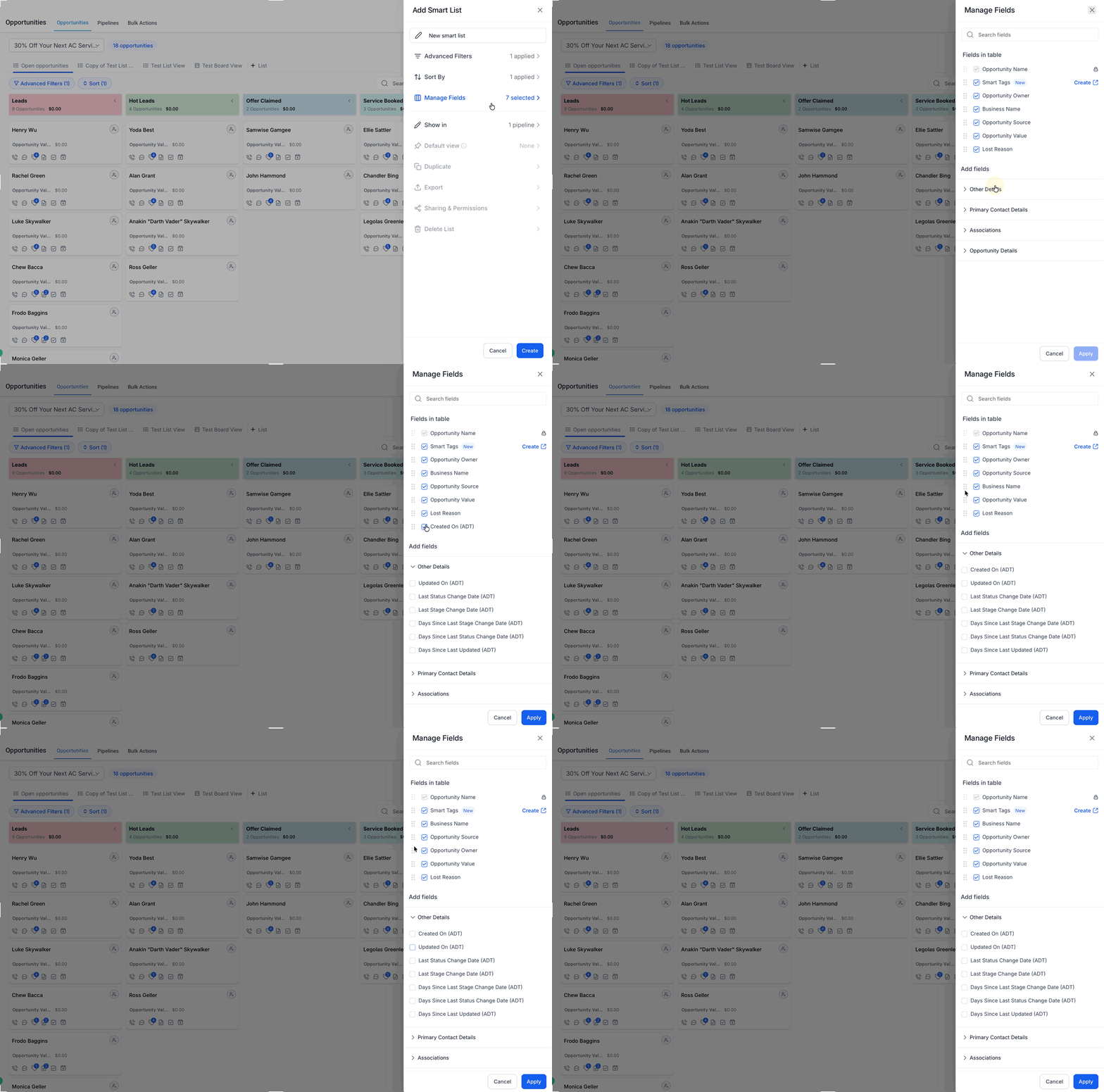
- Click on Show In to choose where the Smart List should appear:
All pipelines: Use this when the Smart List applies across the Opportunities area. OR
Selected pipelines: Use this when the Smart List only applies to specific workflows, teams, or pipeline types.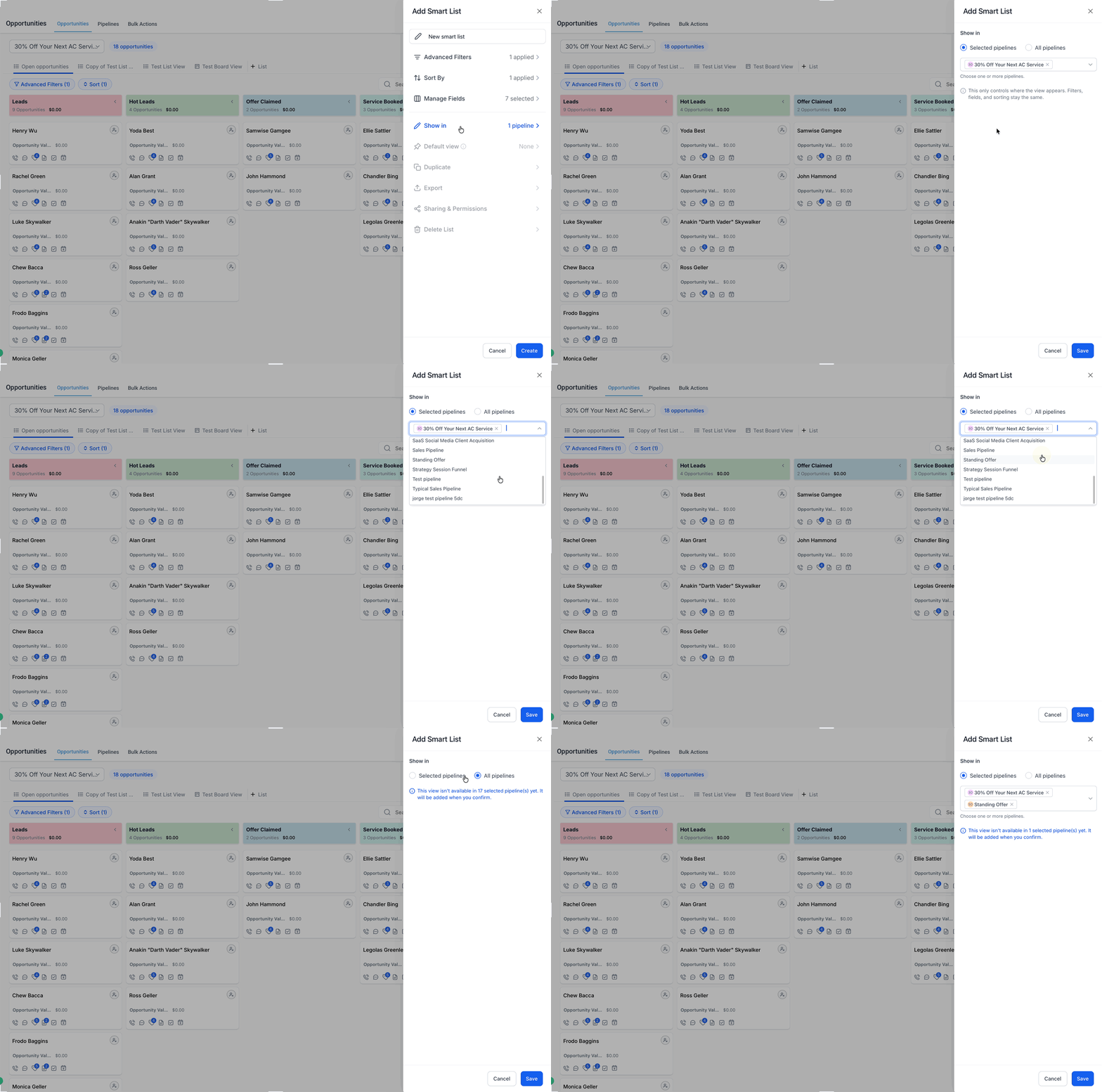
- Enter a clear name for the Smart List and Save the Smart List.
Use descriptive names that explain the purpose of the view. Examples: High-Value Open Deals, Stale Opportunities, Today’s Follow-Ups, or New Leads This Week.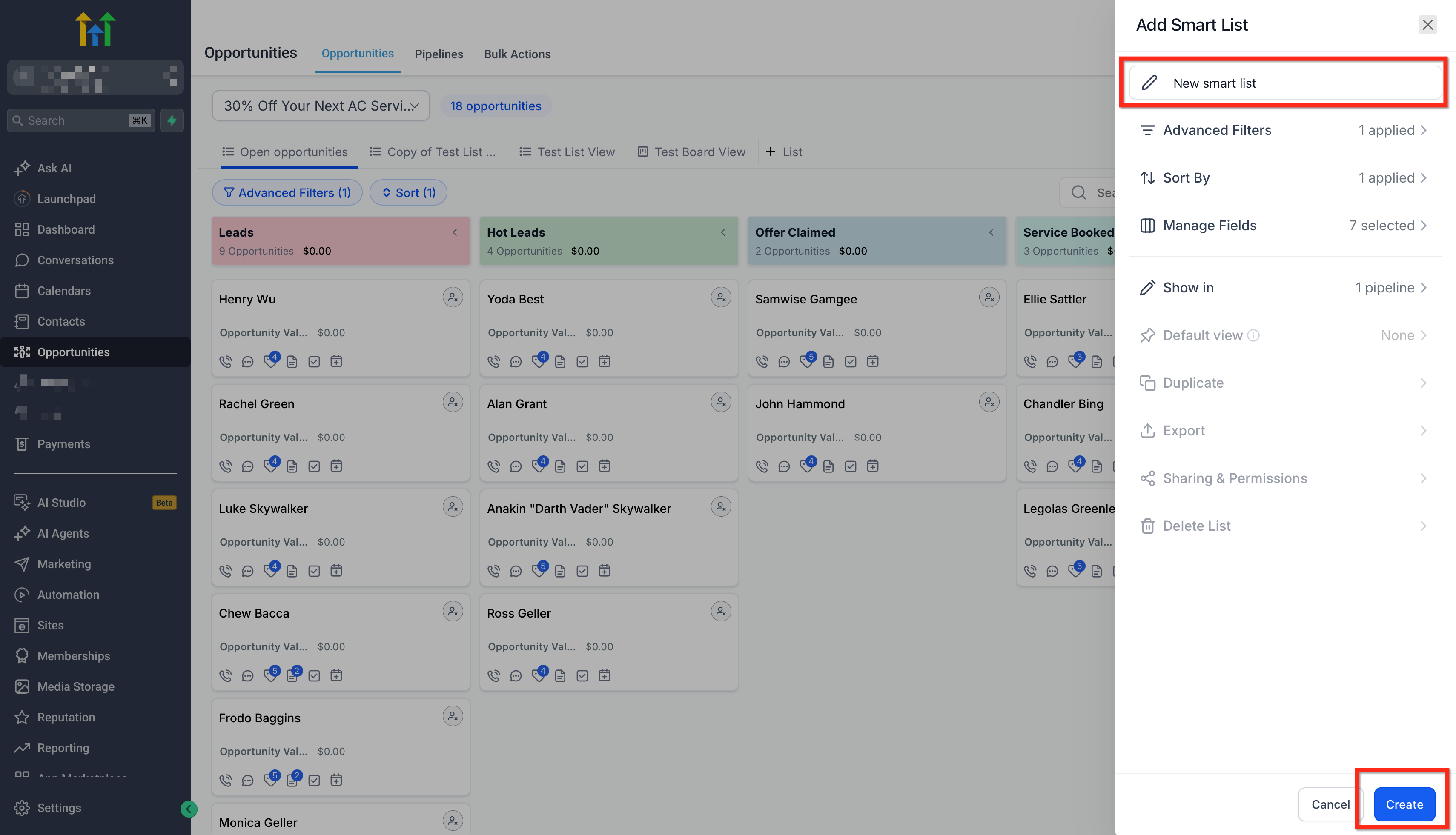
- Open Customize list to configure additional Smart List options.
- To set the Smart List as a default view, select Default view.
Choose whether the Smart List should be the default for:
All pipelines or Selected pipelines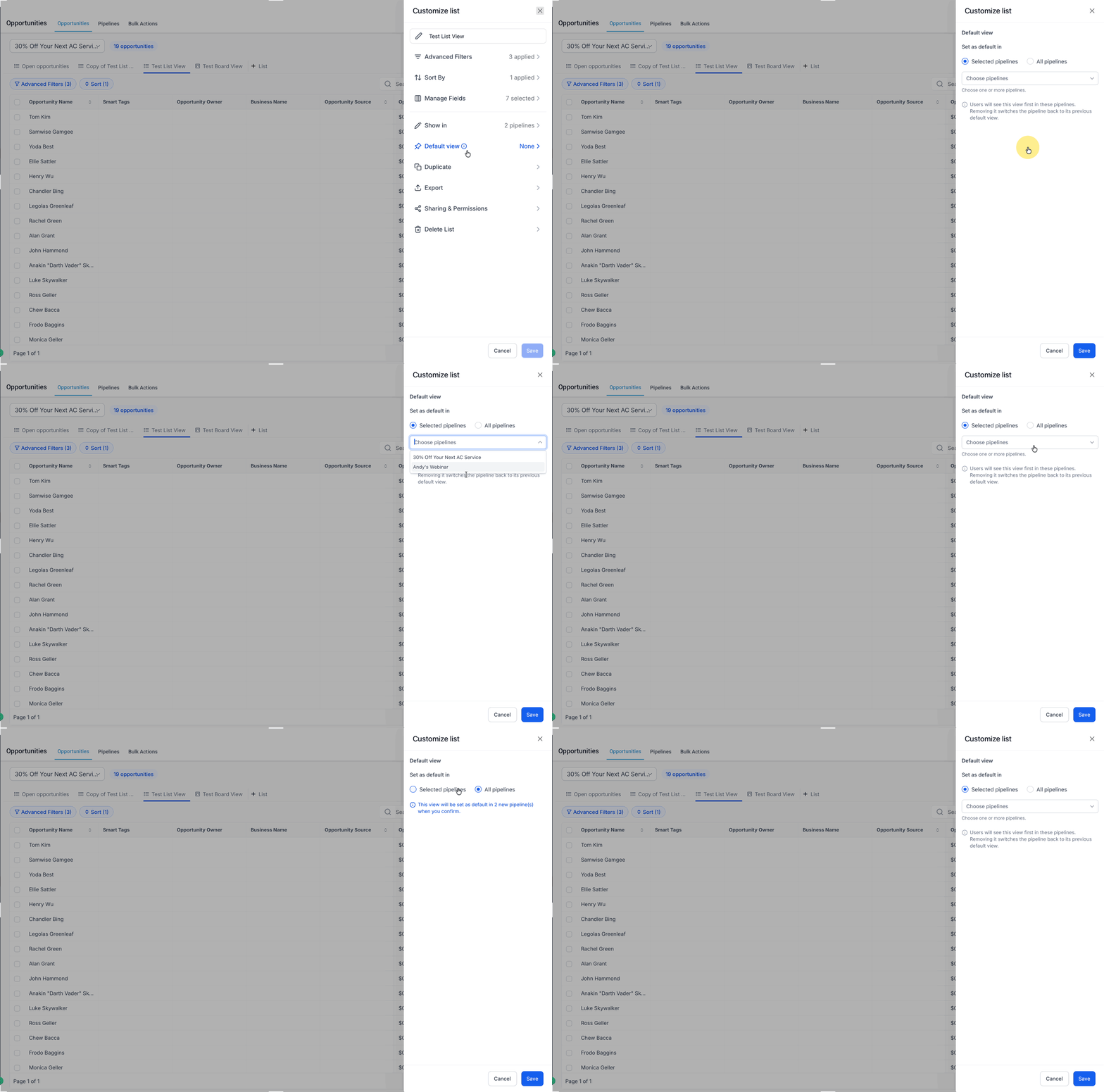
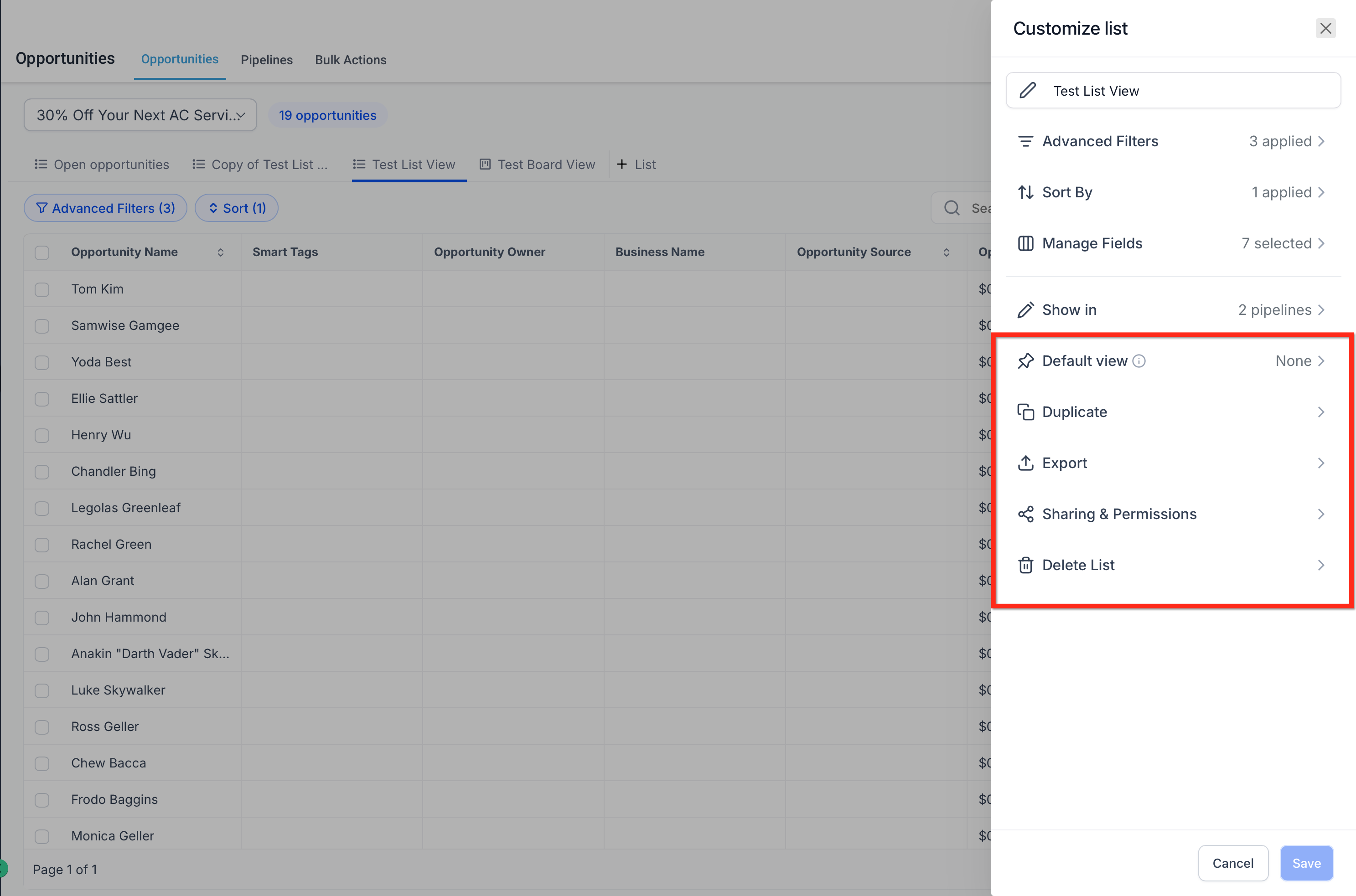
- Use Customize list to manage additional options, such as:
- Duplicate: Create a similar Smart List without rebuilding the setup.
- Export: Download the opportunity records returned by the Smart List’s current setup as a CSV file.
- Sharing & Permissions: Share the Smart List with all users or selected users, assign view or edit access, or copy a direct link.
- Delete List: Remove the saved Smart List view without deleting the underlying opportunities.
Managing all Smart Lists
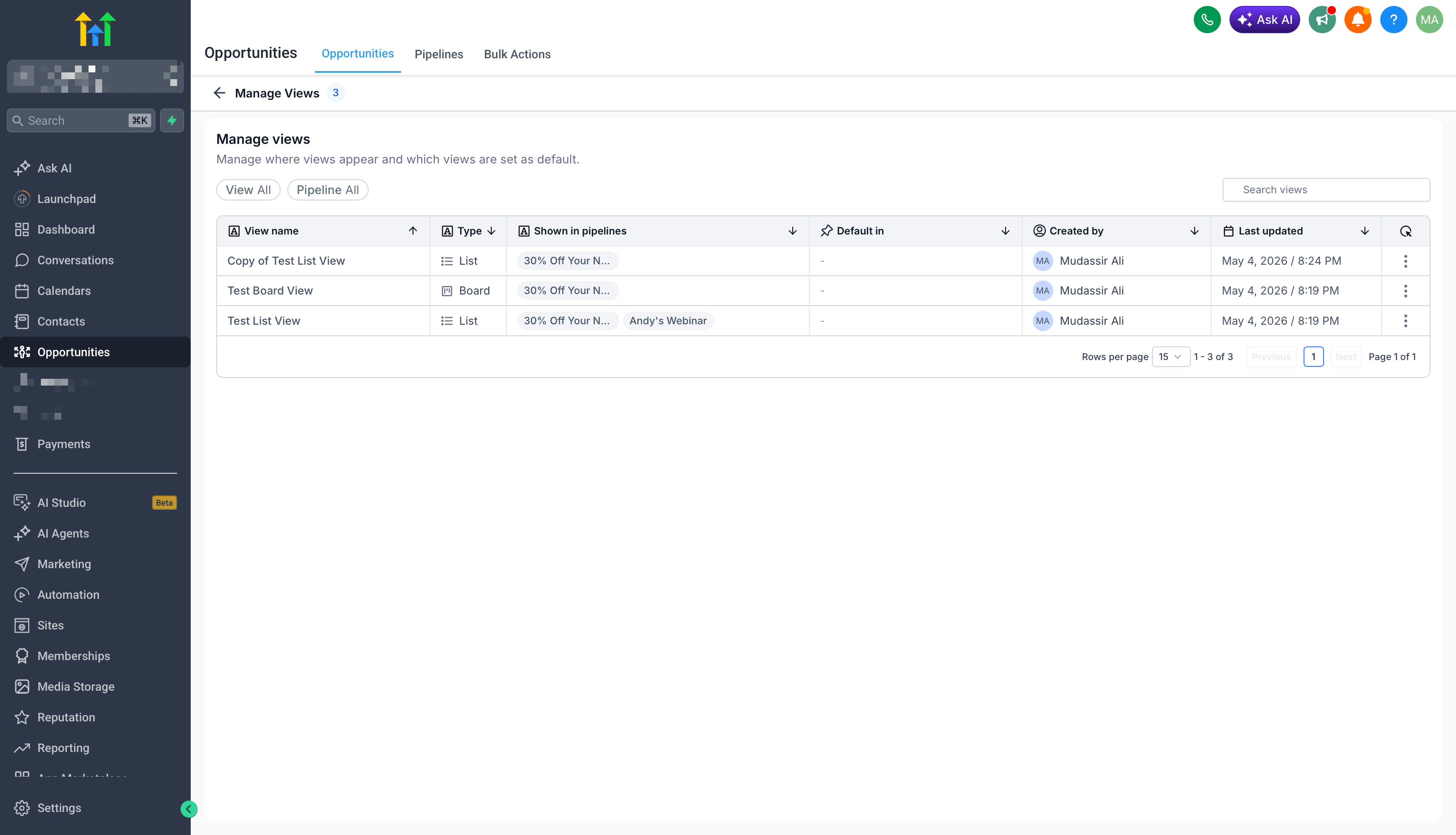
The Manage Smart Lists or Manage Views page gives users a centralized place to review saved Opportunity Smart Lists. This page is useful for cleaning up duplicate views, reviewing defaults, and managing pipeline visibility.
To access it:
- Go to Opportunities.
- Click on Menu (Three Dots on Top-right beside + Add Opportunity)
- Select Manage Smart Lists.
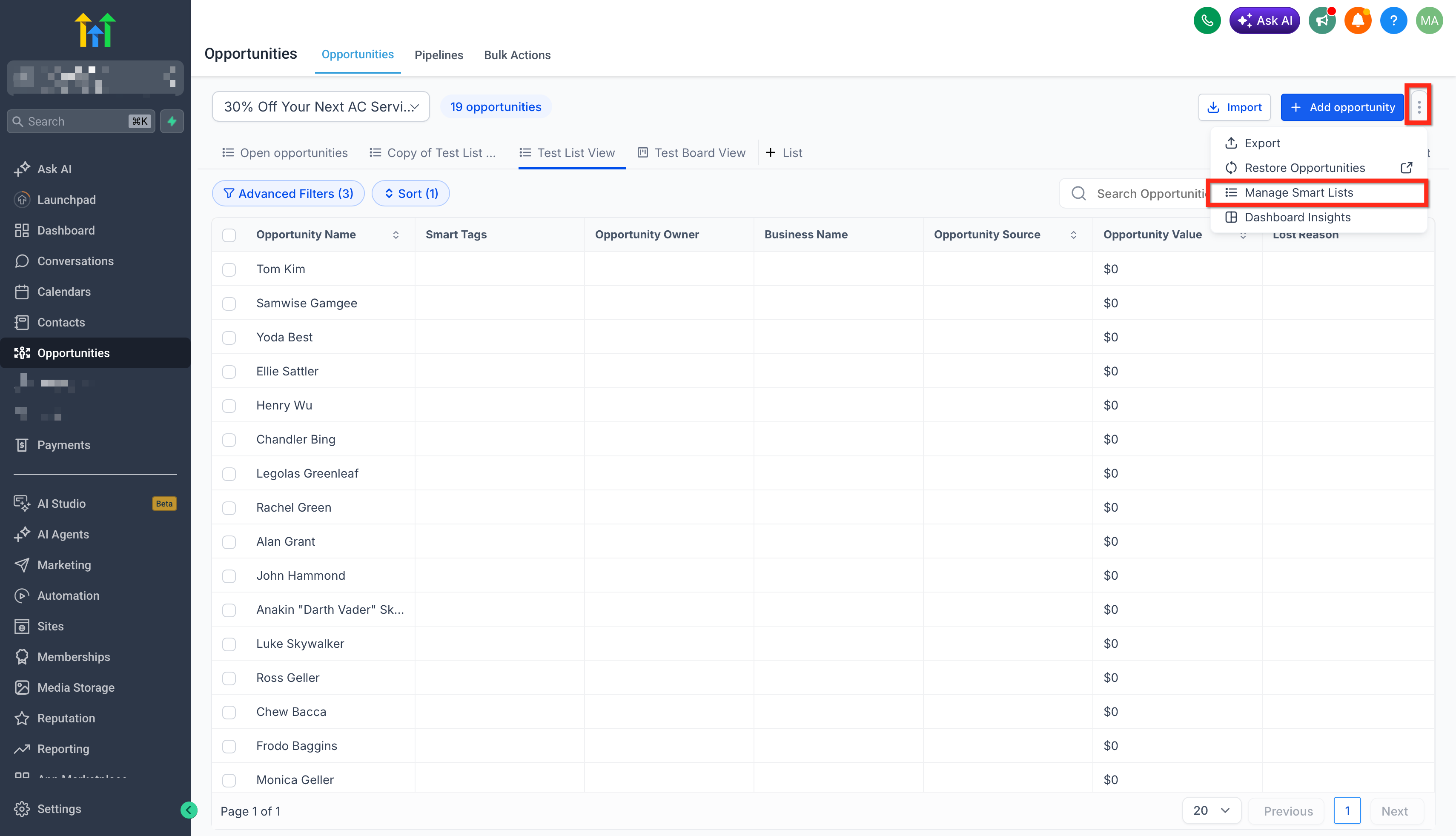
From this page, users can view details such as:
- Smart List name
- Type
- Pipeline visibility
- Default view usage
- Creator
- Last updated time
Frequently Asked Questions
Q: Can I create Smart Lists for both Board and List views?
Yes. Opportunity Smart Lists support both Board view and List view.
Q: How can I tell whether a Smart List is a List view or Board view?
List and Board Smart Lists appear together in the Smart List area. You can identify the view type by the icon beside the Smart List name. Board Smart Lists use a board-style icon, while List Smart Lists use a list-style icon.
Q: What settings are saved in a Smart List?
A Smart List saves filters, sort settings, and visible field configuration for the view type used.
Q: Can a Smart List appear in only certain pipelines?
Yes. You can choose whether a Smart List appears in all pipelines or only selected pipelines.
Q: Can I set a Smart List as the default view?
Yes. A Smart List can be set as the default view for one or more pipelines.
Q: Does the default view apply only to me?
No. The default view is tied to the pipeline setup and affects users in the sub-account for that pipeline.
Q: What is the difference between Can view and Can edit?
Can view allows users to open and use the Smart List. Can edit allows users to modify the Smart List configuration.
Q: Can I duplicate a Smart List instead of building it again?
Yes. Use the Duplicate option from Customize list to create a similar Smart List from an existing setup.
Q: Can I delete a Smart List without deleting opportunities?
Yes. Deleting a Smart List removes the saved view, not the underlying opportunity records.
Q: Can I copy Smart Lists to other sub-accounts?
Yes. Opportunity Smart Lists can be included in Account Snapshots and copied to other sub-accounts, along with the pipelines they belong to. See How to Add Opportunity Smart Lists and Smart Tags to Snapshots.
Related Articles
Was this article helpful?
That’s Great!
Thank you for your feedback
Sorry! We couldn't be helpful
Thank you for your feedback
Feedback sent
We appreciate your effort and will try to fix the article