Ask AI helps you create and manage projects in HighLevel using simple instructions. You can create tasks, update deadlines, find pending work, and organize projects without making every change manually. Ask AI shows you the proposed changes for approval before applying them. This article explains what Ask AI can do in Project Management and how to get started.
TABLE OF CONTENTS
- What is Ask AI in Project Management?
- Creating Projects and Tasks with Ask AI
- Finding and Updating Tasks
- Managing Comments, CRM Records, and Access
- Reviewing and Approving Changes
- Tracking Ask AI Progress
- How to Use Ask AI in Project Management
- Frequently Asked Questions
- Related Articles
What is Ask AI in Project Management?
Ask AI is HighLevel's built-in AI assistant that helps you manage projects by describing what you want to create, find, or change.
For example, you can ask Ask AI to create a client onboarding project with tasks, due dates, and subtasks. It prepares the project structure, asks for your approval, and creates the items once approved.
Availability: Project Management is currently in Private Beta. You must also have access to Ask AI to use these capabilities.
Creating Projects and Tasks with Ask AI
Ask AI can create a complete project structure from a single request, saving you from setting up each item separately.
A project can include:
Space: The main area for organizing projects.
Folder: An optional way to group related Lists.
List: A collection of tasks.
Task: An individual activity to complete.
Subtask: A smaller activity within a task.
You can also ask Ask AI to set task descriptions, assignees, statuses, priorities, and dates.
Example prompt:
"Create a client onboarding project for Bright Smile Dental. Add a Launch Plan List with tasks for a kickoff call, building a website, and launching ads. Under Build website, add subtasks for designing the homepage and setting up a booking form."
Ask AI prepares the project structure and requests approval before creating it.
Finding and Updating Tasks
Ask AI can search for existing tasks and update multiple items through a single request. This is useful when you need to manage work across several Lists.
You can ask Ask AI to:
Find tasks by due date or other details.
Update task statuses and deadlines.
Move tasks between Lists.
Add tasks to more than one List.
Example prompts:
"Show me all tasks due in the next 7 days."
"Move all overdue tasks in Launch Plan to In Progress."
"Change the due date of the Build website task to next Friday."
Searching for tasks does not change them. Ask AI requests approval before applying updates.
Managing Comments, CRM Records, and Access
Ask AI can help manage information connected to your tasks, including comments, customer records, and team access.
You can use it to:
Manage Comments: Add, edit, or delete task comments.
Link CRM Records: Associate tasks with Contacts, Opportunities, and Businesses.
Manage Access: Grant or remove user access to Spaces, Folders, and Lists.
For example, you can ask:
"Link the Build website task to the Bright Smile Dental contact."
Ask AI prepares the action for your approval. Access changes remain subject to your user permissions.
Reviewing and Approving Changes
Ask AI lets you review proposed actions before it creates or updates project information. This helps prevent unwanted changes.
The approval card can show:
Actions Ask AI plans to perform.
Items affected by those actions.
Risk levels for proposed changes.
Previous and new values for updates.
When you use phrases such as "tomorrow" or "in 7 days," Ask AI displays the corresponding dates so you can check them before approving.
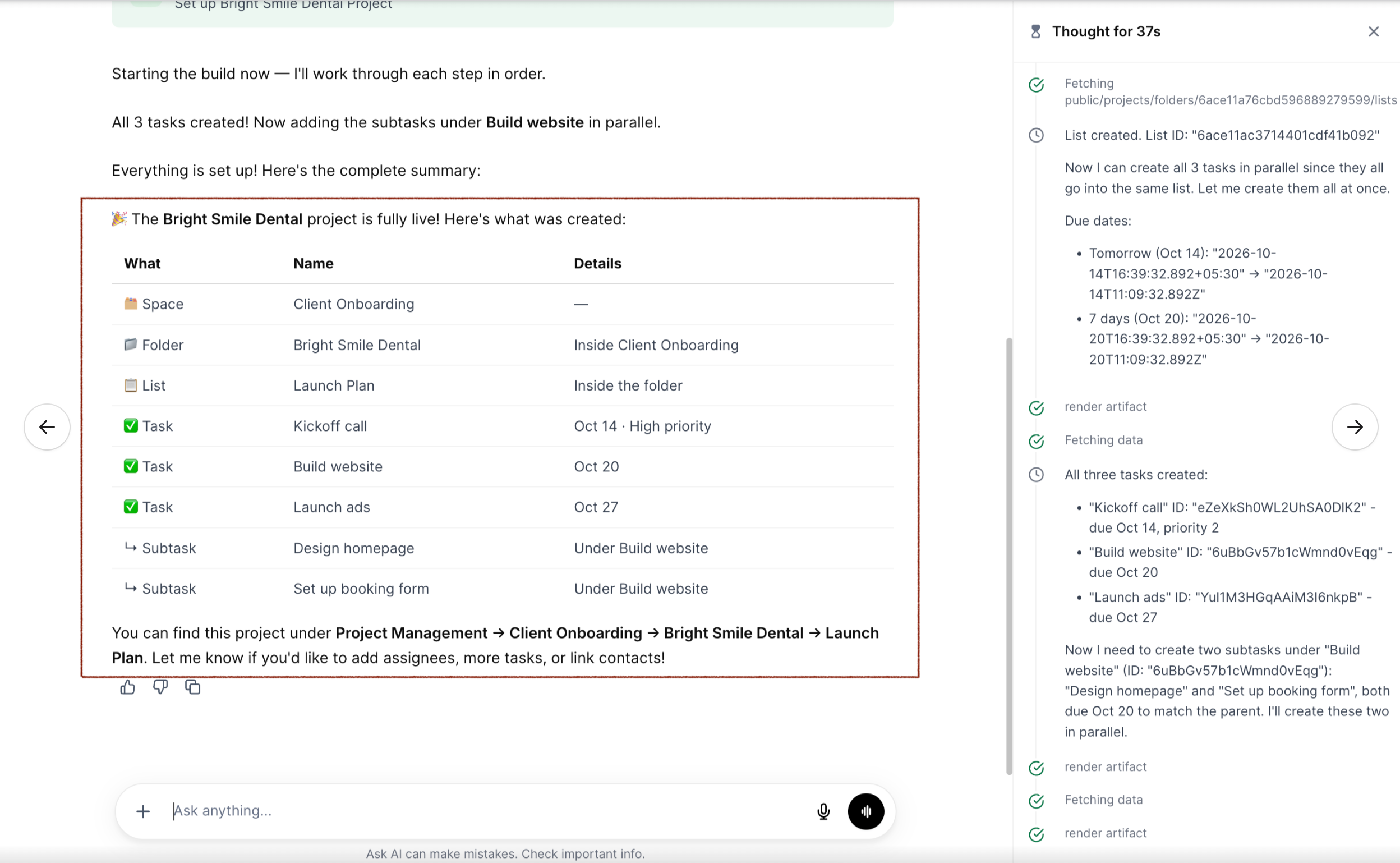
Important: Project creation and updates are not applied until you approve them.
Tracking Ask AI Progress
Ask AI displays its progress in a side panel while completing approved actions. This helps you follow the process and identify any actions that could not be completed.
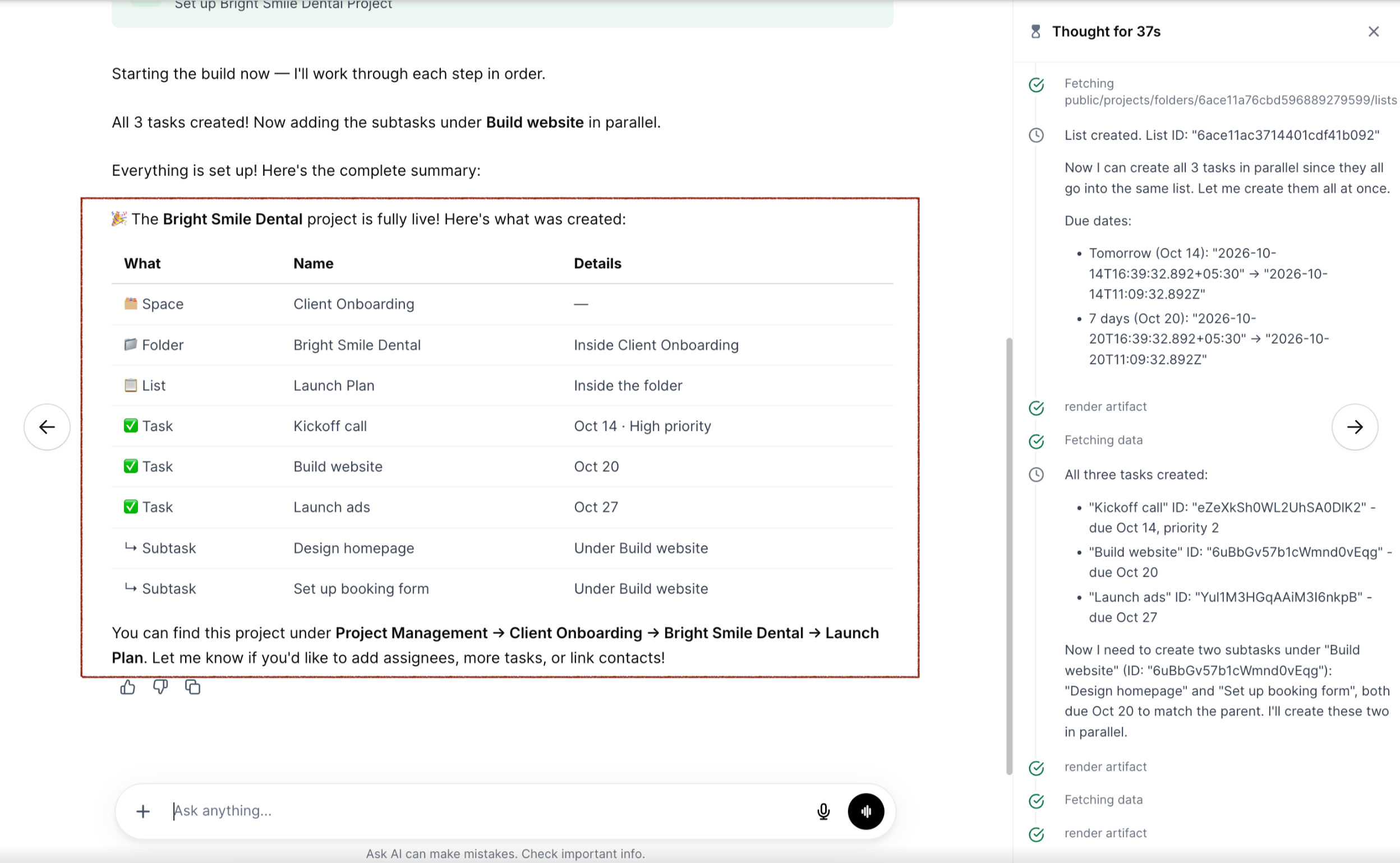
Once finished, Ask AI provides a summary of the completed work. Review it to confirm the requested changes were successful.
How to Use Ask AI in Project Management
You can create a project by describing what you need, reviewing the proposed actions, and approving them. The steps below use a client onboarding project as an example.
Step 1: Open Ask AI
Log in to your HighLevel sub-account.
Click Ask AI in the left sidebar or top navigation.
Start a conversation.
Step 2: Enter Your Request
Describe the project you want to create, including its structure and tasks.
For example:
"Create a Space called Client Onboarding. Inside it, create a Folder called Bright Smile Dental and a List called Launch Plan. Add tasks for a kickoff call due tomorrow, building a website due in 7 days, and launching ads due in 14 days. Add two subtasks under Build website: Design homepage and Set up booking form."
Submit the request.
Step 3: Review and Approve
Ask AI displays the actions it plans to perform.
Check the Space, Folder, and List names.
Review the task names, due dates, and other details.
Correct anything that does not match your request.
Approve the proposed actions.
Ask AI begins creating the project and displays its progress.
Step 4: Check the Results
Once Ask AI finishes, review the completion summary to see what was created and whether any actions failed.
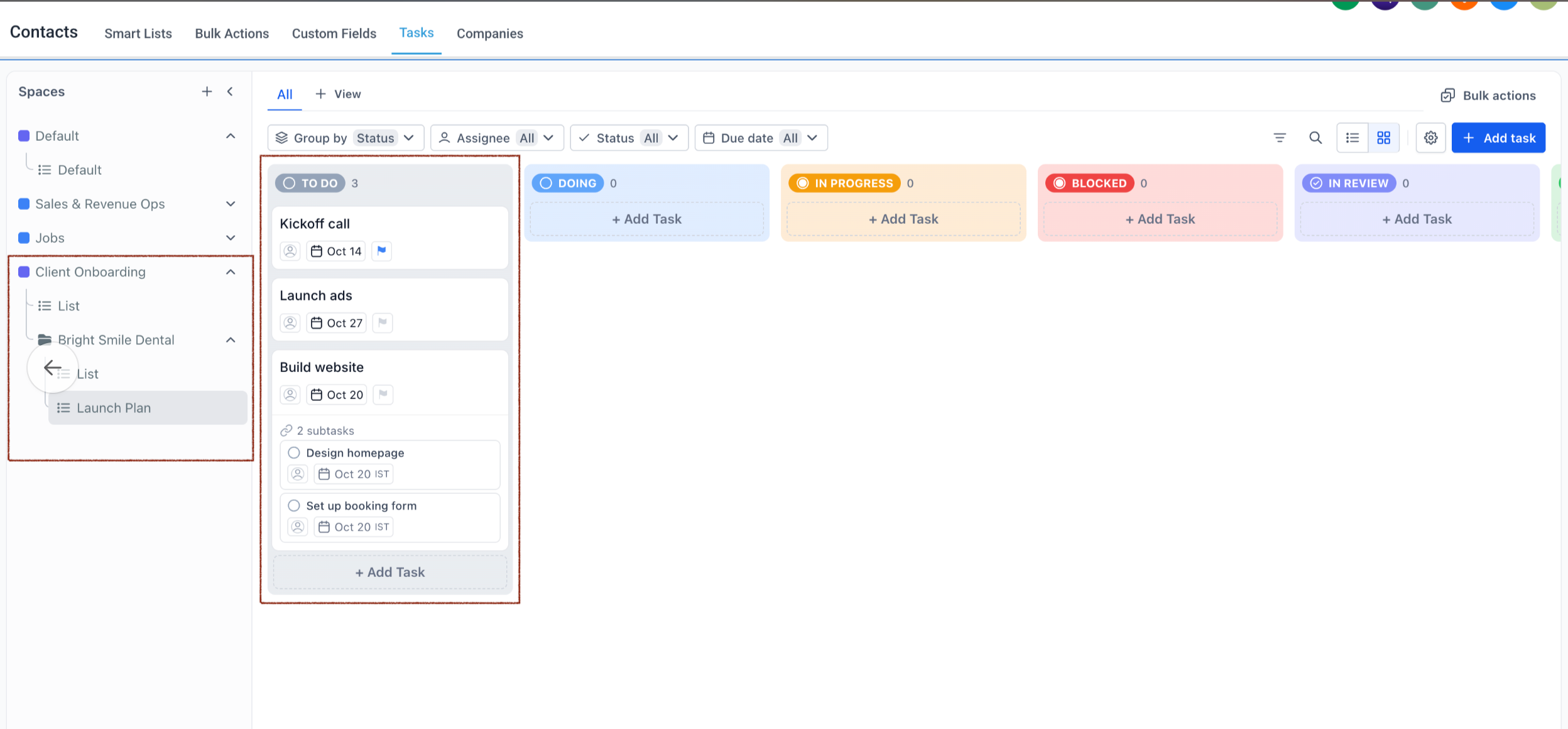
To verify the project in HighLevel:
Go to Contacts → Tasks.
Open the Client Onboarding Space.
Expand the Bright Smile Dental Folder.
Select the Launch Plan List.
Confirm the tasks and subtasks appear with the correct details.
If something is missing or incorrect, review the Ask AI summary and make the necessary changes.
Frequently Asked Questions
Q: Is Ask AI in Project Management available to everyone?
A: Project Management is currently in Private Beta. You also need access to Ask AI.
Q: Do I need to create a Space or List before using Ask AI?
A: No. You can ask Ask AI to create the complete project structure in one request.
Q: Can Ask AI update several tasks at once?
A: Yes. You can update multiple task statuses, deadlines, or List assignments with one request.
Q: Can I ask Ask AI about my tasks without changing them?
A: Yes. You can ask questions such as "What tasks are due this week?" to retrieve task information without making changes.
Q: What if Ask AI prepares incorrect changes?
A: Review and correct the proposed actions before approving them.
Q: What happens if Ask AI cannot finish an action?
A: Ask AI identifies incomplete actions in its response so you can review them and decide what to do next.
Related Articles
Was this article helpful?
That’s Great!
Thank you for your feedback
Sorry! We couldn't be helpful
Thank you for your feedback
Feedback sent
We appreciate your effort and will try to fix the article