Agent Logs gives you a centralized way to review how your AI agents are behaving across supported HighLevel experiences. By bringing execution activity, conversation context, and step-level details into one place, Agent Logs makes it easier to understand what happened, identify issues faster, and improve agent performance over time. This article explains what Agent Logs is, why it matters, and how to use its three-level diagnostic experience to investigate agent activity in HighLevel.
TABLE OF CONTENTS
- What is Agent Logs?
- Key Benefits of Agent Logs
- Global Activity Overview
- Conversational Context & Timeline
- Granular Step Execution
- How To Use Agent Logs
- Metrics tab (dashboard view)
- Frequently Asked Questions
- Related Articles
What is Agent Logs?
Agent Logs is HighLevel’s centralized logging and tracing experience for AI agents. It is designed to give you one unified place to review logs and traces for supported agentic applications in the HighLevel ecosystem, helping you understand what is happening behind the scenes during each interaction. This added visibility makes it easier to move beyond guesswork, troubleshoot with confidence, and improve agent behavior with clearer insight into how decisions were made. As of now, Agent Logs is live for Agent Studio and Voice AI, with support for other AI products coming soon.
Agent Logs is built to support a three-level diagnostic experience:
- A high-level view of agent activity
- A detailed conversation and execution timeline for a selected interaction
- A granular step view with deeper technical detail for debugging
Key Benefits of Agent Logs
- Centralized visibility: Review supported AI agent activity in one place instead of relying only on isolated testing views.
- Faster troubleshooting: Move from a broad activity view into a specific conversation and then into individual execution steps to identify where something went wrong.
- Better context for debugging: Compare the agent’s response with the execution timeline to understand how the final answer was produced.
- Performance awareness: Use execution timing at the step level to spot slow areas that may need attention.
- Improved confidence: Inspect technical details more closely when troubleshooting prompts, logic, variables, or tool behavior.
Global Activity Overview
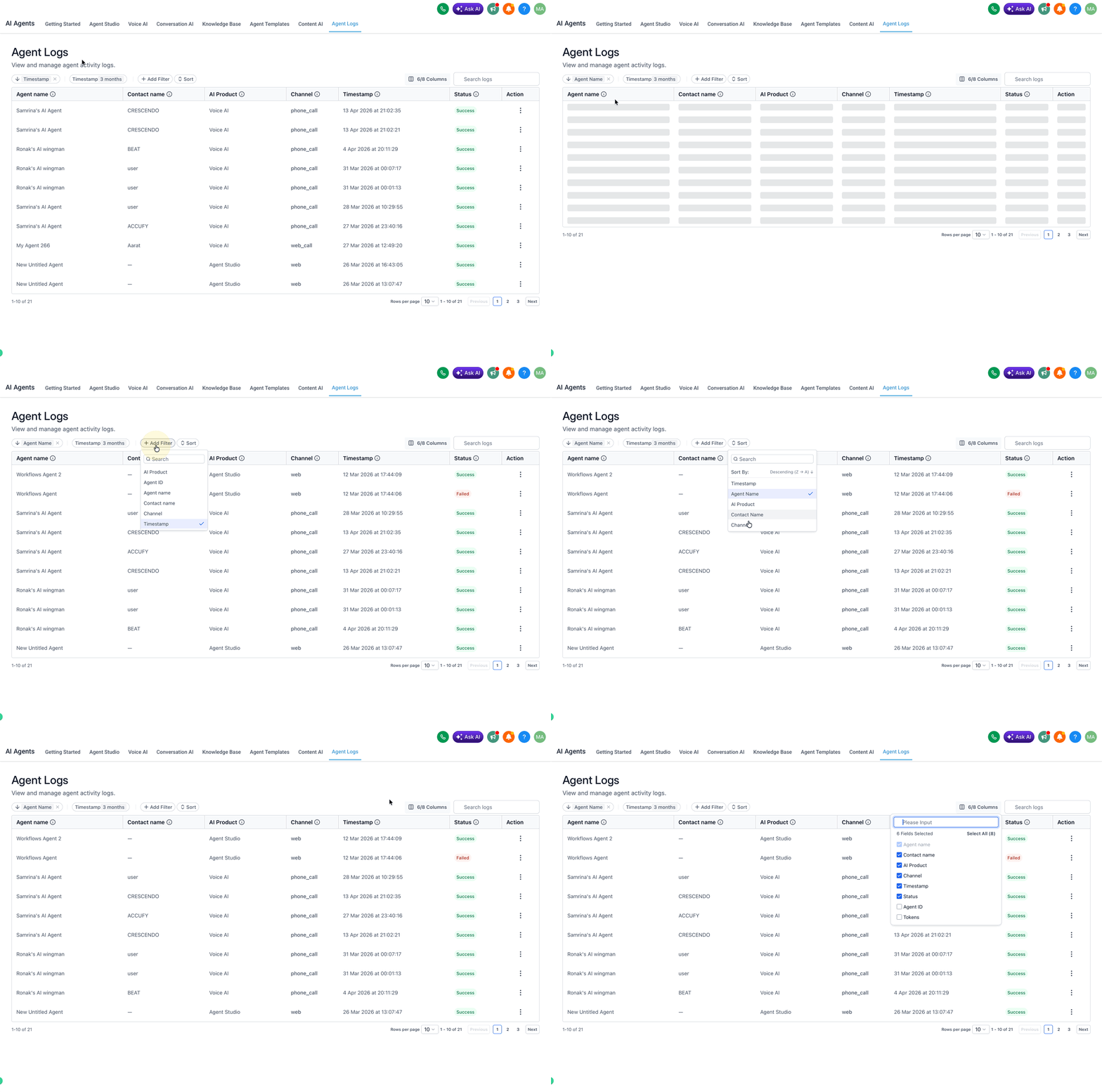
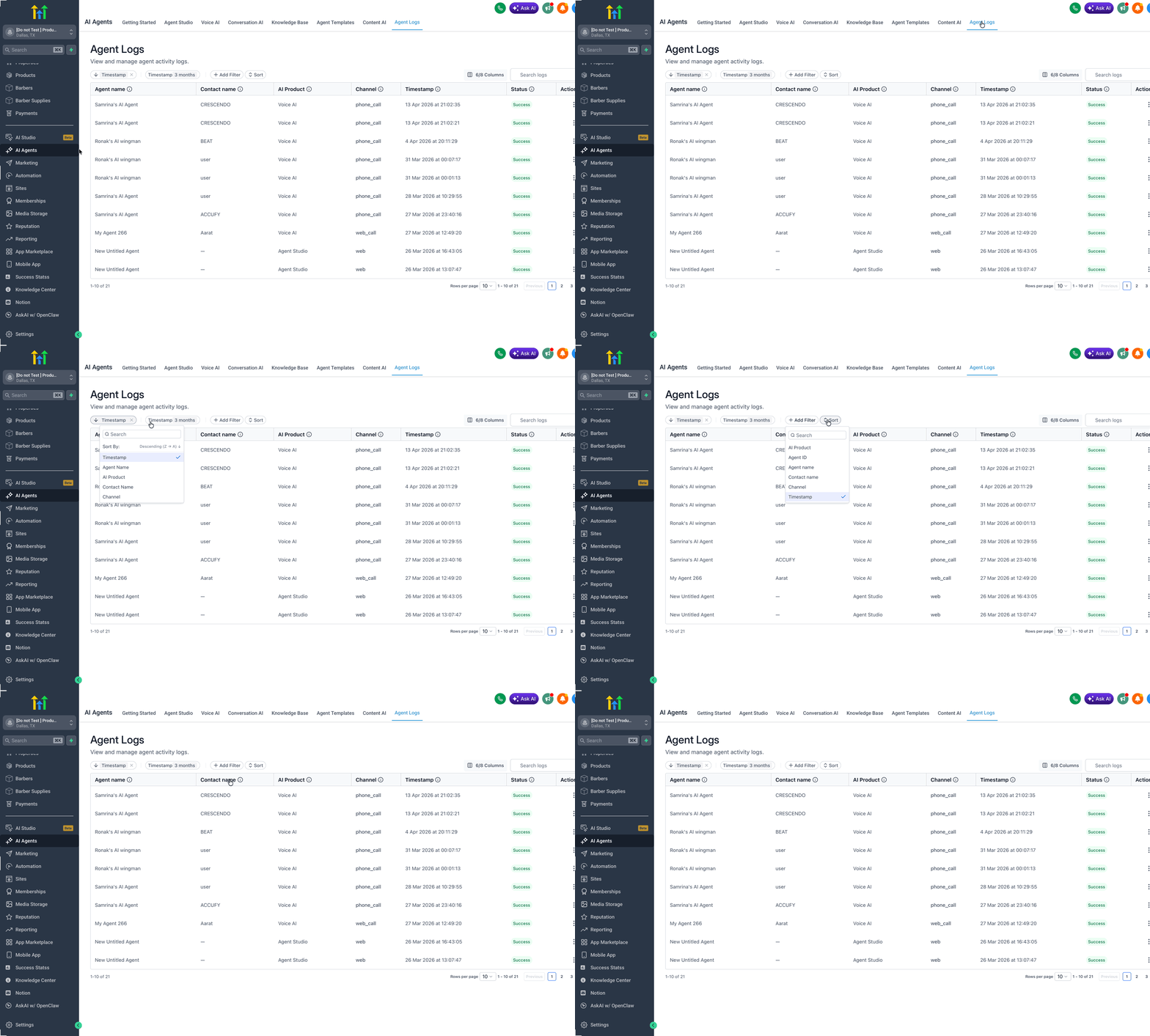
The Global Activity Overview gives you a broad view of recent agent activity so you can quickly identify where to focus your attention. This top-level perspective is useful when you want to monitor activity at scale, narrow down a problem, or locate a specific interaction to inspect more closely.
The Global Activity Overview serves as the Level 1 experience in Agent Logs. From here, users can review recent executions and begin narrowing their investigation.
This view is useful for:
- Monitoring recent activity across supported agent experiences
- Narrowing down which execution to investigate
- Locating a specific interaction more quickly
- Reviewing conversations more efficiently in higher-volume environments
Common items and actions in this view may include:
| Item or Action | Description |
|---|---|
| Timestamp | Shows when the interaction took place so you can review activity in context. |
| Agent name | Identifies which agent handled the interaction. |
| Agent ID | Displays the unique ID for the agent tied to the interaction. |
| AI product | Shows which supported AI product the activity belongs to. |
| Channel | Displays the channel where the interaction took place. |
| Status | Shows the current result or state of the interaction. |
| Filter by product | Narrows results to a specific AI product. |
| Filter by agent name | Focuses on activity for a specific agent. |
| Search by contact | Helps find interactions connected to a specific contact. |
| Sort results | Reorders results to find the most relevant interactions faster. |
Conversational Context & Timeline
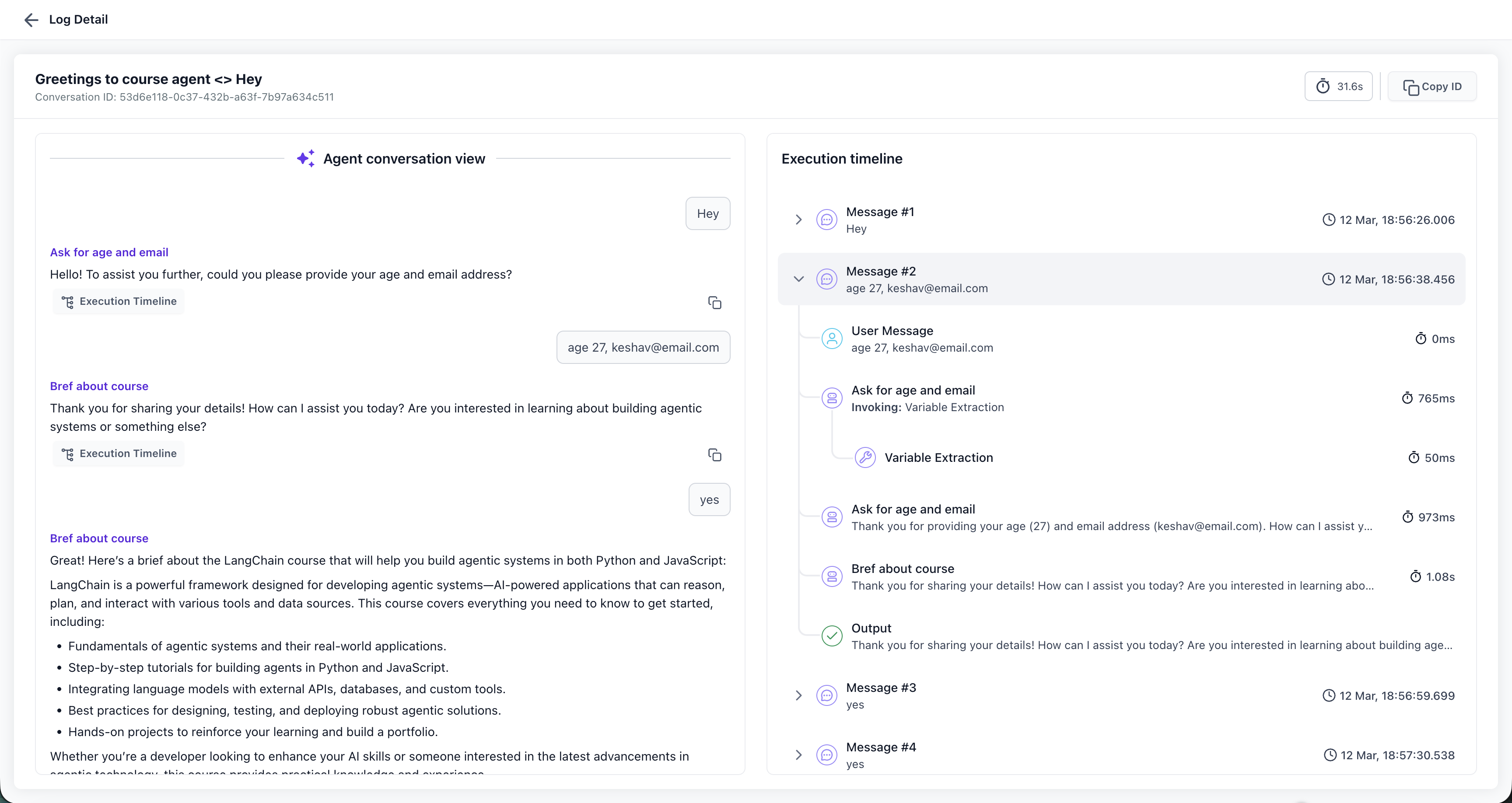
Seeing the conversation and the execution history together helps you understand both the user experience and the logic behind it. This view is helpful when you need to answer questions such as why the agent responded a certain way, where a decision changed, or when a tool was involved.
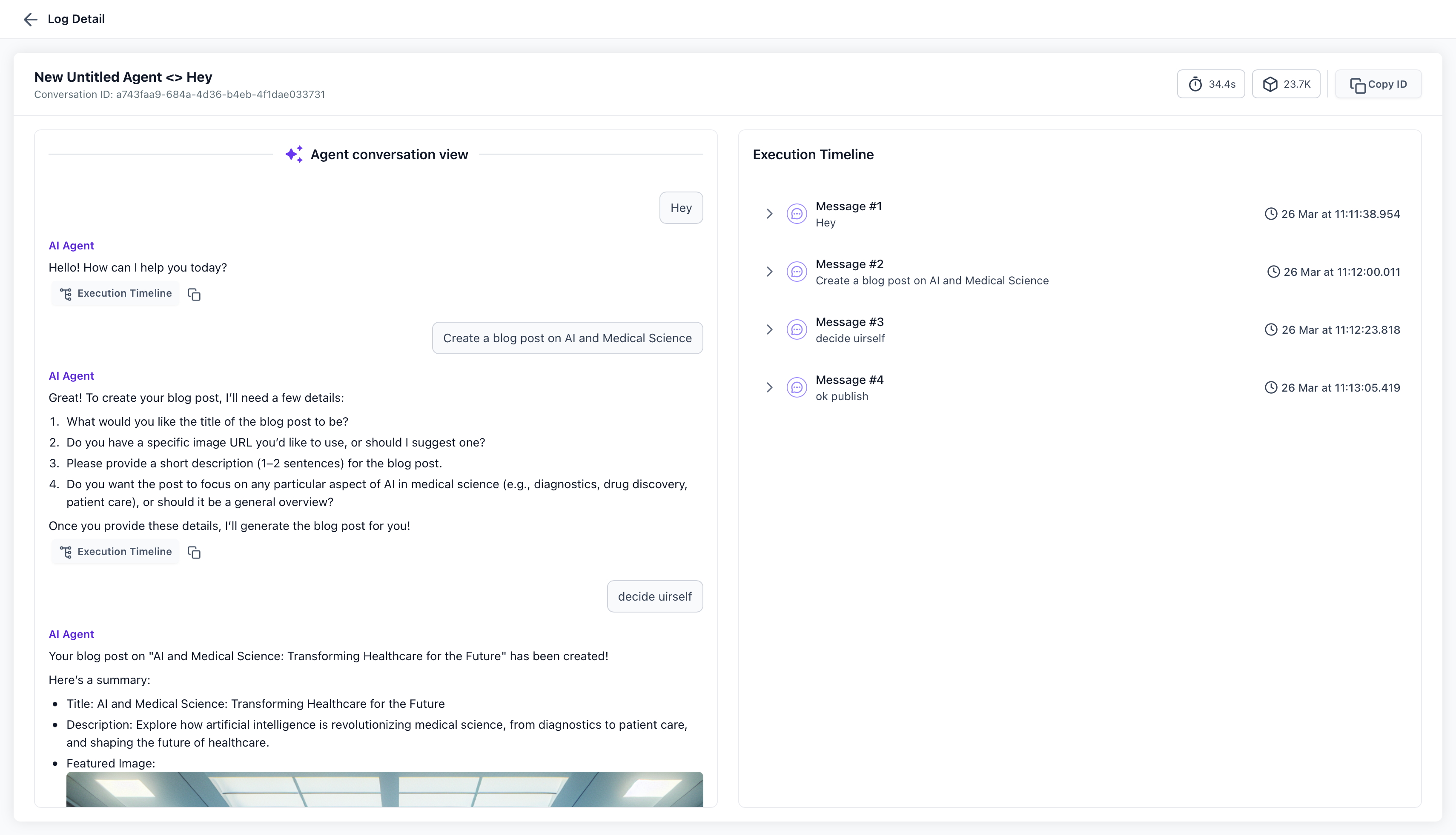
The Conversational Context & Timeline is the Level 2 experience in Agent Logs. After selecting a specific interaction, you can review the conversation alongside an execution timeline.
This view helps you:
- Read the interaction in a familiar conversation format
- Compare the agent’s response with the steps that led to it
- Trace the flow from the original user message through the final response
The execution timeline is designed to show the ordered path the agent followed during the interaction, giving you a clearer picture of how the conversation progressed behind the scenes.
Task checklist in execution timelines

In some Agent Studio runs, the execution timeline includes a task checklist that tracks multi-step work.

- Tasks use descriptive labels instead of numeric step indexes.
- The UI indicates which task is active and which tasks are completed.
- This improves progress clarity when the agent adds tasks or changes the plan mid-run.
Granular Step Execution
Step-level detail is where troubleshooting becomes much more precise. When a conversation looks incorrect or incomplete, inspecting an individual execution step can help reveal whether the issue came from logic, timing, data handling, or a tool-related action.
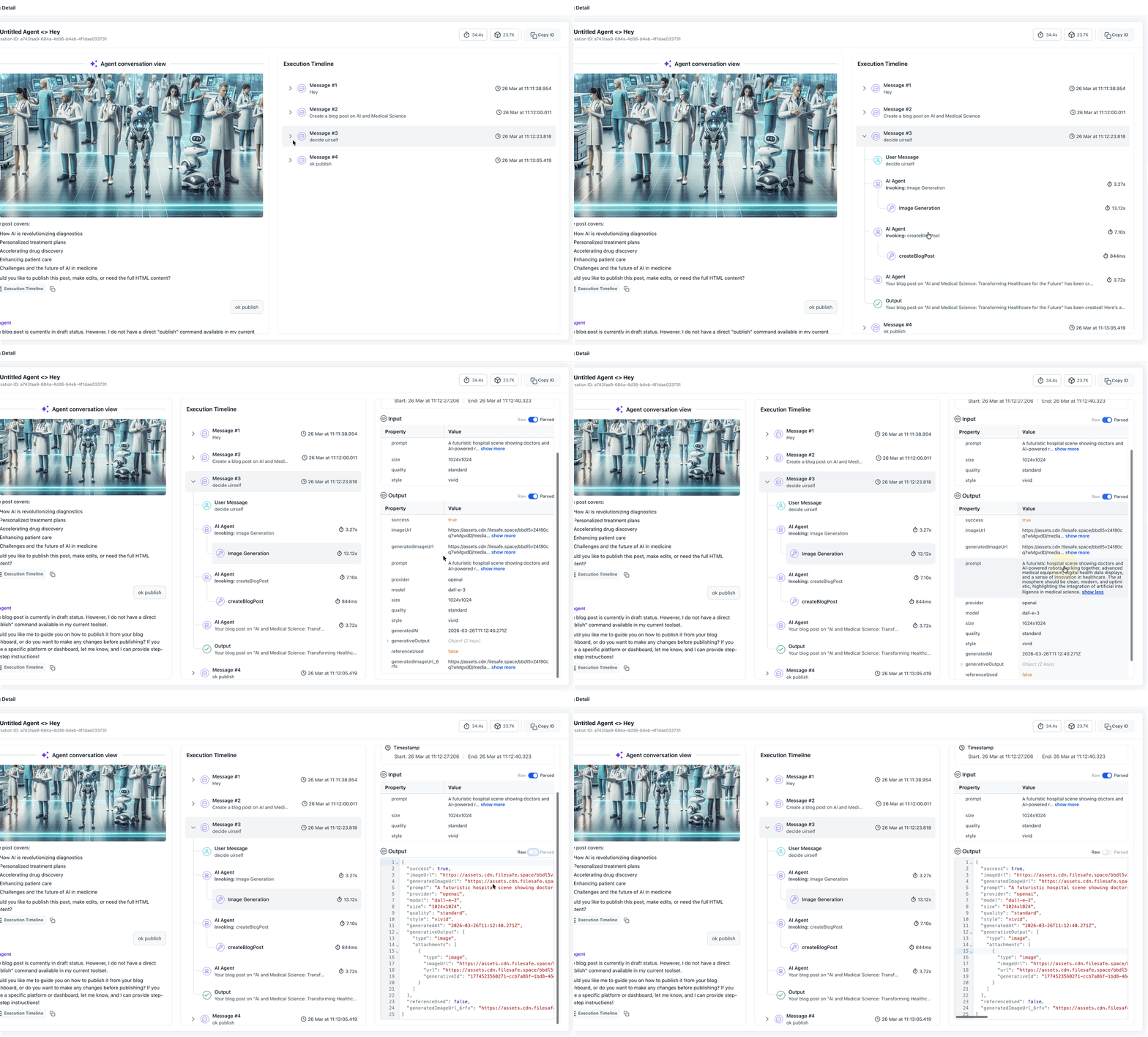
Depending on the step, users may also be able to review output in different formats, including a raw JSON-style view or a more readable parsed view. For deeper troubleshooting and sharing, step output can also be copied as JSON.
Granular Step Execution is the Level 3 experience in Agent Logs. By selecting a step from the execution timeline, you can review more detailed information about that part of the interaction.
This deeper view is useful for examining:
- The model used for the step
- Latency and execution timing
- Timestamp details
- Input and output for the selected step
- Prompt details, where applicable
- Additional technical metadata that supports debugging
You may also see structured task details for multi-step execution (for example, labeled tasks and explicit transitions). Use these details to confirm task order, completion state, and where progress changed.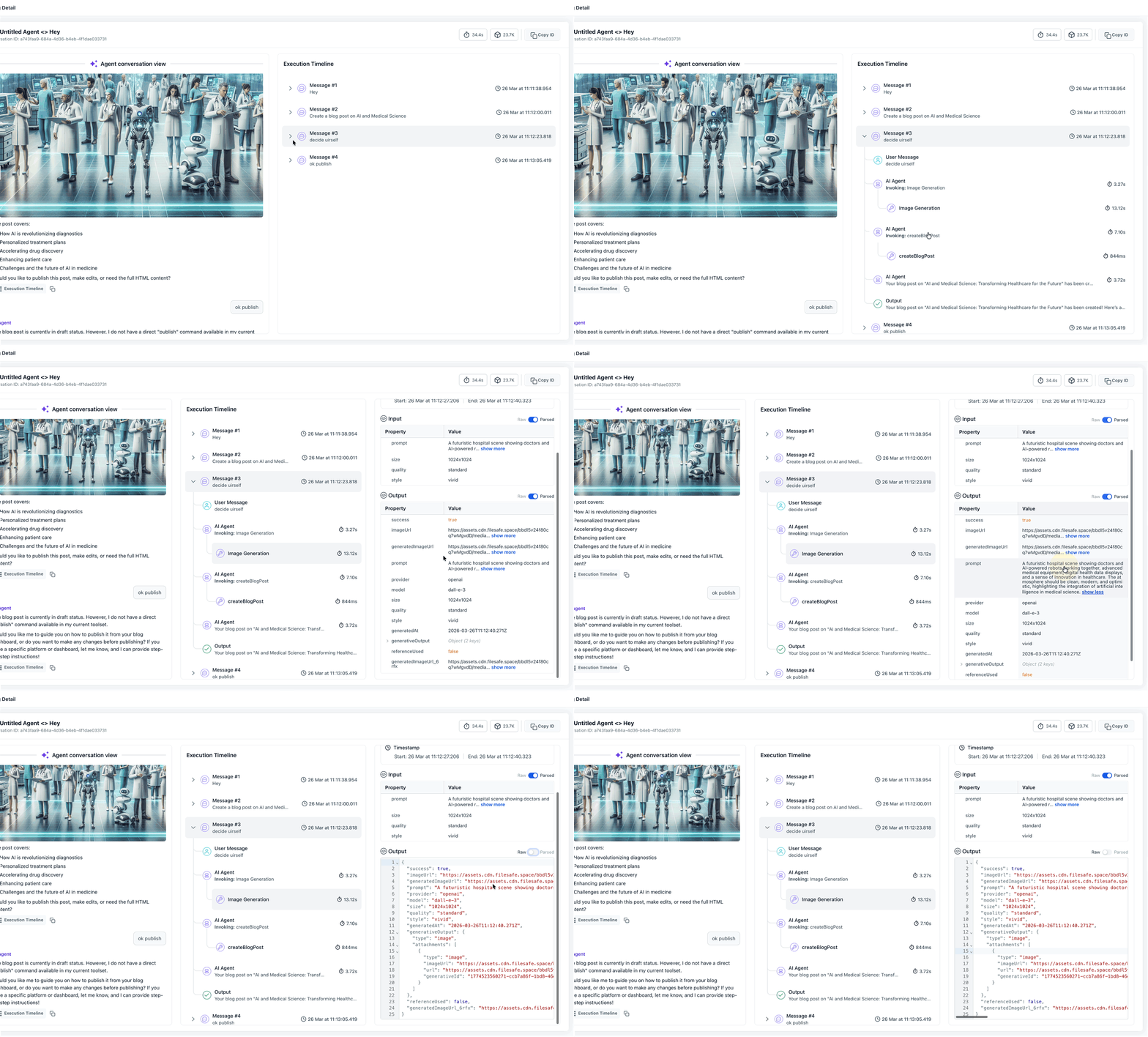
How To Use Agent Logs
Agent Logs does not require a separate installation. The most important part of setup is making sure you have supported agent activity to review and that you know how to move from the high-level view into the detailed execution views. A clear setup process helps you get value from Agent Logs faster and makes troubleshooting more consistent.
Use the steps below to start working with Agent Logs:
- Open AI Agents >Agent Logs in your HighLevel account.
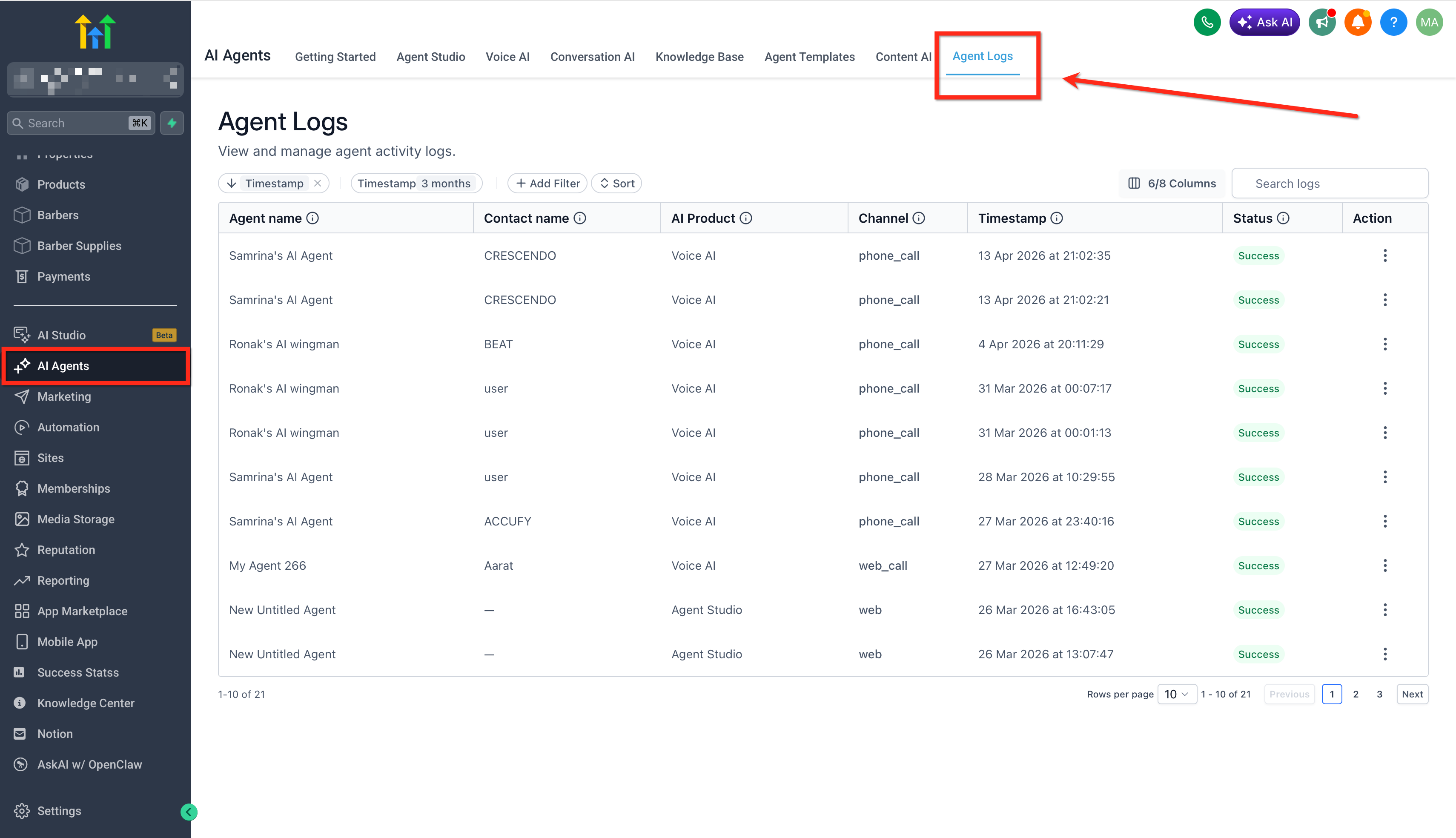
- Review the activity list and choose the interaction you want to inspect. Use filters like Agent Name, AI Product, Channel, or Status to narrow your results.
- Open the interaction to view the conversation and execution timeline.
- Select a message or step to see more detailed execution information. Use those details to improve your agent.
- Test again and review updated activity in Agent Logs.
Metrics tab (dashboard view)
The Metrics tab summarizes Agent Logs data into a customizable dashboard. Use it to monitor volume, performance, and operational trends across agents, instead of reviewing a single session.
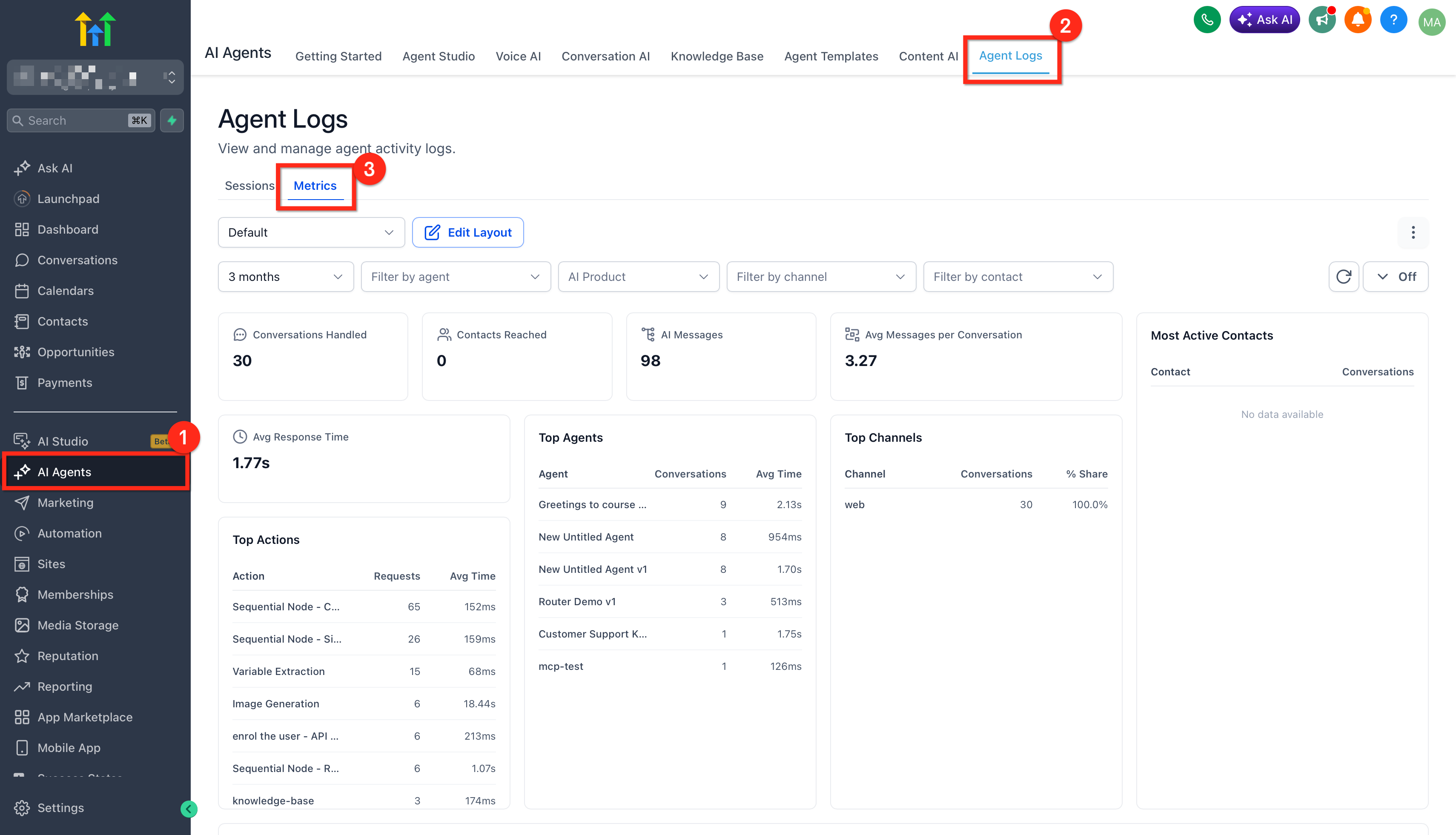
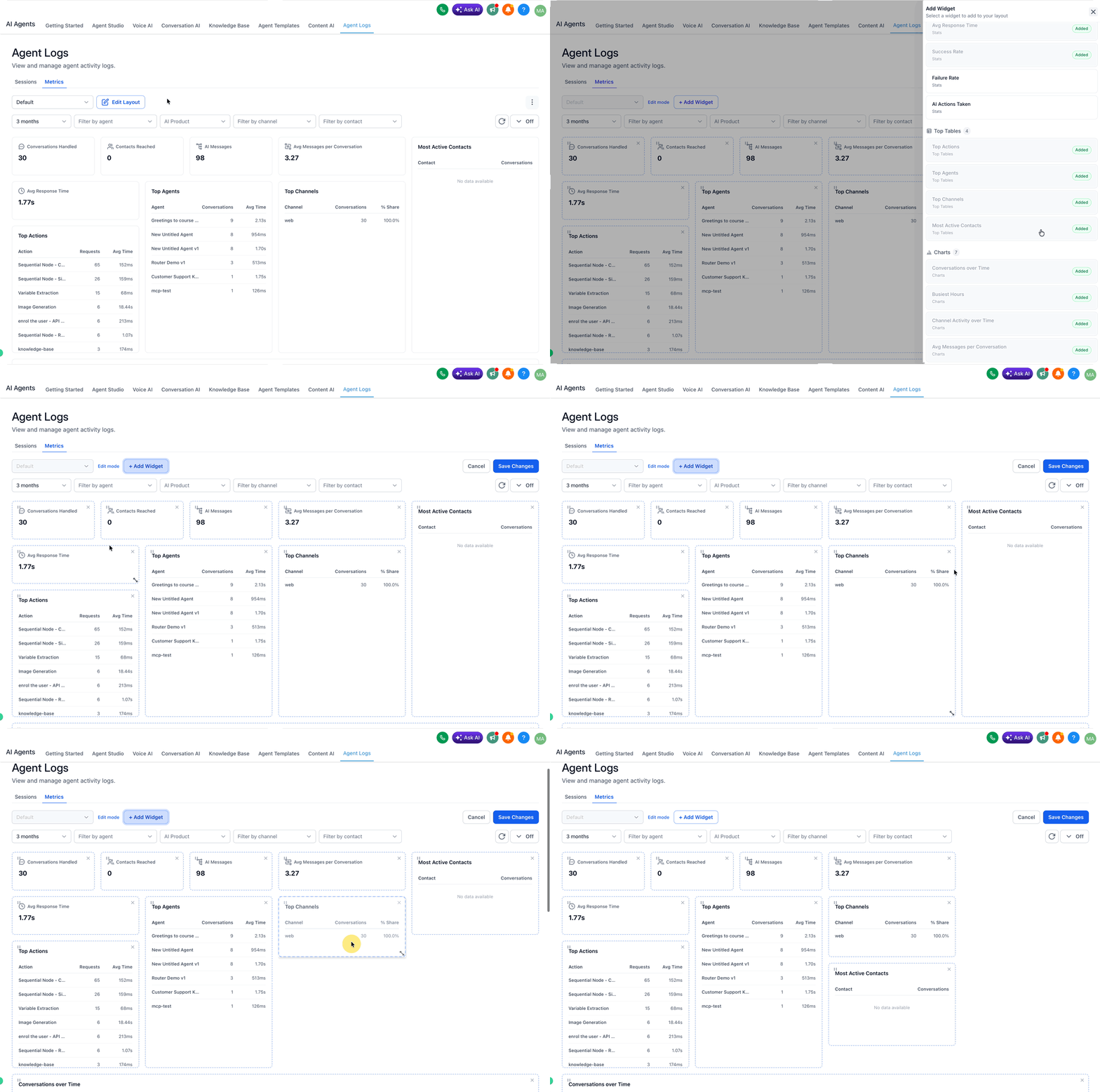
Customize the dashboard layout
Select Edit Layout to change how the dashboard looks:
- Add or remove widgets
- Drag and drop widgets to rearrange the layout
- Resize widgets to focus on specific charts or tables
- Save multiple layouts and switch between them using the layout dropdown
What Metrics helps you track
Metrics widgets help you monitor:
- Core KPIs (for example, conversations handled, AI messages, and average messages per conversation)
- Performance (for example, average response time and top agents)
- Operational health (for example, top actions and average execution latency)
- Trends (for example, busiest hours and channel activity over time)
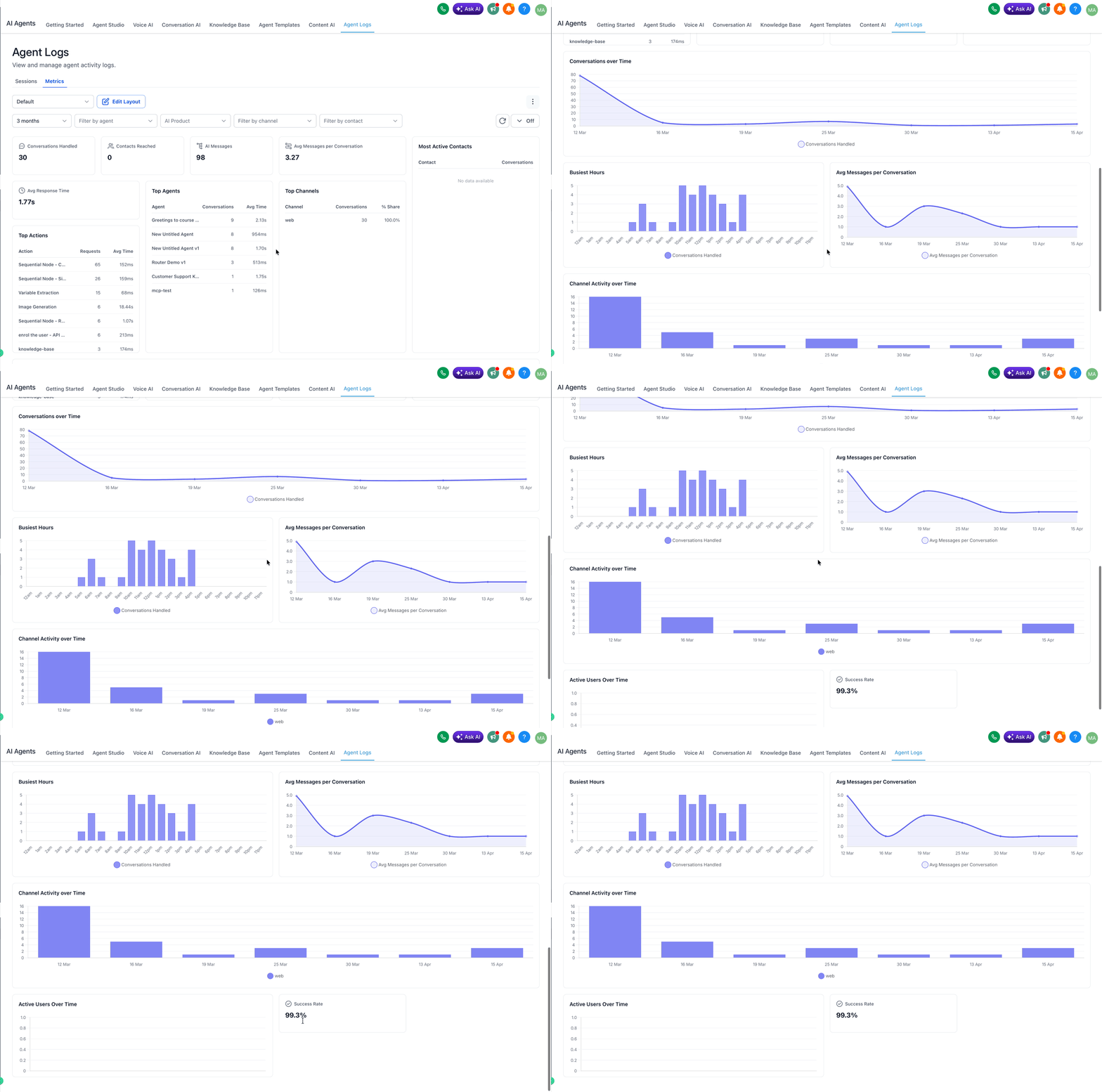
For complete widget definitions and dashboard configuration examples, see Agent Logs Metrics
Frequently Asked Questions
Q: What is the main purpose of Agent Logs?
Agent Logs helps you understand how an AI agent handled an interaction by combining conversation context with execution details in a centralized view.
Q: Is Agent Logs the same as the Message Execution Timeline in Agent Studio?
No. Agent Logs is a centralized logging and tracing experience, while the Message Execution Timeline is part of the Agent Studio testing and debugging experience.
Q: When should I use Agent Logs?
Use Agent Logs when you want to investigate how an agent responded, review the path of an interaction, or troubleshoot a specific step in the execution flow.
Q: Can Agent Logs help with debugging slow or complex interactions?
Yes. The step-level view is designed to provide more detailed execution insight, including timing and technical context that can help with troubleshooting.
Q: Will Agent Logs support other AI products in the future?
Yes. Agent Logs is live for Agent Studio at launch, with support for additional AI products coming soon.
Related Articles
Was this article helpful?
That’s Great!
Thank you for your feedback
Sorry! We couldn't be helpful
Thank you for your feedback
Feedback sent
We appreciate your effort and will try to fix the article