Agent Logs Metrics is a dashboard inside Agent Logs that helps you measure AI agent activity using widgets, filters, and saved layouts. Instead of reviewing one conversation at a time, it gives you a broader view of performance, efficiency, and activity across your AI operations. This makes it easier to spot trends, monitor workload, and identify areas that may need optimization.
TABLE OF CONTENTS
- What is Agent Logs Metrics?
- Key Benefits of Agent Logs Metrics
- Dashboard Layouts and Widgets
- Key Metrics and Operational Insights
- How To Setup Agent Logs Metrics
- Frequently Asked Questions
- Related Articles
What is Agent Logs Metrics?
Agent Logs Metrics helps you track how your AI agents are performing over time with a flexible dashboard inside HighLevel. You can monitor conversation volume, message activity, response speed, and operational trends without reviewing each interaction individually. With customizable widgets, filters, and auto-refresh, it becomes easier to understand agent performance and make informed improvements.
Agent Logs Metrics is useful when you need a higher-level view than session or execution logs can provide. While detailed logs help you review individual interactions and execution steps, Metrics helps you track overall performance across agents, channels, and AI activity from one dashboard.
Key Benefits of Agent Logs Metrics
Agent Logs Metrics helps teams move from reviewing individual logs to monitoring performance at scale. This gives you a faster way to identify trends, compare activity, and focus your optimization efforts where they matter most.
- Centralized visibility: Track AI activity from one dashboard instead of reviewing conversations one by one.
- Custom monitoring views: Build layouts around the metrics that matter most to your team or workflow.
- Faster issue detection: Use performance and activity widgets to spot unusual trends, latency concerns, or heavy tool usage more quickly.
- Better optimization decisions: Compare trends over time and use detailed logs when a metric needs deeper investigation.
- Real-time awareness: Use auto-refresh intervals to keep the dashboard current during active monitoring.
Dashboard Layouts and Widgets
Dashboard layouts and widgets make Agent Logs Metrics flexible enough for different teams and use cases. You can shape the dashboard around the information that matters most to your business, whether you want a quick executive summary or a more detailed operational view.
With Edit Layout, you can:
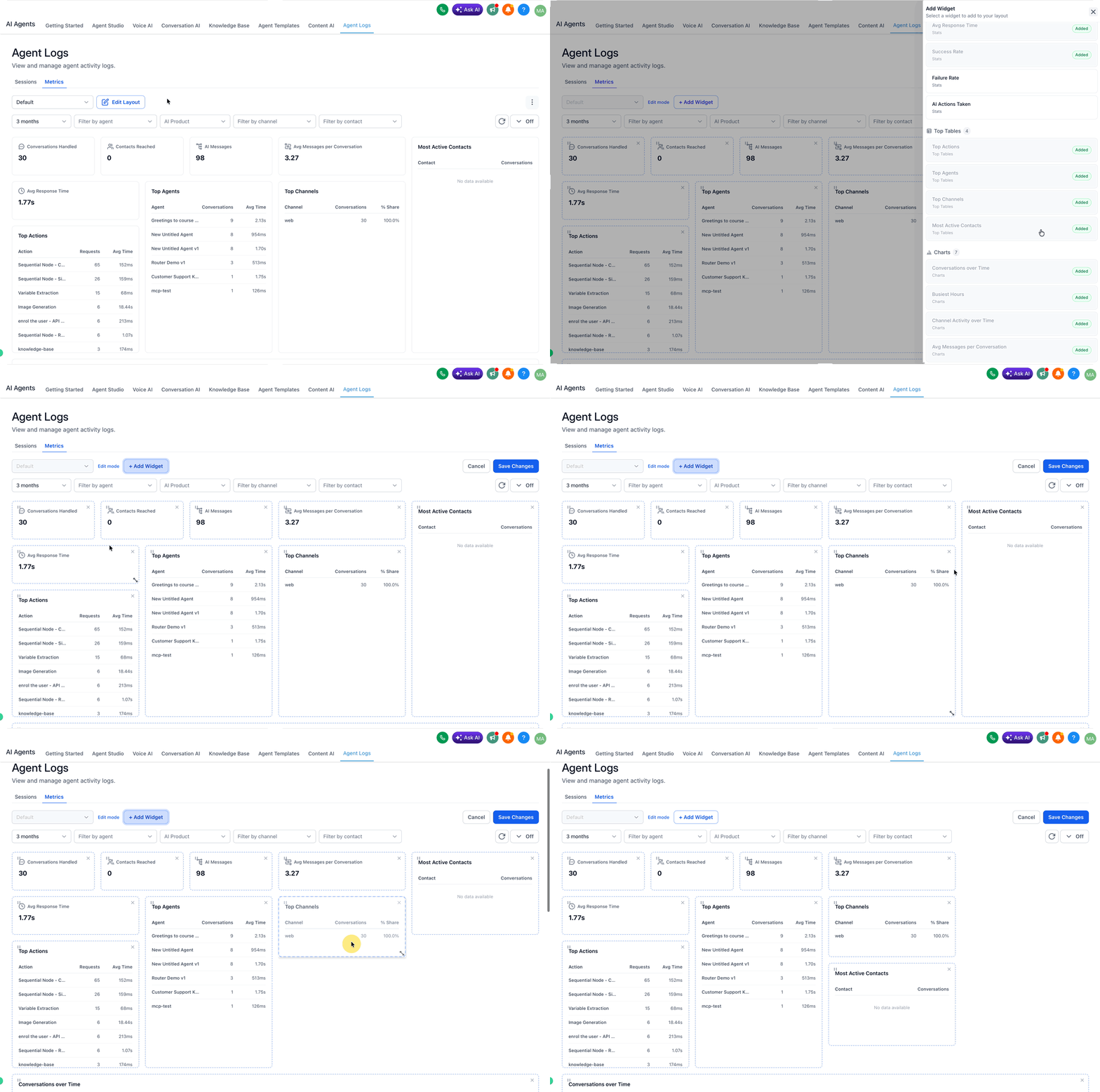
- Add new widgets
- Remove widgets you do not need
- Drag and drop widgets into a new order
- Resize widgets to emphasize priority metrics
- Save multiple named layouts for different workflows
Examples of layout ideas:
- Voice AI Performance
- Agent Studio Efficiency
- Executive Summary
- Support Monitoring
Key Metrics and Operational Insights
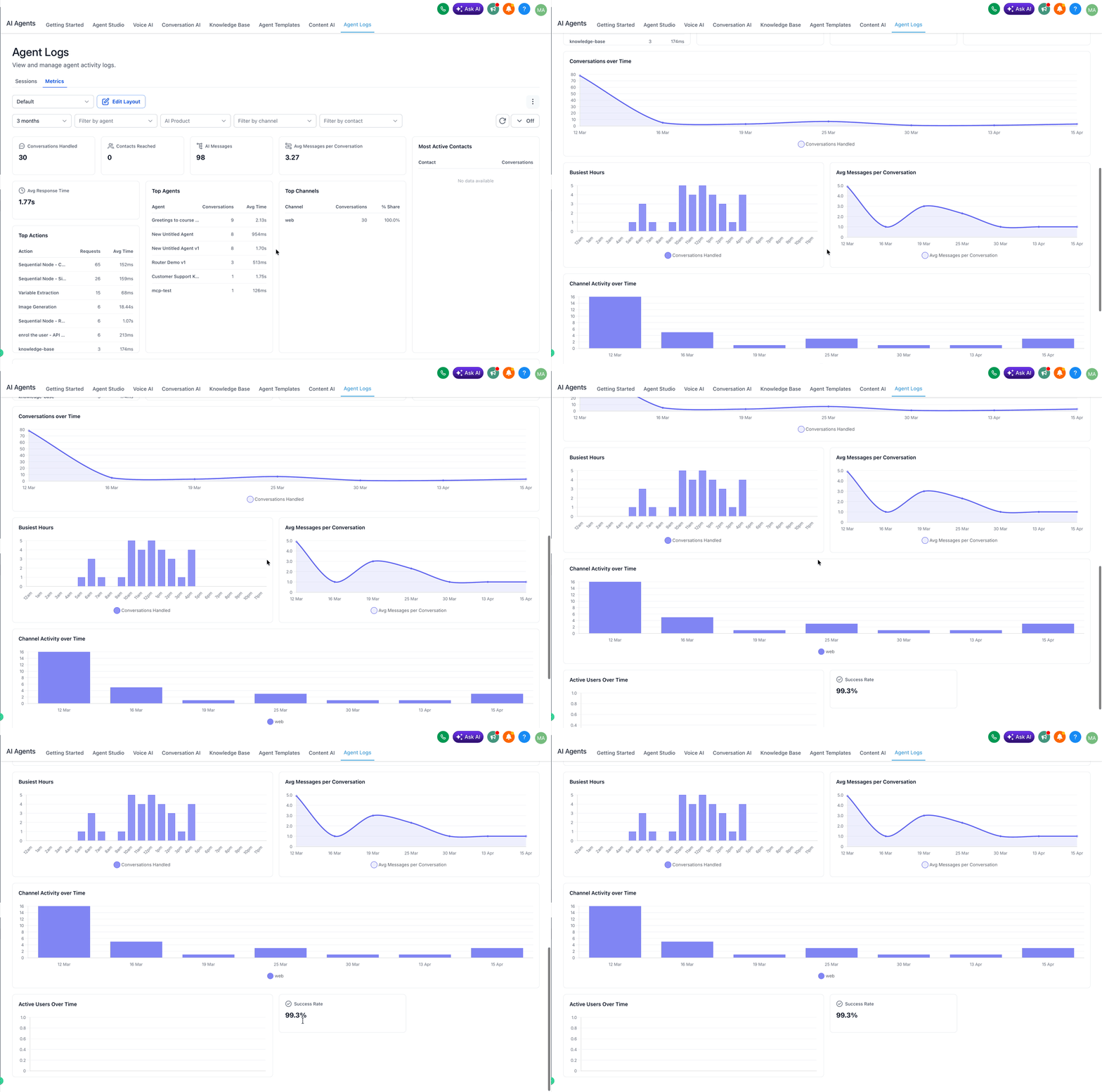
The Metrics tab includes widgets that help you understand both activity levels and operational performance. These widgets make it easier to identify patterns, compare trends, and decide where to focus your attention.
These widgets are designed to help you monitor trends quickly. When you need deeper analysis, you can use detailed logs and debugging tools to investigate individual conversations, actions, or execution paths.
| Metric | Description |
|---|---|
| Conversations Handled | The total number of AI conversations processed during the selected time range. |
| AI Messages | The total number of messages generated by AI agents. |
| Average Messages per Conversation | The average number of messages exchanged within each conversation. |
| Avg Response Time | The average time an AI agent takes to respond. |
| Top Agents | A view of the agents with the highest activity in the selected range. |
| Top Actions | A summary of the most frequently used actions and their average execution latency. |
| Busiest Hours | A breakdown of the times of day when conversation activity is highest. |
| Channel Activity | A view of how activity changes across supported communication channels over time. |
How To Setup Agent Logs Metrics
Proper setup helps ensure your dashboard reflects the right data, metrics, and monitoring priorities for your team. Once your layout and filters are configured, you can reuse them to support daily reporting, live monitoring, and optimization work.
Open Agent Logs and select the Metrics tab
Open AI Agents > Agent Logs in your HighLevel account, then choose the Metrics tab to access the dashboard.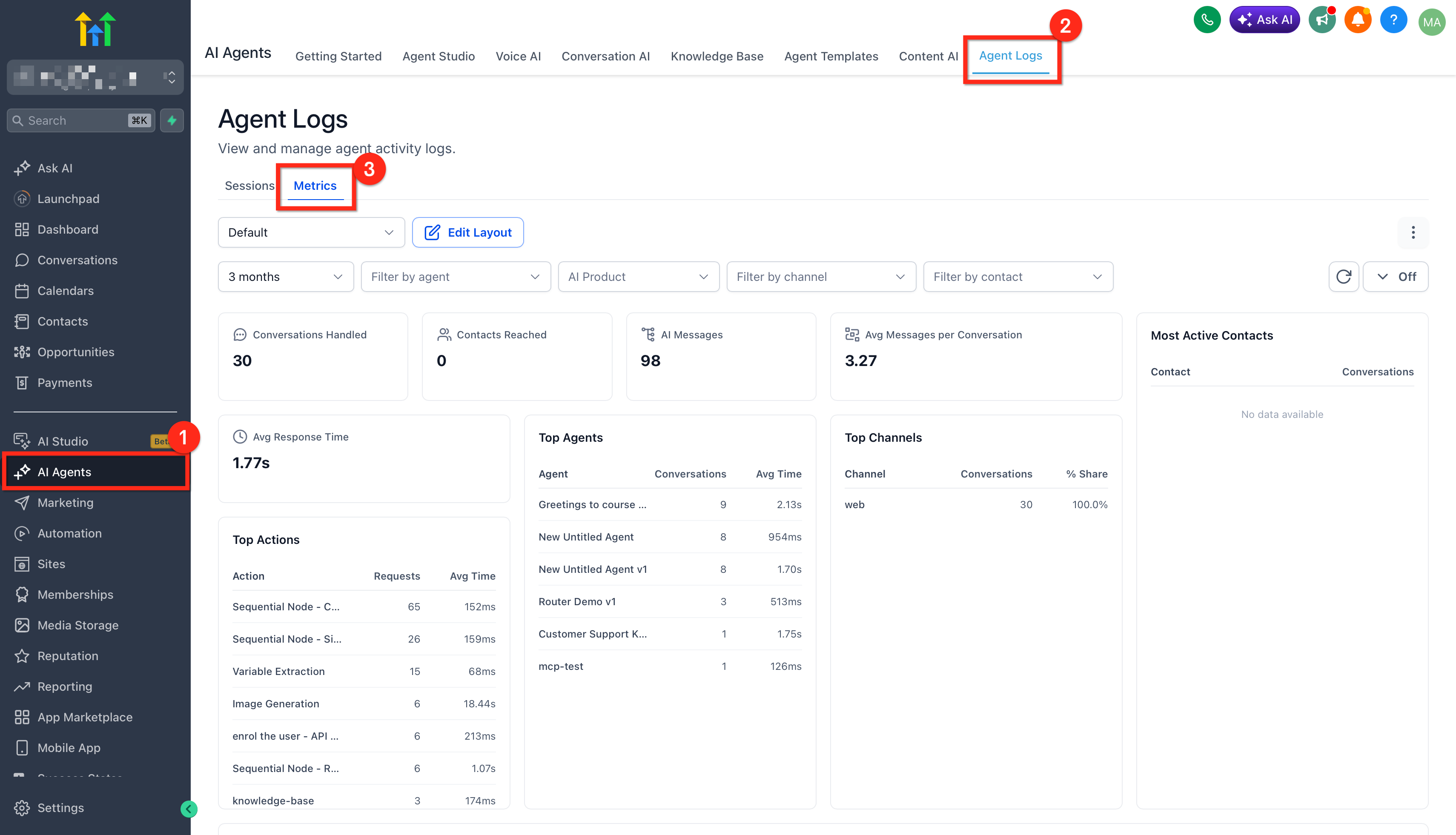
Choose your filter scope
Set the filters for the data you want to analyze. You can narrow the dashboard by Time Range, Agents, AI Products, Channels, and Contacts.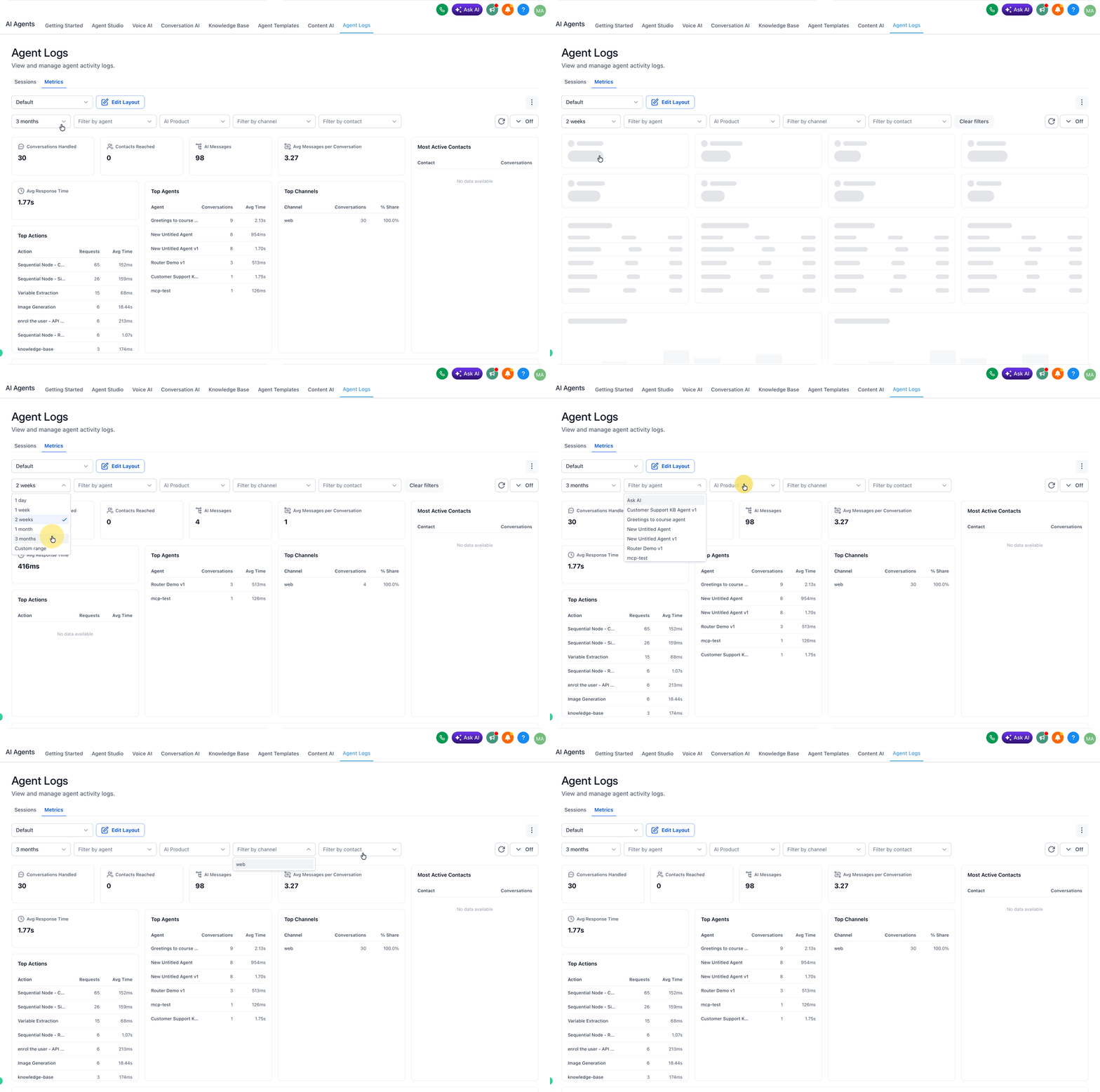
Turn on Edit Layout
Use Edit Layout to customize the dashboard. You can add widgets, remove widgets, drag and drop them, and rearrange the layout based on your workflow.
Resize charts or KPI widgets so the most important information is easier to review at a glance.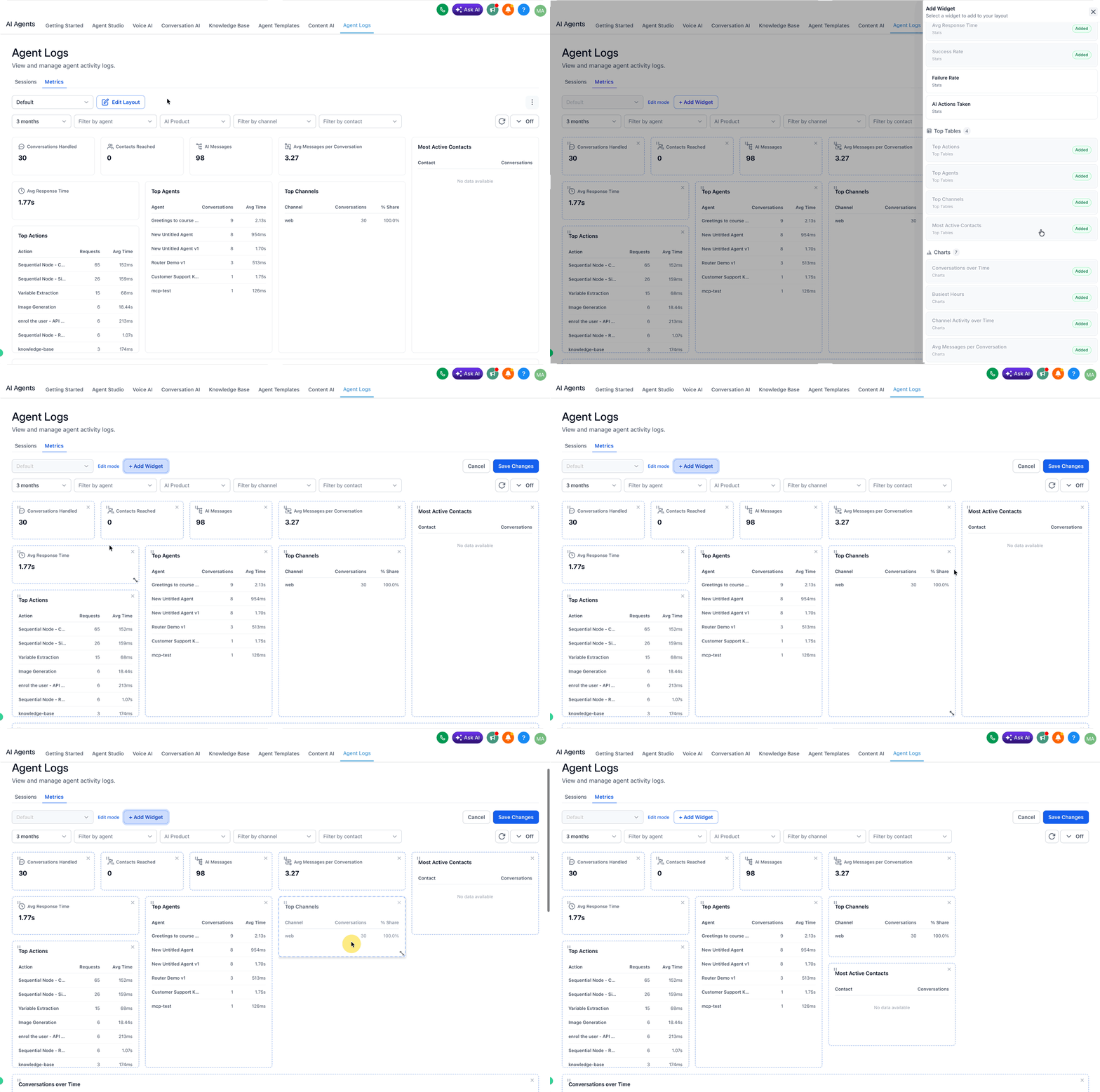
Save separate layouts for different use cases
Create and save multiple named layouts if different teams need different views, such as performance monitoring, executive reporting, or operational troubleshooting.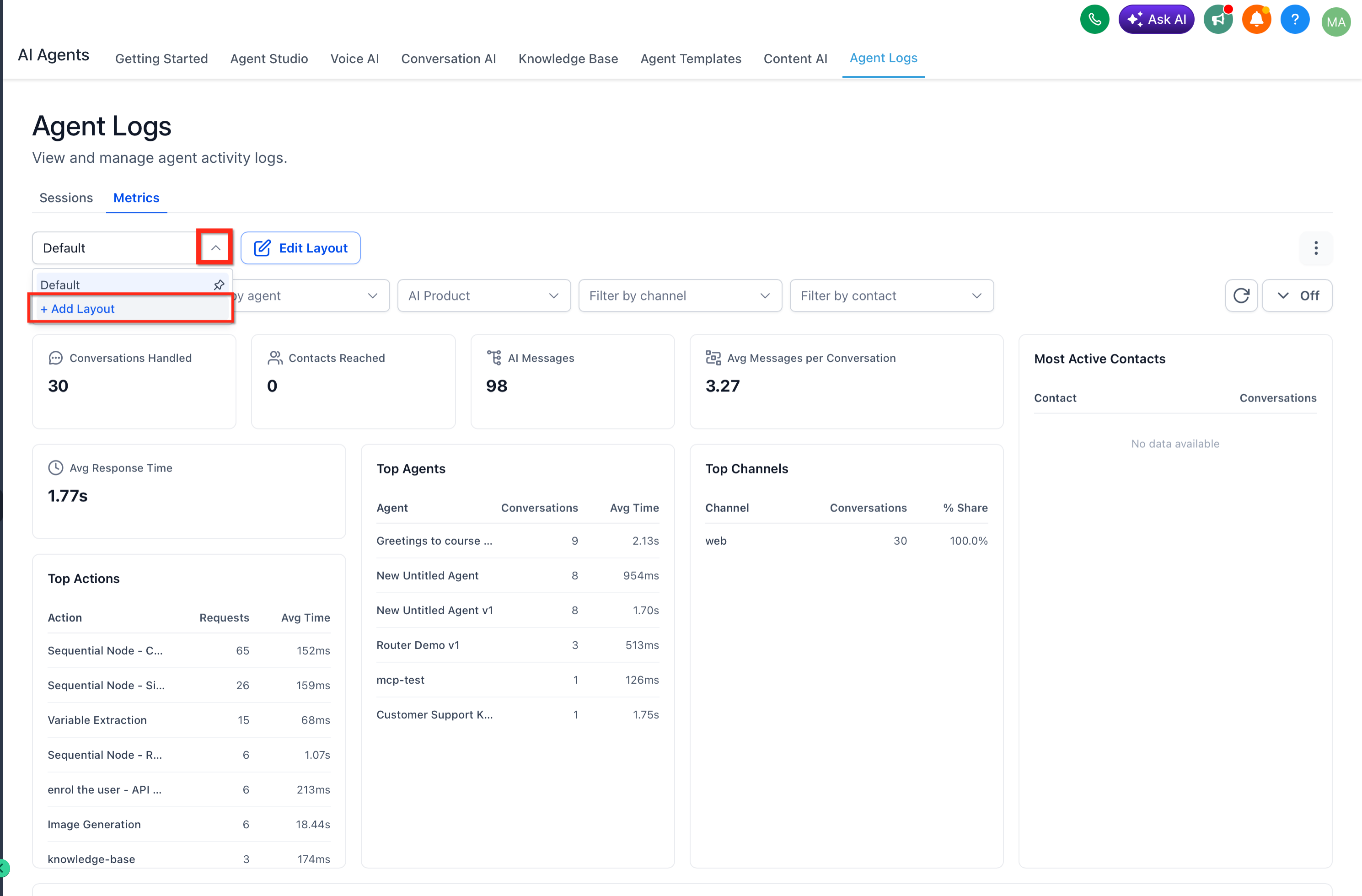
Set auto-refresh when monitoring live activity
Choose an auto-refresh interval of 30 seconds, 1 minute, 5 minutes, or 15 minutes depending on how actively you need to watch the dashboard or click the refresh icon to update instantly.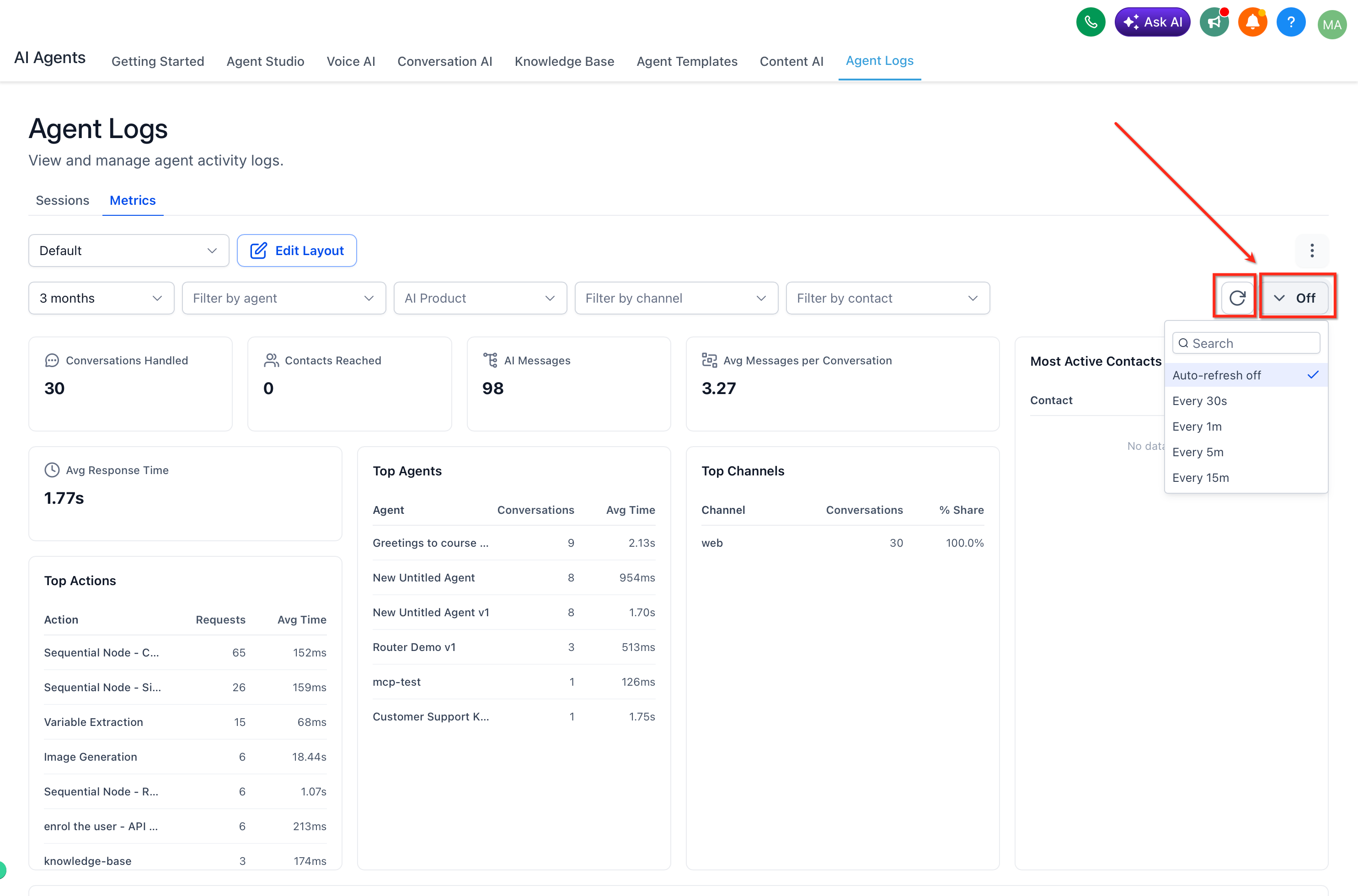
- Use Sessions for deeper investigation
When a dashboard trend needs closer review, open Agent Logs > Sessions to examine the conversation behind the metric. This gives you more context into what the AI agent handled, how the interaction progressed, and where you may want to investigate further. For more information, refer to Agent Logs Overview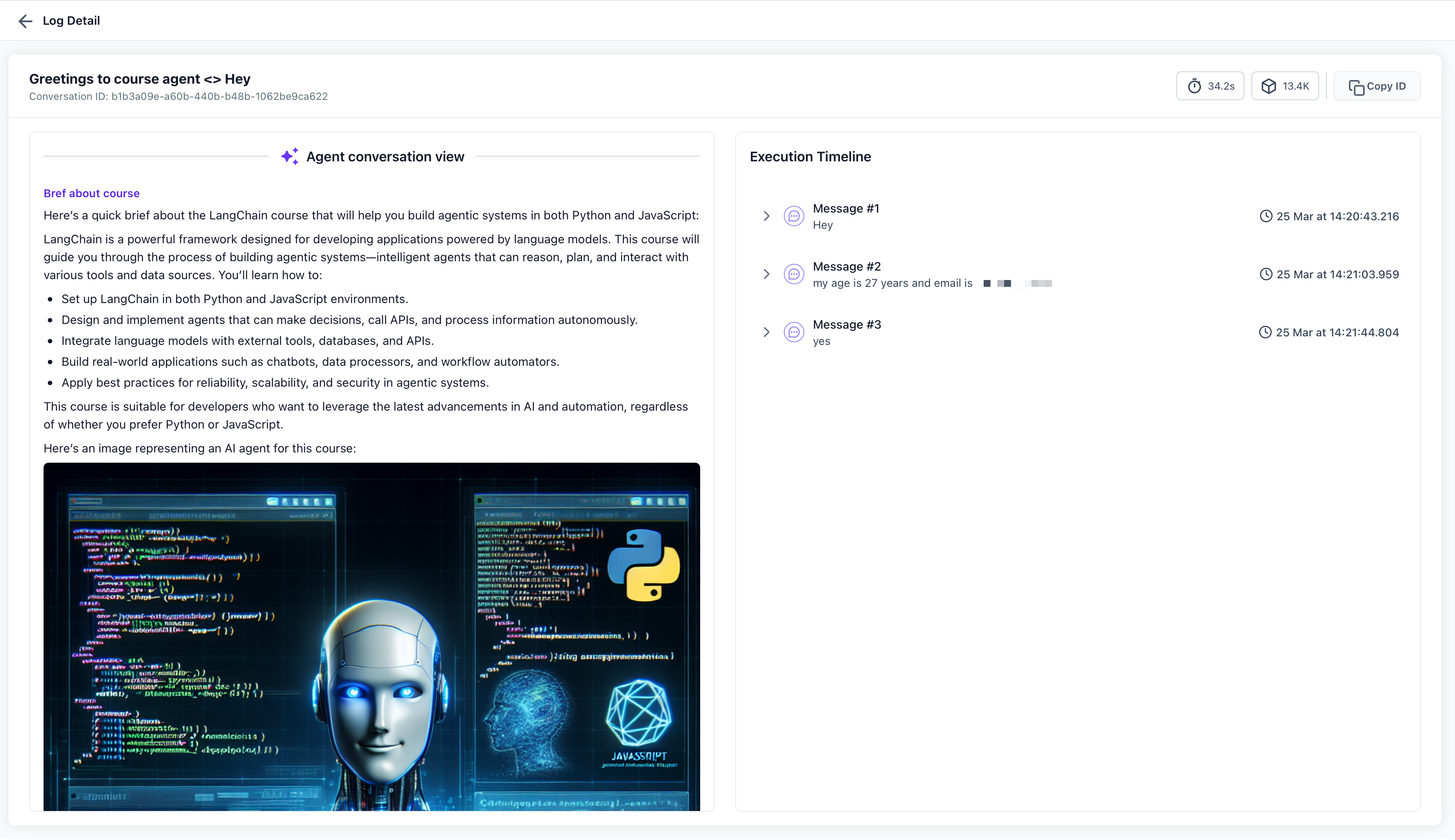
Frequently Asked Questions
Q: What is the difference between Agent Logs Metrics and Agent Logs Sessions?
Agent Logs Metrics gives you an aggregated dashboard view of performance and activity, while session and execution logs are used to inspect individual interactions or execution steps in more detail.
Q: Which filters are available in Agent Logs Metrics?
You can filter by Time Range, Agents, AI Products, Channels, and Contacts.
Q: Can I customize the dashboard layout?
Yes. You can use Edit Layout to add, remove, rearrange, and resize widgets.
Q: Can I save different dashboard views?
Yes. You can create and save multiple layouts and switch between them as needed.
Q: Does Agent Logs Metrics refresh automatically?
Yes. Auto-refresh options include 30 seconds, 1 minute, 5 minutes, and 15 minutes.
Q: What should I do if I notice a performance issue in Metrics?
Use the dashboard to identify the trend first, then open the relevant logs or debugging tools for more detailed analysis.
Was this article helpful?
That’s Great!
Thank you for your feedback
Sorry! We couldn't be helpful
Thank you for your feedback
Feedback sent
We appreciate your effort and will try to fix the article