Tired of scrolling through a cluttered list of voice agents? Keep your Voice AI workspace tidy and fast to navigate with Folders. This article shows you how to create and manage folders for your Voice AI Agents.
TABLE OF CONTENTS
- What are Folders for Voice AI Agents?
- Key Benefits of Folders for Voice AI Agents
- How to Create a New Folder
- Manage Folders (Move, Delete, and Edit)
- Bulk Actions
- Customize Your Agent List View
- Frequently Asked Questions
- Related Articles
What are Folders for Voice AI Agents?
Folders help you organize Voice AI agents into clear categories inside the agent list and quickly find what you need. This structure makes large deployments easier to navigate and reduces the risk of editing or deleting the wrong agent.
Folders are available from AI Agents > Voice AI > Agent List and support core operations like create, move, rename, and delete along with bulk operations that make it easy to manage agents and folders at scale.
Key Benefits of Folders for Voice AI Agents
- Organization: Group Voice AI Agents by team, purpose, or phase (demo vs. production).
- Speed: Jump straight to the folder that matters instead of scrolling through a single long list.
- Scale: Use bulk actions to move or delete many agents/folders in one go.
- Clarity: Switch between Folders First or Agents First views to match your task.
How to Create a New Folder
Start your structure by creating folders and pre-assigning agents so your list is organized from day one. Follow the steps below to create new folders for your Voice AI Agents.
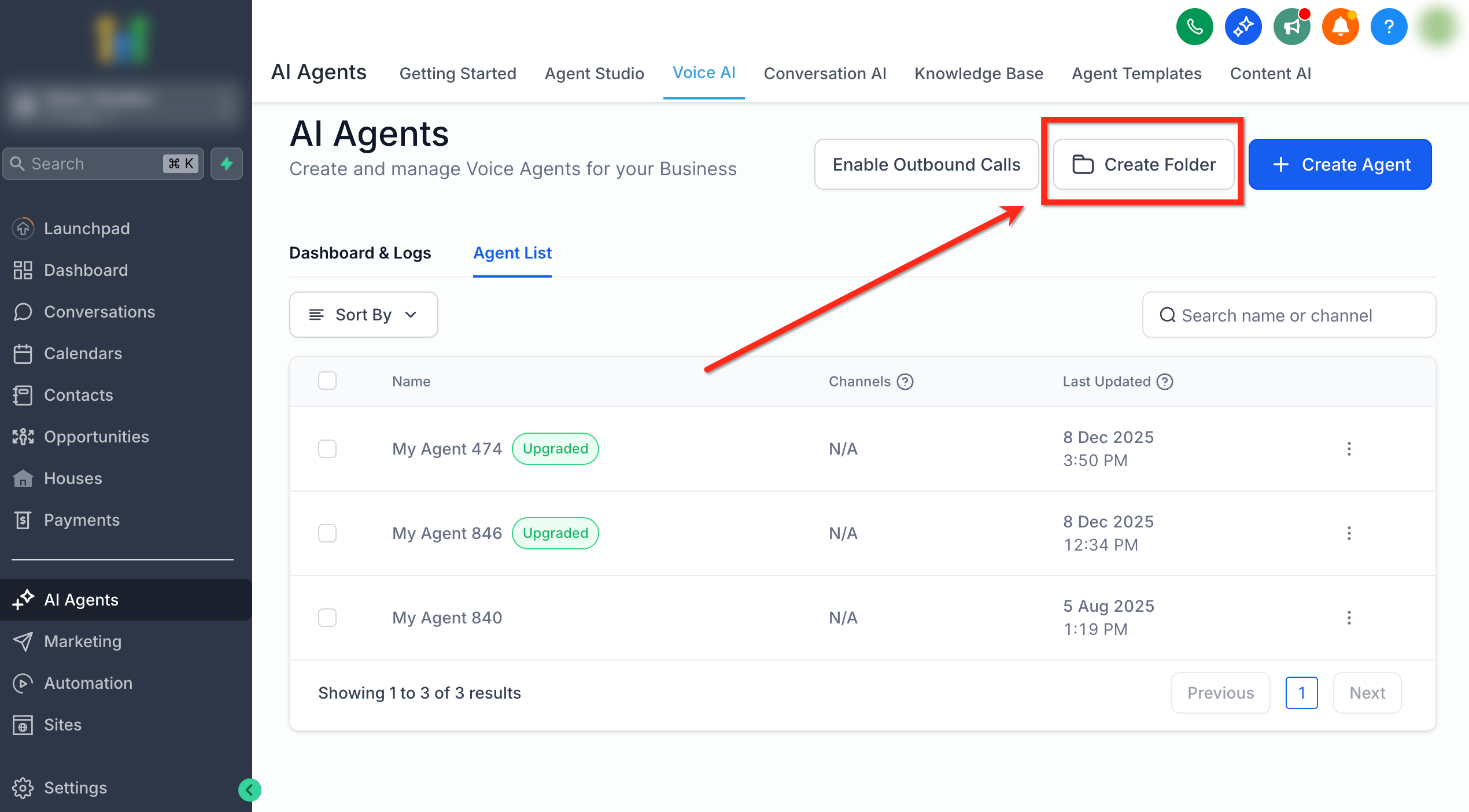
- Click Create Folder from your Voice AI Agent List.
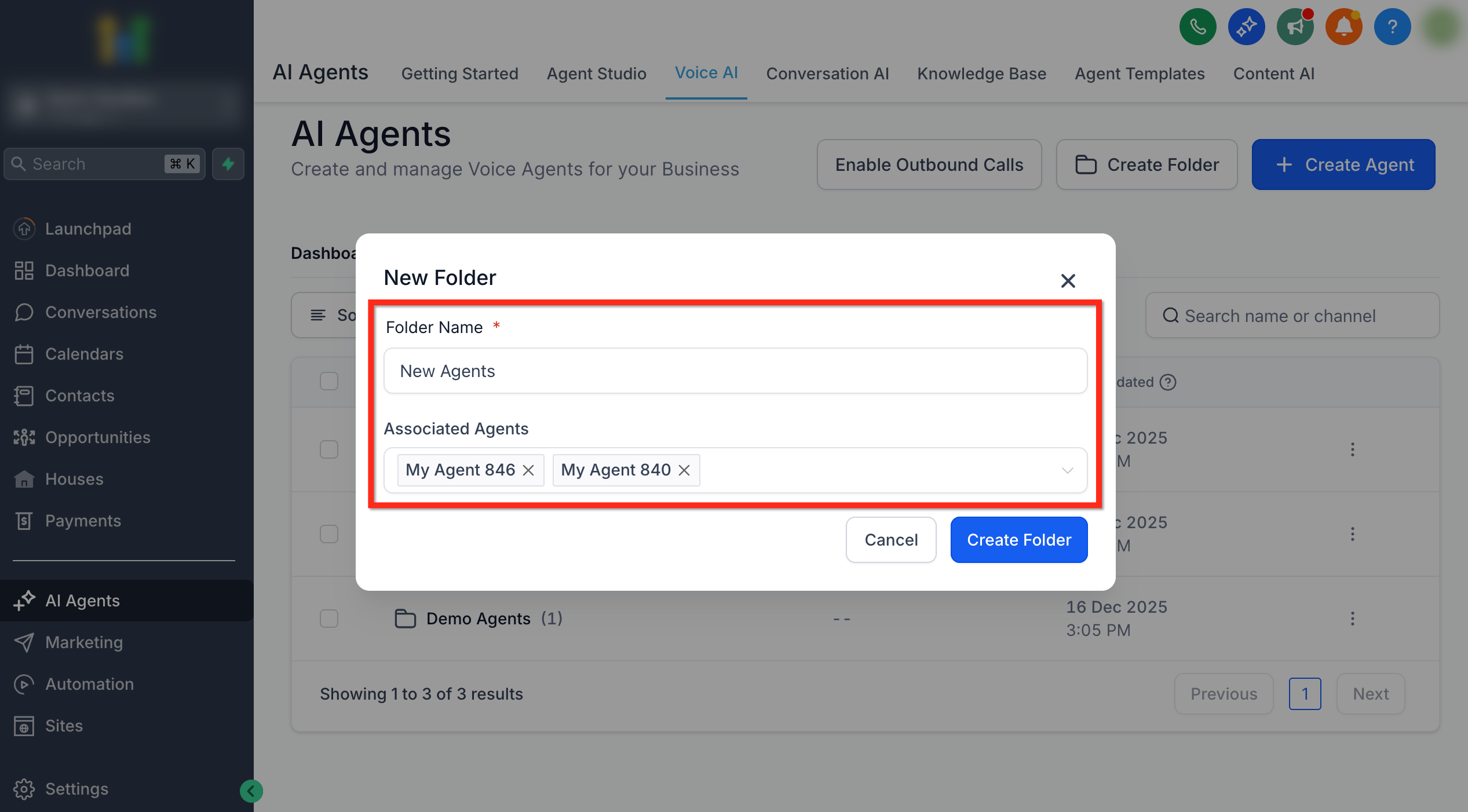
- Enter a Folder Name and select any existing Associated Agents you want to assign to your new folder.
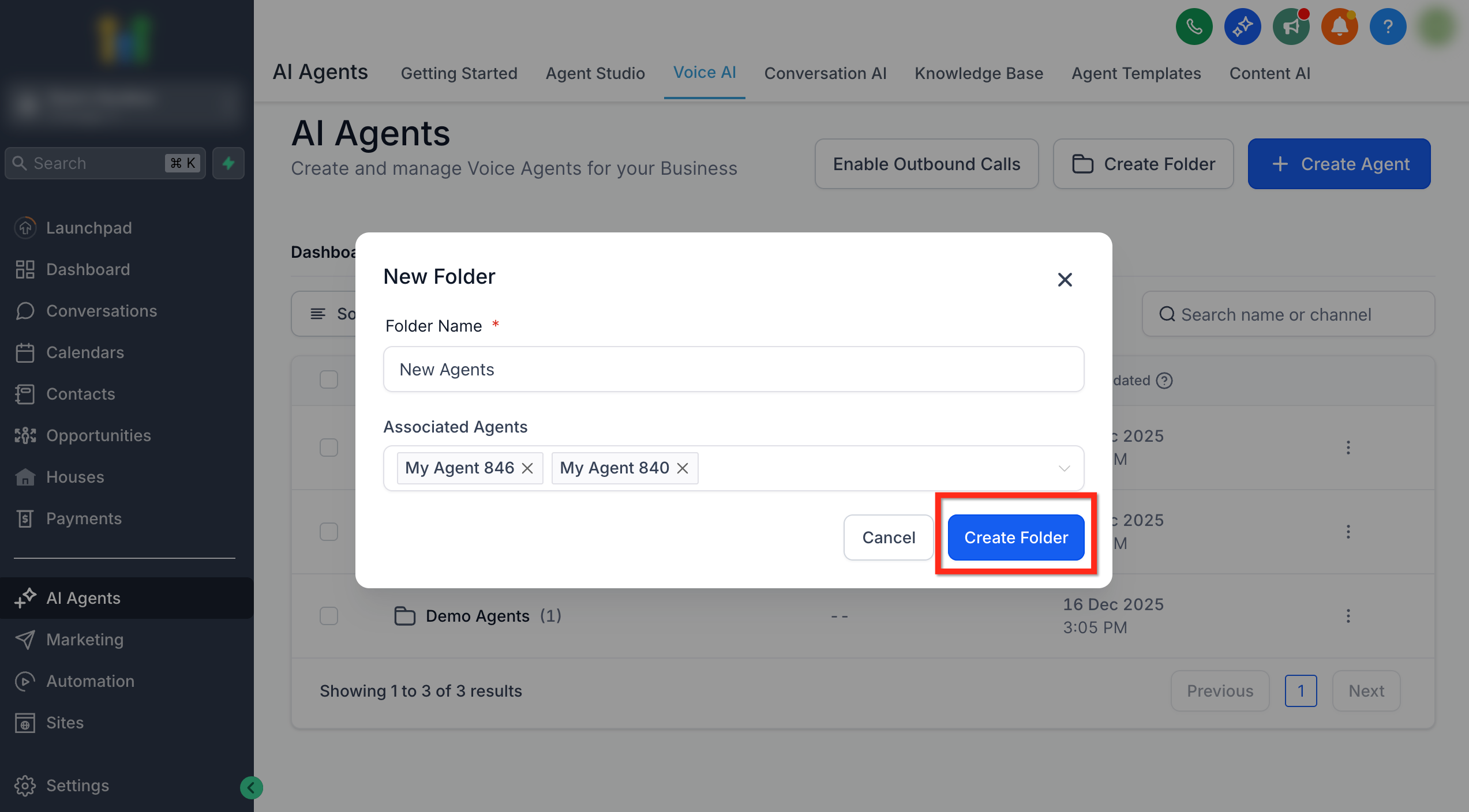
- Once you click Create Folder, your selected agents will appear neatly inside the new folder.
Manage Folders (Move, Delete, and Edit)
Keep folders current by moving agents, renaming folders or deleting folders you no longer need.
Move an Agent Across Folders
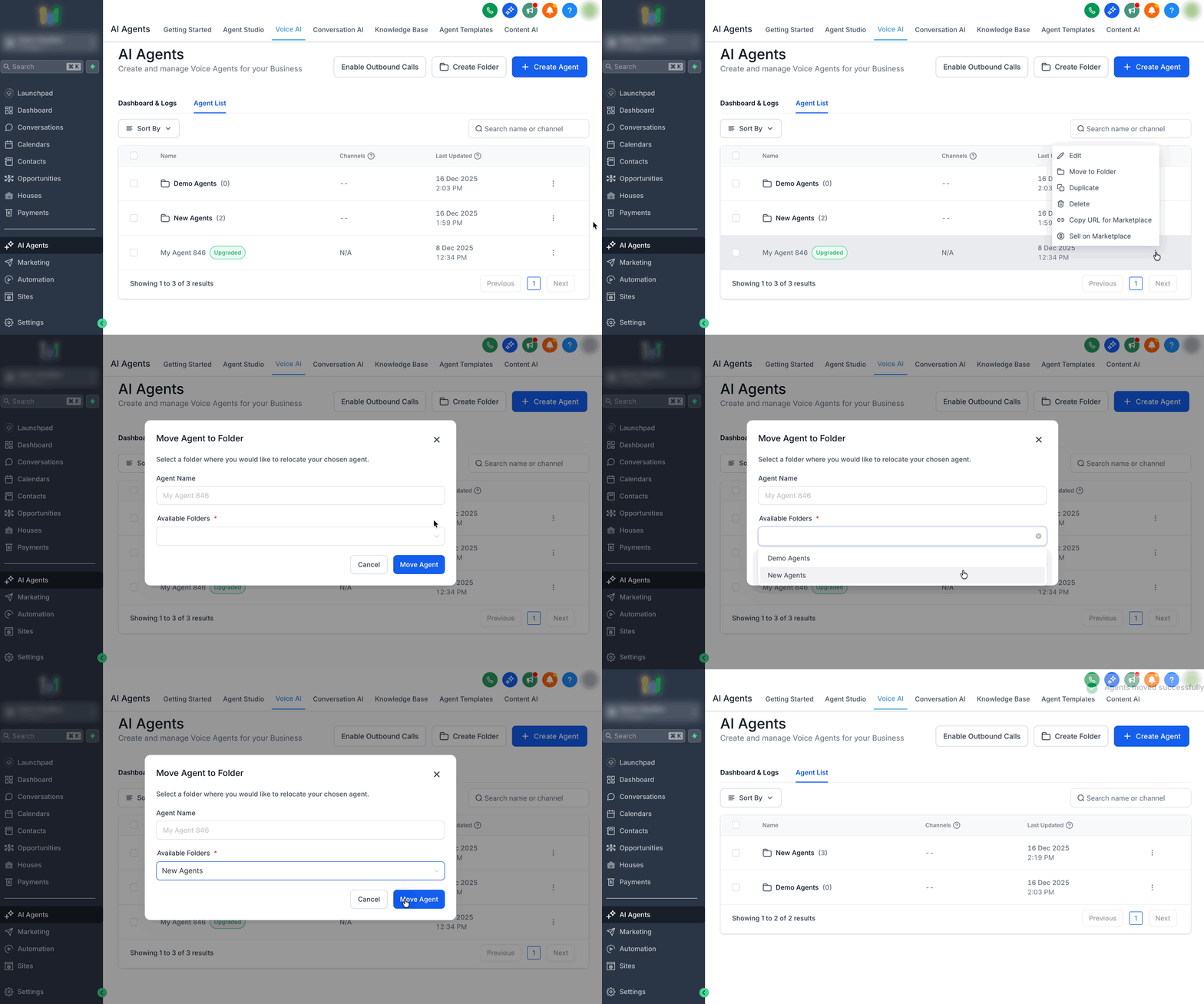
- To move an agent into a different folder, click the 3 Dot(⋮) icon and select Move to Different Folder.
- Use the Available Folders dropdown to choose the destination folder.
- Once you click Move Agent, it will instantly transfer to the selected folder.
Delete a Folder
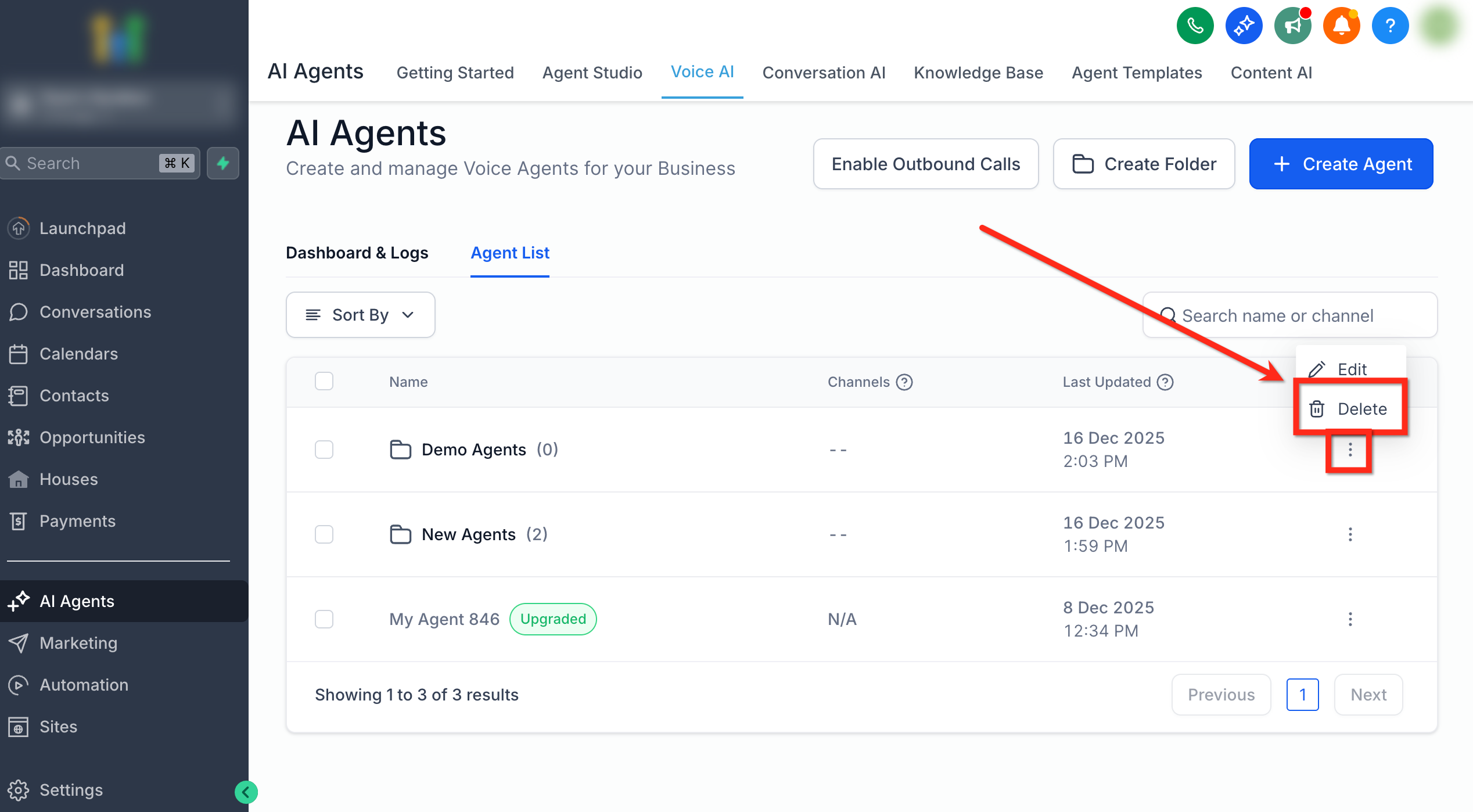
If a folder’s no longer needed, delete it by clicking the 3 Dot (⋮) icon then selecting Delete.
This only removes the folder, the agents inside return to the main list.
Rename or Edit a Folder
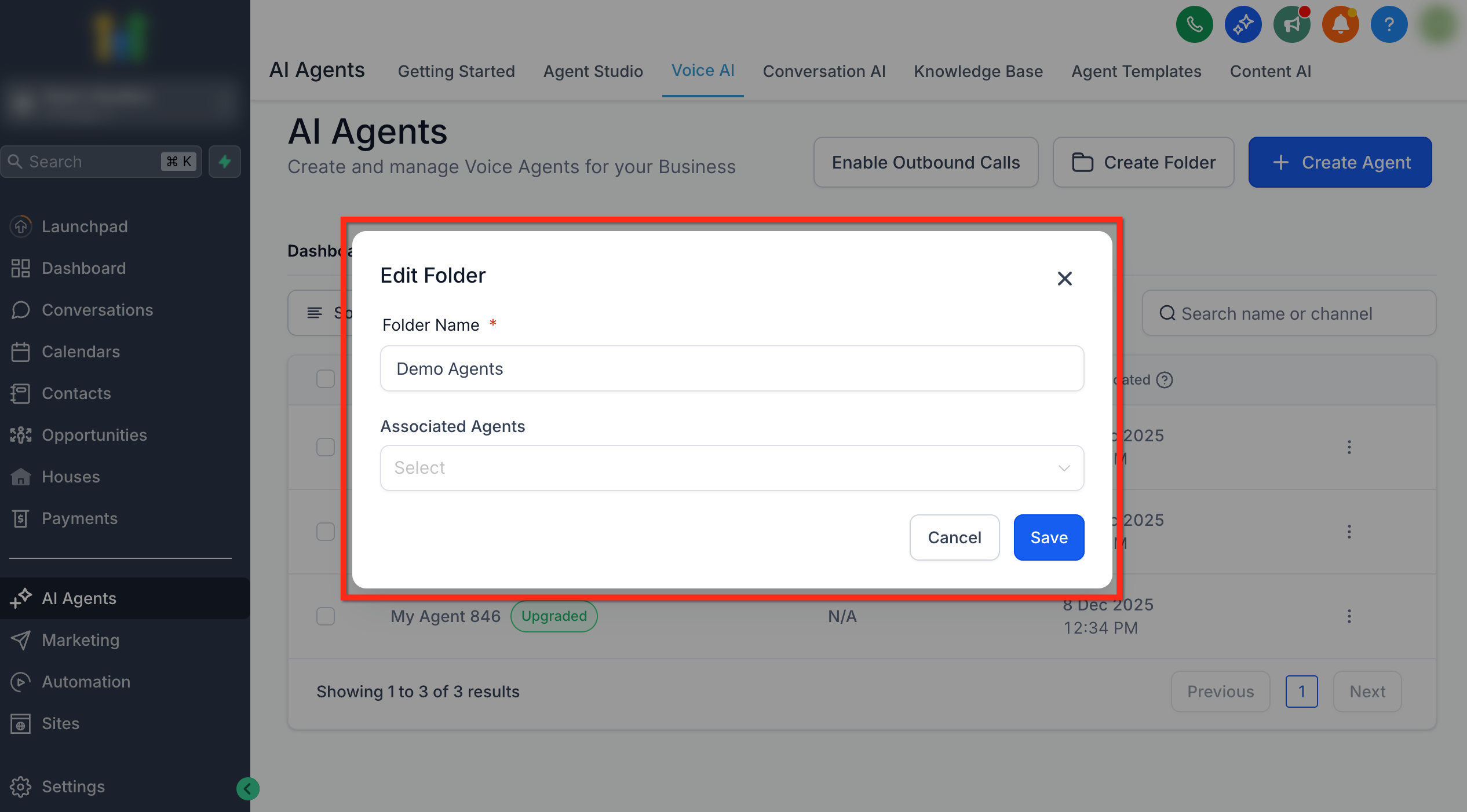
- Edit a folder right from the folder view by clicking the 3 Dot (⋮) icon then selecting Edit.
- Use the Folder Name entry to update the name or the Associate Agents dropdown to update the agents stored within the folder.
Bulk Actions
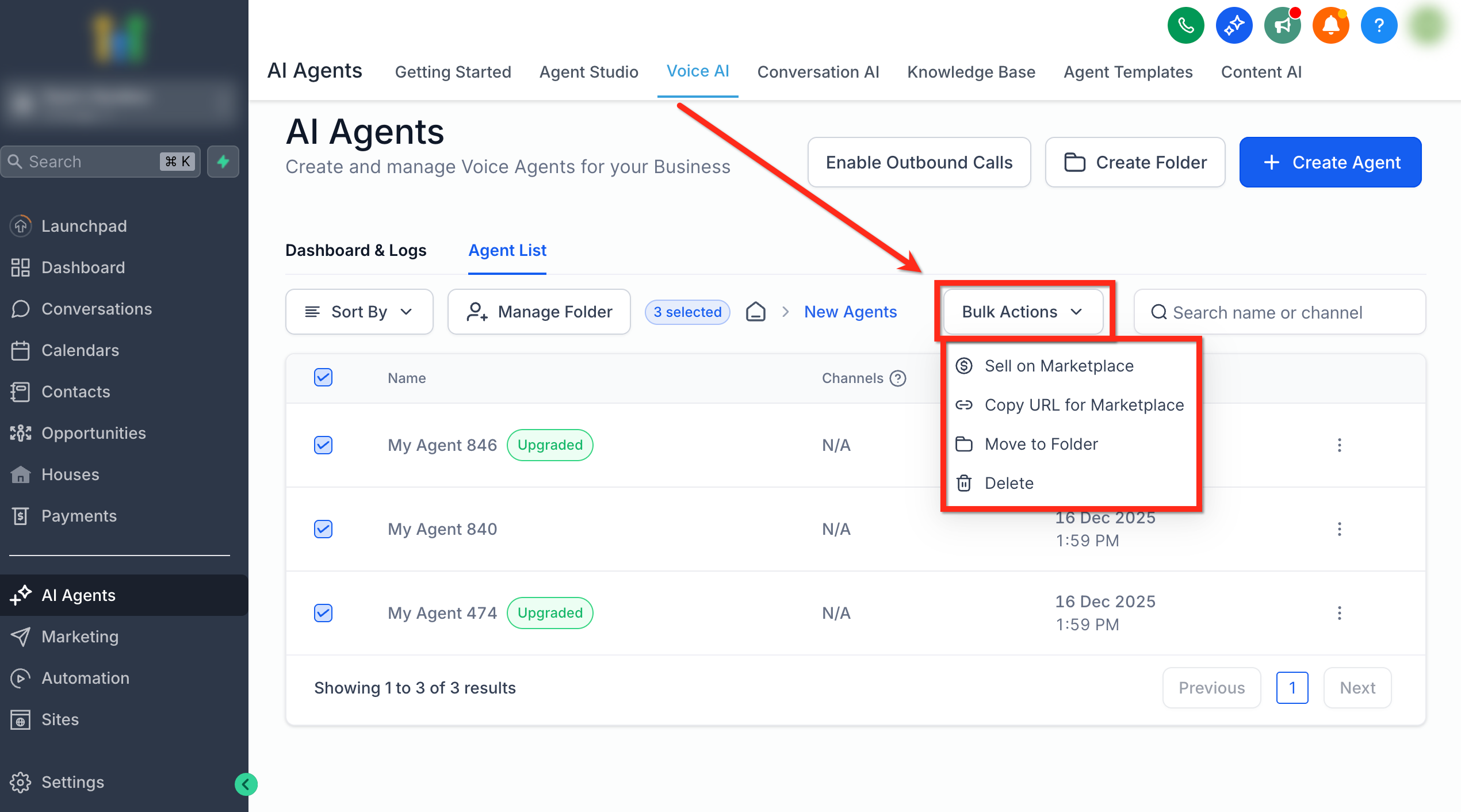
Managing lots of agents? Use bulk actions to boost your efficiency. With bulk actions, you can:
- Delete Agents
- Delete Folders
- Move Agents
- Sell on Marketplace
- Copy URL For Marketplace
Here’s how to use bulk actions to manage multiple agents or folders with ease.
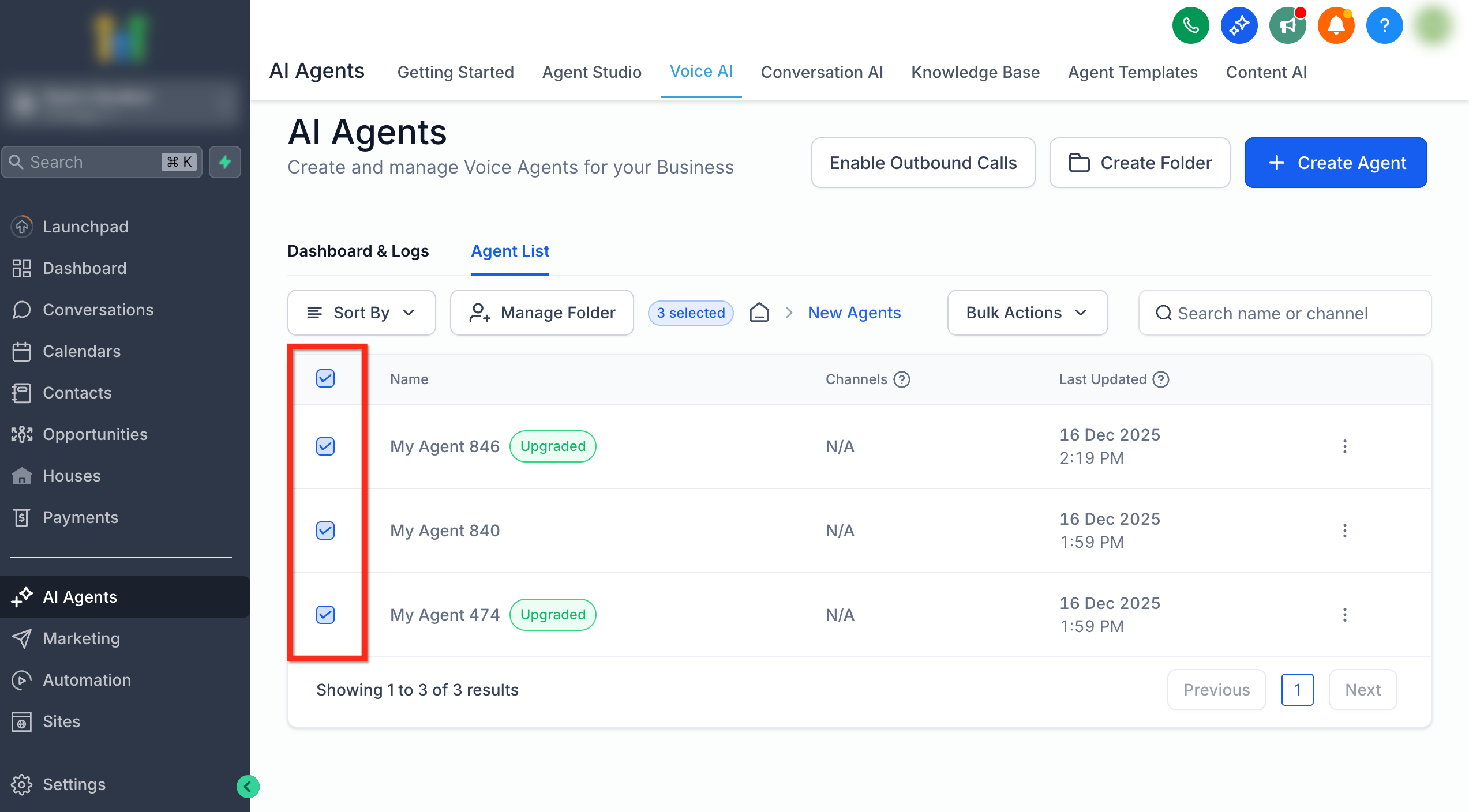
- Select several agents or folders using the checkbox tools.
- Click Bulk Actions then select your desired action from the dropdown.
Customize Your Agent List View
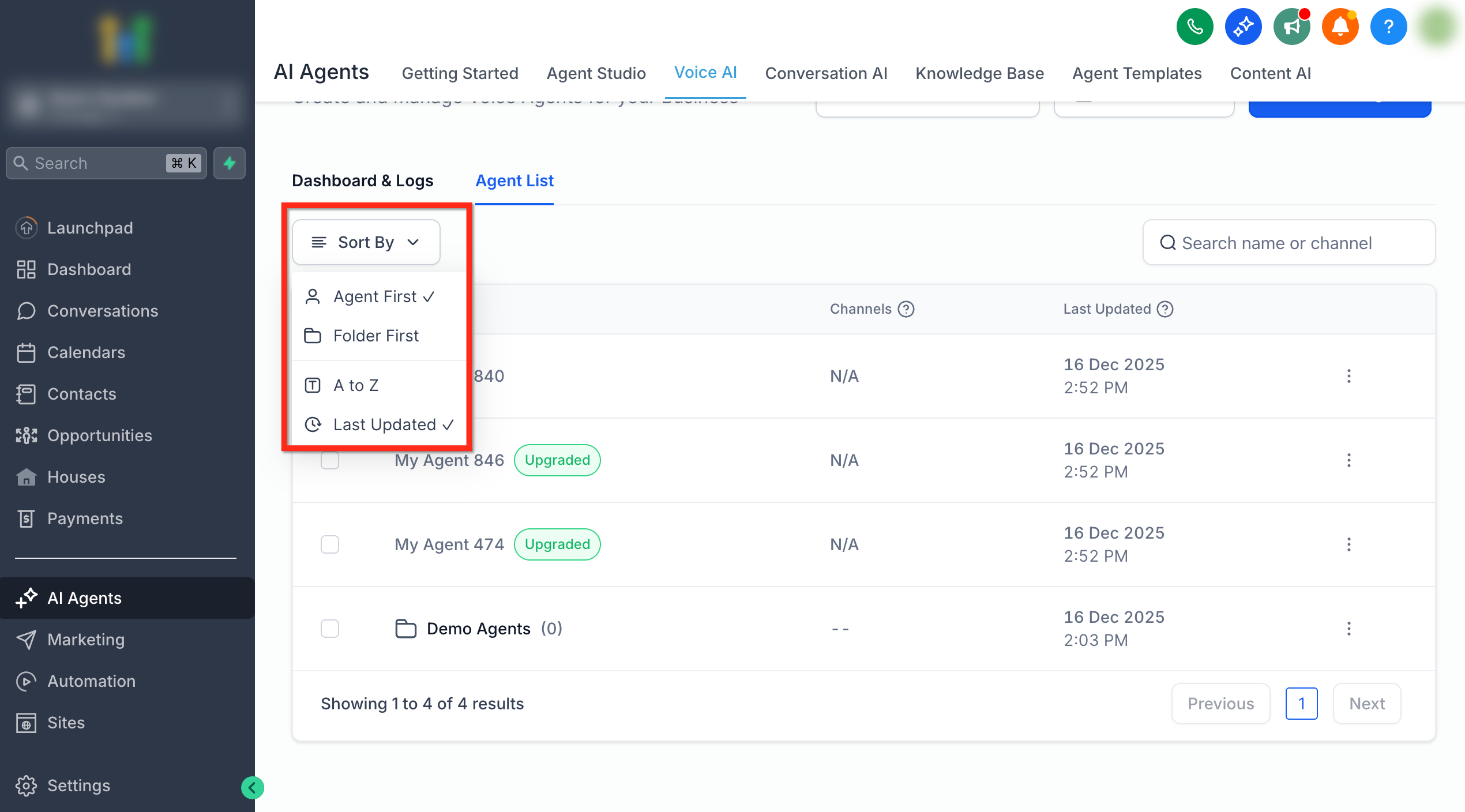
You’re always in control of how agents appear. Adjust the Agent List View to match your workflow and quickly find the agents or folders you are looking for!
- Grouping: Switch between grouped (folder) or flat (agent-first) views for the listing from the sort options.
- Sorting: Sort by last updated or name, for either agents or folders, to quickly find what you need.
Frequently Asked Questions
Q: Can an agent belong to multiple folders?
No. An agent can be assigned to one folder at a time.
Q: How many Voice AI agents can I create?
Up to 100 agents.
Q: What happens to agents when I delete a folder?
Agents are not deleted. They’re returned to the main agent list.
Q: Does search work across folders?
Search is context-aware. To find agents that live inside a folder, first open that folder and use its search. Searching from the main Agent List does not return agents stored inside folders.
Q: If I create or duplicate an agent while viewing a folder, where does it go?
The agent is saved in the current (open) folder.
Related Articles
Was this article helpful?
That’s Great!
Thank you for your feedback
Sorry! We couldn't be helpful
Thank you for your feedback
Feedback sent
We appreciate your effort and will try to fix the article