Learn how AI Employee Growth and Unlimited differ, what Unlimited means for Voice AI, which phone charges remain separate, how to enable AI Employee for sub-accounts, and how rebilling and reselling work.
AI Employee Unlimited includes unlimited Voice AI for inbound calls, outbound calls, and the Voice AI widget, subject to fair use. Unlimited does not refer only to Conversation AI.
Phone System charges are separate. A Voice AI call can therefore still create Phone System charges even when the Voice AI portion is covered by AI Employee Unlimited.
2. Key Benefits of AI Employee
3. AI Employee Plans and Voice AI Pricing at a Glance
4. What Unlimited Means for Voice AI
5. How To Set Up AI Employee Access
6. How AI Employee Rebilling Works
7. How To Resell AI Employee Plans
8. How To Review AI Usage and Charges
9. Frequently Asked Questions
10. Related Articles
What is AI Employee?
AI Employee is HighLevel's AI offering for accessing and managing supported AI products across agency and sub-account environments. Depending on the selected pricing model, AI products can be used through Pay-Per-Use, AI Employee Growth, or AI Employee Unlimited.
AI Employee includes or works alongside products such as:
- Conversation AI
- Voice AI
- Reviews AI
- Content AI
- Ask AI
- AI Studio
- Other supported AI capabilities as documented in current AI pricing
Because product coverage and usage rules can change, use the AI Product Pricing article and the pricing displayed in HighLevel as the current source of truth before quoting costs to clients.
Key Benefits of AI Employee
AI Employee gives agencies a centralized way to provide AI capabilities to clients while controlling access, subscription tiers, usage billing, and client-facing pricing.
- Flexible Pricing: Choose between Pay-Per-Use, Growth, and Unlimited pricing based on expected AI usage.
- Voice AI Coverage: Growth includes a monthly Voice AI allowance, while Unlimited includes Voice AI subject to fair use.
- Sub-Account Control: Grant or remove AI access for individual client accounts.
- Usage Visibility: Review supported AI usage and charges from the agency-level AI Suite.
- Flexible Rebilling: Rebill supported usage and configure available markup or fixed-rate pricing models.
- Subscription Reselling: Package Growth or Unlimited as a recurring client-facing AI Employee offer.
AI Employee Plans and Voice AI Pricing at a Glance
The plan name alone does not explain every charge. Use this comparison to distinguish the monthly AI subscription, Conversation AI coverage, Voice AI coverage, and separate Phone System costs.
| Pricing Area | Pay-Per-Use | AI Employee Growth | AI Employee Unlimited |
|---|---|---|---|
| Monthly AI subscription | No monthly AI subscription fee | $50/month per enabled location | $97/month per enabled location |
| Conversation AI | At applicable token cost | 1,000 Agent responses/month | Unlimited |
| Voice AI | Voice Engine + TTS + LLM token cost | 100 AI Agent minutes/month | Unlimited, subject to fair use |
| Inbound, outbound, and widget Voice AI | Billed based on usage | Share the same 100-minute monthly allowance | Included under Unlimited, subject to fair use |
| After Growth Voice AI allowance | Usage continues at applicable rates | Additional Voice AI usage is billed at applicable pay-per-use rates | Unlimited coverage remains subject to fair-use terms |
| Phone System charges | Separate | Separate | Separate |
Pricing can change. All prices above are in USD and reflect the current documented pricing. Before quoting a client, confirm the latest AI Product Pricing and the pricing displayed in your HighLevel account.
What Unlimited Means for Voice AI
AI Employee Unlimited covers the AI portion of supported Voice AI usage across inbound calls, outbound calls, and the Voice AI widget. The plan is described as Unlimited because those Voice AI minutes are included under the subscription, subject to HighLevel's fair-use terms.
Direct answer: Yes. AI Employee Unlimited includes unlimited Voice AI minutes for supported inbound, outbound, and widget usage, subject to fair use.
However, a Voice AI call can involve two different cost categories:
- Voice AI usage: The AI processing covered according to the location's AI plan.
- Phone System usage: The telecommunications portion of the call, which remains separately billable even when Voice AI is included in Unlimited.
This distinction is why an Unlimited location can still show phone-related charges without the Voice AI plan itself being billed by the minute.
How To Set Up AI Employee Access
AI Employee access is managed at both the agency and sub-account level. Enable the agency capability first, then control which client accounts should have access to AI products.
Use the agency switcher and select Switch to Agency View.
Go to Settings → Company, locate AI Employee, and enable the available AI Employee setting.
From Agency View, open AI Suite → Plans & Limits.
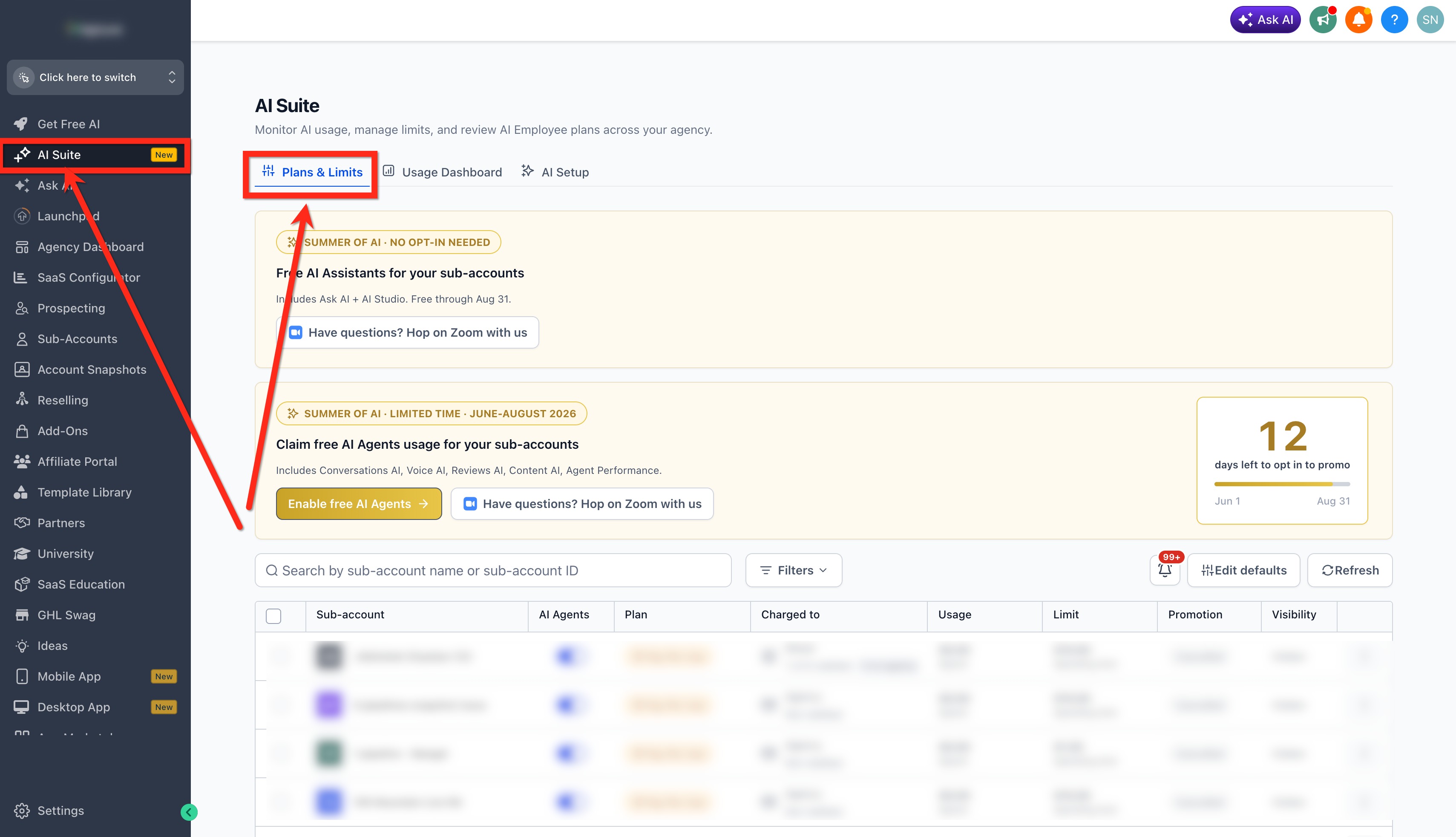
Find the sub-account by name or sub-account ID and use the available filters if needed.
Use the available AI Agents control to enable or disable access. You can also use the sub-account's three-dot actions menu and select AI Agents when that option is available.
How AI Employee Rebilling Works
Rebilling lets eligible agencies pass supported usage-based AI costs to clients and optionally add margin. Rebilling is different from selling a Growth or Unlimited monthly subscription because it applies to chargeable usage rather than the recurring subscription itself.
Agency requirement: Current HighLevel documentation states that agencies must be on the $497/month agency plan to rebill AI Employee usage. Also confirm that the appropriate client billing setup is active before enabling direct client charges.
For supported products, available pricing methods can include:
- Markup-Based Pricing: Charge the client a multiplier or markup on the underlying supported AI cost.
- Fixed-Rate Pricing: Conversation AI and Voice AI can use a fixed client-facing rate per supported unit, such as a message or Voice AI minute.
To configure rebilling from Plans & Limits:
- Go to Agency View → AI Suite → Plans & Limits.
- Locate the applicable sub-account.
- Open the three-dot menu.
- Select Configure Rebilling.
- Enable rebilling for the supported AI products you want to charge for.
- Choose the available pricing model and rate for each supported product.
- Review the settings and click Save Markups.
Fixed-rate rebilling does not change HighLevel's underlying agency charge. Your configured client rate determines what the sub-account is charged for future supported usage; your agency remains responsible for the underlying HighLevel cost.
How To Resell AI Employee Plans
Reselling lets your agency offer AI Employee as a recurring subscription. Instead of billing the client only for individual AI usage events, you can offer a Growth or Unlimited plan at a client-facing price you configure.
| Billing Model | What It Does |
|---|---|
| Rebilling | Passes supported usage charges to the client using the configured usage-pricing model. |
| Reselling | Offers AI Employee Growth or Unlimited as a recurring client subscription. |
To configure your agency's AI Employee resale offer:
- In Agency View, open Reselling.
- Under Subscriptions, select AI Employee.
- Review the available Growth and Unlimited plan options and current pricing.
- Select the plan you want to offer.
- Enter the client-facing price.
- Review any additional supported usage-pricing options.
- Review your cost, customer price, and expected margin.
- Click Save Changes.
To activate the configured offer for a specific client:
- Go to Agency View → Sub-Accounts.
- Locate the client and open the three-dot menu.
- Select Manage Client.
- Confirm the correct billing setup is active.
- Open Reselling.
- Select AI Employee.
- Choose the Growth or Unlimited offer to make available.
- Review the price and click Save.
Using the SaaS Configurator? AI Employee now supports explicit Growth or Unlimited tier selection when AI Employee is included in a SaaS plan. Confirm the intended tier before publishing or updating the plan.
How To Review AI Usage and Charges
When a charge looks unexpected, verify the location's plan and actual usage before assuming the subscription is being billed incorrectly. Agency Admins can review supported AI usage from the agency-level AI Suite.
- Switch to Agency View.
- Open AI Suite.
- Open the Usage Dashboard.
- Filter or review the relevant sub-account and AI product.
- Compare AI usage charges separately from Phone System charges when reviewing Voice AI calls.
If the location is on Growth, check whether the included monthly usage has been exceeded. If the location is on Unlimited and the charge is associated with a phone call, verify whether the charge belongs to the Phone System rather than the Voice AI subscription.
Frequently Asked Questions
Was this article helpful?
That’s Great!
Thank you for your feedback
Sorry! We couldn't be helpful
Thank you for your feedback
Feedback sent
We appreciate your effort and will try to fix the article