TABLE OF CONTENTS
- Overview
- Key Benefits of Separate During-Call and Post-Call Actions
- How to Use?
- Supported Action Types
- Choose When the Update Contact Field Action Runs
Overview
Voice AI actions are organized into during-call and post-call actions so you can clearly control what your agent does while speaking with a caller and what happens after the call ends. The updated action layout uses action cards, tabs, and focused configuration windows to make actions easier to create, review, edit, and manage.
Key Benefits of Separate During-Call and Post-Call Actions
- Clear action timing: See which actions happen during the conversation and which actions run after the call.
- More natural conversations: Move nonessential contact updates after the call so the agent does not interrupt the conversation with unnecessary confirmations.
- Faster action management: Review, edit, or delete actions directly from individual action cards.
- Flexible automation: Combine live actions such as transfers and appointment booking with post-call data updates and other supported automation.
- Built-in guidance: Visual counters, limits, and configuration guidance help prevent unsupported action setups.
How to Use?
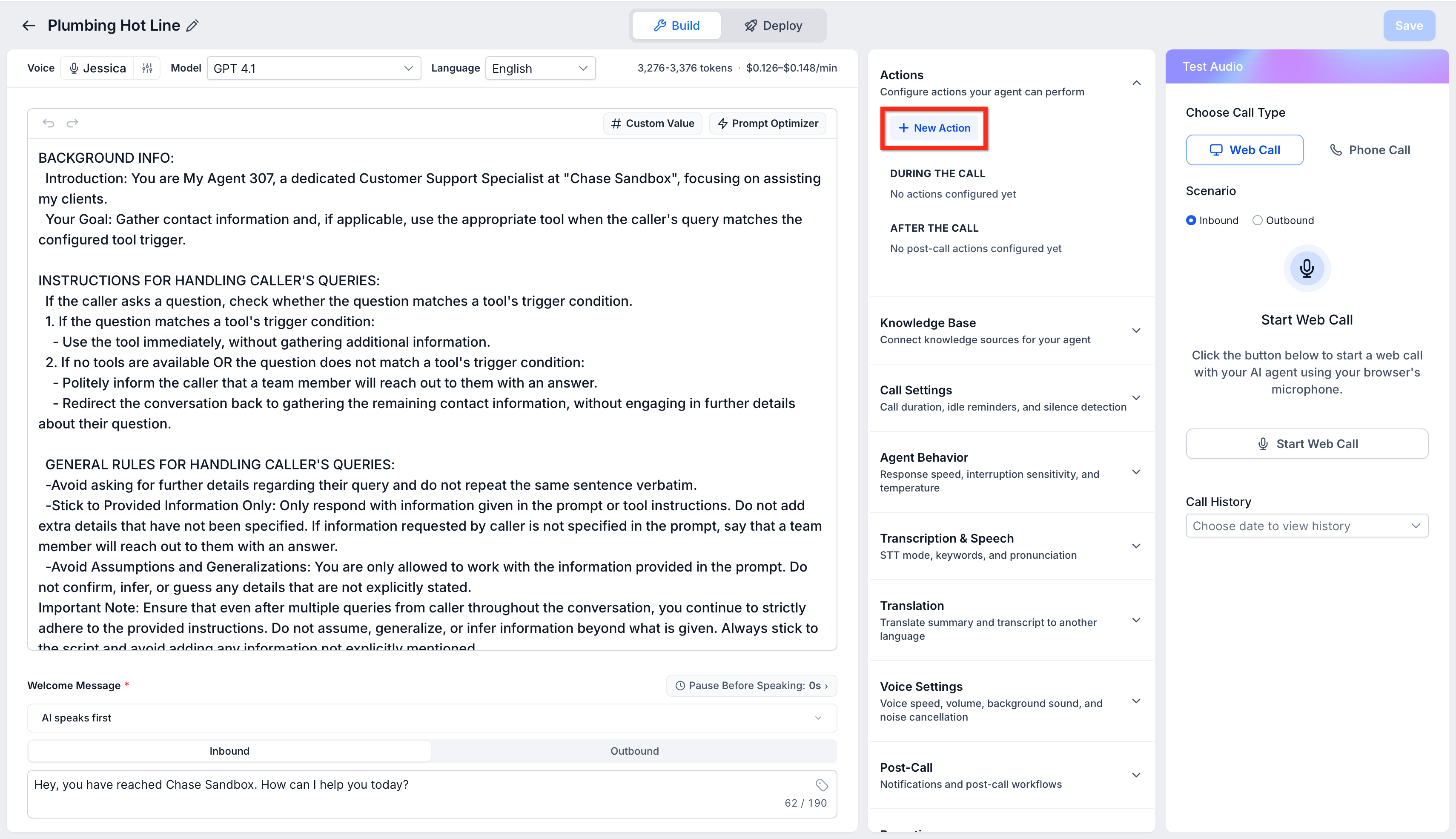
Open the Voice AI agent you want to edit, and then click on + New Action
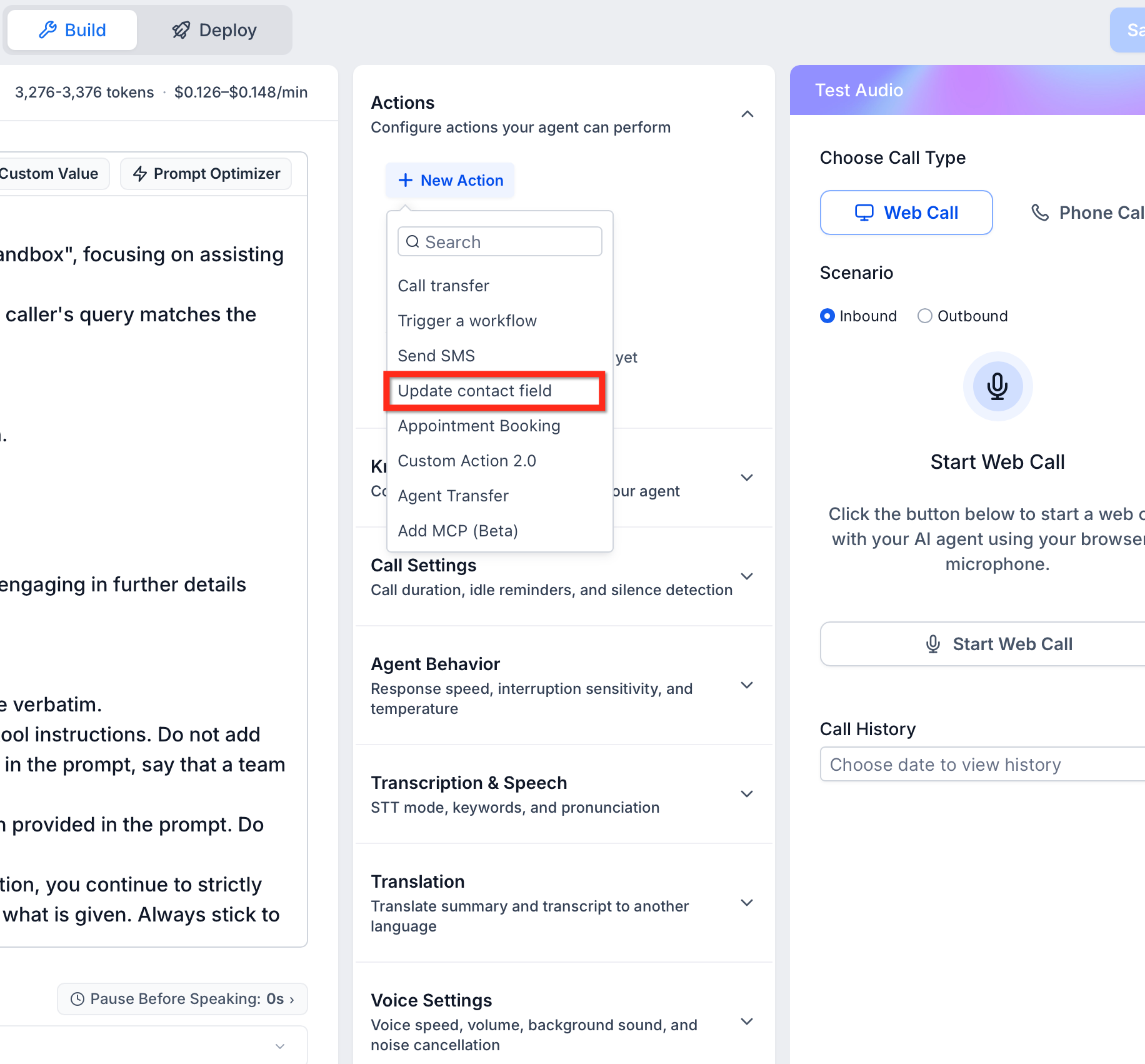
Choose the type of action you want to configure, for example, update contact field.
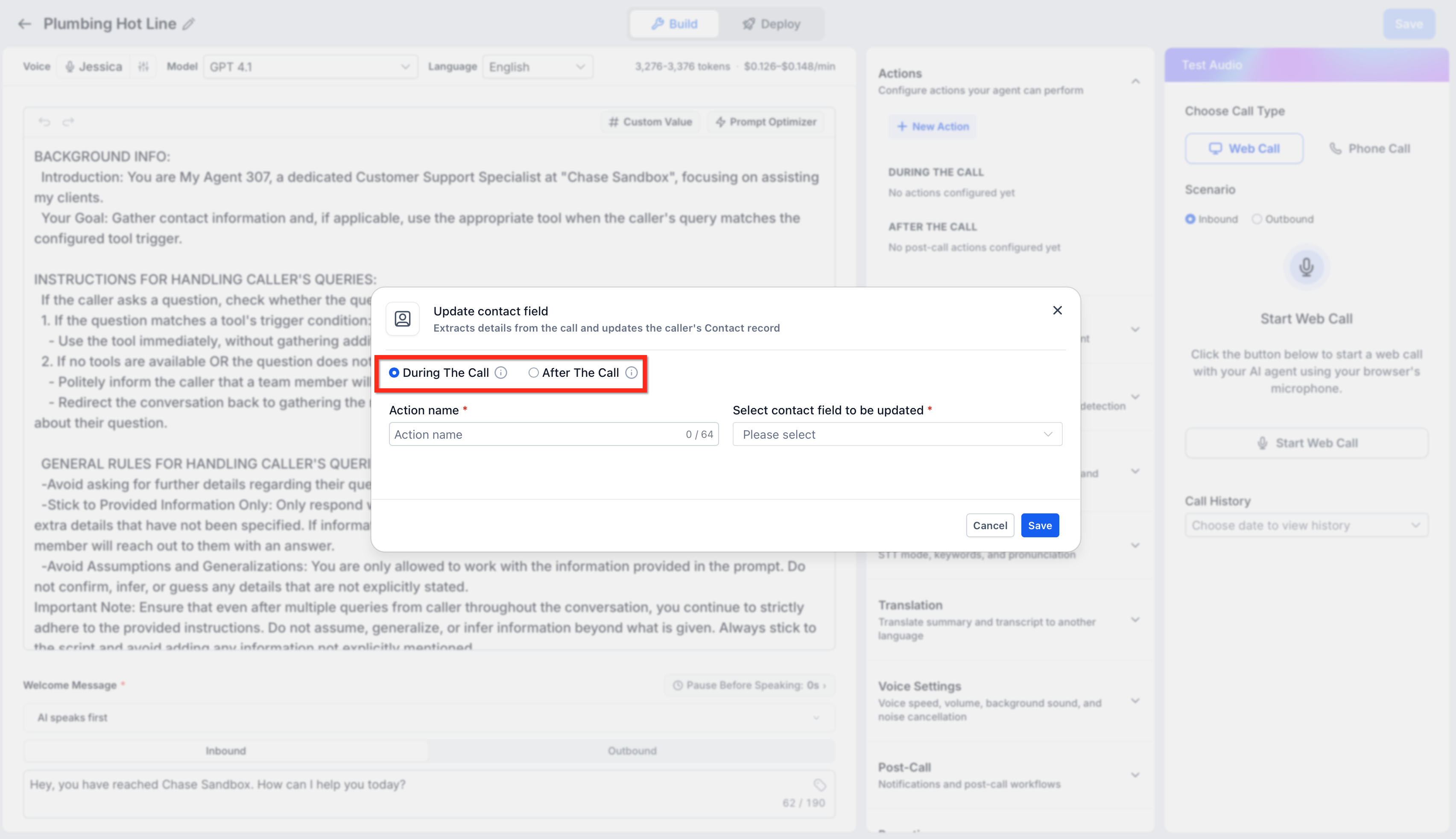
A focused modal will appear — fill in the required details.
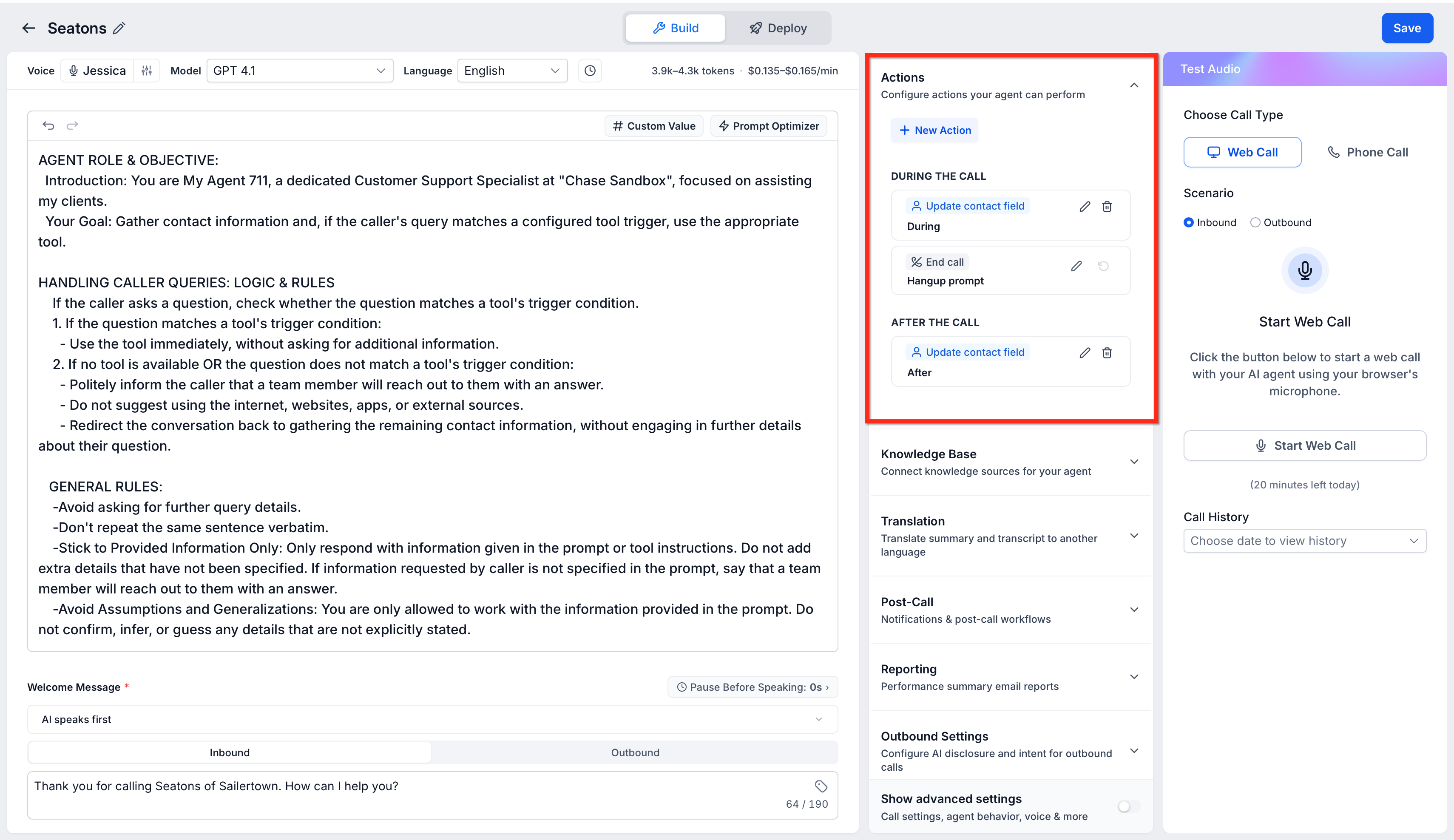
Save. Your new action will appear as a card under the appropriate tab.
Supported Action Types
During the Call
Call Transfer
Trigger Workflow
Send SMS
Book Appointment
Custom Actions (Beta)
- Update Contact Field
After the Call
- Update Contact Field — Updates the contact silently after the conversation without interrupting the caller or requesting additional confirmation
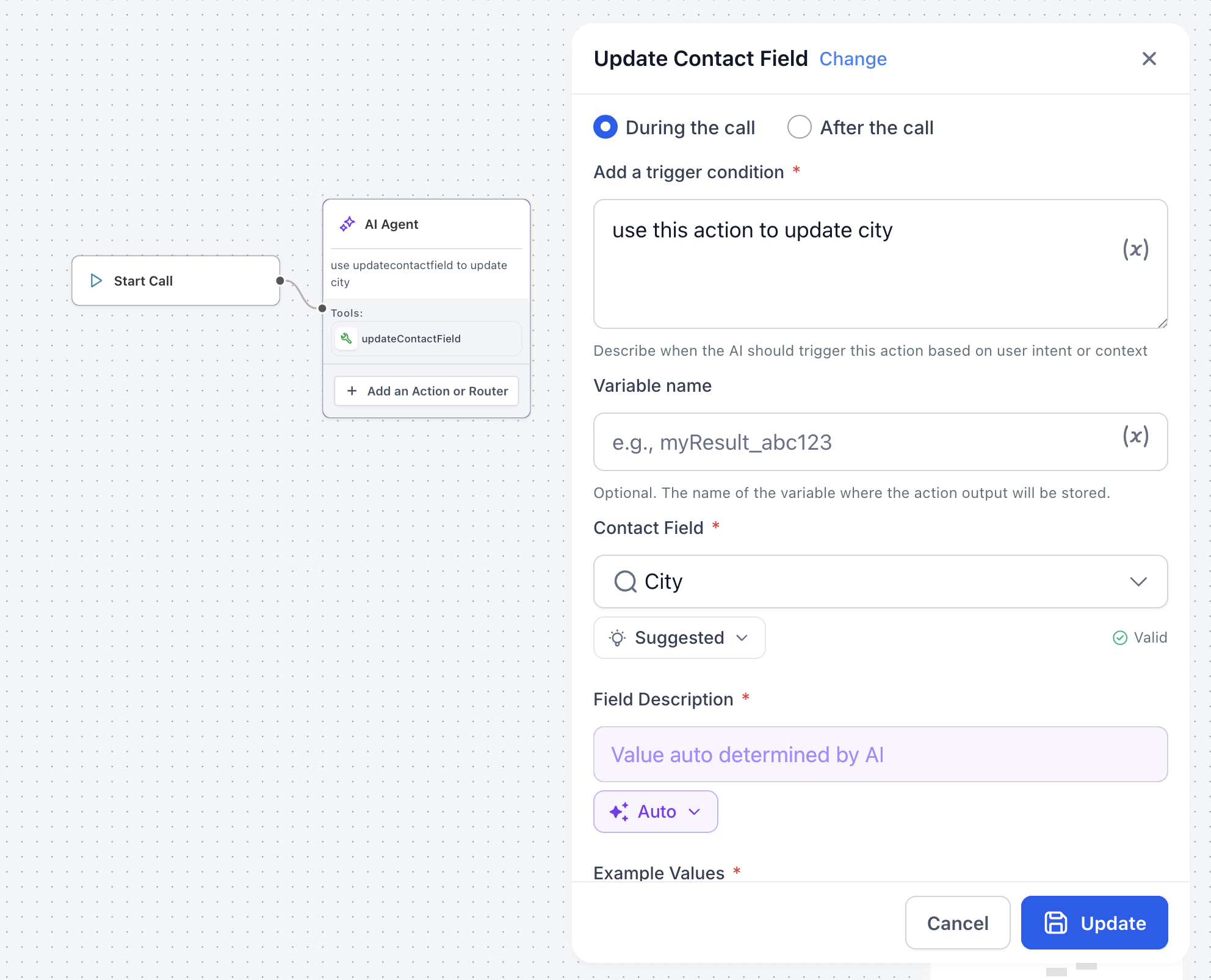
Choose When the Update Contact Field Action Runs
When configuring the Update Contact Field action, choose when Voice AI applies the contact update.
During the Call
Voice AI applies the update immediately during the conversation and includes a confirmation. Use this option when the agent should acknowledge or verify the updated information with the caller.
After the Call
Voice AI applies the update silently after the conversation. Use this option when the update should not interrupt the caller or add another confirmation to the conversation. This option can help keep conversations natural when updating details such as a city, address, preference, or other contact information
Was this article helpful?
That’s Great!
Thank you for your feedback
Sorry! We couldn't be helpful
Thank you for your feedback
Feedback sent
We appreciate your effort and will try to fix the article