Voice AI Performance Summary Emails help teams stay informed about agent performance on a recurring schedule. These emails can be sent weekly, every two weeks, or monthly to selected admins, users, specific users, or custom email addresses.
This article explains how to configure Performance Summary Email settings for a Voice AI agent and how to manage report recipients.
TABLE OF CONTENTS
- What are Voice AI Performance Summary Emails?
- Key Benefits of Voice AI Performance Summary Emails
- Reporting vs. Post-Call vs. Dashboard & Logs
- Performance Summary Email Frequency Options
- Performance Summary Email Recipient Options
- How To Configure Voice AI Performance Summary Emails
- Verifying Performance Summary Email Settings
- Frequently Asked Questions
What are Voice AI Performance Summary Emails?
Voice AI Performance Summary Emails are recurring email reports that summarize performance for a selected Voice AI agent. These emails help teams monitor agent activity without needing to manually check the dashboard every time they want a performance update.
Performance Summary Emails are configured per agent from the Reporting section inside the agent builder. Each agent can have its own frequency and recipient settings.
Key Benefits of Voice AI Performance Summary Emails
Performance Summary Emails make it easier for teams to monitor Voice AI performance consistently. By sending scheduled updates to the right recipients, teams can stay aligned on agent performance, identify trends, and follow up when needed.
- Scheduled performance visibility: Receive recurring summaries weekly, every two weeks, or monthly.
- Flexible recipient control: Send reports to admins, users, specific users, or custom email addresses.
- Agent-specific reporting: Configure reporting separately for each Voice AI agent.
- Reduced manual checking: Keep stakeholders informed without requiring them to open Dashboard & Logs every time.
- Better team alignment: Share performance updates with the people responsible for reviewing Voice AI outcomes.
Reporting vs. Post-Call vs. Dashboard & Logs
Voice AI includes several areas for reviewing call activity and performance. Understanding the difference helps you choose the right option for your goal.
Reporting is used for scheduled Performance Summary Emails. Use this when you want recurring email summaries for a selected Voice AI agent.
Post-Call is used for notifications and post-call workflows available in the agent builder. Use this when you need post-call behavior or workflow-related actions.
Dashboard & Logs is used to review analytics, call activity, recordings, transcripts, filters, and logs inside HighLevel. Use this when you need to review performance immediately instead of waiting for the next scheduled email.
Performance Summary Email Frequency Options
Frequency controls how often the selected Voice AI agent’s performance summary email is sent. Choose a schedule that matches how often your team wants to review performance.
Available frequency options include:
- Weekly: Best for active monitoring and frequent review.
- Every 2 weeks: Best for teams that want regular updates without weekly emails.
- Monthly: Best for high-level performance review and lower-volume agents.
Performance Summary Email Recipient Options
Recipient options control who receives the scheduled performance summary email. Select the recipient types that match who needs visibility into the selected agent’s performance.
Available recipient options include:
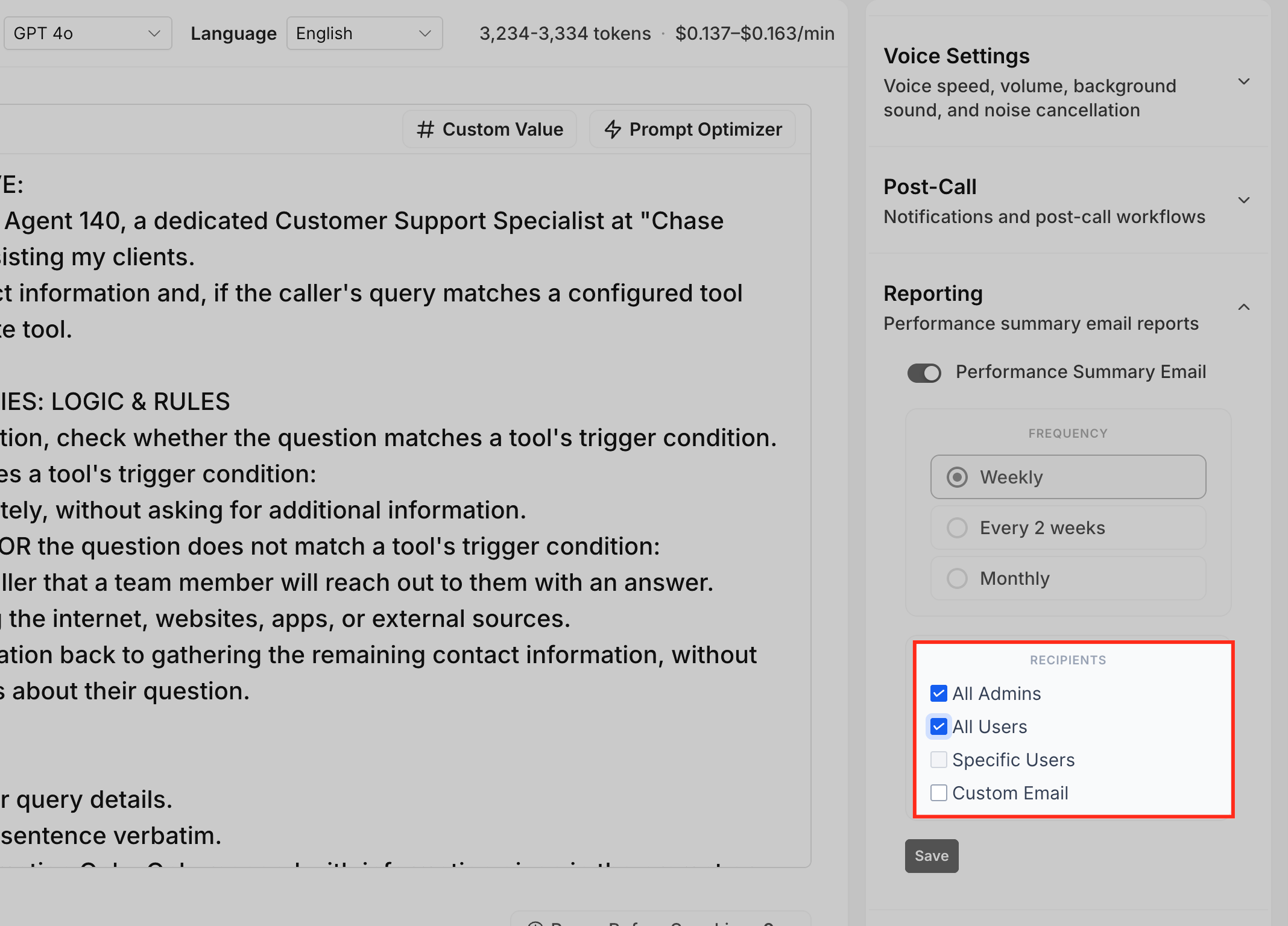
- All Admins: Sends the performance summary email to admin users in the sub-account.
- All Users: Sends the performance summary email to all users in the sub-account.
- Specific Users: Sends the performance summary email only to selected HighLevel users.
- Custom Email: Sends the performance summary email to an entered email address.
You can use recipient options to keep reporting broad or limit it to only the people responsible for reviewing Voice AI performance.
How To Configure Voice AI Performance Summary Emails
Performance Summary Emails are configured from the selected Voice AI agent’s Build tab. The Reporting section controls the report frequency and recipients for that agent.
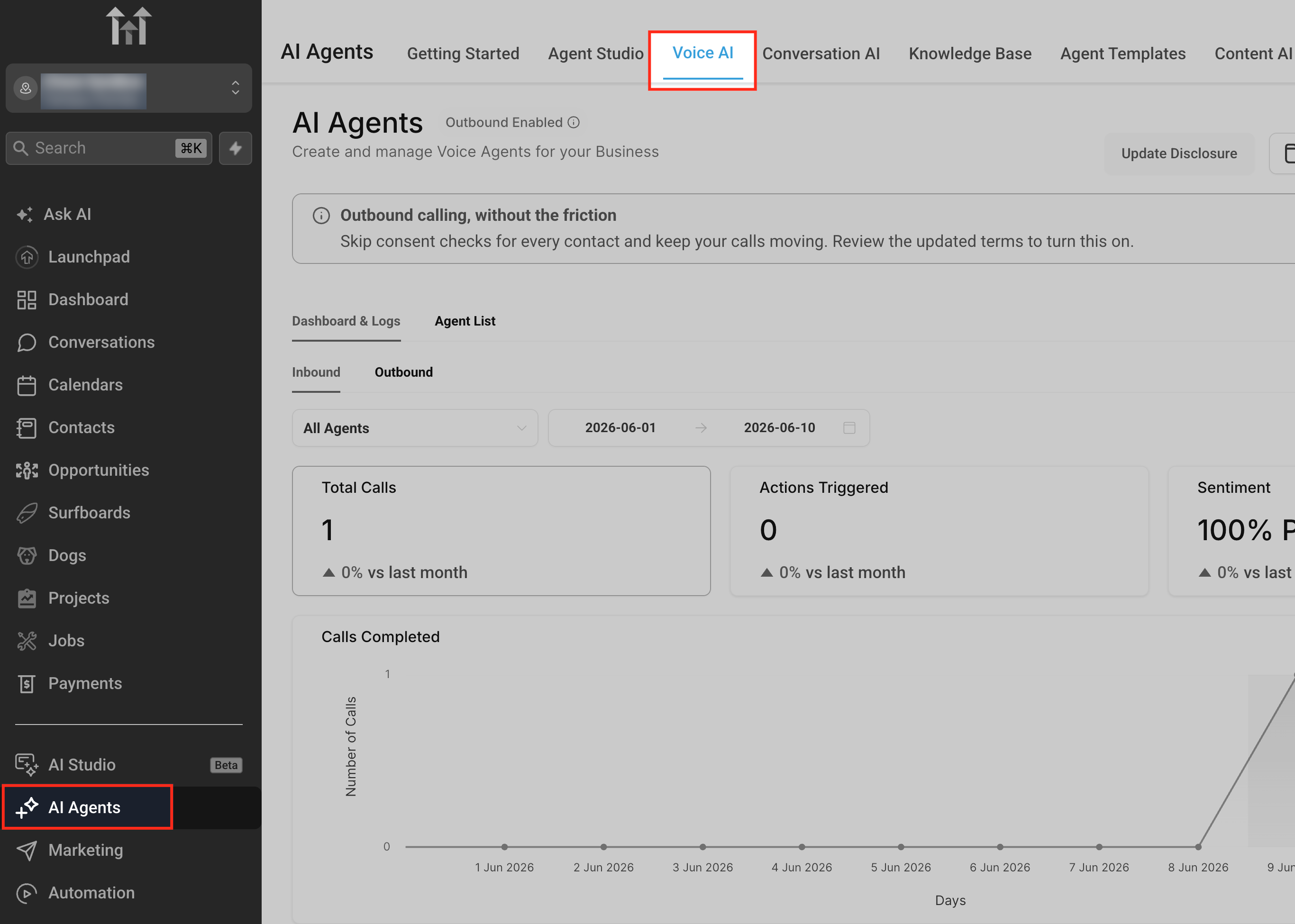
Go to AI Agents > Voice AI
Open AI Agents, then select Voice AI. This is where Voice AI agents are created, edited, deployed, and reviewed.
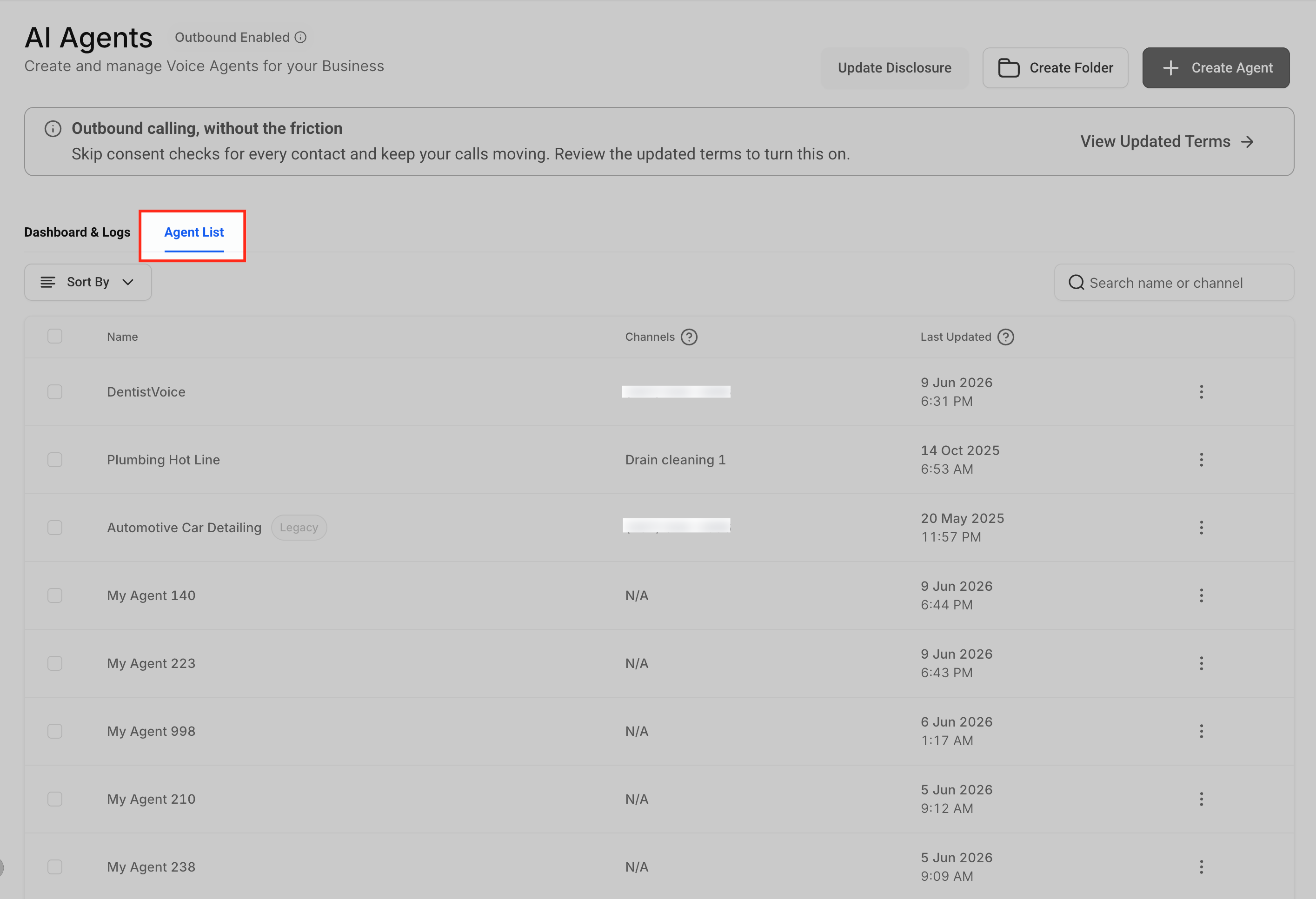
Open Agents List
Select Agents List to view available Voice AI agents in the sub-account. Choose the agent whose reporting settings you want to configure.
Select the Voice AI agent
Open the Voice AI agent you want to update. Reporting settings are configured per agent, so make sure you select the correct agent.
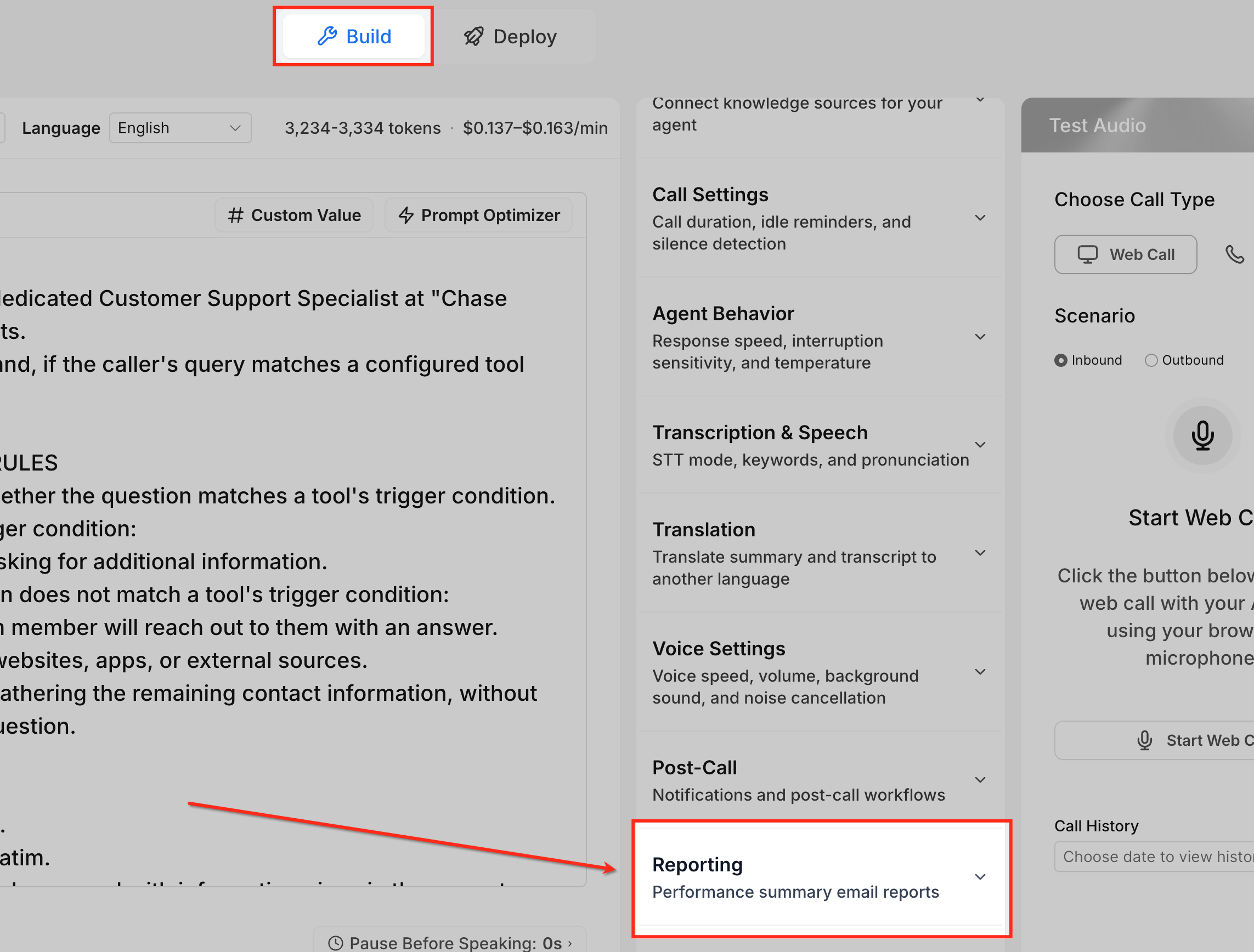
Go to the Build tab
Open the Build tab for the selected agent. The Build area contains the agent configuration panels, including voice settings, post-call settings, and reporting.
In the right-side settings panel, expand Reporting. This section includes the Performance Summary Email settings.
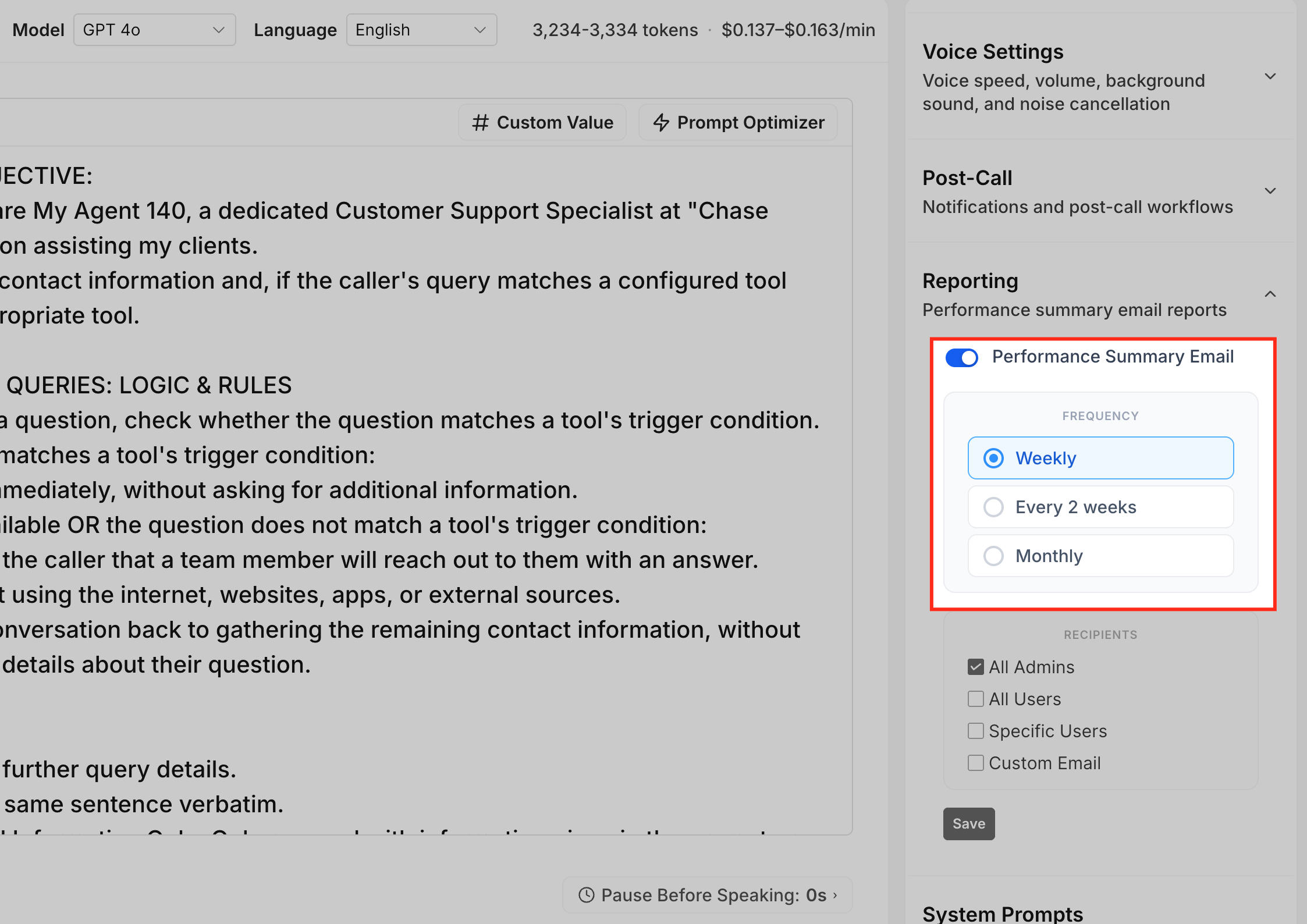
Locate Performance Summary Email
Find the Performance Summary Email setting. This is where you configure how often the summary email is sent and who should receive it.
Choose a frequency
Select one of the available frequency options:
- Weekly
- Every 2 weeks
- Monthly
Choose the option that matches how often your team needs agent performance updates.
Select recipients
Choose who should receive the Performance Summary Email. Available options include:
- All Admins
- All Users
- Specific Users
- Custom Email
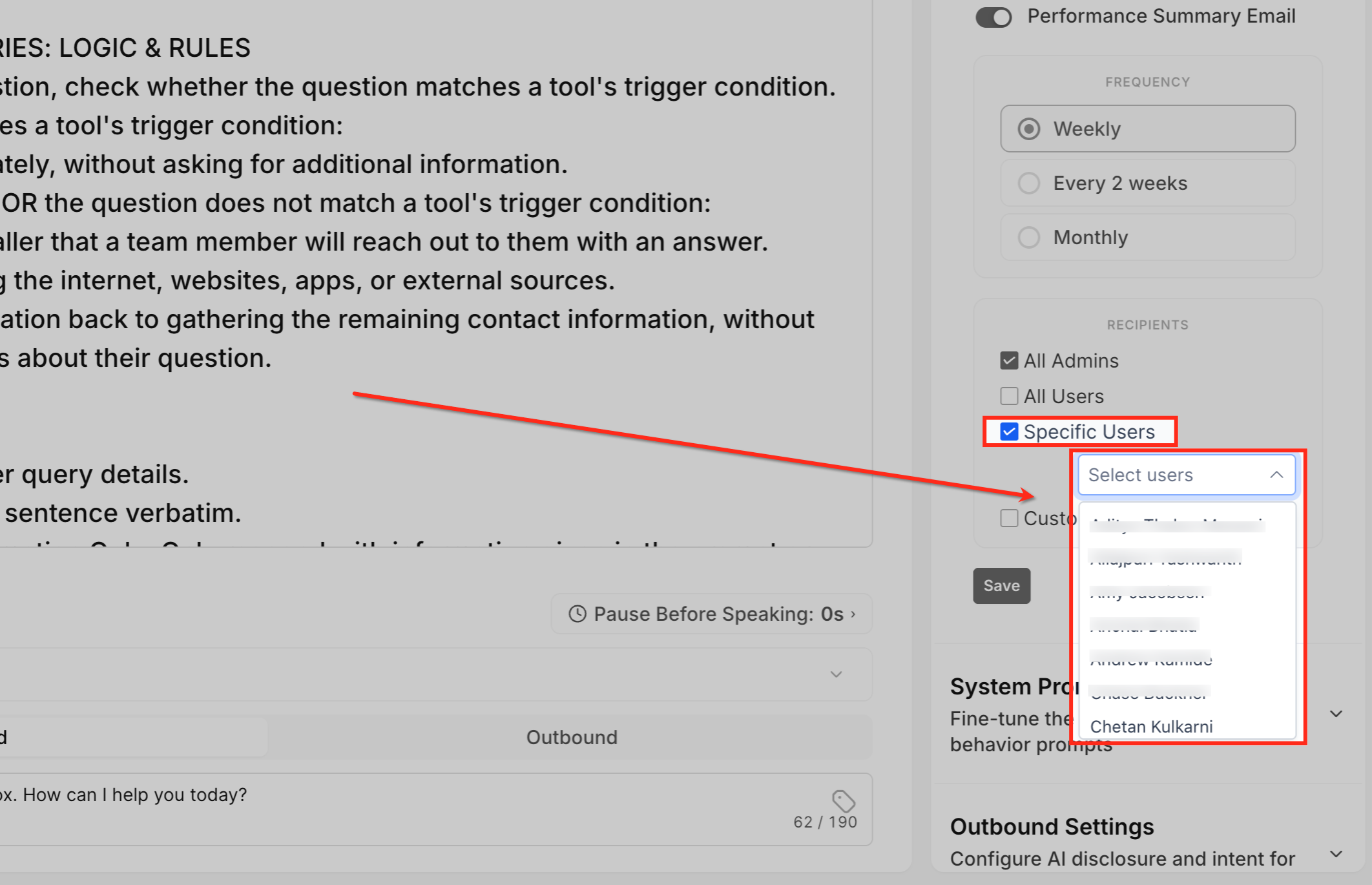
Choose specific users, if needed
If you select Specific Users, choose the users who should receive the email. Confirm that the selected users are correct before saving.
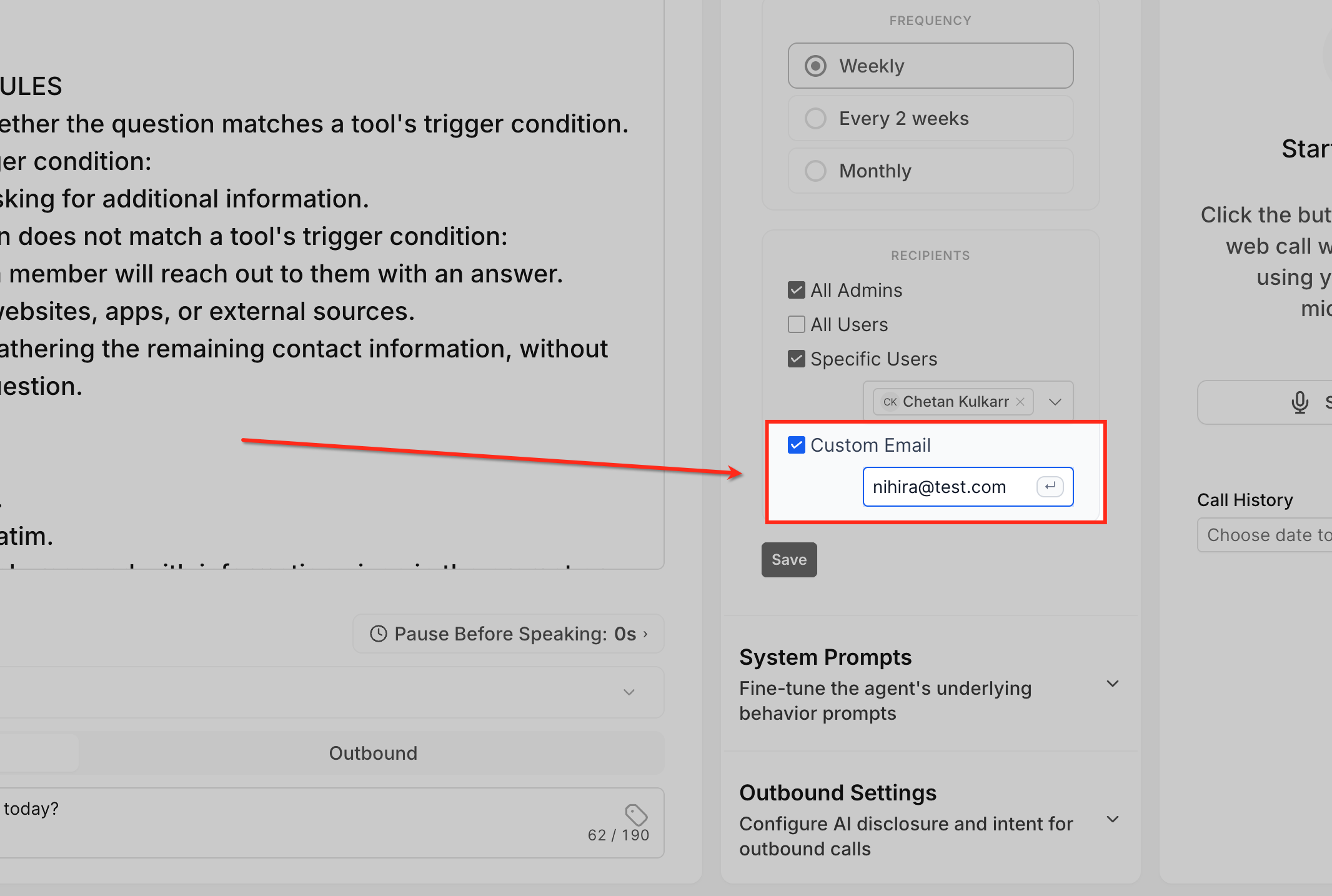
Add a custom email, if needed
If you select Custom Email, enter the email address that should receive the report. Check the email address for spelling before saving.
Click Save to apply the reporting settings. Unsaved changes may not apply to future Performance Summary Emails.
Verifying Performance Summary Email Settings
Performance Summary Emails are scheduled reports, so they may not send immediately after saving. Verification helps ensure the correct recipients are selected and the report is configured for the right agent.
After saving, confirm:
- The correct Voice AI agent was updated.
- The desired frequency is selected.
- The correct recipient options are selected.
- Specific users are selected if using Specific Users.
- The custom email address is correct if using Custom Email.
- Selected users have valid email addresses.
- Recipients check spam or junk folders if the expected email is missing.
For immediate performance review, use Dashboard & Logs instead of waiting for the next scheduled email.
Frequently Asked Questions
Q: What are Voice AI Performance Summary Emails?
They are recurring email reports that summarize performance for a selected Voice AI agent.
Q: Where do I configure Performance Summary Emails?
Go to AI Agents > Voice AI > Agents, select the agent, then open Build > Reporting.
Q: How often can Performance Summary Emails be sent?
Available frequency options are Weekly, Every 2 weeks, and Monthly.
Q: Can I select multiple recipient types?
Yes. You can select the recipient options that match who should receive the report.
Q: Can I send reports to a custom email address?
Yes. Select Custom Email, then enter the email address that should receive the report.
Q: Are Performance Summary Emails the same as post-call notifications?
No. Performance Summary Emails are scheduled reporting emails. Post-call settings are used for notifications and post-call workflows.
Q: Do recipients need to be HighLevel users?
Recipients selected through All Admins, All Users, or Specific Users must be users in the sub-account. Custom Email can be used for an entered email address.
Q: Why did a recipient not receive the email?
Confirm the settings were saved, the reporting frequency has occurred, and the correct recipient option or email address was selected.
Q: Can I review performance before the next scheduled email?
Yes. Use Dashboard & Logs to review Voice AI performance at any time.
Q: Can I configure reporting separately for each agent?
Yes. Performance Summary Email settings are configured per Voice AI agent.
Related Articles
Was this article helpful?
That’s Great!
Thank you for your feedback
Sorry! We couldn't be helpful
Thank you for your feedback
Feedback sent
We appreciate your effort and will try to fix the article