Selecting AI Employee Plan Tiers in SaaS Configurator
The SaaS Configurator lets you pick a specific AI Employee tier (Growth or Unlimited) when bundling AI Employee into client plans, replacing the previous on/off toggle with tier-specific selection.
This article covers how the tier picker works, what agencies see when configuring plans, and how the selected tier carries through to client provisioning.
What is AI Employee Tier Selection?
AI Employee Tier Selection allows agencies to choose which AI Employee plan tier — Growth or Unlimited — to include when bundling AI Employee into a SaaS plan. Instead of a simple on/off toggle, the SaaS Configurator provides a plan picker that displays each tier's pricing and features side by side.
Once you select a tier, that choice is saved with the plan and displayed in the Configurator's main view. When a client is provisioned on that plan, they receive the AI Employee tier you configured, ensuring alignment between your pricing strategy and what the client actually receives.
This tier-selection approach is built to extend to other multi-tier addons in the future, establishing a consistent pattern for configuring tiered services within SaaS plans.
Key Benefits
Selecting a specific AI Employee tier when configuring SaaS plans provides clarity and control over pricing, provisioning, and client expectations.
How the Plan Picker Works
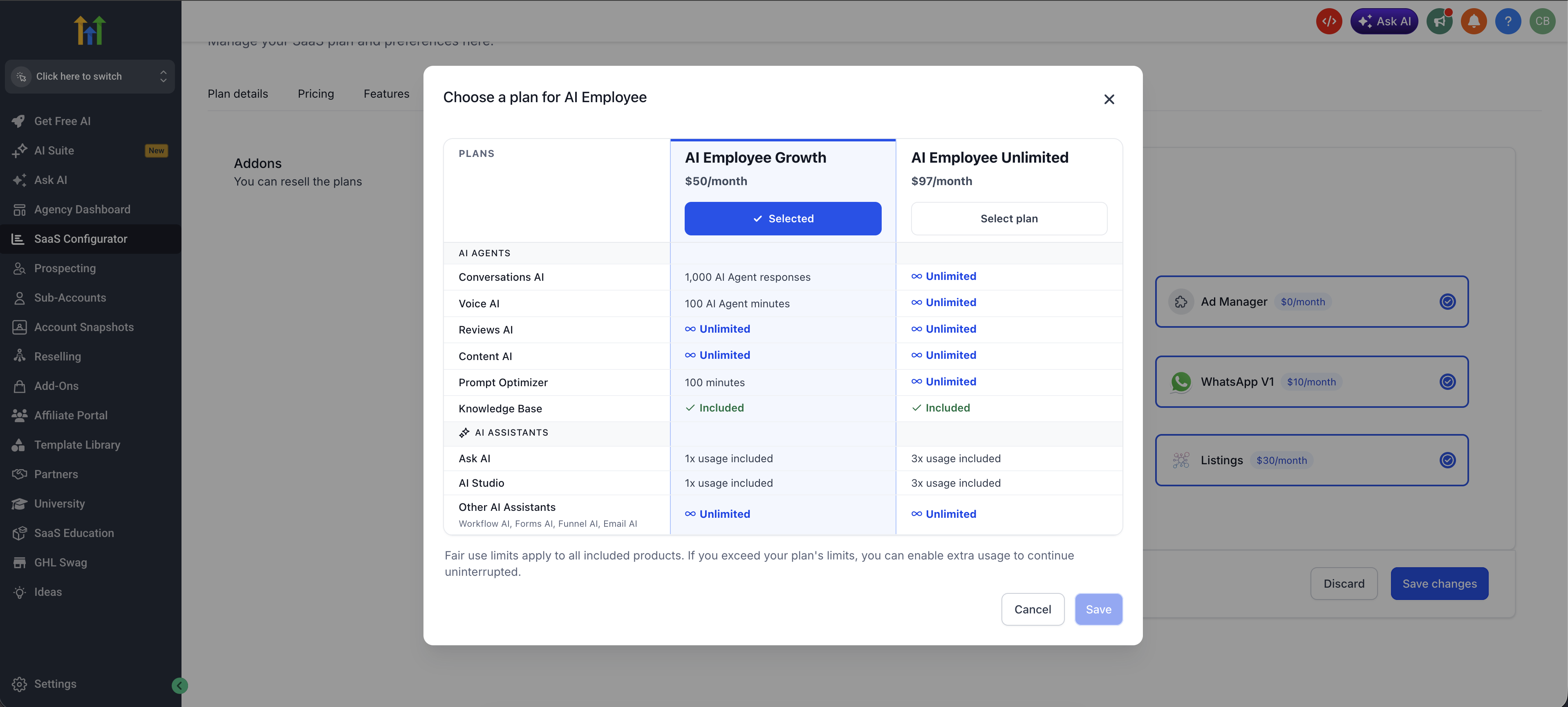
When you add AI Employee to a SaaS plan, the Configurator displays a plan picker that presents Growth and Unlimited tiers using the same selection pattern familiar from marketplace app plans.
Each tier is displayed with its price and a feature list, allowing you to evaluate which tier fits your client's needs and your pricing strategy before making a selection.
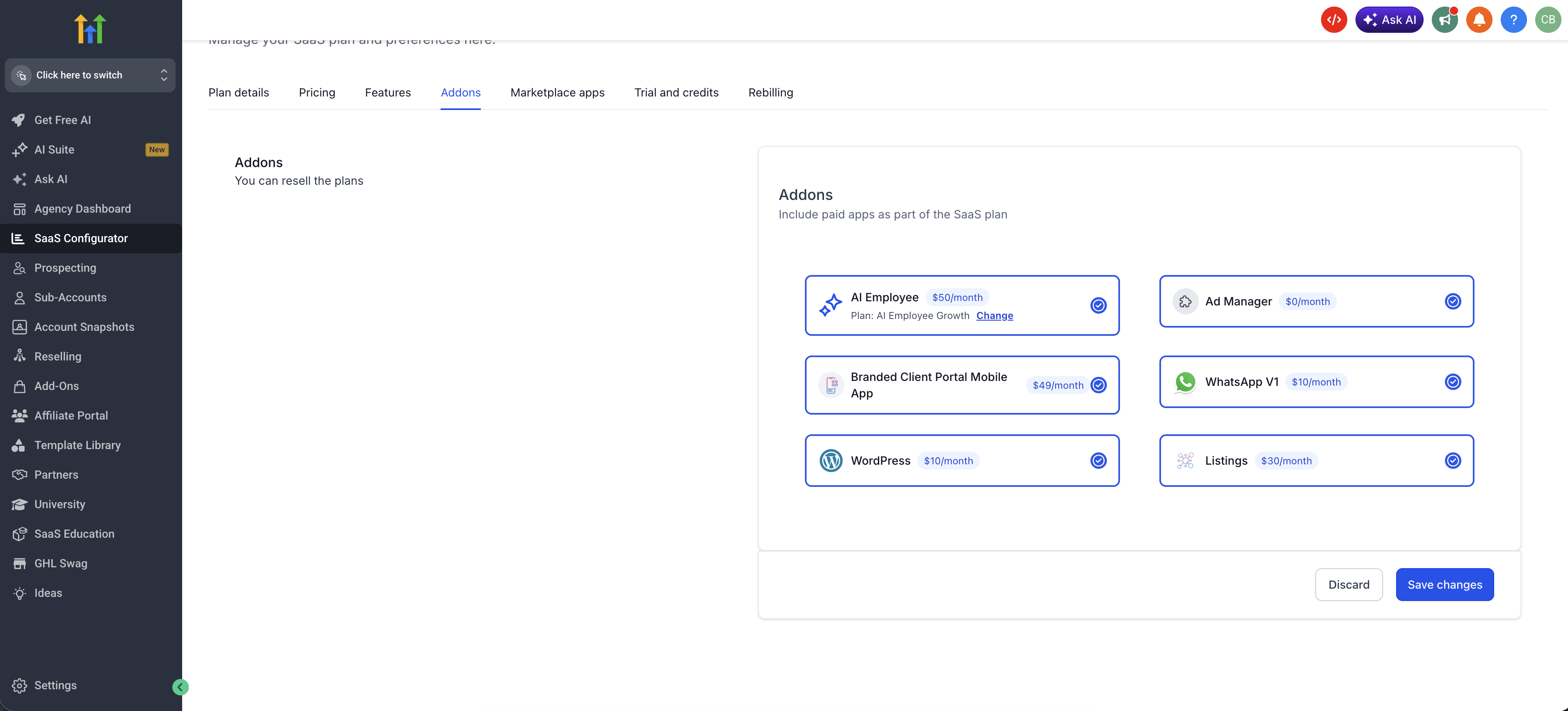
Once you select a tier, the Configurator's main screen shows the chosen tier and its cost at a glance, so you don't need to reopen the addon flow to confirm which tier is attached to a plan.
The selected tier is saved with the plan configuration and used during client provisioning, ensuring clients receive the exact AI Employee tier you configured rather than a default.
How to Select an AI Employee Tier in Your SaaS Plan
Follow these steps to add AI Employee to a SaaS plan and choose the appropriate tier for your clients.
Navigate to the SaaS Configurator in your agency account and select the plan you want to configure.
Click the option to add AI Employee as an addon. The plan picker will appear, displaying Growth and Unlimited tiers.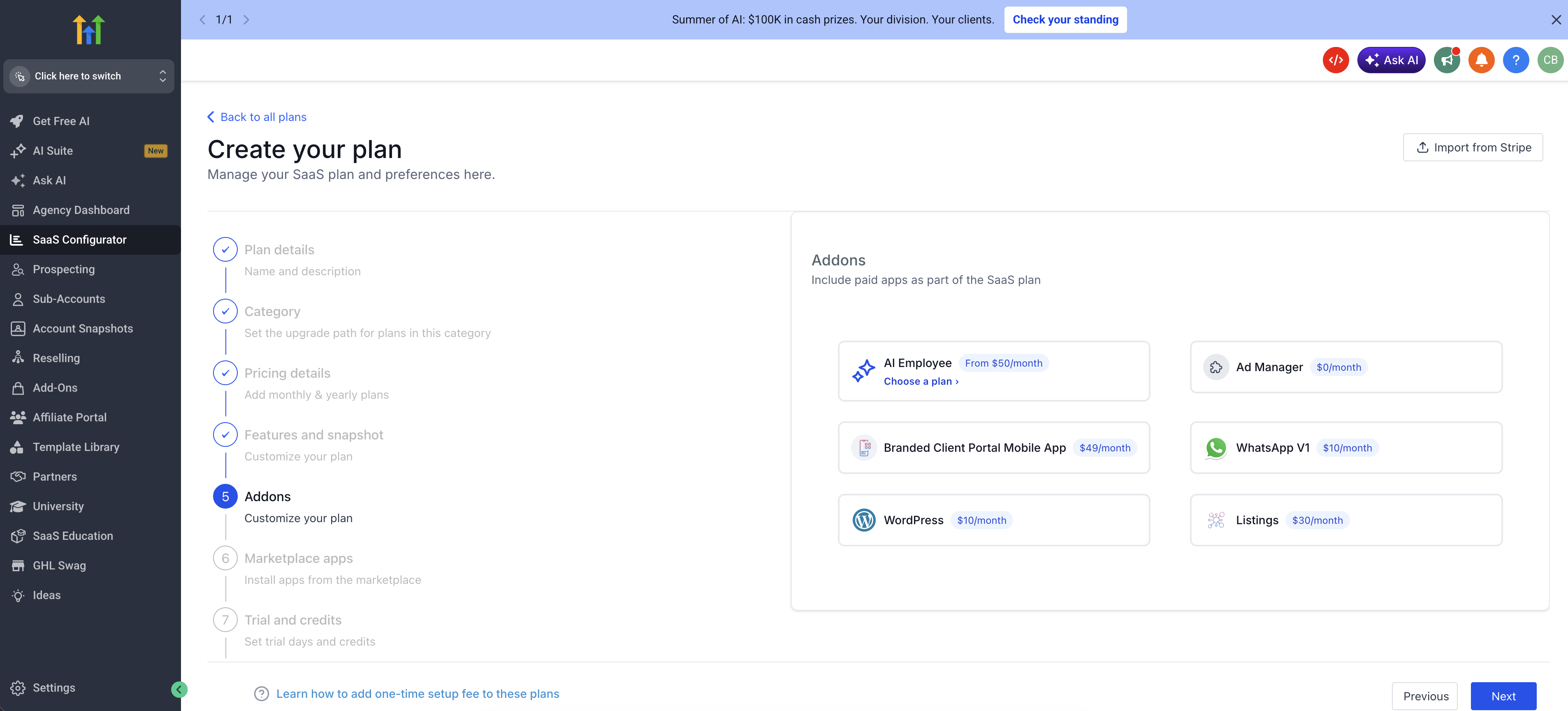
Compare the pricing and feature lists for Growth and Unlimited to determine which tier aligns with your client's needs and your pricing model.
Click on your chosen tier (Growth or Unlimited). The picker will save your selection and return you to the Configurator's main view.
The main Configurator screen now displays the selected AI Employee tier and its price alongside the plan's other addons and features.
Save your plan configuration. When a client is provisioned on this plan, they will receive the AI Employee tier you selected.
Your SaaS plan is configured with the correct AI Employee tier, and clients provisioned on this plan will receive the tier you chose.
Important Notes and Limitations
Be aware of these considerations when working with AI Employee tier selection in SaaS plans.
If a plan had AI Employee enabled before this feature existed, it may not yet have an explicit tier attached. In some cases, the plan picker may show AI Employee as unselected or priced at $0 until you open the plan and confirm the tier. A default AI Employee tier is applied automatically for plans without one, but you should still verify the tier is correct for your pricing.
Reports of "AI Employee shows as missing or $0 on an existing plan" should be treated as expected transition-period issues. The fix is to reopen the plan and reselect the correct tier.
The pricing and feature comparison displayed in the picker is specific to AI Employee. A more dynamic, backend-driven version for other future addons is a known follow-up, not available for other addons yet.
This release is scoped to AI Employee, though the picker pattern is designed for reuse if other multi-tier addons are introduced later.
Frequently Asked Questions
Was this article helpful?
That’s Great!
Thank you for your feedback
Sorry! We couldn't be helpful
Thank you for your feedback
Feedback sent
We appreciate your effort and will try to fix the article