Stay on top of AI Employee and Email IP subscription billing with a centralized view of subscribed sub-accounts in HighLevel. The enhanced billing card makes it easier to review subscription details such as purchase type, status, billing cycle, and purchase date without checking accounts individually. Use the billing card to understand how relevant subscriptions are associated with your sub-accounts and quickly review important billing information.
TABLE OF CONTENTS
- What is the Billing Card for AI Employee & Email IP?
- Key Benefits of the Billing Card for AI Employee & Email IP
- Understanding Purchase Types
- Understanding Subscription Details
- Navigating Multiple Sub-Accounts
- Agency Billing vs. Sub-Account Billing
- How To Setup the Billing Card for AI Employee & Email IP
- Frequently Asked Questions
- Related Articles
What is the Billing Card for AI Employee & Email IP?
The Billing Card for AI Employee & Email IP gives agencies a centralized way to review sub-account subscriptions associated with these services. Bringing subscription information together on the Agency Billing page makes it easier to understand which sub-accounts have relevant subscriptions and how those subscriptions are billed.
From the applicable billing card, you can select Show Subaccounts to open a tabular view of subscription information for the selected product.
For Email IP, the billing card relates to Dedicated IP subscriptions used with LC Email. Dedicated IPs give eligible agencies and sub-accounts access to an exclusive sending IP rather than relying solely on shared IP infrastructure.
For more information about Dedicated IPs, see LC Email – Complete Guide to Dedicated IP.
Key Benefits of the Billing Card for AI Employee & Email IP
Centralizing subscription details helps agencies understand billing relationships across sub-accounts without navigating into each account separately. The billing card provides an easier way to review relevant subscription
information and identify how products were purchased.
Centralized Subscription Visibility: Review relevant AI Employee or Email IP sub-account subscriptions from the Agency Billing page.
Purchase Source Visibility: Identify how a subscription was purchased using the purchase-type information displayed in the billing table.
Billing Details at a Glance: Review important subscription information such as billing cycle and purchase date from one view.
Subscription Status Visibility: Check the displayed status of subscriptions while reviewing your sub-accounts.
Simplified Account Review: Browse multiple subscription records without opening each sub-account individually.
Scalable Navigation: Use pagination when available to move through larger subscription lists.
Understanding Purchase Types
Purchase types help explain how a subscription originated, which can make it easier to understand the billing relationship between an agency, its SaaS offering, and the individual sub-account. Because available purchase methods can vary by product and account configuration, use the value displayed in the billing card as the source of truth for each subscription.
The billing card can identify subscription origins such as applicable:
SaaS Bundle: The product is associated with an add-on included as part of a SaaS plan.
Agency Purchase: The subscription originated from an agency-level purchase.
Location Purchase: The subscription originated from the applicable sub-account or location.
AI Employee can also be offered through supported SaaS plan add-ons. HighLevel bills the agency for products bundled directly into a SaaS plan, so agencies should account for those costs when pricing their SaaS packages.
For details about bundling supported products with SaaS plans, see SaaS: Reselling Add-Ons with SaaS Plans.
Understanding Subscription Details
Each row in the billing table provides information about a subscription associated with a sub-account. Reviewing these details together can help agencies distinguish subscriptions, understand their billing schedules, and confirm when purchases were created.
Depending on the selected product and subscription, the billing card can display details such as:
Plan: The applicable subscription plan or offering.
Purchase Type: How the subscription originated.
Status: The current status displayed for the subscription.
Billing Cycle: The billing frequency associated with the subscription.
Purchase Date: The date associated with the subscription purchase.
Use the information displayed in HighLevel when reviewing a specific account, as available plans and subscription configurations can vary.
Navigating Multiple Sub-Accounts
Agencies managing many subscribed sub-accounts may have more records than can be conveniently displayed at once. Pagination keeps the billing table easier to review by dividing larger subscription lists into manageable groups.
When pagination controls appear at the bottom of the billing table, use them to move through the available subscription records.
Agency Billing vs. Sub-Account Billing
Understanding which billing area you are viewing helps prevent confusion when investigating subscription charges. The Agency Billing page provides agency-level visibility into services and subscriptions, while the Billing Dashboard inside an individual sub-account focuses on that sub-account's own subscriptions, payment methods, invoices, transactions, and Wallet information.
Use the AI Employee or Email IP billing card in Agency Billing when you want to review applicable subscriptions across sub-accounts.
Use the individual Sub-Account Billing Dashboard when you need to review billing information belonging specifically to one sub-account.
For more information about billing within a sub-account, see Account Billing Dashboard.
How To Setup the Billing Card for AI Employee & Email IP
The billing card does not require a separate configuration before you can review applicable subscription records. Accessing it from Agency Settings gives you a consolidated view of the subscriptions associated with the selected product.
Step 1: Open Agency Settings
From Agency View, click Settings.
Select Billing.
Step 2: Locate the Subscription Card
Find the applicable AI Employee or Email IP subscription card in the Billing area.
Click Show Subaccounts.
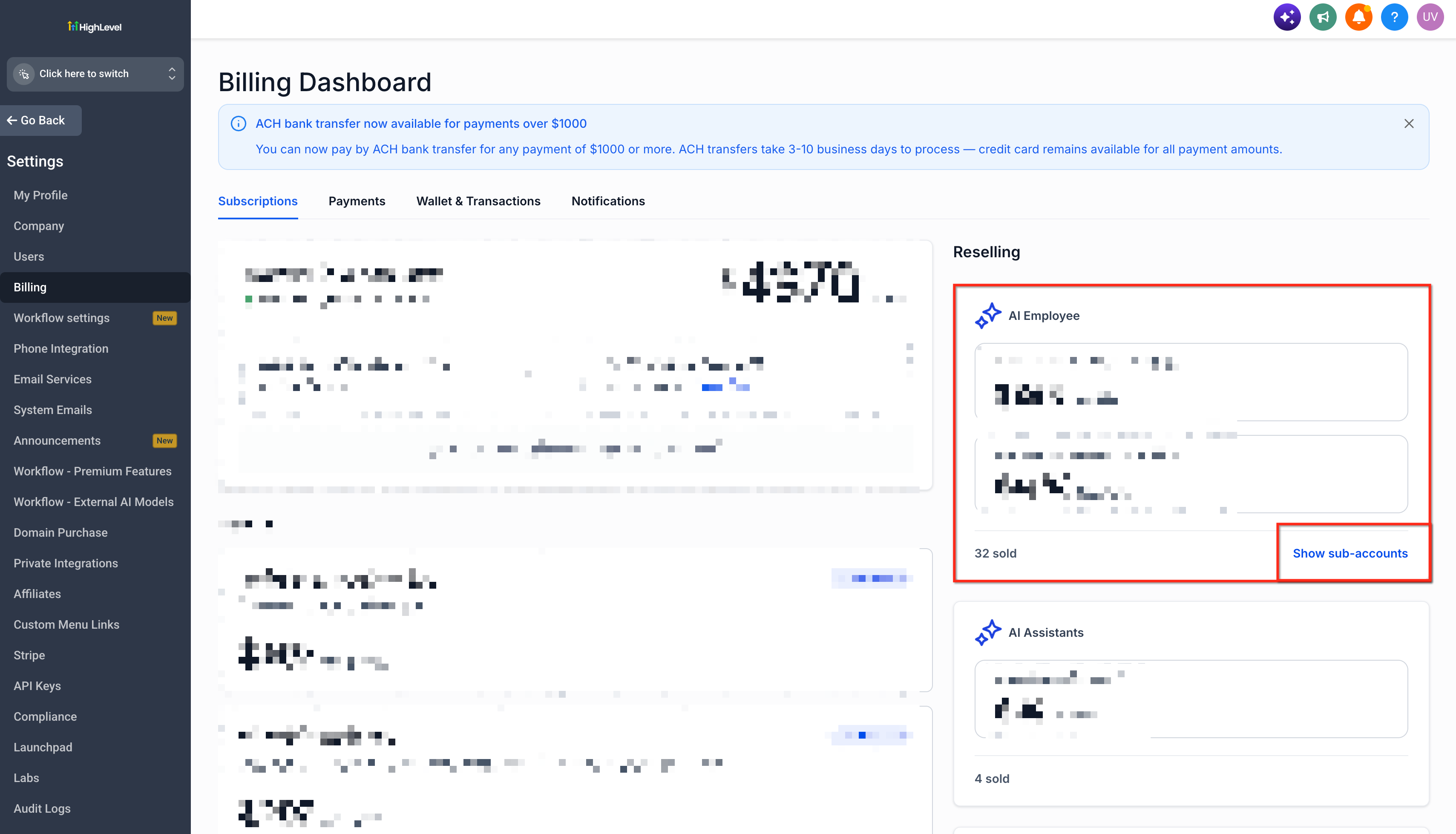
HighLevel uses the Show Subaccounts control on supported agency billing subscription views to display location-level subscription information.
Step 3: Review Sub-Account Subscription Details
Review the sub-accounts displayed in the table.
Use the available columns to check subscription details such as:
Plan
Purchase Type
Status
Billing Cycle
Purchase Date
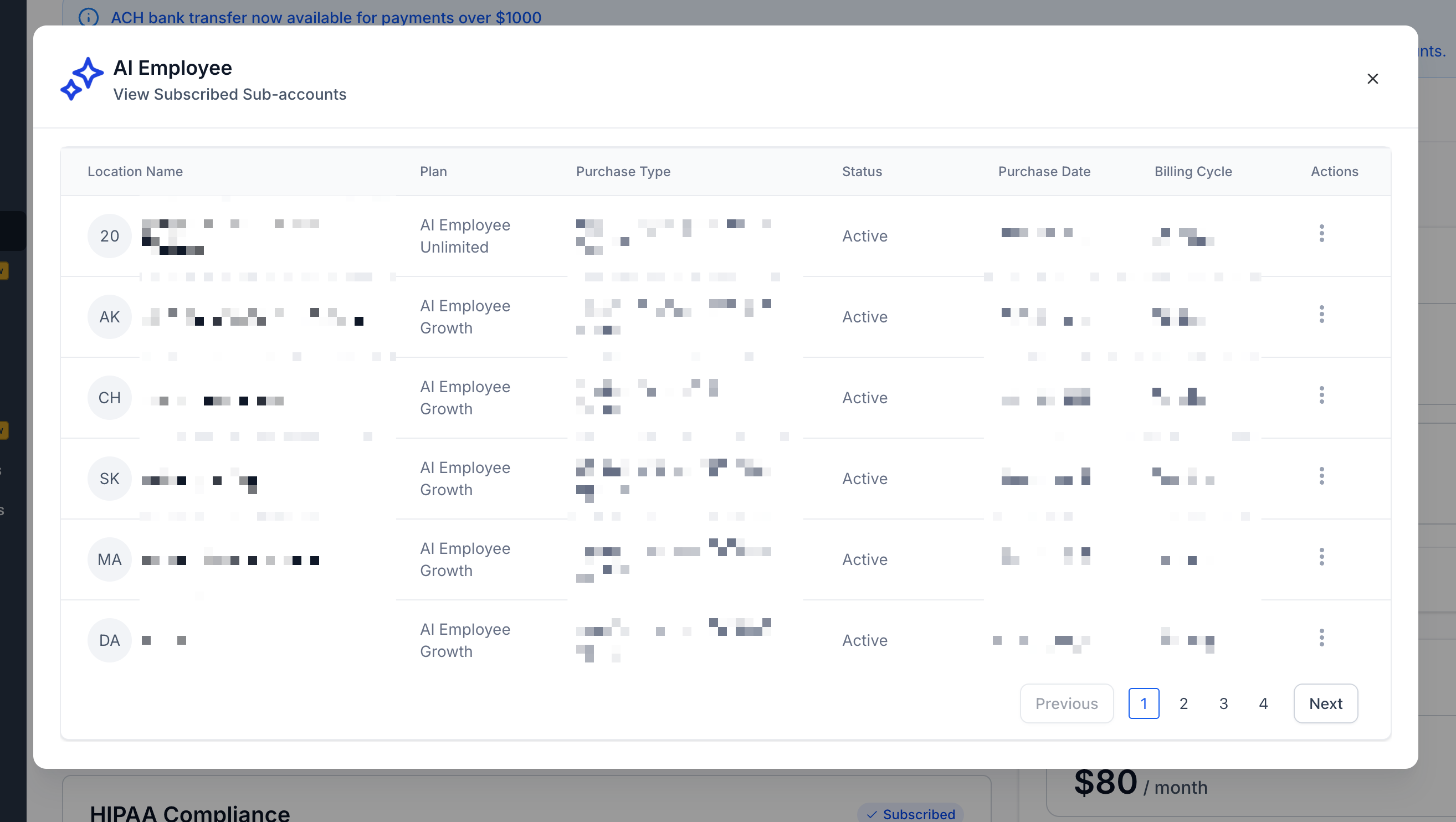
Compare the displayed information when you need to identify how a particular subscription was purchased or billed.
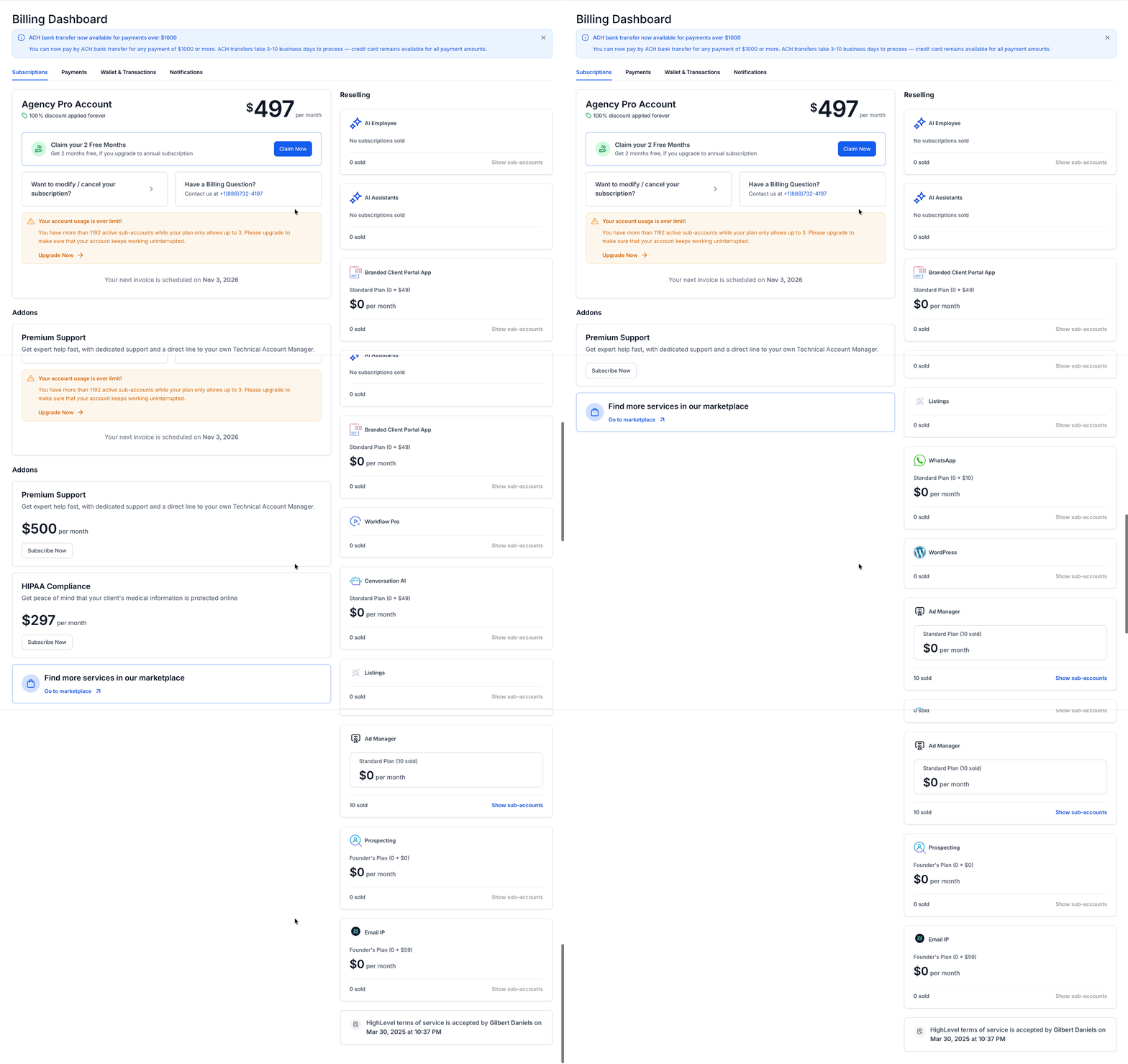
Scroll to the bottom of the subscription list when more records are available.
Use the displayed pagination controls to review additional records.
Frequently Asked Questions
Q: Is Email IP the same as a Dedicated IP in LC Email?
A: The Email IP billing context refers to Dedicated IP subscriptions associated with LC Email. A Dedicated IP gives an eligible agency or sub-account an exclusive sending IP that can be associated with dedicated sending domains.
Q: Why might different sub-accounts show different purchase types?
A: Subscriptions can originate through different purchasing workflows, such as an agency purchase, a location-level purchase, or an applicable SaaS bundle. Review the Purchase Type displayed for the specific subscription to determine how it originated.
Q: Does a SaaS Bundle mean the sub-account is billed separately for the add-on?
A: Not necessarily. For products bundled directly into supported SaaS plans, HighLevel documentation states that the agency is responsible for the bundled add-on cost. The agency can account for that cost when determining the customer-facing price of the SaaS plan.
Q: Where can I learn more about AI Employee plans and rebilling?
A: Review the AI Employee: Access, Rebilling and Reselling article for information about AI Employee plans, sub-account access, usage, rebilling, and reselling options.
Q: Where should I look if I need billing information for only one sub-account?
A: Open the applicable sub-account and go to Settings > Billing. The Sub-Account Billing Dashboard contains that account's subscriptions, payment methods, billing information, invoices, transaction history, and Wallet details.
Q: Can an agency manage eligible location subscriptions from Agency Billing?
A: HighLevel supports agency-side management and cancellation for eligible location-level reselling subscriptions. Available actions depend on the subscription. Review the available controls for the applicable subscription before making changes.
Related Articles
Was this article helpful?
That’s Great!
Thank you for your feedback
Sorry! We couldn't be helpful
Thank you for your feedback
Feedback sent
We appreciate your effort and will try to fix the article