TABLE OF CONTENTS
- What is AI Usage Limits?
- Products Covered
- Choose What Happens When an AI Usage Limit Is Reached
- How AI Usage Limits Work Across Your Account
- Pay-Per-Use and AI Employee Plan Behavior
- What Happens When an AI Usage Limit Is Reached
- How Billing Works When an AI Usage Limit Is Reached
- Requesting More AI Usage
- How to Manage AI Usage Increase Requests
- Threshold Alerts
- AI Studio Usage Notification Banners
- Monitoring Usage
- Rate Limit Window for Ask AI and AI Studio
- How does the 5 hour window work?
- Where can you See the Used Allowances?
- Important Notes
- Related Articles
What is AI Usage Limits?
AI Usage Limits help you control, monitor, and manage billable AI usage across your HighLevel account. You can set monthly spending limits at the agency, sub-account, and user levels, decide whether AI should continue or pause when a limit is reached, and monitor usage as it grows.
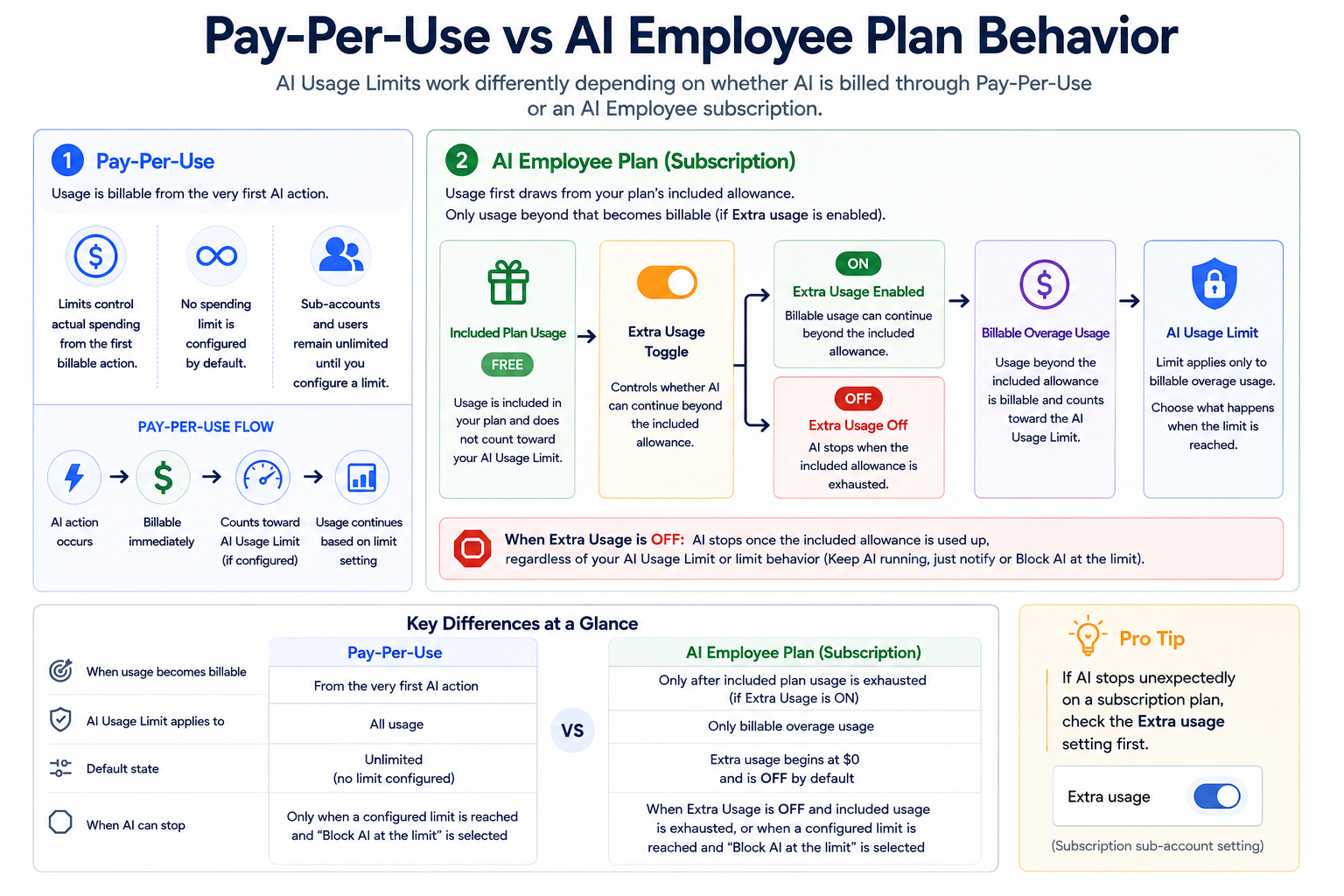
Limits apply to billable AI usage. Usage that is already included in a sub-account's plan is free and does not count toward a limit — only pay-per-use and subscription overage charges do.
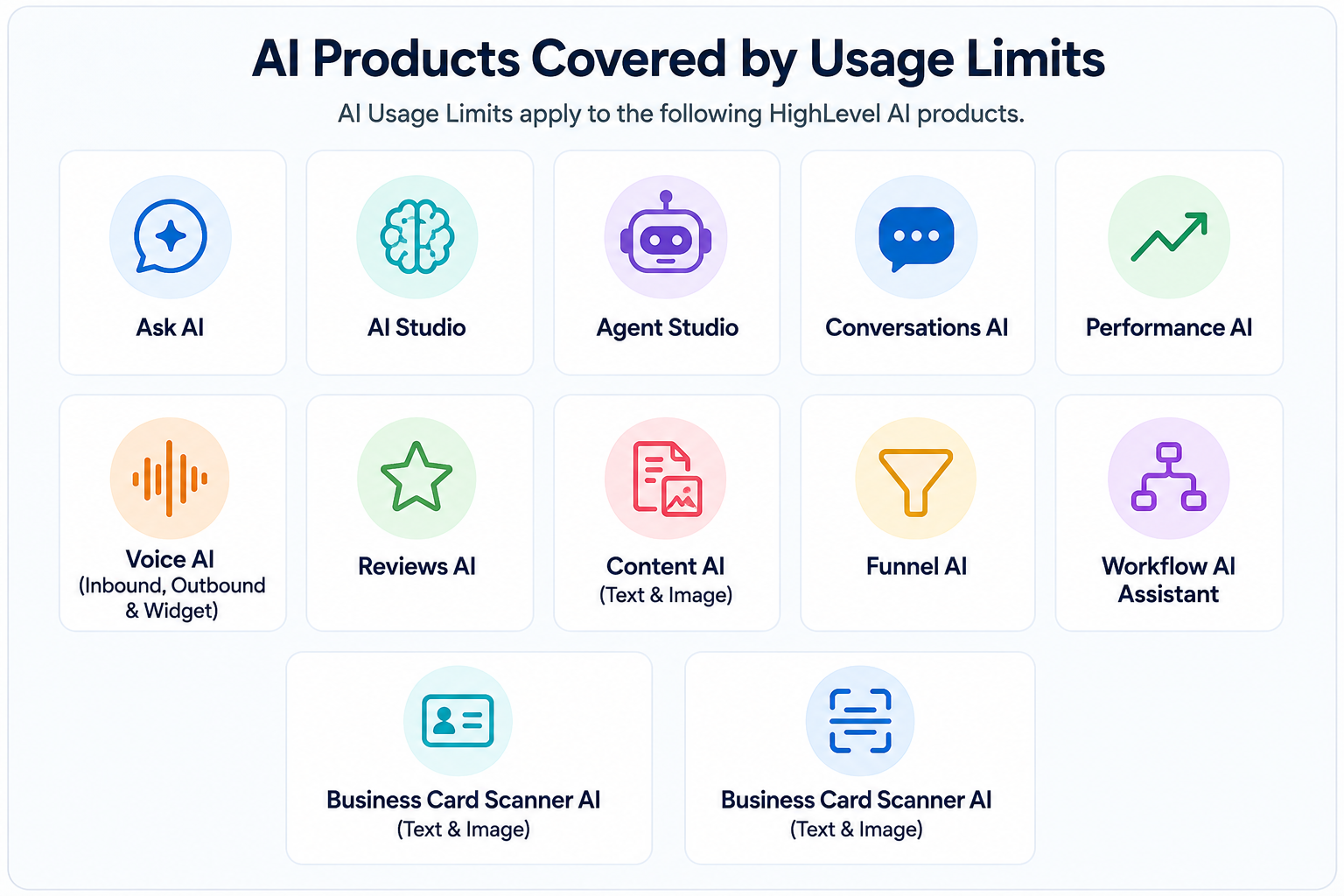
Note: By default, no Spending Limit is configured. If Spending Limits are disabled, AI usage can continue beyond included plan allowances and applicable overages are billed at pay-per-use rates. When a Spending Limit is enabled, the "When the limit is reached" setting determines whether AI continues or stops.Products Covered
Choose What Happens When an AI Usage Limit Is Reached
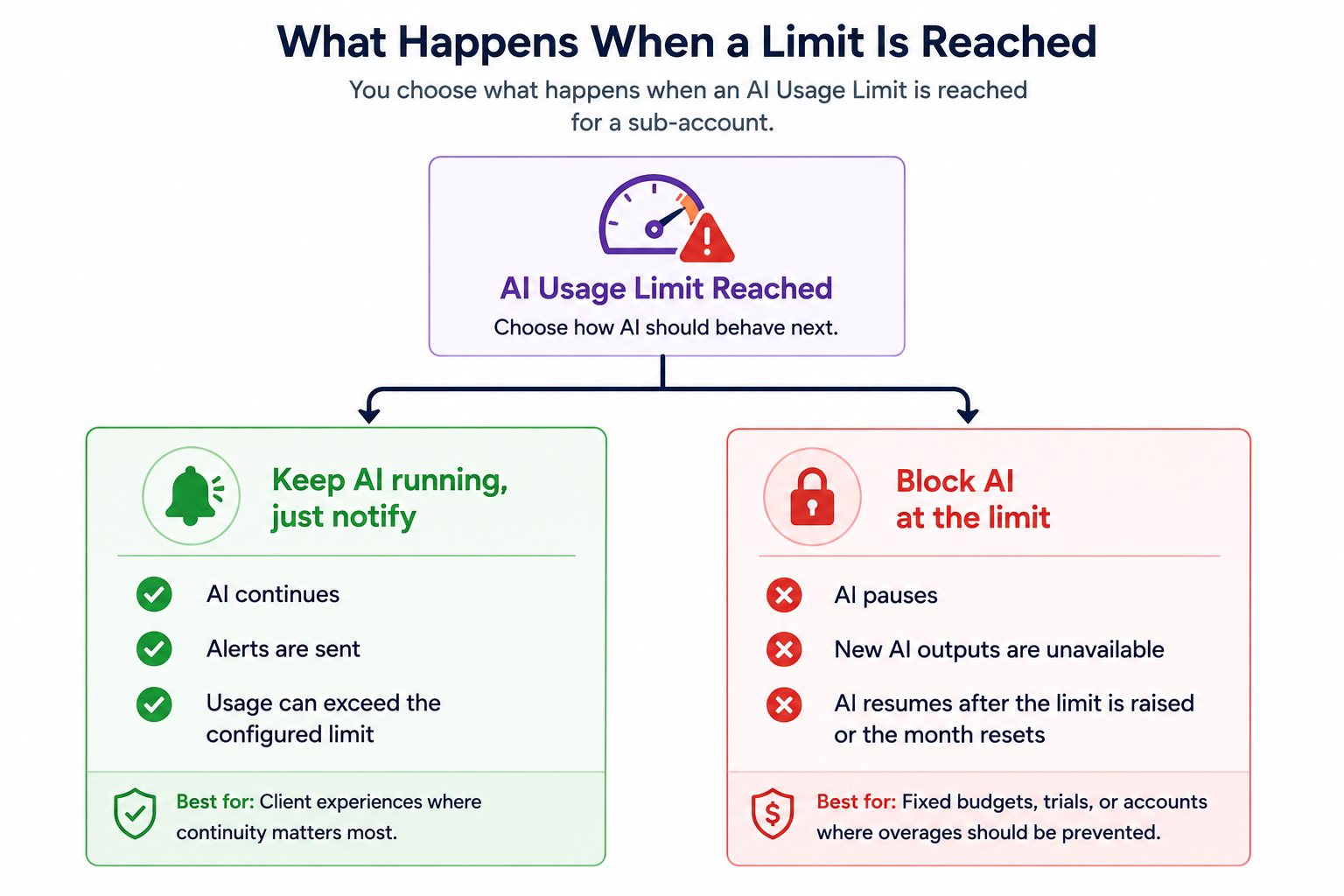
Limits are enforced on monthly usage. When a limit is reached, what happens next depends on the setting you choose.
Wherever you set an AI Usage Limit, either through agency defaults or on an individual sub-account, you can configure When the limit is reached.
Important: Every sub-account uses Keep AI running, just notify by default unless you change the setting. If a limit is configured and usage continues past it, that behavior is expected. Select Block AI at the limit when the limit must be enforced.

A sub-account's own configuration overrides the agency default, including the selected behavior when the limit is reached.
Keep AI running, just notify
This is the default option.
AI usage continues after the configured limit is reached, and an alert is sent. The limit acts as a soft threshold that helps you identify when usage needs attention without interrupting client activity.
Block AI at the limit
AI stops when the configured limit is reached. Usage resumes when the limit is increased or when usage resets at the beginning of the next calendar month.
A single setting does not have to apply to every client. You can configure an agency default for most sub-accounts and customize individual sub-accounts when needed.
Note: The two options remain unavailable until a limit is enabled. Without an active limit, there is no threshold for these options to control.
How AI Usage Limits Work Across Your Account
AI Usage Limits follow a hierarchy that lets agencies establish defaults while still giving individual sub-accounts and users more specific controls. Understanding this hierarchy helps prevent unexpected behavior when multiple limits apply at the same time.
1. Agency-Level Default (Top Level)
Agency-level settings establish the default monthly limit per sub-account and per user.
They also define the default behavior when a limit is reached:
- Keep AI running and notify
- Block AI at the limit
- These defaults apply automatically to sub-accounts that do not have custom settings.

If you later change the agency default, sub-accounts still using company defaults follow the updated configuration.
Pay-Per-Use and individual AI Employee plans are configured separately because usage limits behave differently depending on the billing model.
Note: By default, no spending limit is configured. Sub-accounts and users remain unlimited until a limit is enabled and an amount is entered.

For AI Employee plans, Spending Limits control how much billable usage is allowed after included plan usage is consumed. If Spending Limits are disabled, usage can continue at applicable pay-per-use rates.
2. Sub-Account-Level Limits
Each sub-account can have its own monthly AI spending limit.
You can:
- Override the agency default
- Set a custom monthly limit for the sub-account
- Select alert-only or blocking behavior specifically for that sub-account
- View current usage against the configured limit
Key details:
- Limits reset at the start of each calendar month.
- Progress bars show the percentage of the limit consumed.
- Changing any value moves the sub-account to custom settings.
- Select Reset to company defaults to return the sub-account to agency defaults.
- The maximum configurable sub-account limit is $1,000 per month.

3. User-Level Limits
User-level limits let you control billable AI consumption for individual users inside a sub-account. These limits provide an additional layer of control when individual team members should have different AI budgets.
Note: When both a sub-account limit and a user limit apply, the limit with the least remaining allowance takes effect first.

For example, if a user has $2 remaining on a $20 user limit while the sub-account still has $50 remaining on a $100 limit, the user's limit is reached first.
You can:
- Set a default user budget for the sub-account
- Configure a maximum user limit of $500 per month

- Override the default for specific users and set Unlimited user budget as well.

Pay-Per-Use and AI Employee Plan Behavior
Note: For current plan coverage and AI pricing details, see AI Product Pricing.
If AI stops after included usage is exhausted, check the location’s Spending Limit and When the limit is reached settings. A location configured with Block AI at the limit stops AI when its limit is reached, while Keep AI running, just notify allows usage to continue.
If Spending Limits are disabled, AI continues and applicable overage usage is billed at pay-per-use rates.
What Happens When an AI Usage Limit Is Reached
The experience after reaching a limit depends on whether the sub-account is configured to continue AI usage or block additional AI activity. Knowing the difference is especially important before enforcing limits for customer-facing workflows.
With Keep AI running, just notify
When the limit is reached:
- AI actions continue normally.
- Usage warnings appear as the limit approaches and after it is exceeded.
- Threshold alerts are sent so you can decide whether the limit should be increased.
With Block AI at the limit
When the configured limit is reached:
- AI actions are paused.
- Users cannot generate new AI outputs.
- The sub-account sees a message titled "[Product] is paused — limit reached".
The options available from that message depend on how the sub-account's billing permissions are configured.
What the sub-account is offered depends on how you have set them up:
| If the sub-account | They see |
|---|---|
| Can manage its own billing | Buttons to increase the limit or enable extra usage themselves, plus Upgrade plan where an upgrade is available |
| Cannot manage its own billing | Request more usage, which sends the request to you |
AI resumes as soon as the limit is raised or automatically when usage resets at the start of the next calendar month.
Important: If you plan to switch a client to Block AI at the limit, consider notifying them before making the change because this setting can directly interrupt their AI usage.How Billing Works When an AI Usage Limit Is Reached
Requesting More AI Usage
Sub-Accounts That Cannot Manage Their Own Billing
When a sub-account reaches its limit and cannot self-serve, it can ask you for more.
How it works:
- The user clicks Request more usage
- The request is sent to agency admins
- Admins are notified by email and in the Requests tab in Usage Limits
The sub-account sees the state of their request while they wait:
| State | What the sub-account sees |
|---|---|
| Request sent | Request sent — "Your agency will review and update your limit." |
| Sent again before you respond | Request already sent — the same message; duplicates are not queued |
| You approve | The new limit applies and AI resumes |
| You decline | Request declined — "Your agency declined your recent limit request. You can request again later." |
Note: A declined request starts a short cooldown during which the request button is hidden, so a sub-account cannot re-request immediately. It is a pause, not a permanent block — they can ask again later.
Sub-Accounts That Can Manage Their Own Billing
If a sub-account is allowed to manage its own billing, the request does not go to the agency.
Instead, the sub-account can use the paused message to:
- Increase its own limit
- Enable extra usage
- Upgrade its plan when an upgrade is available
How to Manage AI Usage Increase Requests
- Go to AI Suite → Plans and Limits.
- Click on the Notifications icon.

- Under the Limit Requests tab, review the pending request.
- Choose an action: Adjust Limit (approve), Upgrade Plan, or Deny.

If you select Adjust Limit,
- Review the requested limit increase and you can also edit the amount as needed.
- Review the newly calculated total limit.
- Confirm the approval.

Threshold Alerts
Threshold Alerts provide early visibility into AI consumption before a configured limit is reached. AI Studio also displays in-product usage notification banners that help subscription and pay-per-use users monitor usage or spending and take action when needed.
Important: Percentage-based threshold alerts require an active limit. If no limit is configured, or the limit is $0, there is no percentage to calculate. AI Studio pay-per-use spending notifications are separate from percentage-based limit alerts.
Alerts are triggered at:
- 70%
- 80%
- 90%
- 100%
Threshold alerts can highlight users and sub-accounts approaching their configured limits.
Alerts are sent regardless of whether the account uses:
- Keep AI running, just notify
- Block AI at the limit
With Keep AI running, just notify, threshold alerts are the primary signal that usage has approached or passed the configured limit.

AI Studio Usage Notification Banners
AI Studio displays usage notification banners directly in the product so users can monitor their consumption and take action before reaching their usage limits. These banners are enabled automatically for users who have access to AI Studio.
For subscription users, AI Studio usage banners appear as usage increases:
- 70% usage: Usage alert
- 85% usage: Warning
- Approaching or reaching 100%: Critical and usage exhaustion notifications
- Sub-account users with rebilling enabled: The banner can provide an option to adjust usage limits directly.
- Sub-account users without rebilling: The banner can provide an option to request a limit increase from the Agency Admin.
- Agency users: Relevant actions are available to review and adjust usage limits directly.
Note: No setup is required for AI Studio usage notification banners. They are enabled by default for users with access to AI Studio.Monitoring Usage
You can track usage directly from the Usage Limits page.
Includes:
- Monthly usage per sub-account
- Usage vs limit visualization
- User-level consumption

Rate Limit Window for Ask AI and AI Studio
Note: For more details, explore our guides on AI Studio – Pricing and Ask AI Session Examples & Usage Costs. 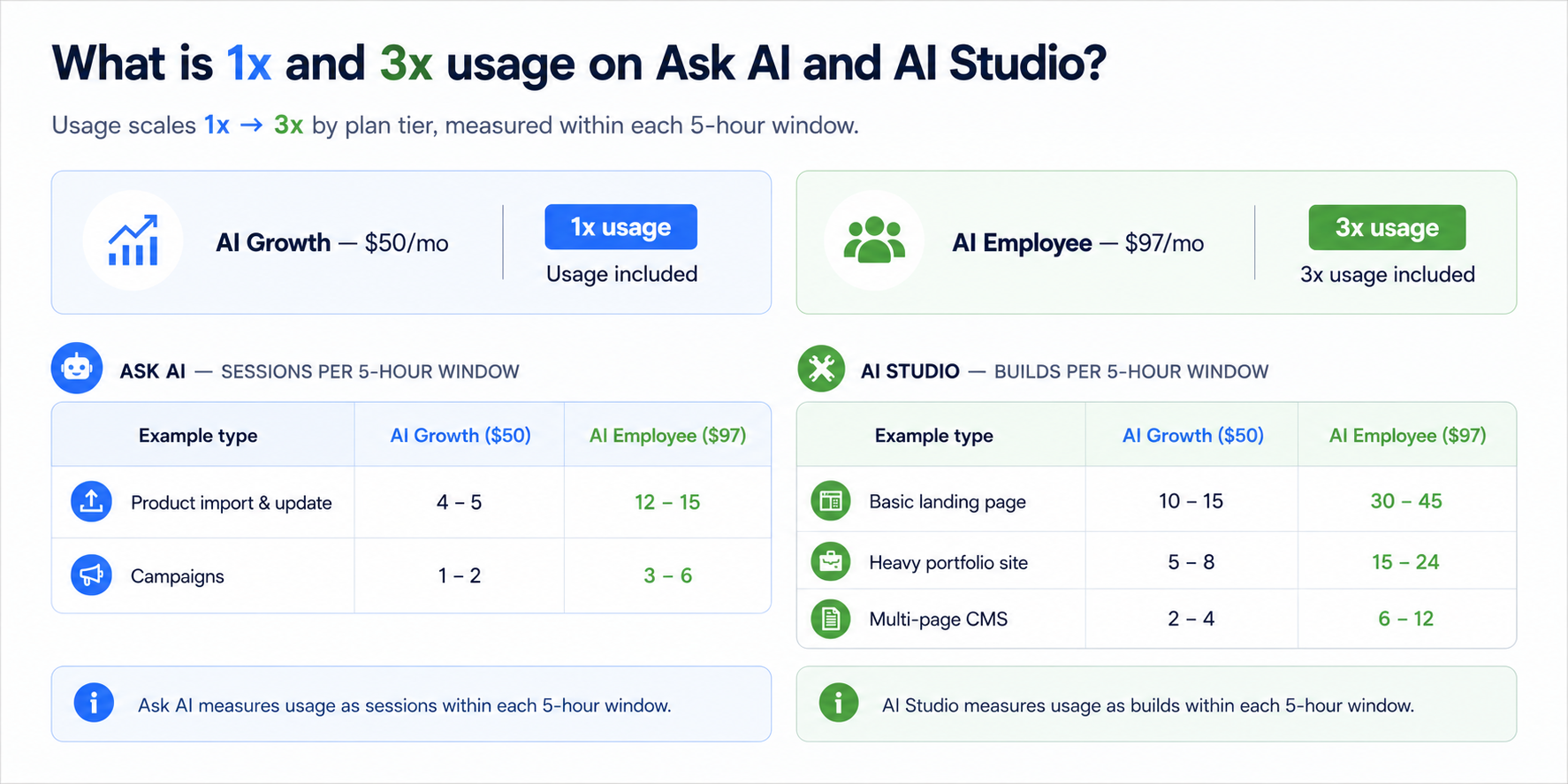
How does the 5 hour window work?

Where can you See the Used Allowances?
AI Suite (Agency view) > Plans & Limits > Click any sub account or three dots and then Configure Limits > Increase> Check Included allowances & Rate Limit Windows.

Important Notes
- Limits apply on a monthly basis and reset at the start of each calendar month
- What happens at the limit depends on your When the limit is reached setting; the default is to keep AI running and send an alert
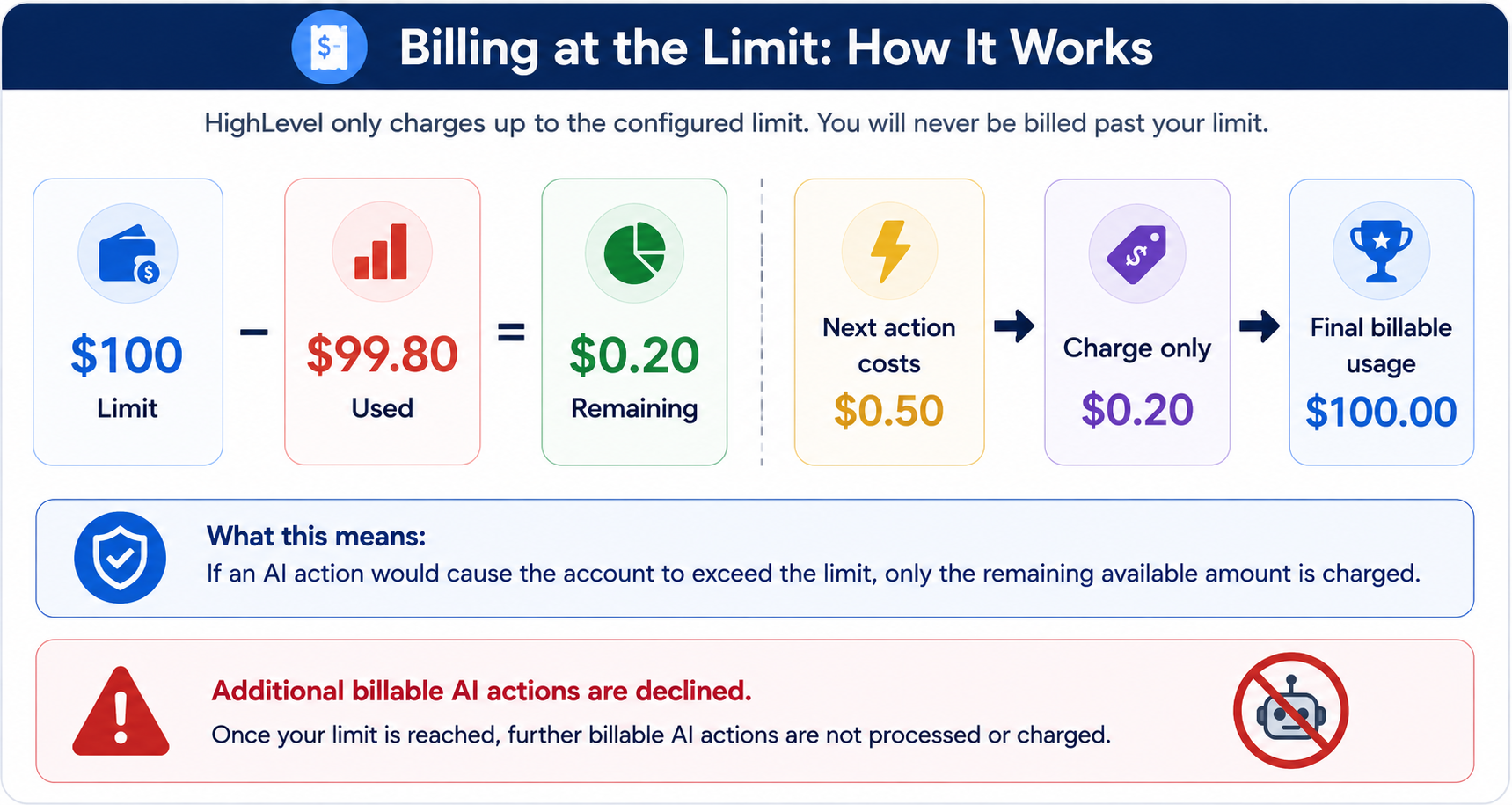
- A sub-account is never billed past its limit
- On subscription plans, the Extra usage toggle can stop AI independently of any spending limit.
- Limit changes take effect immediately; the usage figures shown can lag by up to 5 minutes
- Maximum configurable limits: $1,000/month per sub-account, $500/month per user
Related Articles
Was this article helpful?
That’s Great!
Thank you for your feedback
Sorry! We couldn't be helpful
Thank you for your feedback
Feedback sent
We appreciate your effort and will try to fix the article