Connect your live spreadsheets directly to your HighLevel Knowledge Base with Google Sheets integration. This feature helps you keep structured information current without repeated file uploads, making it easier for AI agents to reference the latest data. With manual refresh and near real-time sync options, teams can choose the update method that best fits how often their data changes. This is especially useful for pricing, service details, internal references, and other frequently updated information.
TABLE OF CONTENTS
- What is Google Sheets Integration for Knowledge Base?
- Key Benefits of Google Sheets Integration for Knowledge Base
- Sync Options
- How Google Sheets Supports Dynamic Knowledge Base Content
- How To Setup Google Sheets Integration for Knowledge Base
- Frequently Asked Questions
- Related Articles
What is Google Sheets Integration for Knowledge Base?
Google Sheets integration for Knowledge Base allows you to connect a Google Sheet as a live data source inside HighLevel. Instead of manually re-uploading spreadsheet files when values change, you can connect the sheet and let the Knowledge Base pull updated information from it. This helps AI agents use more current data when answering questions based on structured content.
Google Sheets integration is especially helpful when your team manages information in a spreadsheet that changes over time, such as product details, pricing updates, operating hours, service availability, or internal reference data. By using a connected sheet, you can reduce manual maintenance and keep your Knowledge Base aligned with the latest version of your data.
Key Benefits of Google Sheets Integration for Knowledge Base
- Near real-time sync: Updates from your connected Google Sheet can be pulled into the Knowledge Base approximately every 15 minutes, helping AI agents reference fresher data.
- Manual refresh option: You can refresh the source on demand when you want changes reflected immediately after updating the sheet.
- Support for changing data: Added or removed columns, updated rows, and edited cells can be reflected without relying on repeated manual uploads.
- Reduced maintenance: Teams can keep using the spreadsheet they already manage instead of exporting and re-uploading files whenever information changes.
- More current answers: AI agents can reference updated spreadsheet content more consistently, which helps reduce outdated responses.
Sync Options
Choosing the right sync method helps you balance freshness and control. Some teams need ongoing updates throughout the day, while others prefer to review changes first and refresh only when ready.
Auto Sync (~15 min)
Near real-time sync is designed for spreadsheets that change often and need to stay closely aligned with your Knowledge Base. This option is useful when your team regularly updates values that AI agents may reference in conversations.
Examples of when near real-time sync is helpful:
- Frequently updated pricing
- Availability or schedule changes
- Service details that change throughout the week
- Shared reference sheets used by multiple team members
Manual Refresh
Manual refresh is a good fit when you want more control over when updates go live in the Knowledge Base. This option works well for content that changes less often or needs to be reviewed before it is used by AI agents.
Examples of when manual refresh is helpful:
- Periodic updates made in batches
- Reviewed or approved spreadsheet changes
- Internal datasets that do not change often
- Situations where you want to refresh only after testing updates
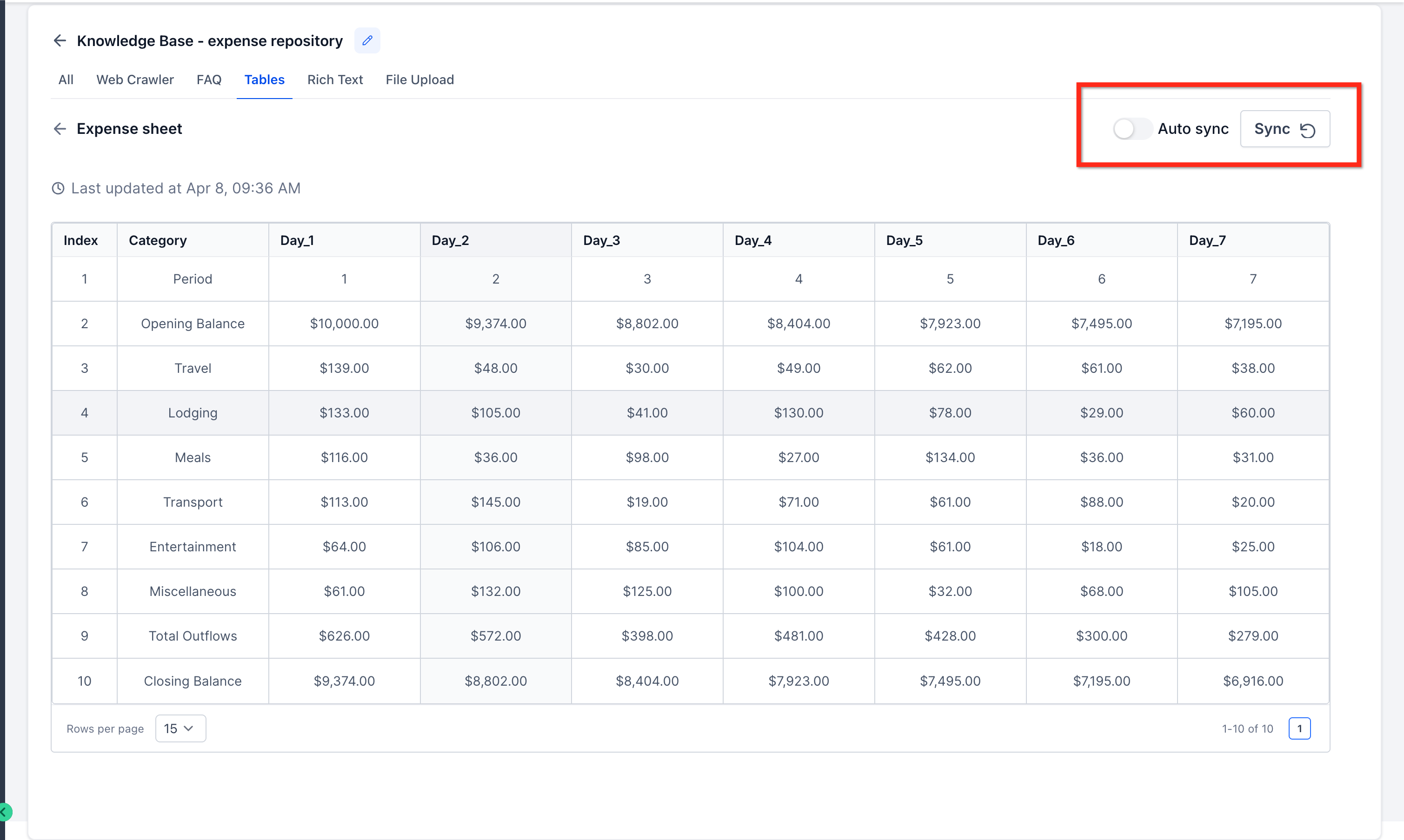
How Google Sheets Supports Dynamic Knowledge Base Content
Dynamic spreadsheet content can be difficult to maintain when teams rely on static uploads. Connecting Google Sheets directly to the Knowledge Base helps reduce manual work by keeping structured data easier to update and maintain over time. This is especially useful for teams that manage information collaboratively and need AI agents to reference the latest version of frequently changing content.
This feature is useful for structured information such as:
- Product or service pricing
- Office or support hours
- Location-specific details
- Frequently updated internal reference data
- Sales, onboarding, or service notes stored in a tabular format
Google Sheets integration also supports ongoing changes within the sheet, which makes it a practical option for live data that evolves over time. HighLevel can reflect updates such as:
- Updated cell values
- New or removed rows
- Added or removed columns
- Other changes to structured spreadsheet content
By keeping the sheet connected as a live source, teams can make updates in Google Sheets and use sync options to help the Knowledge Base stay aligned with the latest version of that data.
How To Setup Google Sheets Integration for Knowledge Base
A simple setup process helps you connect your spreadsheet correctly and make sure your Knowledge Base can use the latest version of your data. Once the sheet is connected, auto-sync helps keep the imported data updated as changes are made in Google Sheets.
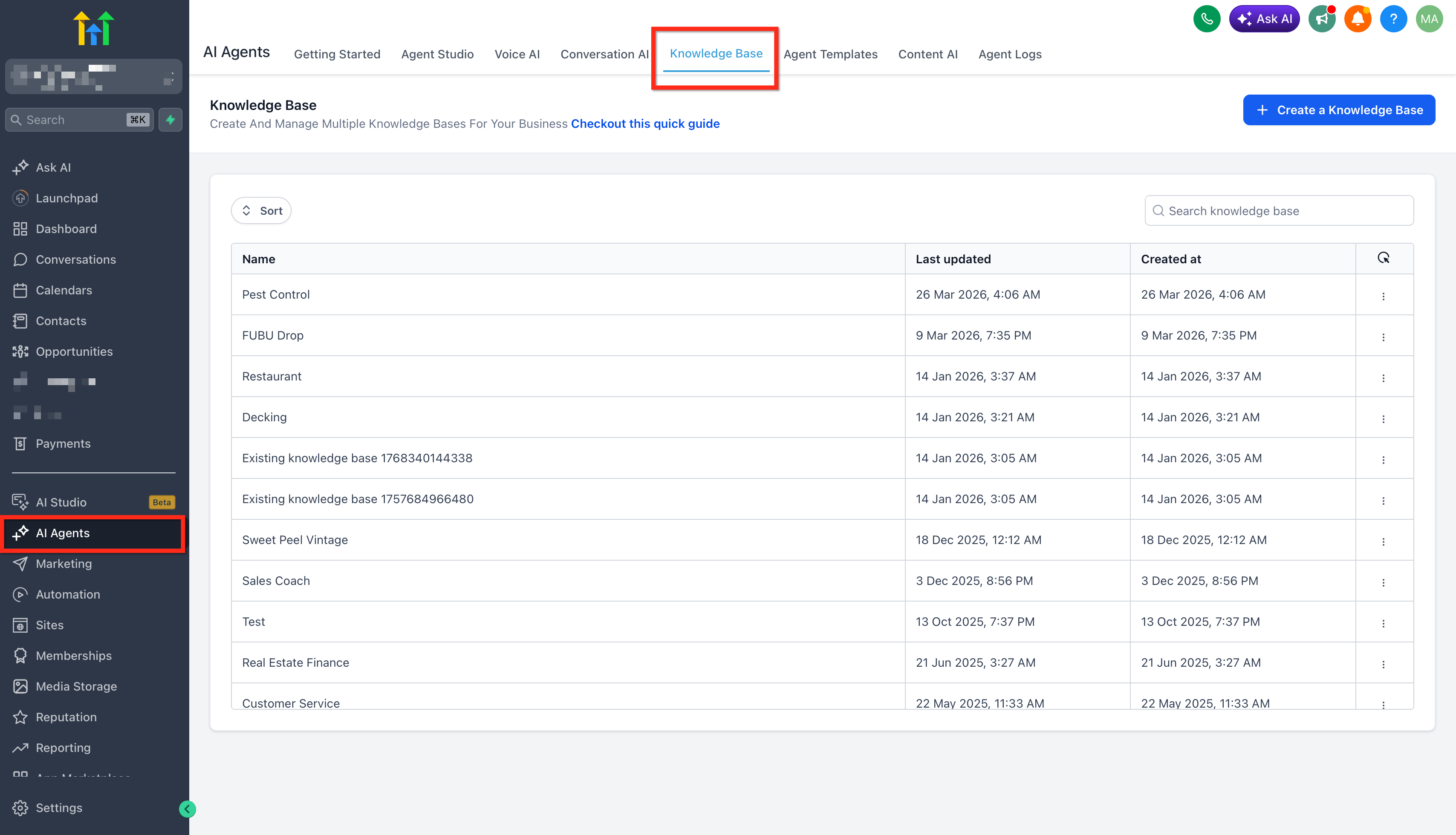
- From your Sub-Account, go to AI agents and Open the Knowledge Base tab. Open an existing Knowledge Base or create a new one.
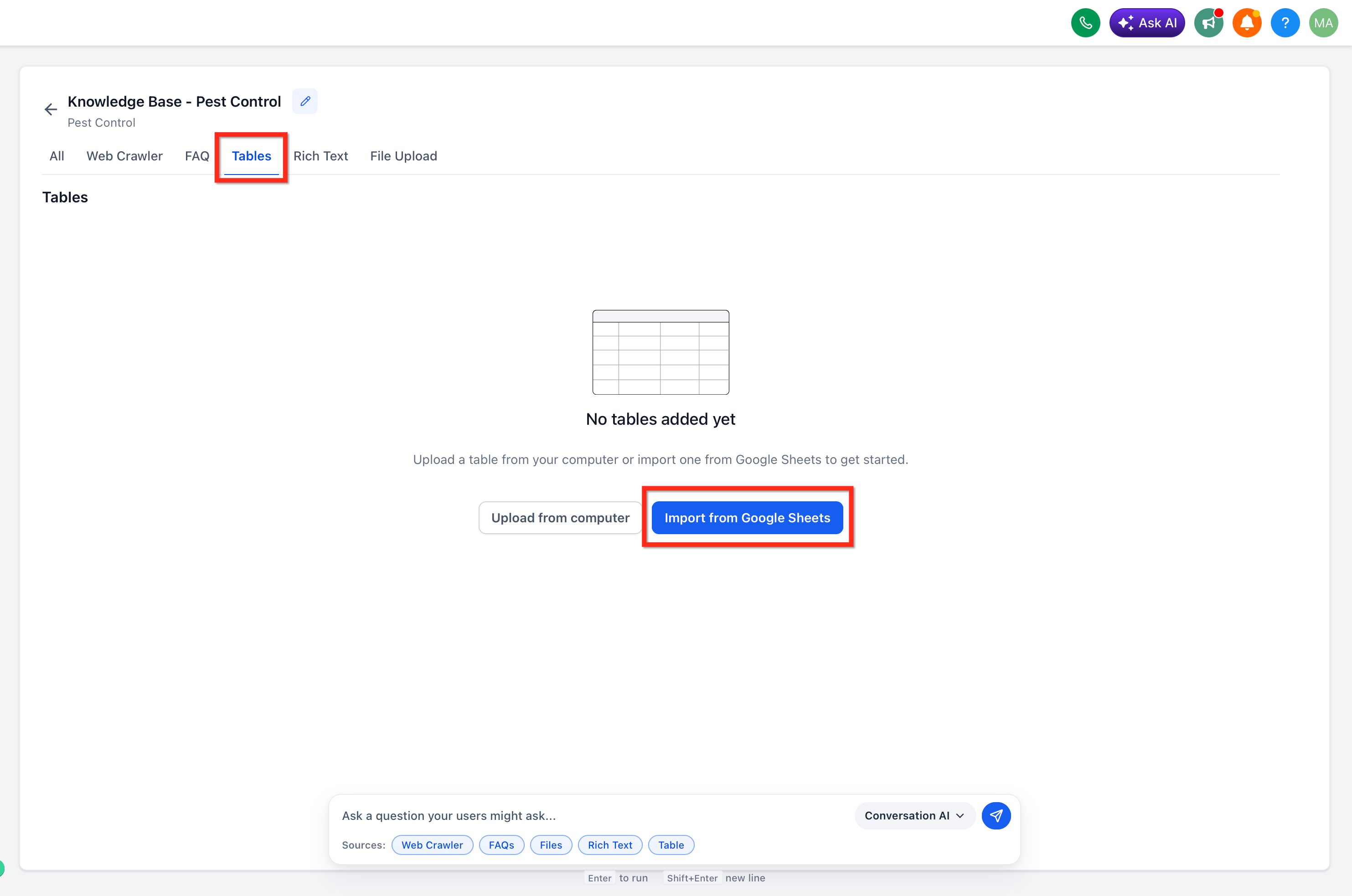
- Click on Tables and Import from Google Sheets
- If no Google account is connected yet, set up a Google connection using the standard Google Drive permissions already used by HighLevel. No extra permissions are required.
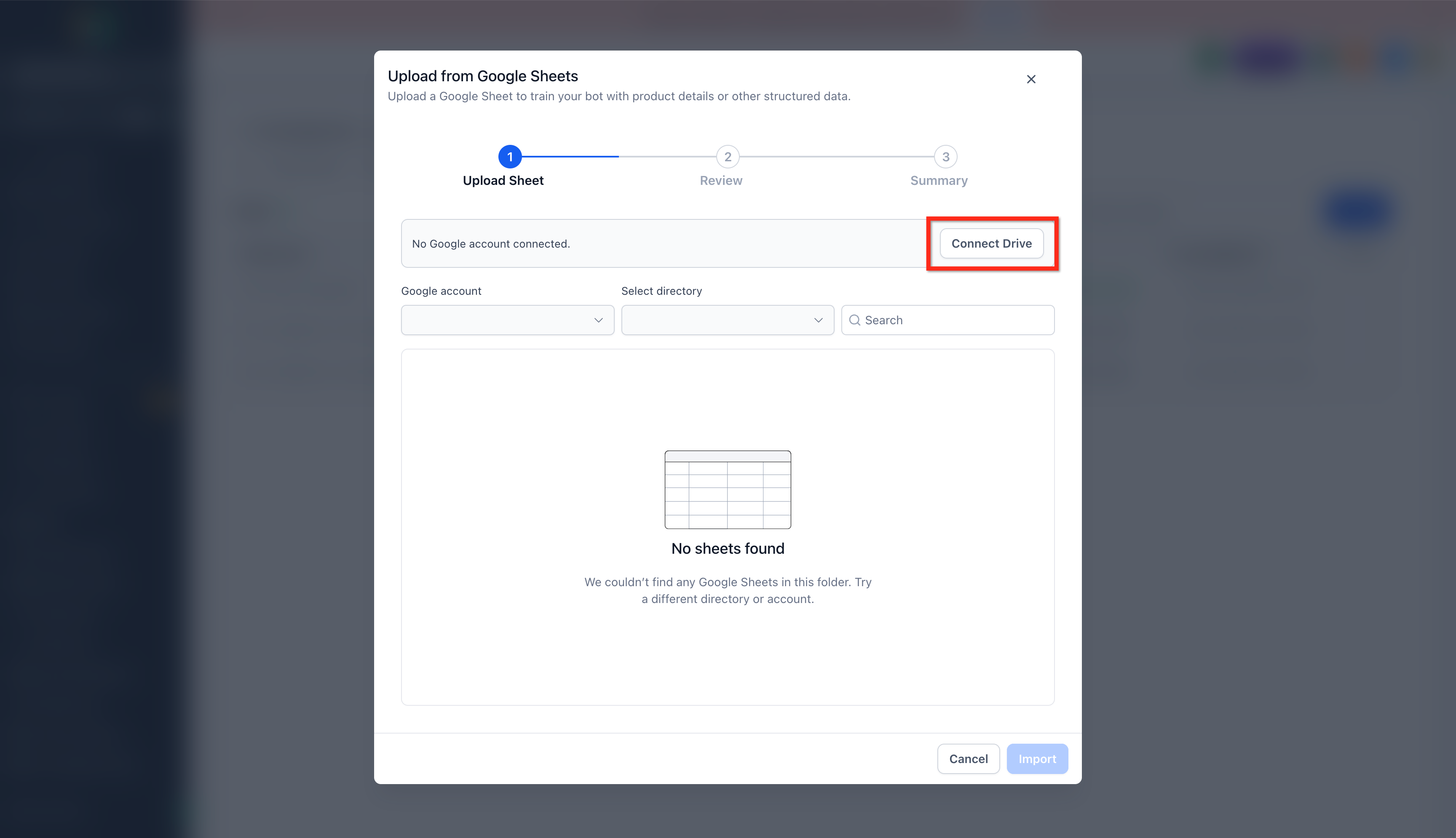
- Choose the connected Google account, then browse the available accounts, drives, and spreadsheets.
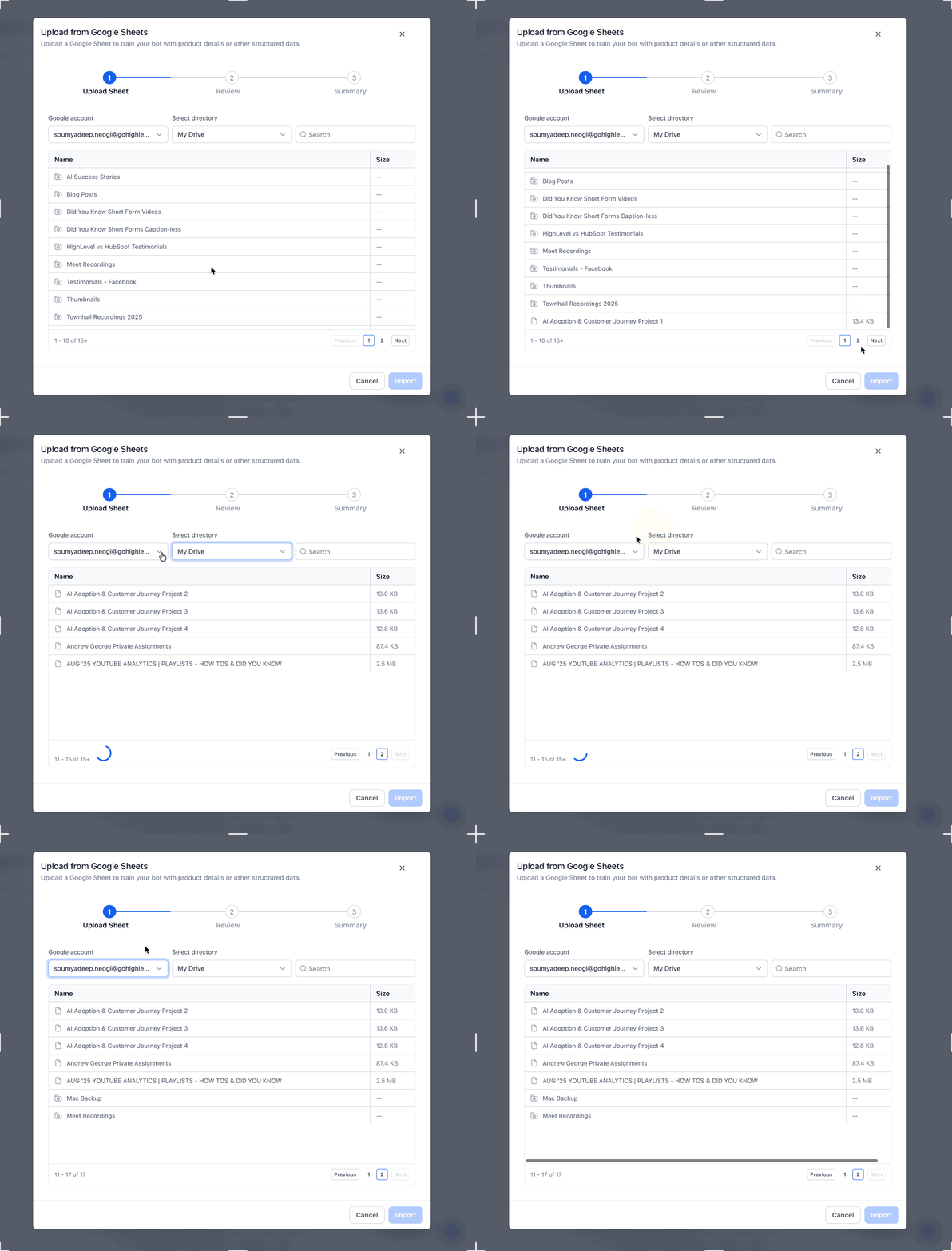
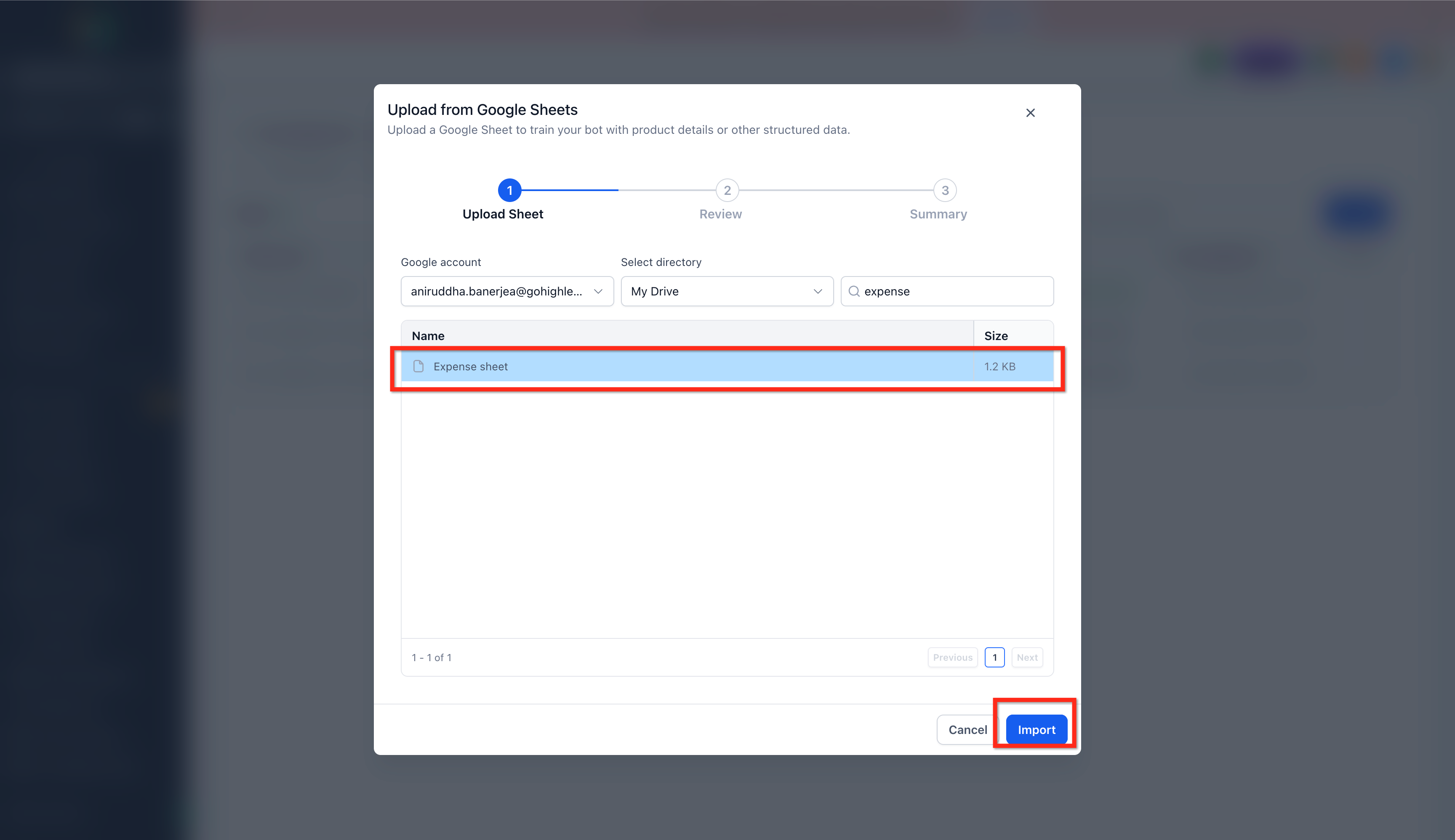
- Select the Google Sheet you want to import.
- Review the sheet and choose the appropriate data types, similar to the regular CSV upload flow.
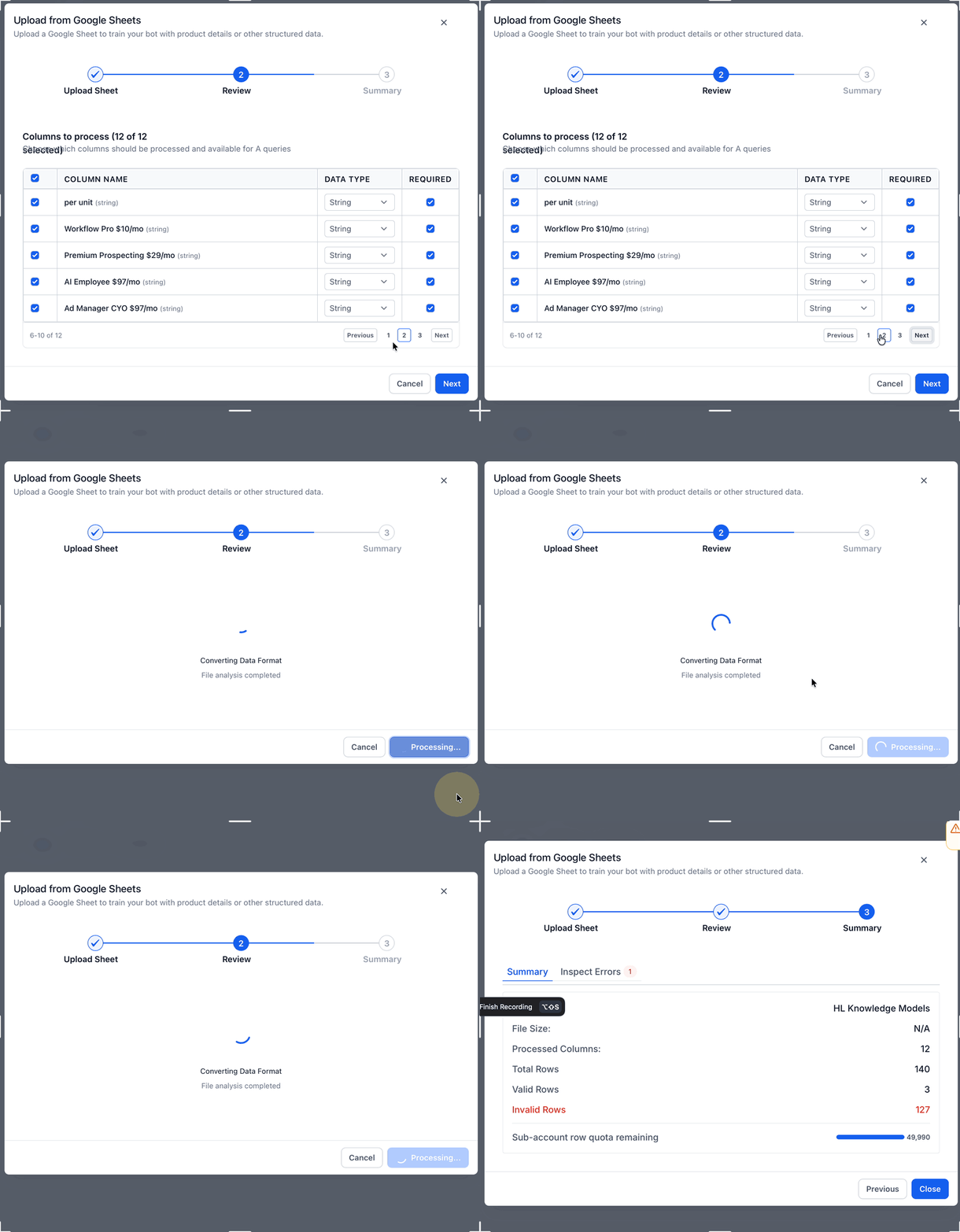
- Start the import and wait for processing to finish.
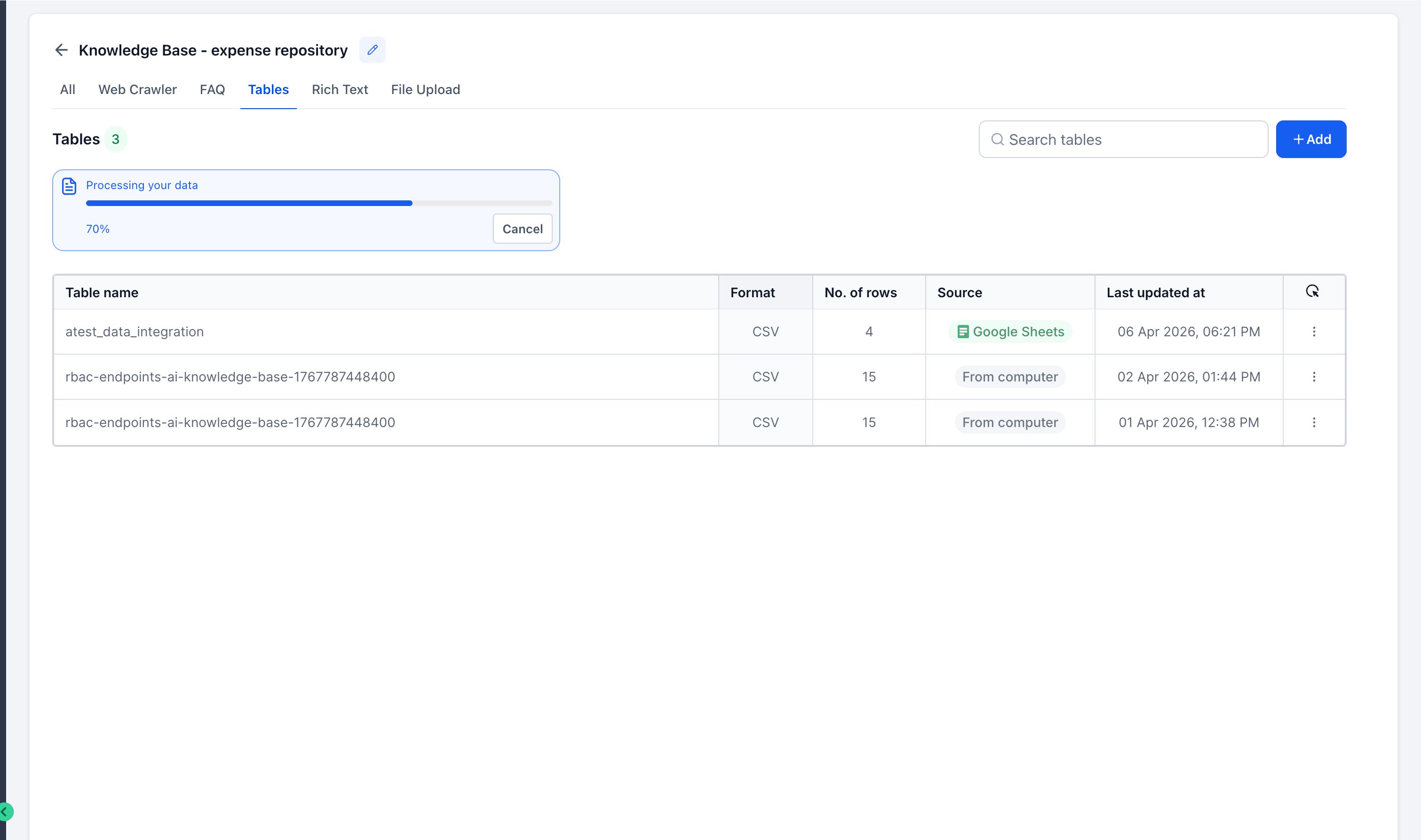
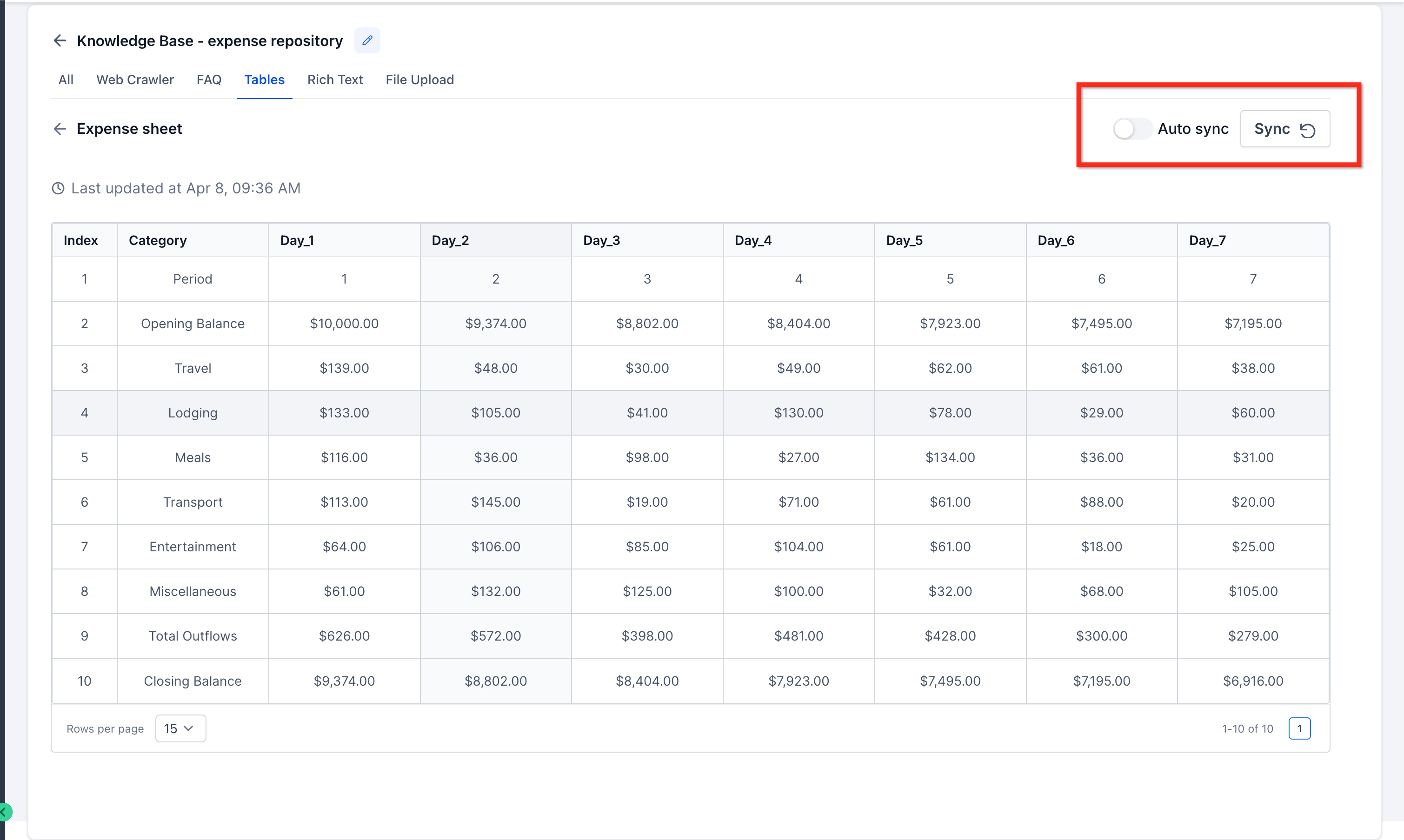
- Allow auto-sync to keep the Knowledge Base updated when changes are made to the connected Google Sheet. Updates usually sync within about 15 to 20 minutes. Use the manual refresh option when you want to force an update sooner.
Frequently Asked Questions
Q: What does Google Sheets integration do in the Knowledge Base?
It allows you to connect a Google Sheet as a live Knowledge Base source so HighLevel can use spreadsheet data without relying only on static file uploads.
Q: How often does near real-time sync update the sheet data?
Near real-time sync is designed to update at about 15-minute intervals.
Q: What kinds of spreadsheet changes can be detected?
The feature supports row-level changes, cell updates, and schema-related changes such as added or removed columns.
Q: What types of data work best in Google Sheets for Knowledge Base use?
Structured information such as pricing, hours, service details, reference data, and similar spreadsheet-based content is a strong fit.
Related Articles
Was this article helpful?
That’s Great!
Thank you for your feedback
Sorry! We couldn't be helpful
Thank you for your feedback
Feedback sent
We appreciate your effort and will try to fix the article