How to Set Up Multi-Tier Commissions
Multi-tier commissions let you distribute commissions across an affiliate hierarchy instead of rewarding only the affiliate who generates a qualifying sale. This guide explains how the tier structure works and how to configure it during affiliate campaign creation.
TABLE OF CONTENTS
- How to Set Up Multi-Tier Commissions
- What is Multi-Tier Commission Setup?
- Key Benefits of Multi-Tier Commissions
- Prerequisites and Limitations
- Affiliate Recruitment Beyond Commission Tier Limits
- Commission Tiers vs. Affiliate Recruitment Depth
- How To Set Up Multi-Tier Commissions
- Related Articles
- Frequently Asked Questions
What is Multi-Tier Commission Setup?
Multi-tier commissions let a campaign distribute commissions across multiple levels of an affiliate hierarchy. The affiliate responsible for a qualifying sale can receive the Tier 1 commission, while eligible parent affiliates can receive commissions from higher configured tiers.
Each campaign can contain up to seven commission tiers. Each tier can use its own commission rate, allowing the reward structure to change as commissions move through the affiliate hierarchy.
The affiliate responsible for the qualifying sale receives the applicable Tier 1 commission.
The eligible parent affiliate can receive the configured Tier 2 commission.
The next eligible parent in the hierarchy can receive the configured Tier 3 commission.
Let's say your commission structure is set up as follows:
- 1st Tier: 20%
- 2nd Tier: 10%
- 3rd Tier: 5%
- 4th Tier: 3%
- 5th Tier: 2%
The affiliate who generates the sale receives the first-tier commission. The remaining commissions are distributed to eligible referring affiliates higher in the chain according to their configured tier percentages.
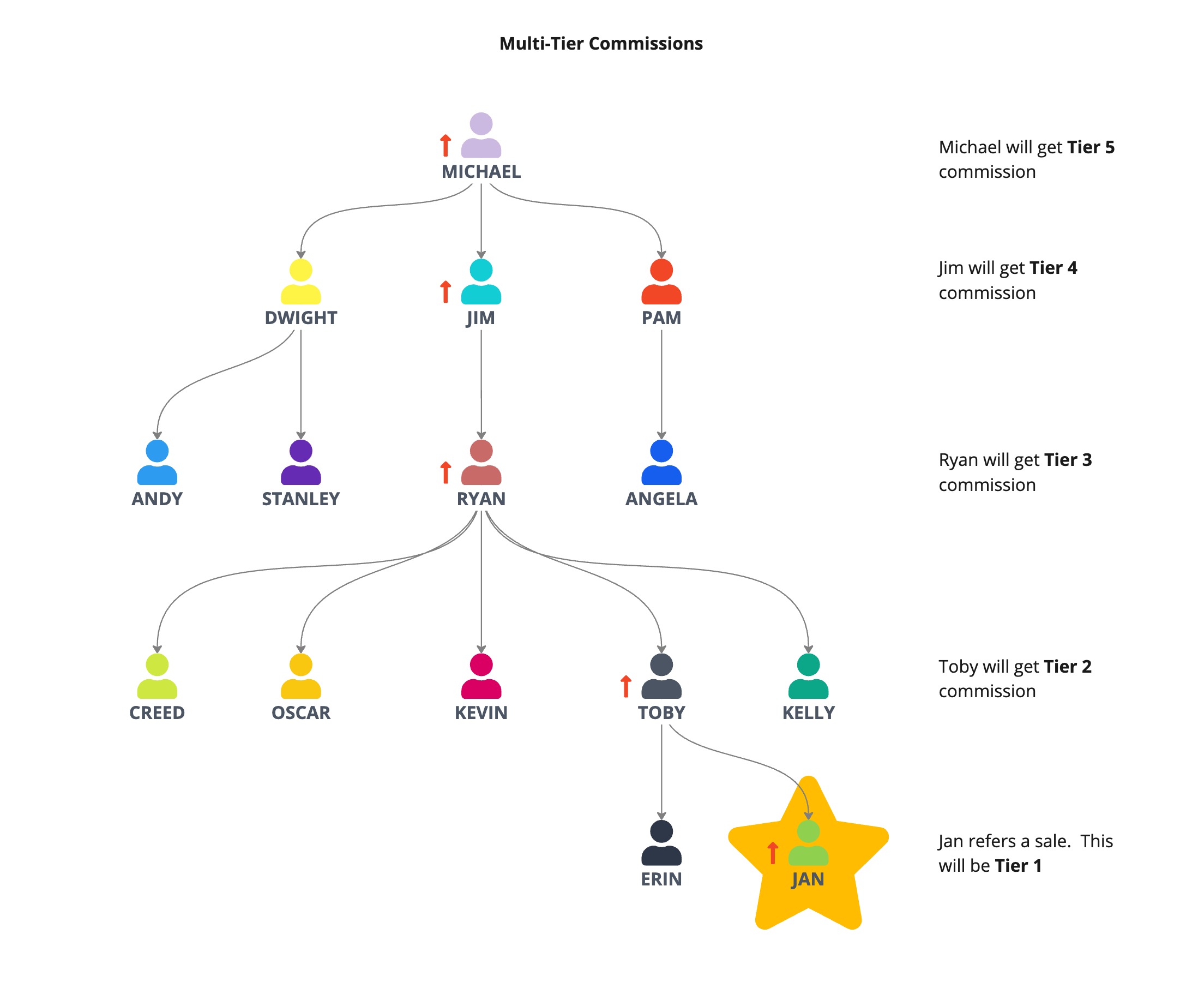
- Jan (1st tier affiliate) earns $20.
- Toby (Jan's recruiter, 2nd tier) earns $10.
- Ryan (Toby's recruiter, 3rd tier) earns $5.
- Jim (Ryan's recruiter, 4th tier) earns $3.
- Michael (Jim's recruiter, 5th tier) earns $2.
In this example, all five configured tiers are represented in the affiliate chain, so commissions are distributed across all five levels.
Using the same commission structure, assume Stanley generates a $100 sale but only three affiliate levels are represented in the referral chain.
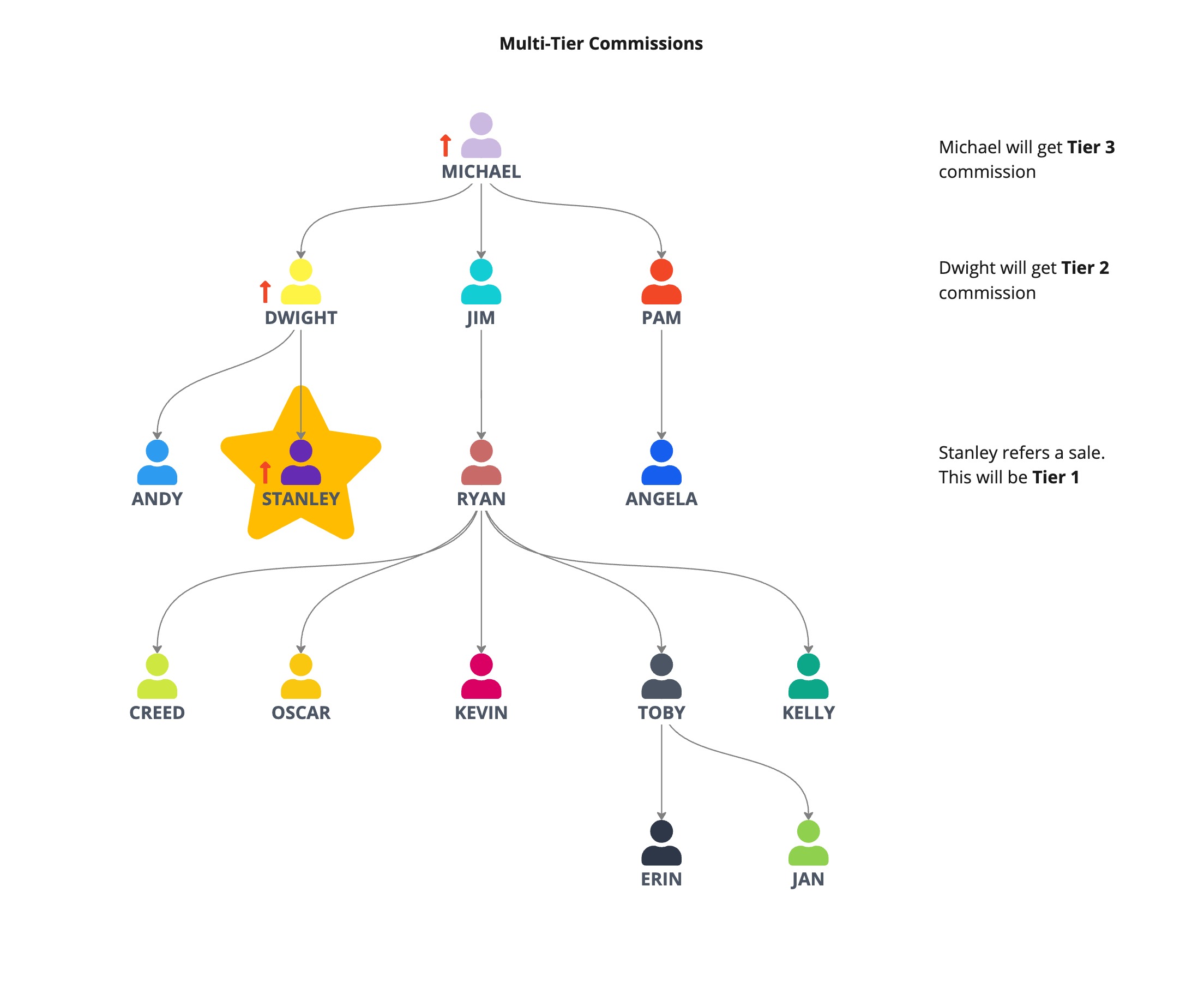
- Stanley (1st tier affiliate) earns $20.
- Dwight (Stanley's recruiter, 2nd tier) earns $10.
- Michael (Dwight's recruiter, 3rd tier) earns $5.
In this example, the referral chain contains only three affiliate levels, so commissions are distributed across those three represented tiers.
Key Benefits of Multi-Tier Commissions
Multi-tier commissions give you more control over how affiliates and their referral networks are rewarded within a campaign.
Prerequisites and Limitations
A multi-tier campaign needs the appropriate campaign and commission settings before HighLevel can distribute commissions through a sub-affiliate hierarchy.
- Create or select an Affiliate Manager campaign.
- Configure at least 2 tiers if the campaign will use sub-affiliates.
- HighLevel supports a maximum of 7 commission tiers per campaign.
- If you use product-specific commissions, make sure the applicable products are included in the campaign product list.
- Campaign-level tier structure: The campaign controls the number of commission tiers. Individual affiliate commission settings can change commission rates, but they do not change the campaign's tier count.
Affiliate Recruitment Beyond Commission Tier Limits
Affiliates can continue recruiting sub-affiliates beyond the campaign's configured commission tiers. The number of commission tiers limits commission payouts, not affiliate recruitment depth.
When an affiliate generates a sale, commission eligibility is calculated backward from the affiliate making the sale. Only eligible affiliates within the configured commission tier limit receive commissions.
This behavior applies automatically and requires no additional configuration. Existing commission behavior within the configured tier limit remains unchanged.
Commission Tiers vs. Affiliate Recruitment Depth
The number of commission tiers determines how many levels of affiliates can receive commissions for a qualifying sale. It does not limit how many levels of sub-affiliates can join the recruitment network.
- Affiliates can continue recruiting beyond the last configured commission tier.
- When a sale occurs, commission eligibility is calculated backward from the affiliate generating the sale.
- Only eligible affiliates within the configured tier limit receive commissions.
- This behavior applies automatically. No additional configuration is required.
How To Set Up Multi-Tier Commissions
Multi-tier commissions are configured during the Commissions stage of affiliate campaign creation. Start from the Sub-Account view so the campaign source, products, tier count, and commission values are configured in the correct order.
- From the Sub-Account view, select Marketing in the left menu.
- Select Affiliate Manager.
- Select Campaign.
- Click + Add to create a campaign.
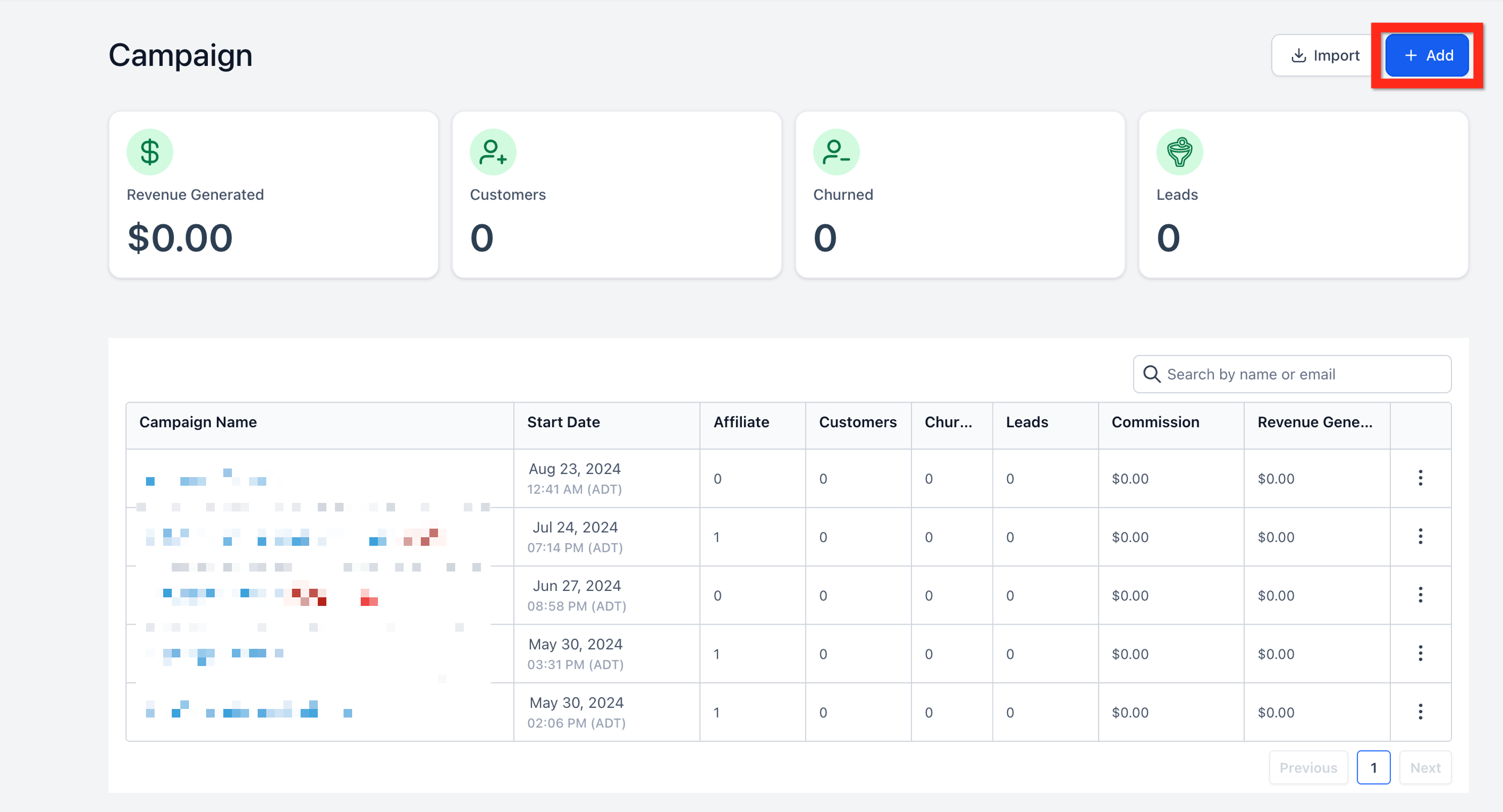
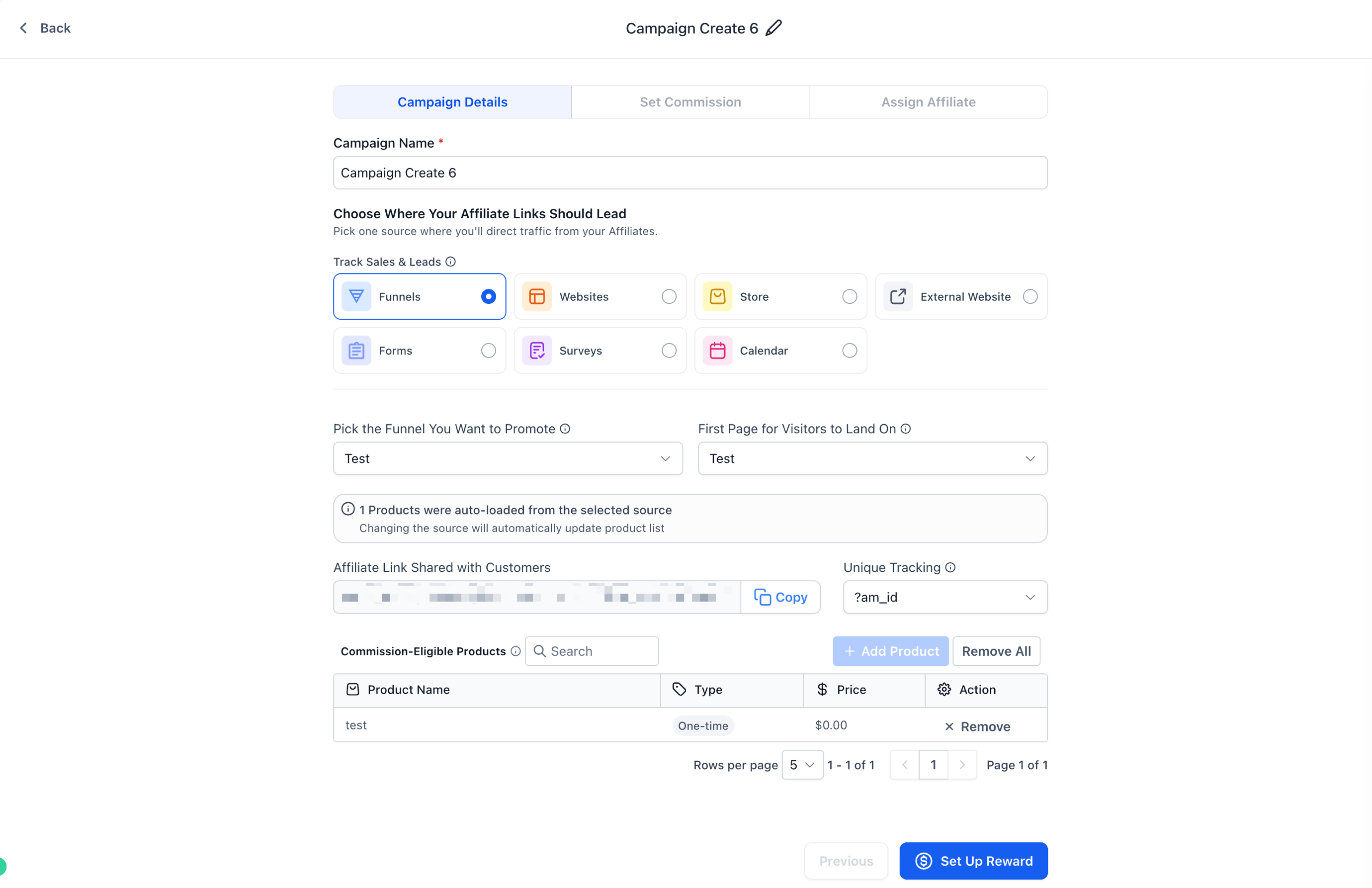
The campaign source determines what the campaign tracks and which products are available for commission configuration.
- In Campaign details, select the campaign source.
- Select the applicable source details.
- Configure the campaign link or landing destination shown for the selected source.
- Review the product list associated with the campaign.
- Add or remove products so the list contains the products eligible for commissions.
- Continue to the Commissions step.
The default commission provides the base commission value for the campaign before you configure additional tiers.
- In the Commissions step, enter the default commission.
- Select whether the commission is a percentage of the product price or a flat amount.
- If individual products need different rates, use the product-level commission controls to configure those products separately.
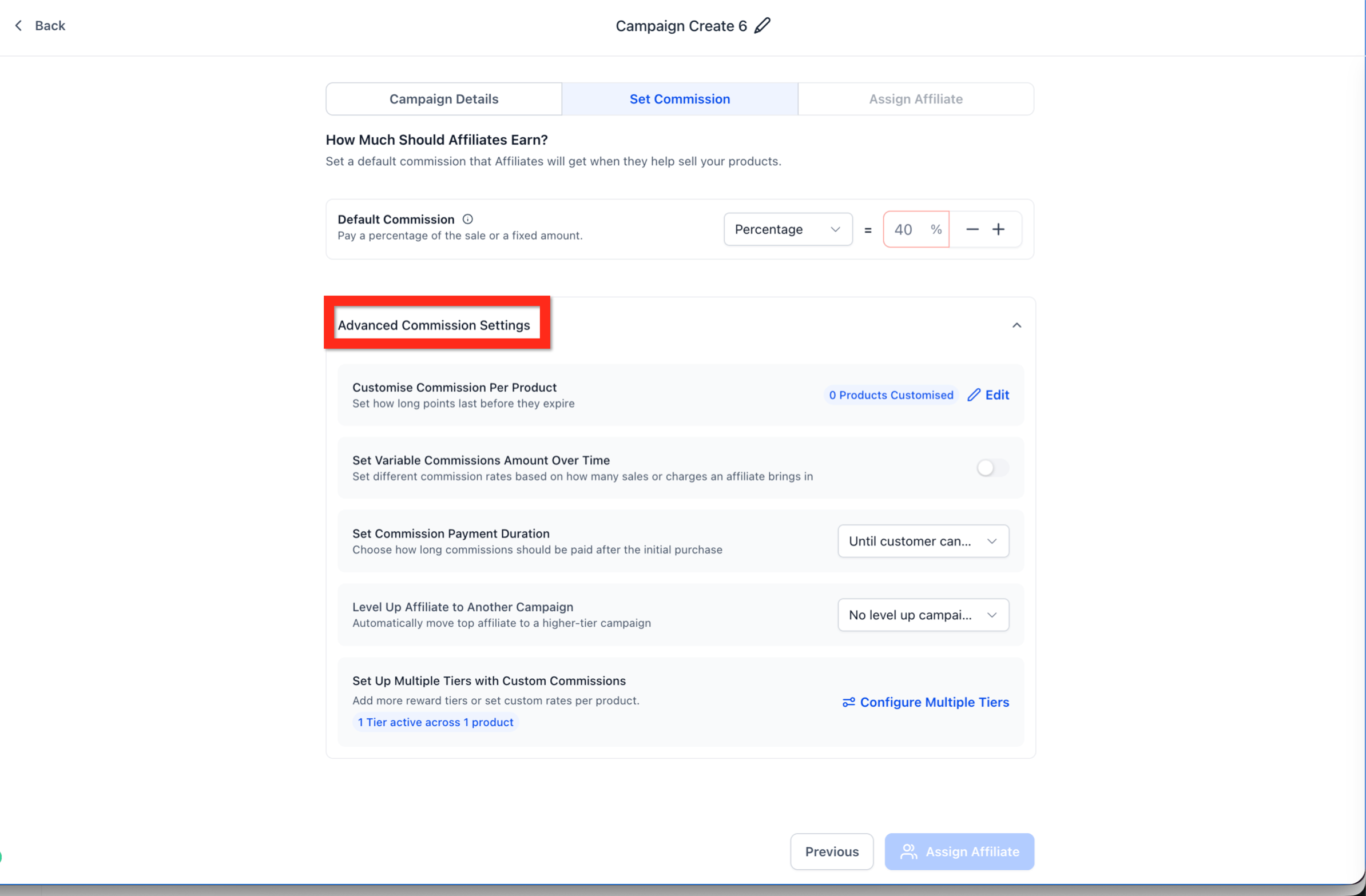
Advanced commission settings control the campaign's multi-tier structure.
- From the Commissions step, select Advanced commission settings.
- Locate Number of tiers.
- Select the number of commission tiers required for the campaign.
HighLevel supports up to seven tiers. Leave the number of tiers at 1 when the campaign does not need a multi-tier commission structure.
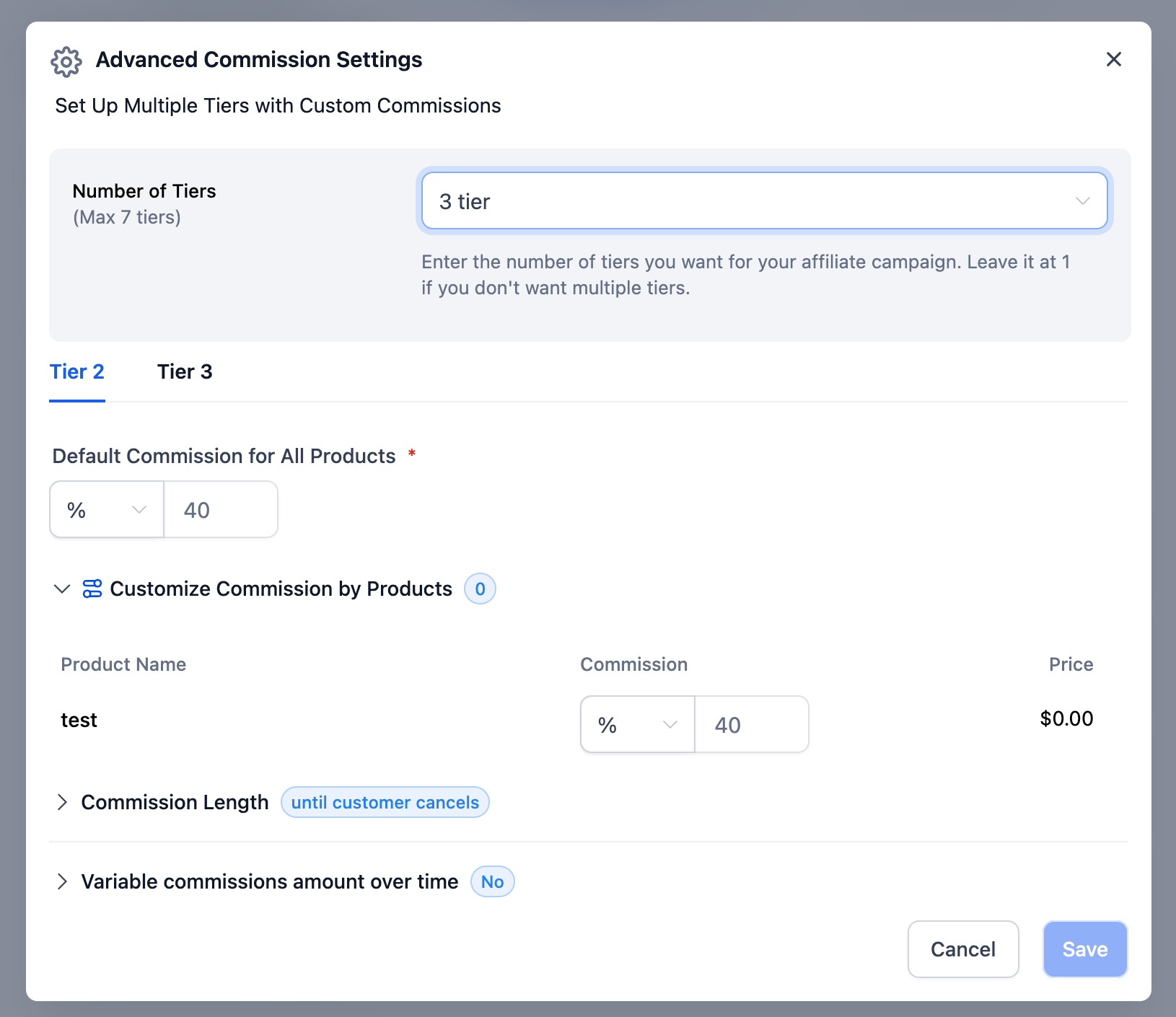
Each additional tier can have its own default commission or product-specific commission values.
- After selecting the tier count, open the next tier, such as Tier 2.
- Enter the Default commission for all products for that tier.
- If needed, use Customize commission by products to assign different rates to individual products.
- Repeat these steps for each additional tier.
- Review the rates across all configured tiers before continuing.
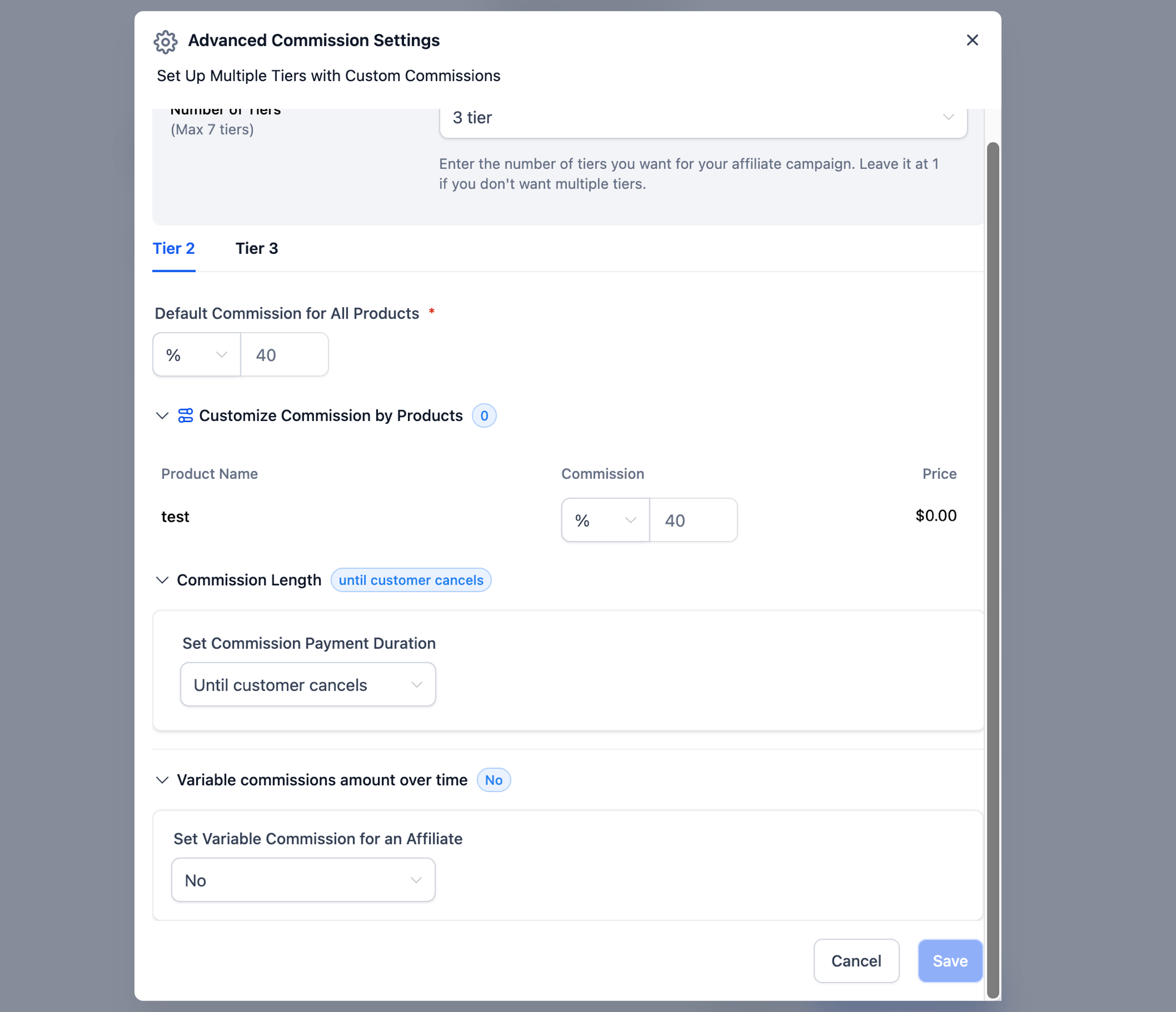
Commission Length and Variable Commissions provide additional control for recurring product commissions. They are separate from the campaign's multi-tier structure.
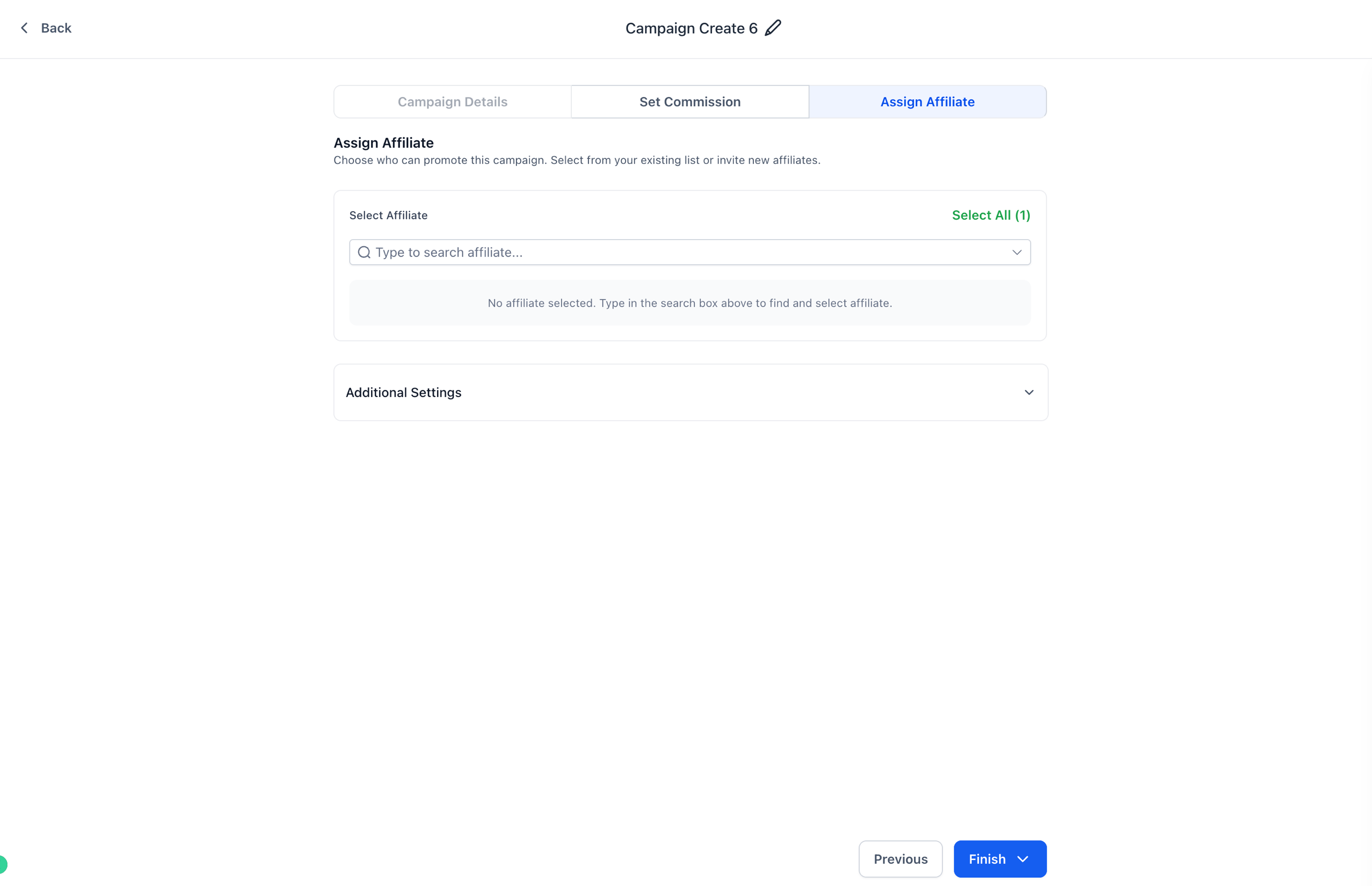
After configuring commissions, complete the remaining campaign settings before making the campaign available to affiliates.
- Continue to Finish.
- Add a campaign description if needed.
- Select Assign Affiliate if you want to assign affiliates during campaign creation.
- Review the remaining campaign settings.
- When the campaign is ready, select Finish.
Related Articles
Frequently Asked Questions
Was this article helpful?
That’s Great!
Thank you for your feedback
Sorry! We couldn't be helpful
Thank you for your feedback
Feedback sent
We appreciate your effort and will try to fix the article