Sub-affiliates let you build a multi-tier referral structure in HighLevel's Affiliate Manager. A parent affiliate can recruit or be assigned other affiliates beneath them, while commissions can be distributed across the configured campaign tiers. HighLevel supports multi-tier affiliate campaigns with up to 7 tiers.
For example, if a sub-affiliate makes a sale, that affiliate can receive the Tier 1 commission while the parent affiliate can receive the applicable Tier 2 commission.
Important: Your affiliate campaign must have at least 2 tiers configured before you can use sub-affiliates.
Key Benefits of Sub-Affiliates
Sub-affiliates help expand an affiliate program by allowing affiliates to build referral networks while keeping those relationships organized within the campaign.
Multi-Tier Commissions: Reward both sale-producing affiliates and applicable parent affiliates.
Flexible Enrollment: Add sub-affiliates manually, automatically enroll referred customers, or let affiliates recruit their own.
Affiliate-Led Growth: Give affiliates a way to grow their network through a shareable sign-up page.
Hierarchy Visibility: View parent and sub-affiliate relationships through Affiliate Manager and the Affiliate Portal.
Prerequisites
Sub-affiliate functionality depends on the campaign's tier configuration. Confirming the campaign and sign-up requirements first can prevent missing options or enrollment errors later.
Before adding sub-affiliates:
Create or select an Affiliate Manager campaign.
Configure the campaign with 2 or more commission tiers.
Configure the appropriate commission rates for each tier.
If using affiliate self-recruitment, prepare a form containing:
First Name
Last Name
Email
HighLevel supports up to 7 commission tiers.
For detailed tier configuration, see How to Set Up Multi-Tier Commissions.
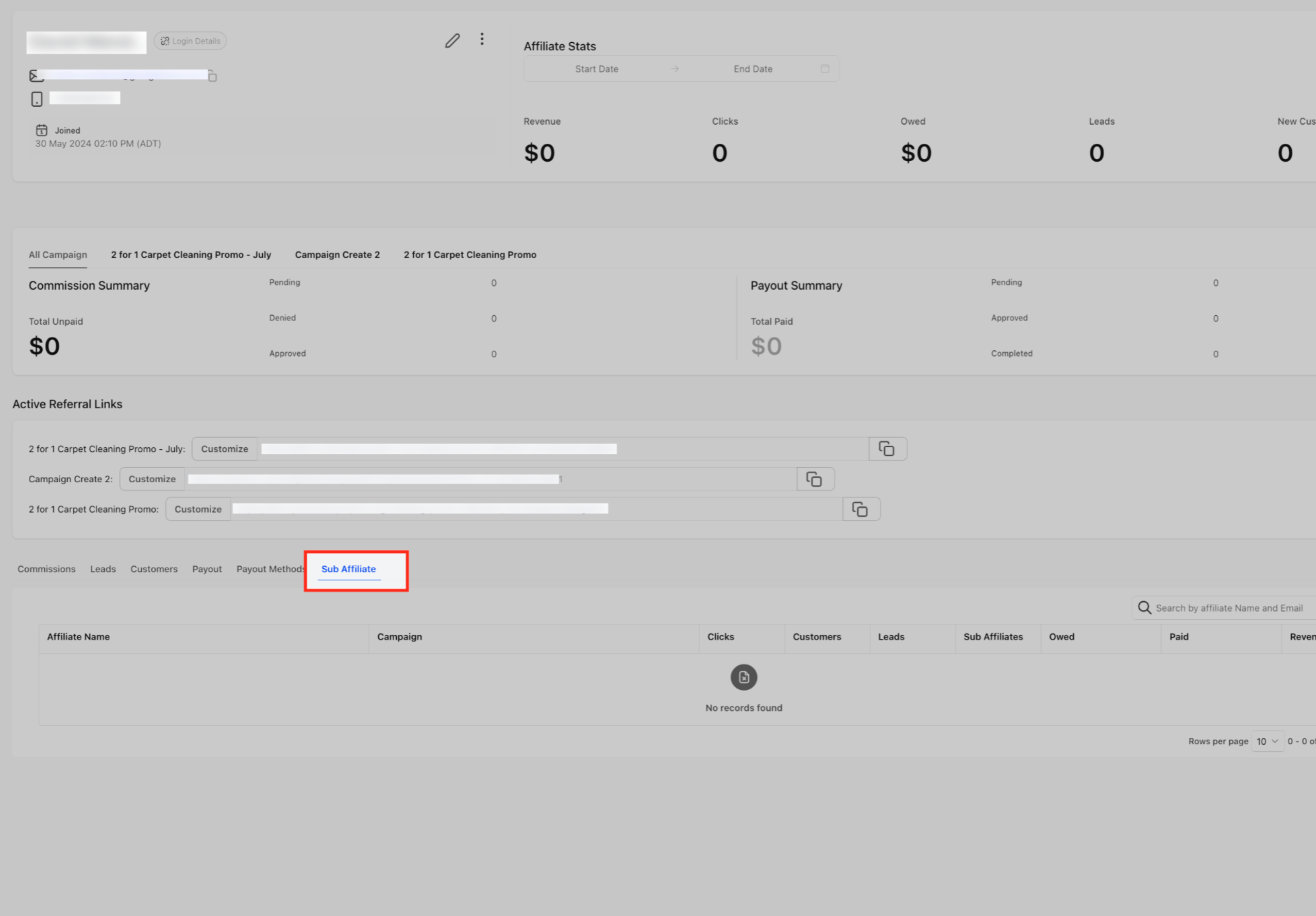
View Sub-Affiliates from the Affiliates Page
The Affiliates page gives you a quick way to see how many sub-affiliates are linked to each affiliate without opening the affiliate profile. This makes it easier to review affiliate relationships directly from the main list.
Go to the Affiliates page.
Find the affiliate you want to review.
Locate the Sub Affiliates column to see the number of linked sub-affiliates.
Click the count to view the associated sub-affiliates' names and email addresses.
Choose How to Add Sub-Affiliates
HighLevel provides three ways to build a sub-affiliate hierarchy. Choose the method based on how much control you want over enrollment and whether affiliates should recruit their own network.
| Method | Best for |
|---|---|
| Manual Assignment | You already know which affiliate should be assigned beneath a parent affiliate. |
| Auto-Enroll Customers | You want referred customers to become sub-affiliates automatically after a successful sale. |
| Affiliate Self-Recruitment | You want affiliates to recruit their own sub-affiliates using a shareable sign-up link. |
Add Sub-Affiliates Manually
Manual assignment gives you direct control over the campaign hierarchy. Use this method when you already know which affiliate should be placed beneath a specific parent affiliate.
Go to Affiliate Manager.
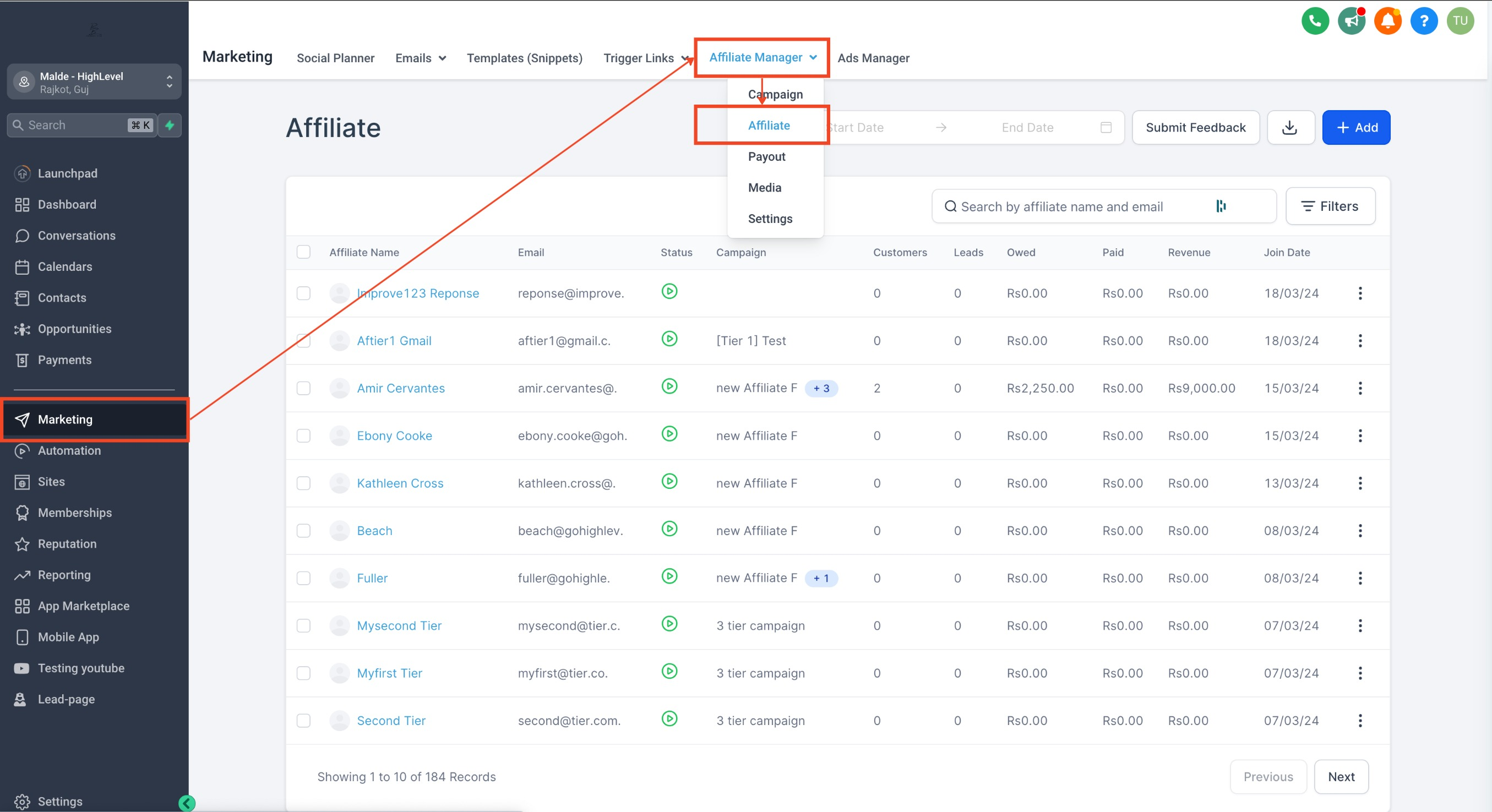
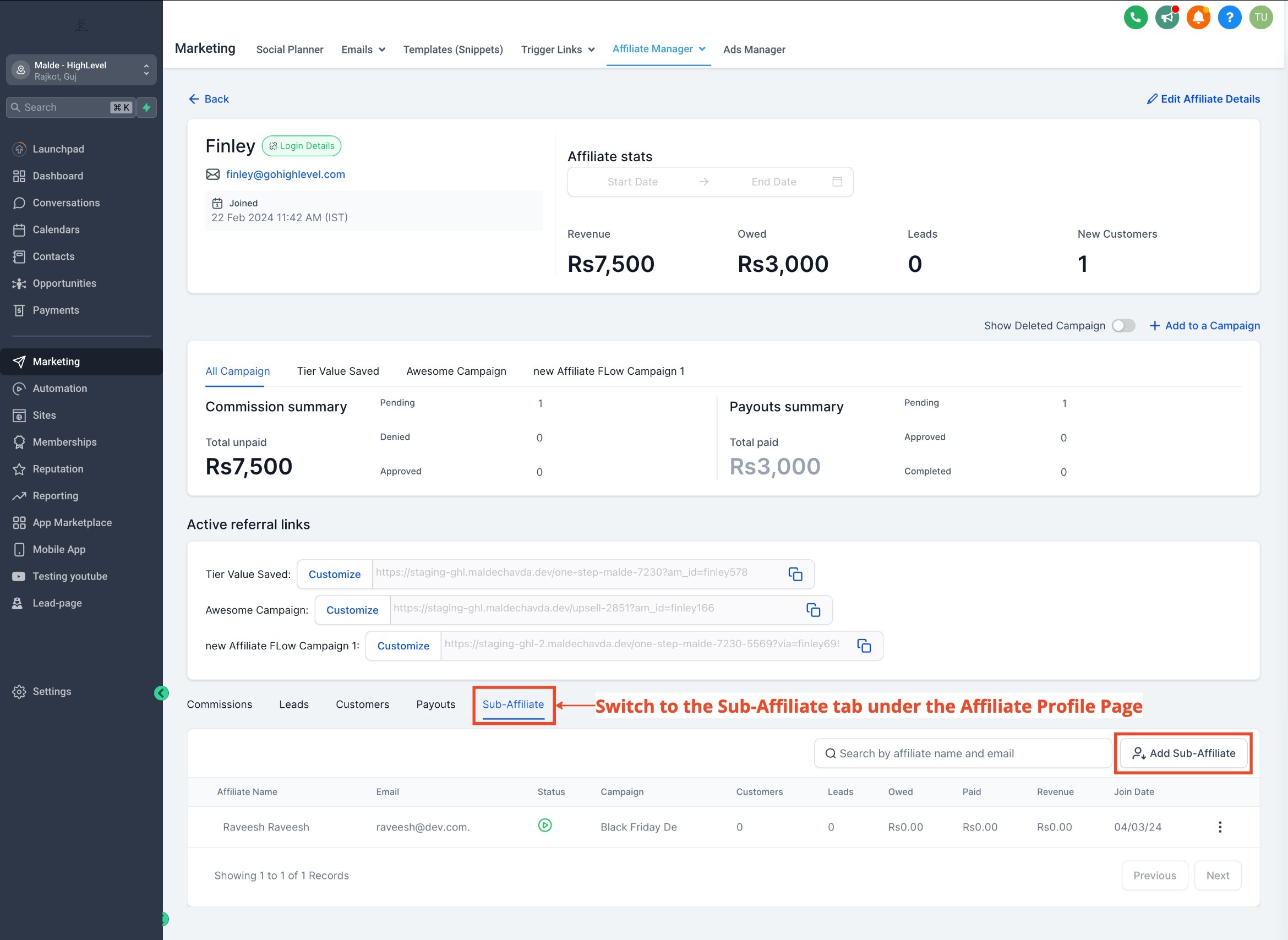
Locate and open the affiliate you want to use as the parent affiliate.
Open the Sub-Affiliate tab.
Click Add Sub-Affiliate.
Select the applicable multi-tier campaign.
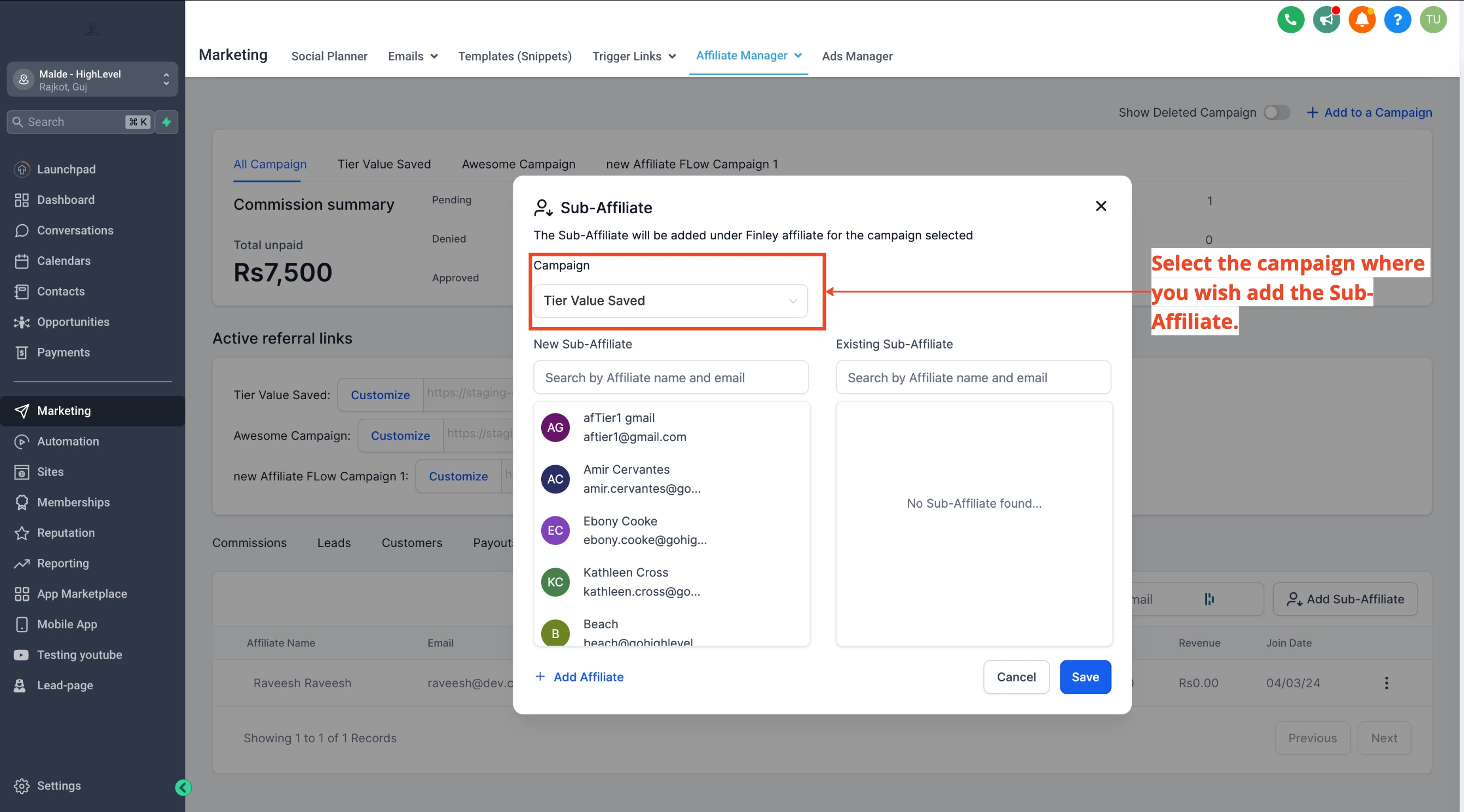
Select the existing affiliate you want to add beneath the parent.
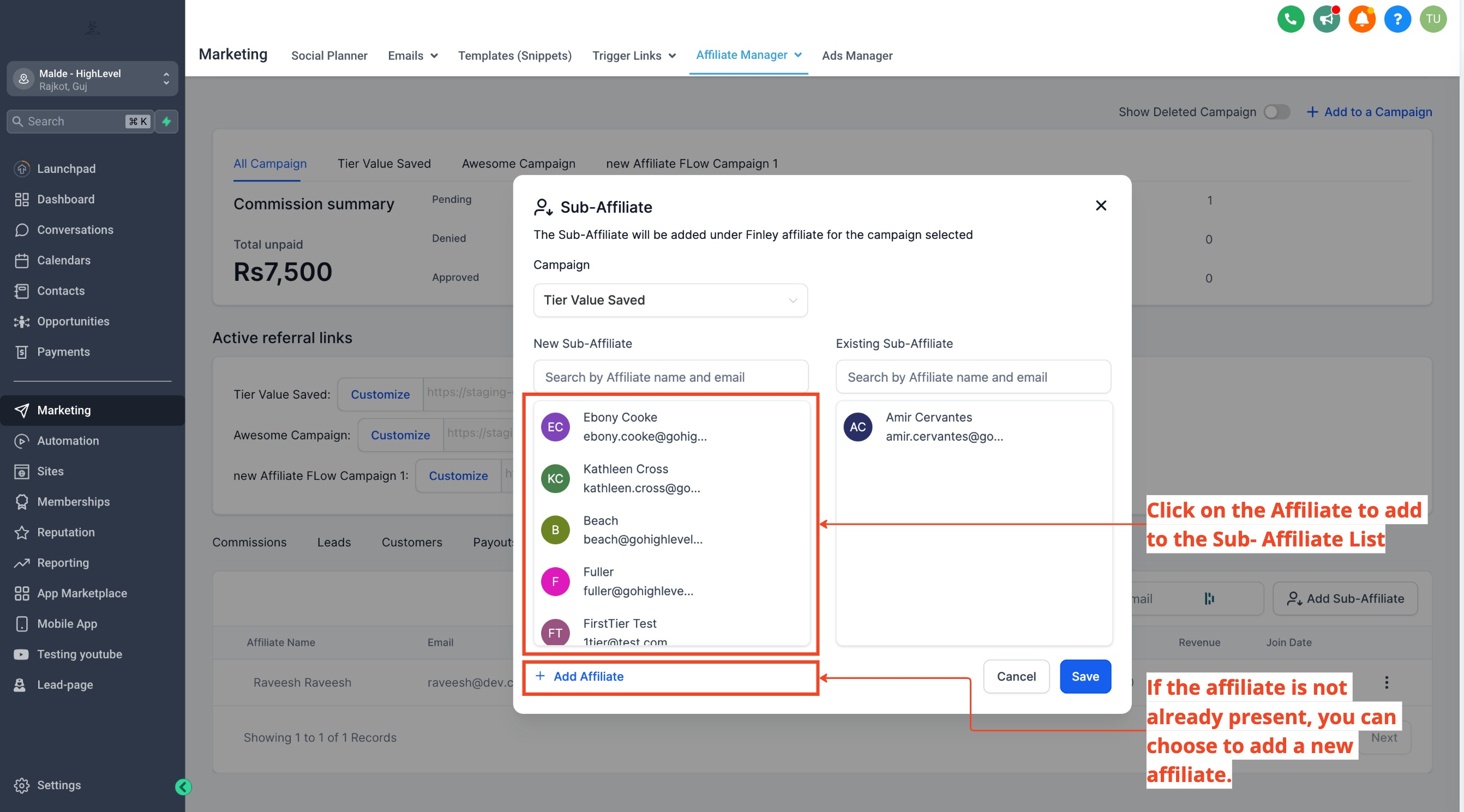
If the person is not already an affiliate, use the available option to create a new affiliate profile.
Save the relationship.
After saving, verify that the expected sub-affiliate appears under the parent affiliate.
Commission Note: Campaign tier settings define the standard multi-tier commission structure. If an affiliate has custom commission settings, those affiliate-level rates can override the campaign-level rates for that affiliate. See How to Set Custom Affiliate Commissions.
Auto-Enroll Referred Customers as Sub-Affiliates
Auto-enrollment can turn successful customers into participants in the affiliate network without requiring manual enrollment. The customer is added beneath the affiliate responsible for the qualifying referral.
To enable auto-enrollment:
Open the applicable affiliate campaign.
Go to the campaign's Additional Settings.
Enable Auto Enroll New Customers as Sub-Affiliates.
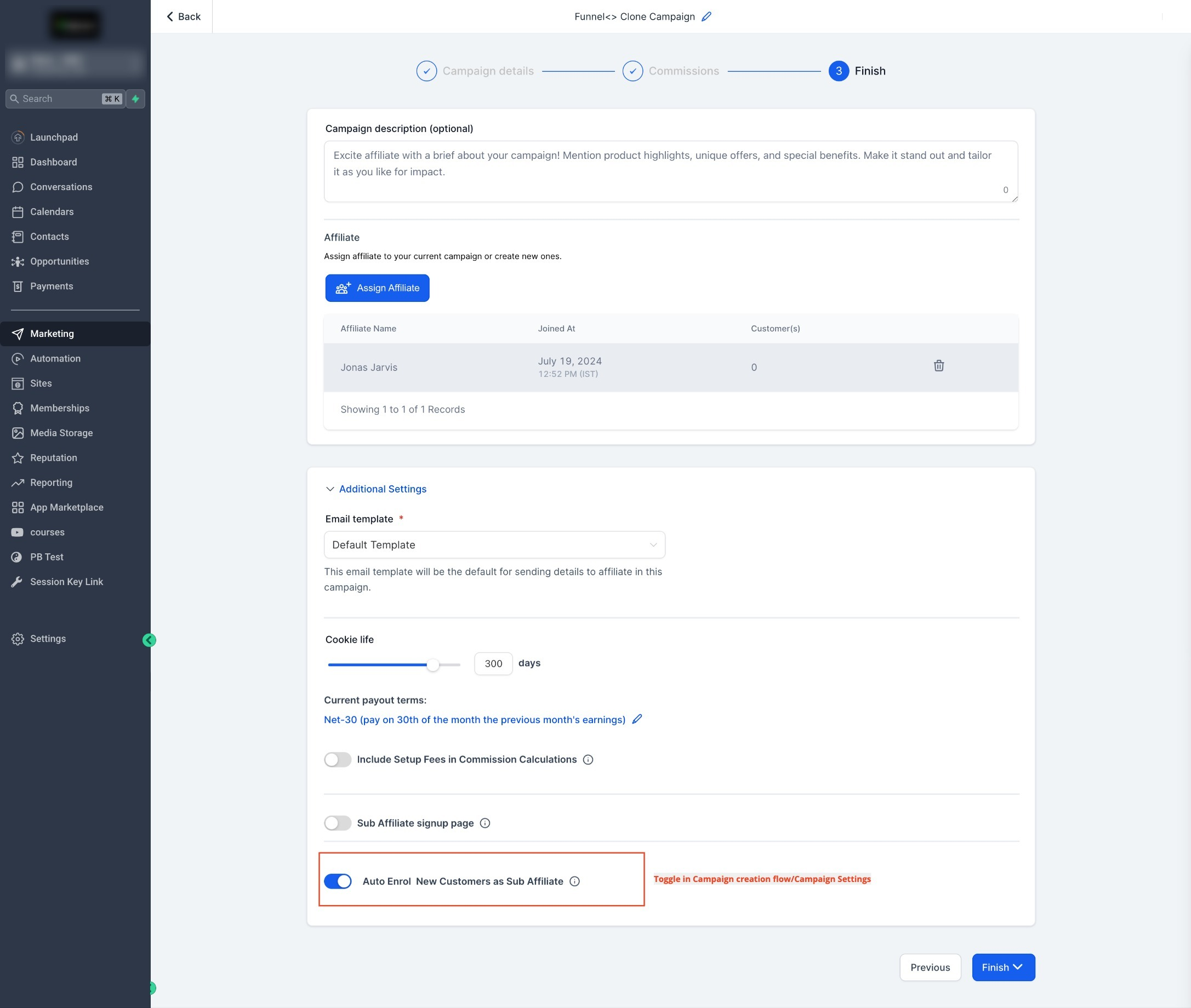
Save the campaign.
When an affiliate refers a customer and the applicable successful sale occurs, the customer can be enrolled as a sub-affiliate beneath the referring affiliate.
Important: Auto-enrollment is based on the successful referred sale. It does not mean every lead or form submission automatically becomes a sub-affiliate.
Let Affiliates Recruit Their Own Sub-Affiliates
Affiliate self-recruitment allows existing affiliates to grow their network without requiring you to add each recruit manually. HighLevel provides a shareable sign-up form that affiliates can distribute to prospective sub-affiliates.
Before enabling this option, make sure the selected form contains:
First Name
Last Name
Email
To enable self-recruitment:
Open the applicable affiliate campaign.
Go to Additional Settings.
Enable the Sub-Affiliate Sign-Up Page.
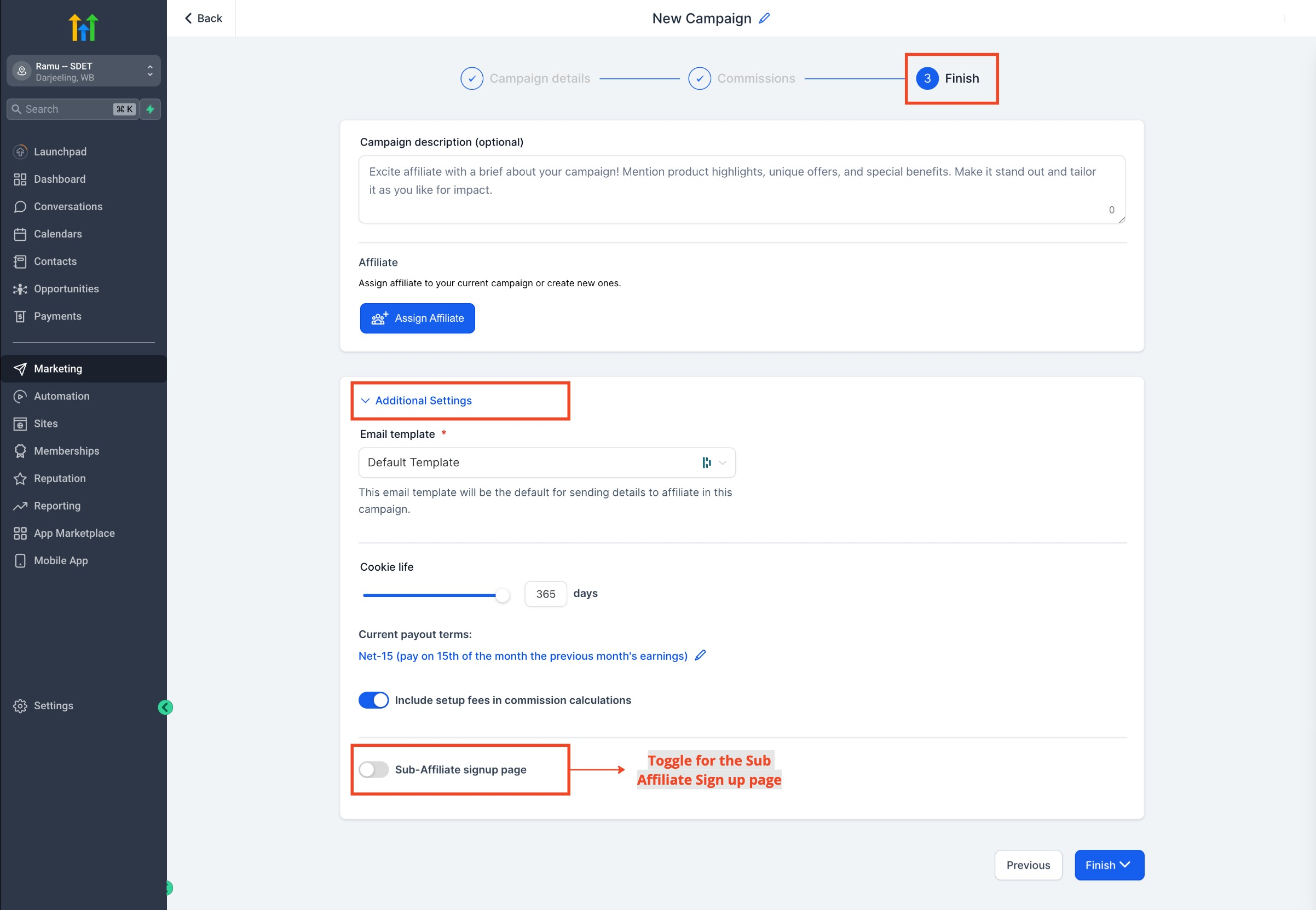
Select the form you want recruits to complete.
Save the campaign.
After setup, the affiliate can access the recruitment URL from the Affiliate Portal and share it with prospective sub-affiliates.
The flow is:
Affiliate shares sign-up URL → Recruit completes form → Recruit becomes a sub-affiliate → Sub-affiliate appears in the affiliate hierarchy
Affiliates can also view their existing sub-affiliates from the Affiliate Portal.
Troubleshooting: If the sign-up page returns an error, confirm that the selected form contains First Name, Last Name, and Email.
Campaign Settings vs Global Settings
Campaign and Global Settings control the same types of sub-affiliate options at different scopes. Understanding the difference helps prevent unexpected behavior when creating or updating campaigns.
Campaign Settings: Apply to the individual campaign you are editing.
Global Settings: Set the default sub-affiliate behavior for campaigns created in the future.
Existing Campaigns: Changes made later in Global Settings do not retroactively update existing campaigns.
Global configuration can be used for settings such as:
Auto Enroll New Customers as Sub-Affiliates.
Sub-Affiliate Sign-Up Page.
Frequently Asked Questions
Q: Does my campaign need multiple tiers to use sub-affiliates?
Yes. Configure the campaign with at least 2 tiers before using sub-affiliate functionality.
Q: How many affiliate tiers can I configure?
HighLevel supports up to 7 tiers in a multi-tier affiliate campaign.
Q: When does a referred customer become a sub-affiliate?
When Auto Enroll New Customers as Sub-Affiliates is enabled, enrollment occurs after the applicable successful referred sale.
Q: Why is my sub-affiliate sign-up form producing an error?
Confirm that the selected form contains First Name, Last Name, and Email. These fields are required for the sub-
affiliate sign-up flow.
Q: Do Global Settings update my existing affiliate campaigns?
No. Changes made in Global Settings apply to future campaigns and do not retroactively modify existing campaigns.
Q: Can an affiliate have a different commission rate from the campaign default?
Yes. Affiliate-level custom commission settings can override the campaign-level rates for that affiliate. The overall number of commission tiers remains controlled at the campaign level.
Q: What happens if I remove a sub-affiliate?
HighLevel provides controls for managing sub-affiliate relationships. However, current HighLevel Knowledge Base documentation does not separately define how removing a relationship affects historical commission calculations. Review existing commission records before changing an established hierarchy.
Related Articles
Was this article helpful?
That’s Great!
Thank you for your feedback
Sorry! We couldn't be helpful
Thank you for your feedback
Feedback sent
We appreciate your effort and will try to fix the article