Events and Workflows Integration connects HighLevel Events with workflow automation to manage registrations, reminders, check-ins, and follow-ups. Automatically register contacts for ticketed or RSVP events, trigger workflows based on attendee activity, and create personalized event journeys without manual effort.
TABLE OF CONTENTS
- What is Events and Workflows Integration?
- Key Benefits of Events and Workflows Integration
- Event-Based Workflow Triggers
- Register for Ticketed Event Action
- Register for RSVP Event Action
- Using Event Data in Workflow Conditions
- Wait Relative to the Event Date
- How to Set Up Events and Workflows Integration
- Common Event Automation Use Cases
- Frequently Asked Questions
- Related Articles
What is Events and Workflows Integration?
Events and Workflows Integration allows you to automate the entire attendee journey, from registration to post-event engagement. You can trigger workflows when contacts register or check in, automatically enroll contacts in events through workflow actions, and use event details to personalize communication.
Key Benefits of Events and Workflows Integration
Connecting Events with Workflows helps businesses streamline event management and improve attendee engagement.
Automated Registrations: Register contacts for ticketed or RSVP events through workflows.
Instant Engagement: Send confirmation emails, SMS reminders, and follow-ups automatically.
Lead Conversion: Turn leads from forms, funnels, and Facebook Ads into event registrants.
Personalized Journeys: Customize workflows using event details, ticket types, and attendee activity.
Event-Based Timing: Schedule reminders before, during, or after an event.
CRM Integration: Create opportunities, assign tasks, and notify team members based on event activity.
Event-Based Workflow Triggers
Event-based triggers automatically start workflows when attendees register or check in. These triggers help you deliver relevant communications based on customer activity.
Event Registration
Starts a workflow when a contact registers for an event. Use it to send confirmations, add tags, notify team members, or initiate reminder sequences.
Event Checked In
Starts a workflow when an attendee checks in. Use it to send welcome messages, provide resources, or begin follow-up campaigns.
Trigger Filters
You can customize event-based workflows using filters such as:
Specific event
Registration status
Ticket type
Who booked the registration
Check-in details
Register for Ticketed Event Action
The Register for Ticketed Event action allows you to automatically register contacts for ticketed events through workflows. This helps connect your existing lead-generation campaigns with event registrations.
Common use cases:
Register leads captured through Facebook Lead Ads.
Enroll qualified prospects in workshops or webinars.
Convert funnel submissions into event registrations.
Example Workflow:
Facebook Lead Ad → Register for Ticketed Event → Send Confirmation Email
Note: Ticketed events may offer free or paid tickets. Confirm payment, ticket availability, and capacity behavior before using automated registration for paid events.Register for RSVP Event Action
The Register for RSVP Event action automatically registers contacts for RSVP events when they reach the action in a workflow.
This is useful for webinars, onboarding sessions, workshops, and other events that don't require ticket payments.
Common use cases:
RSVP contacts captured through forms or landing pages.
Register customers for onboarding sessions.
Create automated invitation and registration journeys.
Example Workflow:
Form Submission → Register for RSVP Event → Send Reminder Email
Using Event Data in Workflow Conditions
Event data allows workflows to follow different paths based on attendee information. This helps you deliver personalized experiences without creating separate workflows for every audience. Available event information includes:
Event type and name
Start and end dates
Time zone and location
Ticket information
Check-in information
For example, you can use an If/Else condition to send exclusive content to VIP attendees while sending standard reminders to other registrants.
Wait Relative to the Event Date
Event-relative Wait actions help you schedule communications around an event's actual date rather than manually calculating reminder times. Three timing options are available:
Before the Event: Send reminders a specified number of days or hours before the event.
At the Event Date/Time: Send day-of instructions or welcome messages.
After the Event: Send thank-you emails, surveys, or follow-up offers.
Example Workflow:
Event Registration → Confirmation Email → Wait Until 1 Day Before Event → Send SMS Reminder
How to Set Up Events and Workflows Integration
Configuring event-based workflows allows you to automate registrations and deliver timely communications based on attendee activity.
Set Up an Event Registration or Check-In Trigger
Navigate to Automation → Workflows.
Create a new workflow or open an existing one.
Click Add Trigger and select Event Registration or Event Checked In.
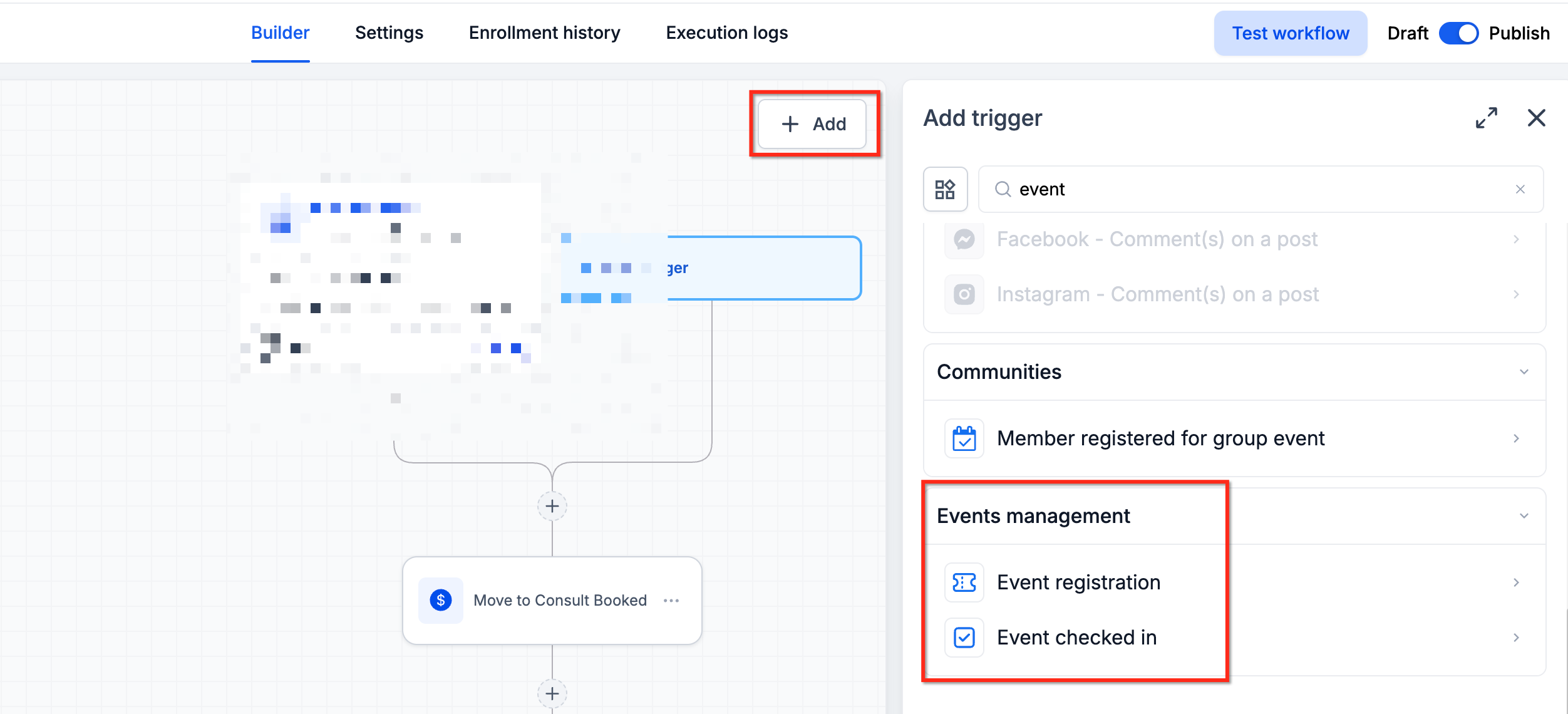
Configure event filters as needed.
Add actions such as Send Email, Send SMS, or Add Tag.
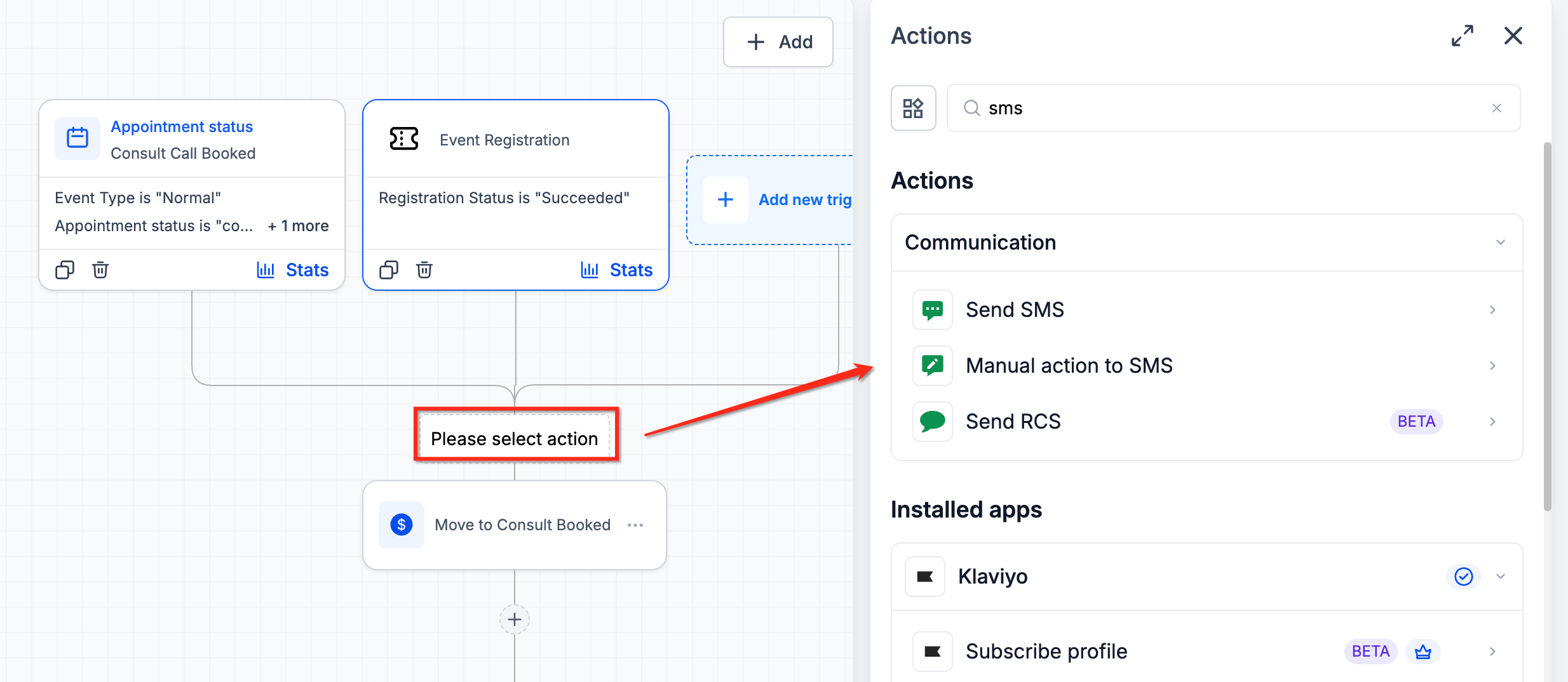
Configure conditions or event-relative Wait actions if needed.
Test and publish the workflow.
Set Up the Register for Ticketed Event Action
Navigate to Automation → Workflows.
Create or open a workflow and configure its trigger.
Click the + icon to add an action.
Select Register for Ticketed Event.
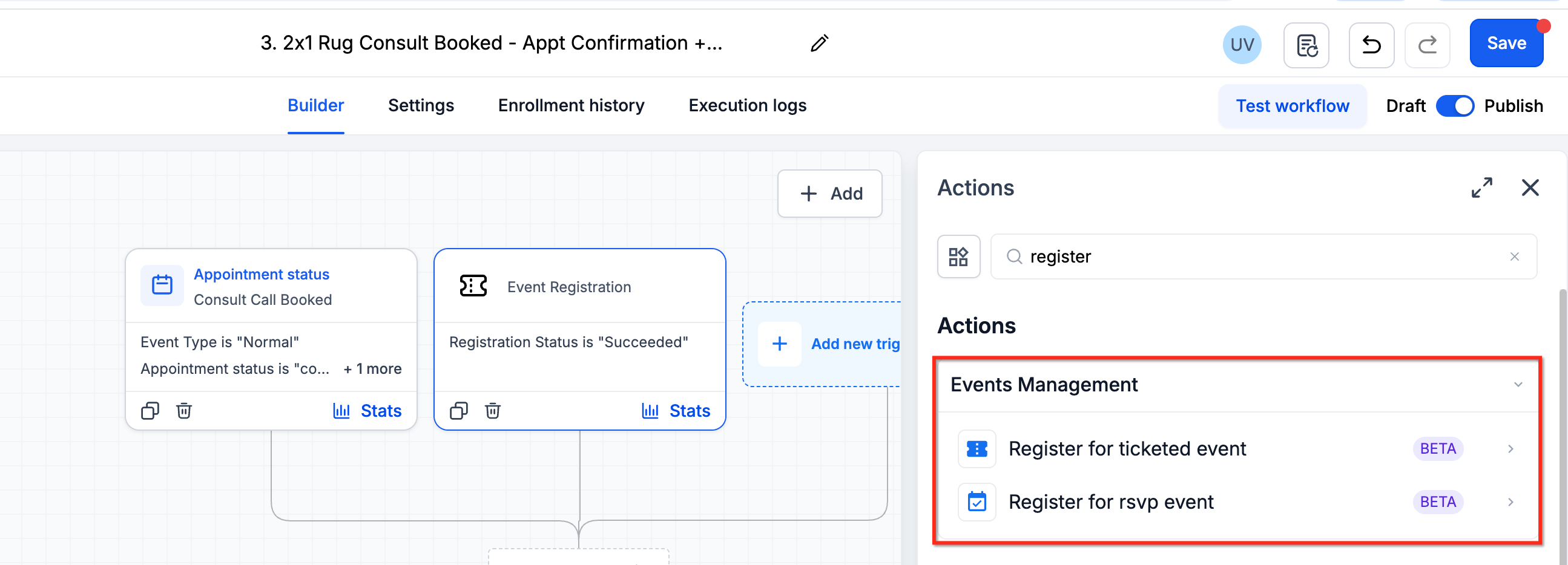
Select the target event and complete the available registration settings.
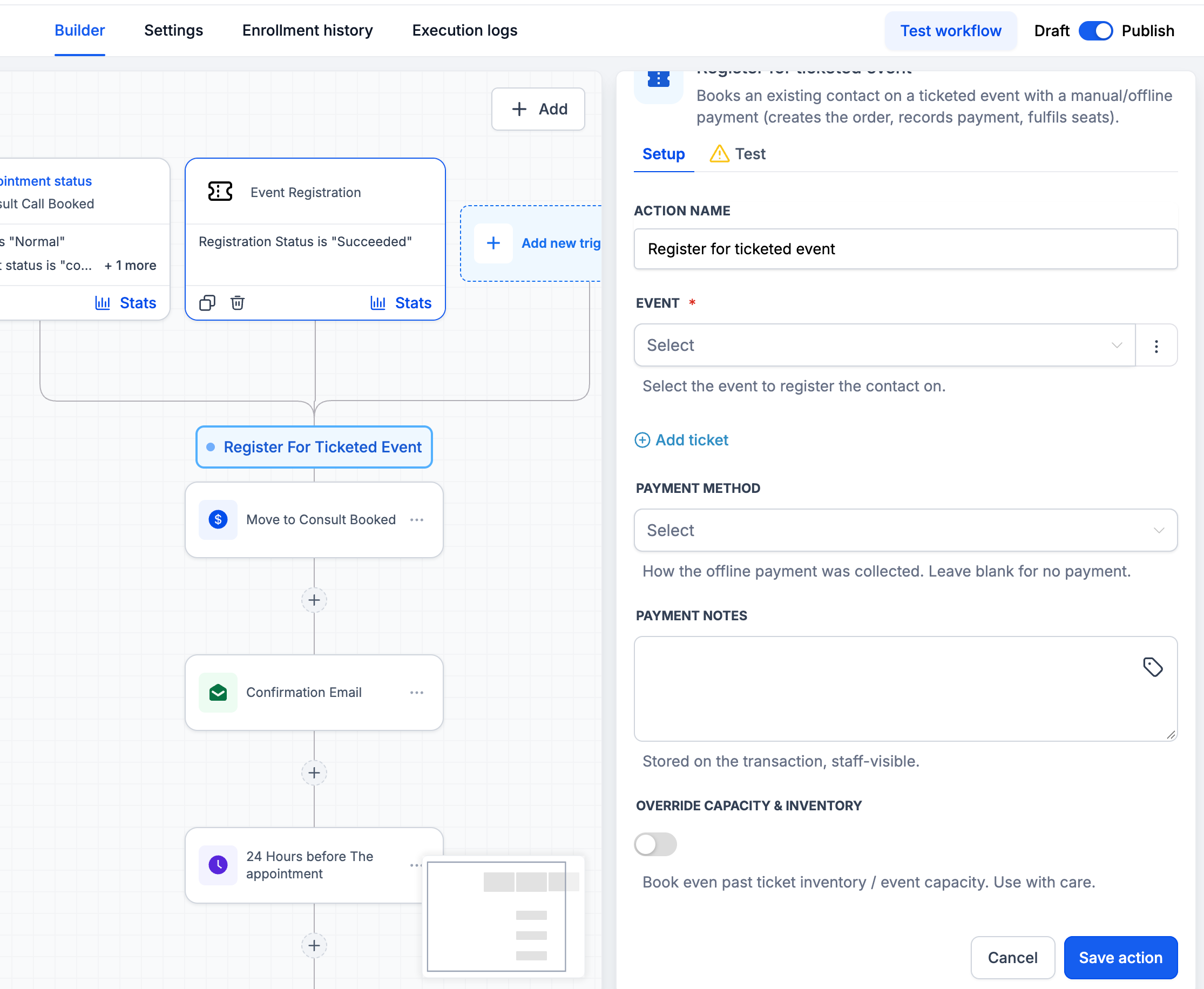
Save the action and test the registration.
Publish the workflow once verified.
Set Up the Register for RSVP Event Action
Open a workflow and configure its trigger.
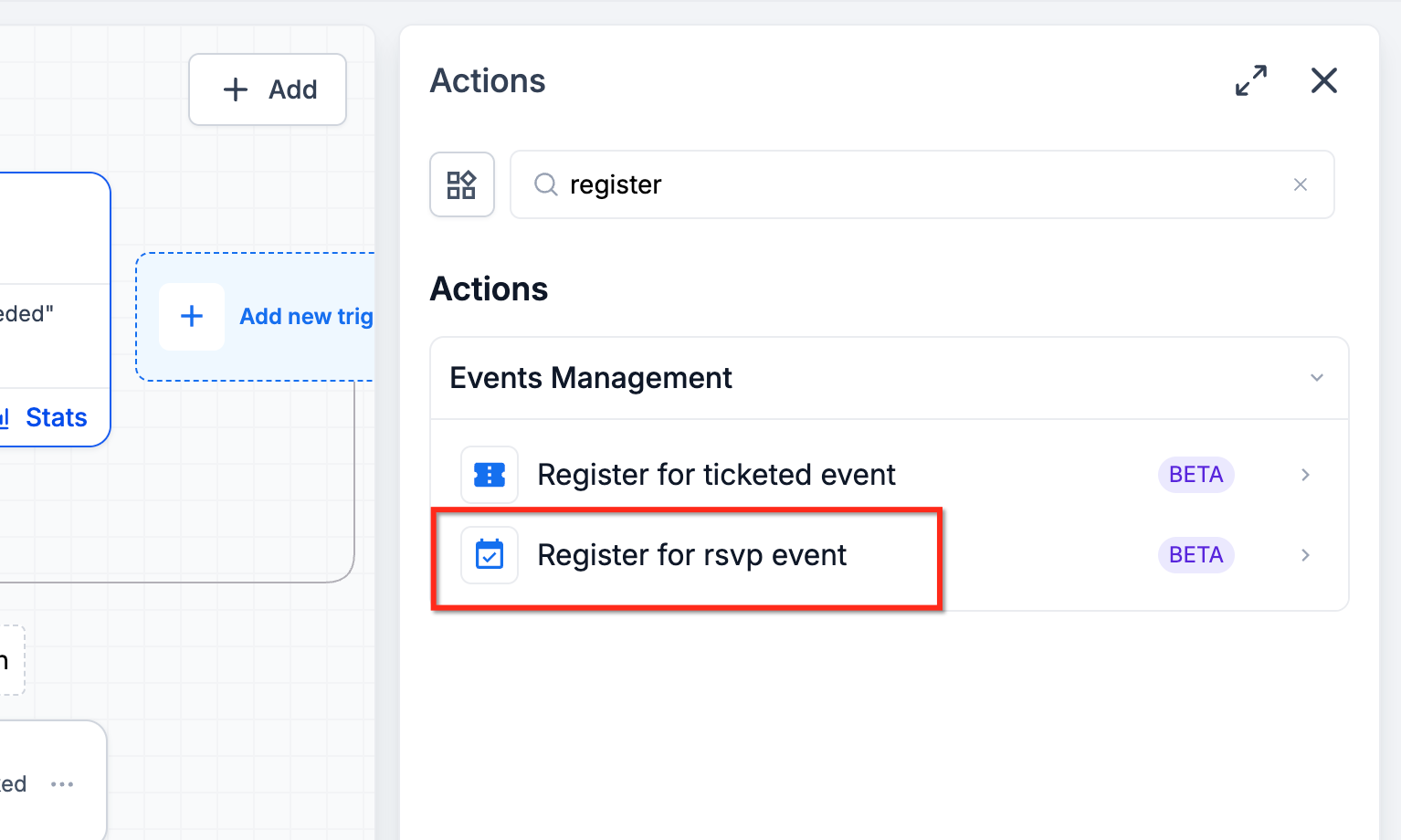
Click the + icon and select Register for RSVP Event.
Select the RSVP event and complete the available settings.
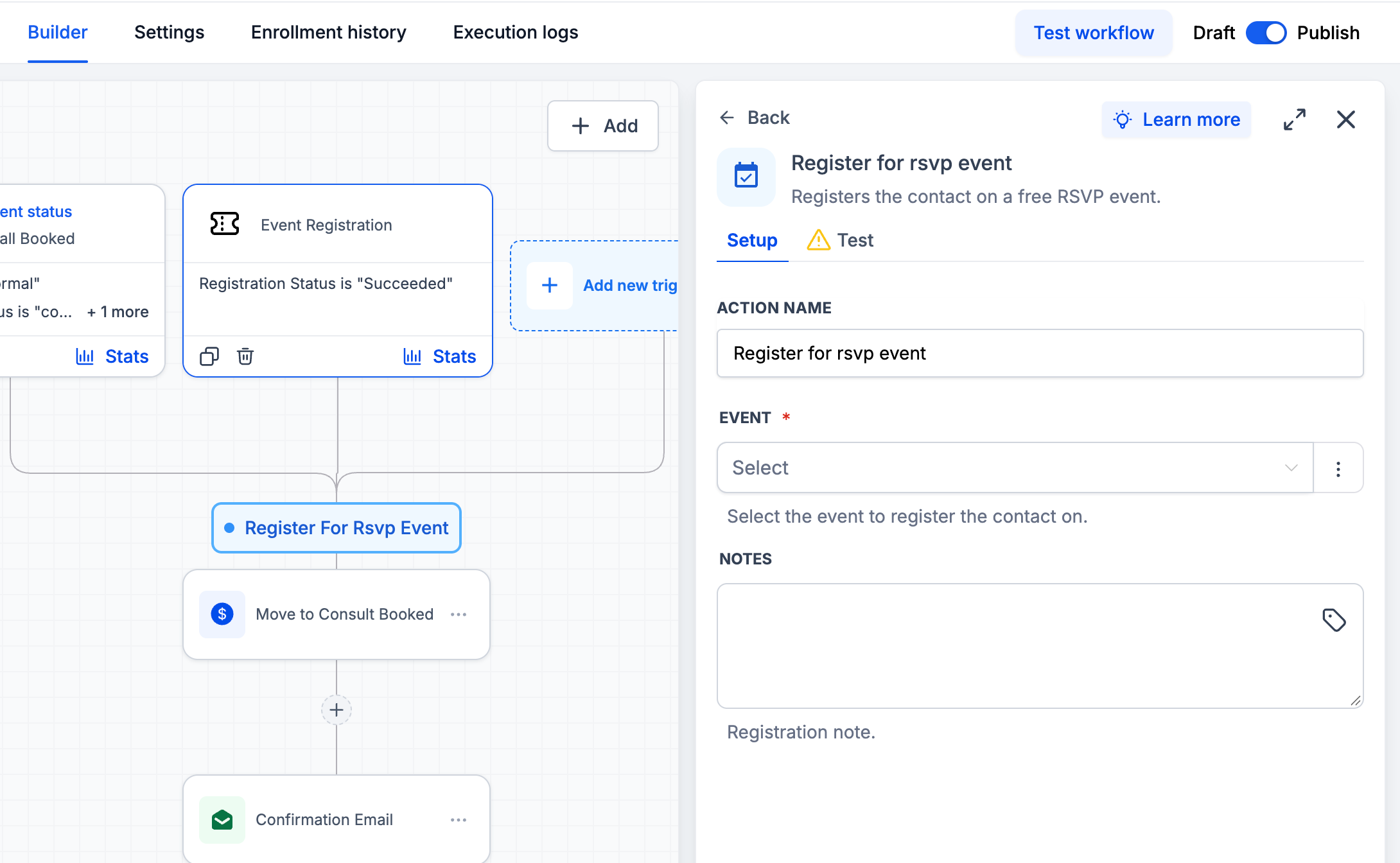
Save the action.
Test with a contact and verify the registration in Events.
Publish the workflow.
Important: Test duplicate registrations, attendee capacity, required contact information, and payment behavior where applicable before enabling live registration workflows.Common Event Automation Use Cases
Event automation connects lead generation, attendee management, and follow-up activities into a single process.
Lead Registration: Facebook Lead Ad → Register for Ticketed Event → Confirmation Email
RSVP Automation: Form Submission → Register for RSVP Event → Reminder Sequence
Attendee Engagement: Event Registration → Add Tag → Send SMS
Sales Follow-Up: Event Registration → Create Opportunity → Notify Sales Team
Check-In Engagement: Event Checked In → Send Welcome Message
Post-Event Follow-Up: Event Registration → Wait Until After Event → Send Survey
Frequently Asked Questions
Q: Can I automatically register contacts for events?
Yes. Use the Register for Ticketed Event or Register for RSVP Event workflow action.
Q: Can I use one workflow for multiple events?
Yes. Event-based triggers and conditions can use event information to customize how contacts move through a workflow.
Q: Can I send reminders based on an event's date?
Yes. Event-relative Wait actions can schedule communications before, at, or after an event.
Q: Can I create different workflows for different ticket types?
Yes. Use event filters or conditional branches to personalize communication based on ticket information.
Q: Can I register leads from Facebook Ads or forms?
Yes. You can connect lead-generation triggers to the appropriate event registration action.
Q: Can I automate follow-ups after attendees check in?
Yes. The Event Checked In trigger can initiate follow-up workflows based on attendee check-in activity.
Q: Can I automatically register contacts for paid events?
The Register for Ticketed Event action supports ticketed-event registrations. Verify payment handling before using it with paid tickets.
Q: Will a workflow-created registration trigger an Event Registration workflow?
This behavior should be verified before connecting automated registration and event-triggered workflows.
Related Articles
Was this article helpful?
That’s Great!
Thank you for your feedback
Sorry! We couldn't be helpful
Thank you for your feedback
Feedback sent
We appreciate your effort and will try to fix the article