Check-in allows event organizers to mark attendees as arrived at their venue using the mobile app. It works for in-person events only—both ticketed and RSVP'd. For online events, you can view the attendee list, but check-in is not available.
There are two ways to check in an attendee: scanning their QR code or doing it manually.
QR Code Check-in
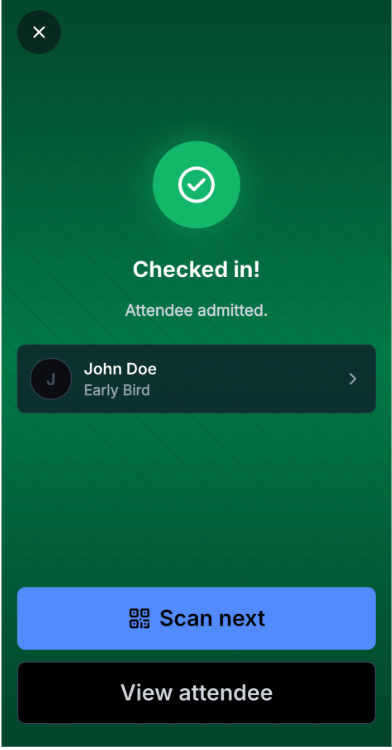
Every attendee who purchases a ticket or registers via RSVP receives a ticket with a QR code. To check them in, open the mobile app and scan the QR code when they arrive.
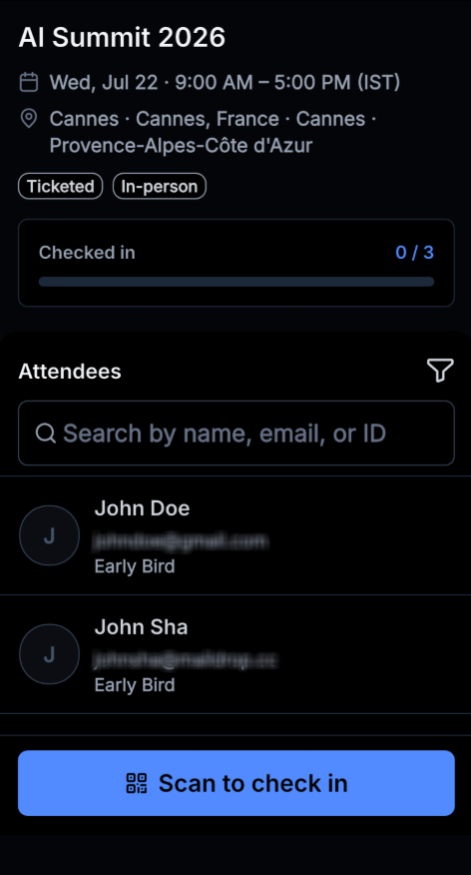
- Go to the Apps Section in Mobile > Select the Events App.
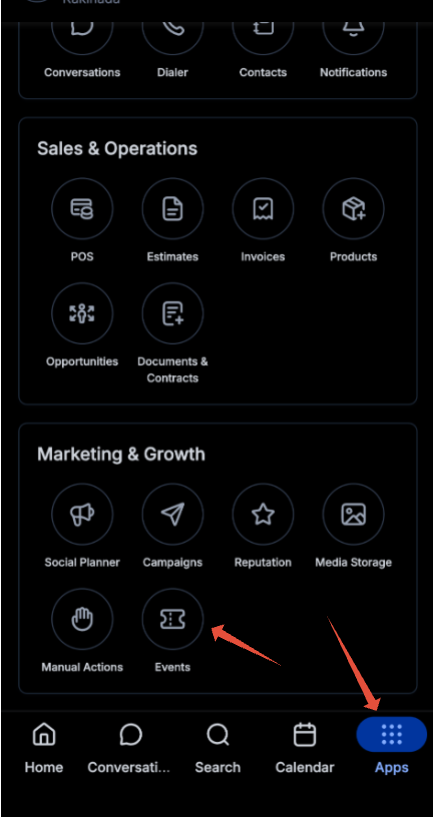
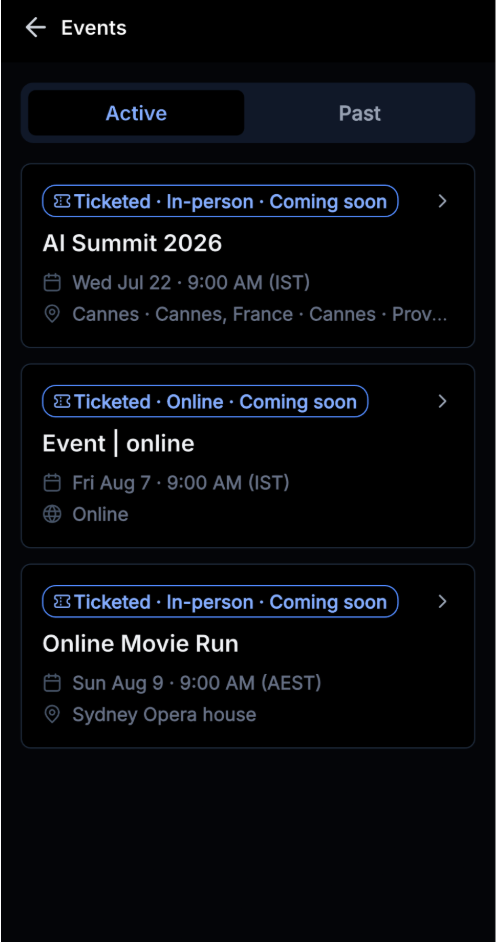
- Select the Event you want to check in the attendees for
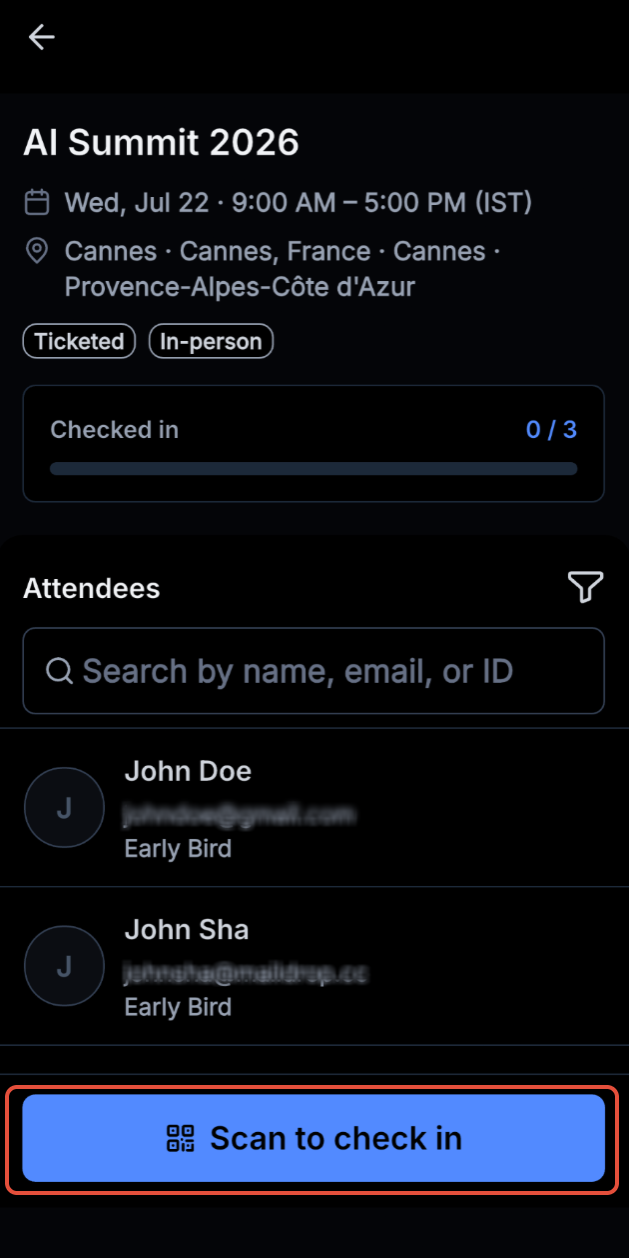
- Click on the "Scan to check in" to check in the attendees.
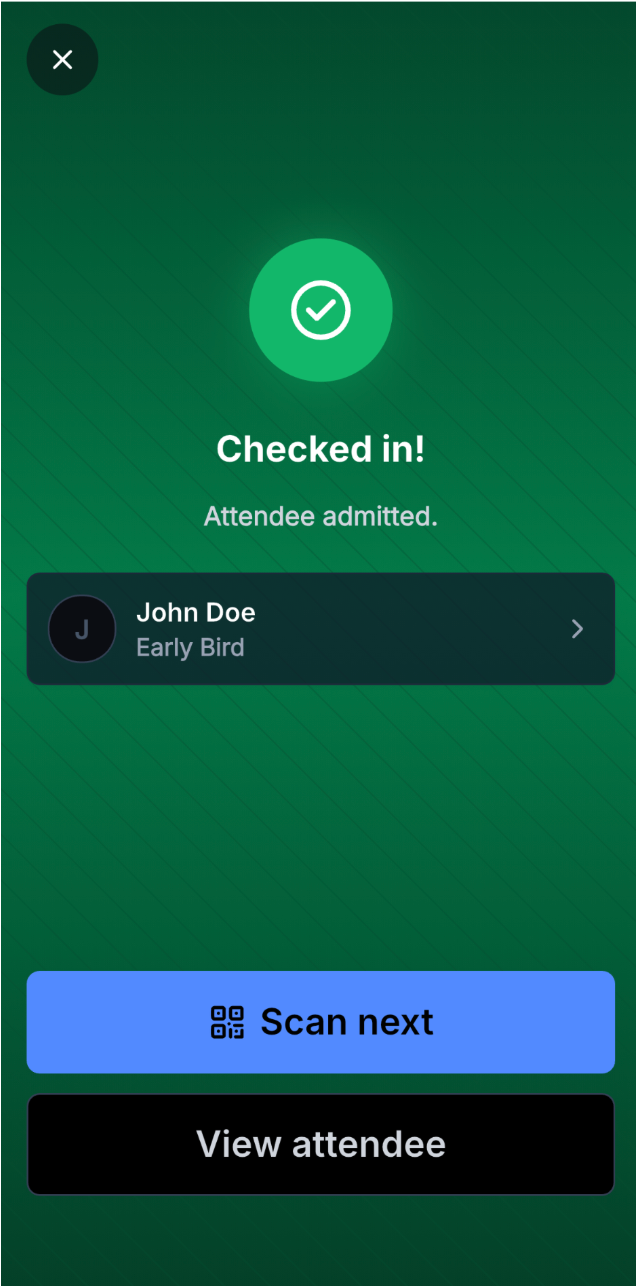
- QR Code is scanned and attendee is checked in.
Manual Check-in
If QR scanning isn't working, or the attendee has lost their ticket, you can check them in manually. Verify their identity, then:
- Go to the Attendees tab and tap on the Attendee.
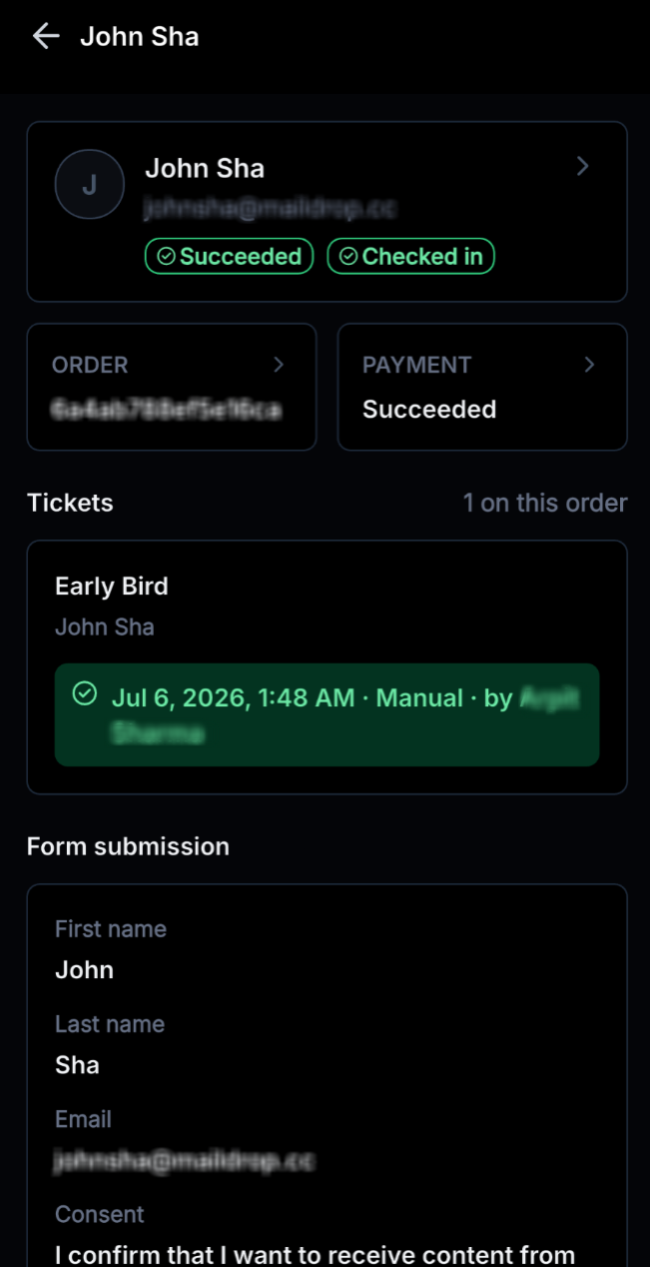
- Check in the attendee by clicking on the "Check in" button.
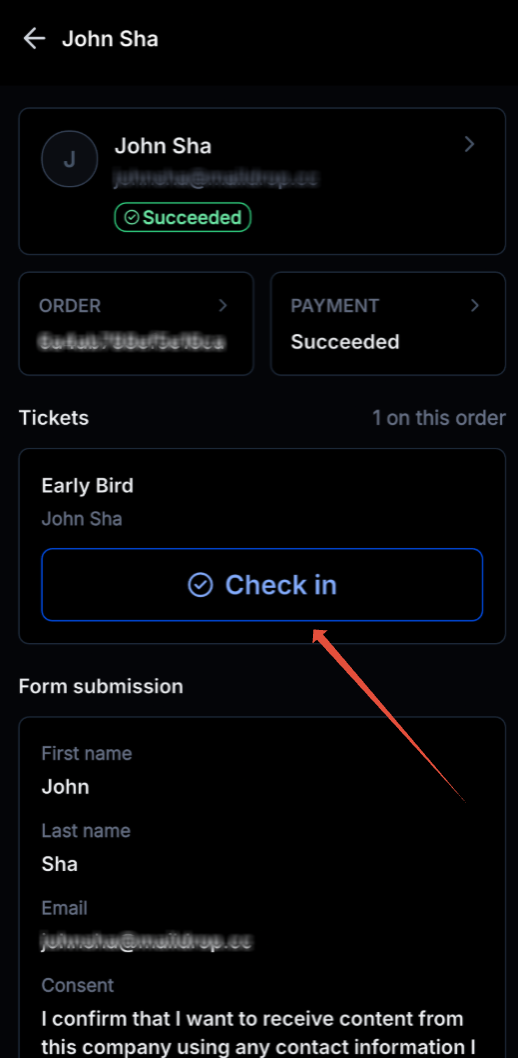
- From the same view, you can also see the attendee's form submission details.
FAQs
What happens if I scan the same ticket twice? The app will show that the attendee has already been checked in
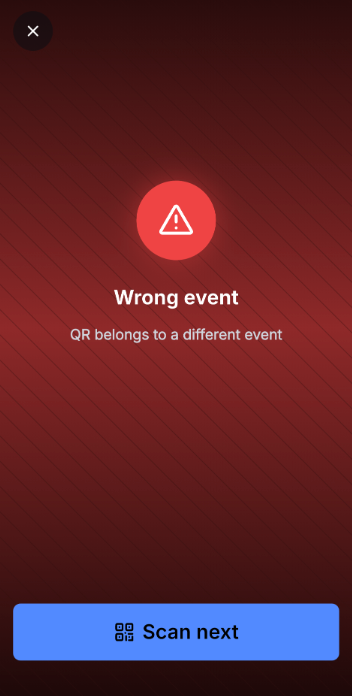
What happens if I scan a ticket meant for a different event? The app will show that the ticket is not valid.
Was this article helpful?
That’s Great!
Thank you for your feedback
Sorry! We couldn't be helpful
Thank you for your feedback
Feedback sent
We appreciate your effort and will try to fix the article