Store owners can now seamlessly import and sync their WooCommerce store data with HighLevel. This feature allows store owners to easily migrate and manage their WooCommerce store by importing contacts, orders, and transactions into HighLevel. This article explains how to connect your WooCommerce store to HighLevel and control which data syncs into your sub-account.
TABLE OF CONTENTS
- What is the WooCommerce Integration?
- Key Benefits of the WooCommerce Integration
- How To Setup the WooCommerce Integration
- How to Setup Triggers & Automations for WooCommerce
- Frequently Asked Questions
- Related Articles
What is the WooCommerce Integration?
The WooCommerce integration connects a WooCommerce store to a HighLevel sub-account so you can import historical records and keep new purchases in sync. Once connected, HighLevel can bring in contacts, orders, and transactions from WooCommerce and let you use order-related events in your automations.
WooCommerce store owners can leverage GHL’s marketing tools, including triggers like Order Submitted Trigger and Payment Received Trigger for better automation.
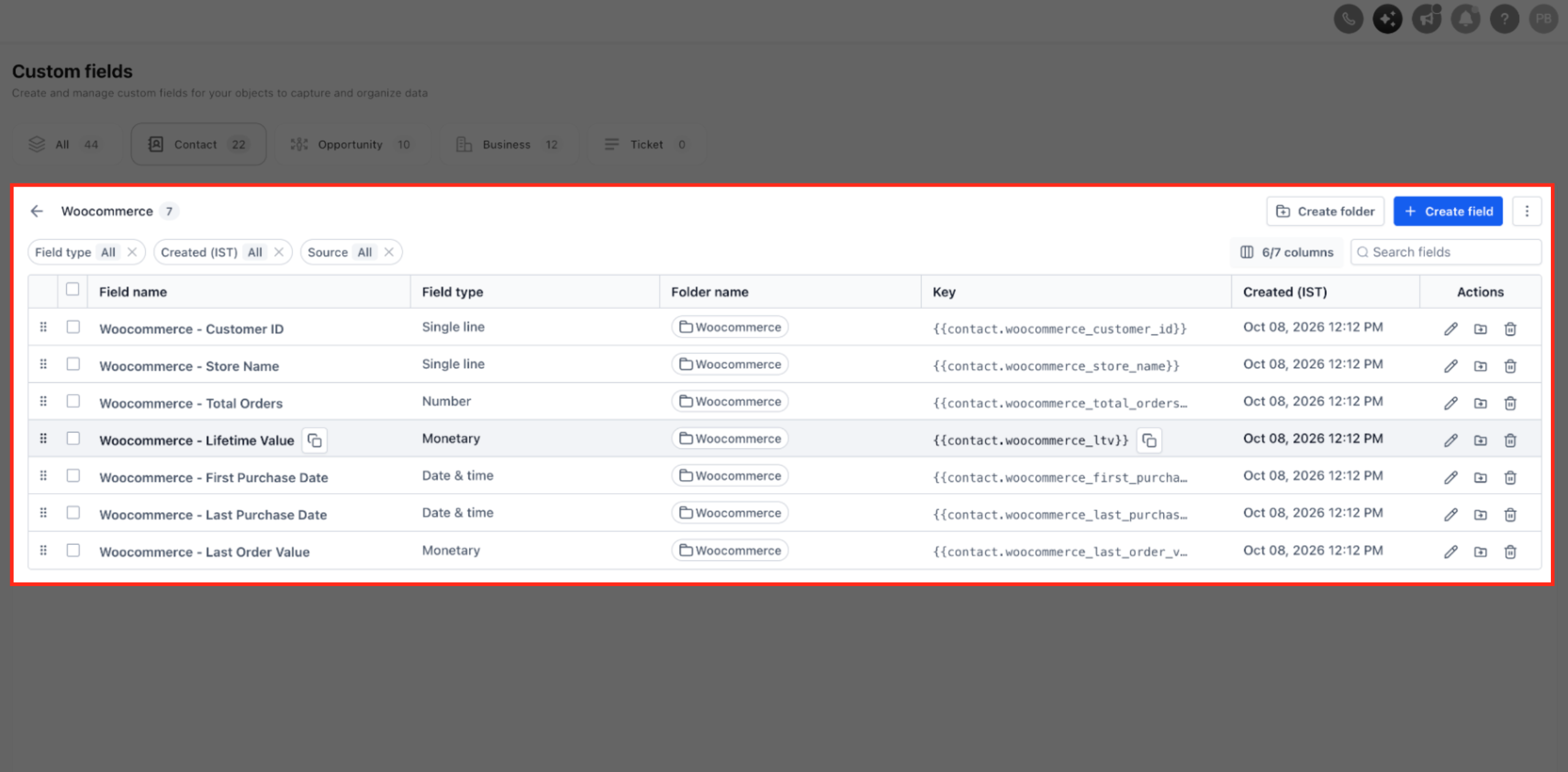
Eligible WooCommerce customers can also be enriched with purchase-history data on their HighLevel Contact record. HighLevel automatically creates WooCommerce contact fields for customer ID, store name, order count, lifetime value, purchase dates, and last order value.
You can use this ecommerce data to segment contacts in Smart Lists and create workflow conditions based on customer value, order history, or purchase recency.
Key Benefits of the WooCommerce Integration
Centralized order visibility: view WooCommerce orders inside HighLevel once syncing is enabled.
Contact enrichment: create or update HighLevel contacts from WooCommerce purchases, including guest checkouts.
Targeted automations: trigger workflows from order-related events such as order submission or payment receipt.
Selective control: choose which data types to import initially and which to keep in ongoing sync (contacts, orders, transactions).
Reimport option: reimport historical data by disconnecting and reconnecting when needed.
- Contact enrichment: Create or update eligible WooCommerce customer contacts and enrich them with purchase-history data such as total orders, lifetime value, purchase dates, and last order value.
- Commerce-based segmentation and automation: Use WooCommerce contact fields in Smart Lists and workflow conditions to identify first-time, returning, high-value, or recently active customers.
How To Setup the WooCommerce Integration
Proper setup ensures historical data imports correctly and new orders continue to sync to your sub-account.
Note: To reimport data later, disconnect and reconnect, then select what to import again.
Login to your sub-account.
Click on Settings.

Go to Integrations > WooCommerce and click on Connect.

Enter your WooCommerce store URL (do not include a trailing slash, (e.g, https://yourstore.com), then approve the connection.

Choose the elements to Import:
Contact Import: Only customer contacts who have placed an order in the past will be imported.
Order Import: Enable order import to allow transaction import and to allow triggers for order received and payment received events
Transaction Import: Import all your Woocommerce order transactions
Product Import: All published products imported from WooCommerce will be automatically included in your online store by default
Click on Next.

Choose the elements to Sync:
Contact Sync: Only customer contacts who place an order in the future will be synced.
Order Sync: Sync all your future Woocommerce orders in one single place.
Enable order sync to allow transaction sync and to allow triggers for order received and payment received events.
Order Received Trigger: This allows setting up automations in HighLevel using the Order Received Trigger when an order is received in WooCommerce.
Transaction Sync: Sync all your Woocommerce order transactions.
Payment Received Trigger: This allows setting up automations in HighLevel using the Payment Received Trigger when a payment is received in WooCommerce.
Product Sync: Sync all published products and categories, including their attributes, directly from WooCommerce. Any updates made in WooCommerce will reflect here, but changes made here will not sync back to WooCommerce.
Click Save.

WooCommerce Contact Enrichment Fields
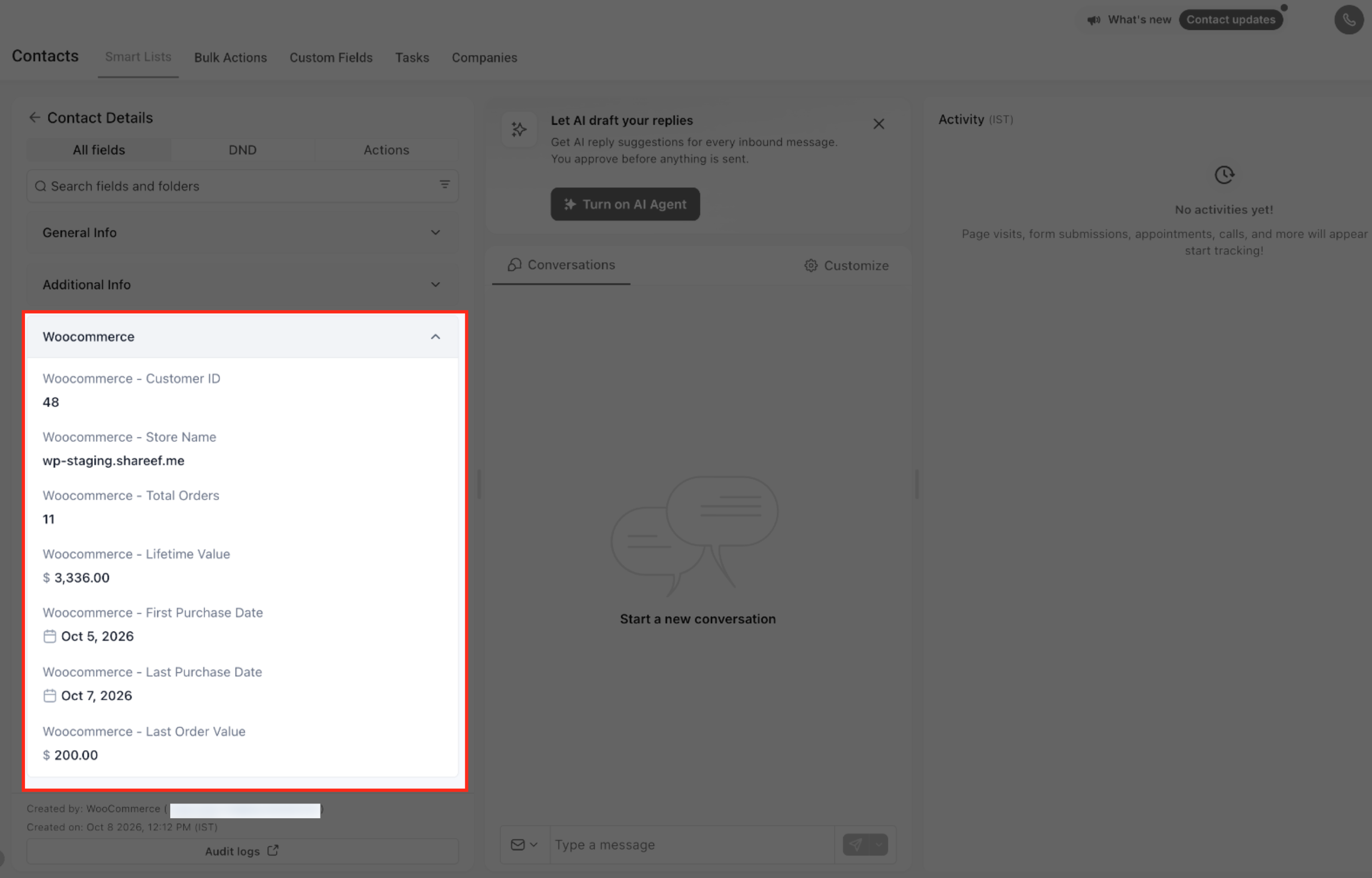
WooCommerce contact enrichment brings e-commerce purchase history into the HighLevel Contact record. This data helps you identify customer value and purchase behavior without leaving HighLevel.
When a WooCommerce store is connected, HighLevel automatically creates a **WooCommerce** folder under Contact Custom Fields with these seven fields:
- WooCommerce - Customer ID: The customer's WooCommerce customer ID.
- WooCommerce - Store Name: The WooCommerce store associated with the customer.
- WooCommerce - Total Orders: The number of qualifying WooCommerce orders associated with the customer.
- WooCommerce - Lifetime Value: The customer's qualifying WooCommerce purchase value after applicable refunds are accounted for.
- WooCommerce - First Purchase Date: The date of the customer's first qualifying purchase.
- WooCommerce - Last Purchase Date: The date of the customer's most recent qualifying purchase.
- WooCommerce - Last Order Value: The value of the customer's most recent qualifying order after applicable refunds are accounted for.
The populated values are also available on the customer's **Contact Details** record inside the WooCommerce field group.
How WooCommerce Orders Update Contact Fields
Only qualifying WooCommerce orders contribute to the enrichment fields. This ensures the contact data reflects supported order activity when WooCommerce sends an order create or update event.
The following WooCommerce order statuses are included:
- Processing
- On hold
- Completed
- Refunded
Orders with other statuses are excluded from the WooCommerce enrichment calculations.
How to Setup Triggers & Automations for WooCommerce
1. Order Received Trigger
- Login to your sub-account.
- Go to Automations > Workflows.
- Create a new Workflow or edit an existing one.
- Click on + Add New Trigger.
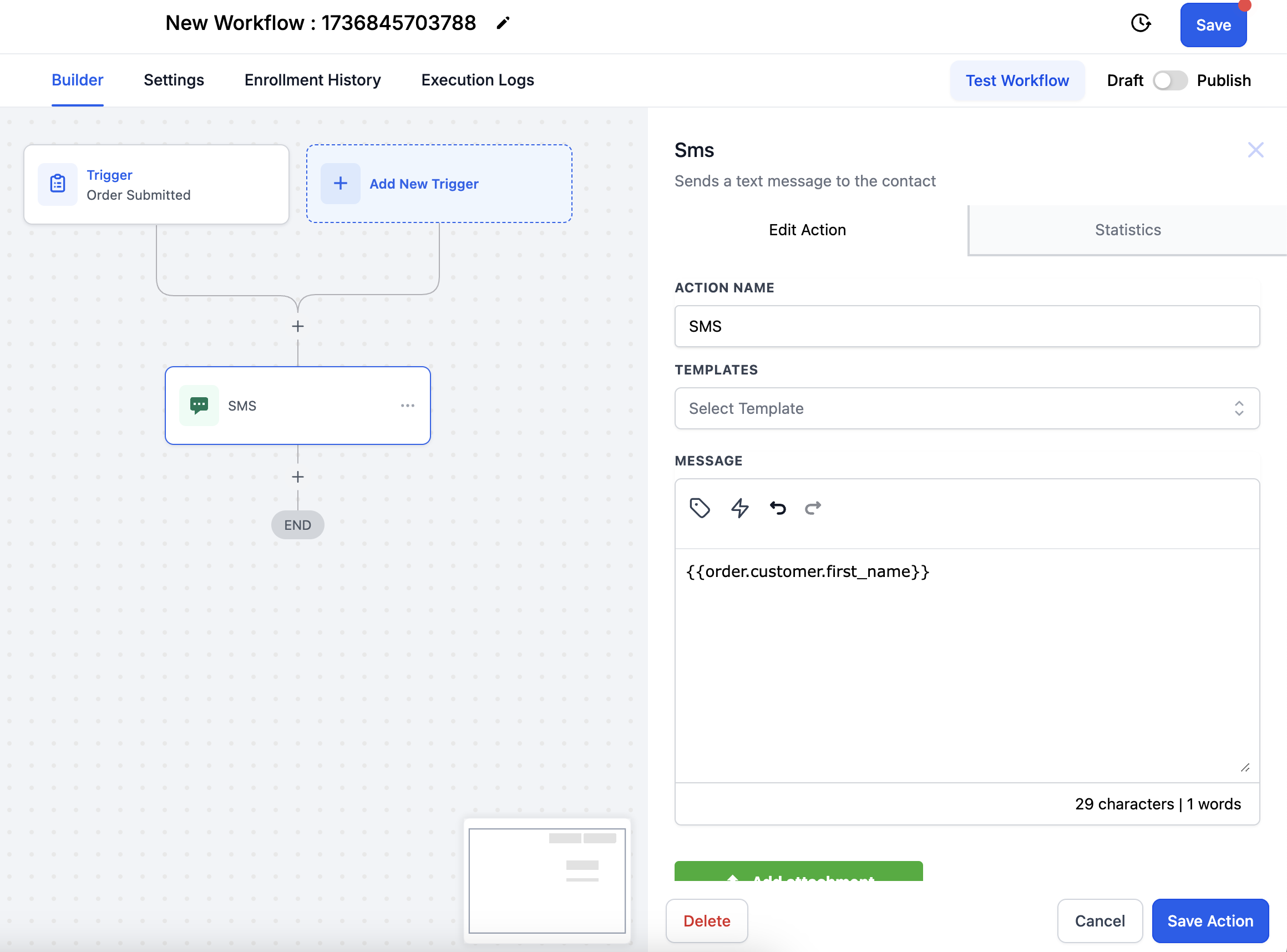
- Search and select the Order Submitted trigger.
- Click on + Add Filter and then select Order Source > is > External.
- Add second filter: Sub-Source > is > WooCommerce.
- Click Save.

- Add any Action like send SMS/Email/Invoice, etc after the trigger as per your workflow.
2. Payment Received Trigger
- Login to your sub-account.
- Go to Automations > Workflows.
- Create a new Workflow or edit an existing one.
- Click on + Add New Trigger.
- Search and select the Payment Received trigger.
- Click on + Add Filter and then select Source > is > External.
- Add second filter: Sub-Source > is > WooCommerce.
- Click Save.
- Add any Action like send SMS/Email/Invoice, etc after the trigger as per your workflow.

Frequently Asked Questions
Q: Can sub-accounts or agencies share the same WooCommerce connection?
Sub-accounts within the same agency can connect to the same domain. An agency can link to only one WooCommerce account. If that WooCommerce account is already connected to another agency, the current agency cannot connect.
Q: Which WooCommerce customer types are imported as contacts?
Customers with roles Customers and Subscribers are imported.
Q: Will contacts be created if Contact Sync is disabled?
Yes. If Order Sync is enabled, contacts are created from orders even when Contact Sync is off.
Q: How are guest checkout orders handled?
Guest checkout buyers are created as contacts, but no updates or future syncs occur for these guest accounts.
Q: How do WooCommerce order statuses map to HighLevel?
Completed or Refunded in WooCommerce → Completed in HighLevel. Cancelled or Failed in WooCommerce → Cancelled in HighLevel. All other statuses in WooCommerce → Pending in HighLevel.
Q: How can I reimport data if something was missed?
Disconnect and reconnect the integration, then select the elements you want to reimport.
Q: Do I need to include a trailing slash in my store URL?
No. Enter the store URL without a trailing slash.
Related Articles
Was this article helpful?
That’s Great!
Thank you for your feedback
Sorry! We couldn't be helpful
Thank you for your feedback
Feedback sent
We appreciate your effort and will try to fix the article