Connect your Shopify store to HighLevel to bring ecommerce data into your sub-account and support follow-up, automation, and customer management. The Shopify integration helps sync supported Shopify data such as products, collections, contacts, orders, and transactions, making it easier to manage ecommerce activity from HighLevel. Use this guide to connect Shopify, choose what data to import, configure ongoing sync settings, and understand important limitations before setup.
TABLE OF CONTENTS
What is the Shopify Integration?
The Shopify integration connects your Shopify store to a HighLevel sub-account so supported ecommerce data and events can be used inside HighLevel. Once connected, Shopify data can support ecommerce workflows, customer follow-up, product visibility, and order-related automation.
The current Shopify connection experience uses an OAuth App method, which allows users to authorize the connection through Shopify without manually creating a Shopify custom app and copying an Admin API access token. Existing stores connected through the older Custom App method may continue syncing unless the connection is disconnected.
Key Benefits of the Shopify Integration
The Shopify integration helps ecommerce teams centralize Shopify activity inside HighLevel and use that data for better customer engagement, automation, and sales follow-up.
- Simplified setup: Connect Shopify using an app-based OAuth flow instead of manually creating a custom app and API token.
- Historical data import: Bring supported Shopify data into HighLevel during setup, including available products, collections, contacts, orders, and transactions.
- Ongoing data sync: Keep selected Shopify data syncing into HighLevel after the initial connection.
- Ecommerce automation support: Use synced Shopify activity with supported ecommerce workflow triggers, such as abandoned checkout and order-related automation.
- Better customer follow-up: Use Shopify customer and order activity to create more relevant email, SMS, and workflow experiences.
- Centralized ecommerce visibility: View and use supported Shopify information from inside the connected HighLevel sub-account.
- Automatic contact enrichment: Every contact synced from a connected Shopify store is enriched with purchase history data- lifetime spend, order count, first and last order date, and tax-exempt status. These fields are visible directly on the contact record, with no extra setup.
Shopify Connection Methods
Shopify can be connected using the newer OAuth App method or the older Custom App method. Understanding the difference helps users choose the right path and avoid creating unnecessary duplicate connections.
| Connection Method | Best For | Setup Experience | Notes |
|---|---|---|---|
| OAuth App Method | New Shopify connections | Authorize Shopify through the app connection flow | Recommended for new connections because it reduces manual setup steps. |
| Custom App Method | Existing legacy Shopify connections | Create a Shopify custom app and use an Admin API access token | Older setup method documented in existing Shopify integration guidance. |
Important: Existing Shopify stores connected through the legacy Custom App method may continue working. However, Shopify Basic stores using this connection method must reconnect through OAuth to access supported protected customer data and the newly available Customer and Order sync capabilities.
Stores already connected through OAuth do not need to reconnect.
Import Elements
Import Elements control which supported Shopify records are brought into HighLevel during the initial connection process. This is typically used for historical Shopify data that already exists before the integration is connected.
Available import options may include:
- Products
- Collections
- Contacts
- Orders
- Transactions
Choose the data types that are useful for your HighLevel workflows and customer management needs. For example, importing products and collections can help make Shopify catalog information available, while importing contacts and orders can support customer follow-up and ecommerce reporting workflows. HighLevel’s Shopify migration guidance confirms support for importing and syncing products, collections, contacts, orders, and transactions.
Sync Settings
Sync Settings control which Shopify data continues syncing into HighLevel after the connection is active. These settings are different from the initial import because they apply to ongoing activity after setup.
Use Sync Settings to keep selected Shopify data updated in HighLevel. For example, enabling order sync can help new Shopify order activity become available for supported ecommerce workflows and follow-up actions.
Before selecting sync options, confirm which Shopify data your team needs in HighLevel. Turning off a sync option later may stop future syncing, but it may not remove records that were already imported or synced.
Customer and Order Sync for Shopify Basic Plans
Shopify stores on the Basic plan can now access supported protected customer data and synchronize customer and order information through the HighLevel Shopify integration.
A Shopify plan upgrade is not required for these supported capabilities.
For existing OAuth connections:
If your Shopify store is already connected through OAuth, you do not need to reconnect.
Enable the following options in the Shopify integration's Sync Settings:
- Contact Sync
- Order Sync
Shopify Basic stores can also use supported Customer and Order webhooks to keep data synchronized with HighLevel.
For legacy Custom App connections:
If you connected your Shopify store using the legacy Custom App method, you must reconnect through OAuth to access supported protected customer data.
After reconnecting, you can enable the supported Contact and Order sync options.
For Shopify OAuth connection instructions, see the "How To Setup the Shopify Integration" section above.
Contact Fields Added from Shopify
When a contact is imported or synced from a connected Shopify store, the integration automatically creates and keeps a set of fields updated on that contact's record. These fields update on their own after the initial sync- there's no per-field setup required.
Standard contact fields
These map to fields that already exist on every HighLevel contact. Shopify only fills them in if they're currently empty — it never overwrites a value you or another source already set.
New Shopify custom fields
Shopify customer tags are synced to the existing tag field for a contact record. Use these fields as filters in Smart Lists (for example, "orders more than 90 days ago") or as conditions in Workflows to branch messaging by purchase behavior.
Important Notes and Limitations
Shopify sync behavior may vary depending on Shopify plan access, selected settings, and the type of data being synced. Reviewing these notes before setup helps prevent confusion after the connection is active.
- Shopify data that has already been imported or synced into HighLevel may remain in HighLevel even if the related sync setting is turned off later.
- Shopify Basic plan stores can access supported protected customer data and synchronize customer and order information through the OAuth-based Shopify integration. Legacy Custom App connections require OAuth reconnection to access these capabilities.
- Use the exact Shopify store name or store URL when prompted during setup.
- Existing Custom App method connections should not be disconnected unless the user is ready to reconnect using the current supported connection flow.
- Shopify workflow triggers may change over time. HighLevel’s workflow trigger list currently identifies some older Shopify-specific triggers as deprecating soon, including Shopify Abandoned Cart and Shopify Order Fulfilled, while newer ecommerce store triggers are available for current store connections.
- All Shopify contact fields sync automatically once a store is connected- there's currently no option to turn off or opt out of individual fields. For existing customers integrated with Shopify, updating the integration settings will sync these fields.
- A refund or cancelled order does not reduce Shopify Order Count, since the order was still placed; Shopify Lifetime Value updates automatically to reflect the refund.
- Draft orders in Shopify (for example, a manual quote) don't affect any contact field - only a completed, paid order does.
- Shopify Lifetime Value reflects Shopify purchases only.
How To Setup the Shopify Integration
A proper Shopify setup ensures HighLevel receives the correct ecommerce data and keeps the right records syncing after connection. Review your import and sync choices before completing setup so your store data supports the workflows, reporting, and follow-up processes your team needs.
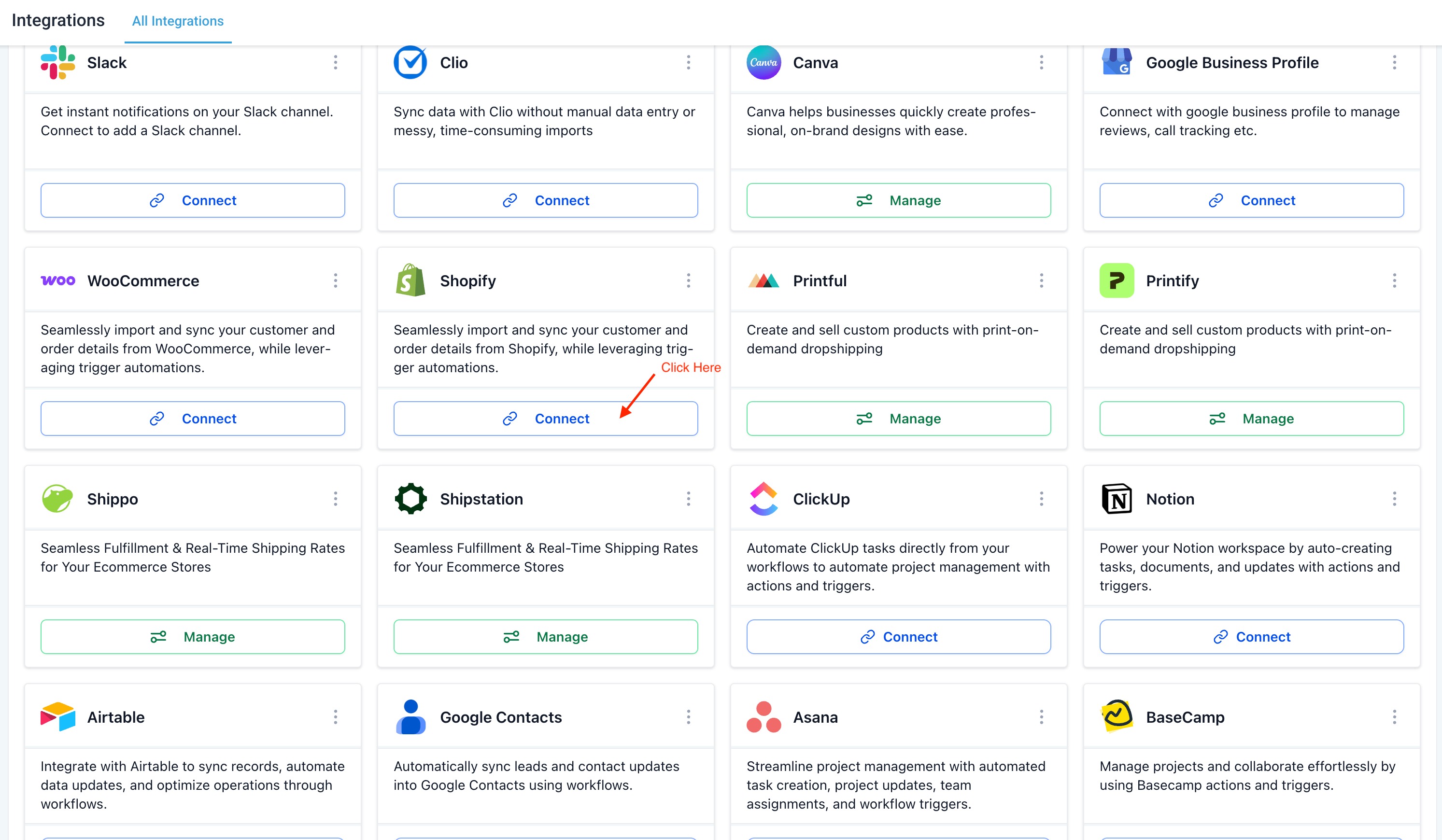
- Open the sub-account and go to Settings > Integrations > Shopify.
- Click Connect.
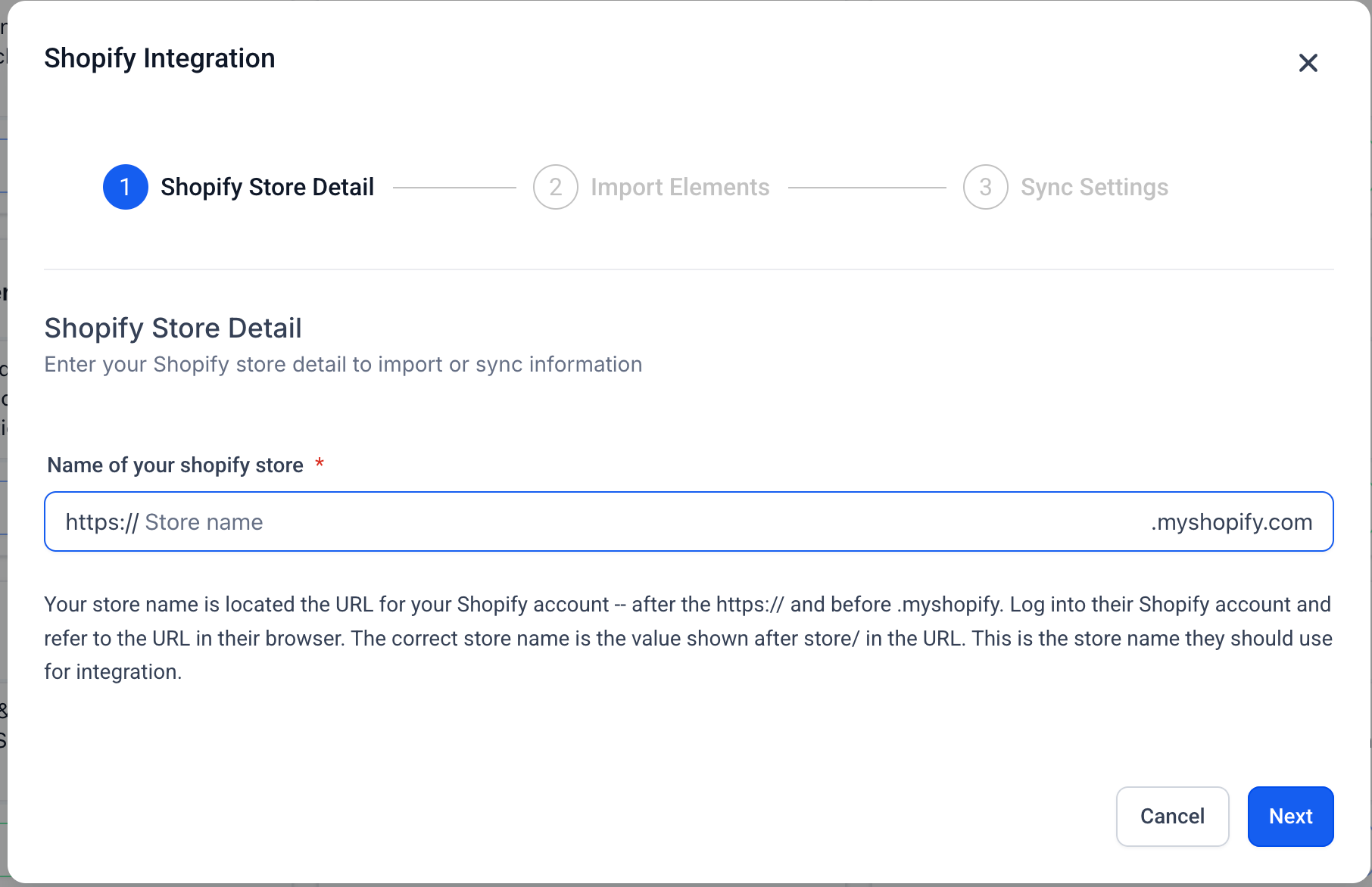
- Enter your Shopify store URL or store name and click Next.
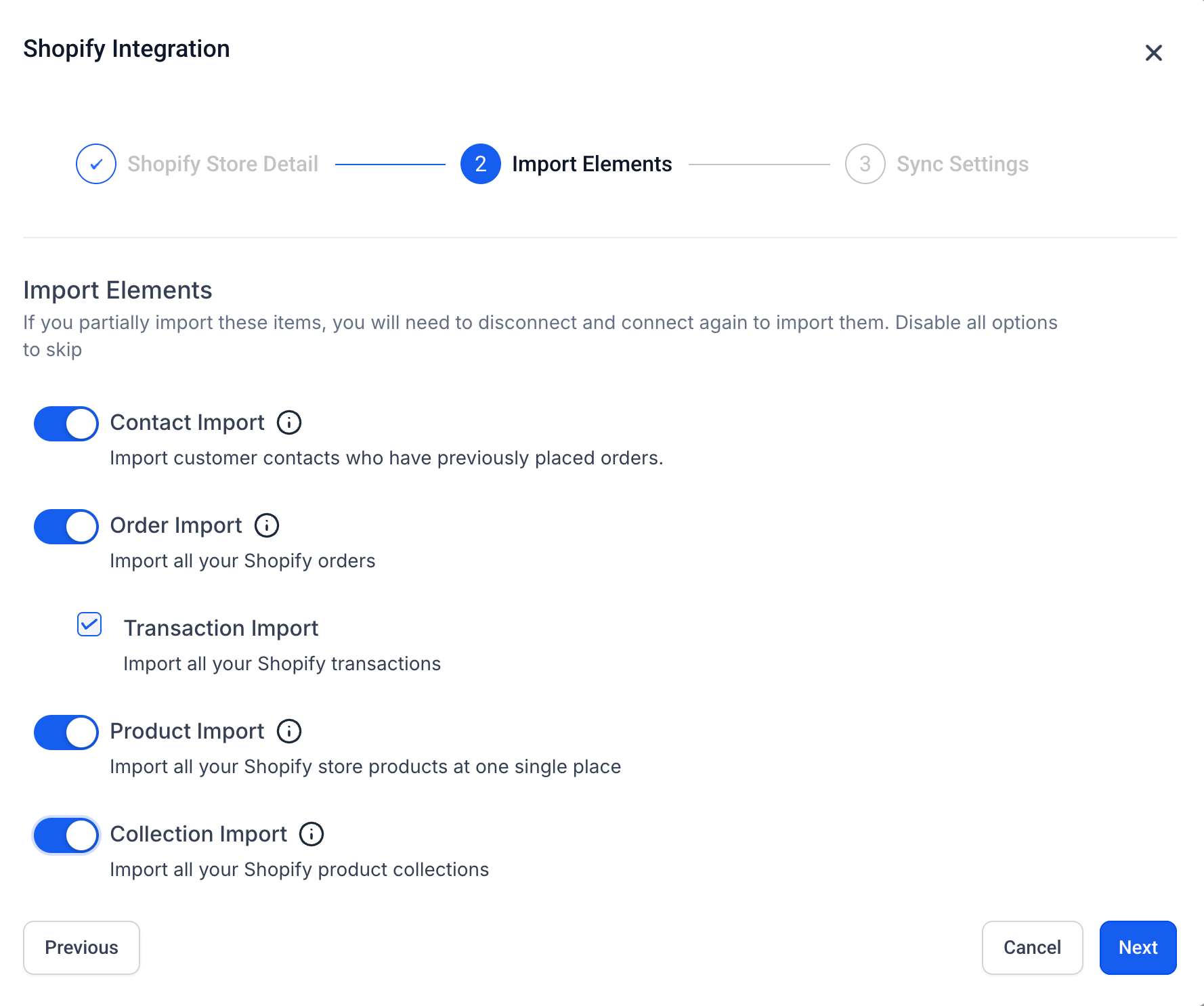
- On the Import Elements screen, select the Shopify data you want to import as a one-time historical import:
- Contact Import
- Order Import
- Transaction Import
- Product Import
- Collection Import
- Contact Import
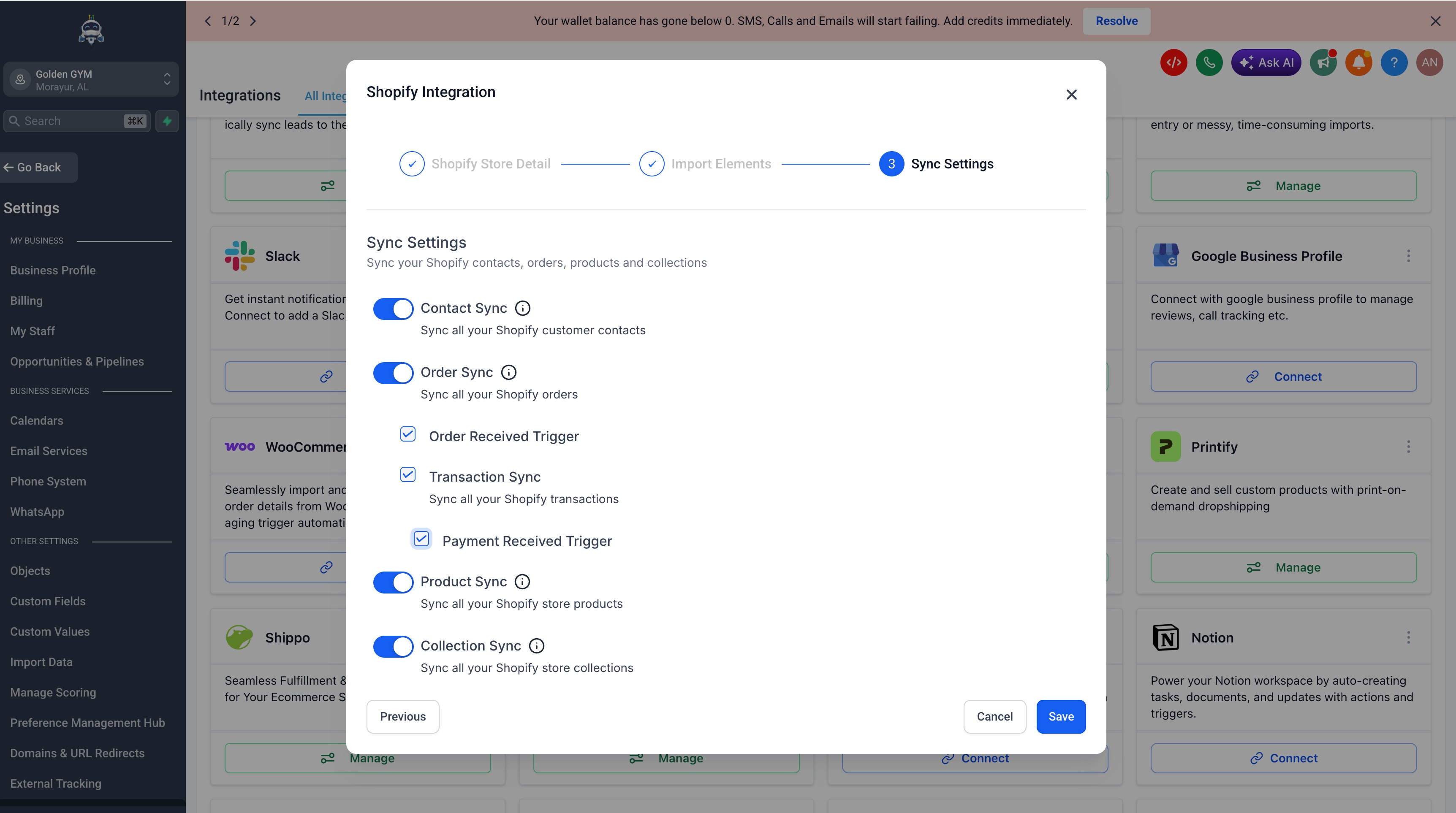
- Click Next to proceed to the Sync Settings screen. Select the data and triggers you want to keep syncing going forward:
- Contact Sync
- Order Sync
- Order Received Trigger
- Transaction Sync
- Payment Received Trigger
- Product Sync
- Collection Sync
- Contact Sync
- Click Save. This will initiate the OAuth authorization flow and redirect you to Shopify.
On the Shopify Install app screen, review the permissions requested and click Install.
Once approved, you will be redirected back and your Shopify store will be connected.
Tip: For a full Shopify store migration, select all available import and sync options unless your migration plan requires only specific data types. This helps ensure supported historical data is imported and future Shopify activity continues syncing.
Notes:

Taxes are not mapped in Products while importing or syncing the Products.

For each order, only one transaction is created in your sub-account.

Order statuses are marked as "Completed" or "Cancelled" when synced with Shopify.

Merged contacts in Shopify will have the primary contact updated in Sub-account.

If there are no changes to the SEO details in Shopify (default SEO settings), the data will be received as null in Sub-account.
Frequently Asked Questions
Q: Do I need to create a Shopify custom app to connect Shopify?
A: New Shopify connections should use the OAuth App method when available. The older Custom App method requires creating a Shopify custom app and using an Admin API access token, but this should be treated as a legacy setup path unless specifically required.
Q: What is the difference between Import Elements and Sync Settings?
A: Import Elements bring selected historical Shopify records into HighLevel during setup. Sync Settings control which selected Shopify data continues syncing into HighLevel after the connection is active.
Q: Can I change my Shopify sync settings later?
A: Sync settings may be adjustable after setup, but changing them generally affects future syncing. Data that was already imported or synced may remain in HighLevel.
Q: What Shopify data can be imported or synced?
A: HighLevel’s Shopify migration guidance lists supported Shopify data such as products, collections, contacts, orders, and transactions. Availability may depend on the connection flow, Shopify access, and selected settings.
Q: Can Shopify data be used in workflows?
A: Yes. Synced Shopify activity can support ecommerce-related automation in HighLevel. For example, HighLevel supports an Abandoned Checkout trigger for native HighLevel ecommerce stores and connected external stores such as Shopify.
Q: Should I use the Shopify Abandoned Cart trigger?
A: Use the newer ecommerce abandoned checkout trigger when building new abandoned checkout automations. HighLevel’s workflow trigger guidance identifies the Shopify Abandoned Cart trigger as deprecating soon.
Q: What happens if I disconnect my existing Custom App Shopify connection?
A: Existing legacy Custom App connections may continue working while connected. If disconnected, users may need to reconnect using the current OAuth App flow.
Q: Where do I find my Shopify store name?
A: Use the store name or Shopify store URL associated with the Shopify admin account you want to connect. Confirm the store details in Shopify before authorizing the connection.
Q: What contact fields get added when I connect Shopify?
A: The integration automatically creates fields for lifetime spend, order count, last/first order date and value, customer tags, tax-exempt status, and email/SMS marketing consent (coming soon)- see "Contact Fields Added from Shopify" above for the full list.
Q: Can I choose which Shopify fields sync to the contact record?
A: No. All fields sync automatically for a connected store, and there isn't a field-by-field opt-in or opt-out in the current version.
Q: Does the Shopify lifetime value field include revenue from other sources?
A: No. Shopify Lifetime Value reflects only purchases made through the connected Shopify store and is kept separate from other revenue figures on the contact.
Related Articles
Was this article helpful?
That’s Great!
Thank you for your feedback
Sorry! We couldn't be helpful
Thank you for your feedback
Feedback sent
We appreciate your effort and will try to fix the article
