A missed call can be a missed opportunity. HighLevel’s Missed Call Text Back feature automatically sends a text message to callers you weren’t able to reach, so every inbound call gets acknowledged right away — even after hours.
In this article, we’ll walk through what the feature does, how to set it up, how voicemail settings work alongside it, and how HighLevel now picks the best eligible number to send your follow-up from.
Your missed call text back now has a better chance of reaching the customer. If the number they called can’t send SMS, HighLevel automatically selects an eligible sending number instead of letting the follow-up fail. See Smarter Sending Number Selection.
Missed Call Text Back triggers an SMS notification for every missed call — even if the same caller tries multiple times within a brief timeframe.
To avoid sending multiple messages for repeated missed calls, we recommend you create and customize the existing recipe in Workflows and personalize it to your preference (for example, add a 20 +/− minute Wait step, or filter using tags such as 1st call, 2nd call, and so on).
What is Missed Call Text Back?
Missed Call Text Back is a feature that automatically sends a text message to a caller when their inbound call is missed. It helps your business acknowledge the missed call right away, set expectations, and encourage the caller to continue the conversation by text while your team is unavailable.
This feature is especially helpful for businesses that receive after-hours calls, handle a high volume of inbound calls, or want a faster first response without relying on a manual callback process.
When someone calls your business and you can’t answer, that first follow-up can be the difference between a booked appointment and a lost lead. An automatic text keeps the conversation alive without anyone lifting a finger.
Key Benefits of Missed Call Text Back
How to Configure the Missed Call Text Back Feature
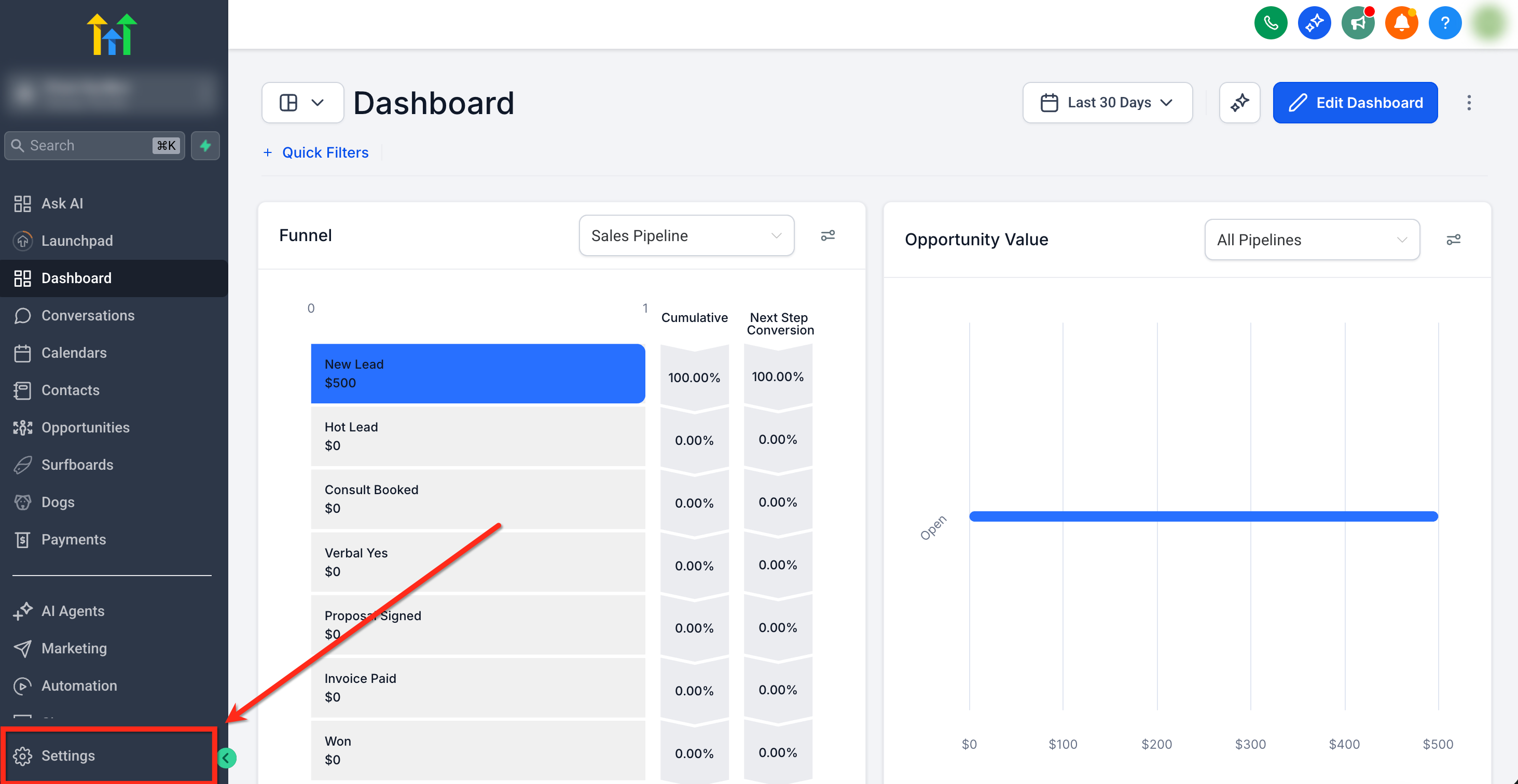
In your sub-account, click Settings in the bottom-left corner.
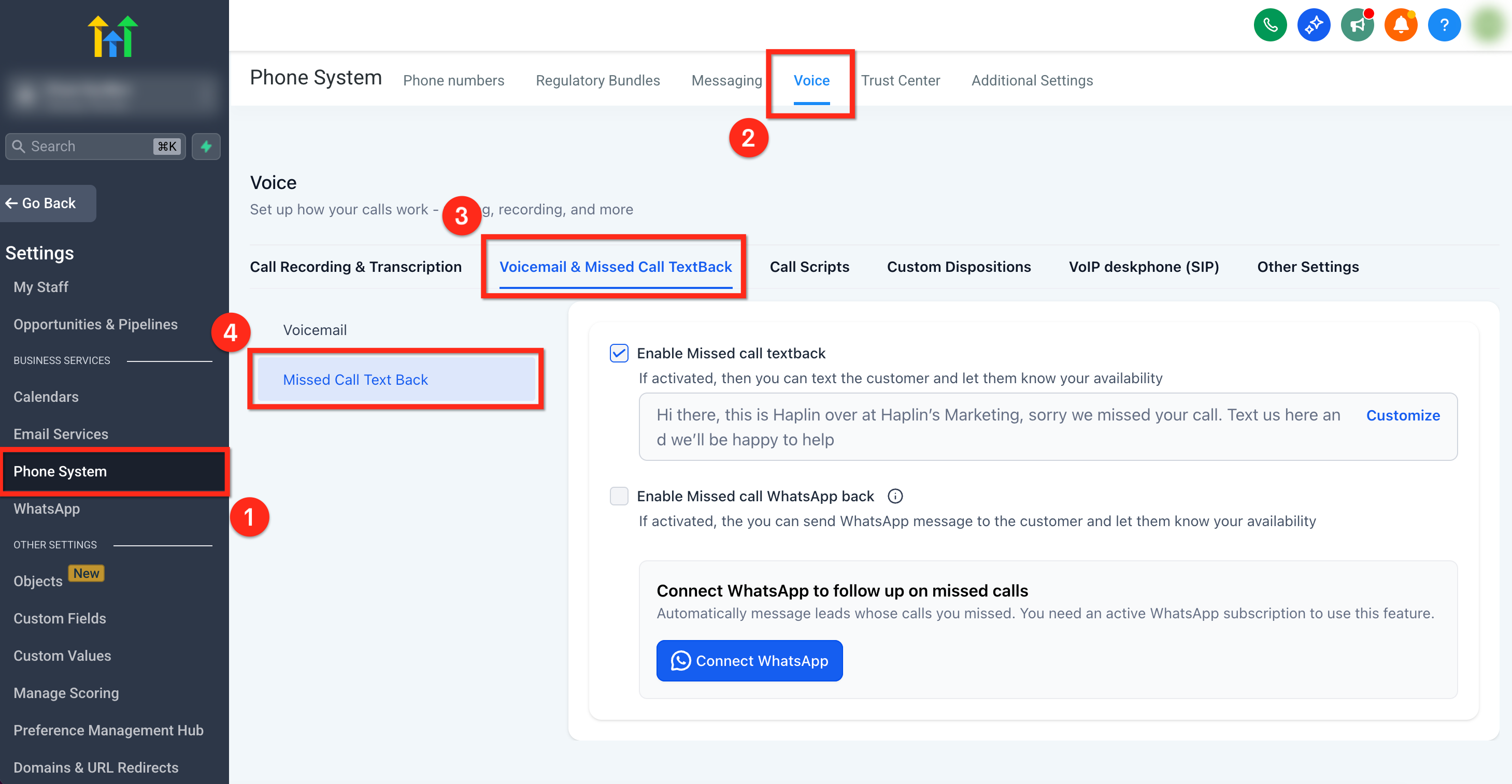
Follow this path inside Settings:
- In the left-side menu, click Phone System.
- In the top navigation, click Voice.
- Under Voice, open Voicemail & Missed Call Text Back.
- In the side panel, click Missed Call Text Back.
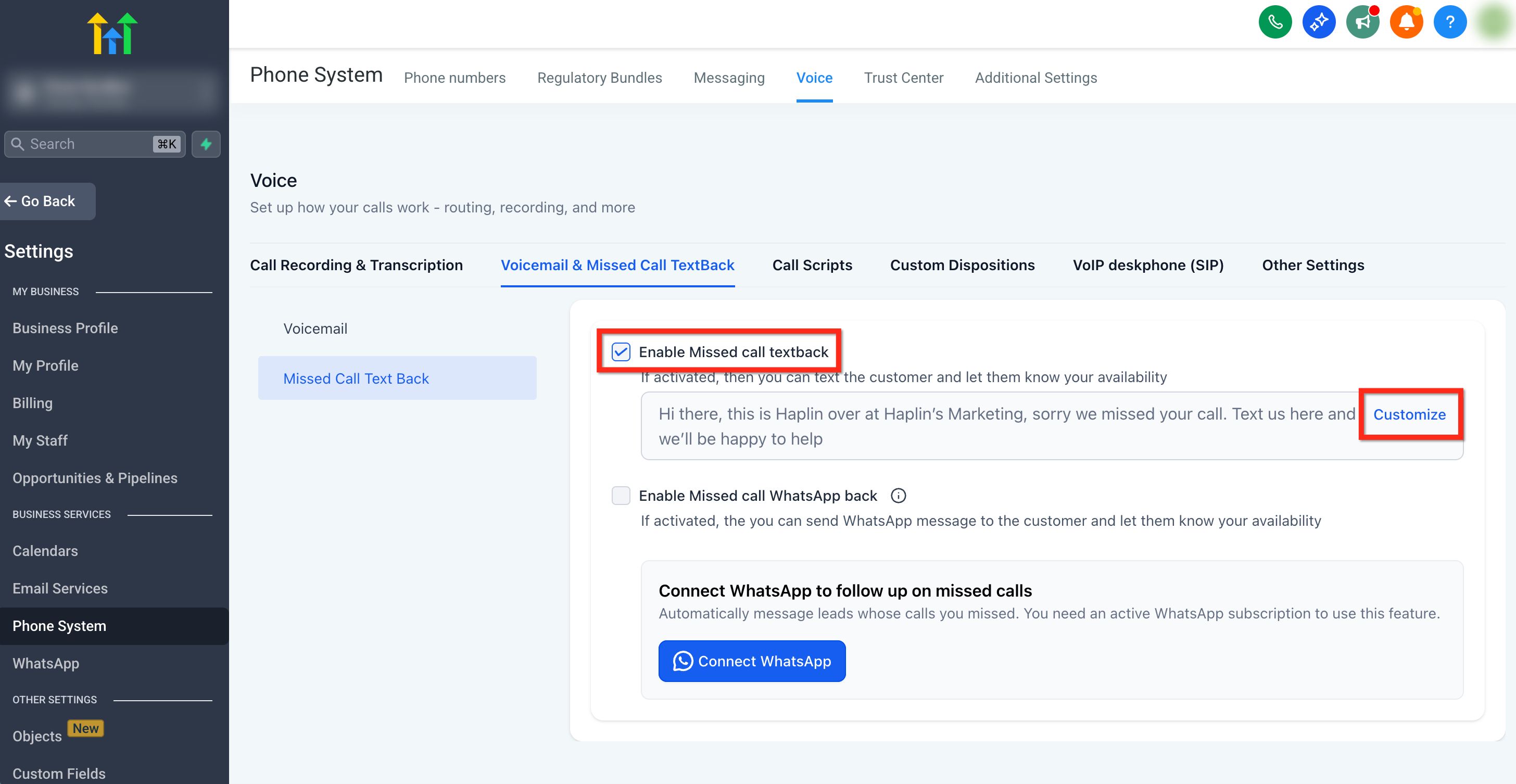
Select the checkbox to Enable Missed Call Text Back to turn the feature on. Then click Customize to tailor the message that goes out when someone misses you.
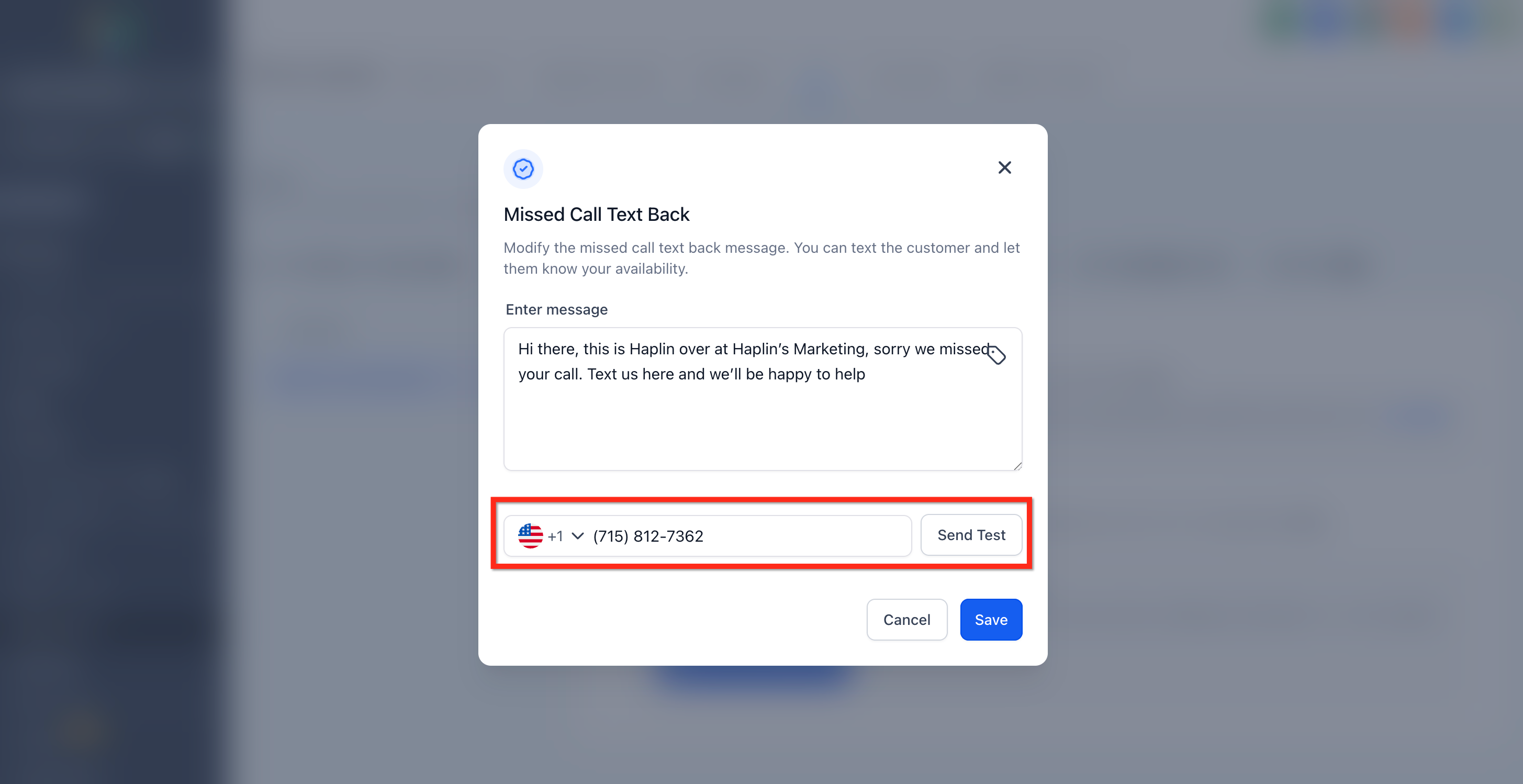
Clicking Customize opens a pop-up where you can craft your automated response. In the Enter message field, type the content you want sent when a call is missed.
You can also use the custom value tag icon to insert dynamic placeholders such as the contact’s name. Keep in mind that these only work if the system already recognizes the contact from a prior interaction.
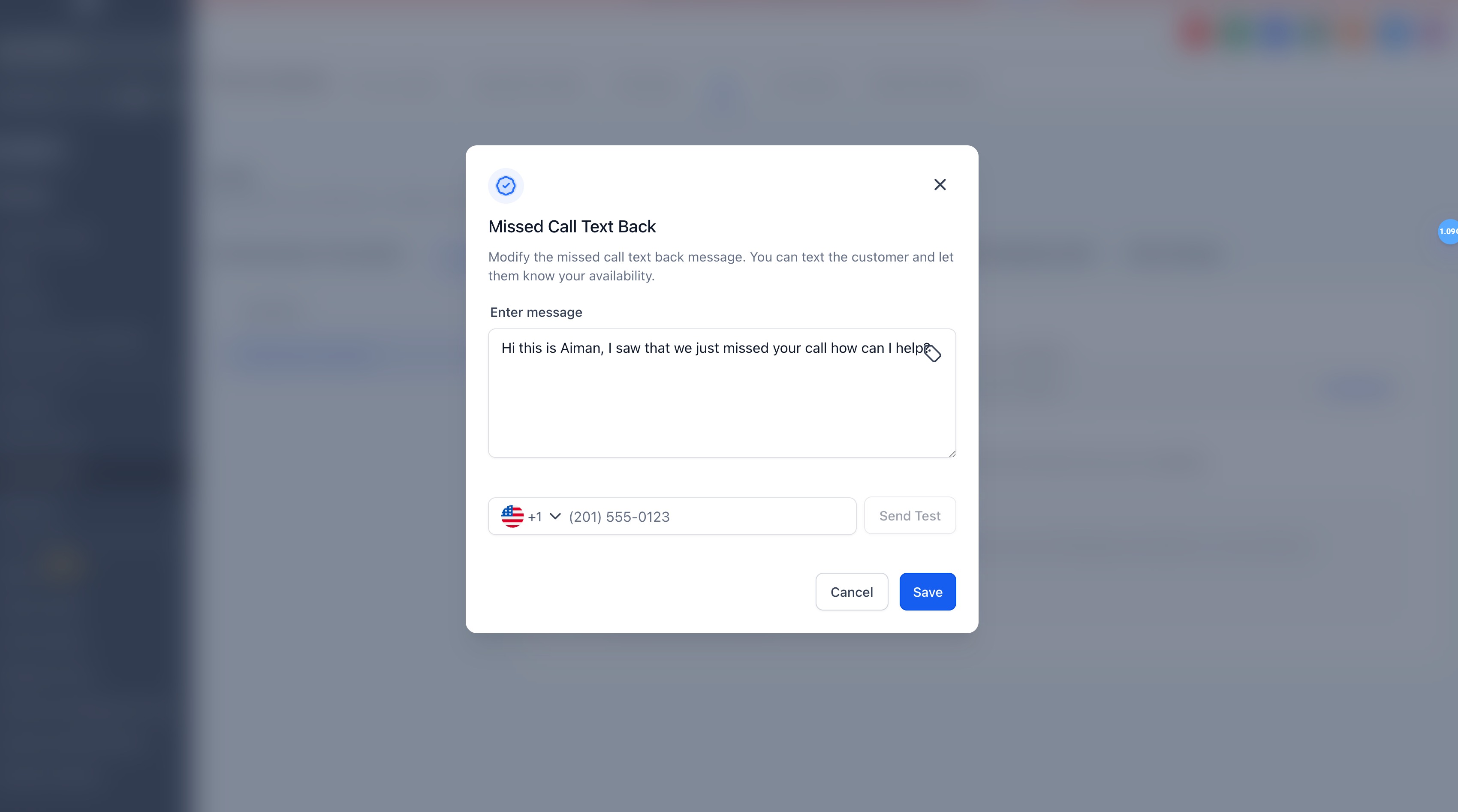
Below the message editor you’ll find a field where you can send a test message. Select the number you’d like to use to preview how the message will appear to customers.
After reviewing, click Save to finalize your settings and activate the updated Missed Call Text Back configuration.
Missed Call Text Back is now live. The next time an inbound call goes unanswered past your ring timeout, the caller receives your message automatically.
Voicemail Settings
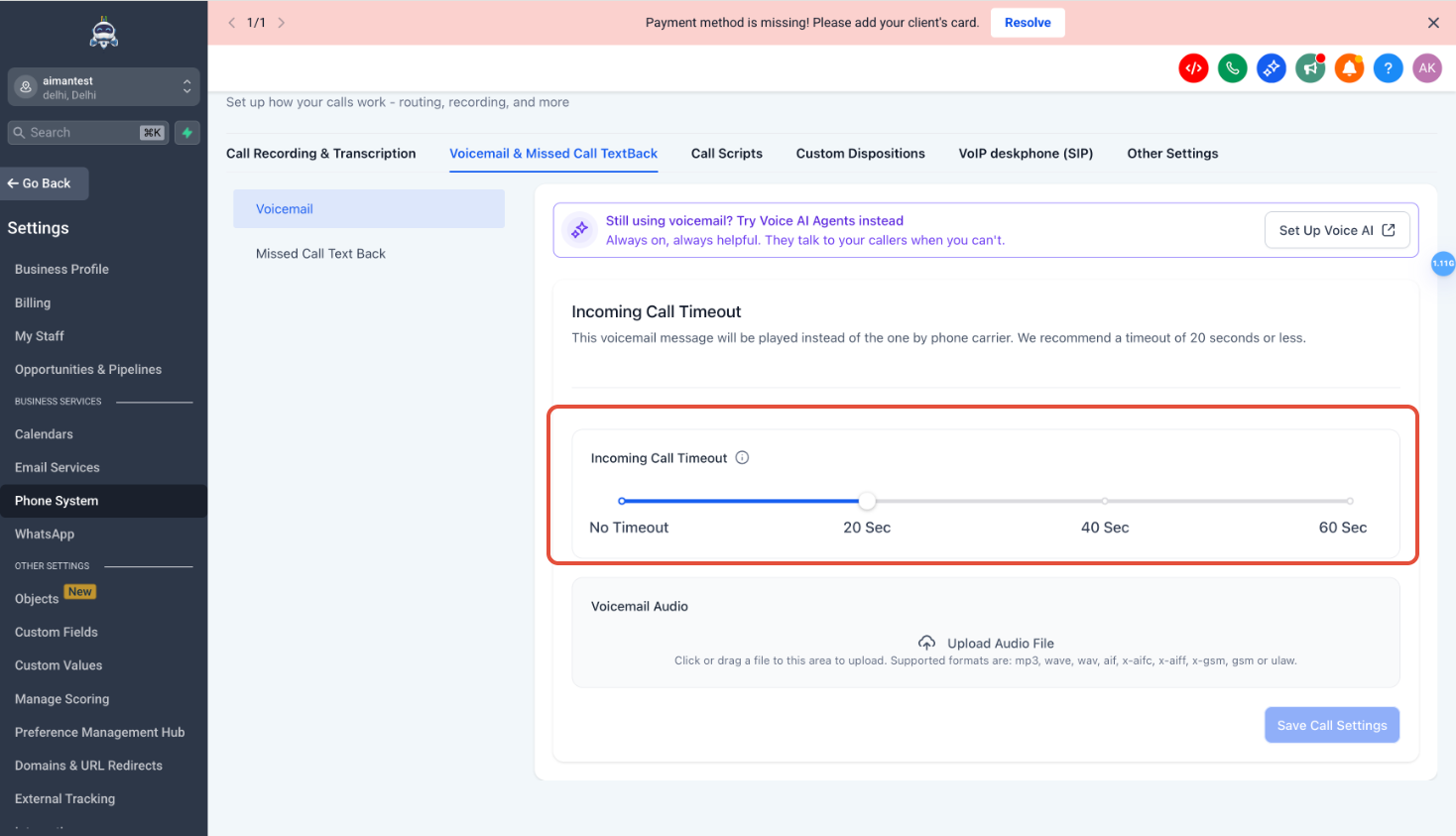
Voicemail settings shape what happens when an inbound call is not answered. These options let you control how long the phone rings before voicemail triggers, and optionally replace the default voicemail greeting with a custom recording.
This option sets how long the phone should ring before the missed call text back triggers. Use the slider to choose a timeout duration — 10 to 20 seconds is typically recommended.
You can add a custom voicemail message here if you’d like. Upload a pre-recorded file in mp3, wav, or a similar format. This plays instead of the carrier’s generic voicemail greeting.
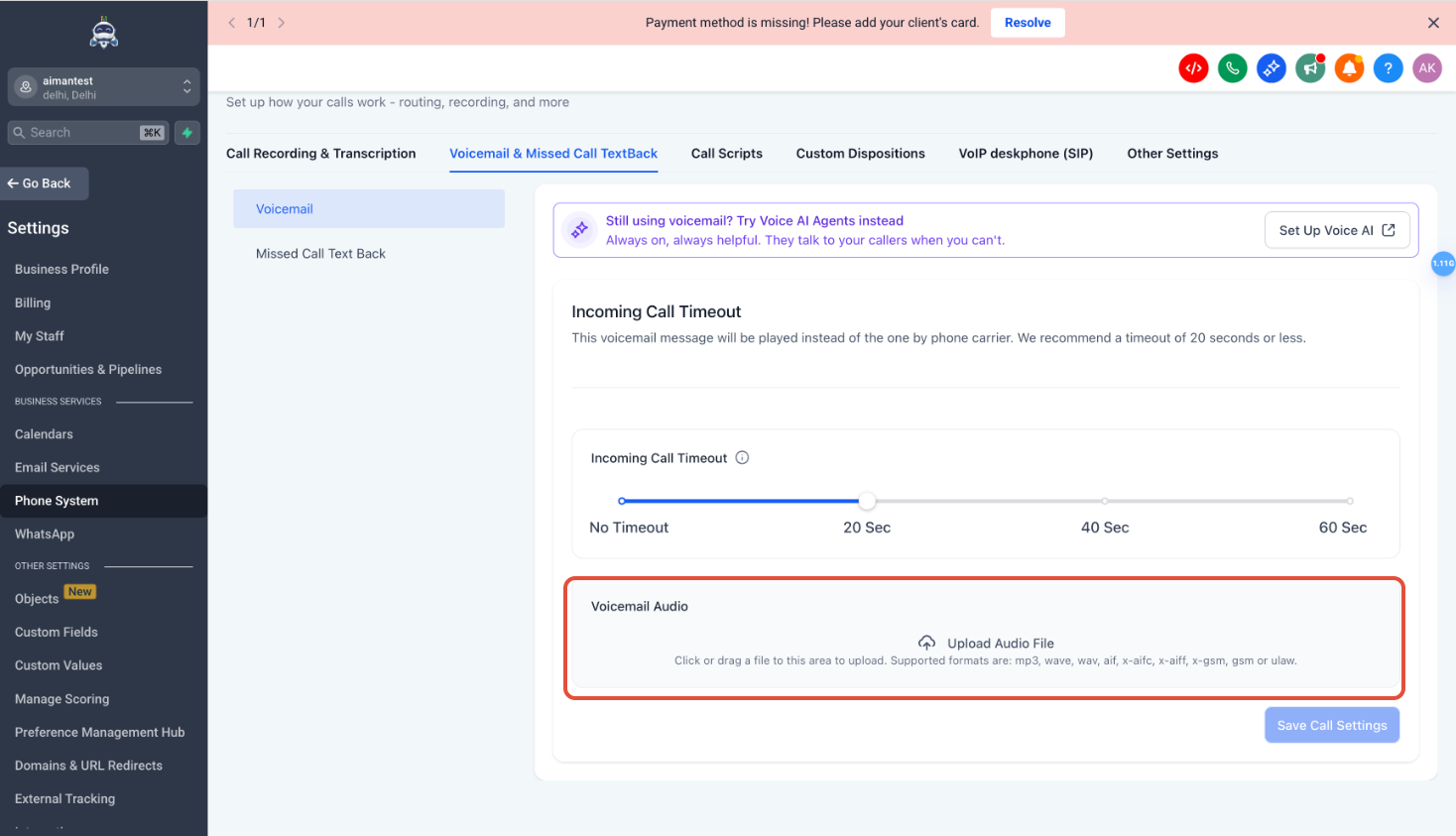
The call timeout you set here determines when a call counts as “missed.” A very long timeout delays the text back; a very short one may cut off callers who would have answered.
Smarter Sending Number Selection
A missed call can be a missed opportunity — and your follow-up text shouldn’t fail simply because the number your customer called can’t send SMS.
Previously: Missed Call Text Back always tried to send the follow-up SMS from the same number your customer called. Some numbers are designed primarily to receive calls, or may not currently be eligible to send SMS — so your text back could fail even when another messaging-ready number was available in your account.
Now: HighLevel automatically chooses an eligible sending number, helping more of your missed call follow-ups reach your customers while staying aligned with messaging requirements.
How the sending number is chosen
When a customer calls and you miss them, we’ll still try to text them back from the number they called first, as long as that number can send SMS. If it can’t, the system automatically looks for the next best option in this order:
| Priority | Number used to send the text back |
|---|---|
| 1 | The number the customer called — if it is eligible to send SMS |
| 2 | A number you’ve successfully messaged this contact from before |
| 3 | Your default outbound number |
| 4 | Another eligible messaging number available in the location |
This is especially useful when calls come through number pools, call tracking numbers, unverified toll-free numbers, or other numbers that aren’t eligible to send SMS. Instead of attempting the text from a number that can’t send, we use an eligible number when one is available.
What will you notice?
Most of the time, nothing changes — the missed caller simply receives your follow-up as expected.
In some cases the SMS may come from a different number than the one they originally called. That’s intentional — we choose a number that can actually send the message rather than letting an important follow-up fail.
Why it matters
With smarter number selection, you can:
In short: if you have an eligible number available, we’ll automatically use it to give your missed call text a better chance of reaching the customer.
- Answered calls continue to work as before and will not trigger a text back.
- If Missed Call Text Back is disabled in your Phone System settings, no message will be sent.
- Your contacts’ communication preferences and DND settings continue to be respected.
- If there is no eligible number available, you’ll see the failed attempt in the conversation along with the reason, giving you clear visibility into what happened.
Frequently Asked Questions
Was this article helpful?
That’s Great!
Thank you for your feedback
Sorry! We couldn't be helpful
Thank you for your feedback
Feedback sent
We appreciate your effort and will try to fix the article