Dedicated Sending Domain
A dedicated sending domain gives your business full control over what email servers deliver on your behalf — helping you avoid spam filters, protect your brand reputation, and improve deliverability.
LC Email Users Only
Dedicated sending domains apply only to accounts on the LC Email system. Warm up any brand-new domain before emailing large lists to avoid poor deliverability.
Using a Third-Party SMTP?
If you want to connect an external provider instead, see Setting Up SMTP Providers.
Table of Contents
What is a Dedicated Sending Domain?
A dedicated sending domain lets you send emails that appear to come directly from your brand — not from HighLevel's shared infrastructure. This protects your sender reputation and gives recipients a trustworthy, consistent experience. Any sub-account or agency can set one up quickly.
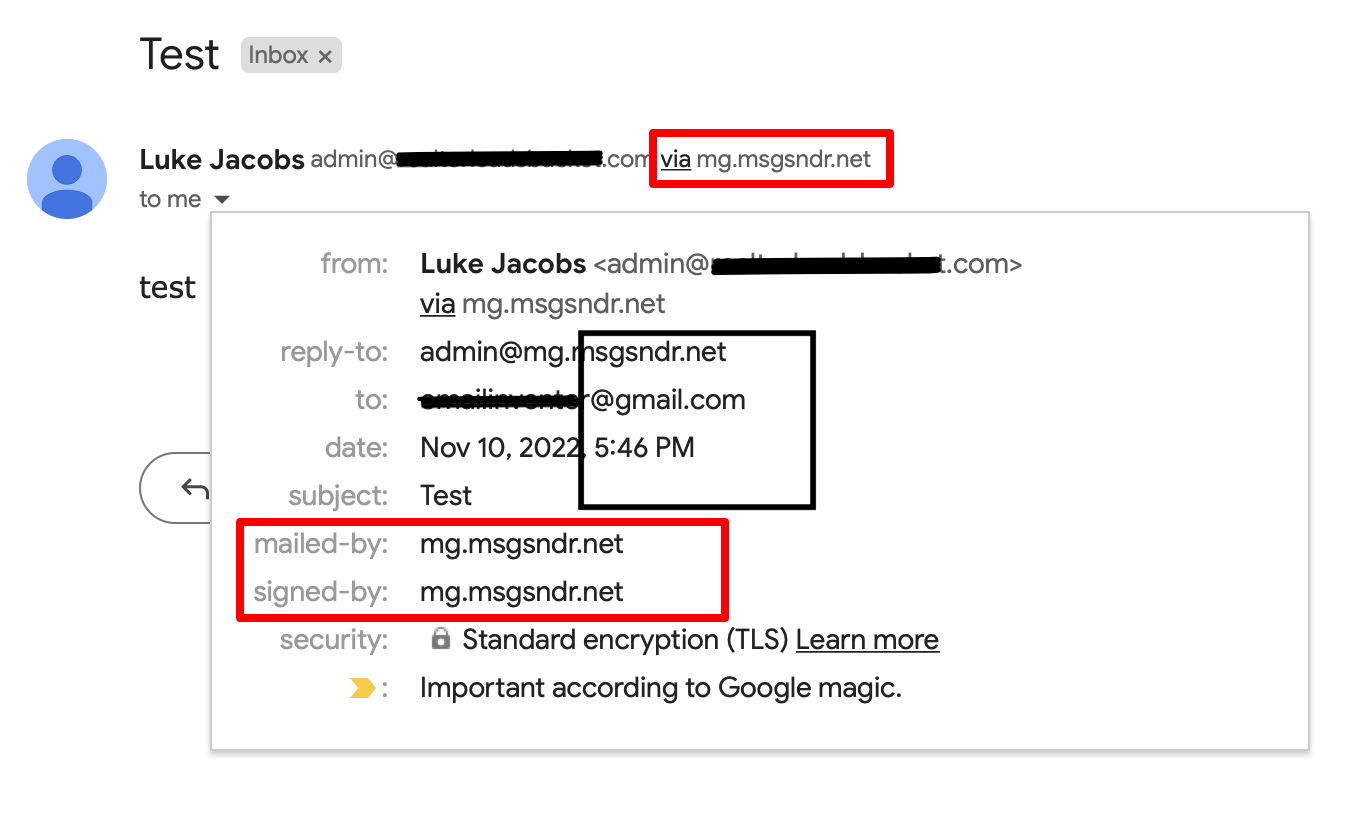
By default, all emails sent through the platform show HighLevel's sending servers in the "sent on behalf of" or "sent via" headers, as shown below:
Configuring Dedicated Sending Domains
You can create multiple sending domains and assign different ones for 1-to-1 emails, workflow emails, marketing campaigns, and payment/invoice emails.
Navigate to Email Services
- Go to Settings → Email Services
- Click the "Dedicated Domain and IP" tab.


Add Domain Information
- Click "Add Domain" to begin configuring.
- Enter the sub-domain you want to use for sending.

What is a Sub-Domain?
Sub-domains are variants of your root domain. For example, if your root domain is agency123.com, you can create sub-domains like emails.agency123.com or no-reply.agency123.com.
You can create as many sub-domains as you like and use different ones for different campaigns or communication types.
Verify DNS Records
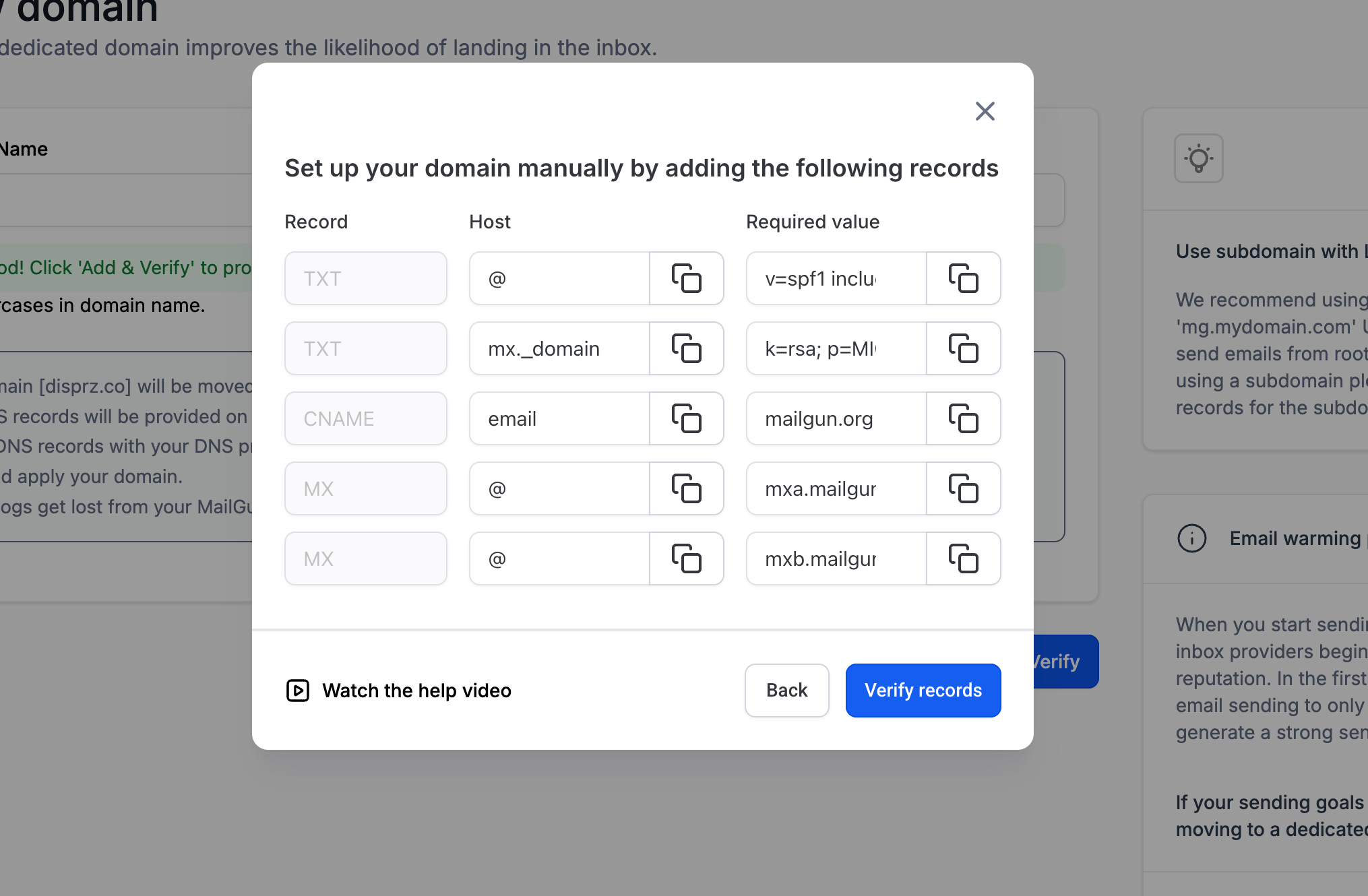
After adding your sub-domain, you'll need to verify DNS records. HighLevel can auto-configure them, or you can add them manually if auto-configuration isn't available.
Propagation can take up to 24 hours. If it's been longer, double-check your DNS settings. Note: Multiple DKIM records for the same domain are not supported.

Manually Adding DNS Records
To add DNS records manually, create them in your hosting provider's dashboard using the values HighLevel provides (as shown below). Then verify them from the HighLevel settings panel.

Instructions for common DNS providers:
Dedicated Sending Domains for Calendar Emails
You can assign dedicated sending domains specifically for Calendar emails (confirmations, reminders, reschedules) to protect deliverability for time-sensitive appointment communications.
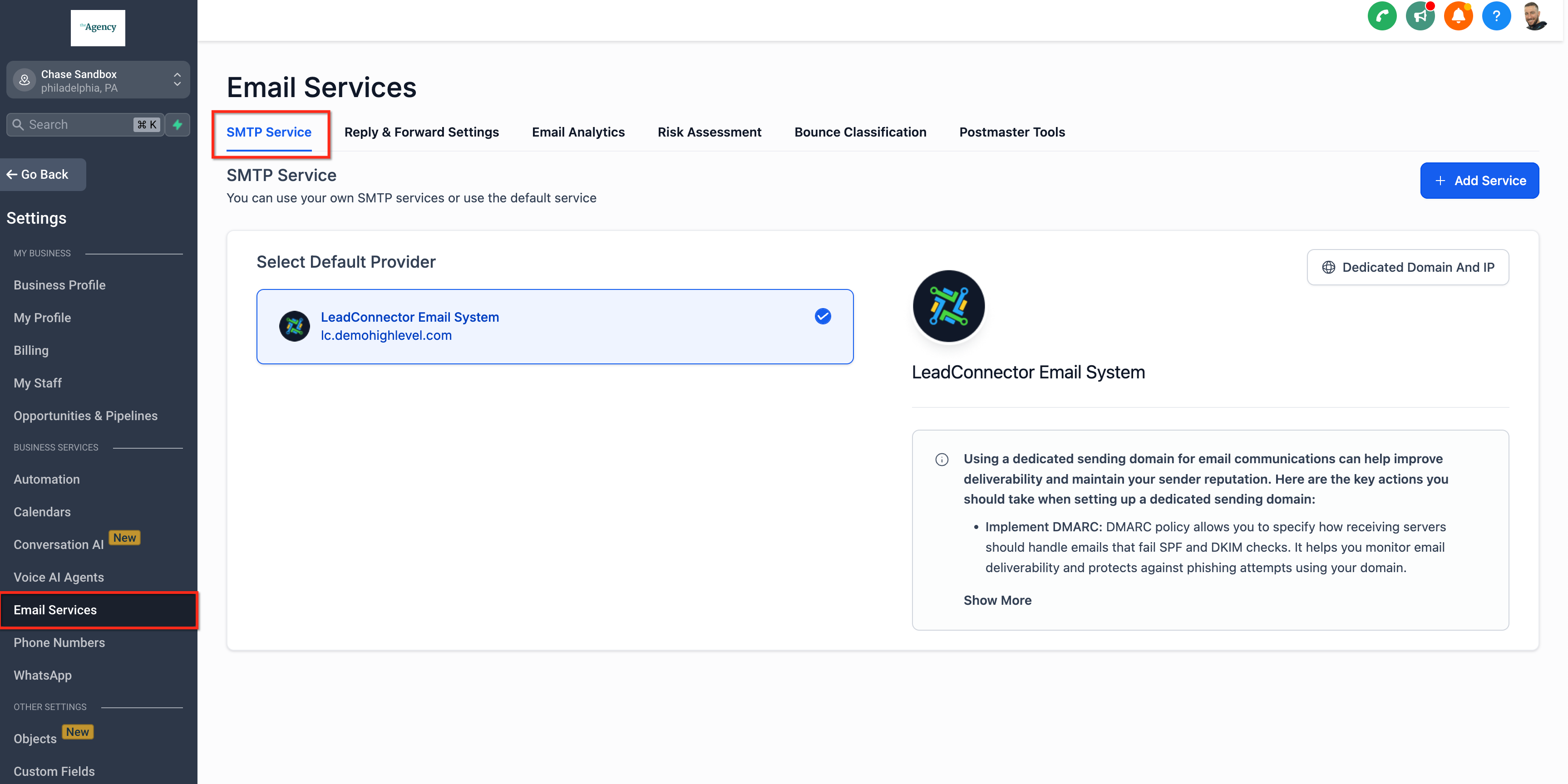
① Go to Settings → Email Service → SMTP Service
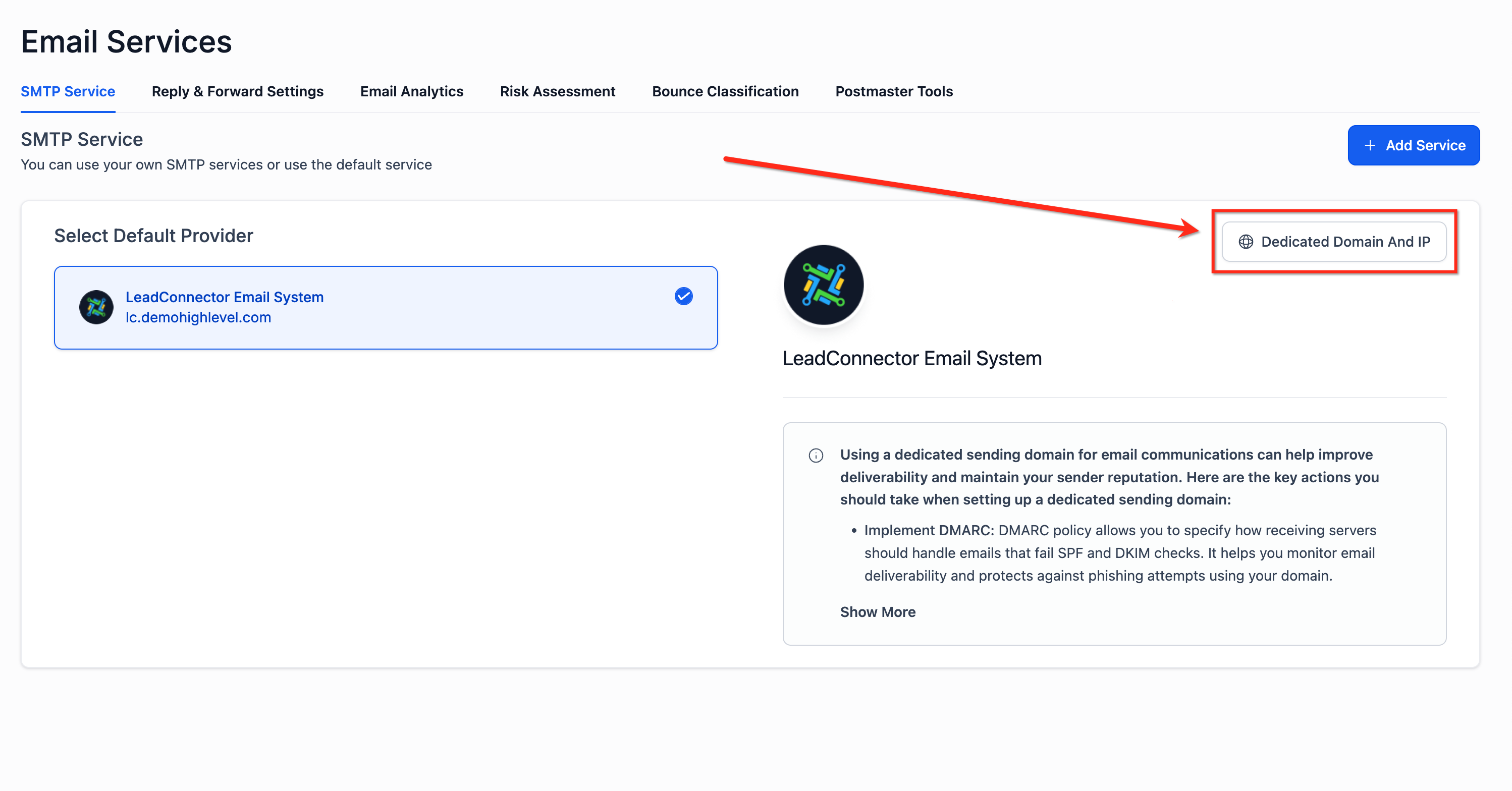
② Select Dedicated Domain and IP
③ Under Domain Configuration → Calendar, add up to 5 domains
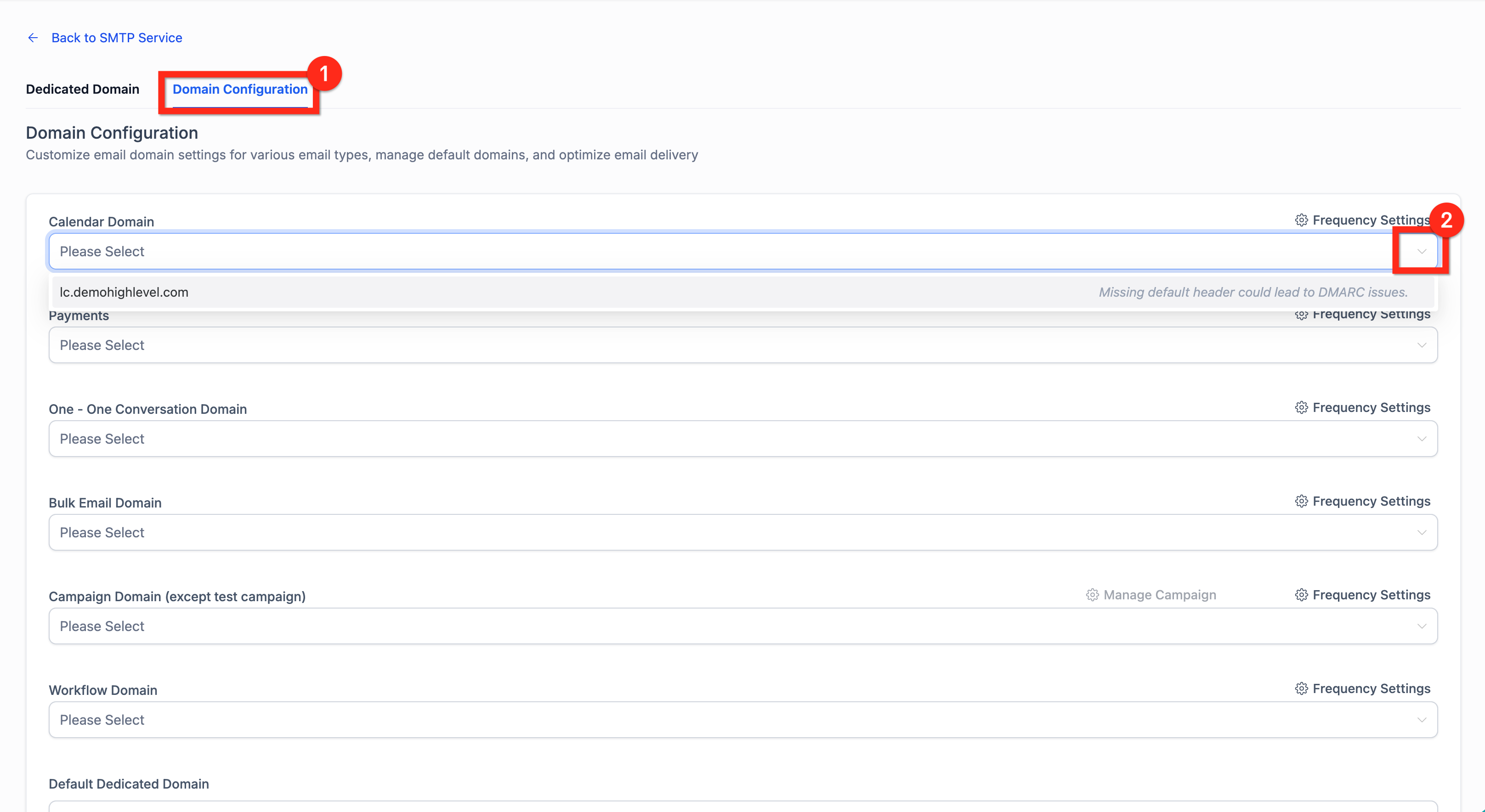
④ Set percentage-based distribution across multiple Calendar domains
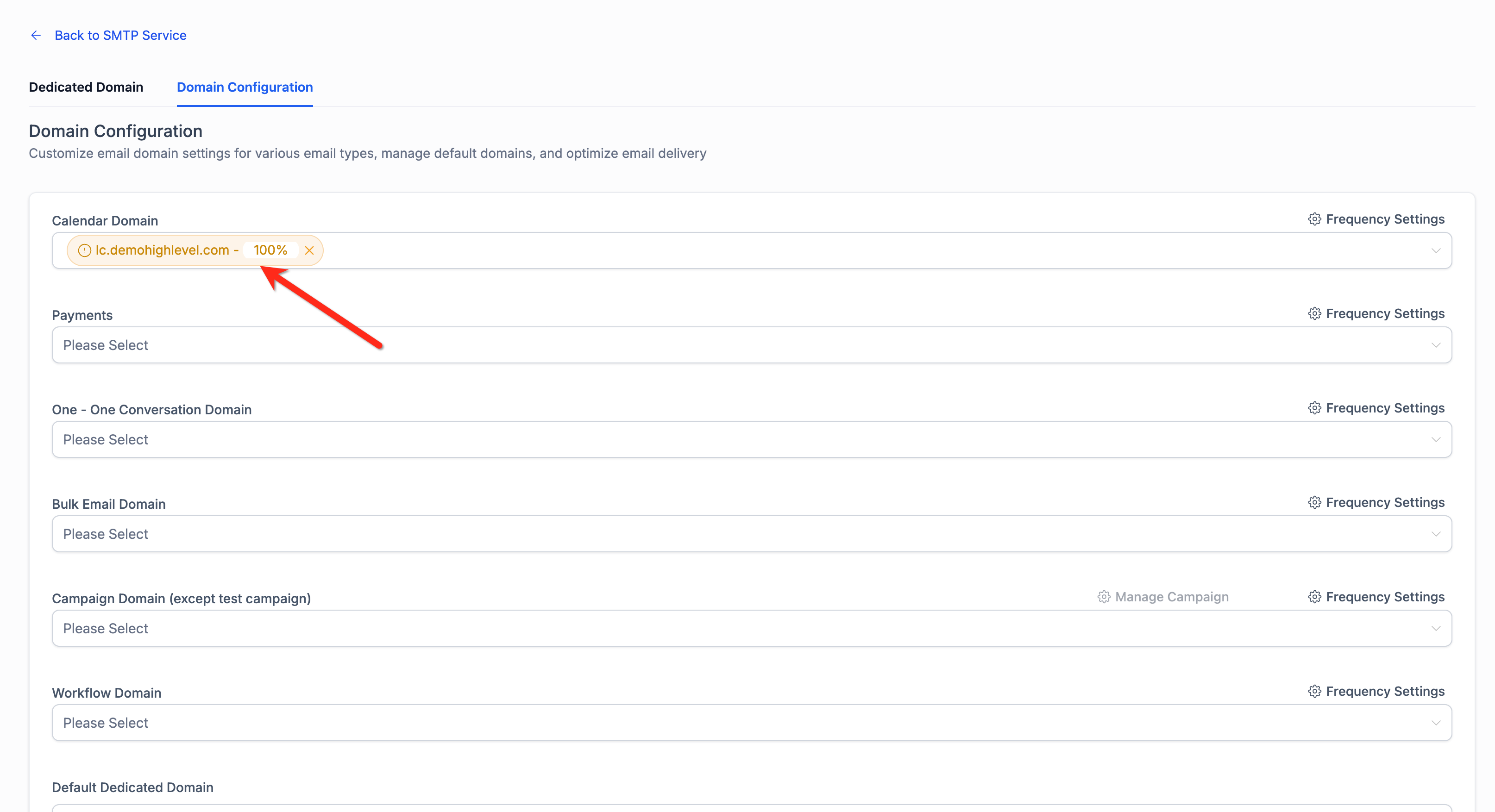
Only sub-account–created domains are available for selection. This feature is available for LC Email users only.
Set Up Google Postmaster Tools
For your dedicated sending domain
Google Postmaster Tools (GPT) helps you monitor Gmail-specific deliverability for your HighLevel dedicated sending domain. Track domain/IP reputation, spam rate, authentication alignment, and delivery errors to diagnose inboxing issues and improve performance.
Sign in to Google Postmaster Tools
Visit gmail.com/postmaster with a Google account.
Add your domain (e.g., yourbrand.com or mail.yourbrand.com)
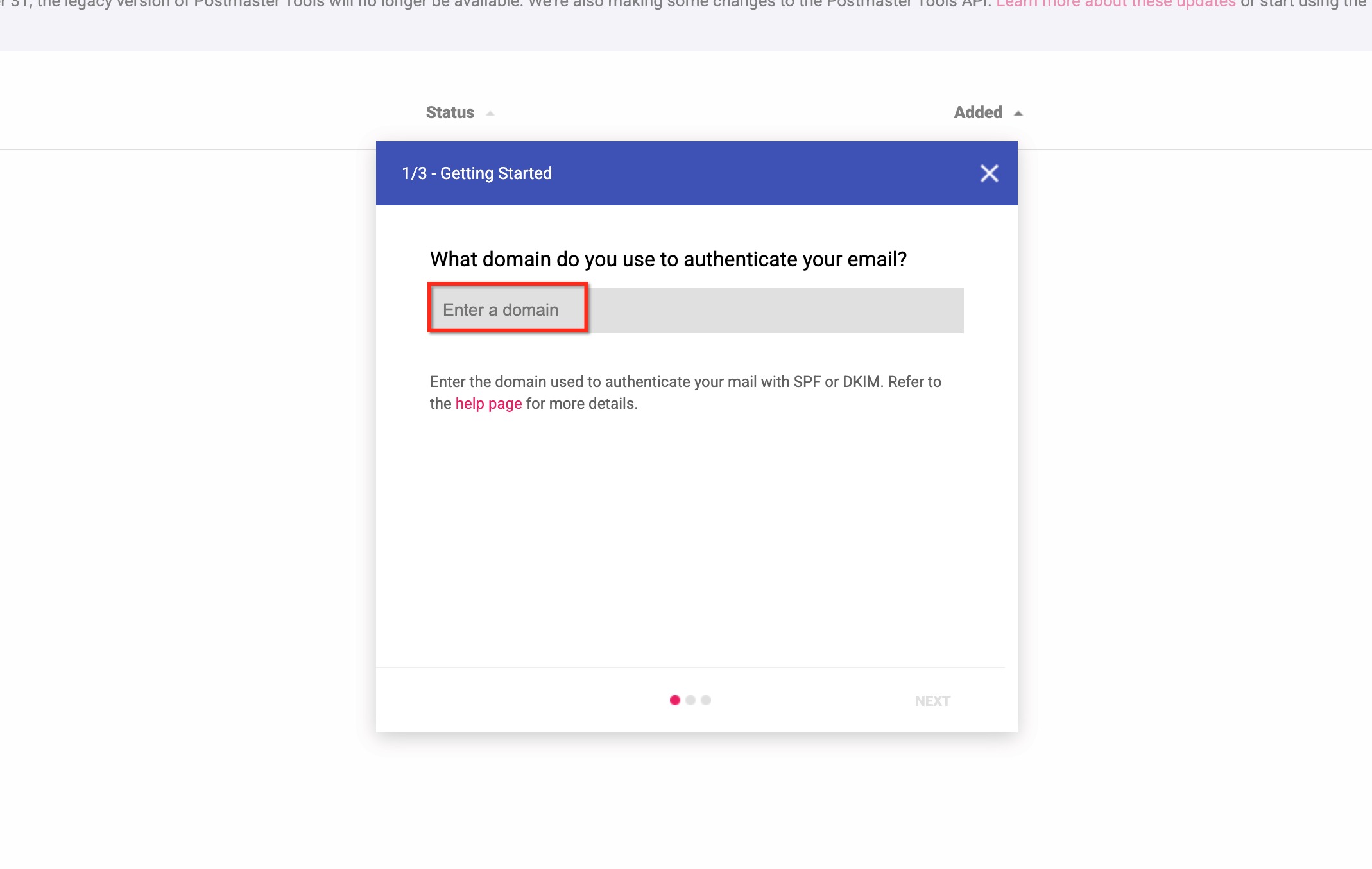
Choose Verify and copy the TXT record
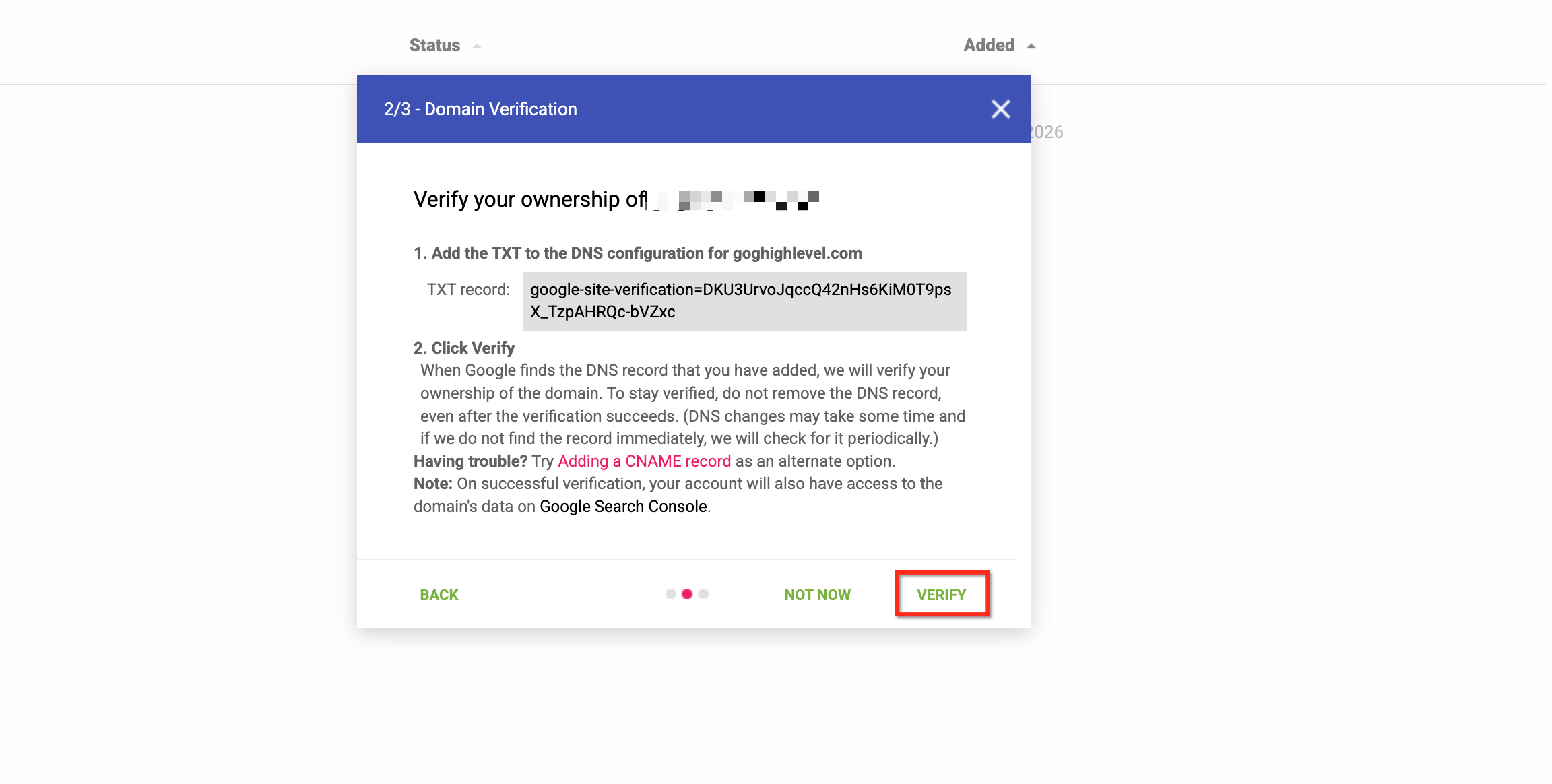
Add TXT record to your DNS host exactly as shown, then save
Return to GPT and complete verification. Google may take some time to detect the record.
Send email from HighLevel using your verified dedicated domain.
After Google collects sufficient volume, review Domain Reputation, IP Reputation, Spam Rate, Authentication, and Delivery Errors dashboards.
Troubleshooting Dedicated Sending Domains
Below are common issues you may encounter when setting up your dedicated sending domains, along with how to resolve them without contacting support.
Error: "Domain already pointing to email server!"
This means your domain already has DNS records connected to a different service. You'll need to remove any existing MX or SPF records (even HighLevel ones) before connecting it here.
Use a free lookup tool to check your current records: mxtoolbox.com/SuperTool.aspx →
Frequently Asked Questions
Related Articles
? Email Sending Guide: Email Best Practices & Email Warm UpWas this article helpful?
That’s Great!
Thank you for your feedback
Sorry! We couldn't be helpful
Thank you for your feedback
Feedback sent
We appreciate your effort and will try to fix the article